Explore Monsoon Fashion Editorial Prompts
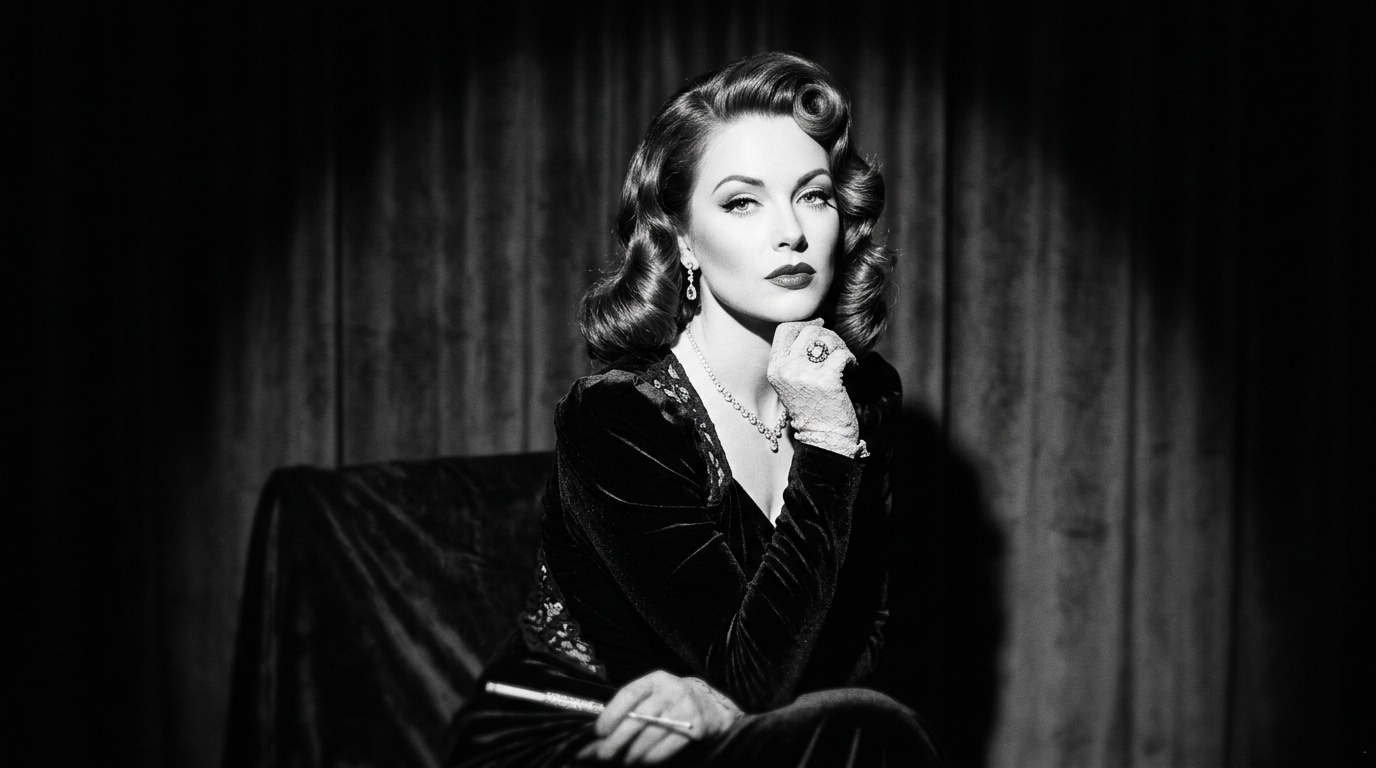
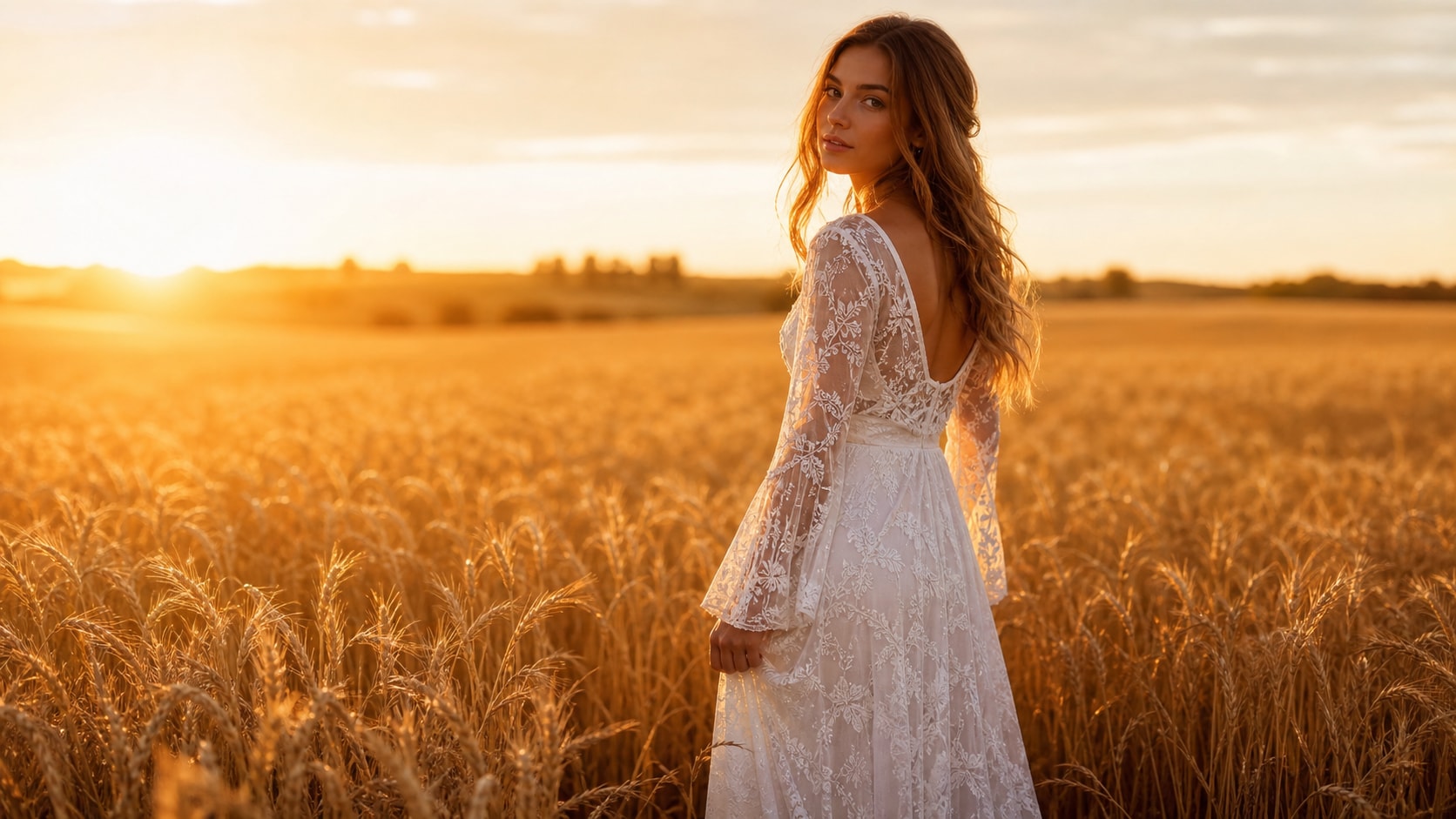
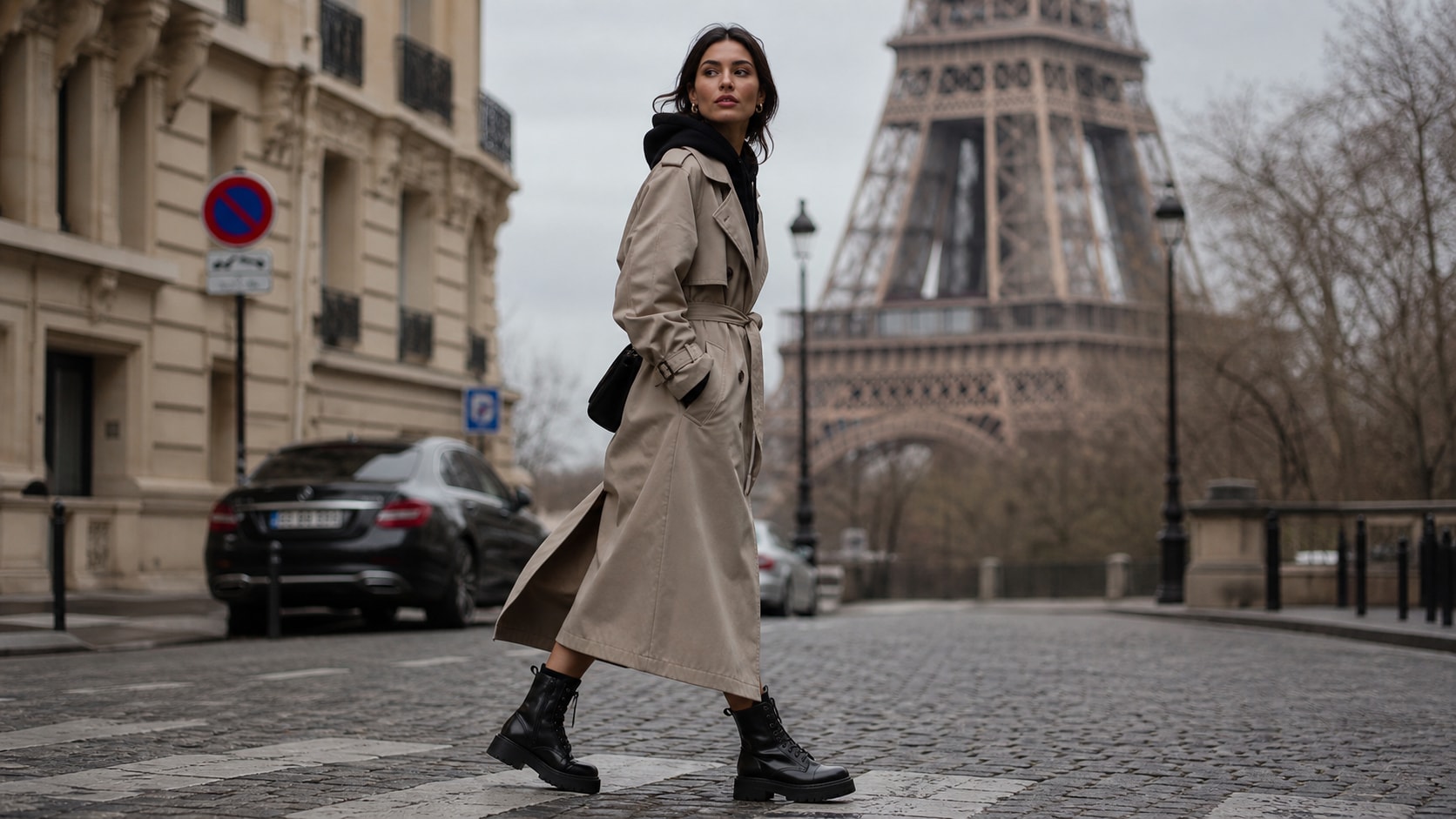
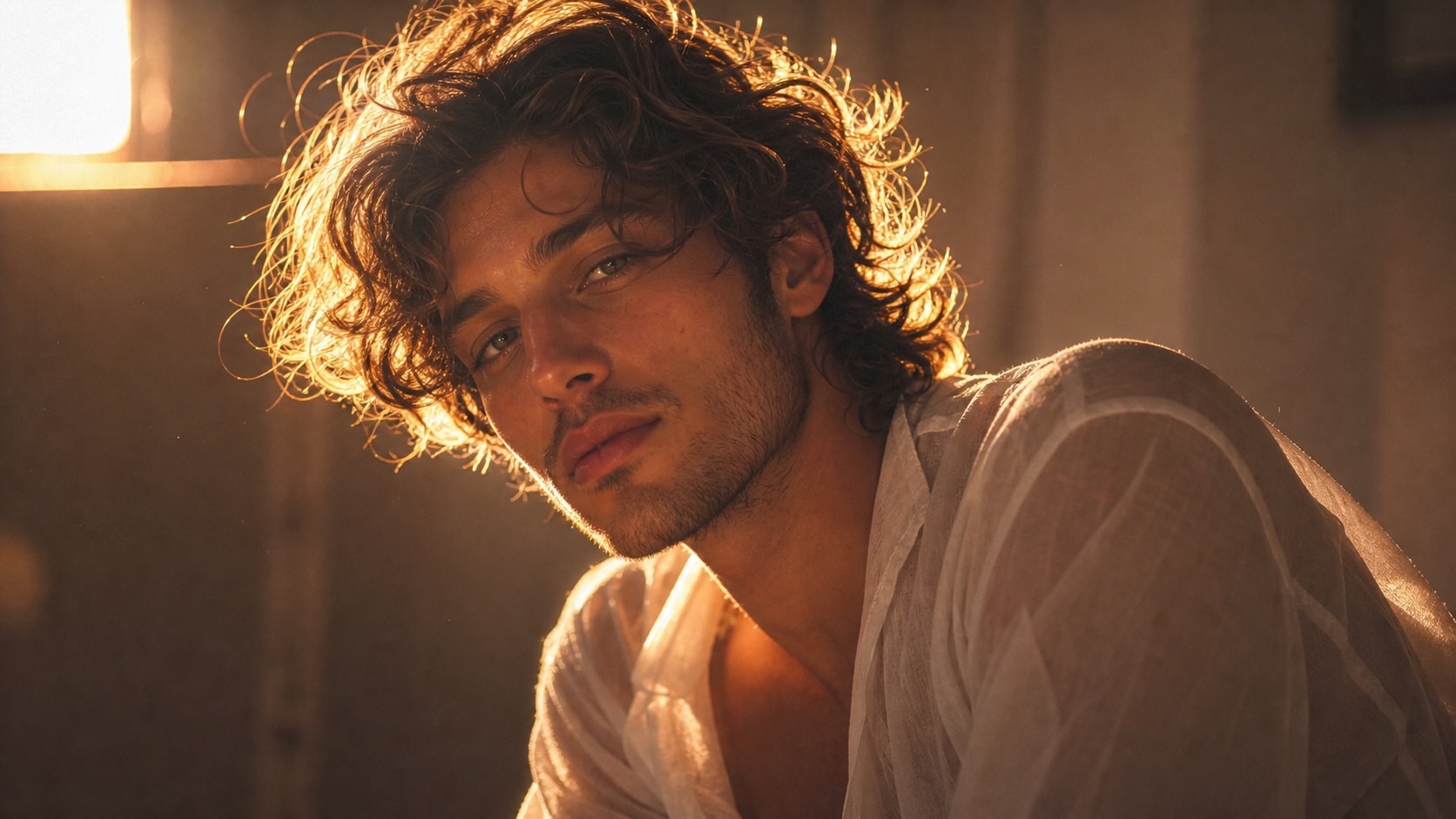
Browse Monsoon Fashion Editorial Prompts for Vogue-style rainwear, wet-look portraits, designer coats, ethnic wear, bridal fashion, and campaign covers. Use each idea to create assets for video templates, reels, social posts, covers, and export-ready visuals.
Loading more monsoon fashion editorial prompts...
 Category:
 Duration:
 Aspect Ratio:
Why Use Monsoon Fashion Prompts With Filmora?
Monsoon Fashion Visuals work best when rain, reflections, texture, and subject placement stay intentional. Filmora helps creators generate stills, compare models, refine crops, add overlays, animate scenes, and export polished rainy-day content.
Generate Monsoon Fashion Visuals With Filmora
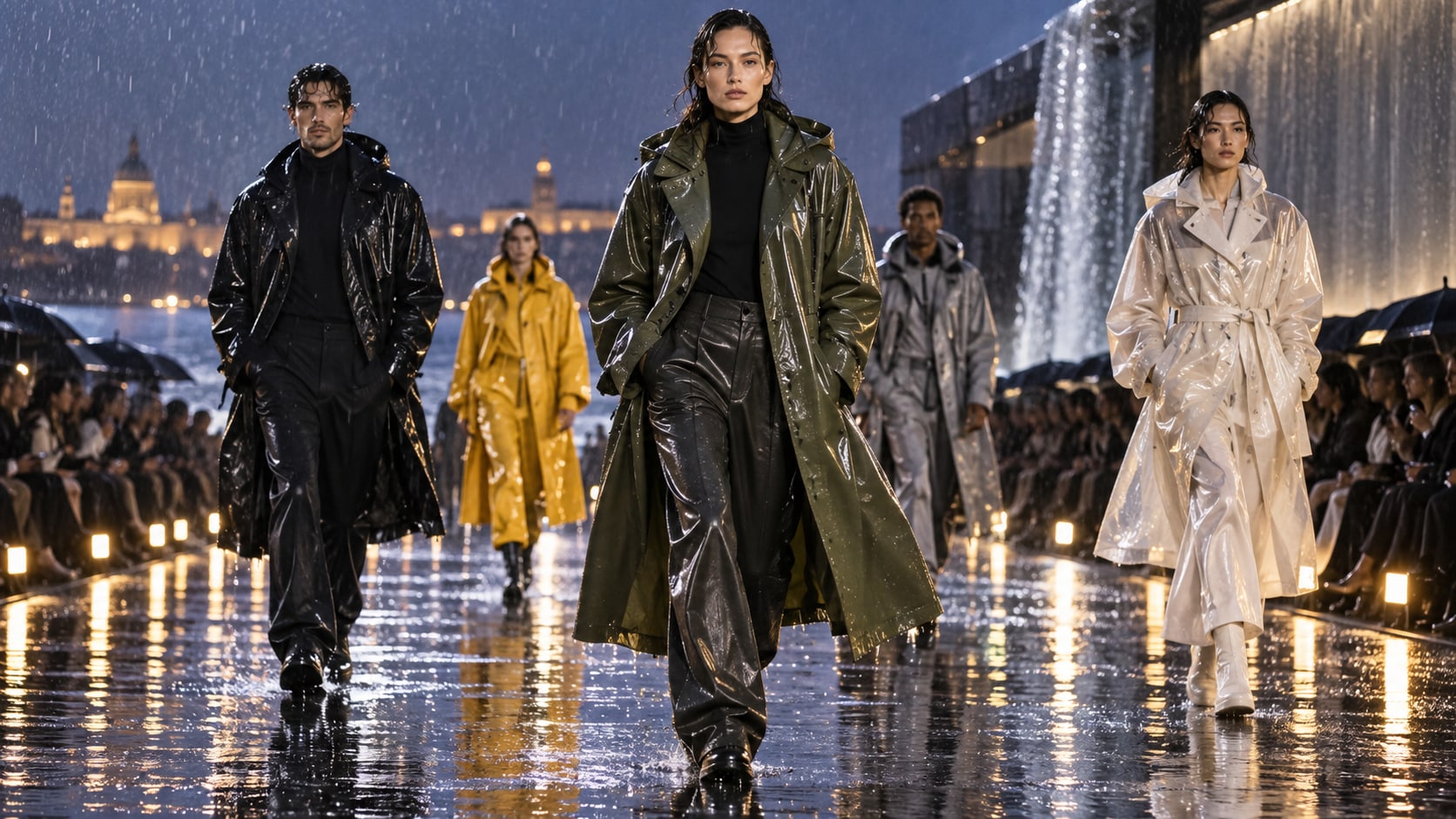
Generate Monsoon Fashion Visuals With Filmora
Start with a precise monsoon fashion editorial prompt, then use Filmora's AI image generator to turn Vogue-style rainwear, wet-look portraits, designer coats, ethnic wear, bridal fashion, and campaign covers into clean, edit-ready still images. Use it for lookbooks, rainwear campaigns, fashion reels, magazine-style covers, and seasonal product storytelling.
- Prompt to Image - Turn a detailed scene idea into a polished still with controlled subject placement and atmosphere.
- Word-Free Canvas - Keep generated visuals free of readable text so captions and branding remain easy to edit later.
- Fast Variations - Compare poses, weather density, light direction, and crops before selecting a final asset.
Use GPT Image 2 for Rain and Texture Detail
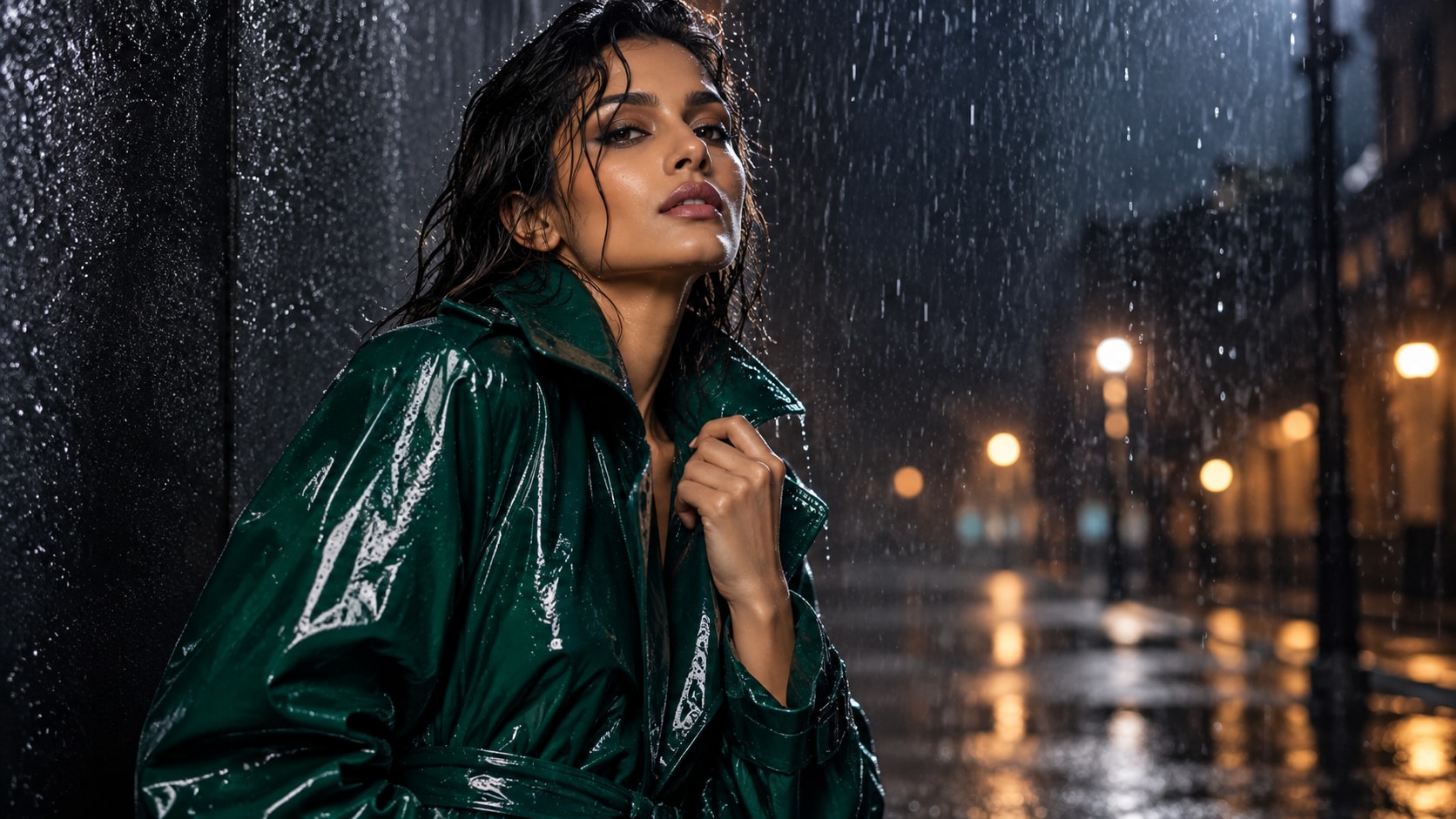
Use GPT Image 2 for Rain and Texture Detail
When the scene needs believable water, fabric, skin, reflections, or background detail, Filmora's GPT Image 2 helps follow a structured prompt. This helps preserve garment silhouette, wet fabric highlights, hair detail, runway posture, and clean negative space for campaign copy.
- Prompt Following - Describe weather, props, pose, camera angle, and negative space with greater control.
- Texture Control - Refine droplets, wet surfaces, hair, clothing, glass, pavement, and natural color balance.
- Edit-Ready Results - Keep the focal subject readable before adding titles, effects, music, or motion in Filmora.
Try Nano Banana for Alternate Moods
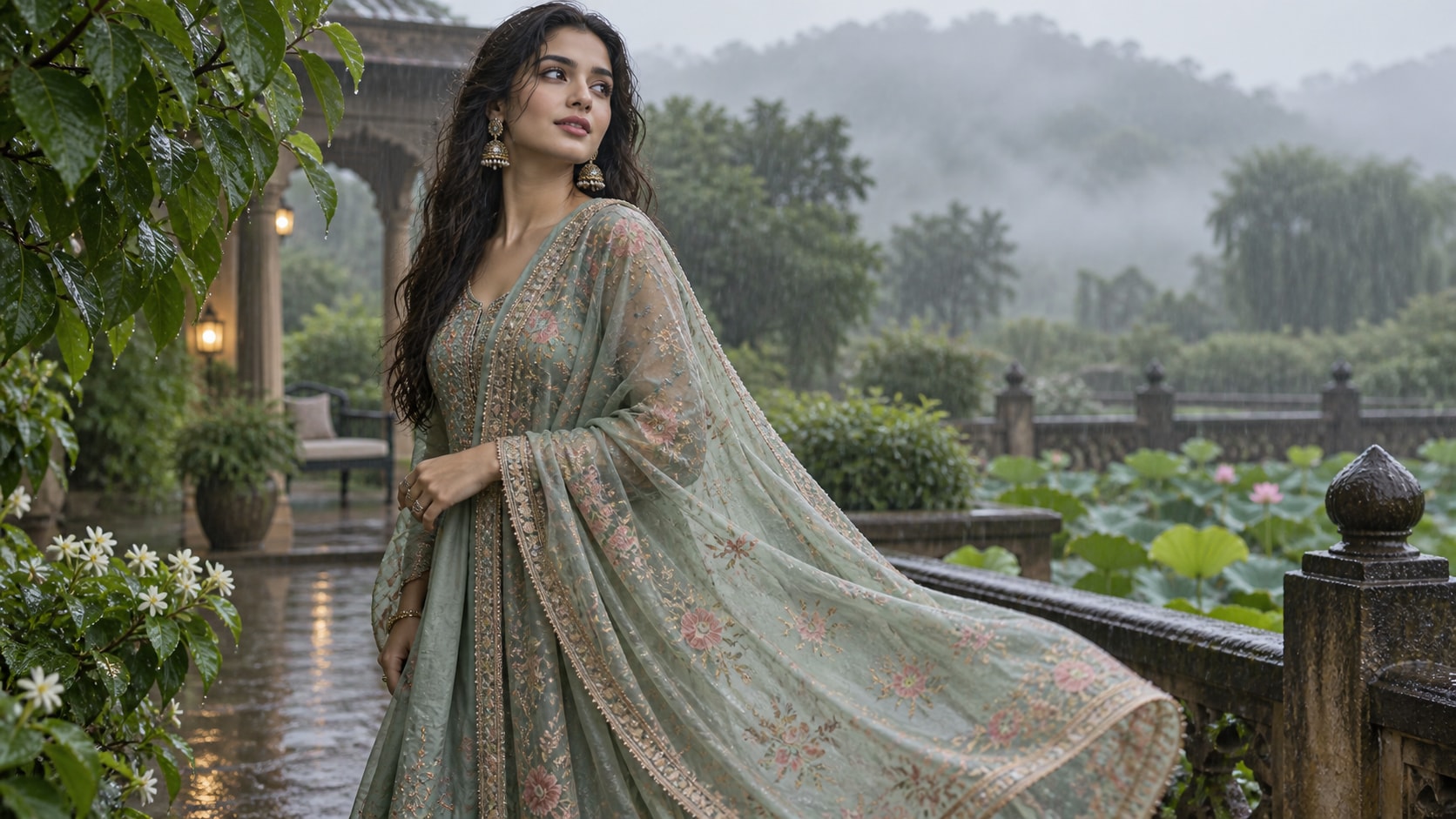
Try Nano Banana for Alternate Moods
Use Filmora's Nano Banana when one prompt needs a different palette, framing, subject arrangement, or social treatment. Try couture streetwear, 90s Bollywood rain mood, bridal rain styling, or minimalist studio variants from the same fashion concept.
- Mood Range - Explore soft gray skies, saturated umbrellas, neon reflections, warm interiors, or cinematic dusk.
- Variant Testing - Generate multiple directions before locking a page image, reel cover, or campaign frame.
- Creative Flow - Move from prompt to refined visual in one Filmora workflow.
Animate Monsoon Stills Into Video
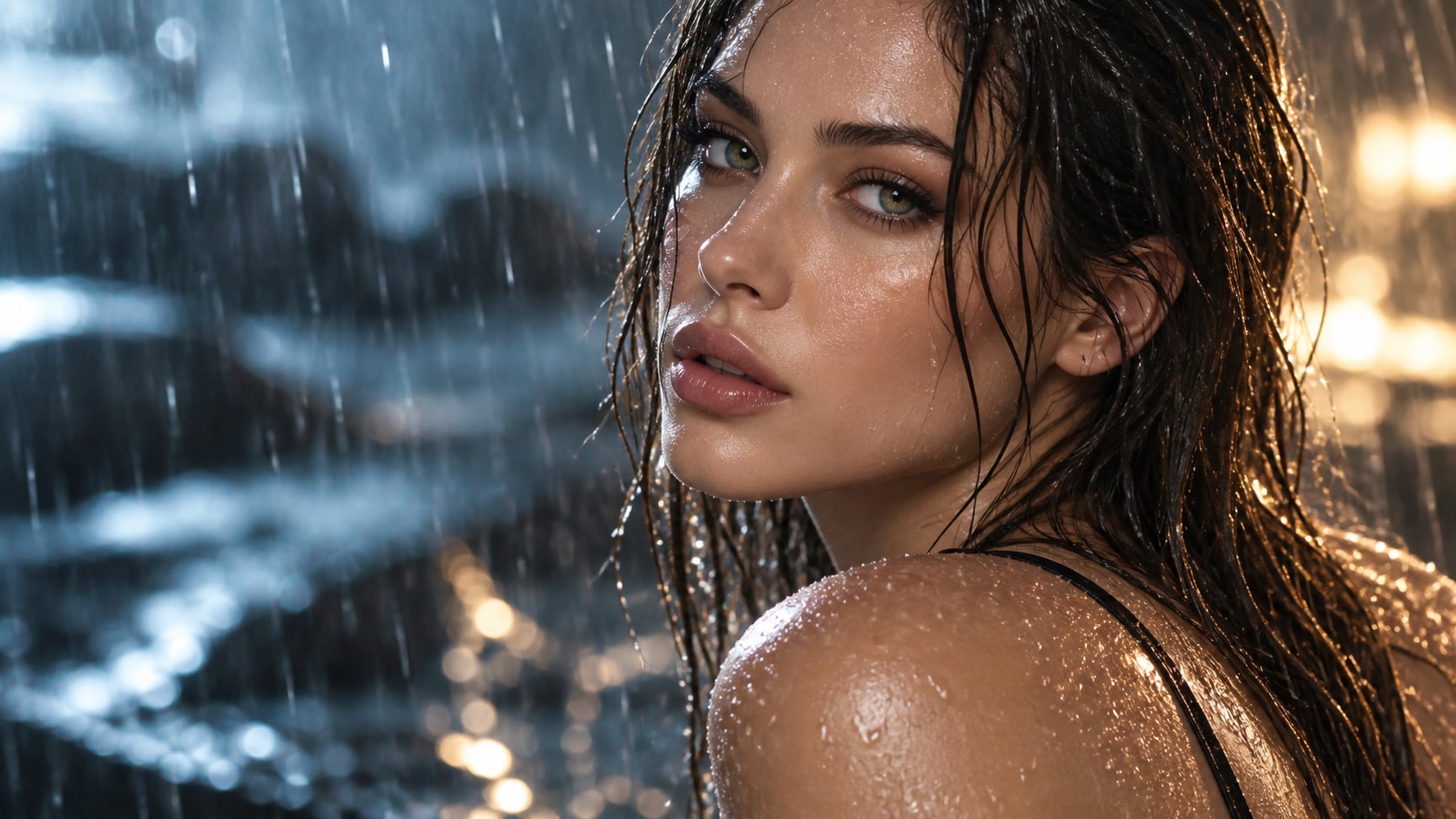
Animate Monsoon Stills Into Video
After generating the still, use Filmora's AI Image to Video workflow to add camera movement, rain ambience, overlays, sound, and social-ready exports. Animate coat movement, rain streaks, fabric shimmer, light sweeps, title reveals, and fashion-reel audio.
- Motion Ideas - Add falling rain, rippling puddles, passing lights, umbrella movement, steam, or a gentle camera push.
- Social Formats - Crop one generated still into 16:9, 9:16, and 1:1 versions for different channels.
- Final Export - Finish with readable titles, music, effects, transitions, and platform-ready output.
Frequently Asked Questions About Monsoon Fashion Editorial Prompts
How to Generate Monsoon Fashion Editorial Images
Choose a monsoon fashion setup, define the weather and composition, generate the still, then personalize or animate it in Filmora.
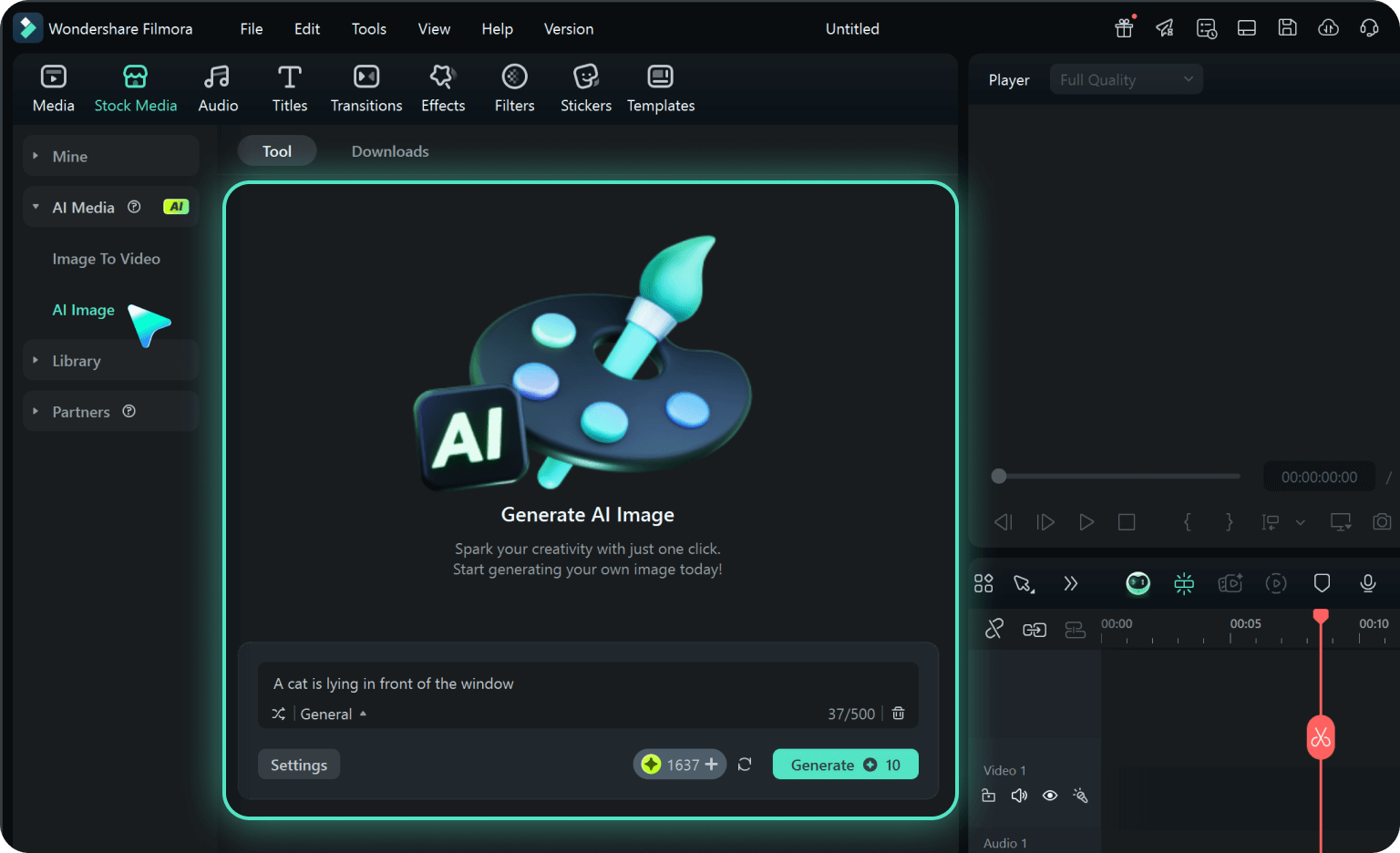
Step 1 Choose a Monsoon Fashion Prompt
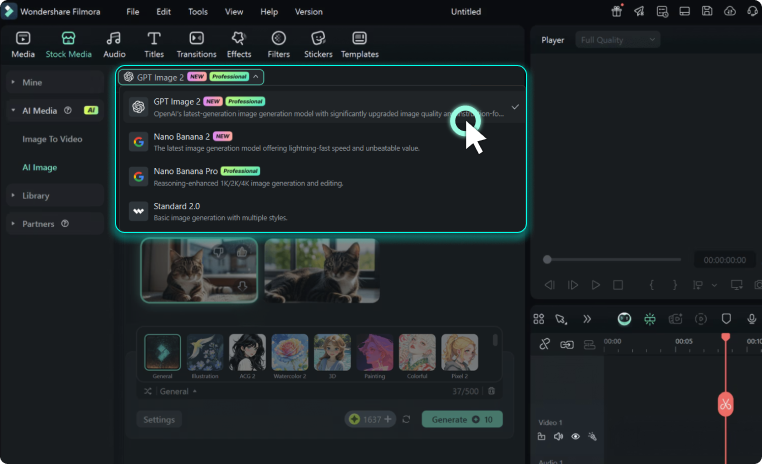
Step 2 Set Style, Model, and Ratio
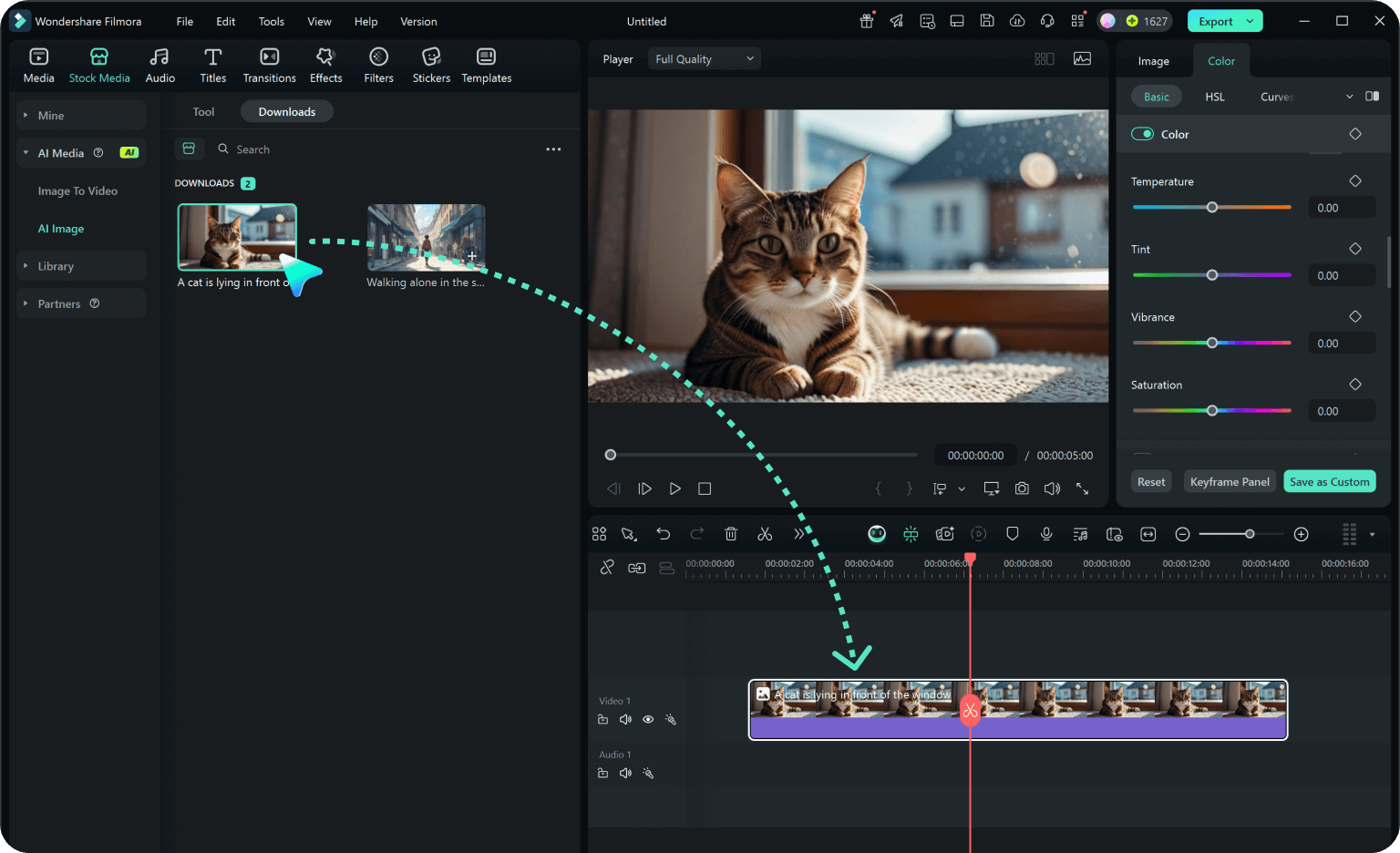
Step 3 Generate, Personalize, and Export
-
1: Choose a Monsoon Fashion Prompt
Pick a monsoon fashion scene for Vogue-style rainwear, wet-look portraits, designer coats, ethnic wear, bridal fashion, and campaign covers. -
2: Set Style, Model, and Ratio
Paste the prompt into Filmora's AI Image tool, choose GPT Image 2 or Nano Banana, select a ratio, and refine light, texture, and framing. -
3: Generate, Personalize, and Export
Generate the still, adjust crop and color, add motion or overlays if needed, then export it for posts, reels, covers, or campaign edits.
Monsoon Fashion Editorial Prompts for Rainwear Campaigns
Use Monsoon Fashion Editorial Prompts to create Vogue-style rainwear, wet-look portraits, designer coats, ethnic wear, bridal fashion, and campaign covers and motion-ready visuals for Filmora editing.