

 100% Security Verified | No Subscription Required | No Malware


 ChatGPT
 Perplexity
 Gemini
 Claude
 Grok
Grok
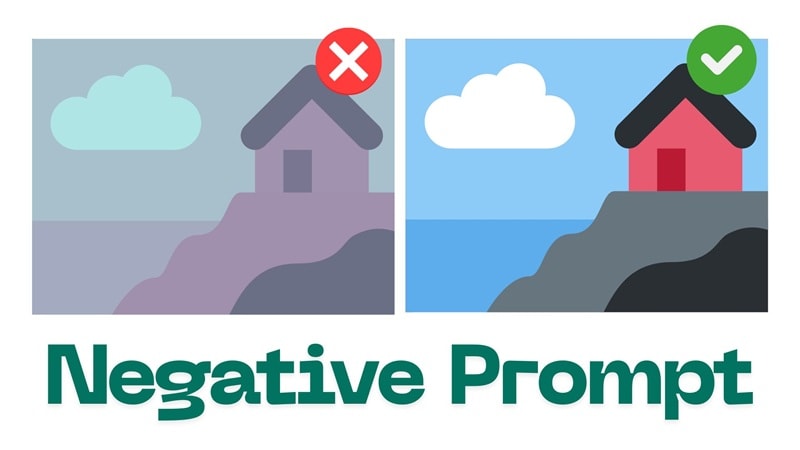
Besides telling the AI what you want to create, you can also tell it what not to make. That’s exactly what a negative prompt is for.
A negative prompt works like a filter. It helps block common problems that AI tools tend to add when instructions are vague. Without clear limits, the AI fills in the gaps on its own, and that’s usually when results start looking off.
So, how do you actually make the most of AI negative prompts? Find out in this guide with practical examples you can use right away.
Part 1. Negative Prompt Meaning and Impact on Final Outputs
Negative prompts are instructions that you ask the AI what to avoid while generating an image or video. Before the AI can guess and fill in missing details, you set clear boundaries for the final output. This extra layer of control helps reduce visual errors and saves time (or quota) you’d otherwise spend regenerating results.
Below are practical examples of how to use negative prompts to better control your results.
1. Exclude Certain Colors
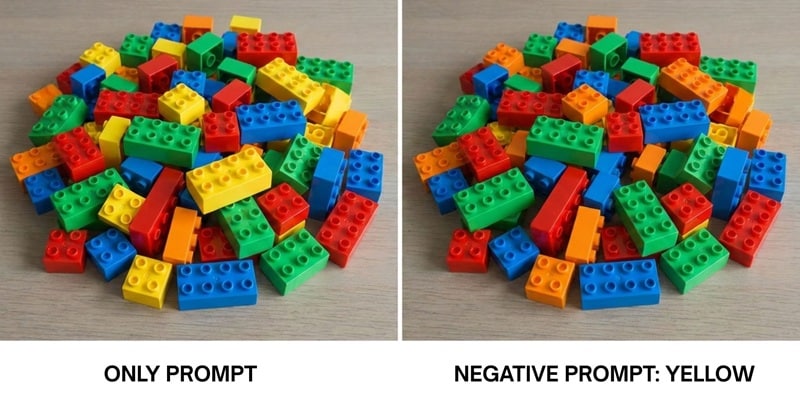
If you don’t set color boundaries clearly, the AI will just pick whatever it thinks looks good based on the data it was trained on. That’s how you end up with colors or shades that you may not have intended.
If there are colors you don’t want, just tell the AI to leave them out using a negative prompt. Though you can fix colors later, it’s easier to exclude them early.
2. Prevent Anatomy and Proportion Errors
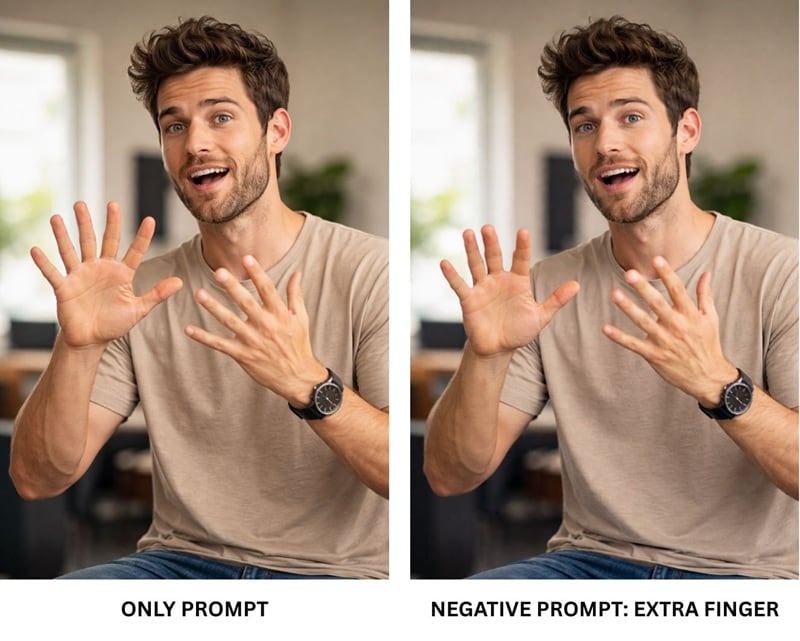
It’s a common issue that AI still struggles with anatomy and proportions. Even though models have improved a lot, things like extra fingers or distorted body shapes can still slip through. Before it happens, there’s nothing wrong with adding a few precautionary negative prompts that help reduce these kinds of mistakes.
3. Avoid Low Quality and Technical Issues
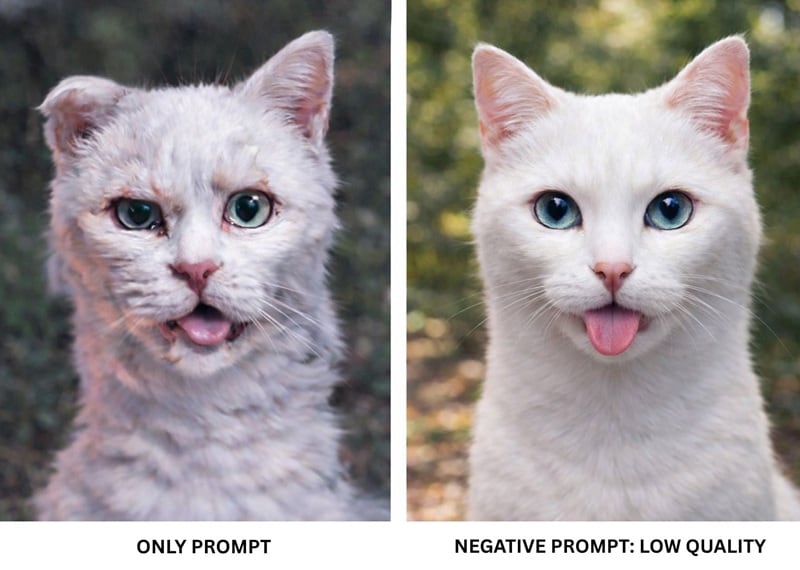
You may think that AI will always deliver high-quality results by default. But if you’ve used AI tools for a while, you’ll know that’s not always true.
When the model is unsure or rushing to fill in details, it can produce blurry areas, strange textures, compression artifacts, or uneven sharpness on the image or video it generates. Negative prompts can be a simple solution to these issues, so the AI knows to avoid them.
4. Control Lighting and Shadow
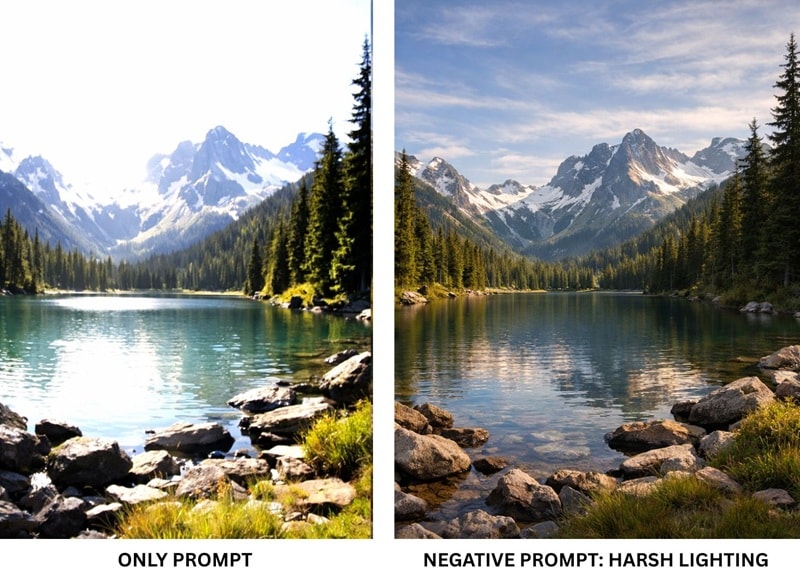
If you have specific lighting in mind but don’t want to overcomplicate your main prompt, you can use AI negative prompts to block lighting styles that don’t fit your vision. This instruction gives the AI clearer boundaries to follow, so the lighting and shadows stay consistent with the mood you want, without forcing you to spell out every detail.
5. Keep Results Safe and Appropriate
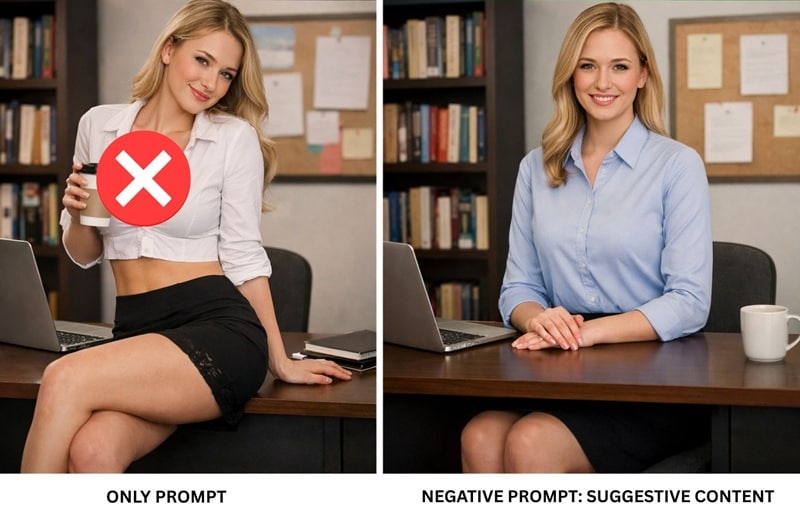
When you are creating AI content that will be used for public content or shared online, you can also add negative prompts to block elements that may be sensitive, misleading, or not suitable for your audience. They can be a simple safety net that helps keep the final result appropriate.
Part 2. Common Negative Prompt Lists That Improve AI Results
You now understand what negative prompts mean. What you can do next is start figuring out which ones to use for your own projects. To help you out, we’ve sorted the best negative prompts based on the kinds of problems they help avoid.
Negative Prompts for Quality & Technical Errors
- Low quality
- Blurry
- Pixelated
- Grainy
- Noisy
- Compression artifacts
- Out of focus
- Over sharpened
- Cropped
- Distorted
Negative Prompts for Anatomy & Body Mistakes
- Bad anatomy
- Bad proportions
- Extra limbs
- Extra arms/hands
- Extra fingers
- Missing limbs
- Missing arms/hands
- Mutated limbs
- Malformed limbs
- Disfigured
- Deformed body
Negative Prompts for Facial & Expression
- Asymmetrical face
- Distorted face
- Extra eyes
- Cloned face
- Cross eyed
- Deformed facial features
- Unnatural expression
- Blurry face
Negative Prompts for Lighting & Exposure
- Overexposed
- Underexposed
- Harsh shadows
- Flat lighting
- Uneven lighting
- Washed out
- Blown highlights
- Low contrast
- Overly dark
- Unrealistic lighting
Negative Prompts for SFW Images
- NSFW
- Nude
- Explicit
- Suggestive
- Cleavage
- Nipples
- Uncensored
- Sexual content
Negative Prompts for Landscape & Nature
- Overexposed
- Underexposed
- Low contrast
- Unrealistic colors
- Flat background
- Deformed structures
- Artificial looking
- Unreal scale
Negative Prompt for Video Generation
- Frame skipping
- Flickering
- Jitter
- Stuttering
- Ghosting
- Warping
- Inconsistent motion
- Choppy movement
Negative Prompts for Text, Logo, or Watermark
- Text
- Logo
- Watermark
- Signature
- Branding
- Numbers
- Letters
- UI elements
These negative prompt lists are, of course, not limited to just these examples. You can expand them based on what you need. For example, if you want to exclude a specific color, you can add that color to your negative prompt so the AI knows to avoid it.
Part 3. How to Use Negative Prompts for Image and Video Generation
To test the negative prompt examples above and apply everything we’ve discussed so far, both for image and video generation, you can use Wondershare Filmora as your starting point. Filmora already includes both an AI Image Generator powered by Nano Banana Pro and an AI Video Generator backed by advanced models like Sora 2 and Veo 3.1.


This all-in-one workflow saves time and effort by letting you generate images and videos in the same place. You don’t need to switch platforms when you want to move between creating an image and a video.
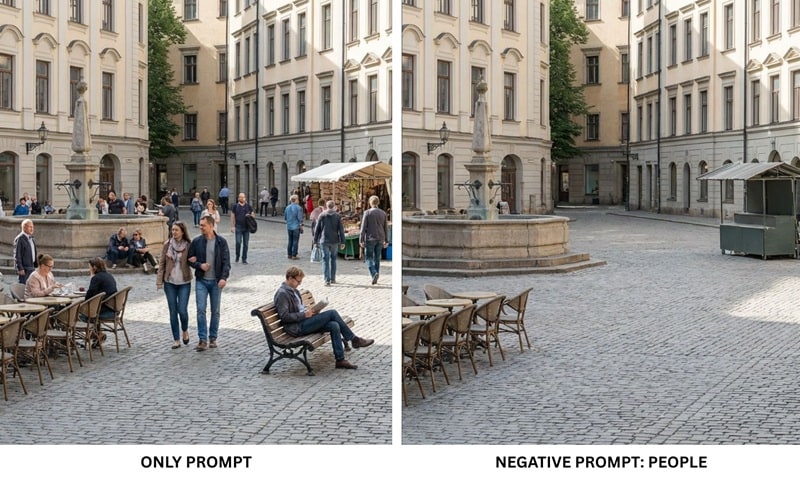
While some platforms offer a dedicated negative prompt box, in Filmora, you just need to add negative instructions directly into your prompt using words like avoid, exclude, no, or similar phrases. Or, you can add syntax instructions like:
- [Your Positive Prompt]. Exclusions: [List of things to avoid].
- [Prompt]. Negative prompt: [Avoid list].
To show you how this works in practice, check out the steps below to get started.
How to Use Negative Prompts for Image Generation
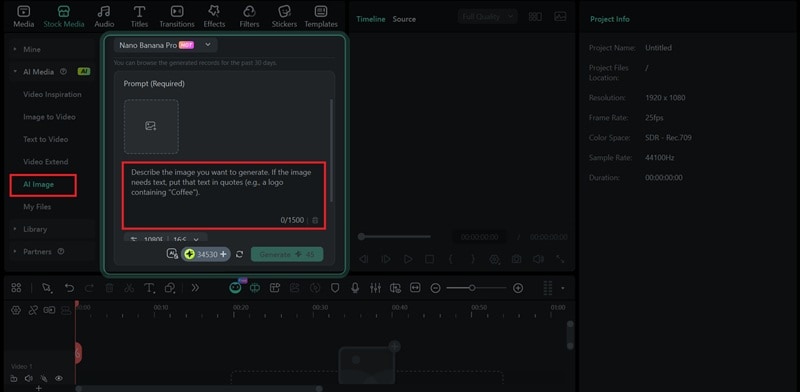
Step1Open Filmora and select AI Image from the startup menu. Or, you can also find it on the Toolbox panel.
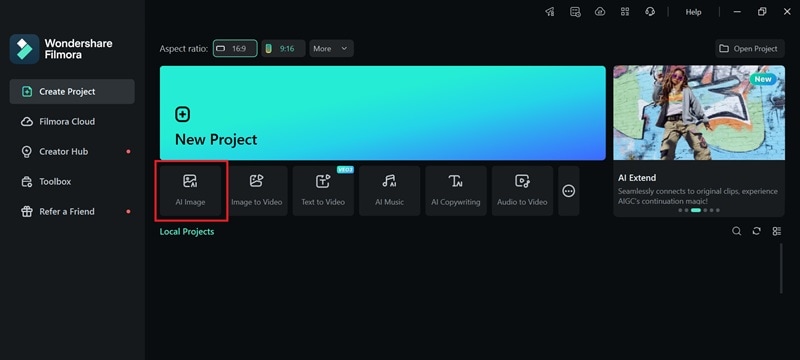
Step2Type your main image description in the prompt box, then add negative prompts in the same field.
How to Use Negative Prompts for AI Video Generation
There are two main ways to create AI videos in Filmora:
- Text-to-Video: Generate a video directly from a written prompt only.
- Image-to-Video: Upload an image as a reference and turn it into a moving clip.
You can choose either method depending on what you’re creating, and apply the same AI negative prompt logic in both cases.
Using Text-to-Video Generator:
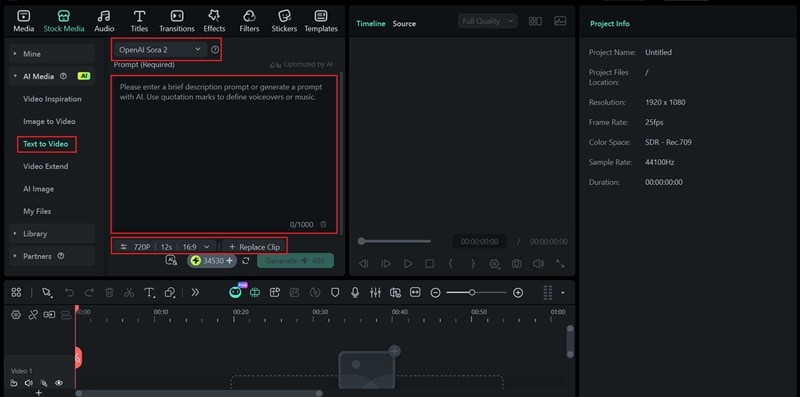
Step1Open the Text to Video tool under Stock Media > AI Media > Text to Video.
Step2Select an AI model and enter the main prompt, along with the negative prompt. Adjust the settings, and start generating.
Using Image-to-Video Generator:
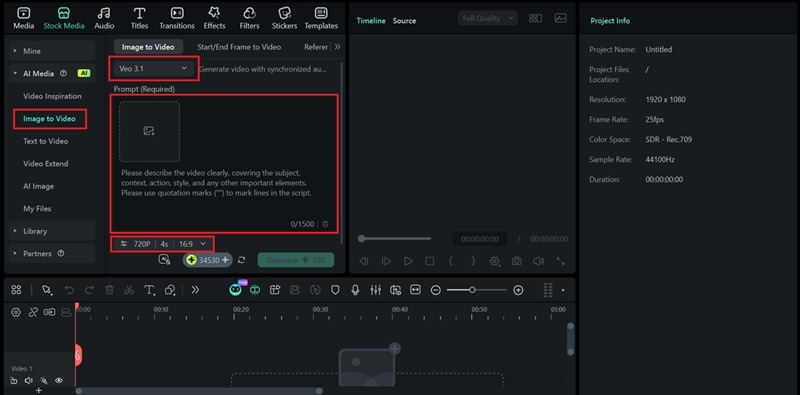
Step1Select Image to Video under the Stock Media > AI Media panel.
Step2Choose the AI model, upload your image reference(s), enter the main prompt along with the negative prompts, then adjust the settings as needed.
Conclusion
Negative prompts in AI video and image generation may seem like a small detail, but they can make a big difference in the final outcomes. You can use them to filter out what you don’t want, on top of describing what you do want.
This small habit gives you more control over the outcome and minimizes errors that often lead to unnecessary regenerations. If you’re looking for a place to put negative prompts into practice, Filmora lets you test them for both image and video generation in one place.
