

 TL;DR:
You can edit unencrypted VOB files directly on Windows and Mac using Wondershare Filmora, which automatically converts imported VOB videos into editable MPG files in the background for timeline editing and MP4 export.
● Commercial DVD VOB files are frequently encrypted and cannot be imported directly into Filmora; you must process them through a dedicated DVD decryption tool to remove copy protection beforehand.
● If working with multiple VOB segments from a DVD, rename the files sequentially (such as VTS_01_1, VTS_01_2) prior to importing to ensure Filmora automatically merges them in the correct playback order.
● Filmora cannot export projects back to the VOB format or burn DVDs directly, requiring you to output the final video as an MP4 (H.264 or H.265) and use separate burning software if you need to create a physical disc.
Ask AI for a summary
 ChatGPT
 Perplexity
 Gemini
 Claude
 Grok
Grok
Are you looking how to edit VOB files on Windows or Mac? VOB video files from old DVD collections (VIDEO_TS folders) are notoriously difficult to import into standard video editors—many users struggle just to learn how to open VOB files on their system. Fortunately, you don't need complex converters or outdated tools to work with your footage. Wondershare Filmora provides the simplest workflow to edit VOB files directly. You can quickly cut, trim, and merge VOB segments seamlessly, apply effects, and learn how to change VOB files to MP4 upon export. This full guide will show you how to edit VOB video files clearly in Filmora, eliminating common import errors and making the process easy.
Part 1. Why Are VOB Files Hard to Edit on Windows 10/Mac? (Fixing Compatibility & Import Issues)
In many cases, users experience issues not because the video recording is corrupted, but because VOB is a specialized DVD container format. This leads directly to one of the most frequently asked questions when working with this type of file.
Why editing VOB is tricky
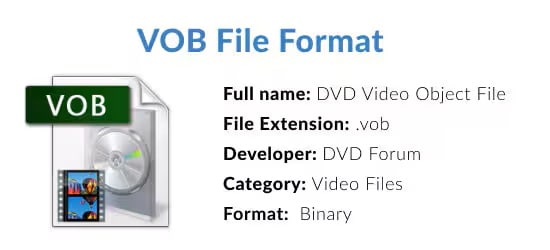
VOB files, also known as Video Object files, are the main video container format used on DVDs. These files typically include video streams, audio tracks, subtitles, and menu data in a single package. While this makes VOB ideal for DVD playback, it poses a challenge when trying to edit them.
Many modern editors cannot read VOB files directly, as some are encrypted, and the overall file size can be huge. These factors cause issues such as import errors, missing audio, or unstable playback during editing.
Common situations users face
When trying to edit VOB files, many users have experienced the same problem, especially if the files are from old DVDs or VIDEO_TS folders. Some of the most common situations include:
- VOB files cannot be opened in Windows 10 or appear with missing audio.
- macOS does not recognize VOB files, so they cannot be imported into built-in applications.
You might also wonder how to edit VOB files in Windows Movie Maker, but this outdated tool often cannot import them at all, making basic VOB file editing impossible. The most practical solution to directly edit VOB video files and VOB files on Mac or Windows is to use Filmora Desktop, as it can handle non-encrypted VOB files directly and allows you to edit them like any other modern video format. You only need to convert the file if the VOB is encrypted or corrupted. For regular DVD recordings or discs created with a camera, Filmora offers a straightforward and reliable workflow that eliminates unnecessary steps and allows you to start editing immediately.
Part 2. Preparation: Ensuring Your VOB Files Are Ready for Filmora Editing
Before importing VOB videos into Wondershare Filmora, ensure that the files are properly prepared and formatted. This prevents common issues people face when trying to edit VOB files and helps you avoid import errors or playback problems.
 Secure Download
A few simple checks can save you a lot of time:
- Ensure that the VOB files are not encrypted. Commercial movie DVDs often come with copy protection, and encrypted VOB files cannot be edited directly.
- If your DVD contains multiple VOB segments, place them in the correct order to avoid shuffling scenes during editing.
- You can optionally convert VOB to MP4 if you experience playback issues, such as choppy video or missing audio.
- Ensure Filmora Desktop is installed on your Windows or Mac computer so you can import and edit videos without compatibility issues.
Part 3. Step-by-Step Guide: How to Edit VOB Video Files in Filmora Without Conversion
Once editing VOB files is complete, export your video using settings that ensure compatibility and the best quality. This is where you finalize the answer to "can I convert VOB files to MP4?"—yes, you can, and easily. Note the following tips: Select MP4 as the export format, which is the best way to change VOB files to MP4 because this format is compatible with almost all devices and platforms.
Follow these simple steps to turn your VOB video into a polished and professional result.
 Secure Download

- AI Noise Reduction to clean up noisy DVD audio
- AI Voice Generator / AI Audio Stretch to refine narration or adjust duration
- AI Smart Cutout to remove objects or isolate subjects
- AI Background Removal to replace or blur backgrounds
- AI Image tool for mixing images with your VOB recordings

Part 4. Export Your Edited VOB Video
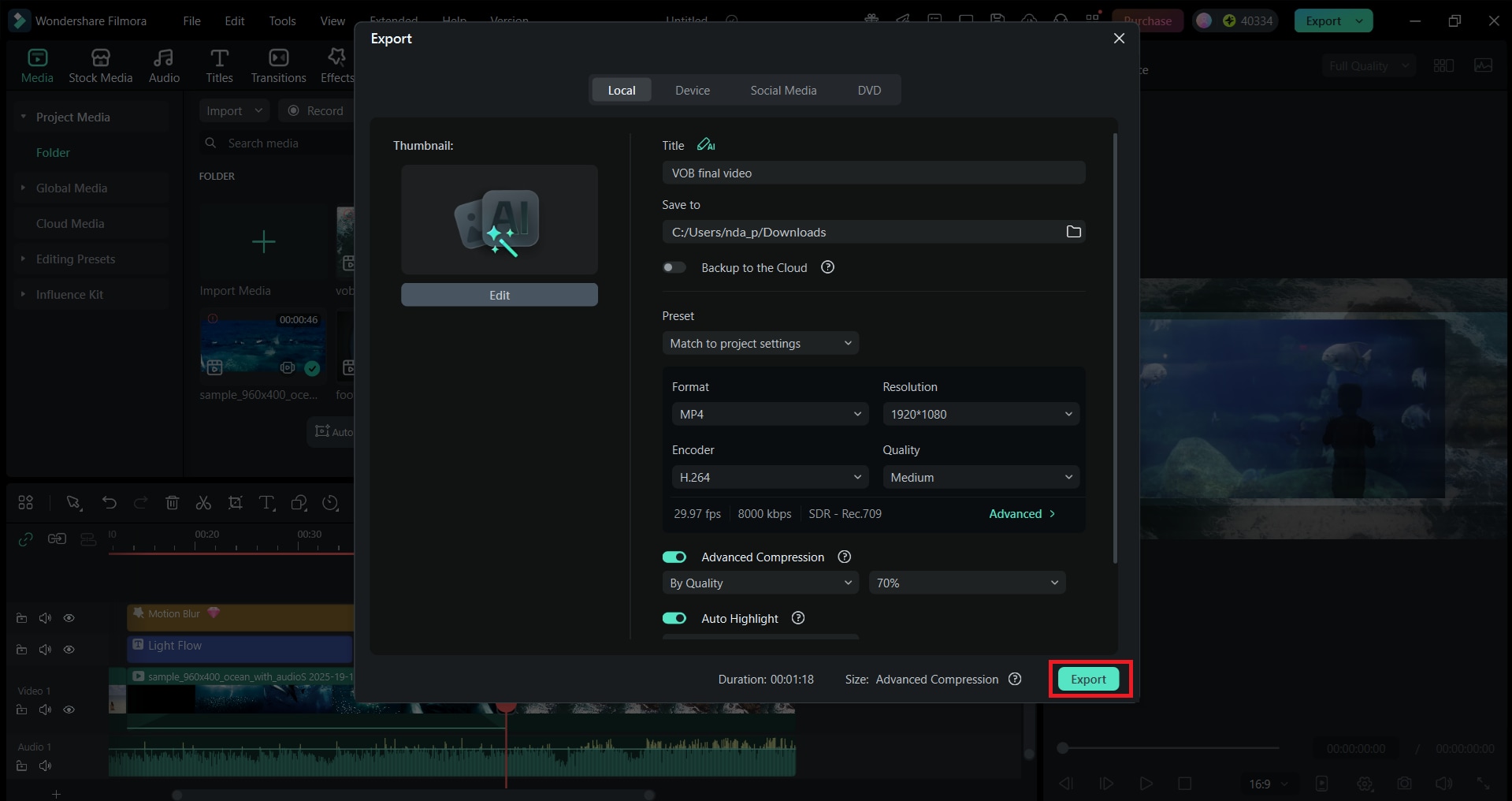
Once editing VOB files is complete, export your video using settings that ensure compatibility and the best quality. Note the following tips:
- Select MP4 as the export format because this format is compatible with almost all devices and platforms.
- Set the resolution based on your video source, such as 720p or 1080p.
- Adjust the bitrate if necessary. A higher bitrate provides better quality, while a lower bitrate reduces file size.
Part 5. Troubleshooting: Fixing Common VOB Editing and Import Issues
Don't worry if you're still having trouble editing VOB files or importing them. Many of these issues are common and can be resolved with a few simple steps. Here are the most common related VOB issues and how to fix them.
1. VOB files cannot be imported into Filmora
The file may be encrypted. Try extracting the DVD using a tool that removes encryption, then re-import the new VOB file or convert it to MP4.
2. VOB plays with missing audio
Some VOB files use older or mixed audio codecs. Convert the file to MP4 or extract the audio separately, then re-sync it in Filmora.
3. Choppy or lagging playback in the timeline
Enable Filmora's Proxy feature to create lighter preview files. You can also convert the VOB to MP4 for smoother editing.
4. Multiple VOB segments import out of order
Rename the files correctly (for example, VTS_01_1, VTS_01_2, VTS_01_3) before importing. Filmora will follow the correct order.
5. The VOB file cannot be opened on Windows 10 or macOS
The system's default media tools do not support VOB. Always import directly into Filmora or convert using a reliable converter.
6. The file size is too large after editing
Lower the bitrate or choose a more efficient codec (such as H.264 in MP4) when exporting.
Part 6. Alternative Solutions: What if Filmora Cannot Open the VOB File?
Most likely, Filmora can't open your VOB file because it's encrypted or badly damaged.
However, there are still several alternative methods you can use to edit VOB files and continue your editing process.

If the VOB file is encrypted
Use a DVD decryption tool that can remove the encryption and convert the content to MP4 or MPG. After that, you can import the converted file into Filmora without any problems.
If you need online editing
Upload the VOB file to a trusted converter to turn it into MP4 first. Once converted, you can edit it using online editors such as Clideo or Kapwing.
If you need frame-by-frame DVD cutting
Specialized DVD tools, such as VOBMerge or a basic MPEG editor, can help you perform accurate frame-by-frame cutting on raw VOB files before bringing the cleaned footage into Filmora.
These alternatives ensure that you can still work with your footage even if the original VOB files cannot be opened directly.
Part 7. Modern Business Uses and Professional Projects for VOB Files
While VOB is often associated with old DVD archives, the format still finds occasional use in professional, modern workflows due to its multi-stream container capabilities. Modern business uses for VOB file format include:
- Archival Media: Storing long-term, multi-language training or instructional videos where preserving multiple audio/subtitle tracks is crucial.
- Bilingual/Multi-Track Projects: Using the VOB structure to manage complex, finalized video projects that require switching between multiple audio channels (e.g., director's commentary, different language dubs).
- Legacy System Integration: Working with older, industry-specific video equipment or databases that export in VOB format, which Filmora can import directly for modern editing and conversion to MP4.
Filmora bridges the gap, allowing professionals to quickly import these legacy files, perform modern edits, and export to an industry-standard format like MP4 or MOV.
Conclusion
After understanding the format and using the right tools, editing VOB files, which may seem challenging at first, becomes much easier. Filmora provides a straightforward and reliable way to work with unencrypted VOB files, as it allows you to trim clips, combine segments, add text, apply effects, and export in modern formats without any issues.
With the steps in this guide, you can turn old DVD recordings into clean, polished videos, ready to share or save. Even if you encounter problems, troubleshooting tips and alternative solutions ensure you always have a reliable solution.

FAQs
-
Do I always need to convert my VOB files to MP4 before I can start editing them?
No. If the VOB files are not encrypted and play normally, you can import them directly into Filmora. Conversion is only necessary if the files are protected, corrupted, or cause playback issues.
-
How can I merge multiple VOB files (VOB1, VOB2) from the same DVD into a single track?
Import all VOB segments into Filmora, place them on the timeline in the correct order, and export the project. Filmora will automatically combine them into one continuous video.
-
Can Wondershare Filmora export my finished video project back into the VOB format or burn it to DVD?
Filmora cannot export videos in VOB format or burn DVDs directly. You can export the project as MP4 and then use a DVD burning tool if you need to create a DVD-compatible file structure.
