


Video editing keyboard shortcuts are one of the fastest ways to speed up your editing. You don’t have to reach for a menu or the mouse every time you need to perform a command. Repeating these actions dozens or even hundreds of times per project can actually slow you down more than you realize.
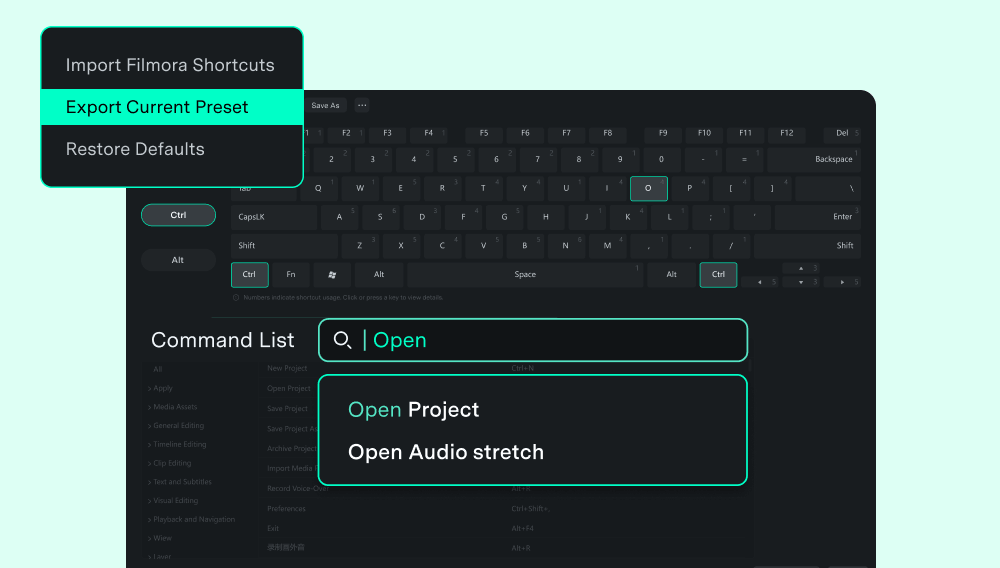
In Wondershare Filmora, the Enhanced Keyboard Shortcut Manager makes it much easier to find, customize, and manage hotkeys. It gives you a visual keyboard map and one-click preset switching for schemas like Premiere Pro, Final Cut Pro, and DaVinci Resolve. Below, we’ll show you how to edit videos faster with hotkeys in Filmora, plus how to customize, import, and export them with ease.
Part 1. 20+ Essential Keyboard Shortcuts in Filmora
Memorizing every Filmora hotkey may take a while, so it’s better to start with the essential keyboard shortcuts for the commands you use most often, then add more as they become part of your editing routine.
To make them easier to find, we’ve grouped them into four categories: basic editing, timeline editing, playback and navigation, and markers and export.
Basic Editing
| Editing Task | Windows / Mac Shortcut | What It Does |
| New Project | Ctrl + N / Command + N | Creates a new project file. |
| Open Project | Ctrl + O / Command + O | Opens an existing project file. |
| Save Project | Ctrl + S / Command + S | Saves the current project. |
| Import Media | Ctrl + I / Command + I | Imports media files into the project library. |
| Undo | Ctrl + Z / Command + Z | Reverses the previous action. |
| Redo | Ctrl + Y / Shift + Command + Z | Reapplies the last undone action. |
| Cut | Ctrl + X / Command + X | Cuts the selected item. |
| Copy | Ctrl + C / Command + C | Copies the selected item. |
| Paste | Ctrl + V / Command + V | Pastes copied content. |
| Delete | Del / Backspace | Removes the selected element. |
|
Show More
Show Less
|
||
Timeline Editing
| Editing Task | Windows / Mac Shortcut | What It Does |
| Split Clip | Ctrl + B / Command + B | Splits the selected clip at the playhead position. |
| Trim Start to Playhead | Alt + [ / Option + [ | Trims the start of the clip to the playhead. |
| Trim End to Playhead | Alt + ] / Option + ] | Trims the end of the clip to the playhead. |
| Ripple Delete | Shift + Del / Shift + Delete | Deletes clip and closes remaining gap. |
| Crop and Zoom | Alt + C / Option + C | Opens the Crop and Zoom tool. |
| Render Preview | Enter / Return | Renders preview for smooth playback. |
| Select Mode | V | Switches cursor to selection mode. |
| Quick Split Mode | C | Switches cursor to razor/split mode. |
|
Show More
Show Less
|
||
Playback & Navigation
| Editing Task | Windows / Mac Shortcut | What It Does |
| Play / Pause | Space | Starts or pauses timeline playback. |
| Full Screen | Alt + Enter / Ctrl + Command + F | Toggles full-screen preview mode. |
| Zoom In Timeline | Ctrl + = / Command + = | Zooms in on the timeline view. |
| Zoom Out Timeline | Ctrl + - / Command + - | Zooms out on the timeline view. |
| Zoom to Fit Timeline | Shift + Z | Fits entire timeline project into view. |
|
Show More
Show Less
|
||
Markers & Export
| Editing Task | Windows / Mac Shortcut | What It Does |
| Mark In | I | Sets an In point on the timeline or clip. |
| Mark Out | O | Sets an Out point on the timeline or clip. |
| Add Marker | M | Adds a marker at the playhead position. |
| Export | Ctrl + E / Command + E | Opens the export window. |
|
Show More
Show Less
|
||
💡Tip: Make Use of the Search Feature
If you have trouble finding a specific shortcut, you don’t have to scroll through a long list of commands. You can use Filmora’s Enhanced Keyboard Shortcut Manager to help you quickly locate it. Learn more about this feature in the next section.
Part 2. Filmora's Enhanced Keyboard Shortcut Manager
Shortcuts shouldn’t be difficult to find or manage. They should make your everyday editing tasks quicker and easier. That’s why Filmora updates its Enhanced Keyboard Shortcut Manager with a more visual interface to help you edit videos faster with hotkeys. You can easily see your current key assignments, search for commands, and switch between different shortcut layouts without digging through a long list.
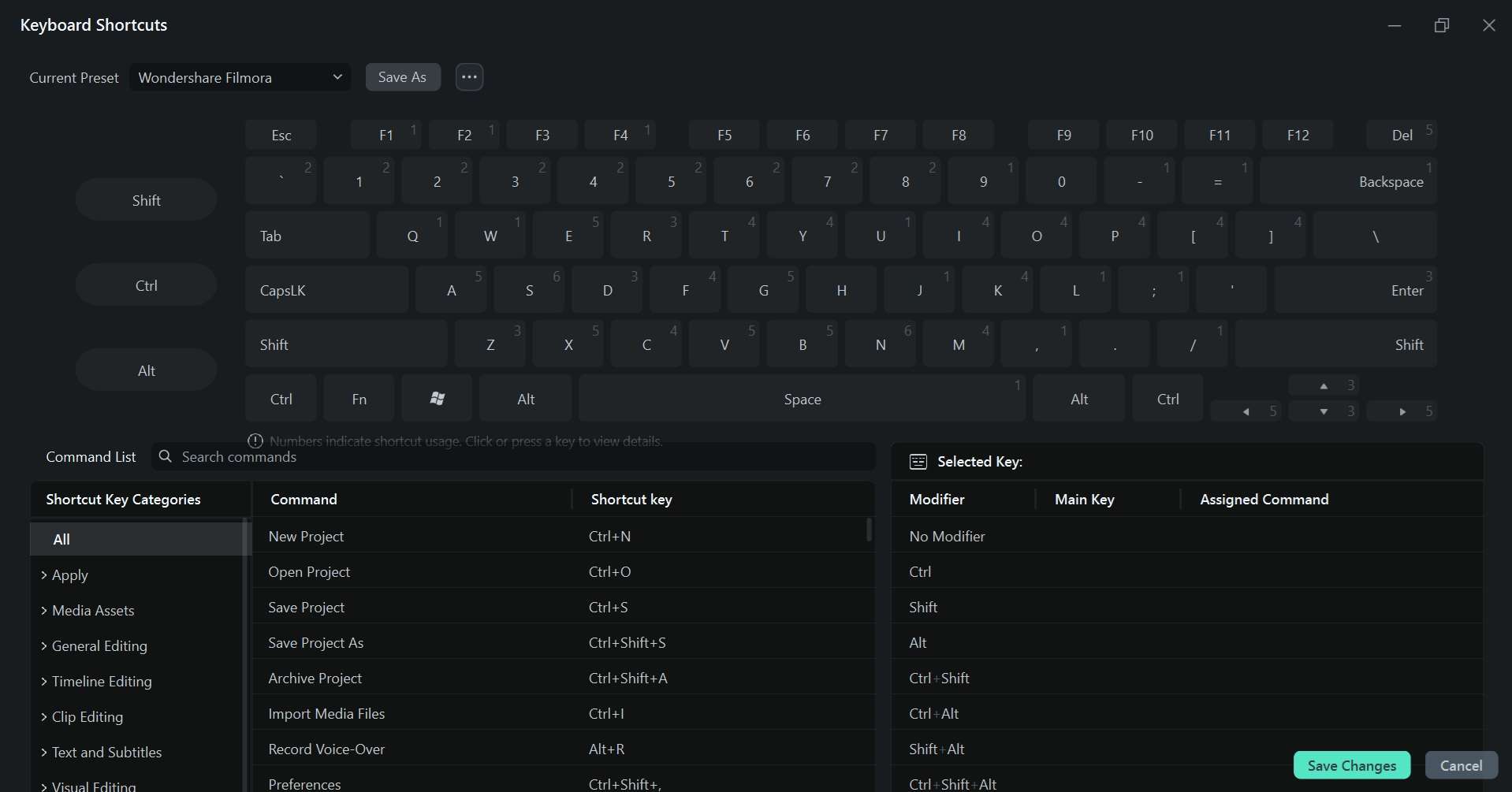
Search for Shortcuts by Command or Keyword
Looking for one particular shortcut? Use the search bar to find it without going through the entire list. You can search by:
- Command name for a specific editing function.
- Function or keyword related to the action.
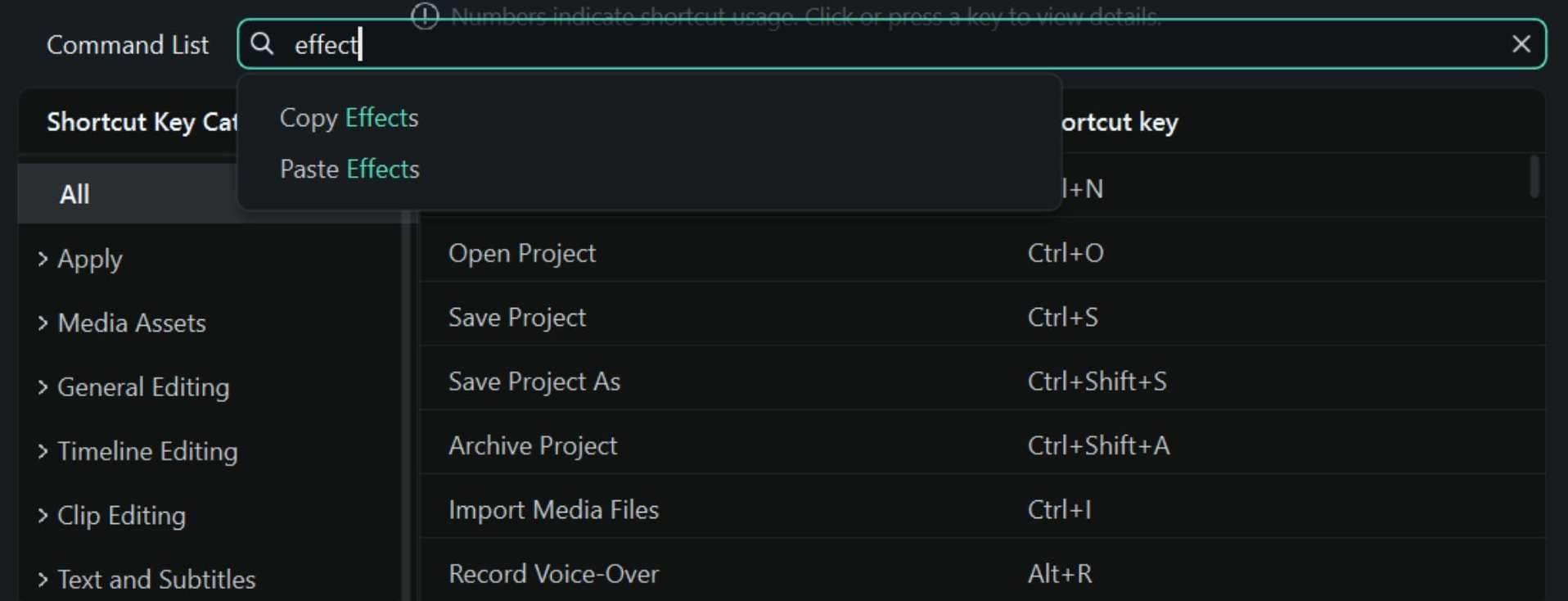
Filmora's Enhanced Keyboard Shortcut Manager also supports multilingual search terms, not only English. When you type a keyword, Filmora highlights matching commands and shows their assigned shortcuts in the results.
See Your Shortcuts with the Visual Keyboard Map
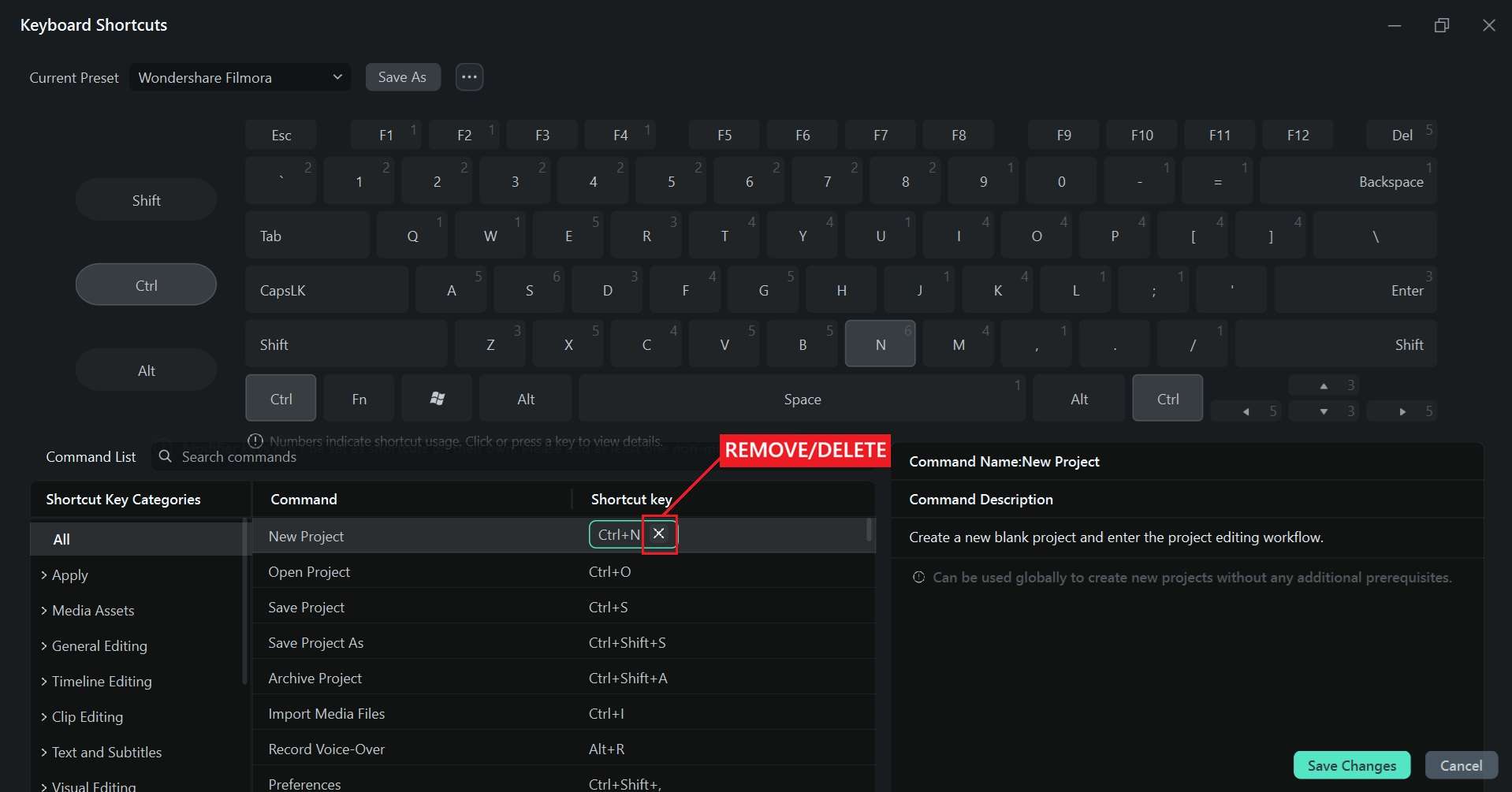
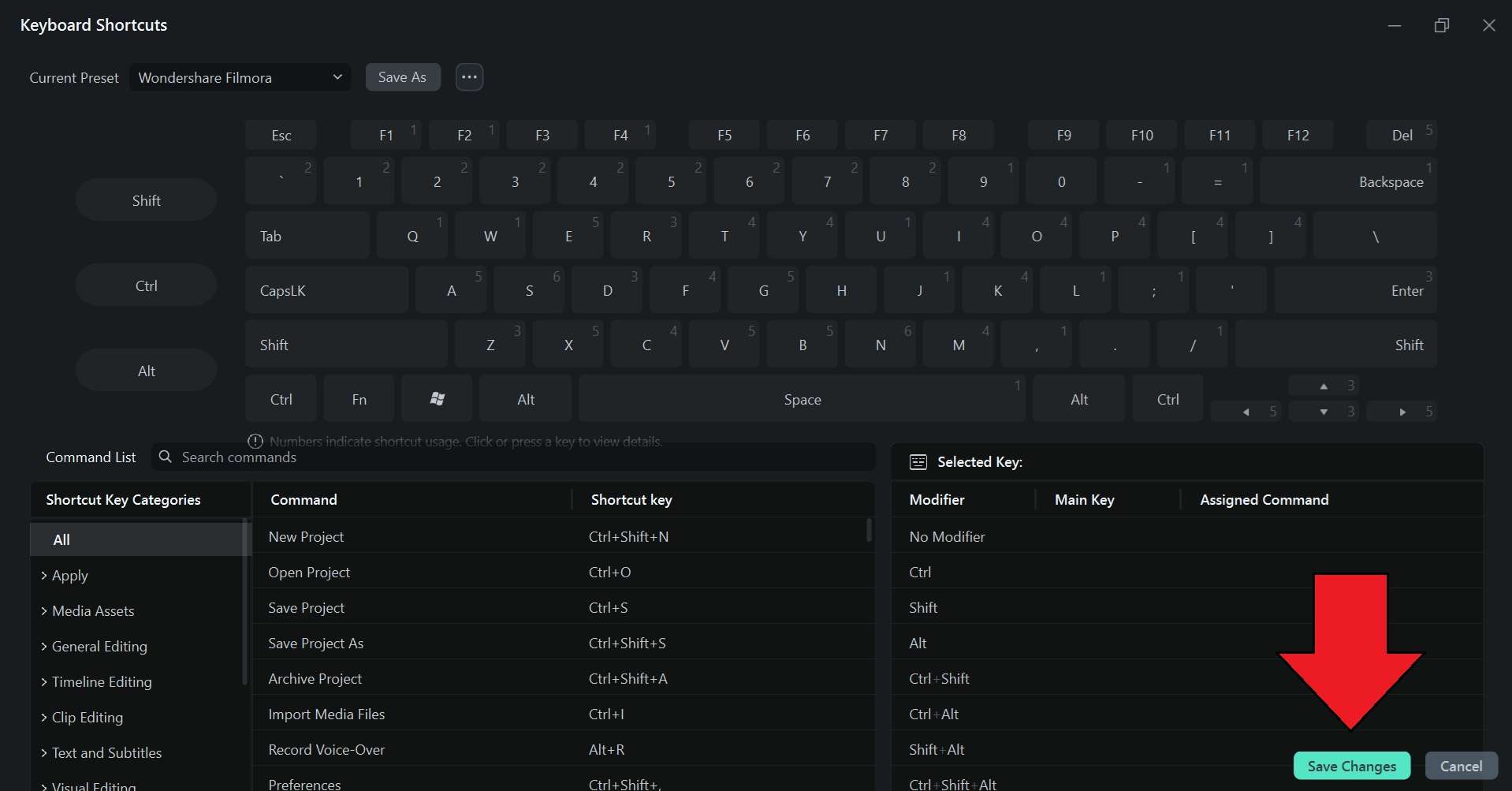
On top of the search feature, Filmora uses a Visual Keyboard Map to show your shortcut layout as an interactive keyboard. You can click any key to see the commands assigned to it and check whether a key is already in use or available for another shortcut.
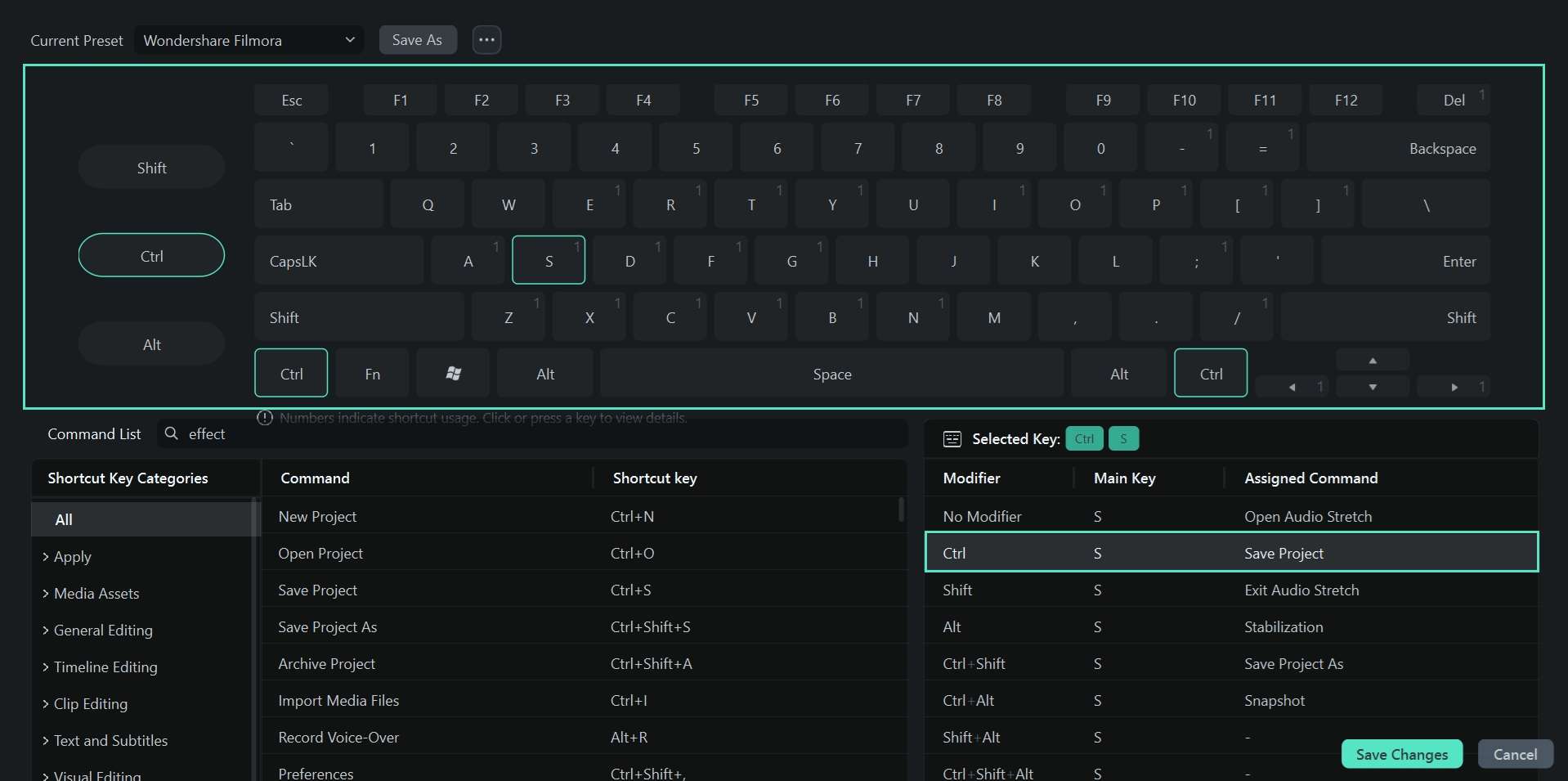
Switch to Other Video Editing Shortcuts
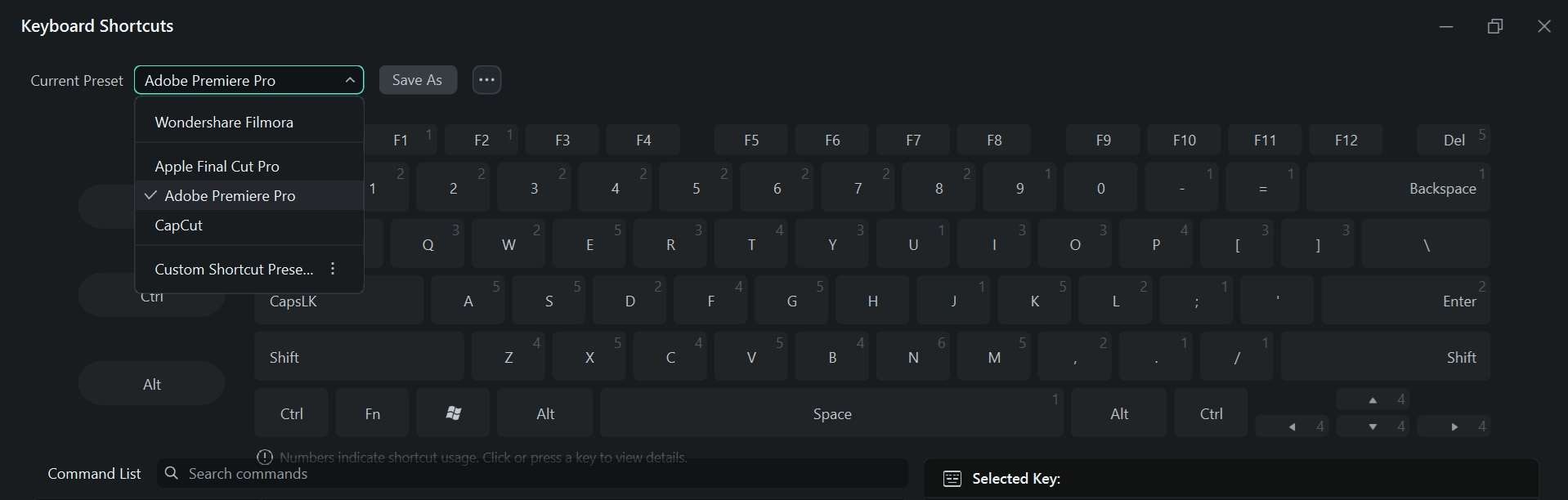
Filmora also includes preset video editing keyboard shortcuts from other editors, including Premiere Pro, Final Cut Pro, DaVinci Resolve, and CapCut. If you’re already familiar with one of these editors, you can use Premiere Pro shortcuts in Filmora or select another preset to keep using familiar key combinations while you edit.
Part 3. How to Customize Video Editing Hotkeys in Filmora
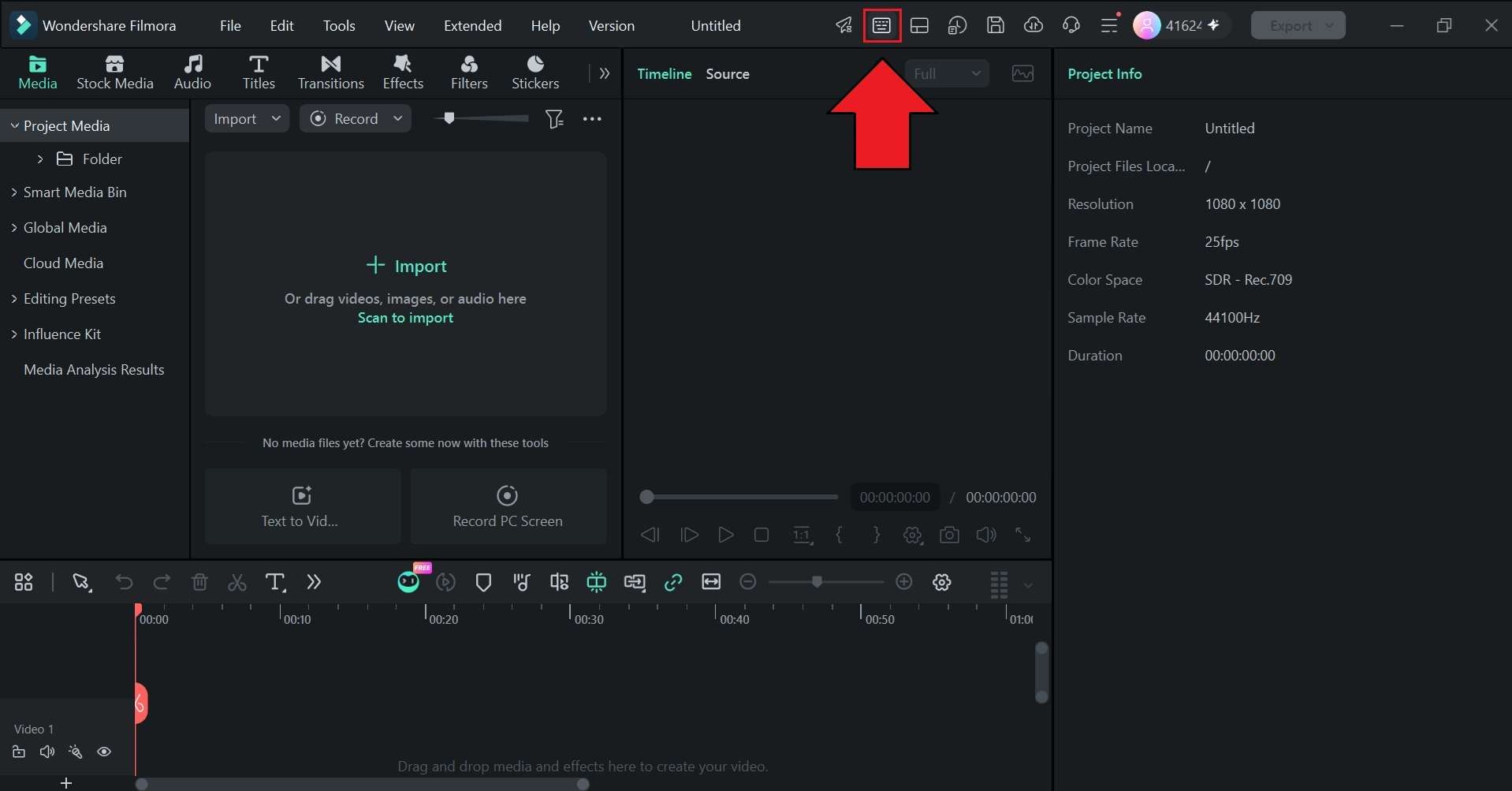
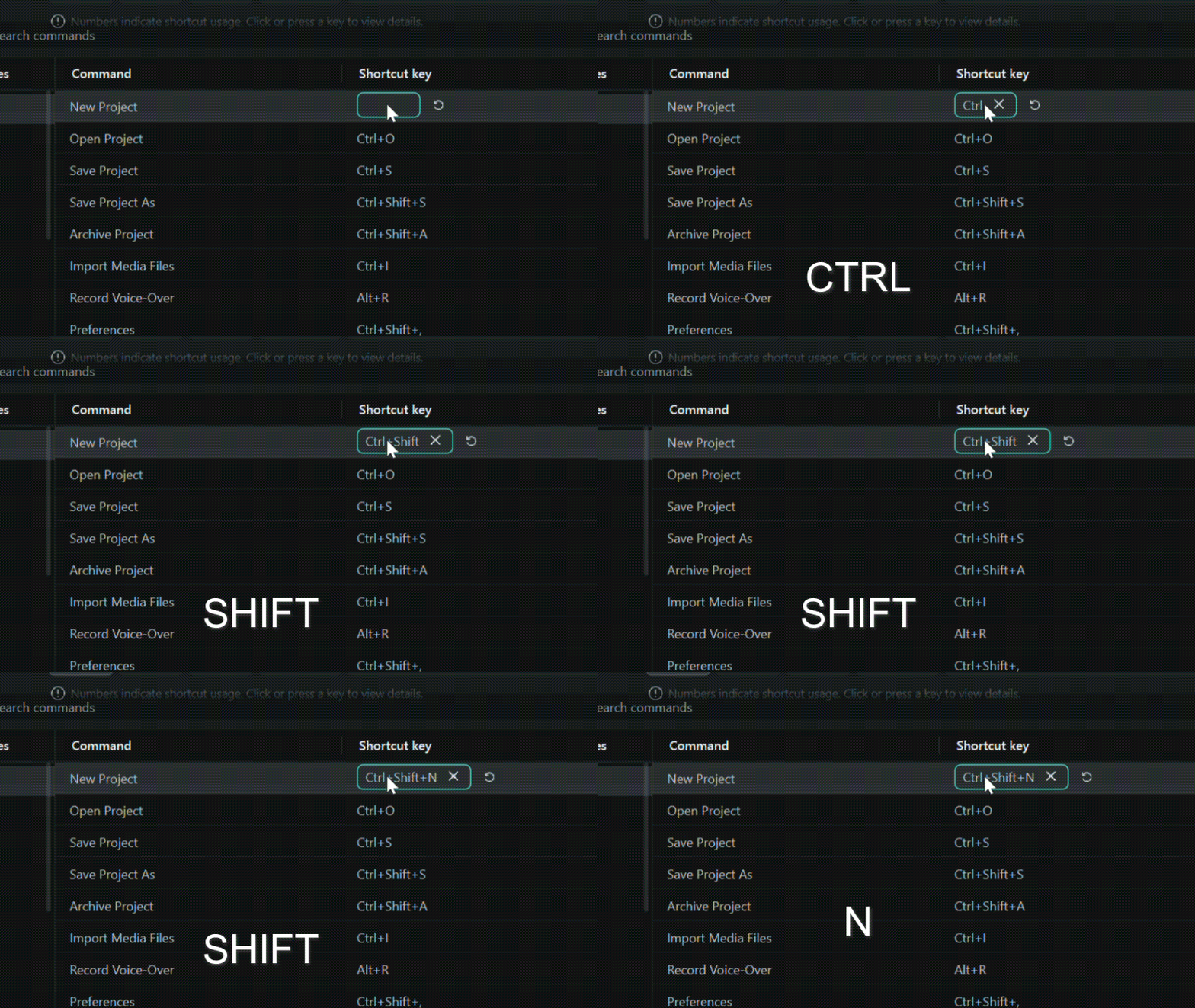
If there’s a shortcut you want to change, you can assign it to a key combination that feels more comfortable to use. Filmora lets you edit individual hotkeys and save your customized layout as a separate preset. Follow the steps below on how to change keyboard shortcuts in Filmora for Mac/Windows.
 Secure Download
Part 4. How to Transfer Editing Hotkeys to a New PC or Mac
Another benefit of using Filmora’s Enhanced Keyboard Shortcut Manager is that you can transfer editing hotkeys to a new PC or Mac. You can export your shortcut layout as a .json file and import it on another computer, so you don’t have to set up your preferred hotkeys again.
How to Transfer Filmora Hotkeys to a New PC
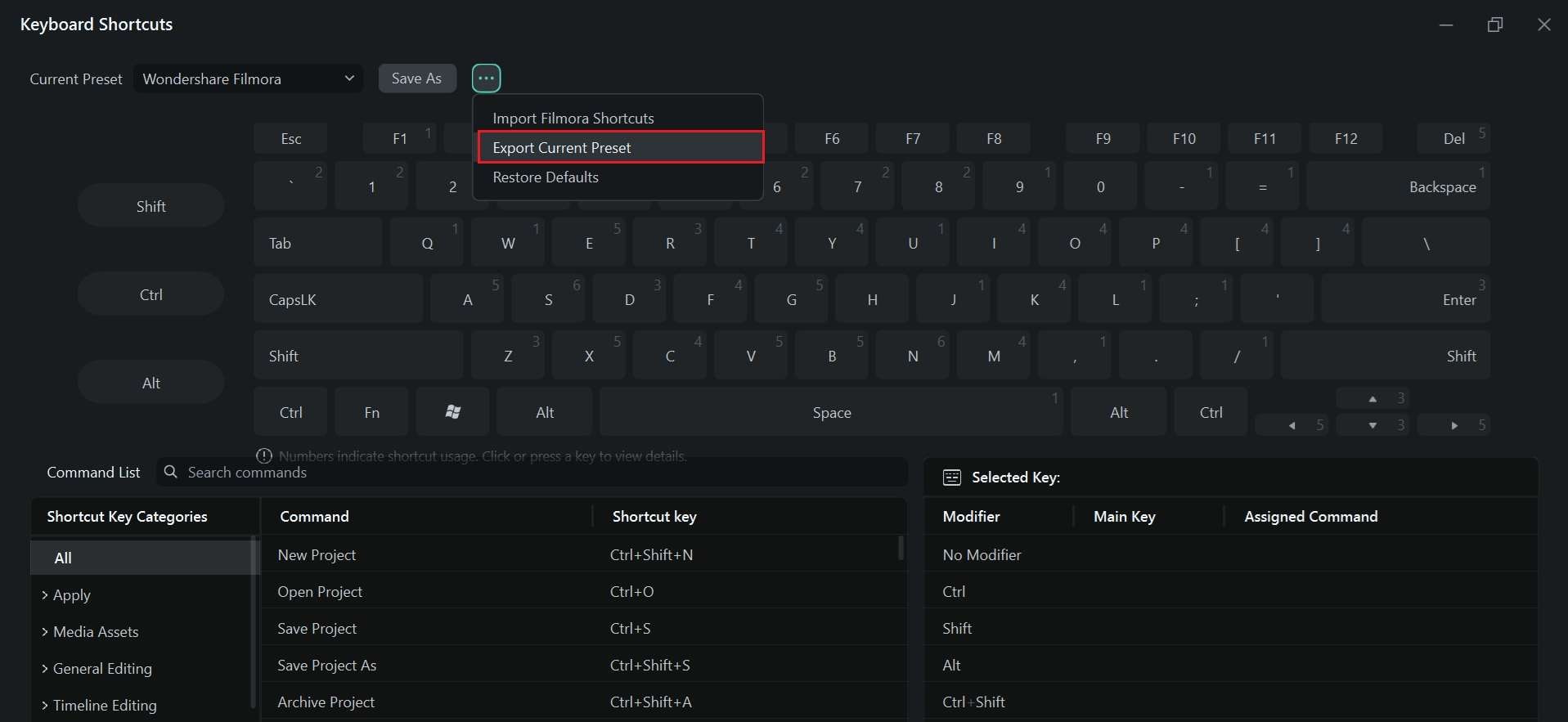
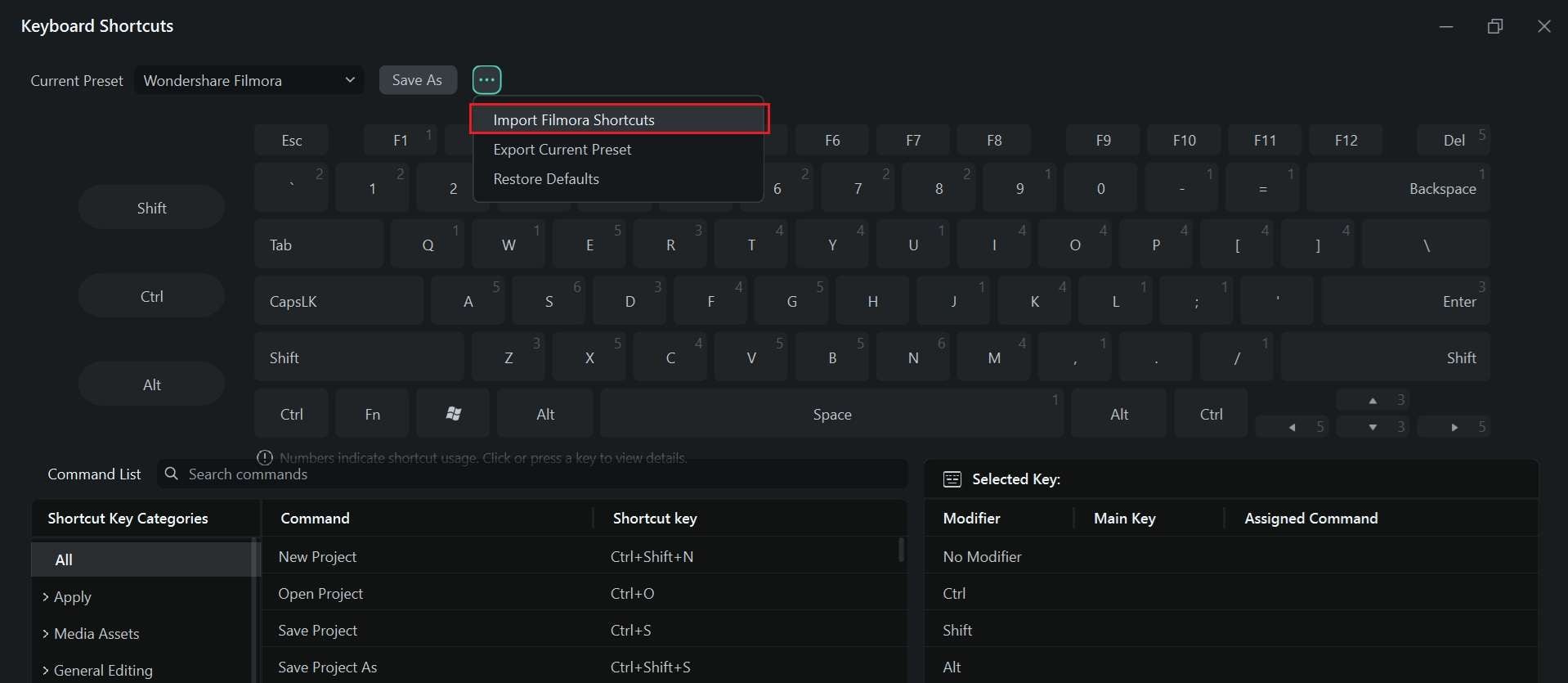 Secure Download
Conclusion
Video editing keyboard shortcuts have been helping editors to edit videos faster. Once you’ve familiarized yourself with the essential keyboard shortcuts, you can spend less time searching through menus and more time working directly on the timeline.
With its Enhanced Keyboard Shortcuts Manager, Filmora makes hotkeys even simpler to manage. You get a visual keyboard map to check your layout, one-click presets from other popular editors, create custom shortcuts, and export your preset to another computer when needed.
FAQs
-
1. What are the most useful video editing keyboard shortcuts in Filmora?
Some of the most useful and time-saving Filmora shortcuts are the ones that speed up common editing tasks, including:
-Ctrl + B (Win) or Command + B (Mac) to split a clip
-Space to play or pause
-Ctrl + Z (Win) or Command + Z (Mac) to undo, and
-Ctrl + S or Command + S to save your project
For timeline editing, Alt + [ (Win) or Option + [ (Mac) trims the start of a clip to the playhead, while Alt + ] (Win) or Option + ] (Mac) trims the end. -
2. Can I use Premiere Pro shortcuts in Filmora?
Yes. Filmora’s Enhanced Keyboard Shortcut Manager includes a Premiere Pro preset. Open the Keyboard Shortcut Manager, select Adobe Premiere Pro from the Current Preset menu, and click Save Changes to apply the shortcut layout. -
3. What is the shortcut for exporting a video in Filmora?
Press Ctrl + E on Windows or Command + E on Mac to open Filmora’s export window. You can then choose your export settings and start exporting your video. -
4. Can I assign multiple shortcuts to the same command in Filmora?
While you can customize Filmora’s video editing keyboard shortcuts in the Enhanced Keyboard Shortcut Manager, you can’t assign the same key combination to multiple commands.
