100% Security Verified | No Subscription Required | No Malware

Creating eye-catching content for TikTok, Reels, and Shorts is getting harder every day. Posting a single clip no longer feels enough, especially when everyone else is doing the same thing. One simple way to stand out is by making a 4-way split-screen video, and your content will feel more alive.
The good news is that with today's tools, this kind of editing is no longer complicated or time-consuming. So, we'll walk you through different ways to put 4 videos on one frame, from AI-powered shortcuts to traditional editing, so you can pick what works best for your content style.
In this article
Part 1. The Fastest Way to Create a 4-Way Split-Screen: AI Templates
If you just want results without spending time arranging clips, AI is honestly the easiest way to create 4 videos in one frame right now. Instead of resizing, dragging, and lining things up yourself, you let the AI split-screen editor do the work for you. And thankfully, Filmora Mobile App supports that.
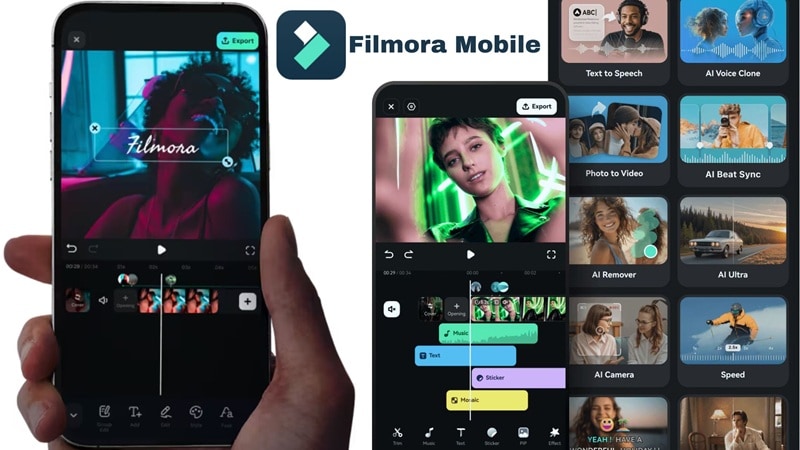
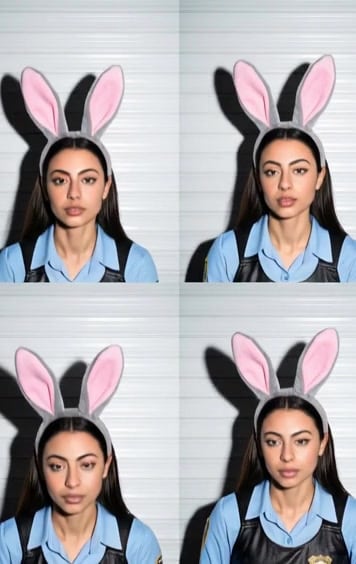
On Filmora Mobile, you can use ready-made AI templates that automatically turn your content into a clean four-grid layout. You don't even need four separate videos. Just upload one photo of yourself, your pet, or any object, and the AI instantly generates a four-panel video that feels animated and lively.
 Secure Download
How to Create a 4 Way Split-Screen Video Using AI Templates
This method is fast, beginner-friendly, and perfect when you want something eye-catching without overthinking the edit.





See the simple guide below to learn how to do it:
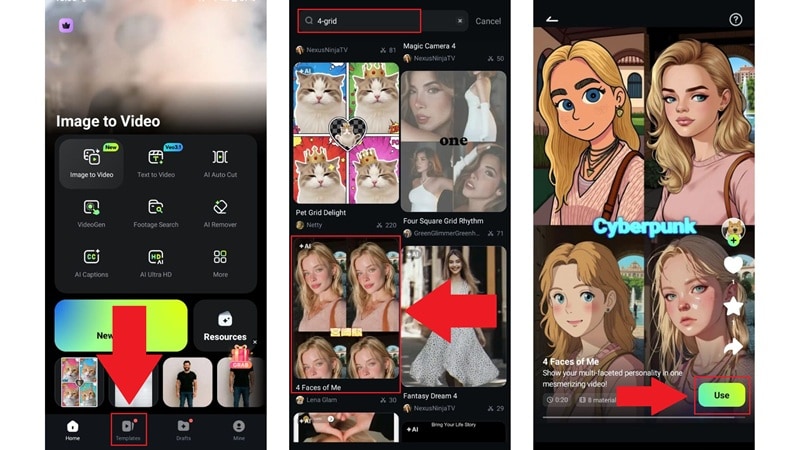
- Open the Filmora mobile app and choose Templates on the main screen.
- Use the search bar and type 4-grid to find AI split-screen templates.
- Browse the available layouts and pick the one you like.
- Tap Use to start creating your 4-video layout.
- Upload the photo you want to use. You only need to select one image under the AI option.
- The remaining screens will be filled automatically.
- Tap Import to confirm your selection.
- Hit Generate and wait a few seconds while Filmora creates the split-screen video.
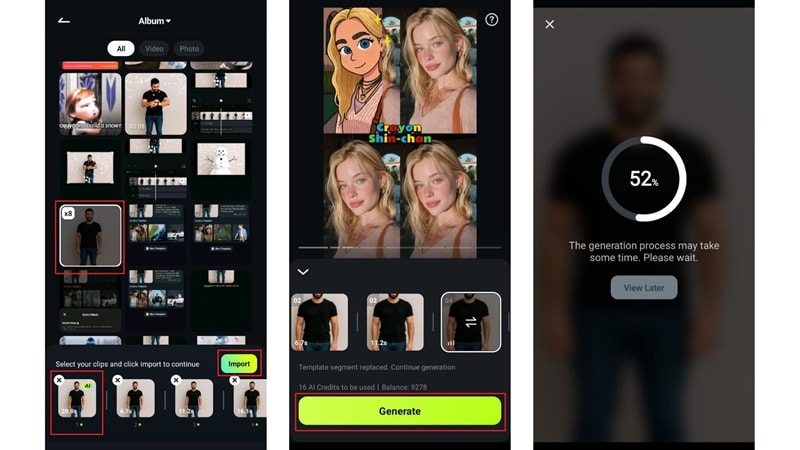
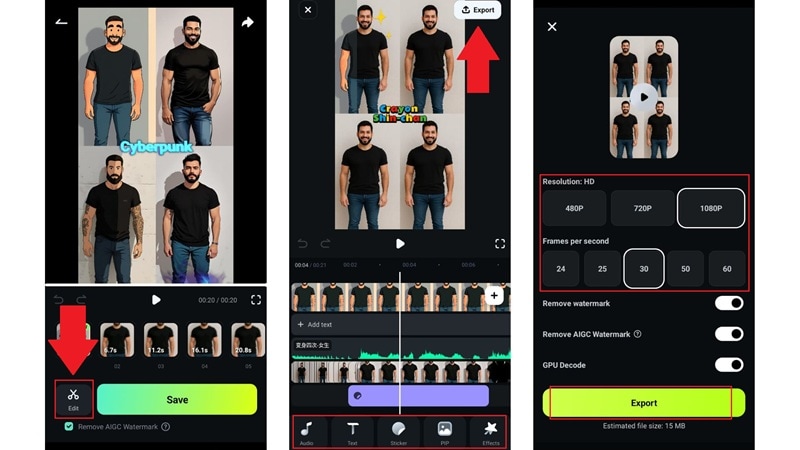
With these three steps completed, your 4-way split-screen video is ready. The result looks polished without any complicated editing.
Highlights of This Method
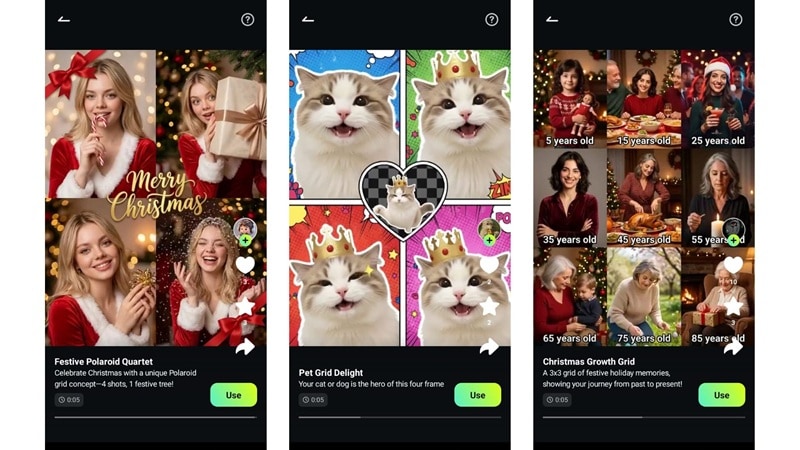
Some of the reasons why using AI split-screen templates makes this method so easy and popular:
- You only need one image to get 4 videos in one frame, which saves a lot of time.
- The templates come in different styles and can even support up to 9 videos in one frame if you want more variety.
- You can still edit the video after it's generated, so you're not stuck with the first result.
- It's a great option for quick TikTok and Reels content when you want something that looks fun without extra work.
Part 2. The Classic Way: Put 4 Videos on One Screen Using Split-Screen Editing
If you already have four clips ready to go, split-screen editing is still the most straightforward way to do it. This is the method most people think of when learning how to put 4 videos on one screen, and for good reason. You get full control over what plays where, how long each clip lasts, and how everything lines up.
Wondershare Filmora Desktop version supports this workflow with the split-screen feature that makes split-screen 4 videos simple to set up. Instead of manually resizing and guessing positions, you can drop your clips into a ready-made grid and adjust from there.
Secure DownloadHow to Put 4 Videos in One Frame Using Split Screen
This method works great when you want everything to look clean and balanced, especially for comparisons, reactions, or side-by-side clips. Follow the steps below to put everything together.
- Open Filmora and click New Project.
- Go to the Templates tab, select Split Screen, and look for a 4-grid layout.
- Drag the template you like onto the timeline.
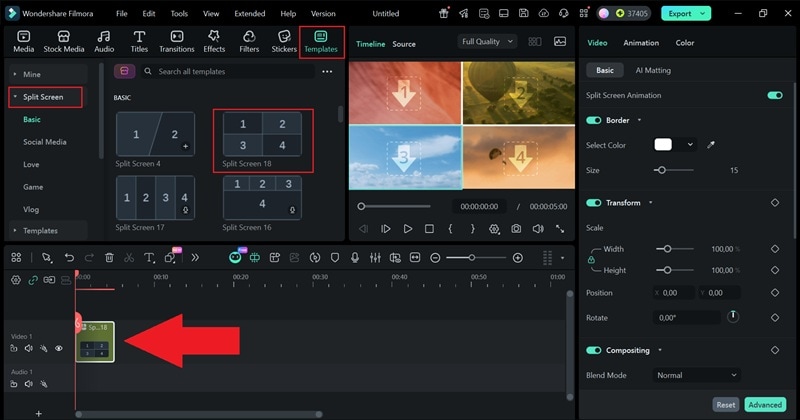
- Go to the Media tab and click Import to upload the four clips.
- Drag each clip onto the split-screen template and place it in the desired section.
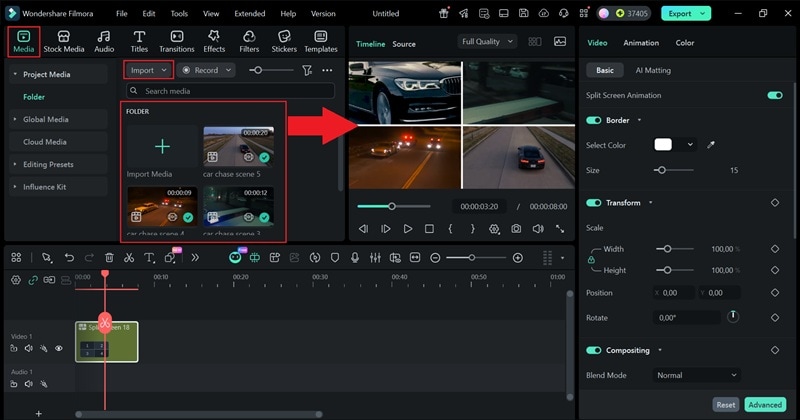
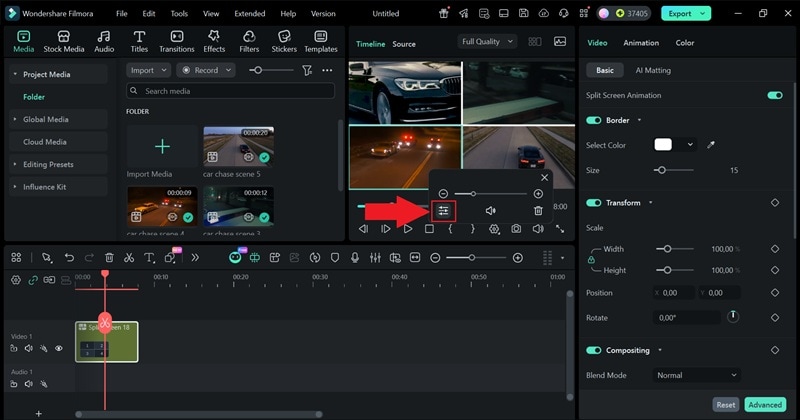
- Click one section in the preview window and select the adjust icon to open Advanced Split Screen Edit.
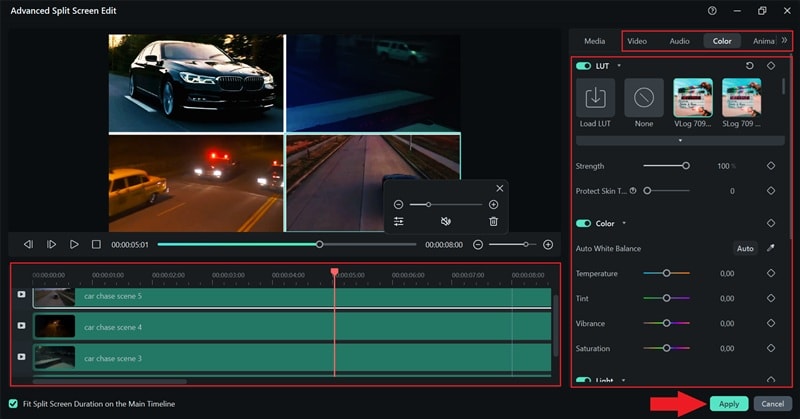
- Edit each clip individually, such as adjusting position, matching colors, or trimming duration.
- Click Apply to save the changes.
- Add music, effects, stickers, or filters to the entire split-screen video on the main timeline.
- Use the property panel on the right to add simple animations or borders.

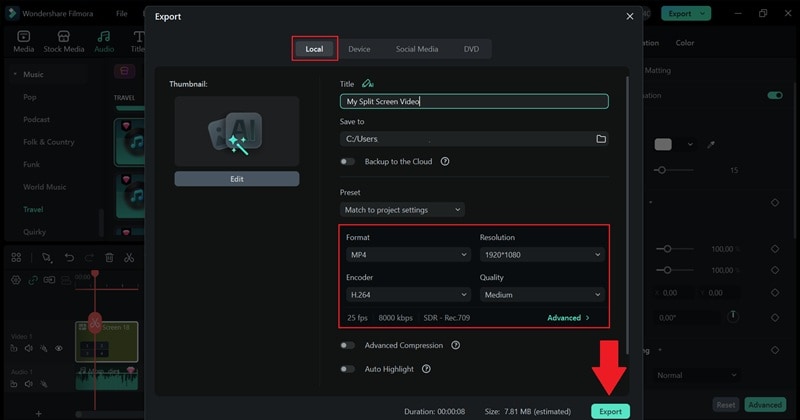
- Click Export in the top-right corner when editing is complete.
- Choose the save location and resolution, then click Export again.
And there you have it. This method gives you more control and precision without making the editing process complicated. Here's how the final video looks.
Bonus: Use AI Text Prompts to Generate 4-Split Videos on Desktop
If you want to move even faster, the Filmora Desktop version has another option that skips a lot of manual work. Instead of setting up clips yourself, you can use AI split-screen through Filmora's AI Text to Video feature.
This feature is powered by advanced models like Sora 2 and Veo 3.1, so it understands scenes, layout, and motion really well. You can generate split-screen 4 videos from a simple prompt. So, you just need to describe what you want in plain language, and the editor builds the visuals for you.
The process is also very simple. All you really have to do is just these two steps:
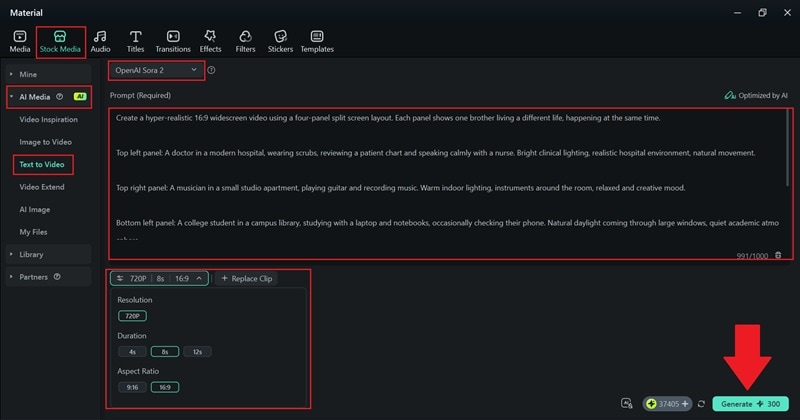
- Go to Stock Media > AI Media > Text to Video.
- Set the AI model to Sora 2 for higher-quality results.
- Write your prompt in the description box and keep it clear and detailed.
- Choose the resolution, aspect ratio, and duration, then click Generate.
- Find the generated video in the My Files section.
- Download the video to preview it, then drag it onto the editing timeline.
- Click Export and save it to your device.
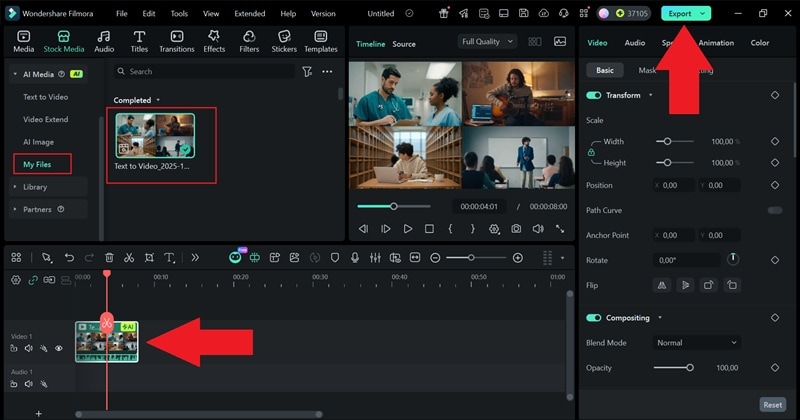
And just like that, it's finished. This approach is faster, but the final video still looks solid. Take a look at the result below.
Template Prompts You Can Use
Creating an AI split-screen with text to video is one of the fastest ways to produce content, especially when you don't have footage or images ready. That said, everything comes down to how clearly you describe what you want to see on screen.
If you're trying to make a 4-way split-screen video, it helps to think of it as four small scenes happening at the same time. You describe each one, and the AI handles the layout. Below is a simple template prompt you can use right away, then tweak to fit your idea.
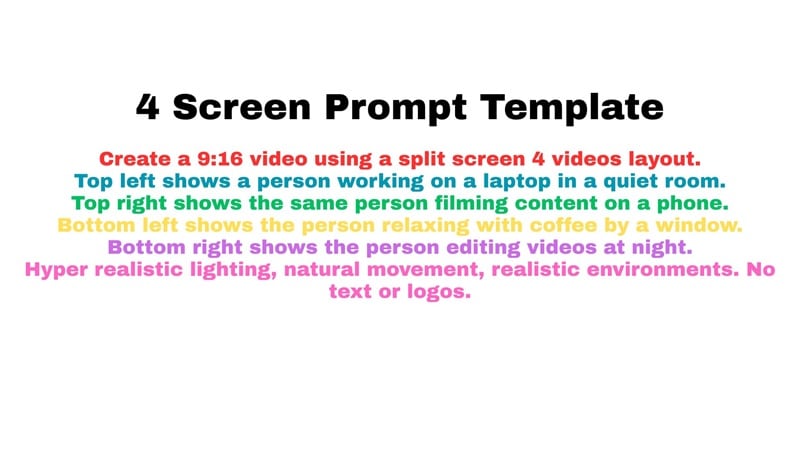
Template Breakdown:
- Video Format: Asking for 9:16 makes sure the video fits TikTok, Reels, and Shorts layouts properly, while 16:9 is more suitable for YouTube or Facebook videos.
- Split Screen Layout: Saying split-screen 4 videos tells the AI to divide the frame evenly into four sections.
- Panel Descriptions: Each line describes one panel clearly, so the AI knows exactly what belongs in each part of the screen.
- Visual Style: Adding hyper-realistic lighting and natural movement helps the video feel more lifelike and less artificial.
- Clean Output: Saying no text or logos keeps the focus on the visuals and makes the result usable as a cover or main clip.
Part 3. Smart Content Ideas That Work Perfectly With 4 Videos in One Frame
Now that you learn different methods of how to put 4 videos in one frame, that's where things start getting fun. You're no longer just stacking clips. You're telling more of a story in the same amount of time. This layout works especially well when you want to show contrast, progress, or different angles all at once.
Below are a few content ideas to spark inspiration and help you get the most out of a 4 way split-screen video, whether you're posting on TikTok, Reels, or Shorts.
Outfit Comparisons That Feel Fun to Watch

A 4-way split-screen video is great for outfit changes. One person can appear in four totally different looks across the day, like casual, sporty, classy, and work-ready. Viewers can compare styles instantly without skipping back and forth.
Fitness Videos That Show Real Effort

Fitness content works really well with split-screen 4 videos. A creator can show four different abs exercises at the same time, all focused on building a six-pack. It keeps the screen active and makes the workout feel more intense and motivating.
Before and After Transformations in One Screen
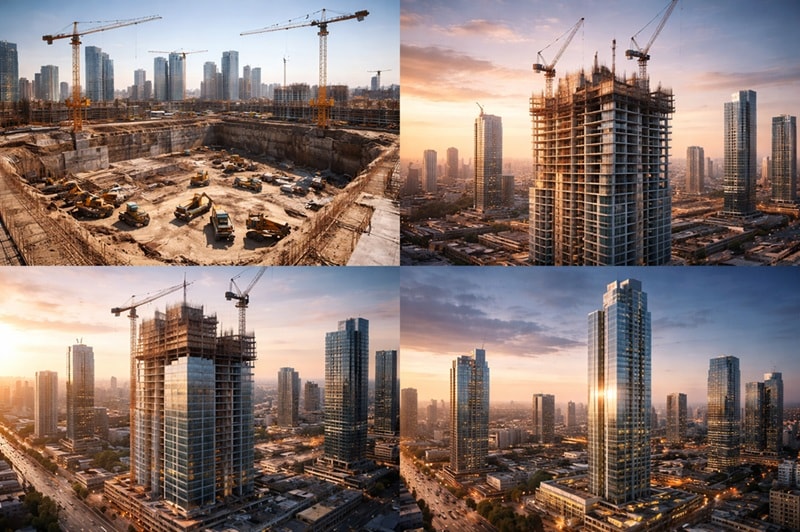
Using 4 videos in one frame works perfectly for showing progress. A great example is the step-by-step growth of a tall skyscraper, from the empty construction site to the finished building standing in the city. Everything happens in one view, so the change feels clear and satisfying.
Effective Storytelling That Hits Emotionally
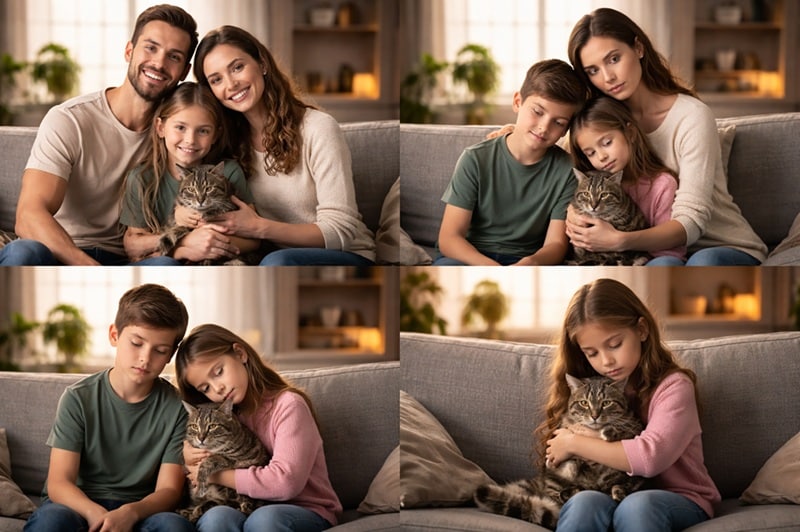
Using 4 videos in one frame can tell a powerful story without saying a word. Just take a look at the picture above. This kind of 4-way split-screen video works because viewers understand the story instantly, and the emotion builds naturally as they watch each panel side-by-side.
Conclusion
Creating a 4-way split-screen video is a simple way to make your content feel more dynamic and easier to watch, especially on fast-moving social media platforms. In this guide, we covered different ways to put 4 videos on one screen, all using one editor, Wondershare Filmora, so you can choose what fits your workflow best.
With Filmora, you can build split-screen 4 videos using classic split-screen layouts when you want full control, or move faster with AI split-screen tools like AI templates that turn one image into a multi-panel video. You can also use AI text-to-video to generate split-screen content straight from prompts, which opens up more creative ideas without needing footage.