

 TL;DR:
Creators can add voiceovers to TikTok videos using the native microphone or AI Text-to-Speech features for fast, in-app edits, or use Wondershare Filmora to apply professional noise removal and audio ducking before uploading.
● TikTok's built-in options are best for quick narrations and AI-generated anonymity, while Filmora is suited for creators who need precise timeline editing, AI voice enhancement, and automatic background music balancing.
● When recording directly inside the TikTok app, creators must manually enable the Keep original sound setting to prevent the new voiceover from completely muting the video's underlying audio track.
● The in-app voiceover microphone button will disappear and remain inaccessible if a creator attempts to edit videos using specific TikTok templates, effects, or duet modes.
Ask AI for a summary
 ChatGPT
 Perplexity
 Gemini
 Claude
 Grok
Grok
Want to know how to do a voiceover on TikTok like a pro? You only have a few seconds to grab attention. In this 2026 guide, you'll learn how to add voiceover to TikTok using built-in tools, TikTok AI voices, and professional software like Filmora for crystal-clear sound.
The best part is that adding a voiceover is easier than most people think. In this guide, you'll learn how to add a voiceover to your TikTok videos using built-in tools, AI voices, and professional methods for cleaner, more polished sound.
No complicated setup required, just simple steps to help your content land on the For You page.
Method 1: How to Add Voiceover to TikTok Using the Built-in Feature
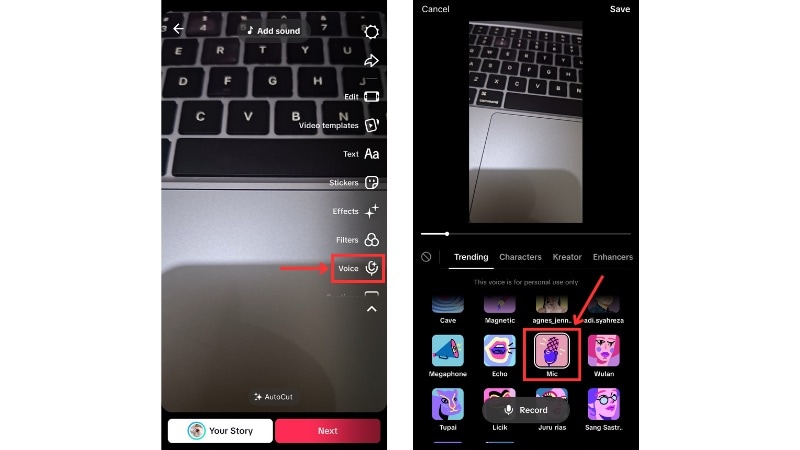
If you are wondering how to do a voiceover on TikTok without using extra apps, the built-in feature is the easiest way to get started. TikTok allows you to add a voiceover to a TikTok video after recording, so it's ideal for narration, tutorials, or storytelling.
Step-by-Step: How to Add Voiceover to TikTok After Recording
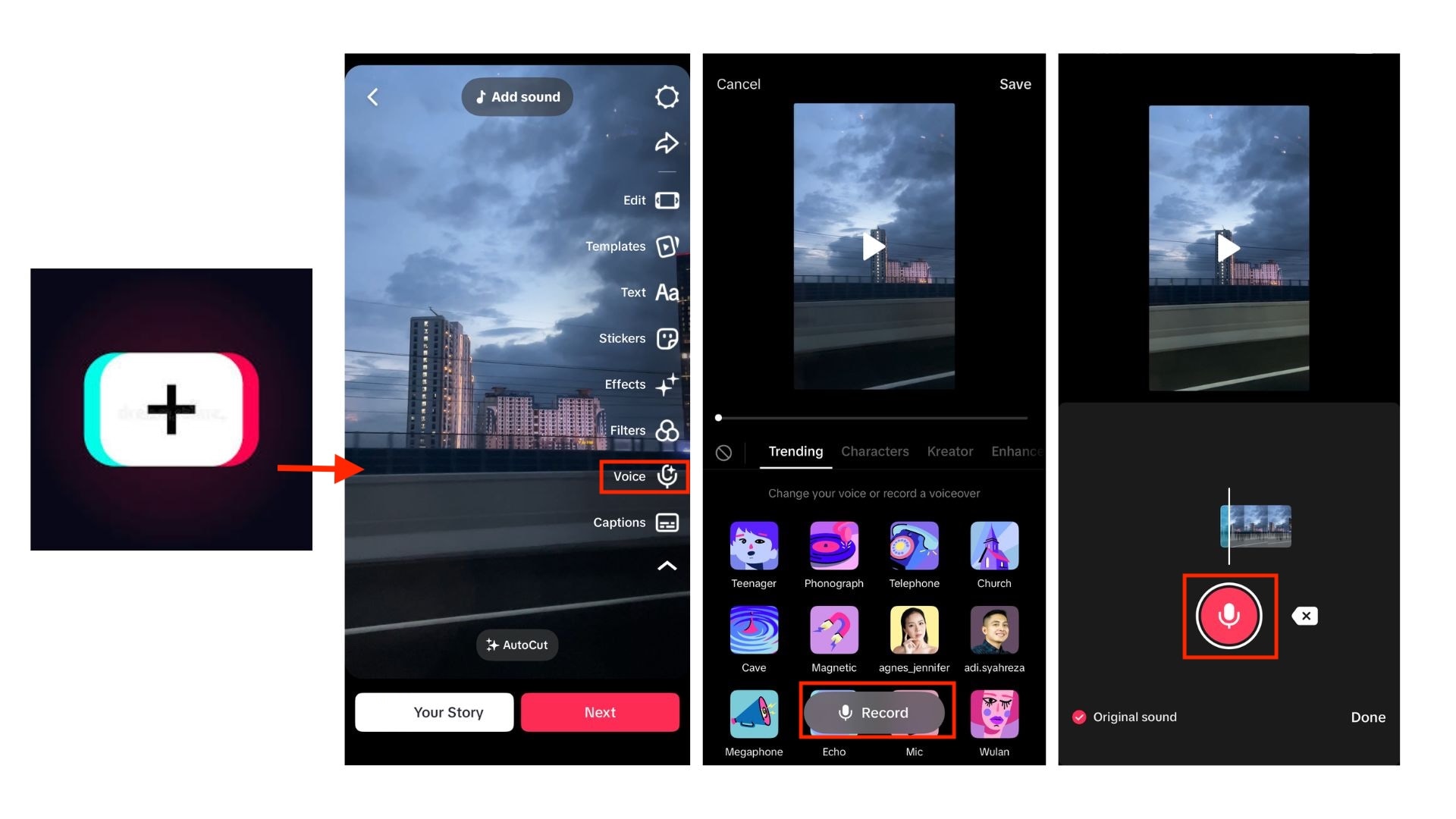
Play the video to ensure timing and clarity, then save your edits.
Pro Tip: How to Keep Background Sound While Adding Voiceover on TikTok
When learning how to add voiceover to TikTok, many creators accidentally mute their original audio.
To avoid losing your audio, enable the "Keep original sound" option. This ensures your TikTok voiceover blends perfectly with the original clip. If you're looking for more control, Filmora's Audio Ducking feature is a superior way to balance background music and narration.
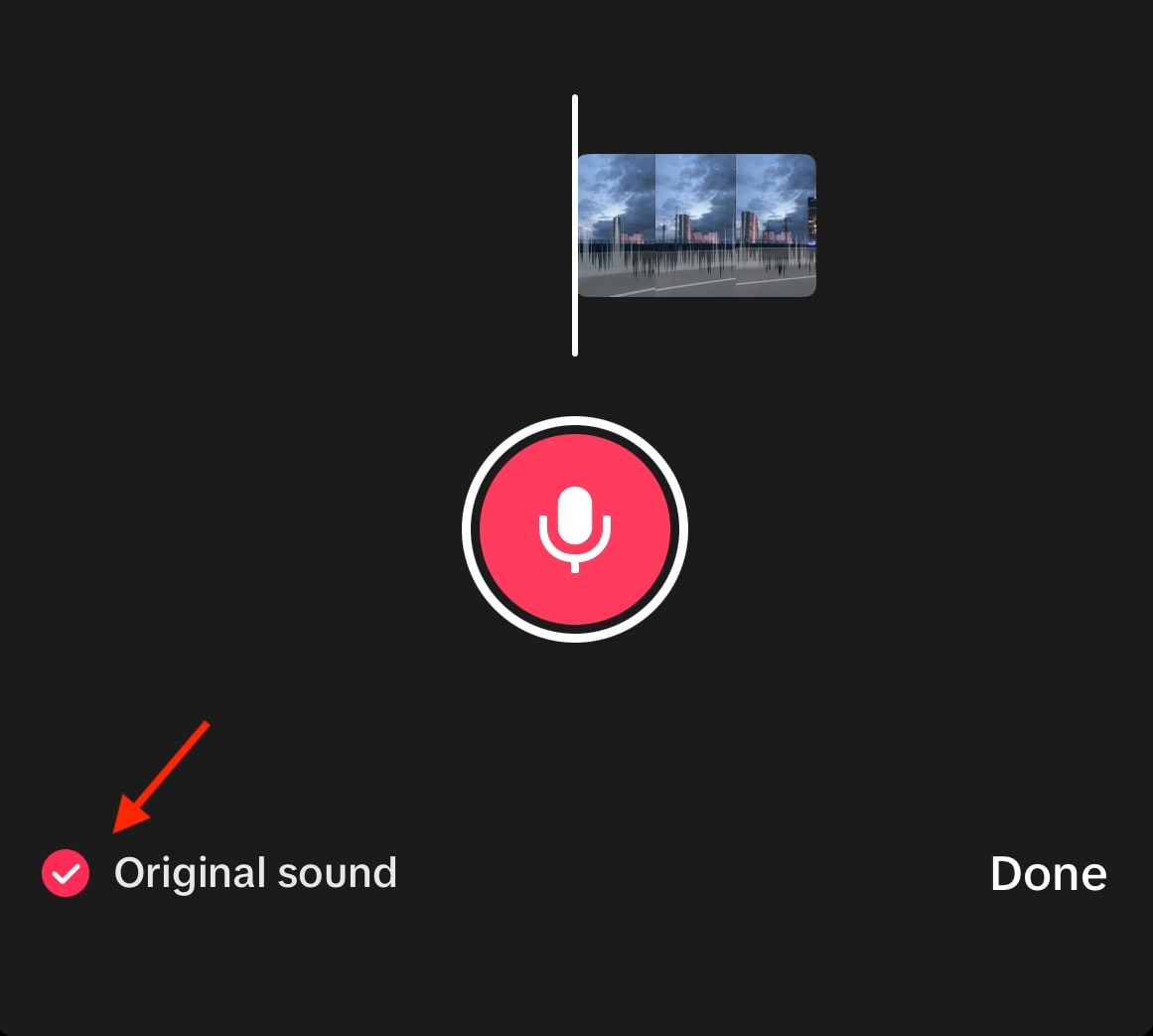
This built-in method is the perfect way to quickly learn how to add a voiceover on TikTok and post without leaving the app.
Method 2: How to Use TikTok Text-to-Speech (AI Voice)
If you do not want to record your own voice, TikTok's Text-to-Speech feature offers an easy AI-powered alternative. This method is popular for meme videos, list-style content, and creators who prefer a clean, consistent narration without speaking on camera.
Step-by-Step: Turn Text Into a TikTok AI Voiceover
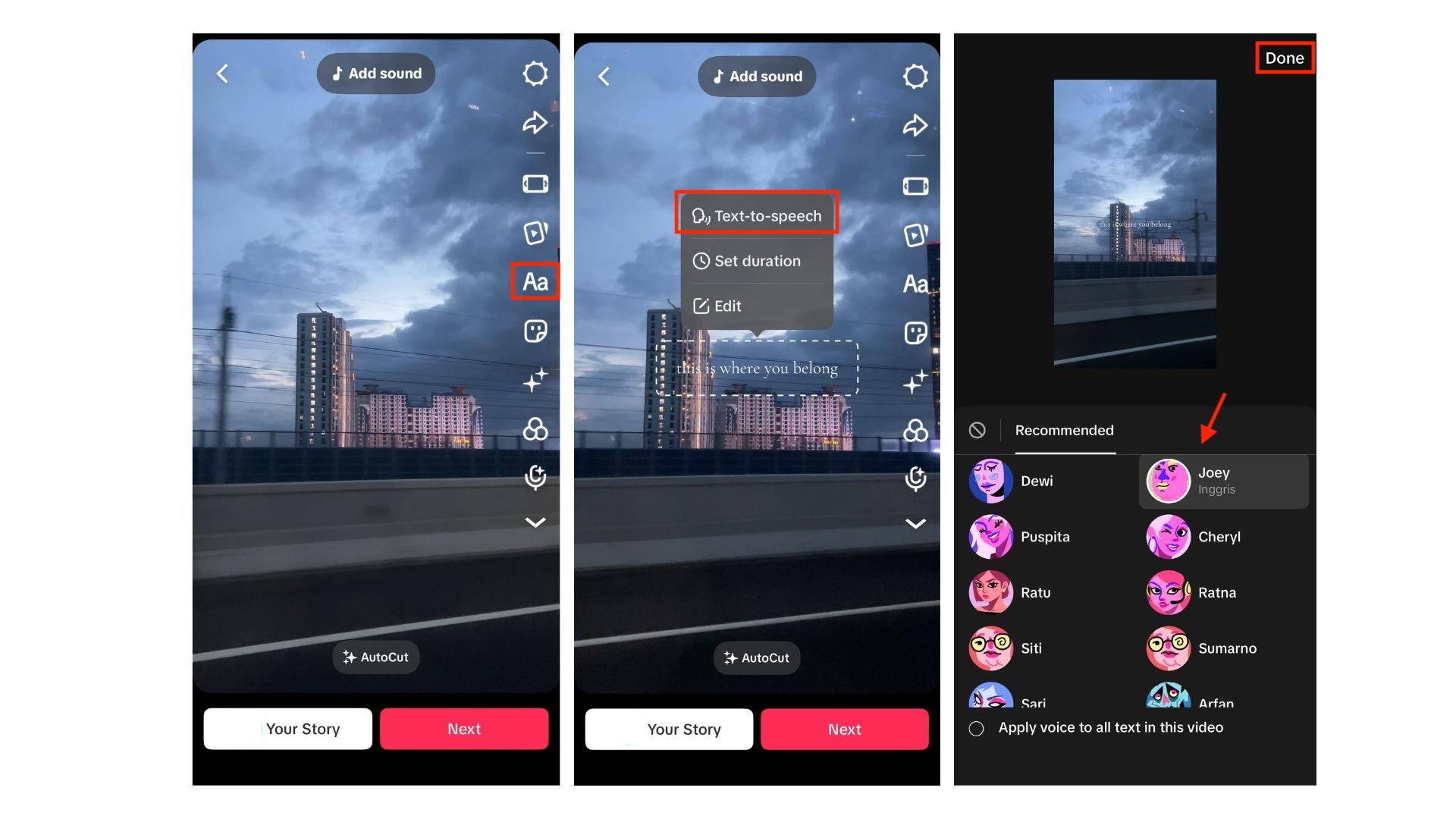
How to Change AI Voices on TikTok
Play the video to hear how the AI voice sounds and check the timing. After enabling Text-to-Speech, you can switch between different voice styles, such as:
- Male and female voices for a natural narration tone
- Funny or character-style voices for entertainment and viral content
- Different languages and accents, depending on your region and app version
To change voices, tap the text again, reopen Text-to-Speech settings, and select another available voice. You can test multiple options before choosing the one that best matches your video's mood.
This method is ideal if you want to learn how to add a voiceover on TikTok using AI, particularly when considering speed, consistency, or anonymity.
Method 3: Use Filmora to Add Professional Voiceover to TikTok (AI Powered)
If you want more control, cleaner audio, and a truly professional sound, Wondershare Filmora is the best upgrade after you are learning how to add voiceover to TikTok videos. First, create and polish your voiceover in Filmora, and then you can upload the finished video to TikTok directly from the app.
Everything happens in one timeline, so it doesn't feel like a complicated extra step, even though you're doing it outside the TikTok app. The big difference is quality. Filmora gives you proper audio tools that you can't find on TikTok alone.
 Secure Download
Why Filmora Is Better for Voiceovers
- AI Noise Removal: Filmora can help you remove background noise such as wind, room echo, keyboard clicks, or traffic. Your voice stays clear and focused, even if you recorded in a non-studio environment.
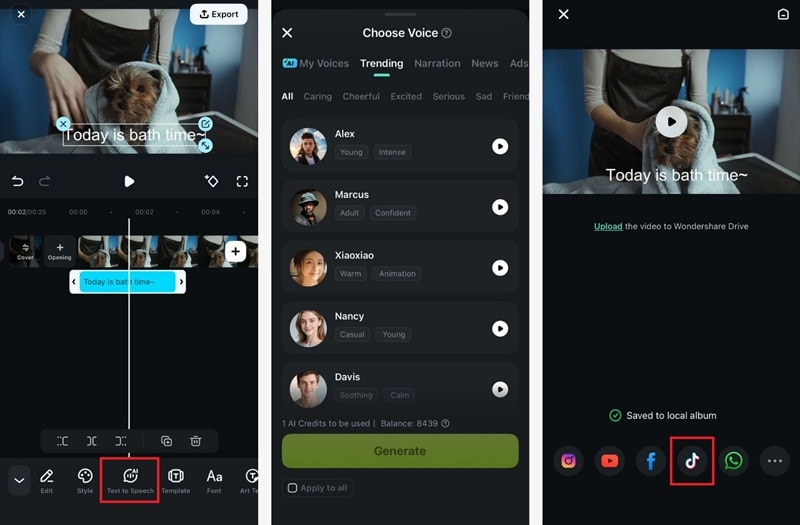
- Text-to-Speech: If you do not want to record your own voice, Filmora's Text-to-Speech converts your script into natural-sounding AI voices. You can choose different tones, genders, and languages.
- Voice Effects: Filmora also includes voice effects that let you change the tone or style of your voice, like making it deeper, brighter, robotic, or funnier.
- Audio Ducking: Audio Ducking automatically lowers the background music when your voiceover starts speaking. This ensures your narration is easy to understand without manually adjusting volume keyframes.
- AI Voice Enhancer: Improve the clarity and tone of your voice with one click. It makes soft recordings sound fuller and helps rough audio sound more like studio-quality.
- Precise Audio Editing: Trim, split, and move your voice clips freely so your narration lines up exactly with what's happening on screen.
How to Use Filmora for TikTok Voiceovers
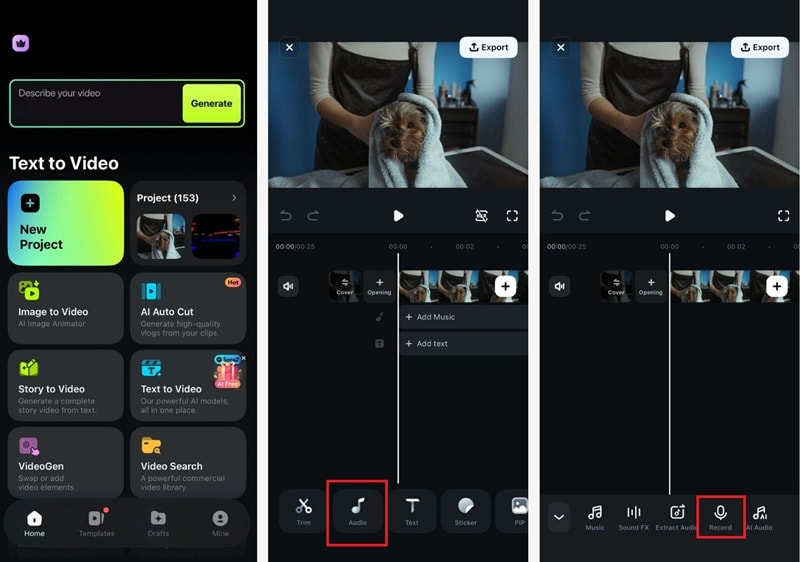
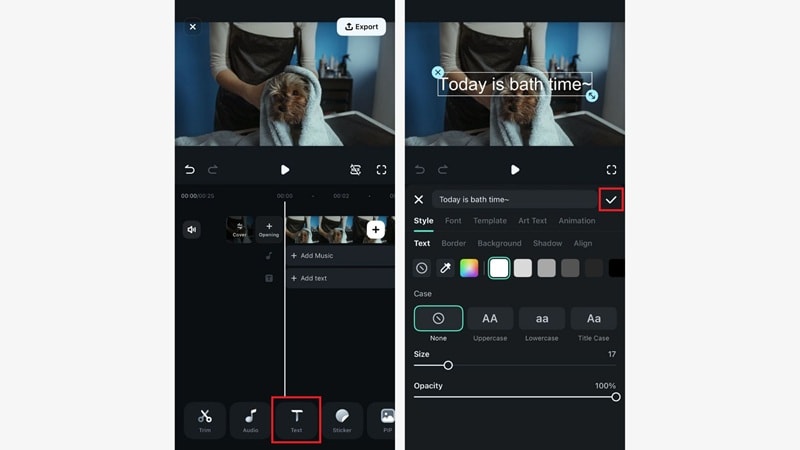
To add a voiceover in Filmora, you can either record with your own voice and change the tone with voice effect, or use a Text to Speech inside the app.
1. Record with Your Own Voice
 Secure Download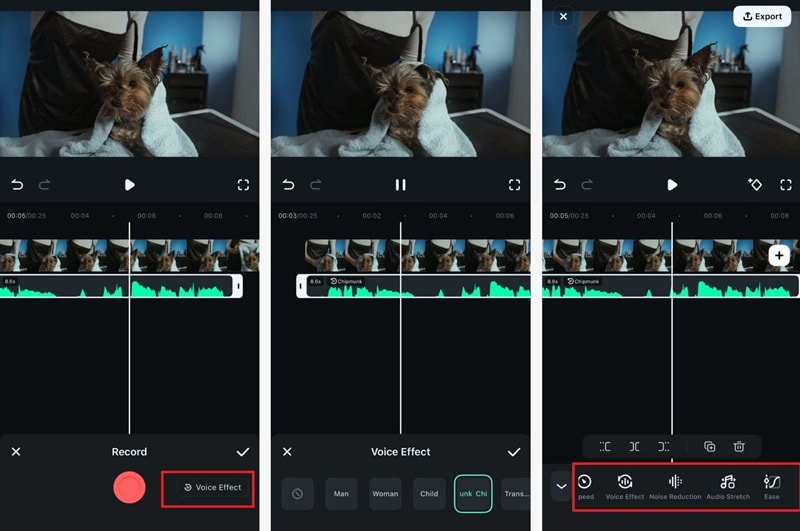
2. Add a Voiceover with Text to Speech
If you are serious about learning how to add voiceover to a TikTok video with studio-quality results, Filmora gives you more flexibility and polish than the app's built-in tools.
Trending Voice Effects to Use in 2026
Voiceovers on TikTok are no longer just about narration. In 2026, creators are using new ways to add voiceover to TikTok videos with voice effects that shape personality, enhance humor, and capture attention in the first few seconds.
Most Popular TikTok Voice Effects Right Now
- Deep Voice: The deep voice effect adds weight and authority to your narration. These effects are often used for dramatic storytelling, "POV" videos, and commentary content where emphasis matters.
- Chipmunk Voice: High-pitched and playful, the chipmunk effect is perfect for comedy skits, reactions, and meme content.
- Robot Voice:The robot voice delivers a clean, digital tone that feels slightly mechanical. Many creators use it for tech content, AI-related topics, or ironic commentary.
How to Apply Voice Effects on TikTok
After recording or adding your voiceover, tap the Voice Effects option in the editing panel. Preview different effects, choose the one that matches your content style, and apply it instantly. You can always remove or switch effects before posting.
Troubleshooting: Why Can't I Add Voiceover on TikTok?
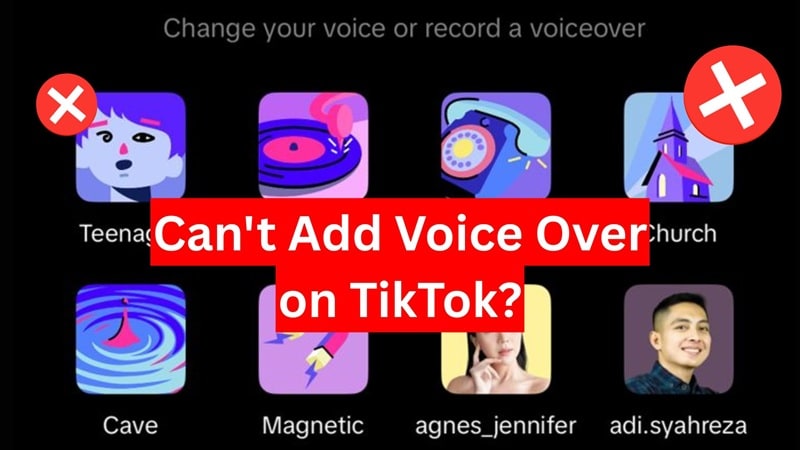
If the voiceover option is missing or not working, you are not alone. This is a common issue for many creators, especially after app updates or permission changes. Check some of the most common reasons why you may not be able to add voiceover on TikTok and how to fix them.
1. The Voiceover Button Is Missing
Sometimes the microphone or Audio Editing icon does not appear on the editing screen. This usually happens when you are using certain templates, effects, or duet modes. Try uploading a regular video without templates and check the editing panel again.
2. Microphone Permission Is Not Enabled
TikTok cannot record a voiceover if it does not have access to your microphone. Go to your phone's app settings, open TikTok permissions, and make sure the microphone is enabled. Restart the app after changing the setting.
3. TikTok App Is Outdated
Older versions of TikTok may not support the latest voiceover features. Open the App Store or Play Store and update TikTok to the newest version. Once updated, reopen the app and try adding your voiceover again.
4. Audio Conflicts in the Editor
If your original sound or music track is locked at full volume, TikTok may not let you add a new voice layer. Lower the original audio or enable the "Keep original sound" option before recording.
Conclusion
Adding a voiceover can completely change how your TikTok videos perform. Using TikTok's built-in voiceover tool, AI text-to-speech, or a professional editor like Filmora all offer different levels of control and quality, depending on your content needs.
TikTok's built-in features work well for quick edits and casual posts. AI voiceovers are ideal for creators who want consistency without recording their own voice. For the cleanest sound and full creative control, editing your voiceover outside TikTok is the best upgrade.
Once you know how to add voiceover to TikTok, try out different styles, voices, and effects. A clear and engaging voice can make your video easier to follow and more impactful on the For You page.

FAQs
-
Can you do a voiceover on TikTok with a pre-recorded video?
Yes. You can upload a video that you have previously recorded from your gallery, go to the editing screen, and then tap the Voiceover or Audio Editing icon. TikTok allows you to add voiceovers after recording a video, so you don't need to re-record the video to add a voiceover. -
How do you adjust the volume of a voiceover?
After recording your voiceover, tap Audio or Volume in the editor. From there, you can lower or raise the voiceover level and balance it with the original sound or background music so everything sounds clear. -
How to add voiceover to TikTok on iPhone vs Android?
The steps are almost the same on both devices. On iPhone and Android, you record or upload a video, tap the checkmark, and use the Voiceover or Audio Editing tool. The only difference is the icon placement, which may vary slightly depending on your TikTok app version.
