

 TL;DR:
The best tools for applying the 2D/3D hand-painted Arcane art style to your media in 2026 are TikTok for instant real-time camera filters, MyShell AI for browser-based photo generation, and Wondershare Filmora for professional, prompt-driven desktop editing.
● TikTok provides the fastest mobile solution for immediate selfies, whereas the web-based MyShell AI processes existing photos but strictly limits uploads to one face per image and caps free usage at three generations daily before requiring a $9.99 monthly upgrade.
● Wondershare Filmora relies on specific text prompts like Fortiche production art style to generate images via its Nano Banana Pro AI, unlocking advanced tools to convert those still images into videos and apply specific color grades like Piltover gold and blue or Zaun neon green.
● To remove watermarks from Filmora generations, users must manually enable the AIGC Usage Agreement within the AI settings, and creators are advised against using official studio artwork as direct image references to prevent commercial copyright violations.
Ask AI for a summary
 ChatGPT
 Perplexity
 Gemini
 Claude
 Grok
Grok
The Arcane visual style—a masterpiece of hand-painted textures and dramatic lighting—has redefined modern animation. If you want to transform yourself into a Piltover or Zaun character, using an Arcane AI filter is the ultimate shortcut. In this 2026 guide, we'll show you how to get the Arcane art style for your photos and videos using TikTok, MyShell, and Filmora.
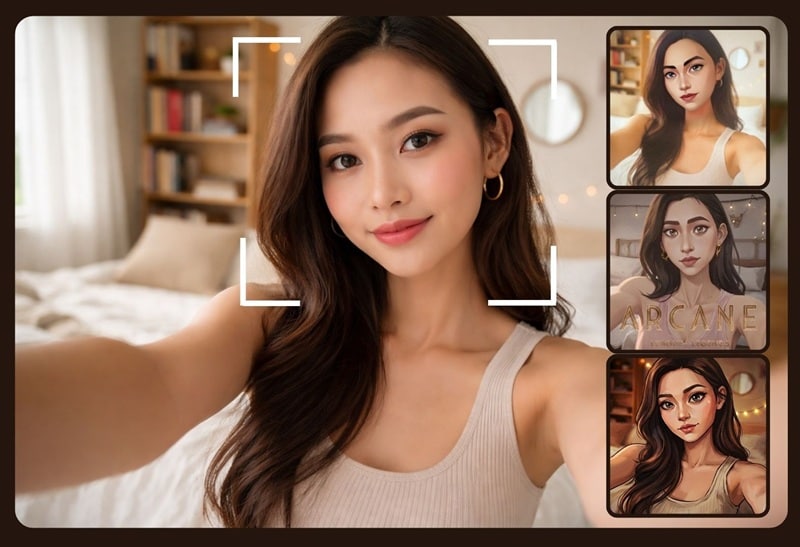
Part 1. What is the Arcane AI Filter and Why is it Trending?
The Arcane AI filter is a visual style effect inspired by Arcane, the globally acclaimed, award-winning Netflix animated series based on the popular game League of Legends. Its final season quickly climbed to number one on streaming charts in more than 60 countries after its release, raising the bar for what modern animation can look like.
With this popularity, many creators online are inspired to recreate that distinctive look using their own faces, especially after the show wrapped up its final chapter in 2024. Everyone wants to see what they would look like in that painterly style as Jinx, making the Arcane AI filter a popular trend that spread across social media.
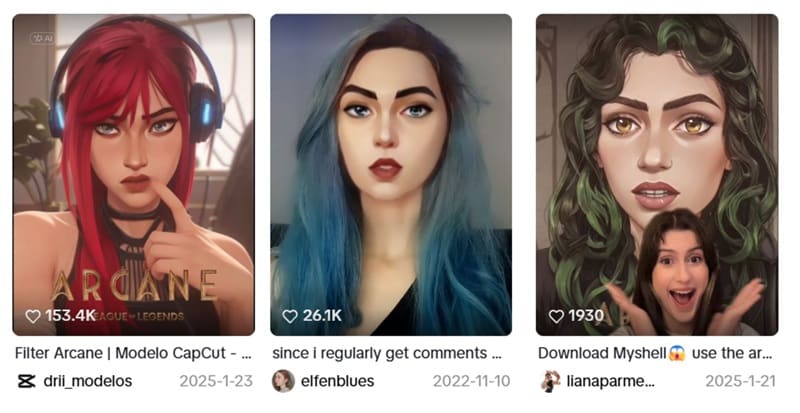
Arcane's Signature Look: A Blend of 2D and 3D Animation
The unique visual style of Arcane comes from the way its artists combine detailed 3D character models with hand painted 2D textures layered on top. The visible brushstrokes, shadows, and lighting details give the characters a more textured and dimensional appearance.
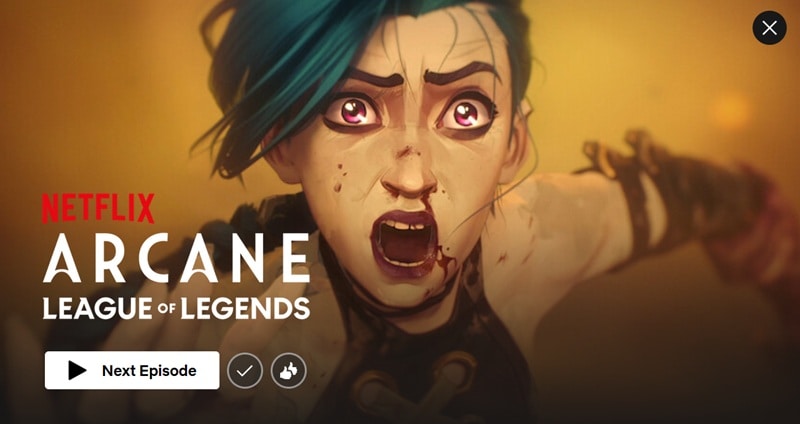
You can see the depth in their faces and the sculpted shadows that shape their features, which is what an Arcane AI filter aims to recreate. Achieving that level of detail and artistry requires high-level artistic skills. If you are a fan of Arcane who wants to see yourself in that style, Arcane AI filter is an easy shortcut to give yourself the same look.
Part 2. Top 3 Tools to Get the Arcane AI Filter for Photos & Videos (2026)
We have narrowed down to three of the most effective ways to get the Arcane AI filter. You can choose the one that works best for you and delivers the result you like most.
1. TikTok Filter: The Quickest Way
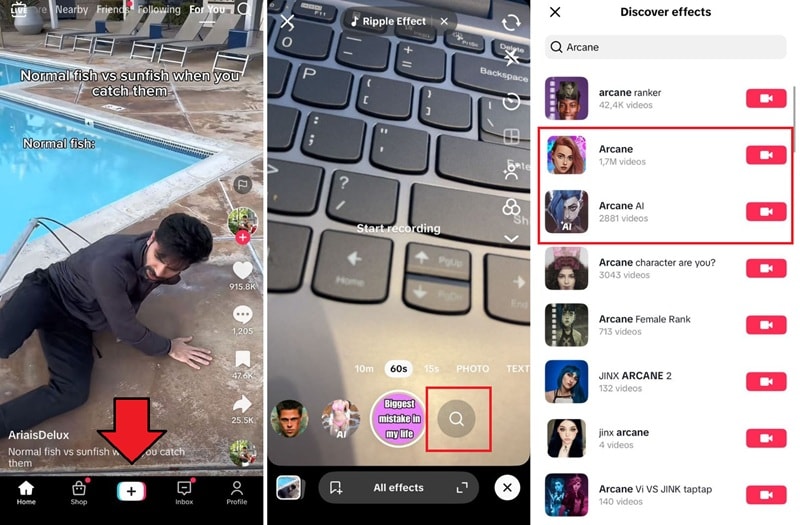
Aside from trending short videos, TikTok also offers many built in filters that can instantly transform your face, including Arcane style. If you want the fastest way to apply the Arcane art style to your face, this is the easiest option.
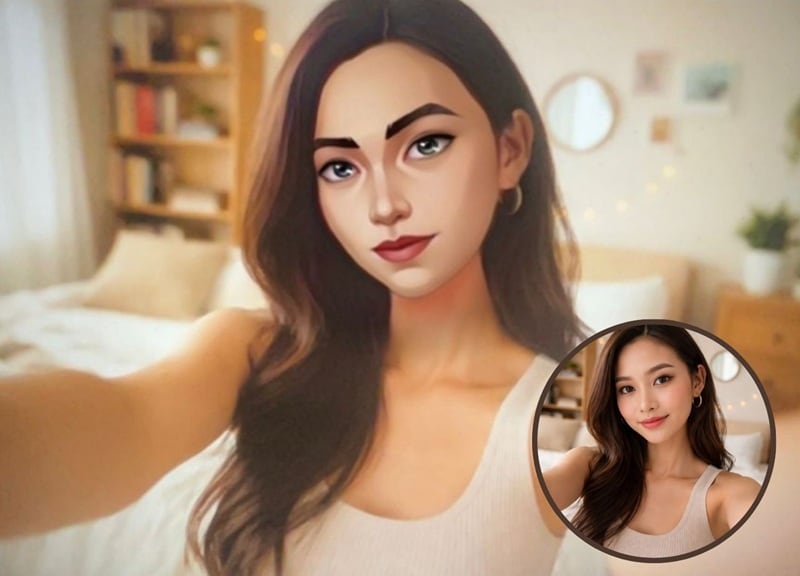
How to search for the Arcane AI filter on TikTok?
To find the Arcane AI filter on TikTok, you need to have a TikTok account and the app installed on your phone. Once you are logged in, follow these steps:
2. MyShell AI: The Best Online Generator
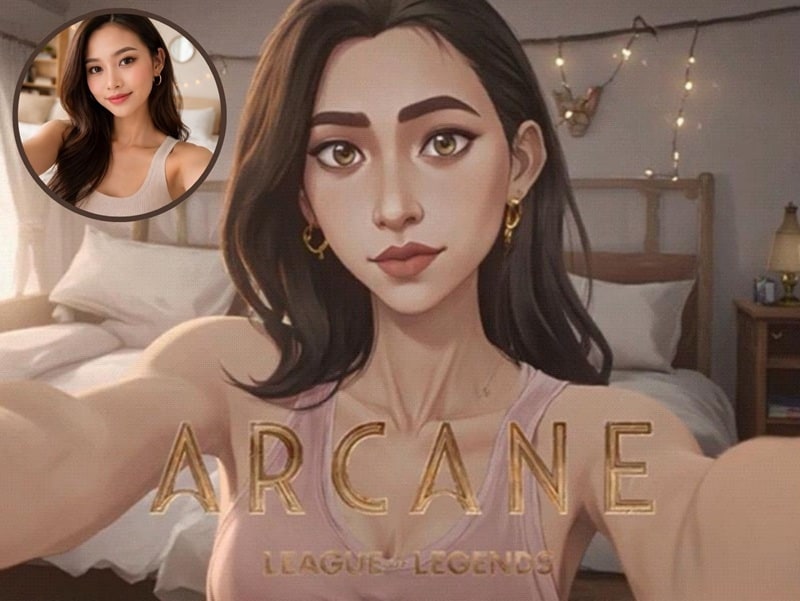
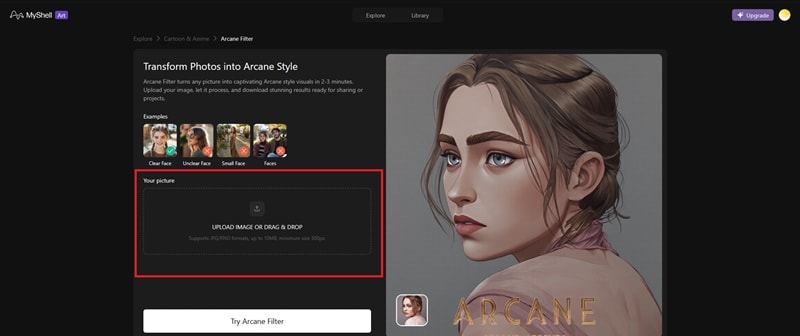
Another way to get the Arcane look is by using MyShell AI. MyShell AI offers an online AI image generator that helps transform your photos into different artistic styles. It works fully in your browser and doesn't rely on live camera filters like TikTok.
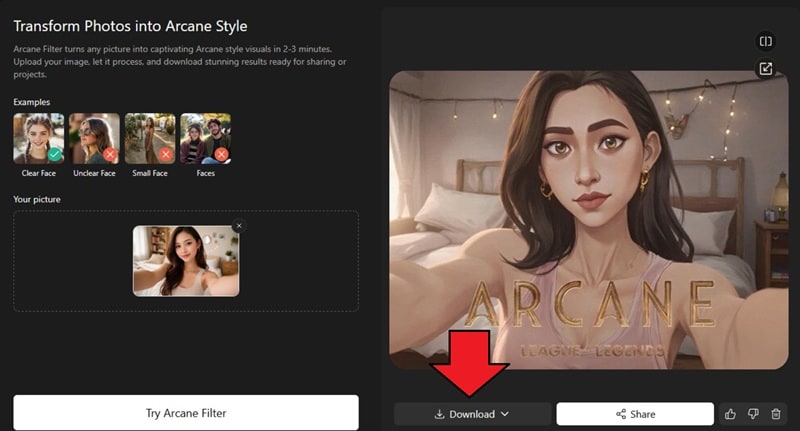
To use MyShell AI Arcane filter, you need to create an account, upload your photo, and generate the result. It gives you three free image generations daily to test it out. If you want more generations or faster processing, you can upgrade your plan starting from $9.99/month.
How to Use Myshell AI Arcane Filter
3. Video Editing Software (Filmora): For Professional Creators
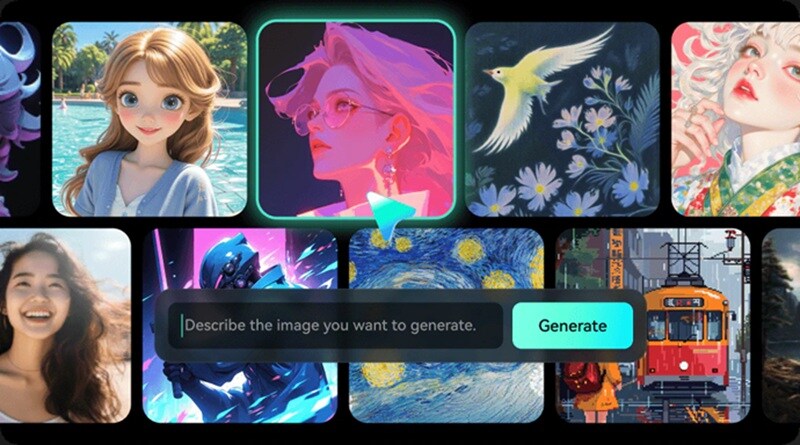
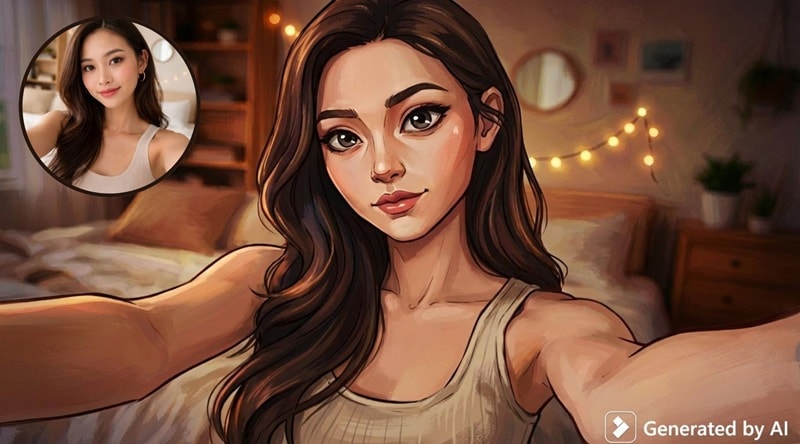
If you want full creative control and editing flexibility, a dedicated video editor like Wondershare Filmora gives you more options. Through its AI Image generator feature, you can upload your own photo, use a reference image, and enter a detailed prompt to guide the style, so the result feels more tailored to your vision.
 Secure Download
Unlike basic Arcane filters on TikTok, Wondershare Filmora utilizes advanced AI Image Generation (powered by Nano Banana Pro) to deliver high-fidelity results. It provides professional-grade customization, allowing you to refine hand-painted textures and cinematic lighting that online generators often miss. You can fine-tune the result by adjusting color tones, contrast, highlights, and other visual details. Filmora's AI Image generator is also powered by Nano Banana Pro, which aims to deliver higher-quality results with improved prompt accuracy.
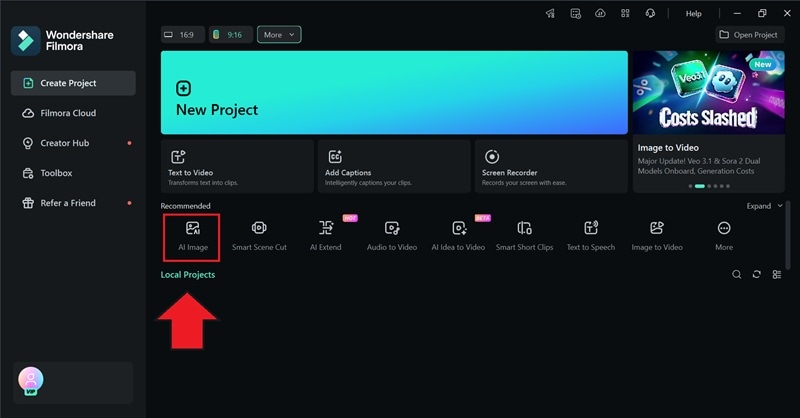
How to Generate an Arcane Style Image Using Filmora
 Secure Download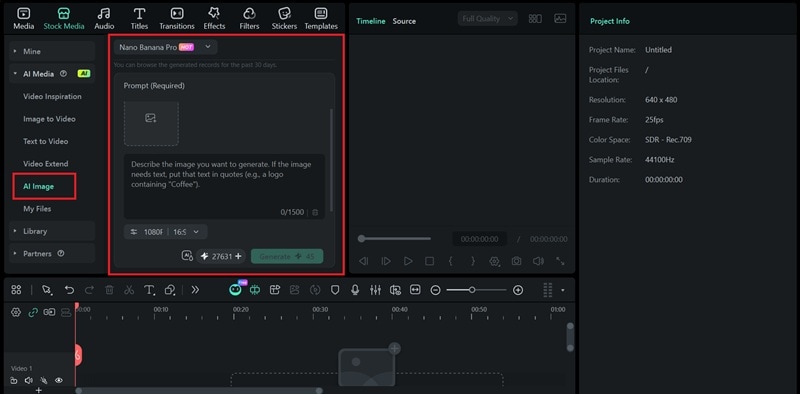
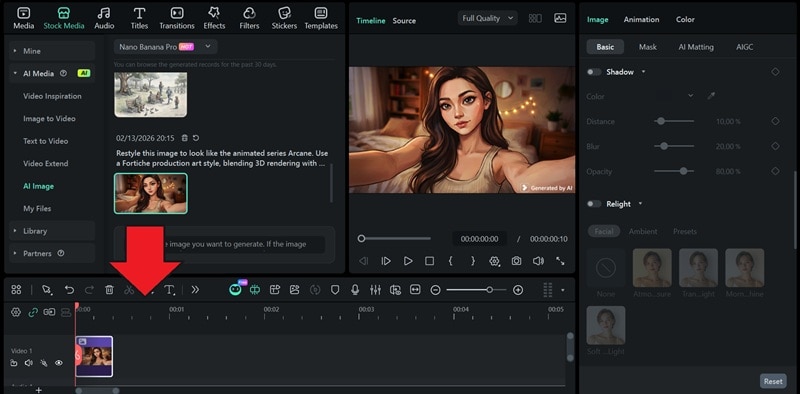
Note: To remove the watermark, you need to enable the "AIGC Usage Agreement" through the AI settings.
How to Create AI Prompts to Recreate the Arcane Look
Since Filmora's AI Image Generator relies heavily on your prompt, unlike other Arcane AI filters, you need to know how to write an effective prompt that gives you the result you hope for. There are a few key elements you can include to better guide the AI:
- State what you want. Since you want to turn or transform your photo into an Arcane style, mention that first so the AI understands your main goal.
- Mention the "Arcane style" directly. The AI is trained on a wide range of visual data. And since Arcane is a pretty well-known series, the model already has a general understanding of its look and aesthetic patterns.
- Describe the art style details. Even though you already mentioned "Arcane" in your prompt, you need to explain the style. Add details like hand-painted textures, dramatic side lighting, strong facial contours, deep shadows, etc.
Example prompt we use:
"Restyle this image to look like the animated series Arcane. Use a Fortiche production art style, blending 3D rendering with hand-painted textures, and expressive character features."
Find More Art Styles to Transform Your Image
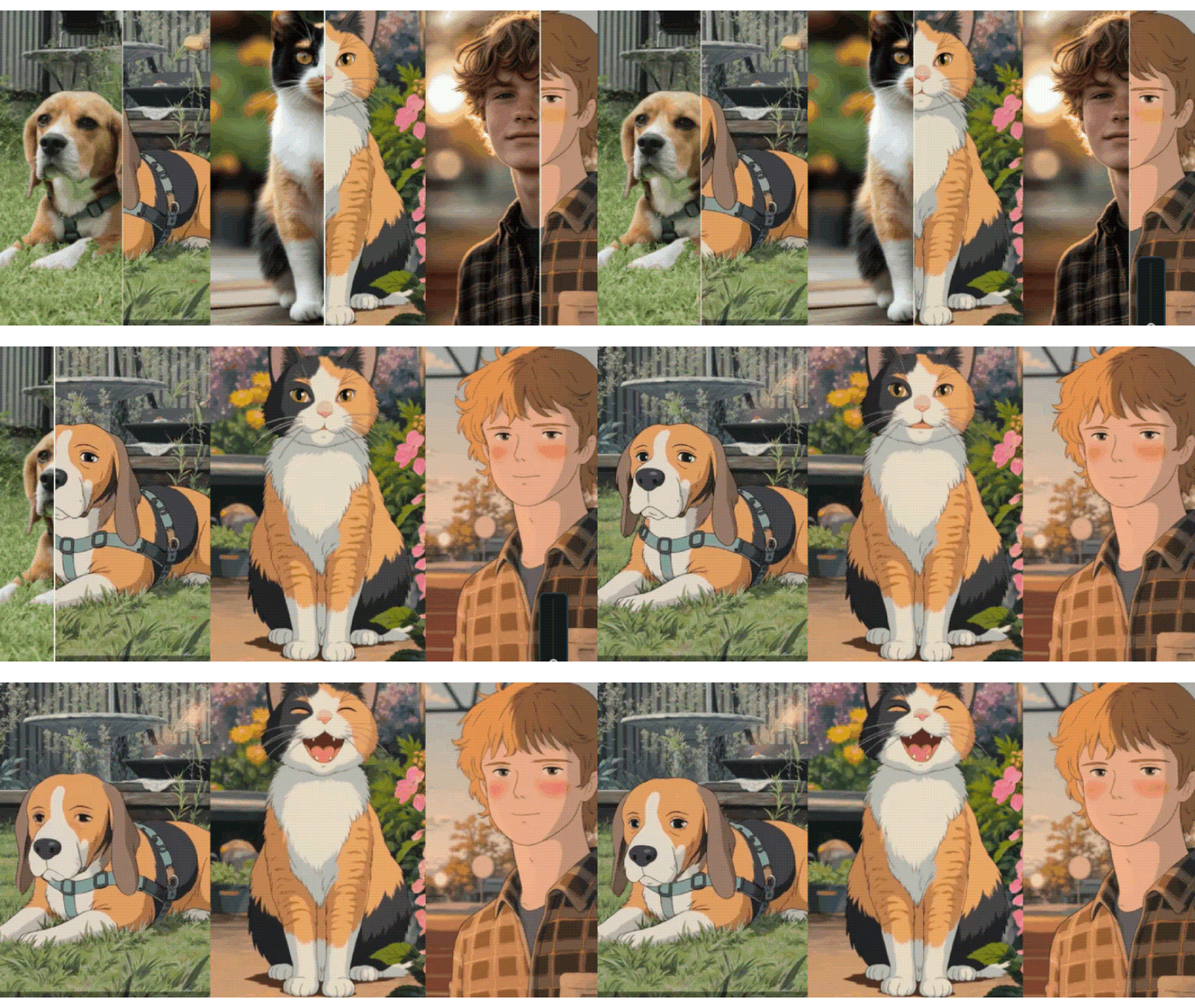
Besides generating an image from a text prompt, Filmora also has an Image Stylizer feature that can instantly apply preset artistic effects to your photo. Although it doesn't currently have a specific Arcane preset, you can try styles like Cyberpunk to get a similar look or use it to browse other available art styles that you might like.
Part 3. Expert Tips: How to Make Your Arcane Video Look Pro
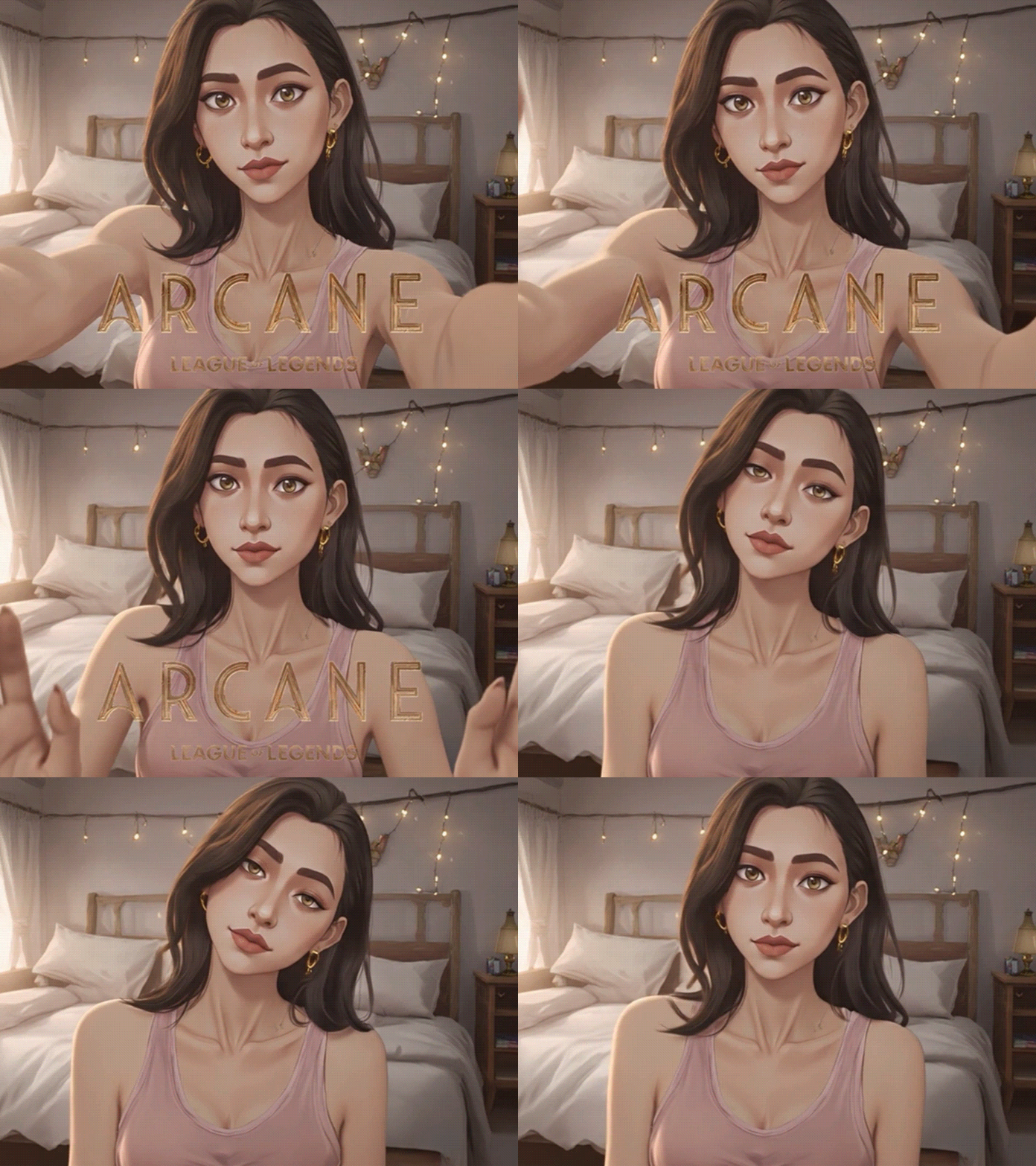
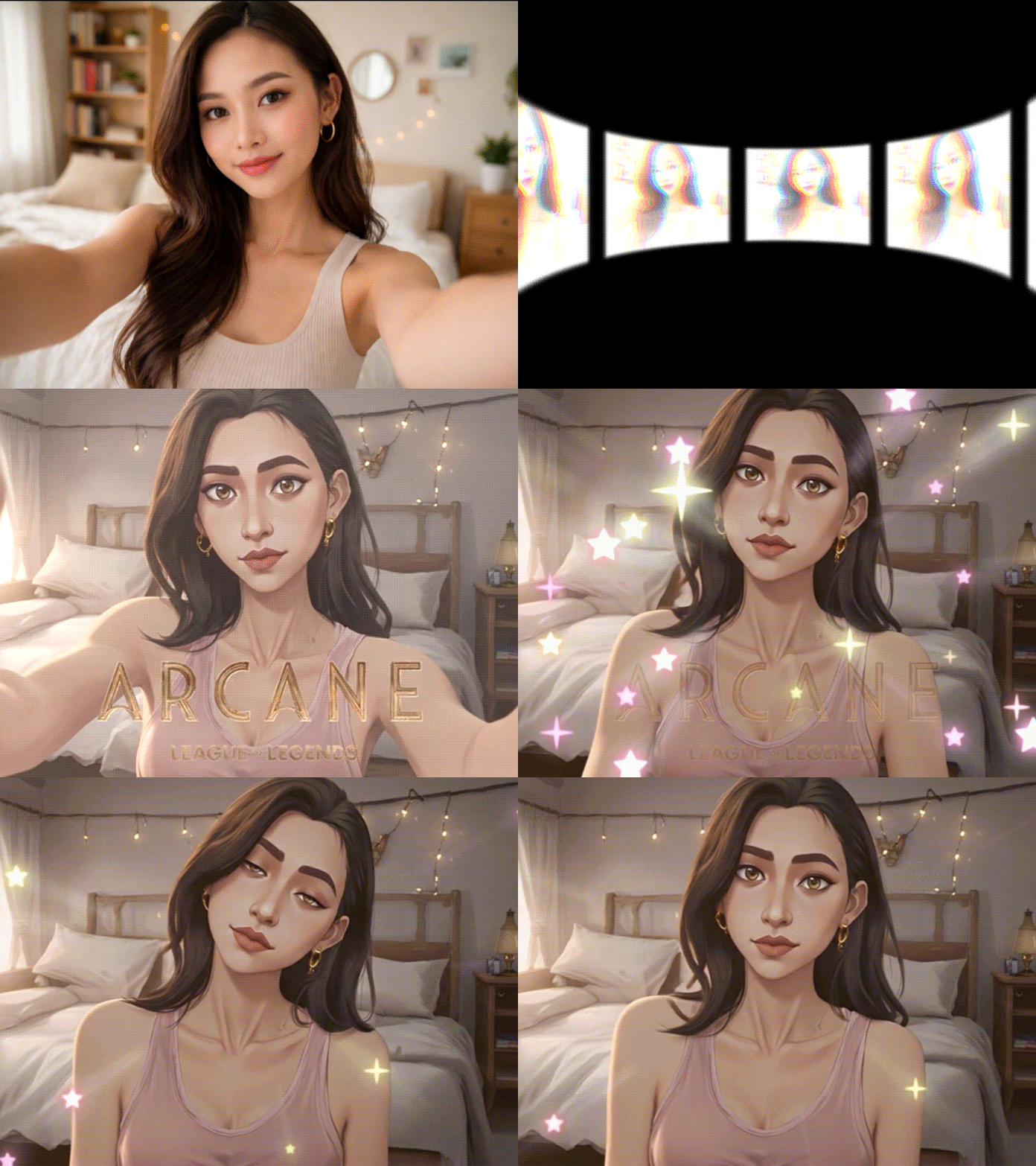
With your edit ready, you don't have to leave it as a still image. You can continue by turning it into a video to make it feel even more alive and immersive. For this step, you can use Filmora's AI Image to Video feature to animate your Arcane portrait with ease.
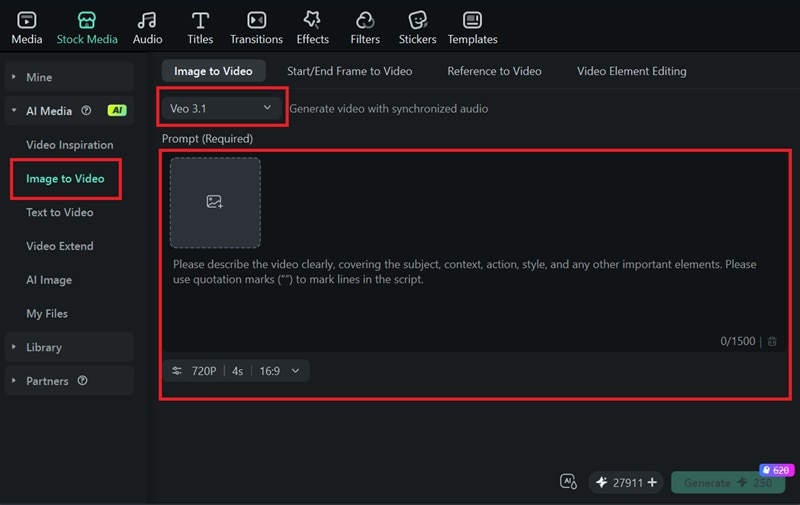
You can access this feature by heading to Stock Media > AI Media > Image to Video. Then, upload your photo, select the AI model, and enter the prompt describing how you want it to move.
After your image is generated, download the result from My Files and drag it to the timeline to start editing.
Color Grading: Adjust the Blue/Gold & Green Contrast (Piltover vs. Zaun)
The world of Arcane is divided between Piltover and Zaun, and this contrast is strongly reflected through color.
- Piltover scenes often lean toward rich gold and soft blue tones to depict wealth, progress, and a sense of order.
- Zaun is known for its darker atmosphere with green and neon accents that highlight its underground setting.
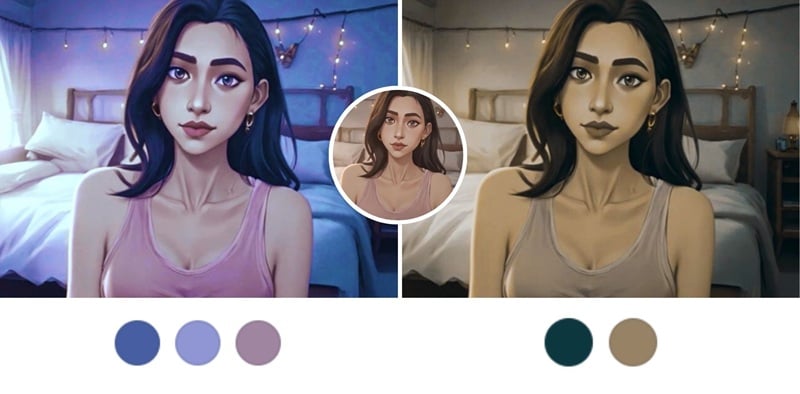
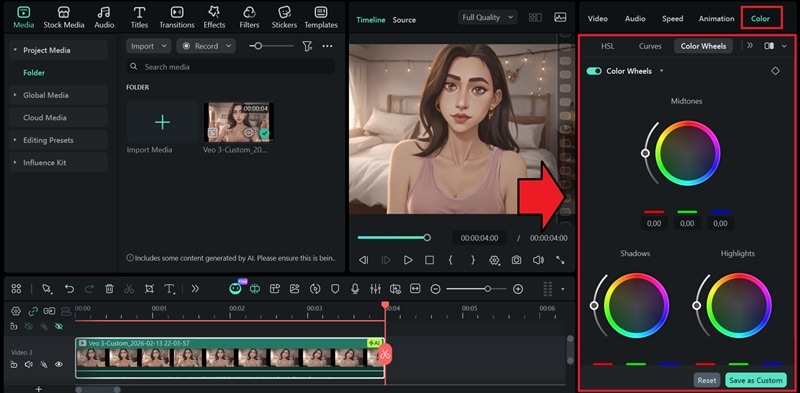
If your generated result doesn't fully capture that mood, you can refine it in Filmora by adjusting the color grading using the color correction tools in the Color tab.
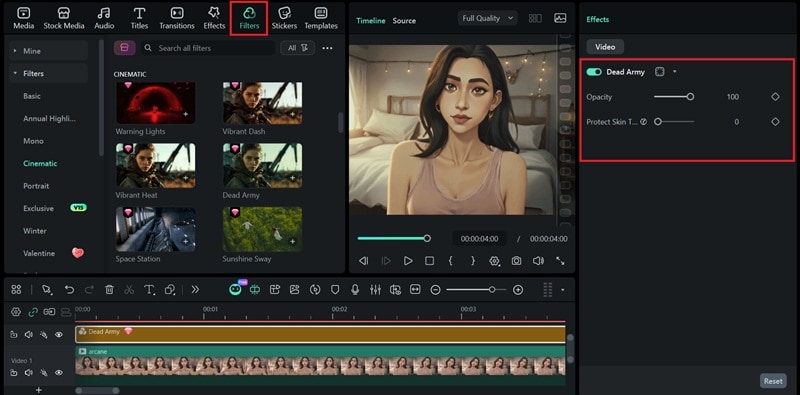
For quicker results, you can also apply filters from the Filters menu and tweak the intensity/opacity to get the look you're going for.
Lighting: Use Cinematic Lighting to Enhance the Artistic Feel
Arcane uses strong lighting contrast to create a cinematic look, so adjusting lighting can also improve your results.
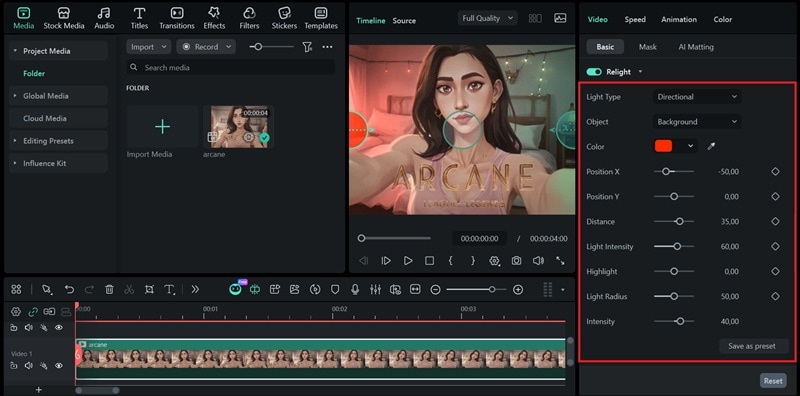
While lighting and contrast can be manually adjusted in the Color tab, like in the previous color grading tip, you can also use Filmora's AI Relight to give your image more dimensional lighting and depth with less effort.

To access it, select the track on the timeline and head to the Video > Basic tab. Then, enable the Relight option. You will see different settings that control how light falls on the subject:
- Facial: Adjusts lighting on the face. You can change the direction, intensity, and softness of the light to add depth and stronger shadows.
- Ambient: Controls the overall lighting of the scene, which helps balance brightness, mood, and background illumination.
- Preset: Lets you create and save a lighting setup, so you can apply the same look to other clips without adjusting everything again.
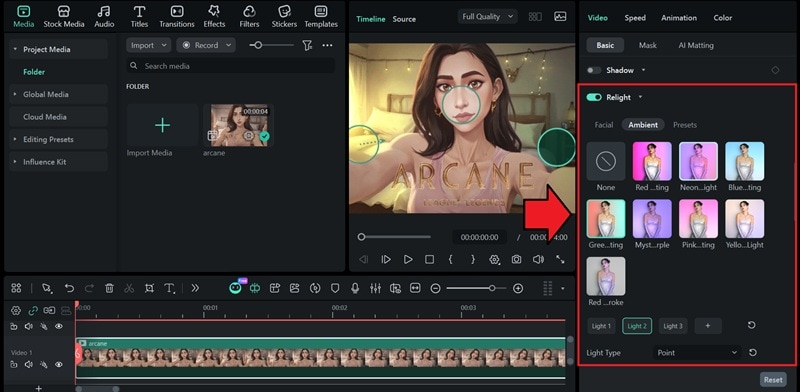
If you scroll down, you will find more detailed controls for each lighting setting.
Music: Match the Transition Rhythm to Arcane OSTs
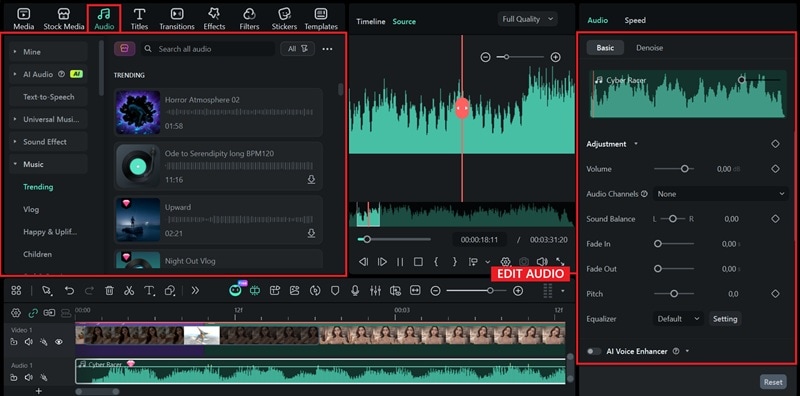
Before posting to your social media, you can also add music to complete the edit. And what better way to do it than using Arcane's iconic soundtrack? Download Arcane's OST like Playground, Enemy, or other tracks from the series.
Then, you can sync your cuts, zooms, and transitions with the beat of the music using Filmora, either manually or using the Auto Beat Sync feature. It will make your video more engaging and fun to watch.
But before using Arcane's soundtrack, make sure you have permission or use royalty-free alternatives. You can browse Filmora's Audio library for copyright-safe music, or create your own track using its AI Music generator.
Part 4. Comparison Table: Which Arcane Filter Tool Should You Choose?
Having several ways to get the Arcane look on your photo or video can make it hard to decide which tool to use. To help you choose, here's a quick comparison of the methods we covered earlier, based on how it works, customization, and the type of results you can expect.
| TikTok Filter | MyShell AI | Filmora | |
| How It Works | Built-in face filter applied in real time using your camera | Upload a photo and generate Arcane-style image online | Upload photo and generate Arcane style using prompts |
| Best For | Quick selfies and social media posts | Transforming existing photos online | Professional editing with creative control |
| Customization | Limited | Limited | High (via prompt) |
| Output Type | Photo or video | Photo | Photo (+ video editing workflow) |
| Editing Options | Basic | Full editing tools | |
| Platform | Mobile app (iOS/Android) | Web browser | Desktop (Mac/Win) |
|
Show More
Show Less
|
|||
In short:
- TikTok Arcane AI filter: Fastest option. Gives good results instantly and lets you post right away. Best if you want to post quick social media edits with minimal effort.
- MyShell AI Arcane filter: Produces good Arcane-style images from existing photos online, but offers little to no editing or customization after generation.
- Filmora: Requires more setup and the result really depends on your prompt, but provides full editing tools. Best for deeper customization, fine-tuning, and higher-quality results.
Conclusion
Now it's your turn to try what you've learned. Recreating the unique Arcane style in your photos is possible with Arcane AI filters, and you can choose the tool based on the result you prefer.
If you want more control over the final result, Filmora lets you refine your edits until they look closer to Arcane's visual style. You can adjust color tones, deepen shadows, enhance highlights, and fine-tune lighting to better capture that dramatic feel the series is known for.
Don't forget to share your creations online and get ready to #GetJinxed!

FAQs
-
Is there a free Arcane AI filter online?
Yes, some platforms offer free access to Arcane filters with certain limits. The MyShell AI Arcane filter, for example, allows you to generate up to three images per day for free. There are other free tools as well, such as HuggingFace. But based on our testing, MyShell AI produces some of the most accurate results. Otherwise, you can try using the TikTok Arcane AI filter for free.
-
How to get the Jinx AI filter specifically?
You can find Jinx AI filters on TikTok and Snapchat. search for keywords like "Jinx" or "Arcane Jinx" in the effects or lens filter search bar. Choose a filter you like and apply it while recording or taking a selfie.
