

 TL;DR:
Creators can instantly join the Strawberry Girl trend by using free, ready-made filters on Snapchat and TikTok, or design a fully customizable, time-limit-free strawberry aesthetic using professional color tools in Wondershare Filmora.
● Snapchat is optimal for casual, animated selfies using lenses like Funny Strawberry, whereas TikTok is better suited for public trend videos utilizing highly popular creator effects like Strawberry Milk.
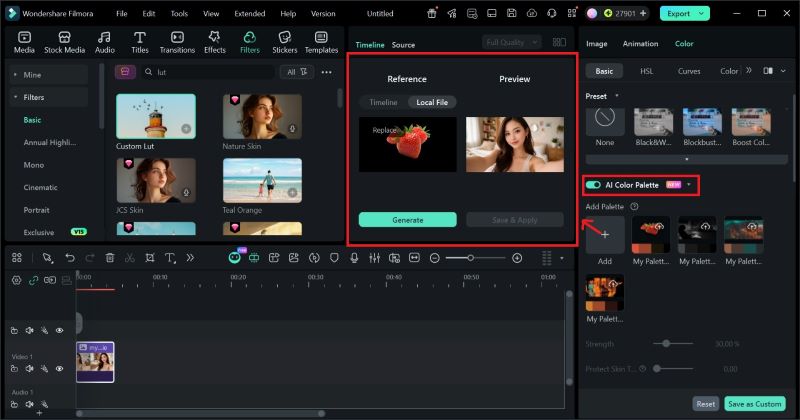
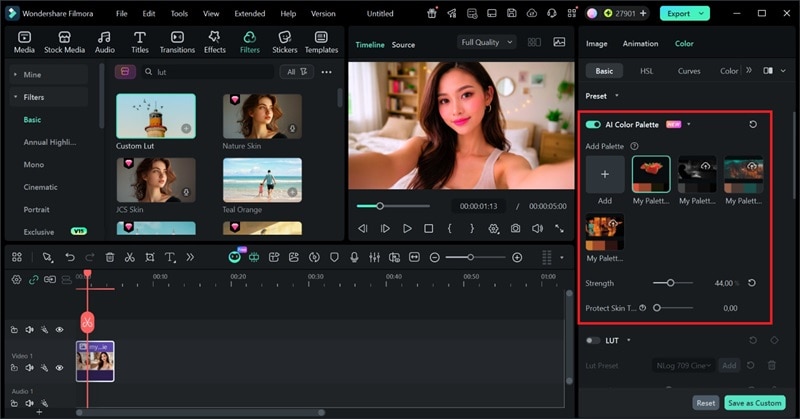
● Building a custom aesthetic in Filmora involves applying the NLog 709 Cinematic LUT preset with Strength set to 38, or using the AI Color Palette tool to automatically match the exact red and pink hues from an uploaded reference image.
● If you cannot locate a specific strawberry effect via the social platform's search bar, you must update your app version or verify that the original creator hasn't renamed or deleted the filter.
Ask AI for a summary
 ChatGPT
 Perplexity
 Gemini
 Claude
 Grok
Grok
The Strawberry Filter trend is taking social media by storm, defining the "Strawberry Girl" aesthetic on TikTok and Snapchat. Whether you want soft pink tones, adorable freckles, or vibrant summer vibes, these filters make your content pop. However, finding the specific viral effect can be tricky among thousands of options. In this guide, we'll show you exactly how to get the Strawberry filter on TikTok, locate the best Snapchat strawberry lenses, and even how to recreate this aesthetic using professional tools in Wondershare Filmora.

Part 1. What Is The Strawberry Filter and Why Is It Viral?
The strawberry filter is a fun visual effect that adds strawberry-themed elements to your face or background. It usually comes with soft pink colors, blush tones, and cute strawberry graphics. This filter is commonly used on Snapchat and TikTok for casual, aesthetic, and playful content.
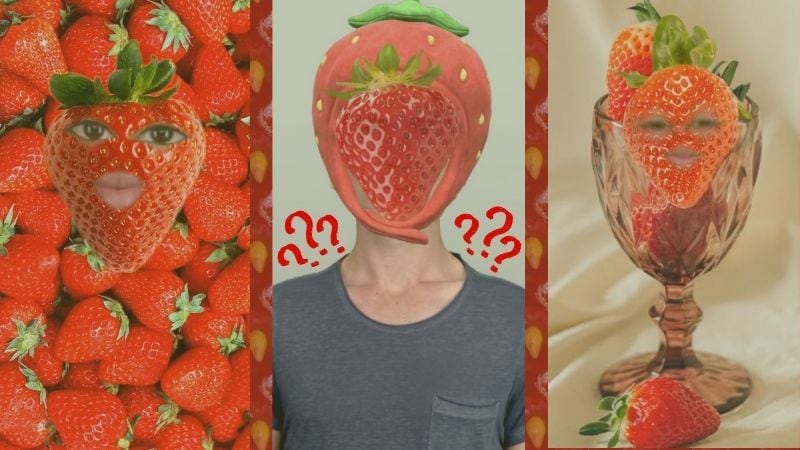
So, why did the strawberry filter blow up so fast? Well, there's plenty of factors, but here's what's really driving the trend:
- Cute and Trendy Look: The strawberry theme gives the video a soft, cheerful look that fits perfectly with popular Snapchat and TikTok styles.
- Easy to Use for Anyone: You don't need editing skills. Just tap the filter, record, and your video is ready to post.
- Strong Social Media Exposure: Once popular creators and influencers started using it, the trend spread fast across platforms.
Part 2. How To Get The Strawberry Filter on Snapchat
Snapchat was one of the first platforms to popularize face filters before Instagram and TikTok joined in. That's why many creators still turn to Snapchat first for cute and trendy effects, including the Snapchat strawberry filter.
If you want to try it yourself, just follow the steps below and you'll have it on your camera in no time.
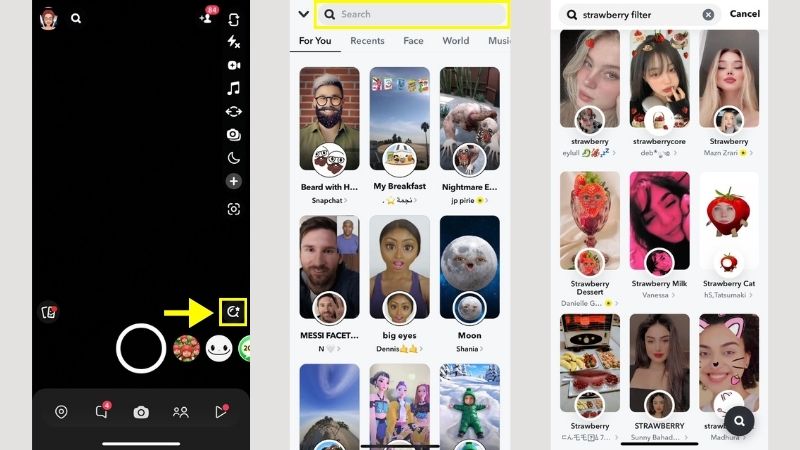
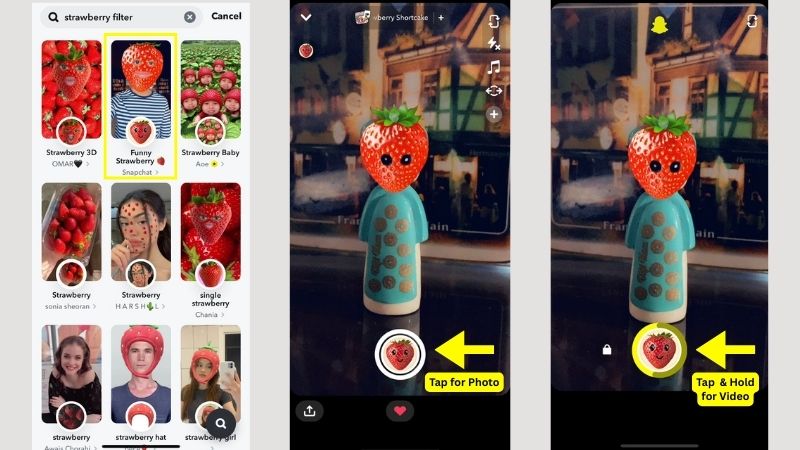
After that, you can download, share your snap publicly, post it to your story, or send it to specific people:
- Tap the "Save" button to store the snap to your device.
- Tap "Stories" to post it right away.
- Tap "Send To" for more sharing options.
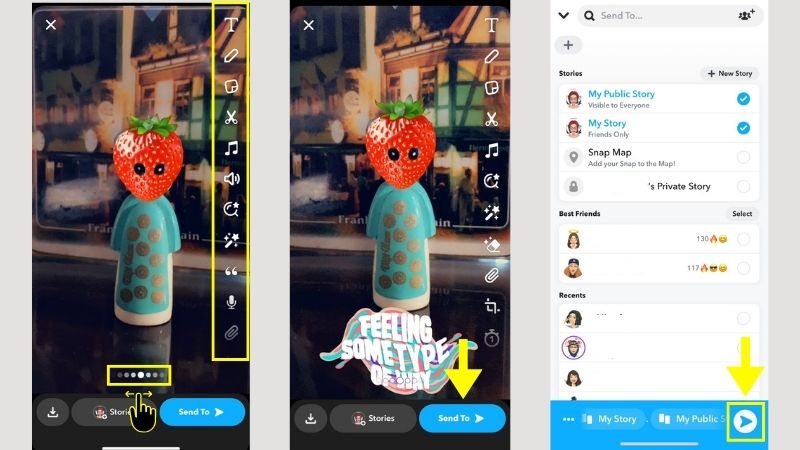
Within a few simple steps, your Snapchat strawberry filter content is ready!
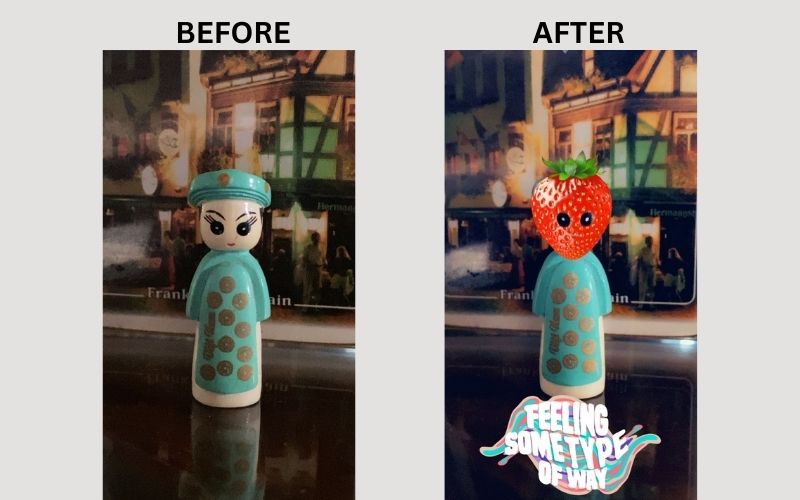
We used the Funny Strawberry lens by Snapchat, which detects your face and turns your head into a strawberry while keeping your eyes and mouth visible. This effect gives you a fun and quirky look, just take a look below!
Part 3. How To Use The Strawberry Filter on TikTok
TikTok has become one of the go-to platforms for all kinds of content, from casual posts to creator-style videos. Trends grow fast there. Once something goes viral, like the strawberry filter, it quickly becomes part of the trend cycle.
How to use the strawberry filter on TikTok:
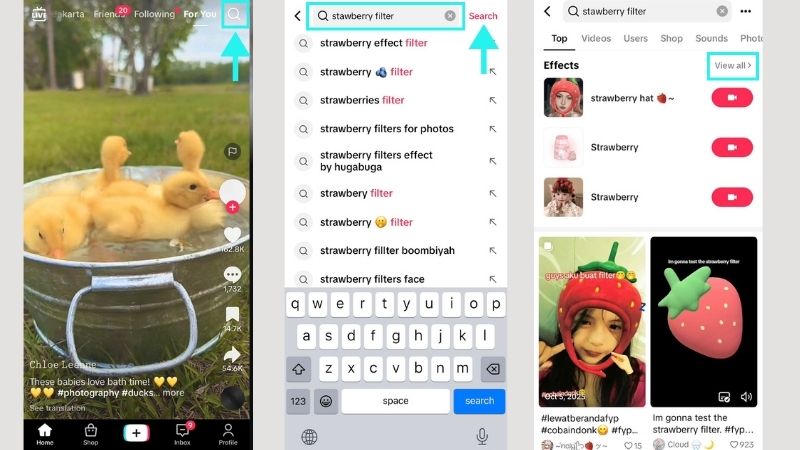
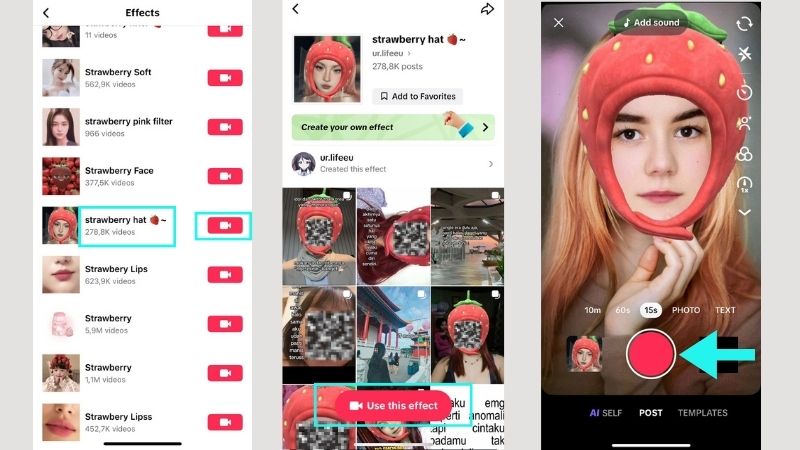
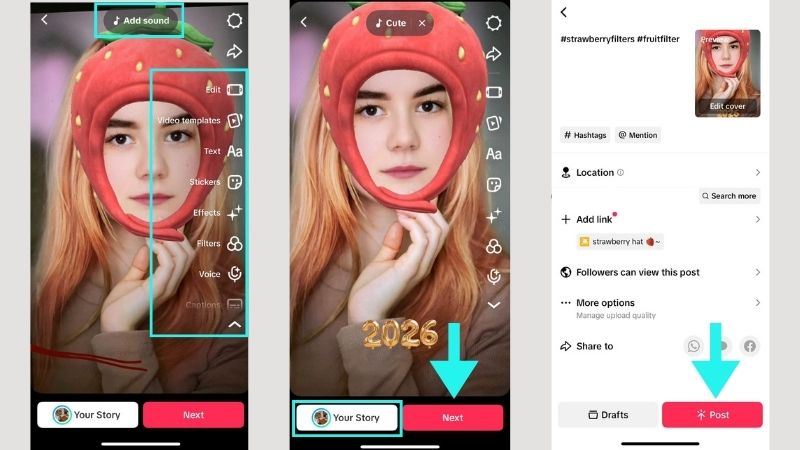
In just a few easy steps, your strawberry filter content on TikTok is good to go. For this example, we used the Strawberry Hat filter by creator ur.lifeeu.
The filter tracks your face and places a strawberry hat over your head, with a strap that goes down to your chin. It also comes with a beauty effect that smooths your skin, enhances your lip color, and makes your lashes pop.
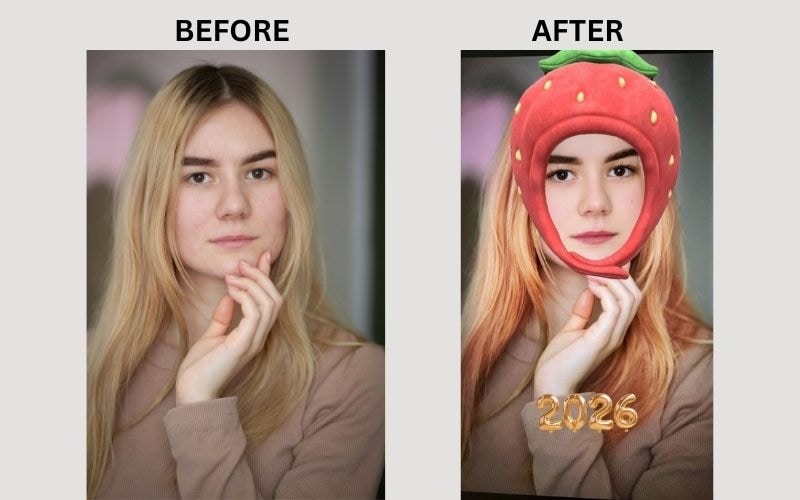
Now that you know how to use the strawberry filter on Snapchat and TikTok, let's compare them side-by-side. Both platforms offer different styles, creators, and effects. The table below will help you see which one matches your preferences better.
| Feature | Snapchat Strawberry Filter | TikTok Strawberry Filter |
| Face Tracking | Accurate and stable | Accurate and stable |
| Filter Style | Fun, playful, and more animated | Cute, aesthetic, and stylish |
| Beauty Effects | Minimal or natural-looking | Ranges from minimal to visible makeup effects |
| Ease of Finding Filters | Easy via Lens Search | Easy via Effects Search |
| Strawberry Filter Collection | Official and a wide range of creator-made lenses | Plenty of creator-made filters |
| Best Use Case | Casual selfies and fun snaps for friends | Trend videos for the public |
|
Show More
Show Less
|
||
Part 4. Beyond Social Apps: How to Create a Custom Strawberry Filter in Filmora
If you're looking for a more advanced tool to create strawberry filters that match your style, Wondershare Filmora is the perfect choice. This all-in-one editor allows you to adjust the tones however you like, from reddish and orange to soft pink. For faster editing, choose from plenty of Filmora's 3D LUTs presets. Also, you can upload a strawberry image and match the tone to your clips using AI Color Palette.
Furthermore, you can drop in stickers and overlays, move them around, and fine-tune the beauty effect to stay subtle or go bold. It's an easy way to build a strawberry filter look that actually feels like yours.
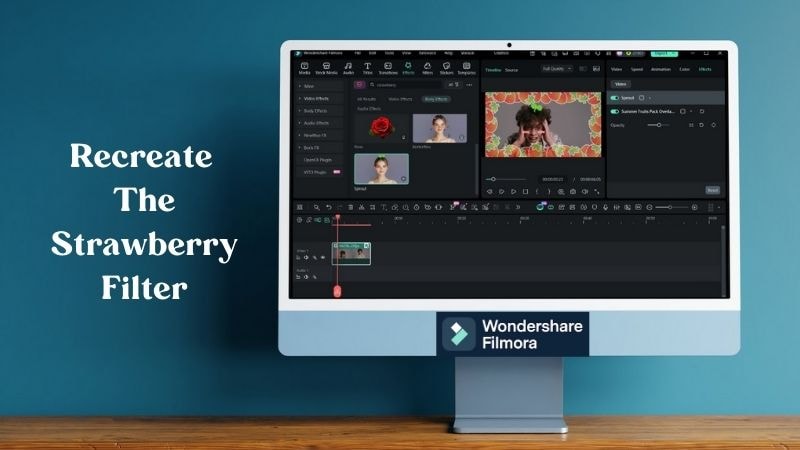
Filmora offers you three different ways to recreate the strawberry filter look. Let's break them down one by one!
Method 1: Strawberry Aesthetic Using Color Tools
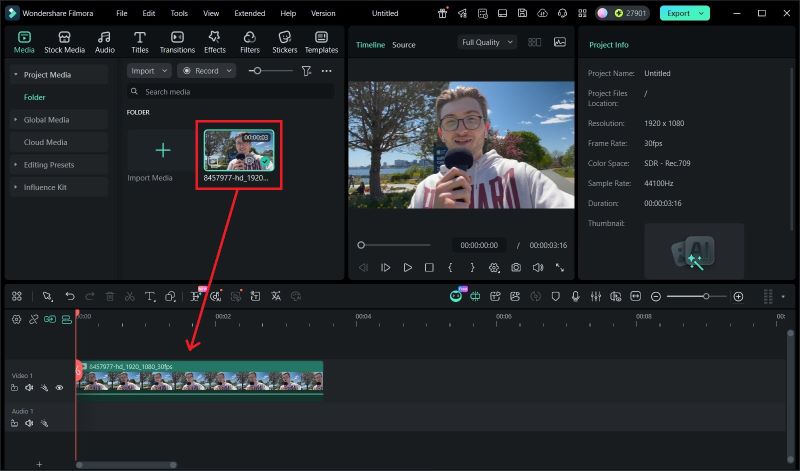
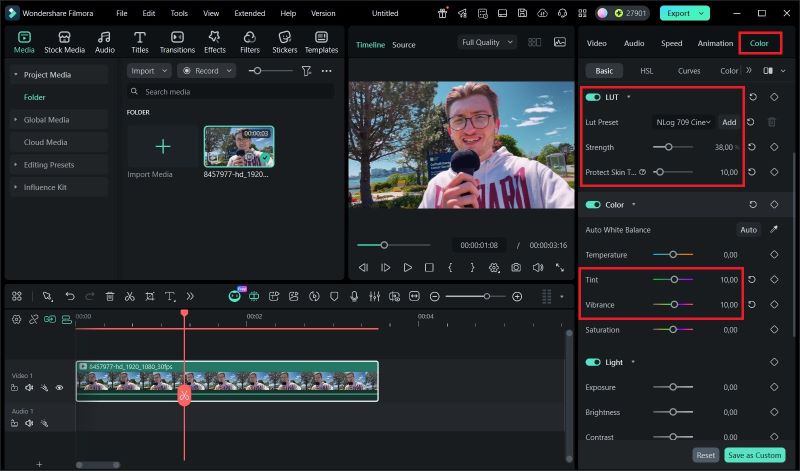
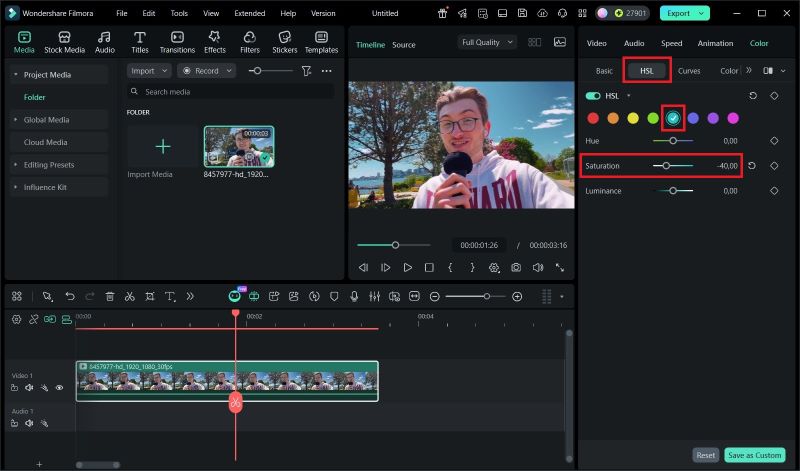
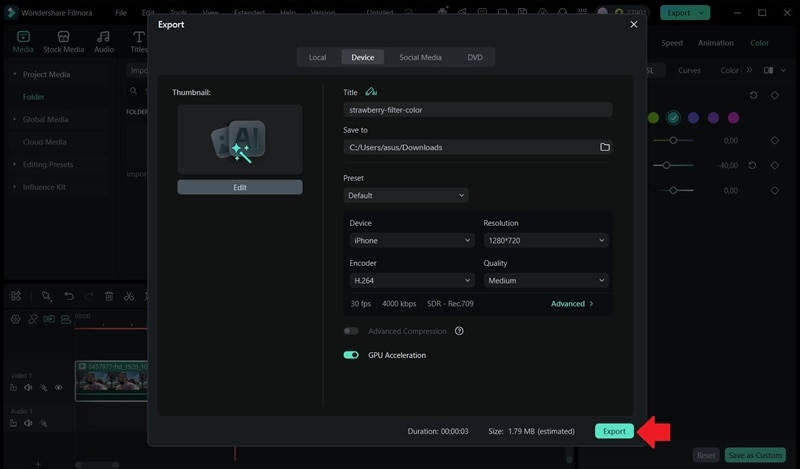
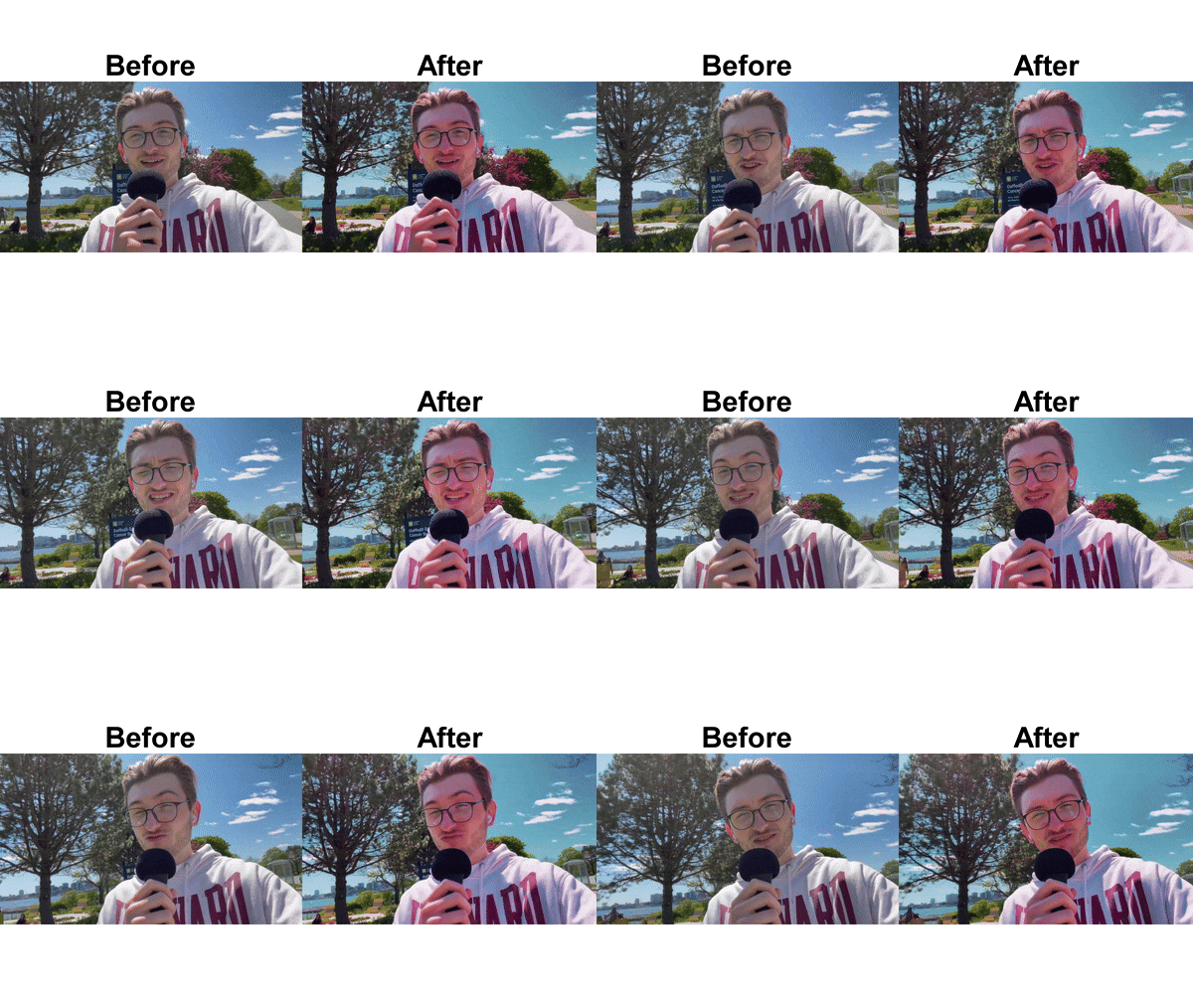
This filter gives the video a soft red and green tint without looking too strong, making it suitable for outdoor shots. The LUT preset simplifies the process, so you don't have to experiment with the colors from scratch. Just make a few small adjustments to fit your style.
Pro Tip: If you want an easier way, try Filmora's AI Color Palette. You just need to upload a strawberry image and the tool will match the colors to your clips. Follow these steps to use it.
Method 2: Strawberry-Themed Stickers and Effects
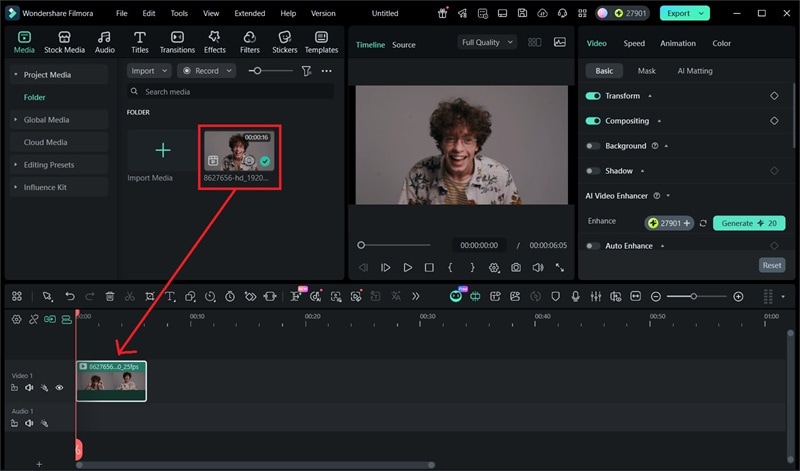
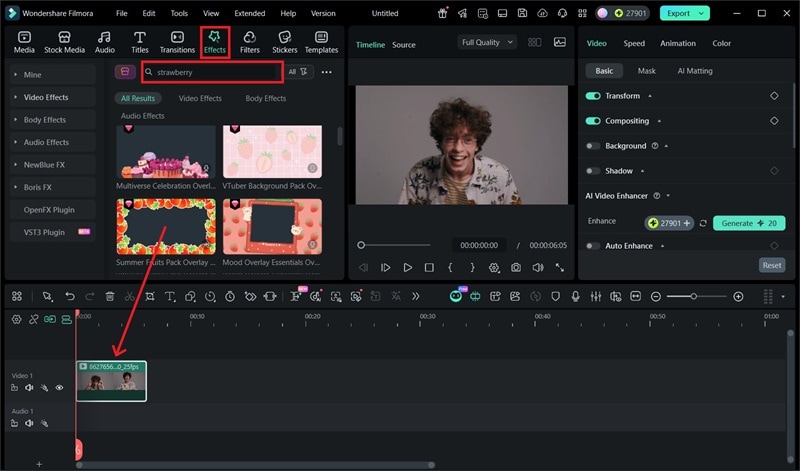
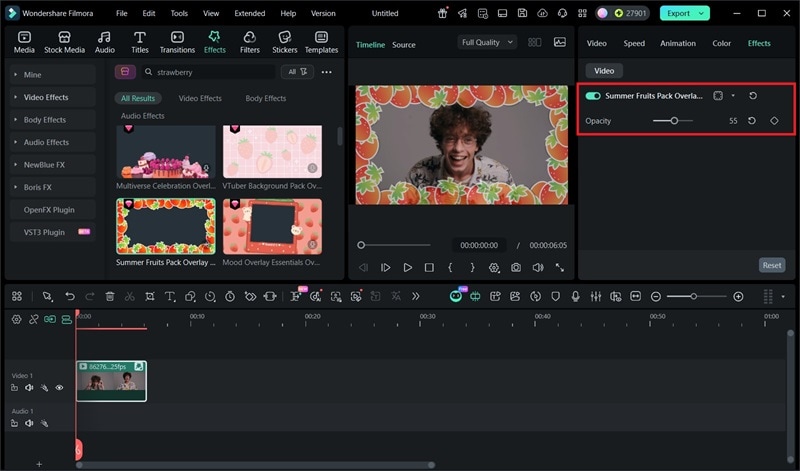
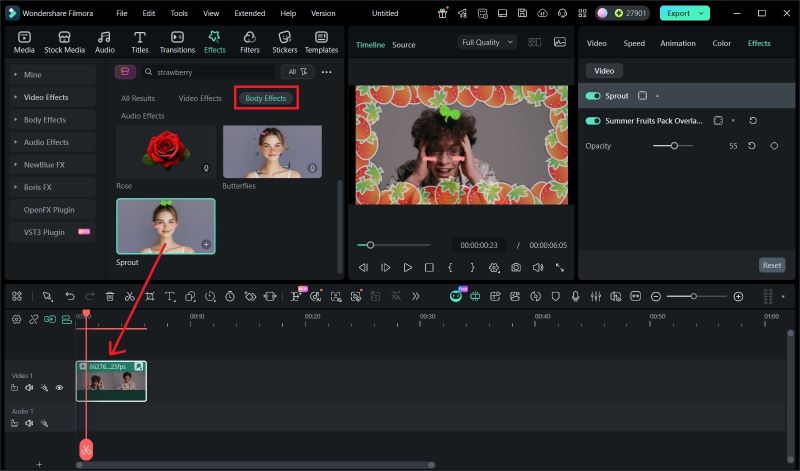
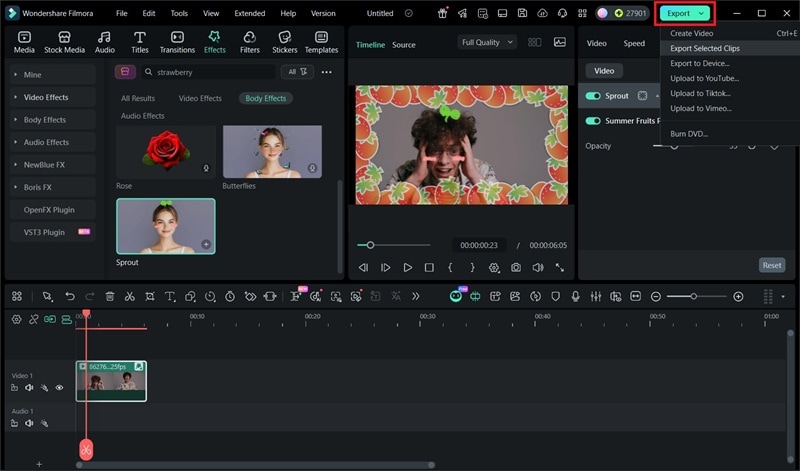
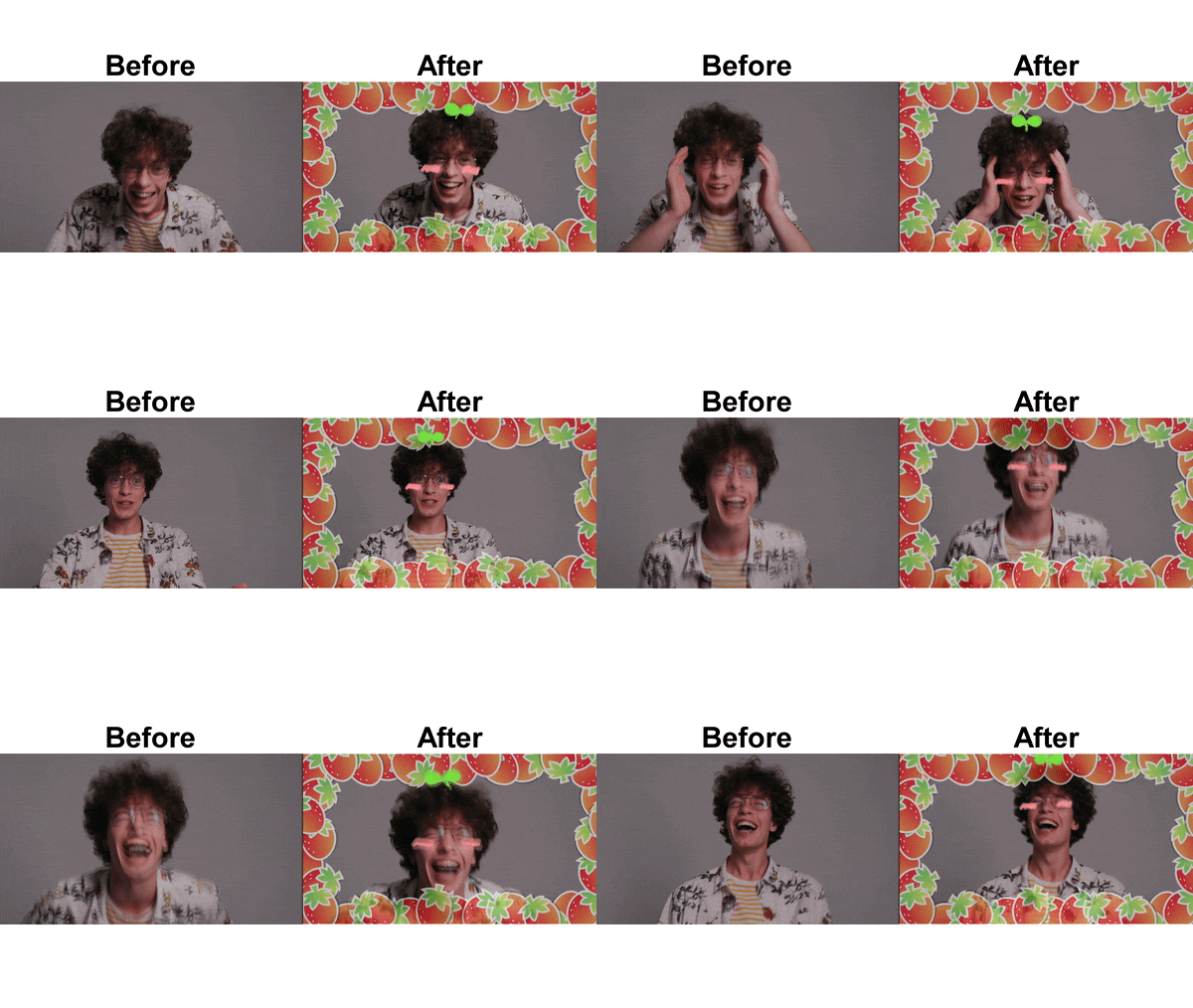
Check out the final look. The strawberry frame draws attention to the subject in the center and brings life to a simple video. Plus, the sprout AR effect follows you around, making the whole clip look quirky and playful.
Method 3: Beauty Filters for A Strawberry Glow
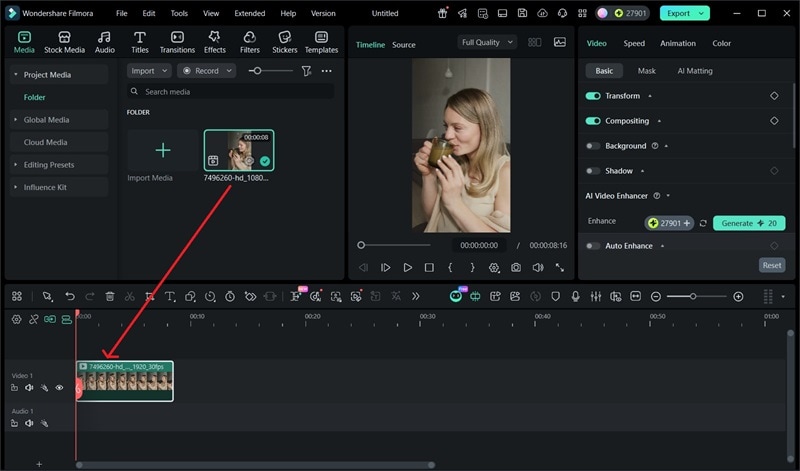
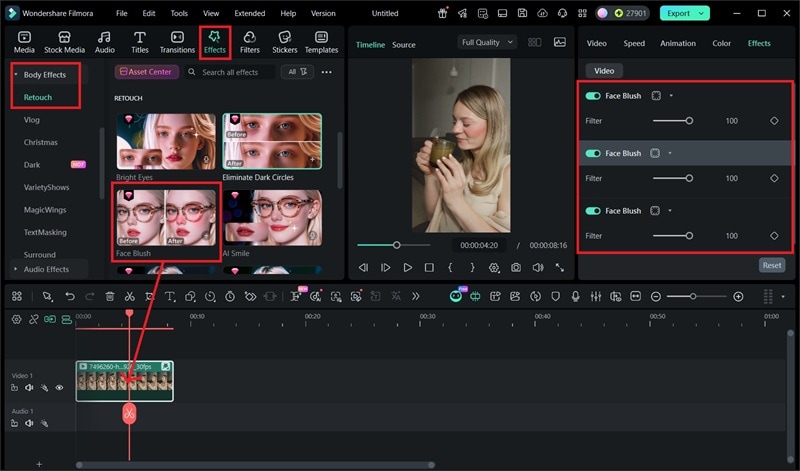
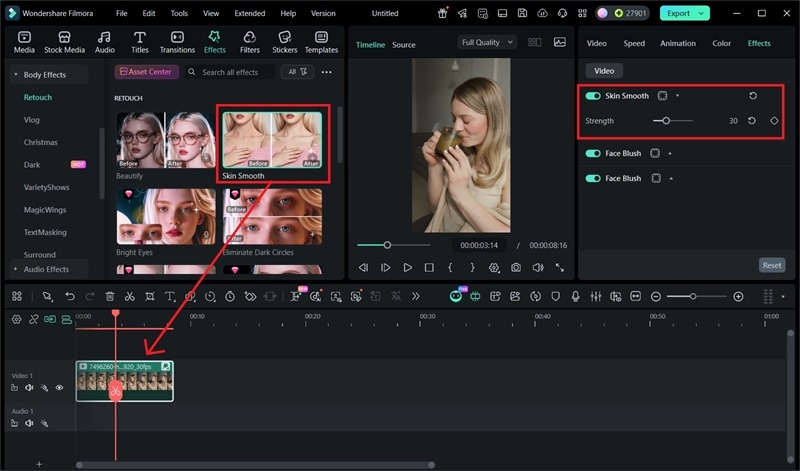
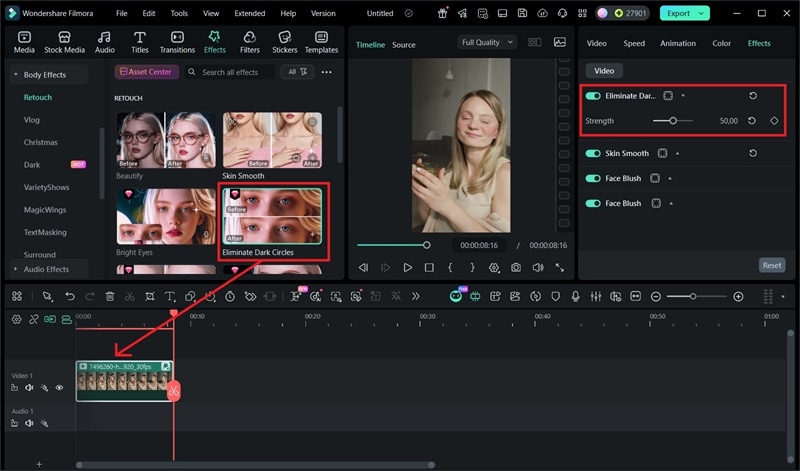
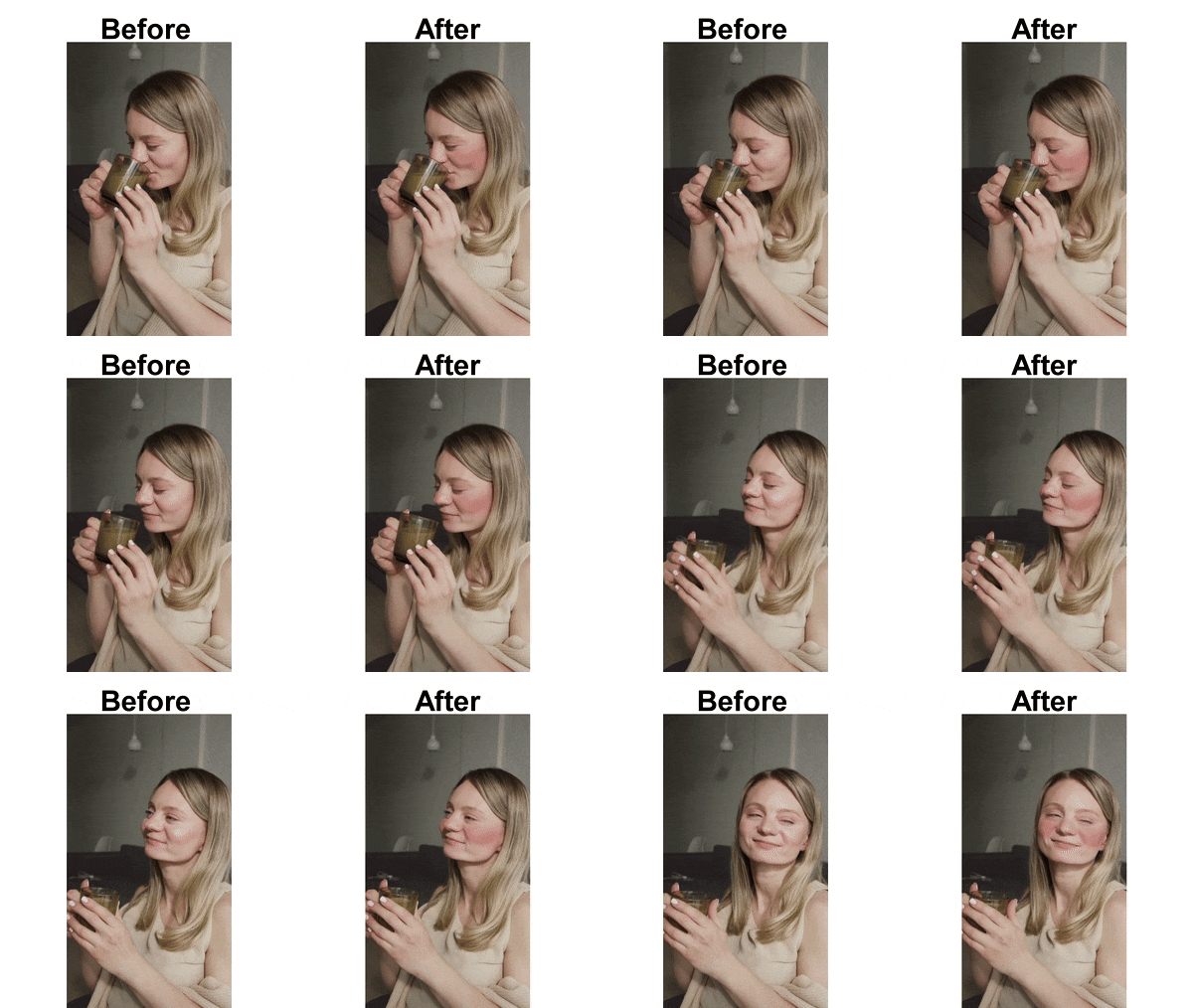
Here's how the video looks in the end! The blushy strawberry effect gives her cheeks a soft, rosy glow, making the video look sweet and fresh. The beauty filter stays light, just smoothing out dark circles and uneven skin tone.
Part 5. Top 5 Best Strawberry Filters and Apps for 2026
If you love using strawberry filters for your selfies or videos, you're in for a treat! In 2026, there will be even more fun and creative options available across different apps. These are the best strawberry filters and apps you should try.
1. Snapchat
As one of the main homes for face filters, Snapchat has a huge community of creators who contribute to making strawberry filters. The strawberry filters on Snapchat come in many styles. And below, we picked the top three Snapchat strawberry filters:
- Strawberry by Harshil Munjani
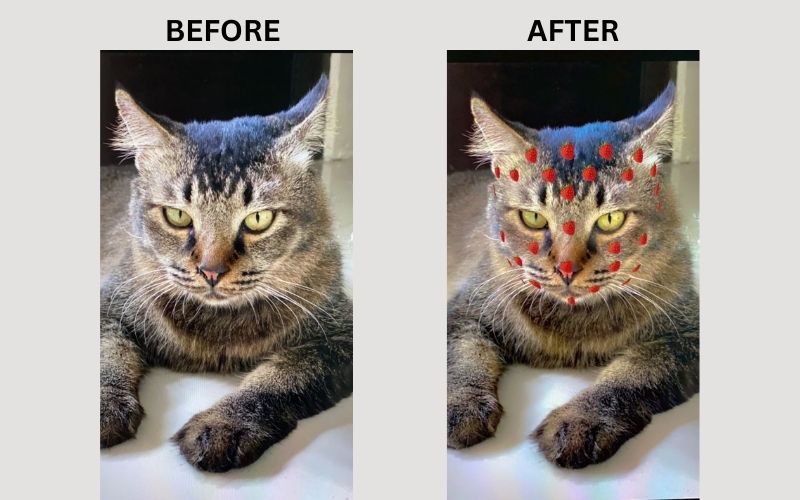
This lens places tiny strawberry decorations across your face. It doesn't only work on humans, but also detects animal faces, like the cat in the example. It's a cute way to make even a serious-looking pet appear more adorable.
- STRAWBERRY<DAY by Riju Afreen
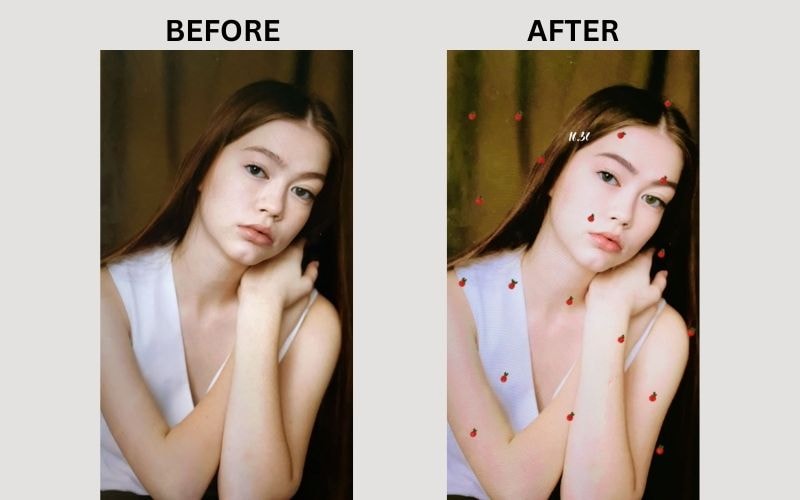
This lens spreads strawberry details across the screen and includes a small timestamp showing the time. It also enhances your skin tone with a subtle pink tint. Also, it applies light face enhancements, such as fuller brows, pinker lips, and eye highlights.
- Strawberry Lens by Sunny Bahadurpuria
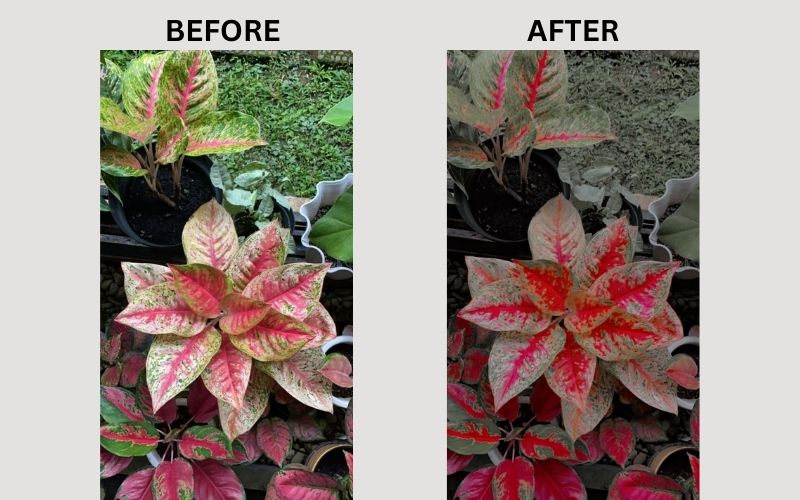
You can use this lens for landscape photos, like the plant photo example. It boosts red tones in plants, while toning down green grass and leaves to look softer and paler. The lens is great for highlighting objects with dominant pink or red shades.
2. TikTok
TikTok is one of the main platforms where trends go viral, and face filters are no exception. Some focus on turning your lips pink like strawberries, while others adjust the overall color tone to match strawberry shades.
Out of the many strawberry filters on TikTok, here are the top three worth trying:
- Strawberry Milk by berryveryloveyou
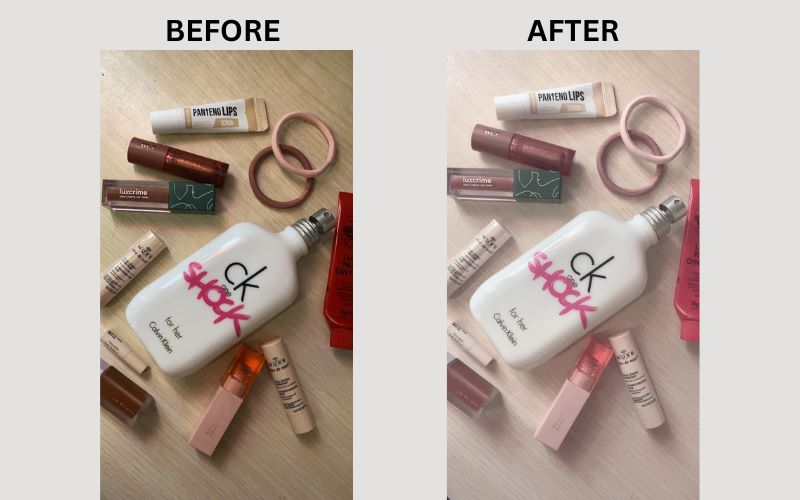
With around 6.5 million posts, Strawberry Milk becomes one of the most popular strawberry filters on TikTok. The filter creates a brighter look with a soft, muted tone that highlights pink shades. Many people used it to showcase their lipstick collections or pink-colored items.
- Strawberry Crown by cinthia.aulia.sari
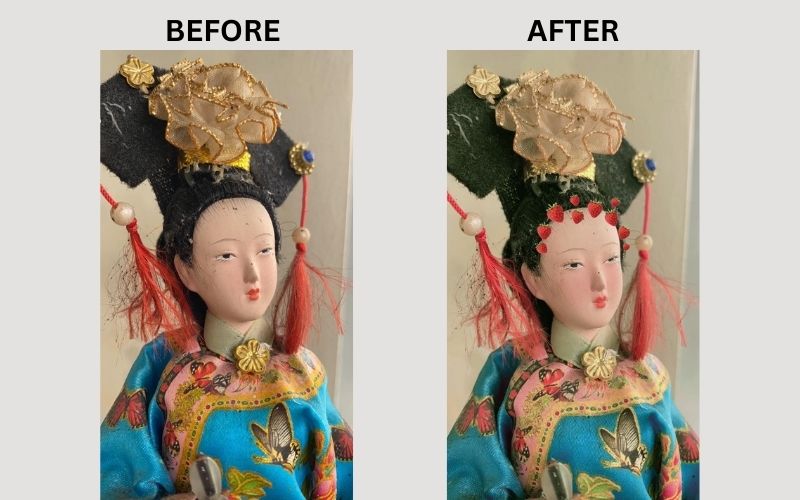
This filter adds a strawberry crown on top of your head. The beauty effect is minimal, with slightly pinker lips and added eyelashes. The overall tone is brighter with a touch of strawberry tint. A sweet and flattering filter for casual content, and over 2 million users have tried it.
- Strawberry Face by rawrarmr
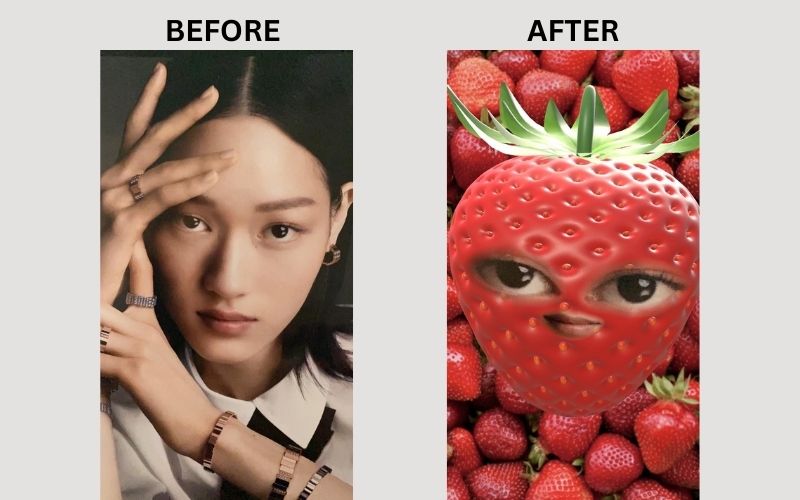
If you prefer to make faceless content, this filter is a great choice. It transforms your face into a strawberry and leaves only your eyes and lips visible. The background is also filled with strawberries, making the effect more playful. Many people use it for talking videos, funny impersonations, and lip-syncs.
3. Instagram
Another popular option for face filters is Instagram. Strawberry filters here focus more on soft, pretty, and aesthetic selfie looks. While the options aren't as many as on Snapchat or TikTok, you can still find a couple of cute strawberry filters to play with.
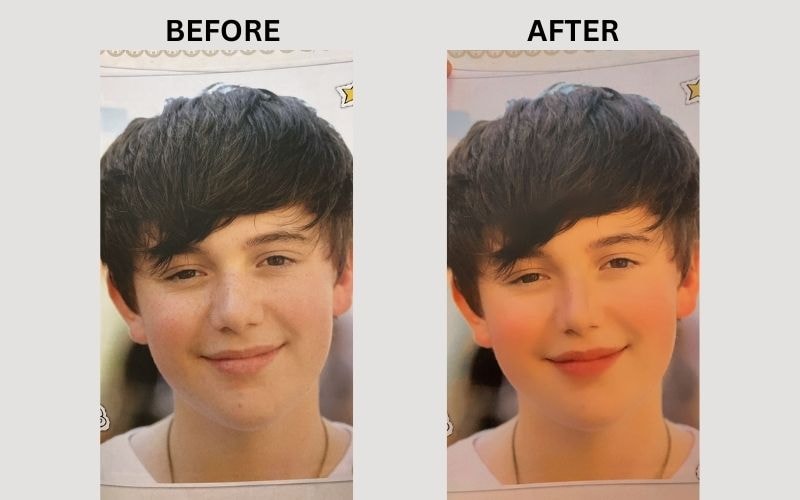
This filter has a warm orange tone with a hint of red. It gently refines your face by smoothing the skin, enhancing lip color, and making your nose look smaller. The little sparkles all over the screen add a soft, dreamy touch to your selfies.
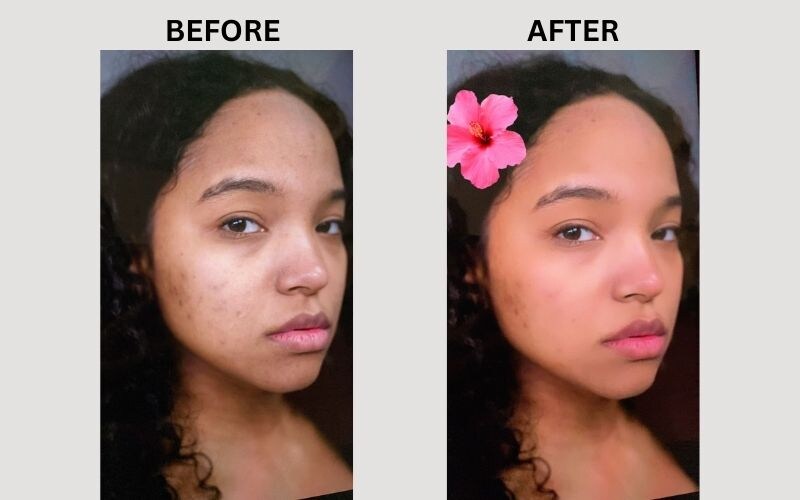
If you want to feel good without looking overdone, this filter is the answer. Strawberry Roses keeps your look natural while making everything a little prettier. It enhances the overall tone with a soft pink-orange glow and adds a small pink flower detail on your head.
4. Wondershare Filmora
Filmora is a complete editing tool that lets you design custom filters and turn them into longer videos, unlike other platforms with time limits. You can edit your clips right after making the filter without switching apps. Plus, it offers a wide range of AI features and media assets to level up your content.
More importantly, Filmora gives you the freedom to create strawberry filters based on the look you want, whether it's stylish, cute, or just for fun. Check out the tools below that make filter creation easy.
Color Grading
 Secure Download
Filmora has an AI Color Palette tool that lets you match the color tones from a strawberry image and apply them to your video. It also comes with a Color Correction tool to enhance the overall look instantly. You can adjust settings like HSL, exposure, contrast, and saturation easily for more precise control.
Stickers & AR Effects
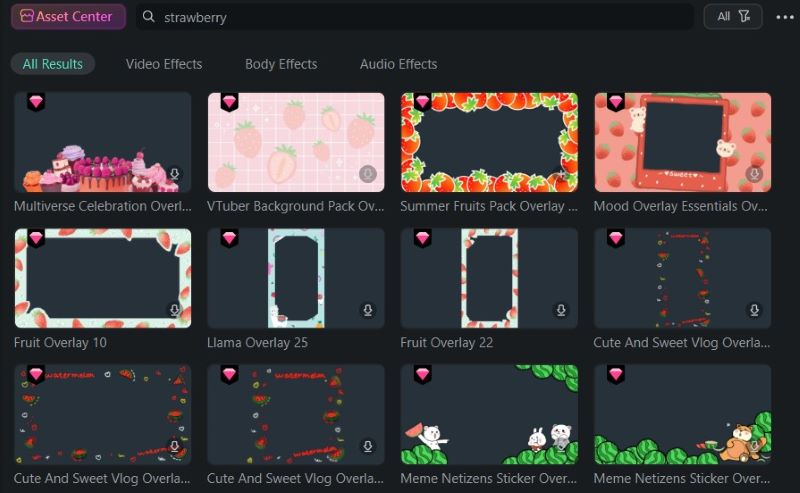
You can choose from many 2D and 3D stickers in Filmora to decorate your video. It also provides various visual effects that you can use to match your strawberry filter style.
AI Portrait
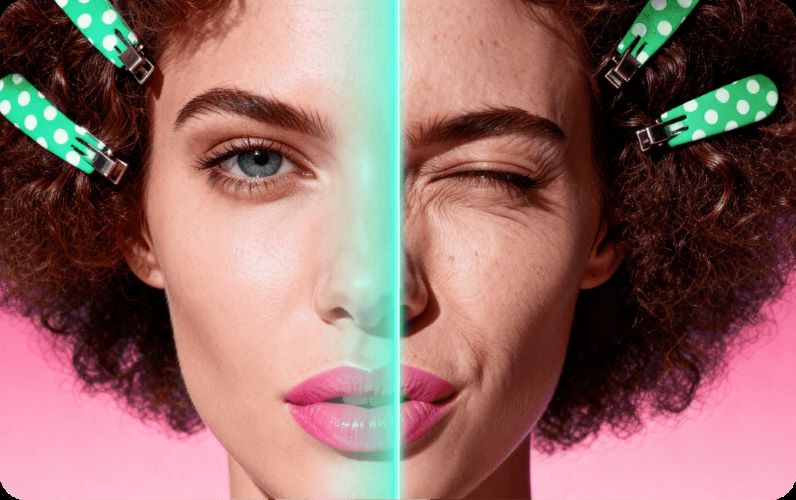
To achieve a smoother, strawberry-inspired makeup look, you can use Filmora's AI Portrait tools. Features like Smooth Skin and Retouch help refine your skin texture and brighten your teeth.
5. Pippit
Pippit is an online video editor that lets you apply strawberry filters easily. It doesn't have a huge variety of effects, but it focuses on fun video templates with strawberry-themed effects. Below are two standout strawberry filters you can check out.
- Falling Strawberry by Amber Marie
This lively filter is perfect for personal photos, whether it's you, your friends, or your pets. It makes the subject feel like the main character. The falling strawberry animation and fireworks background add a fun, dramatic touch to the video.
- Happy Birthday by Azendic
This filter opens with a strawberry dropping and falling apart, then a photo and a cake appear on the screen. It's a playful and heartwarming way to say happy birthday to your loved ones.
Conclusion
We've explored how to use strawberry filters on Snapchat, TikTok, and Filmora. We also looked at the best strawberry filters and apps to help you get the look you want.
For longer content, Filmora is the perfect choice. You can fully customize the strawberry filter, from the color tones to the strawberry details and makeup effects. It makes the strawberry filter feel unique and personal.

FAQs
-
Why can't I find the strawberry filter?
It usually comes down to a few easy things. Your app might not be updated, so the strawberry filter doesn't show up yet. Or, the creator could have renamed or removed it, which makes it harder to search. Also, not every strawberry filter appears on every app, so a version you saw on TikTok might not exist on Snapchat or Instagram.
-
Is the strawberry makeup filter free to use?
Yes, the strawberry filter is completely free to use on Snapchat, TikTok, and Instagram.
