


 TL;DR:
To effectively resolve video quality issues like blur and pixelation, Wondershare Filmora offers the most accessible comprehensive suite with advanced AI models for general users, whereas Adobe Premiere Pro CC is the superior choice for experienced professionals.
● Filmora utilizes the Topaz Starlight model SLF-1 to restructure blurry footage without pixelation, but this specific feature is strictly limited to processing a maximum of one minute and 60 frames per second per task, while its Generative Enhance tool is capped at videos under three minutes.
● For users needing extreme upscaling, AVCLabs AI Video Upscaler can elevate footage resolution up to 8K and supports batch processing, but it requires a steep learning curve and is highly draining on computer hardware resources.
● Browser-based alternatives like Remaker.ai and Cutout.pro eliminate the need for software installation but impose strict constraints, such as Remaker.ai's 500MB and 30-minute maximums, and Cutout.pro's 2GB file limit with MP4-only export compatibility.
Ask AI for a summary
 ChatGPT
 Perplexity
 Gemini
 Claude
 Grok
Grok
How often have you come across old videos of your friends and family that are just a bit too grainy to enjoy truly? How often have you wanted to post a video you've just recorded to your social media, only to find it too noisy, dark, or low-res?
Whether it's about new or old content, you don't have to settle for low-quality video content. What you should do instead is find a reliable video quality enhancer.
A good tool will let you improve low-quality video without a hassle, so check out the best tools below.
What Are the Normal Video Quality Issues?
First of all, let's have a brief view of the common issues you may encounter:
- Blur – your videos appear out of focus;
- Grains – the footage looks like there's dust speckled all over it (common in videos shot in low light);
- Pixelation – videos are choppy and almost every pixel can be easily identified;
- Noise – the video looks like it has static;
- Dislocation – the entire video has unnatural-looking colors, and there might be whole sections with pixels of a single color, such as green.
Still, just like you can improve and unlur photos, you can do the same to a blurry, noisy, grainy, or discolored video – you just need the right tool.
How We Picked the Best Video Quality Enhancers?
Now, getting familiar with the most common video quality issues, let's know how to pick and how we pick the best video quality enhancers for you.
- Ease of use – If you're not a professional video editor, you need a video enhancer that's easy to use and navigate. That can help minimize your risk of error and provide you with satisfactory results as quickly and pain-free as possible;
- Supported file formats -Choosing a tool that has widely supported file formats will help save a lot of time.
- AI capabilities – Select a tool that can enhance video quality with AI to avoid manual adjustments.
- Editing capabilities – Some enhancers are specialized tools that can only improve resolution and upscale your video. The best tools come with a wide range of editing capabilities that let you perfect every last frame with ease;
- Price – Although there are some free video enhancers, the best ones are usually paid solutions that give you access to advanced features. Still, we made sure to choose the most budget-friendly options.
All the tools included in our list have what it takes to deliver outstanding results and provide you with videos of the utmost quality.
10 Best Video Quality Enhancers
Without further ado, let's get into the top video quality enhancers. With advanced AI capabilities and excellent selections of editing features, these solutions will help you improve video quality without any obstacles.
1. Wondershare Filmora
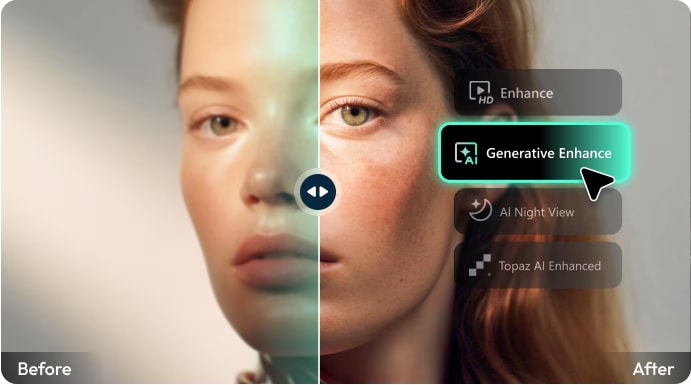
With a long list of features that let you improve the quality of your video, image, and audio files, Wondershare Filmora stands out as one of the most comprehensive video editing solutions out there.
Wondershare Filmora is a full video editing suite that gives you access to different tools, such as fundamental video editing tools (trim, cut, speed ramping, filters, etc.) and advanced ones (such as chroma key, key framing, and more), as well as AI-powered tools like AI video enhancers, video generators, music generators, and more.
One great thing about this tool is that the developers frequently update it. Now, the AI Video Enhancer is equipped with the latest Topaz Starlight (Generative Ultra HD) model SLF-1. This means, in a nutshell, the possibility of recreating or restructuring blurry or old footage into 1080p, 2K, 4K, or even more.
- Topaz Starlight Model SLF-1 - As mentioned, the AI Video Enhancer of Filmora features Topaz Starlight's latest model. This supports the reconstruction of true-to-life details in smooth, high-quality output, versus the conventional interpolation functions, which may result in pixelation or artifacting of certain video elements. However, it only supports a maximum of one minute and 60 frames per second, per task.
- Generative Enhance – AI-powered detail generation that restores realistic textures and sharpens low-res footage (under 3 minutes) with results comparable to Topaz — directly on your timeline.
- AI Night View – Smartly brightens, color-corrects, and denoises low-light footage, turning dark, grainy clips into clear, publish-ready videos.
- Three video denoise algorithms – Depending on the severity of the grain and noise in your videos, you can choose the weak, normal, or strong algorithm to enhance the video quality;
- Comprehensive color adjustment – Easily adjust the contrast, saturation, hue, and brightness of your videos to make them more visually appealing.
- AI frame interpolation - Transform low-frame-rate videos into high-frame-rate content with a simple click.
- Auto Enhance - Adjust the video brightness and sharpness by toggling on the option.
- AI Relight – Automatically improves the lighting of a video, and adjusts parameters like brightness, direction, saturation, and more.
- Intuitive interface with a minimal learning curve.
- Advanced AI-based video editing capabilities.
- Fast video processing.
- Provides different solutions to enhance video quality
- Supports many different formats like MP4, MKV, WEBM, MOV, etc.
- It will cost AI credits to enhance video quality with AI video enhancers.
It starts at $49.99/year, and the price may vary depending on the price strategy.
There are also additional plans for business and education, as well as bundles with different Wondershare products together.
 Secure Download
2. Remaker.ai

Remaker.ai is a multi-faceted AI online video quality enhancer. It primarily specializes in the face-swap feature, which lets you put your (or anyone else's) face over a different image.
However, its video enhancement feature certainly offers a lot despite other Remaker capabilities overshadowing it. It can easily enhance your videos up to 4K and effectively remove blurriness and pixelation. You can visit the website, upload your video, and let the tool do the rest.
- High-resolution enhancement – enhance your videos up to 4K and ensure crystal clear visuals;
- Video face swap – upload a video or a GIF file and an image of your (or another's) face to include it in your video;
- Stabilization – stabilize shaky footage and ensure your videos are smooth and clean.
- Web-based and requiring no installers;
- 30 free credits for new accounts;
- Free features;
- The maximum upload size for videos is 500MB.
- Video enhancement works only on videos up to 30 minutes in length.
When you create your account on Remaker, you'll receive 30 free credits. Once you've used them up, you can buy more credits to continue using video enhancement and other available features:
- 200 credits -- $5.99
- 1100 credits -- $19.99
- 3000 credits -- $49.99
- 20000 credits -- $299
3. Cutout.pro

Like the Remaker.ai mentioned above, Cutout.pro is an entirely online video quality enhancer that gives you access to several AI-powered features. They're all designed to improve the visual appeal of your images and videos.
From AI art generation to cartooning your selfies, colorizing photos, and enhancing videos, this solution has all the basics that can boost the overall quality of your content.
Especially suitable for social media creators, it's easy to use, effective, and fast.
Learn our master review for Cutout.pro video enhancer.
- Up to 4k quality enhancer – make your videos more visually appealing and enhance them up to 4k, regardless of their original quality;
- Video background remover – remove and change the background of your videos in just a few clicks;
- Photo animator – turn photos into GIFs and videos by using AI to add motion to them.
- Accessible via any browser.
- The maximum file size is 2GB.
- Limited video editing capabilities.
- Only exports in MP4.
- Expensive price.
Cutout.pro doesn't have specific subscriptions – you can pay as you use the tool. You'll need to pay based on the length of your video:
- 1 minute – $19;
- 3 minutes – $29;
- 15 minutes – $129;
- 45 minutes – $299;
- 120 minutes – $599;
- 330 minutes – $1,299.
The tool also offers custom pricing for videos longer than 330 minutes.
4. Vmake.ai

Suitable for personal and professional uses, Vmake.ai has a nice selection of capabilities that can improve video quality in a few clicks. Advanced AI can remove blur and grain from your videos (and photos), enhance the colors to make different elements pop, boost the overall resolution of your content, and make it much more crisp and clean.
Web-based, it's relatively light on your computer resources. It makes it easy even for lower-end devices to receive fast, efficient, and high-quality results.
As expected, its e-commerce solutions are a bit more robust than those designed for personal applications. However, you can still expect to receive greatly improved videos regardless of your subscription model.
- Up to 4K enhancement – turn even your grainiest of videos into 4K content with up to 30 fps;
- Color enhancement – make the colors in your videos pop and catch the attention of your viewers;
- Background and watermark remover – remove and change the background of your videos and eliminate any distracting watermarks.
- Suitable for professional and personal uses.
- Fast video processing.
- It supports uploading three videos at the same time.
- The credit-based system can get expensive quickly
- Lack of customizing options.
If you're interested in Vmake.ai, you'll need to subscribe and buy credits to use it:
- Free -- $0
- Plus -- $9.99 per month
- Pro -- $29.99 per month
Depending on your needs, you can also contact Vmake.ai support and get a custom plan with pricing that suits you best.
5. AVCLabs AI Video Upscaler

AVCLabs is a comprehensive free AI video enhancer of old and new videos alike. It can restore old and damaged videos, colorize them, increase their resolution, and more. Regardless of what your video lacks, this tool can ensure that your content can be presented in the best possible light.
Depending on the condition of the video in question, AVCLabs can do so much as to bring up its resolution to 4k or even 8k.
While it's a bit draining on computer resources, it can be an investment that's well worth it. It's especially suitable for professionals and content creators.
- Excellent video quality – bring up the resolution to 1080p, 4k, or even 8k, depending on the condition of the original video;
- Video colorization – restore old black-and-white videos and enrich them with natural-looking colors;
- Frame interpolation – use AI to introduce more frames to your videos and make motion appear smoother.
- Batch processing.
- It supports upscale videos up to 8K.
- Offers single and multi-frame models to enhance all kinds of video footage.
- Draining on computer resources.
- Steep learning curve
- Expensive price plans.
AVCLabs has versions for both Windows and Mac users, with pricing remaining the same:
- 1-month plan – $39.9.month;
- 1-year plan – $119.9.year;
- Perpetual plan – $299.90 one-time purchase.
Depending on your needs, you could also get a video and photo enhancer bundle.
6. Adobe Premiere Pro CC

If you're looking for something more powerful and better suited for professional use, look no further than Adobe Premiere Pro CC. It's a tool that barely needs an introduction. With a comprehensive feature set, it lets you enhance and improve every minute detail of your videos, regardless of the original condition of your file.
It's versatile, flexible, and powerful, giving you access to everything you need to make your content truly shine.
Its biggest downfall, however, is that it's uniquely complicated for newcomers. If you don't have prior experience with Adobe products, you might want to look elsewhere.
- AI upscaling – harness the power of AI to improve video quality and upscale your content with ease;
- Color balancing – use color correction and grading tools to improve the overall mood and style of your videos;
- Aspect ratio adjustment – change the aspect ratio with AI while preserving the focal point.
- A comprehensive set of editing features
- Widely used by video editing professionals
- Integration with all Adobe tools
- Not suitable for beginners
- Difficult to navigate
If you're interested in Adobe Premiere Pro CC, you'll need to subscribe to one of the available plans:
- Premiere Pro for individuals – $22.9.month;
- Creative Cloud all apps – $59.9.month.
There are also additional plans for education and business.
7. Media.io
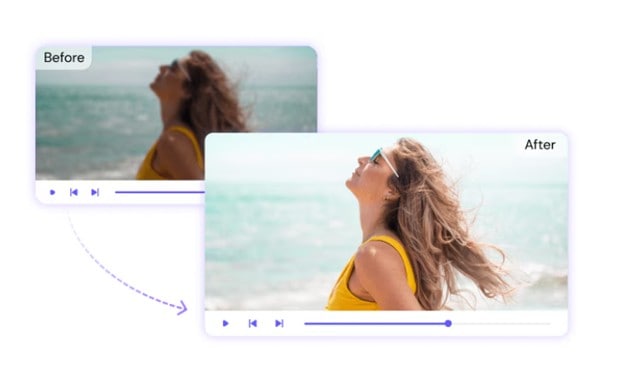
Next on this list is Media.io. It's mainly a multimedia editor for video, audio, image, and other file formats. The goal of this tool is to give you high-quality footage that you can use for social media or your personal purposes.
As an AI video enhancer, Media.io supports the upscaling of videos up to 4K, and lets you improve on other areas of a video to improve the quality, such as with denoising and restoration tools. This tool also has templates that you might like, allowing for quick edits.
- 4K Upscaling – Media.io's best feature is that it can transform your video to 4K footage quickly, without the hassle of reshooting videos for higher quality.
- AI Denoising – Removes unnecessary noise in your video to help with the improvement of low-light footage, which shows grain in otherwise good footage.
- AI Restoration – If you have an old video, you can try improving it with the help of Media.io because it offers a restoration feature that can make old videos look like they're taken with modern cameras.
- The tool is easy to use with a beginner-friendly interface
- Free online access and supports multiple formats
- The workspace can seem cluttered, and does not work well when in split-screen mode
- 4K quality upscaling can enlarge some pixels, losing some detail in the video
While Media.io can be accessed for free, you can improve your experience with a subscription at the following price points:
- Yearly - $12.99 per month (x12)
- Monthly -- $17.99 per month
8. Wink.AI
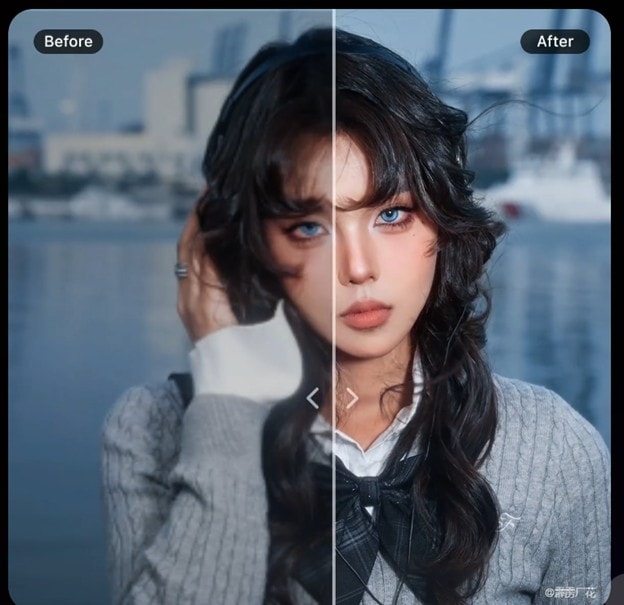
Wink.AI is another video quality enhancer that uses AI. This means that aside from simply improving a video's quality by enhancing the technical parameters of a video, it actually recreates footage. This tool even features scenario-based presets. For example, it has a preset for improving the quality of footage taken with older cameras.
Another great feature of Wink.AI is that it has support for batch uploading. Meaning, you can just collect your videos and upload them to the website, then wait for the results. It's a straightforward video enhancer that can really help you in beautifying your videos.
- Text or Document Enhancer – Aside from traditional video enhancement, this tool also lets you enhance texts or documents. This feature is carried over to, say, videos with a lot of text in them.
- Four Video Enhancement Modes – You can enhance your videos in four modes: 1080p, 4K, Portrait, and AI restoration.
- Other Video Improvement Tools – Such as AI repair, retouch, color correction, color match, frame interpolation, and more
- Specialized enhancement modes for different video types and contexts
- Has web, mobile, and desktop access
- It has plug-in support for Premiere Pro
- Natural footage may be over-processed, making it look “AI-y.”
- Export quality is capped based on subscription
If you want to ensure high-quality downloads with Wink.AI, you should check out and avail yourself of their subscriptions:
- Yearly -- $59.99
- Monthly -- $12.99
- Weekly - $7.99
9. Canva
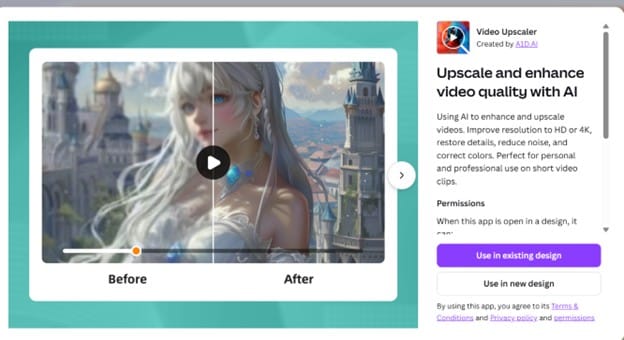
You probably know Canva. After all, it's one of the most popular design platforms. However, its video editing features are less well-known to the public, especially its AI video quality enhancer tool. The great thing about Canva is that while it's a staple platform for editing, it doesn't shy away from using powerful tools like AI.
As such, it uses AI-powered algorithms to improve the quality of your videos. It's really an all-around tool that you can even use to introduce edits to your video, such as adding filters, text, images, colors, and more.
- Two Video Enhancement Modes – Canva offers two ways to improve your video: Video enhancement (by mood, transition, tints, and more) and the AI Video Upscaler (with filter/tools)
- Canva AI tools – You can also use the AI tool to create elements or introduce edits to a video with simple text prompts. For example, you can say stuff like “make the t-shirt red,” or other similar edits.
- Large Asset Library – Probably the best part about Canva is its large asset Library that's growing almost every day, and that you can use, especially when you're using a Pro account
- Canva is known for being a beginner-friendly tool
- You can access the video enhancement tools for free
- Some elements are locked behind a Pro subscription
- Video AI upscaling is locked behind credits
To fully enjoy Canva's Pro mode and use a lot of elements and AI credits, you should avail yourself of one of the subscriptions below:
- Free -- $0
- Pro - $15/month
- Business -- $15 per month per user
10. Picwand
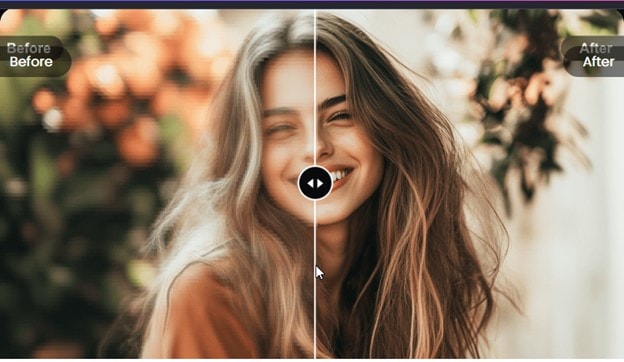
Lastly, we have Picwand, another AI video-enhancing tool to add to your toolkit. This one offers tools to automatically improve the clarity and other parameters of a video, such as brightness, noise, and resolution. You can use it both online and with a desktop.
Aside from AI video enhancement, you can take advantage of its suite of creative AI tools, such as text-to-video generation, with guaranteed high-quality video output. This way, you can edit your content freely and easily.
- 4K or Higher Enhancement – Picwand allows you to sharpen video without pixelation or quality loss, through adjusting different parameters of a video simultaneously, at 4K or even higher
- AI Restoration – Aside from enhancing video, this tool also offers a way to recreate videos into new, AI-generated ones, while keeping the same natural effects
- Basic Editing Tools – Most importantly, you can enjoy basic editing tools with Picwand to improve the other aspects of a video file
- Supports cross-platform access for mobile, desktop, and web
- Free credits available even for Free users
- The credit-based system can be limiting even for subscribers
- Advanced features are gated behind the VIP plan
The price points of Picwand's subscriptions are as follows. Same as for the other tools listed here, you should always check out the pricing page for the latest prices.
- Monthly -- $14.90 (100 credits a month)
- Yearly -- $84.90, billed yearly (125 credits a month)
- Perpetual -- $103.53 (3000 credits)
How To Enhance Video with the Best AI Video Enhancer?
Use Filmora on Windows or Mac to Improve Video Quality
You can rely on Filmora for anything from basic cutting and trimming to advanced AI enhancement. Whether you have years of experience in video editing or this is your first time doing anything of the sort, this tool will ensure that the whole process is nice and easy. The following are the steps on how to use Wondershare Filmora to enhance video quality with a simple click.
- Download and install Wondershare Filmora on your computer (Windows or Mac);
Secure Download
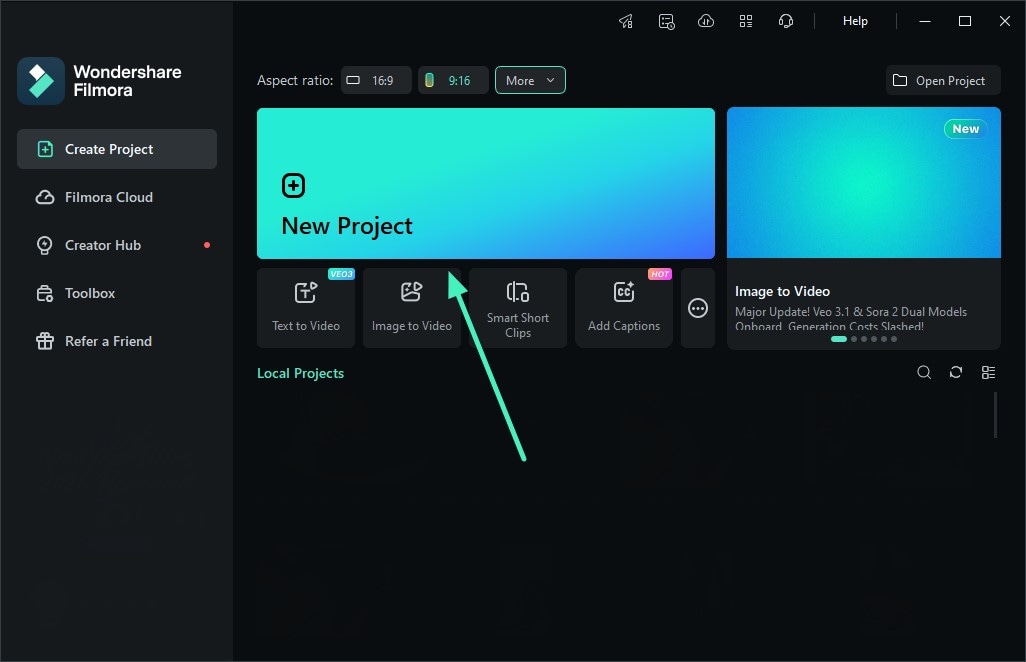
- Select Create Project > New Project and go to Media > Import to upload the video you want to enhance.
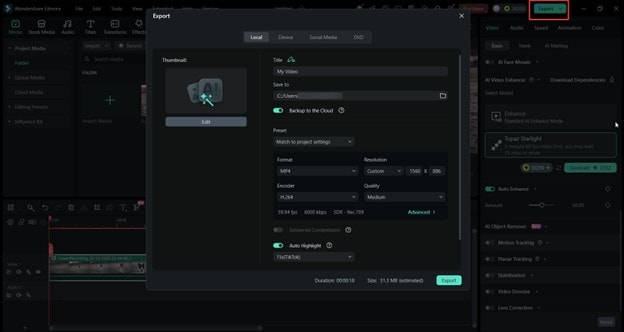
- After adding your video to the timeline, select it. Then, go to Video > Basic, and scroll down to find the AI Video Enhancer. You have four options:
i) Enhance (Standard AI Enhance Mode) – Quick one-click enhancement for general quality improvement.
ii) Topaz Starlight, which features the latest model. This may take a while longer, but it's worth it as it reconstructs your video with the help of AI to deliver higher-quality footage without the risk of pixelation or other common problems.
iii) Generative Enhance – AI-driven enhancement that intelligently rebuilds missing details to make low-res footage look sharp, natural, and true-to-life — all in under 3 minutes, right on your timeline.
iv) AI Night View – Automatically fixes dark, discolored, or noisy night footage — boosting brightness, restoring color accuracy, and cleaning up grain so your low-light clips look crisp and professional.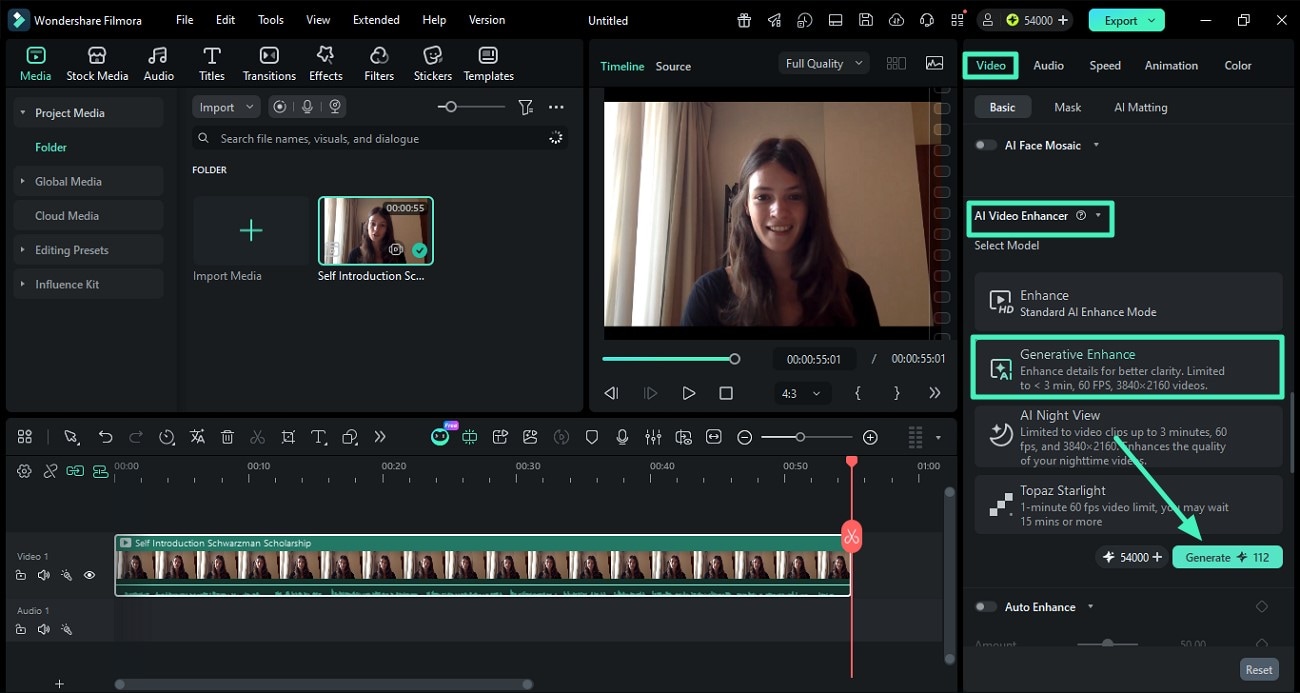
Note: Make sure to Download Dependencies first before using the AI Video Enhancer tool.
- You can also use the Auto Enhance to improve parameters such as brightness, saturation and hue in one click. You can adjust the strength or Amount of improvement accordingly.
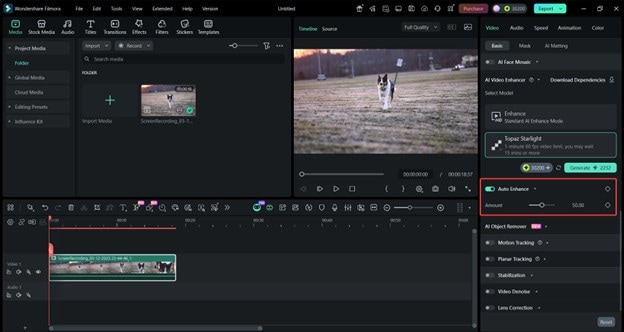
- Once satisfied, you can Export your video accordingly.
Use Filmora on Mobile to Improve Video Quality
Not comfortable with using desktop options? Well, Filmora has an alternative for you. If you're more of a mobile editor, try out this fantastic version of Wondershare Filmora. It will give you access to the same video quality enhancer for Android & iPhone users. However, it's made more intuitive for smartphones that are usually in our pockets.
Step 1: Download Filmora for your mobile device (App Store or Play Store).
Secure DownloadStep 2: Create a New Project, then import the video with the quality you want to enhance.
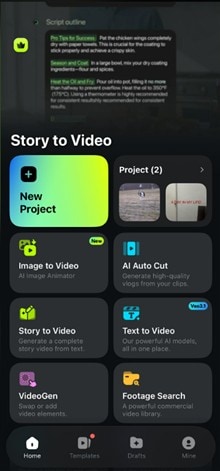
Step 3: Select a video from the timeline. Then, look for the AI Enhancer menu.
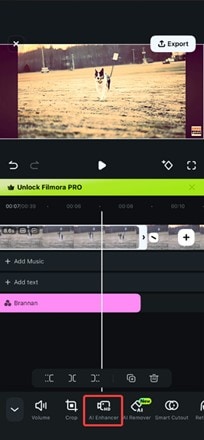
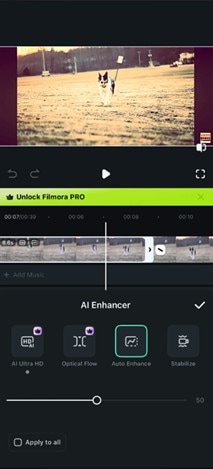
Step 4: From here, you have four options:
- AI Ultra HD – This function uses the same technology as Filmora Desktop‘s Standard AI Enhancer. It uses deep learning to improve the quality of video footage by upscaling pixels.
- Optical Flow – Use this option to improve the FPS of a video to either 48, 50, or 60 FPS.
- Auto Enhance – Same as the Auto Enhance tool for desktop, this tool automatically improves the hues, saturations, brightness, contrasting, and other similar parts of a video.
- Stabilize – If you have shaky footage, then the Stabilize function will help in making the camera steadier.
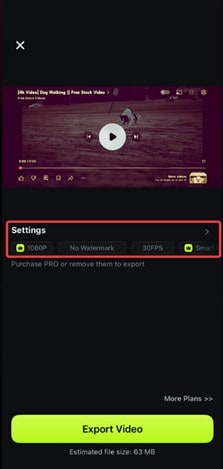
Step 5: For more enhancements, go to Export > Settings, then choose Smart HDR or 1080p.
Video quality enhancement is actually a core part of Filmora's features.
This way, you can improve poorly recorded photos and make them higher quality. Try out Filmora for mobile devices today!
Secure DownloadConclusion
With the right video enhancer, you'll improve the quality of your videos without a fuss and get astonishing results you'll be proud to share with others.
Solutions like Wondershare Filmora, Adobe Premiere Pro, and others can help you take your video content to a whole new level, so be sure to give them a try and see which tool suits your needs best.
Secure Download
