


 TL;DR:
Because Pixery Lab has not released an official desktop version of Funimate, PC users must either tolerate the frequent crashes and restrictive mobile-sized workspaces of Android emulators or transition to dedicated native desktop video editors.
● Wondershare Filmora acts as the most complete cross-platform alternative for creators needing advanced keyframing and motion tracking, though its free tier applies an export watermark and requires credits for AI tools.
● Canva Video Editor and Instories cater specifically to social media managers requiring rapid, template-driven formatting for TikTok and Reels without needing complex manual animation setups.
● OpenShot and Kdenlive provide completely free, watermark-less local editing environments for Windows, macOS, and Linux users, with Kdenlive offering more advanced tools that rely heavily on strong local CPU performance.
Ask AI for a summary
 ChatGPT
 Perplexity
 Gemini
 Claude
 Grok
Grok
If you enjoy making trendy videos for TikTok or Reels, you’ve probably used Funimate. The app is loved for its templates, transitions, animations, and backgrounds that help make videos look trendy.
But editing on a bigger screen is often easier, which is why many users search for Funimate for PC or even Funimate Mod APK for PC. The problem is, Funimate is only available on mobile right now.
The good news is there are plenty of alternatives. So, we’ll show you how to use Funimate on PC with an emulator and walk you through the best Funimate PC alternatives for Windows and Mac.
Can You Get Funimate on PC?
When you search for "Funimate PC download" in your browser, you’ll most likely not find it. This is because Pixery Lab has not officially released a Funimate PC version. For now, Funimate is only available on iOS and Android.
Even so, many people are still looking for ways to download Funimate for PC. One workaround is using an Android emulator. Think of it as running a virtual Android phone on your computer, where you can install and use apps just like you do on your actual phone.
Keep reading to learn how to download it and the downsides of using an emulator.
How to Use Funimate on PC?
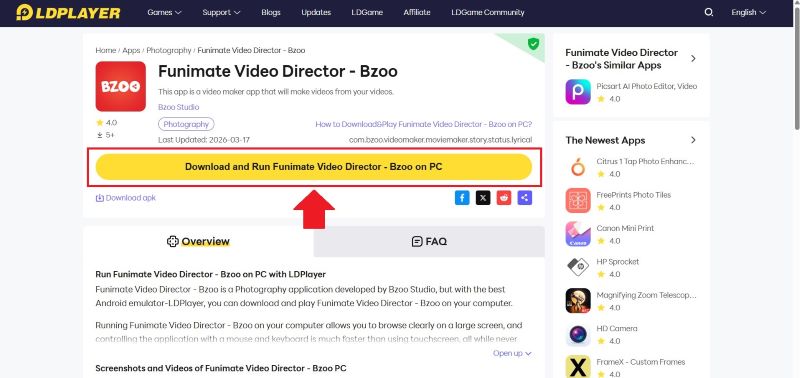
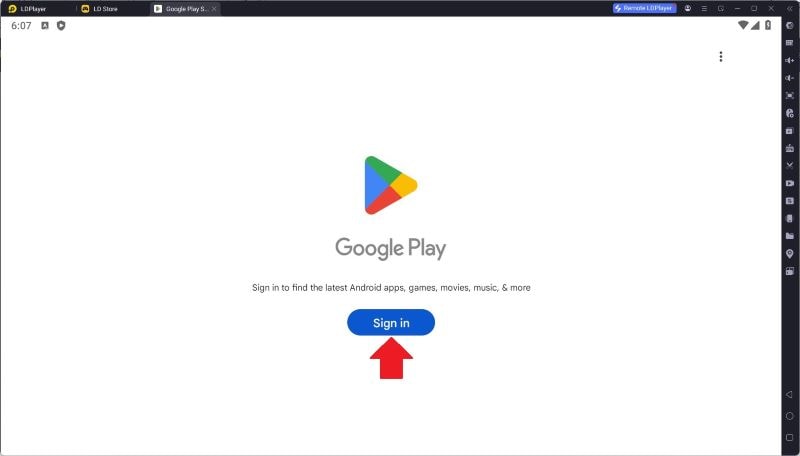
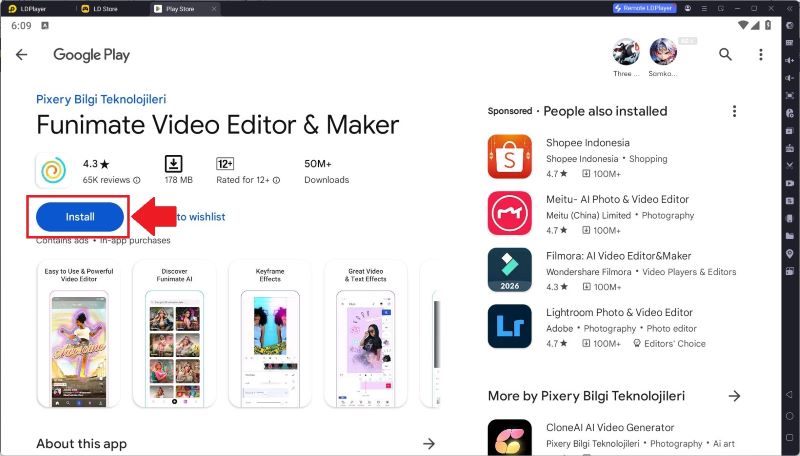
With Android emulators like BlueStack or LDPlayer, you can download Funimate PC. However, the interface will still look like the mobile version since it’s not an officially released PC app. The setup is actually quite simple. For this example, let’s try using LDPlayer.

Why Using Emulators Limit the Funimate Experience?
Using a Funimate PC through an emulator might feel exciting at first, like you’ve finally found a way to make it work on your computer. But in reality, using an emulator can also bring some risks and limitations.
Before you decide to use it, here are some downsides of using emulators you should know.
- Unstable Performance: From the moment you launch the Funimate app, it already feels slow. This can get worse during editing, especially for larger projects, where the app may struggle to run smoothly or even freeze.
- Frequent Crashes: Since the app is not designed for desktop use, you may experience crashes or glitches while editing.
- Harder to Control: Funimate is mainly designed for touchscreen devices. When using a laptop with a mouse, it can feel less intuitive and harder to control each frame precisely.
- Less Flexible Workspace: Even though you’re using a laptop, the app still appears on a mobile-sized screen within the emulator. This makes the editing area feel smaller and less comfortable to work with.
How We Tested These Funimate PC Alternatives
Since using emulators isn’t always reliable and can come with risks, we focused on finding safer alternatives instead. With so many video editors available, we carefully selected the best Funimate PC alternatives to recommend to you.

- Creative Tools and Assets: We focused on apps that offer effects, transitions, animations, and overlays similar to Funimate.
- Ease of Use: The interface should be simple, with assets easy to find and apply.
- Free Plan Value: We checked what features are available for free and what’s locked behind a paywall.
- Performance: A good Funimate for PC alternative should run smoothly on the desktop without lag or crashes.
Our Top 3 Alternatives to Funimate Desktop
We looked through many alternatives to Funimate for Mac, Windows, and Linux and discovered 10 promising tools. From there, we selected the top 3 Funimate desktop alternatives that stand out for their strengths. See our picks below.



A Quick Overview of Funimate PC Alternatives
Before getting into the full details of each tool like Funimate for laptops, let’s warm up with a quick overview. This helps you quickly scan the differences between each Funimate PC alternative and get a sense of which tool might suit your editing needs.
| Tool | Platform | Free / Paid | Key Highlight | Best Use |
| Wondershare Filmora | Windows, macOS, iOS, Android | Free & Paid | All-in-one editor for creative video projects | Social media edits, YouTube videos, heavy and high-quality projects |
| Microsoft Clipchamp | Online, Windows, iOS | Free & Paid | Easy video creation with minimal setup | Quick edits for social media and casual content |
| Canva Video Editor | Online | Free & Paid | Ready-to-use templates for quick videos | Quick edits, presentations, and social media content |
| PowerDirector | Windows, macOS, Android, iOS | Free & Paid | Professional-level editing features | Social media content, YouTube videos |
| Kdenlive | Windows, macOS, Linux, BSD | Free | Flexible editing with no cost required | YouTube videos, heavy projects |
| OpenShot Video Editor | Linux, Windows, macOS, ChromeOS | Free | Free editor with no watermark | Simple edits for YT Shorts, Reels, and TikTok |
| Pikimov | Online | Free | Powerful tools for animation-focused videos | Detailed animation work and creative video projects |
| iMovie | iOS, macOS | Free | Seamless editing across Apple devices | Smooth editing for personal and creative projects |
| VideoShow Video Editor Pro | Windows | Free | Quick editing with simple tools | Quick edits for social media content |
| Instories | Online, iOS, Android | Free Trial & Paid | Quick creation with ready-made layouts | Edits for TikTok, Reels, and Shorts |
|
Show More
Show Less
|
||||
 Secure Download
Best Alternatives to Funimate for PC (Full Breakdown)
These are some of the best alternatives to Funimate for PC available across Windows, macOS, and open-source platforms. To make your decision easier, we’ve provided a detailed breakdown of each tool below. Let’s take a closer look.
1. Wondershare Filmora
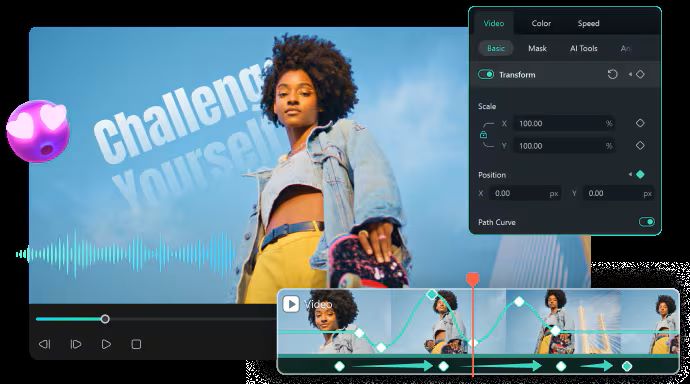
We’re starting off with one of the best alternatives for Funimate PC, which is Wondershare Filmora. You don’t have to worry about it feeling limited. Filmora offers a similar editing experience to Funimate, but with a bigger screen and more advanced AI tools. Plus, it has a clean interface, so you can jump in right away without feeling lost.
 Secure Download
- A flexible workspace that gives you detailed control with features like magnetic timeline, compound clips, dual timeline, and dual monitor support.
- Powerful keyframing tools to create smooth and precise animations between frames.
- Advanced color tools such as AI Color Palette, Color Correction, and LUTs to enhance your video’s look.
- Customizable text with Text Animation and Text Path to match your video style.
- An extensive library of effects and transitions to help you create creative and trendy videos.
- It also includes advanced features like motion tracking and video masking to create more detailed and dynamic edits.
- Syncs across mobile and desktop devices, so you can continue your project on whichever device you’re using.
- Comes with a built-in content planner to schedule posts and analyze performance for future growth.
- The free version adds a watermark to exported videos.
- AI credits are required for using AI tools
Windows, macOS, iOS, Android.
Free version available, or affordable upgrades listed on Filmora’s pricing page.
Beginners, content creators, and professionals who want a simple desktop workflow with motion graphics, animation, and AI editing tools.
Secure Download2. Microsoft Clipchamp
Microsoft Clipchamp might be the app similar to Funimate for Windows that you’ve been looking for. It’s a simple video editor that many users already love, now supported with several AI tools to make editing easier. Plus, with cloud and social media integration, you can easily save and publish your content.
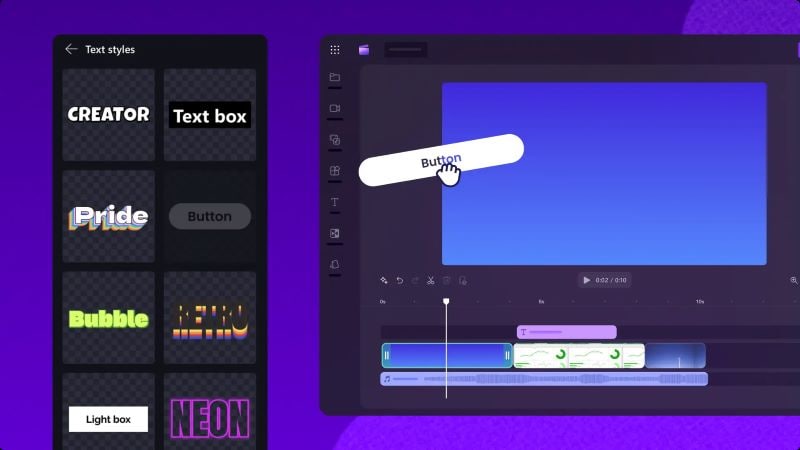
- A collection of overlays, stickers, and animated graphics to enhance your videos.
- An AI background remover that lets you replace your video background with something more creative.
- A variety of animated text options with customizable fonts, sizes, and colors, plus the ability to upload your own fonts.
- Free users can export videos without a watermark and still access various built-in assets, filters, and effects.
- Offers helpful tutorials and guides, so users can learn the features easily without feeling confused.
- Limited trendy transitions and animations for social media-style content.
- Not ideal for handling large or heavy editing projects.
Online, Windows, iOS.
A free version is available, with additional premium features included in Microsoft 365 subscriptions.
Businesses and educators who want to create clean and professional videos that still feel engaging and not too stiff.
3. Canva Video Editor
When searching for alternatives to Funimate online for PC, you may come across Canva. It’s a very popular video editor that lets you start editing quickly using its wide variety of templates to keep you inspired. The drag-and-drop interface also helps simplify the whole process.
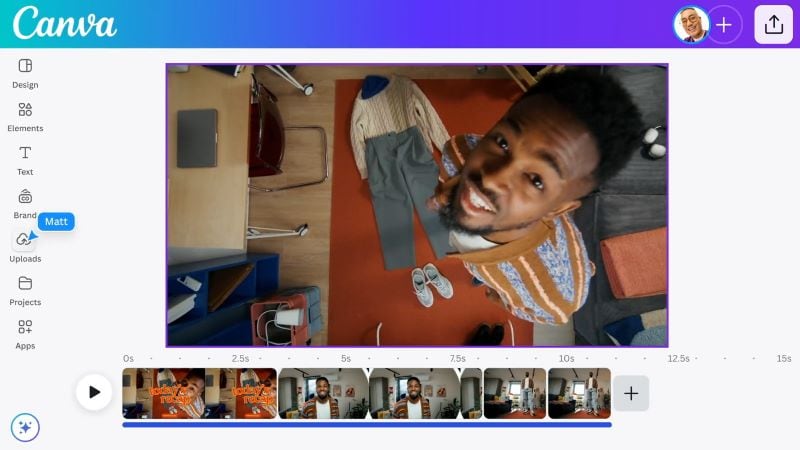
- A rich library of transitions, video effects, and text animations that you can easily apply or customize.
- An AI background remover that lets you replace your background with something more creative or visually appealing.
- Multiple aspect ratio options, so you can easily format your videos for different social media platforms.
- Provides trendy templates and animations that work well for social media content.
- The free version is generous, giving access to many creative assets without adding a watermark to exported videos.
- Some AI design features, such as AI animation tools, are limited in the free plan.
- Requires a stable internet connection for smooth performance.
Online.
A free version is available, with paid plans starting from $5.60 per month. Prices may vary depending on your region.
Students, educators, and teams who want to create quick videos using ready-made templates.
4. PowerDirector
PowerDirector is a solid alternative to Funimate for Windows and Mac. It comes with advanced AI tools and models to help you create high-quality videos more easily. It also supports various aspect ratios, so your videos can easily fit different social media platforms.
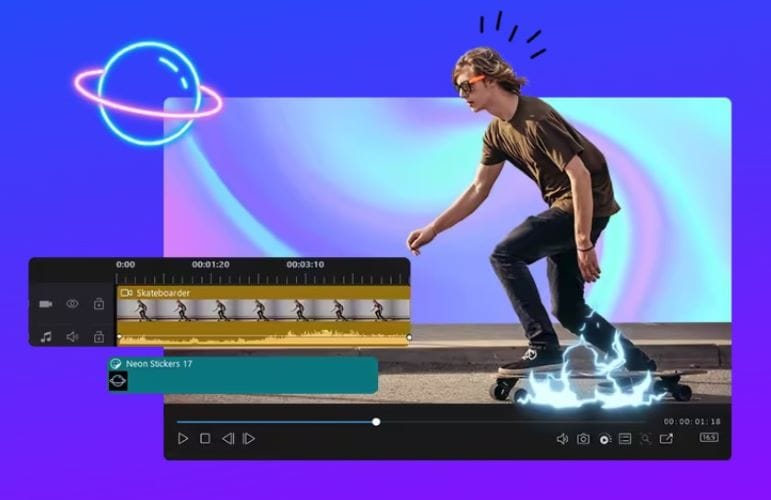
- Various transitions, stickers, and animated titles to enhance the flow and visual appeal of your videos.
- Face and motion tracking features to accurately attach text or graphics to moving subjects.
- A large collection of video effects and styles is organized into categories, making it easier to match the overall vibe of your video.
- Offers more control over animations with keyframing, as well as video and title masking features.
- Includes color enhancement tools and HDR effects to improve visual consistency and make your video look more polished.
- The interface can feel complex and less intuitive, so it may take time for beginners to get used to the advanced tools.
- Paid plans are not cross-platform. For example, a subscription on Mac does not apply when using the Windows version.
Windows, macOS, Android, iOS.
Free version available. Paid plans starting at $24.99 per month or $54.99 per year.
Creators and businesses who want to use AI tools to create more polished and professional videos.
5. Kdenlive
If you are looking for a free app like Funimate to download on PC, Kdenlive is worth trying. It gives you full control over your workspace, from arranging panels to customizing your editing layout. It also supports various video formats, so you can edit files without needing to convert them first.
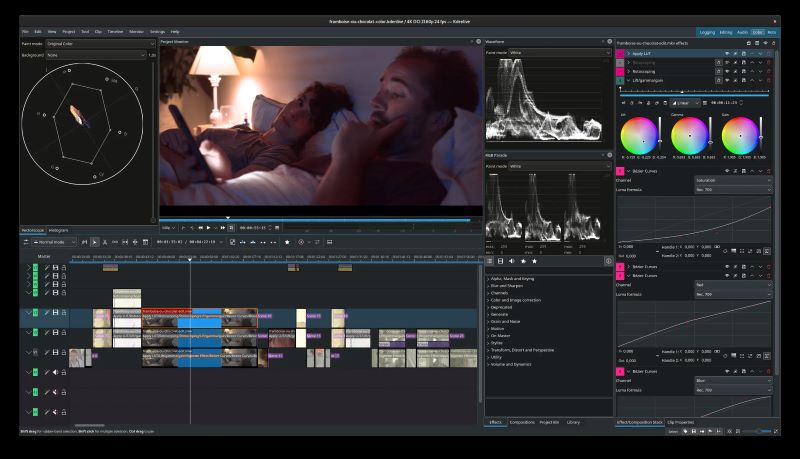
- Integrated with Pexels and Pixabay, giving you access to free media assets like clips and images.
- Offers a wide range of video effects and filters powered by MLT Framework, avfilter, frei0r, and ladspa.
- Includes an auto-save feature that backs up your project regularly, so you don’t lose progress if you forget to save.
- Can produce high-quality videos up to 4K while keeping the editing process relatively smooth.
- Runs fully locally, so you don’t have to worry about data privacy or AI-related concerns.
- Fewer modern text styles, transitions, and animations compared to other tools.
- Performance depends heavily on CPU usage, which may cause slower rendering or less smooth previews for heavier projects.
Windows, macOS, Linux, and BSD.
Free. However, you can make a donation to support the team creators.
Creators who prefer open-source tools and want full features without being limited by subscriptions or watermarks.
6. OpenShot Video Editor
Another reliable alternative to Funimate Pro PC is OpenShot Video Editor. Even though it’s open-source, the setup is simple and easy to follow. You can import almost any video format and work with unlimited tracks and layers for more flexible editing.
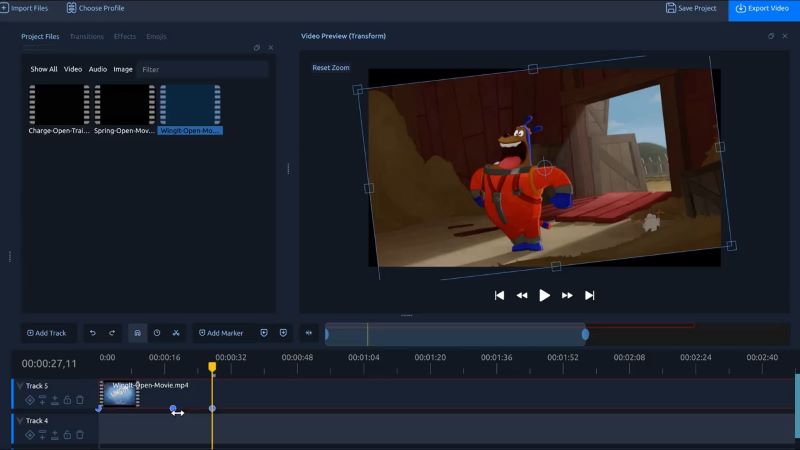
- Flexible keyframing with no limits, allowing detailed animation control and speed adjustments.
- Comes with 20+ customizable 3D animations for titles and visual elements.
- Offers over 400 transitions with adjustable speed and sharpness, including automatic transitions when clips overlap.
- Full control over color adjustments, including brightness, gamma, hue, grayscale, and chroma key.
- Provides around 40 title templates, or you can create your own for a more personalized look.
- Some built-in animations may feel a bit outdated compared to newer editors.
- Can occasionally crash when handling larger or high-resolution projects like 4K.
Linux, Windows, macOS, ChromeOS.
Free, with optional donations to support development.
Beginners and creators who want a simple editor for quick video edits without dealing with complicated tools.
7. Pikimov
Instead of looking for a Funimate APK for PC that could potentially harm your computer, it’s better to use Pikimov. It’s a powerful and completely free tool focused on creating 2D and 3D animations for your videos. You don’t even need to sign up, just open it and start using it right away.
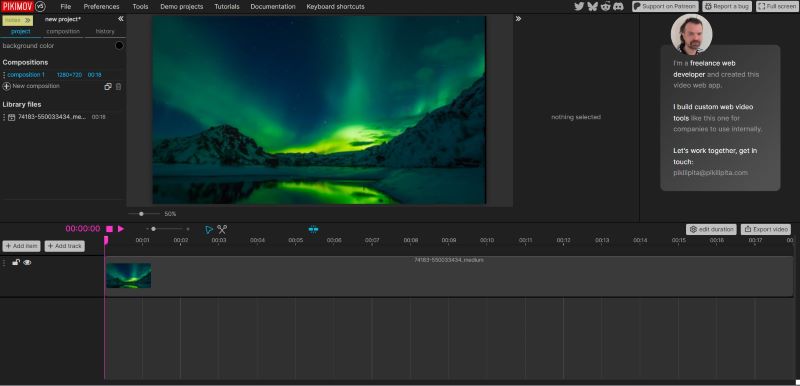
- Includes various animation tools like transitions, color effects, and deformation effects.
- Lets you create animations manually with keyframes or customize them further using code.
- Supports both manual and automatic rotoscoping to isolate and animate specific subjects.
- Advanced motion tracking to keep animations aligned with moving objects or subjects.
- Lightweight platform that runs smoothly, even without a high-speed internet connection.
- Processes your projects locally, so your files stay on your device instead of being uploaded to a server.
- Even though the interface is simple, beginners may still need time to learn since it involves layers, composition, and keyframing.
- Not ideal for quick edits, as most animations and transitions need to be created manually.
Online.
Free.
Professional creators who want to focus on animation and need a free tool with full control and no watermark.
8. iMovie
There’s a high chance you’ve heard of iMovie, a free video editor that can be a great alternative to Funimate for Mac. It’s a go-to app for Apple users because it seamlessly integrates across iPhone, iPad, and Mac, allowing you to start a project on one device and continue it on another. This makes the editing process feel more practical, flexible, and smooth.
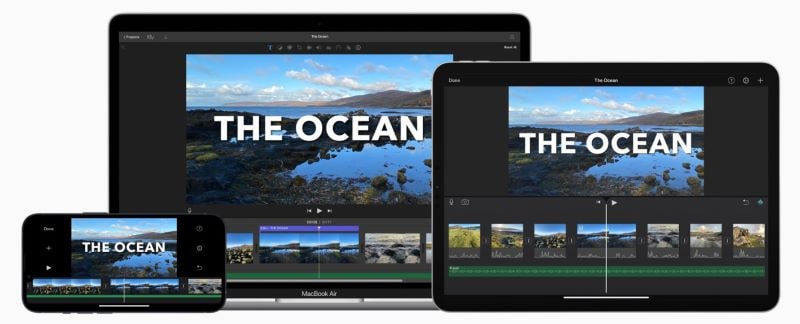
- Includes an easy-to-use green screen feature that lets you replace backgrounds quickly with just a few clicks.
- Offers a selection of animated titles, including simple and classic styles that are easy to apply.
- Comes with 13 built-in video filters to enhance the overall look of your footage.
- Runs smoothly with reliable performance during editing.
- Allows high-quality exports, including up to 4K resolution.
- Limited selection of modern effects and animations.
- Only supports a basic layering system, which may not be enough for more advanced editing needs.
iOS, macOS.
Free.
Beginners and Apple users who want to create videos easily for free without needing extra apps or dealing with watermarks.
9. VideoShow Video Editor Pro
If you’re looking for a simple app like Funimate for Windows that gets the job done, you can try VideoShow Video Editor Pro. The workflow is straightforward, just upload your video, make a few edits or enhancements, and then export. It also lets you adjust video ratios to fit different social media platforms.

- Comes with dozens of visual effects, including cinematic styles, creative filters, and effects like mosaic, overlays, and artistic elements.
- Includes common transitions such as fade, dissolve, slide, wipe, and spin for smoother scene changes.
- Offers animated stickers, GIF creation from photos, and various font styles to customize your video.
- The interface is simple, easy to use, and navigates for users.
- No watermark on exported videos.
- Limited to exporting videos up to 1080p resolution.
- Not ideal for handling large or complex projects.
Windows.
Free.
Beginners and content creators who need quick and simple edits for social media updates.
10. Instories
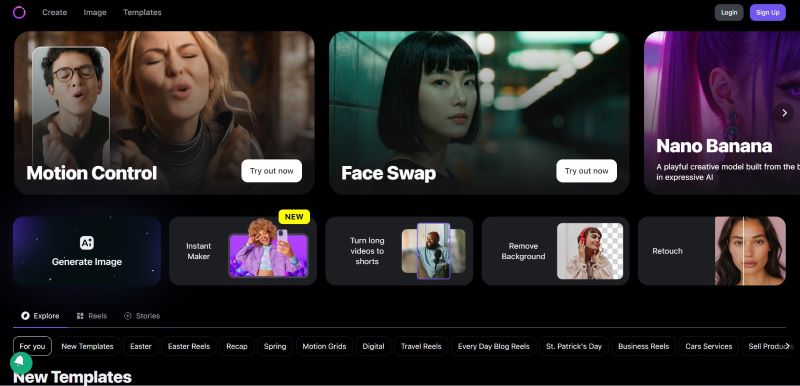
Our last strong pick as a Funimate PC alternative is Instories. It helps you create videos in the right format for platforms like TikTok, Reels, and YouTube Shorts. While it’s popular for its templates, it also comes with useful editing tools to enhance your content.
- Offers over 500 templates across different themes, from holidays and business to social media content.
- Various animated text styles to make your videos more eye-catching.
- Motion tracking feature to keep animations in sync with the subject.
- The interface is designed to guide you straight into editing, whether you want to start with templates or specific features like Motion Control or Face Swap.
- A wide range of templates that are suitable for creating trendy and engaging social media content.
- Not ideal for users who want full control over detailed edits.
- Pricing may be higher compared to similar tools.
Online, iOS, Android.
Offers a 3-day free trial. Paid plans start at $14.99 per month, or around $10 per month when billed yearly.
Social media managers, creators, and small business owners who want to quickly create trendy content for their platforms.
Finding the Right Funimate PC Alternatives for Your Needs
Now that we’ve covered different Funimate PC alternatives, the next step is choosing the right one. Each tool works differently depending on your editing style.
To help you narrow it down, here’s a simple guide.
| Category | Tools | Why It Works |
| Basic Video Editor for Beginners | Microsoft Clipchamp, OpenShot Video Editor, VideoShow Video Editor Pro | Easy to use and gets the job done, suitable for basic projects and daily content |
| Editors with Rich Templates & Creative Assets | Wondershare Filmora, Canva, Instories | Helps you produce visually engaging and trendy videos with less effort |
| Completely Free or Open-Source Editors | Kdenlive, OpenShot Video Editor | Free to use with no watermark, offer features that can handle advanced edits |
| More Advanced Video Editors | Wondershare Filmora, PowerDirector, Pikimov, iMovie | Provides more advanced tools like keyframing, motion tracking, and detailed editing control |
Conclusion
Since there’s no official version of Funimate for PC, many users turn to Android emulators. While it can work, the experience is often unstable and slow. Some even download Funimate mod APK for PC, which can be risky for your device. That’s why we’ve put together several safer alternatives to Funimate for PC.
Among all the tools, Wondershare Filmora stands out as one of the best options. It offers advanced keyframing, flexible color editing, and a wide selection of visual effects. Combined with its user-friendly interface, Filmora makes it easy to create engaging content for platforms like TikTok, YouTube Shorts, and Instagram Reels.
FAQs
-
1. Is Funimate free to use?
Funimate offers a free version. The Funimate Pro starts at $2.99 per week, although pricing may vary depending on your region.
-
2. Does Funimate have a PC version?
No, there is no official Funimate version available for PC or desktop.
-
3. Are there alternatives to Funimate?
Yes, there are plenty of alternatives to Funimate depending on your needs.
For online tools, try Canva and Pikimov.
For Windows, options include Microsoft Clipchamp and VideoShow Video Editor Pro.
For Mac users, iMovie is a good alternative.
For free and open-source tools, Kdenlive and OpenShot Video Editor are worth trying.
For cross-platform options, you can use Wondershare Filmora, PowerDirector, or Instories.
