


 TL;DR:
Arcads AI is a web-based generator that produces UGC-style video ads from text scripts and AI avatars in one to two minutes, making it an efficient solution for marketers and DTC brands needing rapid ad variations without a production crew.
● The platform strictly uses a credit-based pricing model starting at $110 per month for 10 credits with no free trial available, meaning frequent ad testing can quickly consume your budget.
● Your inputs and outputs are hard-capped by a 400-character script limit and a maximum video duration of 120 seconds, restricting the tool exclusively to short-form ad creatives rather than longer storytelling content.
● Because the system completely lacks a built-in timeline editor, you cannot adjust pacing or add music internally and must export the raw MP4 file to external software like Wondershare Filmora for post-production refinement.
Ask AI for a summary
 ChatGPT
 Perplexity
 Gemini
 Claude
 Grok
Grok
Most small brands and solo marketers skip creating UGC video ads because the production is slow and expensive. But Arcads AI removes those problems. It lets you write a script, pick an AI actor, and get a video back in minutes.
This Arcads AI review breaks down the features, limitations, and real user feedback. It also walks you through Arcads AI pricing and covers who it suits best. Let's jump right in and find out if it fits your workflow or if you need an Arcads AI alternative.
Table Overview of Arcads
Before getting into the details, here’s a quick overview of what Arcads AI offers. This table sums up the key points, so you can see how it stacks up at a glance.
| Feature | Details |
| Editing Features | No timeline editor. Basic adjustments only before generation (script, voice, actor). |
| Platform | Web-based (runs in browser, no desktop or mobile app). |
| AI Capabilities | Text-to-video (UGC ads), AI Avatars, Text to Speech, and AI lip sync. |
| AI Actor Library | 300 to 1000+ AI actors, depending on plan. Custom avatar creation available on higher tiers. |
| Value for Money | Credit-based pricing. Good for fast ad production, but costs can add up with frequent testing. |
Part 1. What is Arcads?
Arcads AI is a video generator that lets you turn a text script into a user-generated content-style video ad in minutes. You pick an AI actor from their library, paste in your script, and get a finished video back in minutes. No camera needed, no hiring creators, no waiting on revisions.
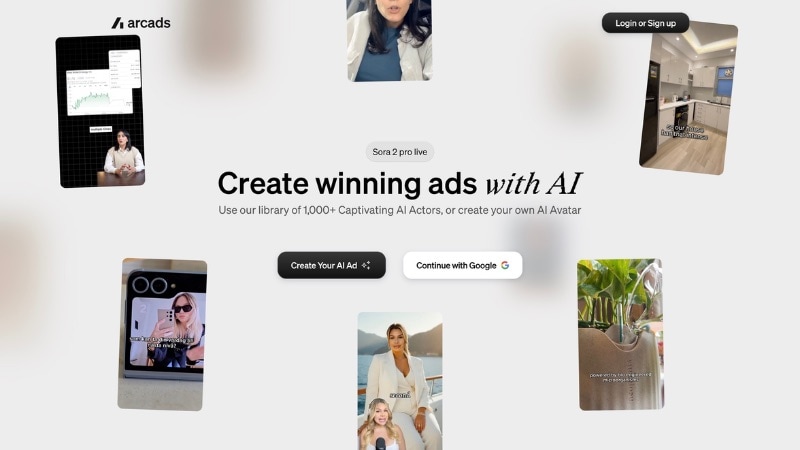
In December 2025, Arcads raised $16 million in seed funding led by Eurazeo. By early 2026, the platform had grown to over 6,000 clients and around 100,000 video assets generated per month. Those numbers tell you this isn‘t a tool people are just testing. Brands and agencies are running it as part of their regular ad production.
So who exactly is it for? Arcads AI works best for:
- Marketers who need a constant stream of ad creatives without a full production team.
- Direct-to-Consumer brands running paid ads on Facebook, TikTok, and Instagram.
- Agencies managing multiple client accounts and ad campaigns at once.
- Solo business owners who want video ads but don‘t want to appear on camera.
Part 2. Core Features of Arcads AI
Arcads AI is a tool that leads to one thing: generating a video ad fast without a production team. Here's what the Arcads AI video generator actually gives you.

AI UGC Generator
This feature is the core of the platform. You paste in a script, pick an actor, and Arcads generates a video that is ready to post. You can also run multiple variations at once, without queuing them one by one.
AI Avatars and AI Actor
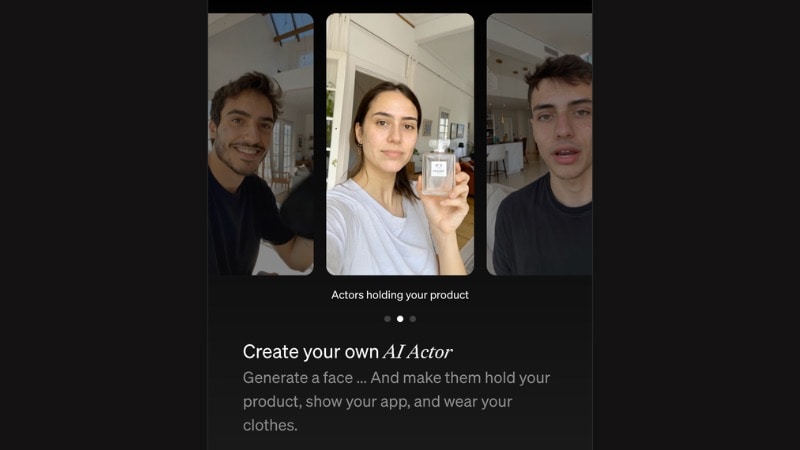
Arcads AI gives you a library of over 1,000 AI actors covering a wide range of ages, ethnicities, and styles. You can also build a custom AI avatar from scratch, one that holds your product, shows your app, or wears your clothes.
Text to Speech
You write the script, and Arcads converts it into a voiceover. It lets you add a voiceover without having recording equipment or hiring a voice actor. The audio then gets paired with your chosen Arcads AI actor to produce the final video.
AI Lip-Sync
Arcads AI matches the actor's mouth movement to the generated audio so the video doesn‘t look robotic or out of sync. This feature is what makes the final output feel like a real person talking.
Part 3. Arcads AI Pricing: How Much Does It Cost Per Month?
Arcads AI pricing runs on a credit system on a subscription plan. It has three subscription plans: Starter, Creator, and Pro. Each plan gives you a monthly credit allowance, and you spend those credits across different features and models. Unfortunately, the Arcads AI free trial version is not available.
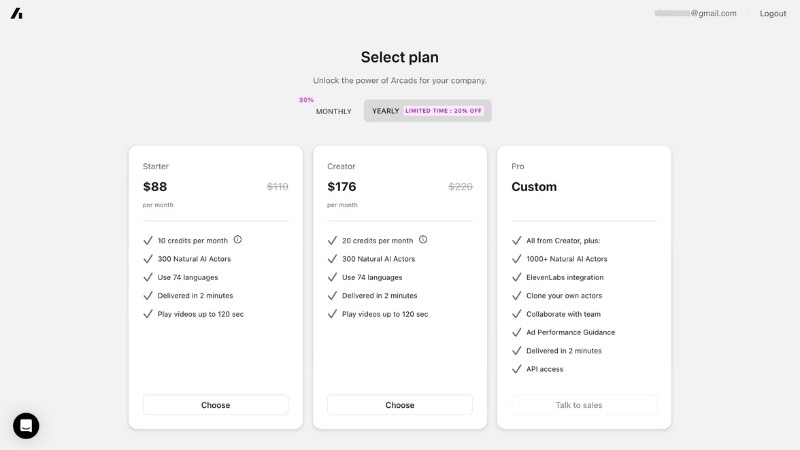
All Arcads AI plans support 74 languages, deliver videos in about two minutes, and allow videos up to 120 seconds long. How many videos you get per month isn‘t fixed; it depends on what you generate. Check the credit breakdown inside the platform before picking a plan.
Here are the details of Arcads AI plans:
| Features | Starter | Creator | Pro |
| Monthly | $110 per month | $220 per month | Custom |
| Yearly | $110 per month | $220 per month | Custom |
| Credits per month | 10 credits | 20 credits | Custom |
| AI Actors | 300 | 300 | 1000+ |
| ElevenLabs integration | No | No | Yes |
| Clone your own actors | No | No | Yes |
| Team collaboration | No | No | Yes |
| Ad performance guidance | No | No | Yes |
| API access | No | No | Yes |
The only difference between the Starter and Creator is the monthly credit allowance. Meanwhile, you need to contact its Sales team for the Pro plan pricing list.
Note: Arcads AI pricing per month may vary by region and current promotions. Check the latest rates inside the platform after you sign up.
Part 4. How to Get Started With Arcads AI to Create Video Ads
To create video ads with Arcads AI, you can follow the instructions below.
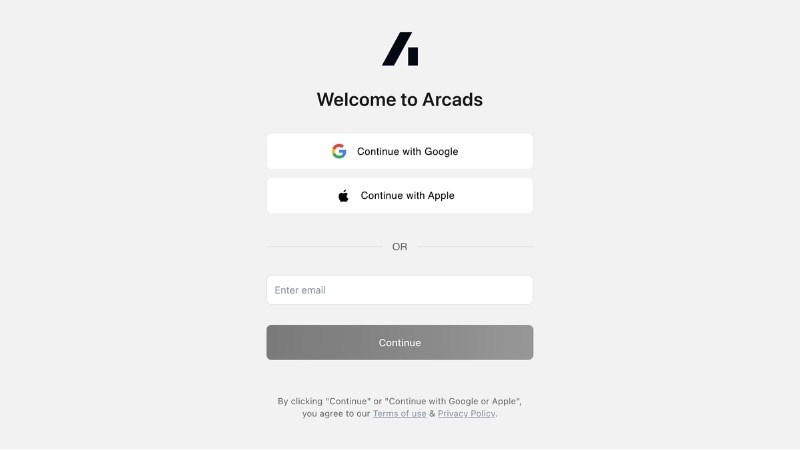
Step 1. Create an Account
First, log in to Arcads AI on its official website. Once you‘re in, the platform will prompt you to pick a plan before you can access the dashboard.
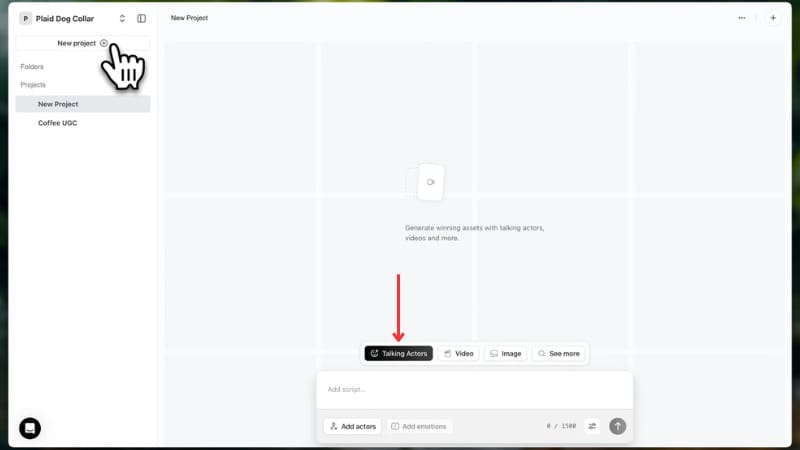
Step 2. Start a New Project
Click on the New Project button at the top right of your dashboard. Choose the Talking Actor option, where you can generate your UGC ad.
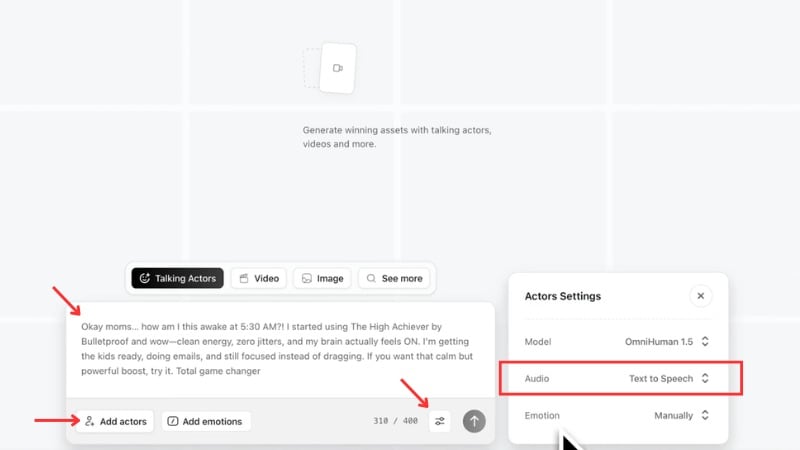
Step 3. Write Your Script
Type or paste your script into the text field. Keep it short and casual; it should sound like a real customer talking, not a brand pitch.
Note: Arcads has a 400-character script limit, so trim it down if needed.
Step 4. Adjust the Voice
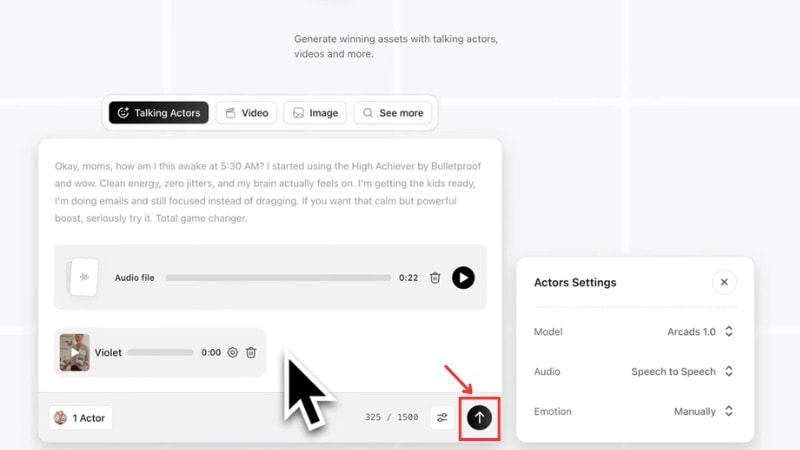
At the bottom of the text field, select Settings > Audio, and you‘ll have two options:
- Text to Speech converts your text script into voiceover automatically.
- Speech to Speech to record yourself reading the script with the exact tone and emphasis you want. The AI then mimics your delivery.
Step 5. Pick Your Actor
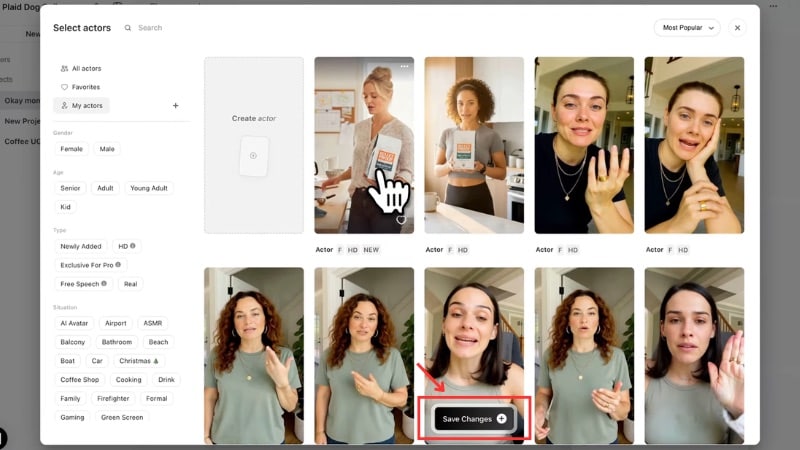
Click the Add Actors button to browse the library. Use the filters on the left side of the actor library to narrow down by gender, age, and setting. Or, you can also choose the Create Actor option to create a customized actor.
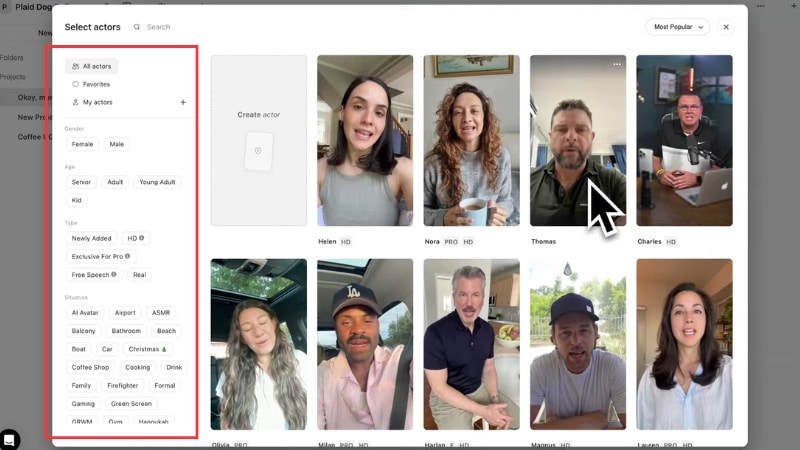
Pick whoever fits your target audience and click on the Save Changes button.
Step 6. Merge and Download
Back to the project page, click the Arrow icon to merge them into one file. This process will take a couple of minutes.
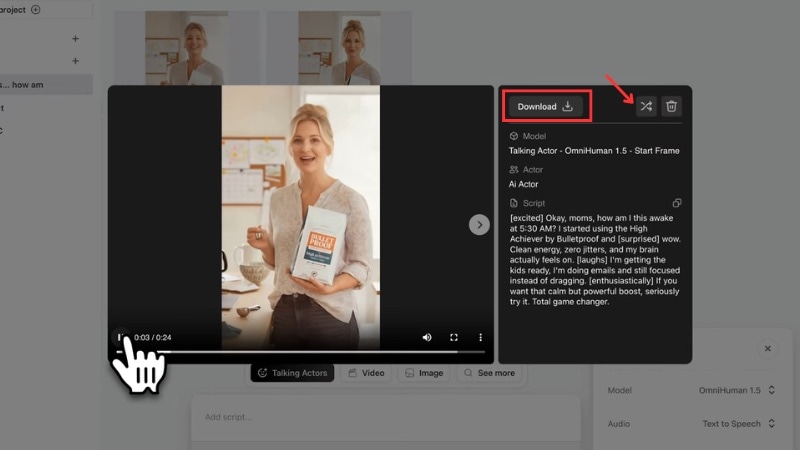
When it's done, click to preview the final video. If you‘re happy with the result, click on the Download button to save it. If not, hit the Shuffle icon to generate a new version.
Part 5. Arcade Review: What Real Users Say
Most people try this platform because of the Arcads AI avatars feature. It gets a lot of attention for how realistic the results look. But once you move past that first impression, the feedback varies depending on what users expect from the tool.

User Experience
Getting started feels simple. Most users don‘t run into issues during setup. You sign up, pick a plan, and start generating videos within minutes. That said, the platform can feel a bit locked after you generate a video. If you want to adjust timing, visuals, or pacing, your options stay limited.
Ease of Use: Beginners vs Advanced Users
For beginners, Arcads AI works well. You don‘t need editing skills or prior experience. The step-by-step flow helps you create your first ad without confusion. More experienced users, though, often feel restricted. If you‘re used to timeline editors or manual controls, Arcads can feel too automated.

Workflow and Speed
Arcads gets the most praise for its speed. You can generate multiple ad variations in a short time, which helps when testing creatives for paid campaigns.
Performance and Video Quality
Many users say the results work well for UGC-style ads where perfect polish isn‘t the goal. At the same time, some notice small issues with facial expressions, timing, or tone. The videos can also feel repetitive if you rely on the same actors or templates too often.
Part 6. Pros and Cons of Arcads AI
After reviewing the features and user feedback, it is clear that Arcads AI delivers speed and convenience. But using Arcads AI to create video ads also comes with trade-offs. This section will show you the pros and cons of using Arcads AI.

- Turns short scripts into ready-to-use video ads in minutes.
- Large library of Arcads AI avatars that match different target audiences.
- No filming setup, actors, or editing skills needed.
- Simple workflow that helps you launch ads fast.
- Easy to generate multiple versions for ad testing.
- Built-in voice and lip sync remove the need for external tools.
- No timeline editor, so you can‘t fine-tune scenes or pacing.
- Script limit (around 400 characters) restricts longer messages.
- The credit system adds pressure when testing multiple variations.
- Output works best for short ads, not longer storytelling content.
- Reusing the same actors or templates can make videos feel similar.
- Occasional issues with expression or delivery can still show up.
Part 7. Complete Your AI Video Ads with a Timeline Editor
Arcads AI handles video generation well, but once it's done, you don‘t have much room to adjust things. If you want to shape it up more, you can complete your workflow with Wondershare Filmora.
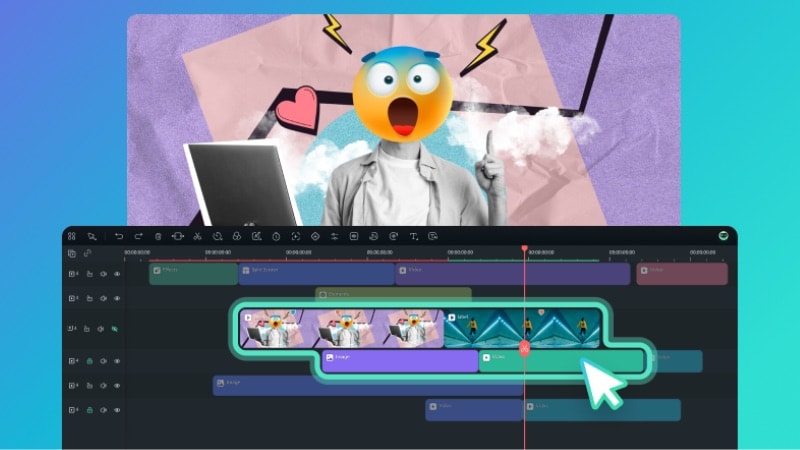
Instead of regenerating videos just to fix small issues, you can export your clip from Arcads and refine it further. Here's what you can do with Filmora:
- Cut and rearrange clips to improve pacing or structure.
- Adjust audio, add background music, and balance sound levels.
- Add transitions, text, and simple visual effects for a cleaner finish.
- Turn one longer video into multiple short-form clips using its Smart Short Clips feature.
- Create a thumbnail with the AI Thumbnail Generator for ads or social posts.
Using both tools together gives you a more complete workflow. Arcads AI handles the initial creation, while a timeline editor helps you shape the final version without starting over.
 Secure Download
Conclusion
Arcads AI delivers a fast way to create UGC-style ads without a crew. This Arcads AI review shows it works best for short-form content and quick testing, though editing control stays limited. The Arcads AI pricing model also means you need to plan how you use credits.
If you need more control or flexibility, an Arcads AI alternative or a timeline editor can fill the gap. Try it, test your workflow, and see if it fits your needs.
FAQs
-
What file format does Arcads AI export in?
Arcads AI exports videos in common formats like MP4. This format works across most platforms such as TikTok, Instagram, and YouTube. Thus, you can upload the file without extra conversion. -
How long does it take to generate a video?
Most videos are generated in about 1 to 2 minutes. The exact time depends on your script, selected actor, and current system load, but it stays relatively quick compared to traditional production. -
Can I use the same actor across multiple projects?
Yes. Arcads AI lets you reuse the same AI actor across different videos, which helps keep your ads consistent across campaigns. -
Can I edit Arcads AI videos inside the platform?
Not really. Arcads AI is built for generating videos, not editing them. After the video is created, you need to download it and use another tool if you want to add text, music, or adjust timing.
