
Designers sharing mockups, developers reporting bugs, and teams creating tutorials often need more than a basic screenshot. CleanShot X for Mac offers screenshot capture, annotations, scrolling capture, and screen recording, with optional cloud sharing for quick feedback.
But is it worth paying for when macOS already has built-in capture tools and free alternatives are available? This review covers CleanShot X’s features, pricing, and limitations, including how it compares with other options.
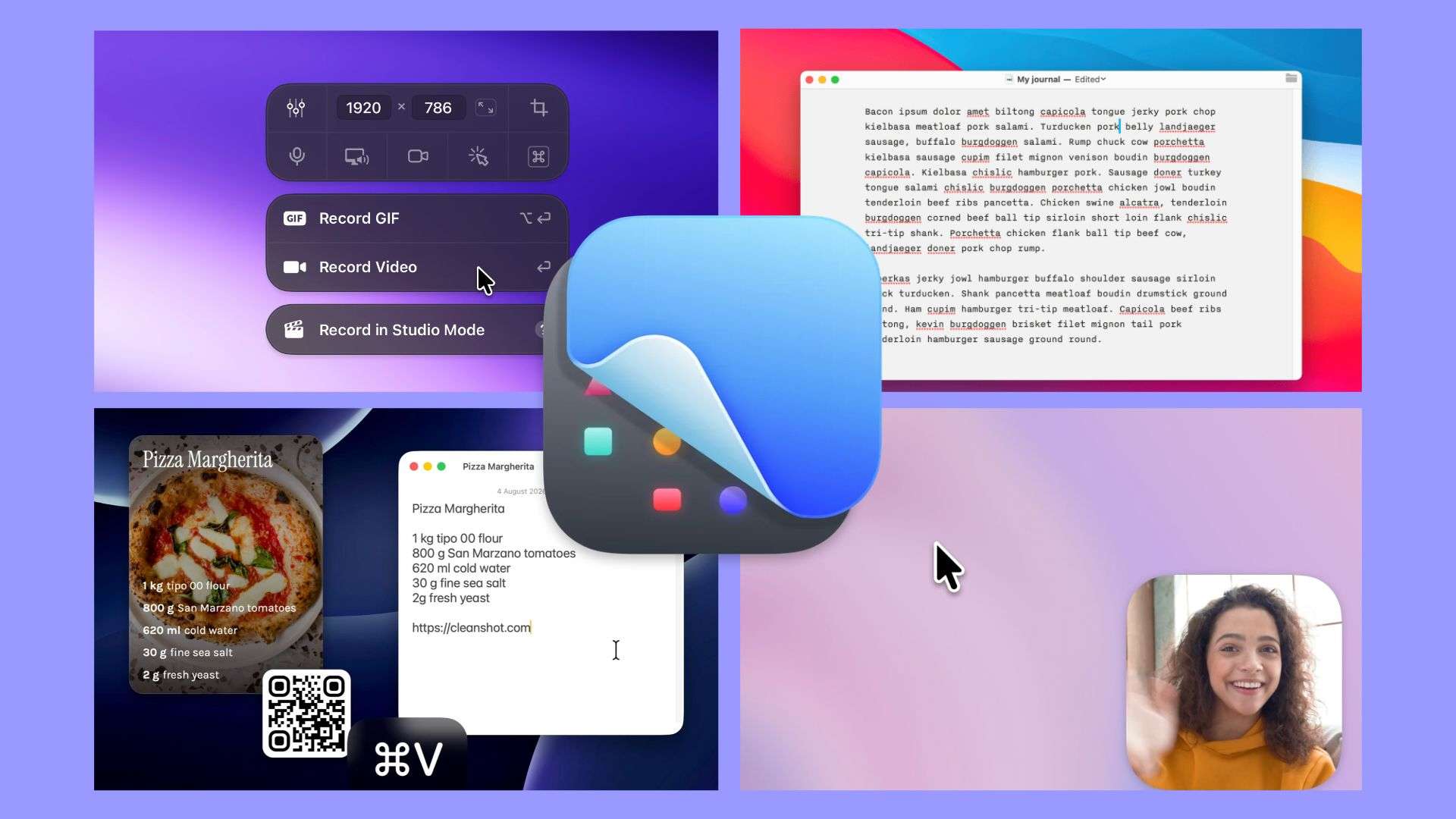
Part 1. What Is CleanShot X?
CleanShot X is a screenshot app for macOS that includes features such as scrolling capture, text recognition (OCR), annotations, screen recording, and cloud sharing. It's useful for developers documenting bugs, designers reviewing interfaces, and teams preparing visual instructions. Compared with the built-in macOS Screenshot tool, CleanShot X offers more options for capturing, editing, and sharing screen content.
| Compatibility | Details |
| Operating system | macOS 13.0 or newer |
| Windows support | No Windows version available |
| Main use | Screenshot capture, annotation, screen recording, and editing |
| Cloud sharing | Optional; required only for uploading screenshots to CleanShot Cloud |
|
Show More
Show Less
|
|
Part 2. CleanShot X Features: What Can You Do With It?
CleanShot for Mac does more than just take regular screenshots. You can capture long pages, mark up images, copy text from screenshots, and record screen activity. Below is a detailed look at what each feature offers and how you can apply them in your daily work.
1. Capture Screenshots Without Desktop Clutter
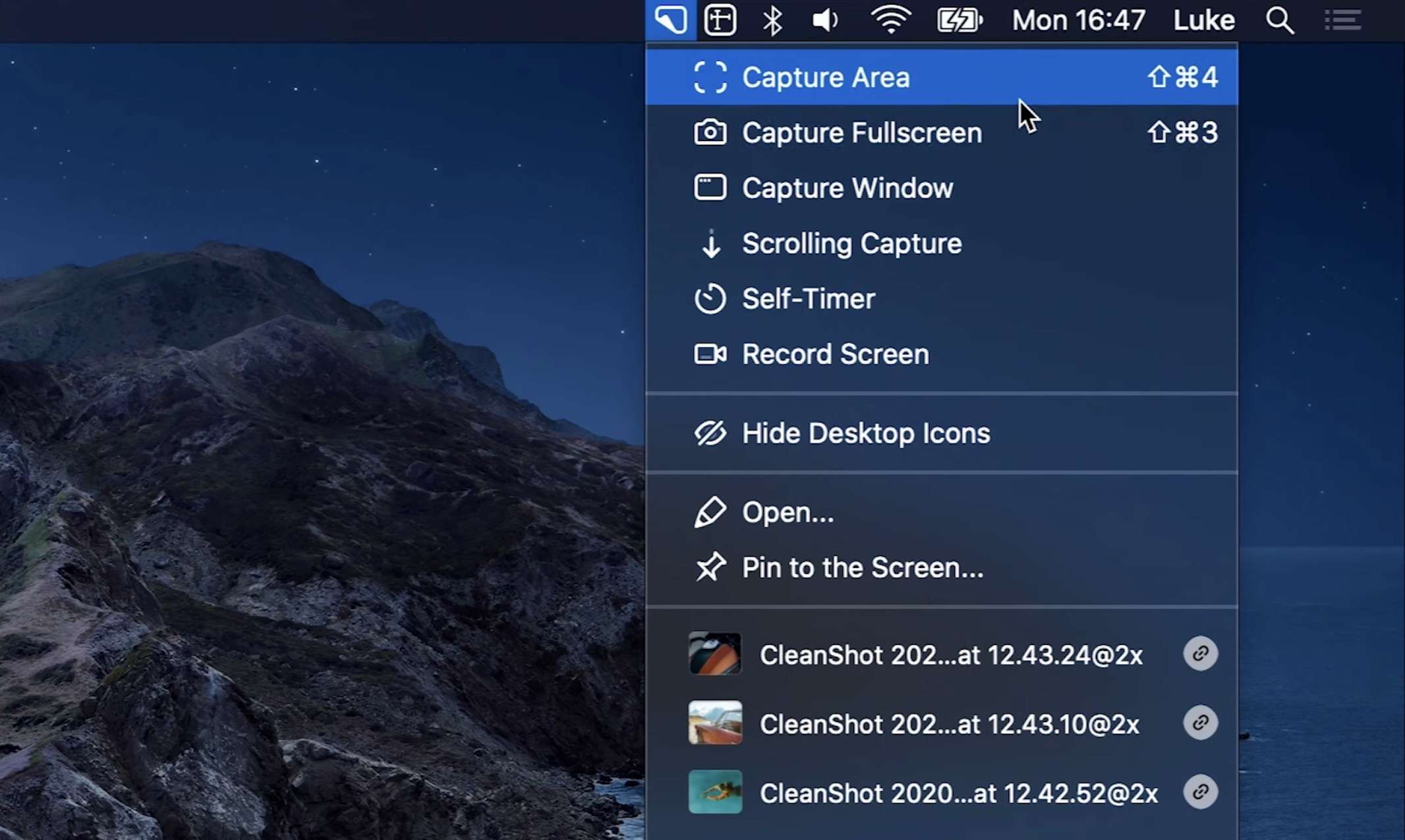
Getting the right content into one screenshot can take some effort than expected, especially when a page extends beyond the screen. CleanShot X offers several capture options to make that easier.
- Capture area, window, or full screen: Choose exactly what you want to include.
- Hide desktop icons: Keep desktop clutter out of your screenshots.
- Scrolling Capture: Capture long webpages and other scrollable content without taking multiple separate screenshots.
2. Annotate Screenshots and Highlight Important Details
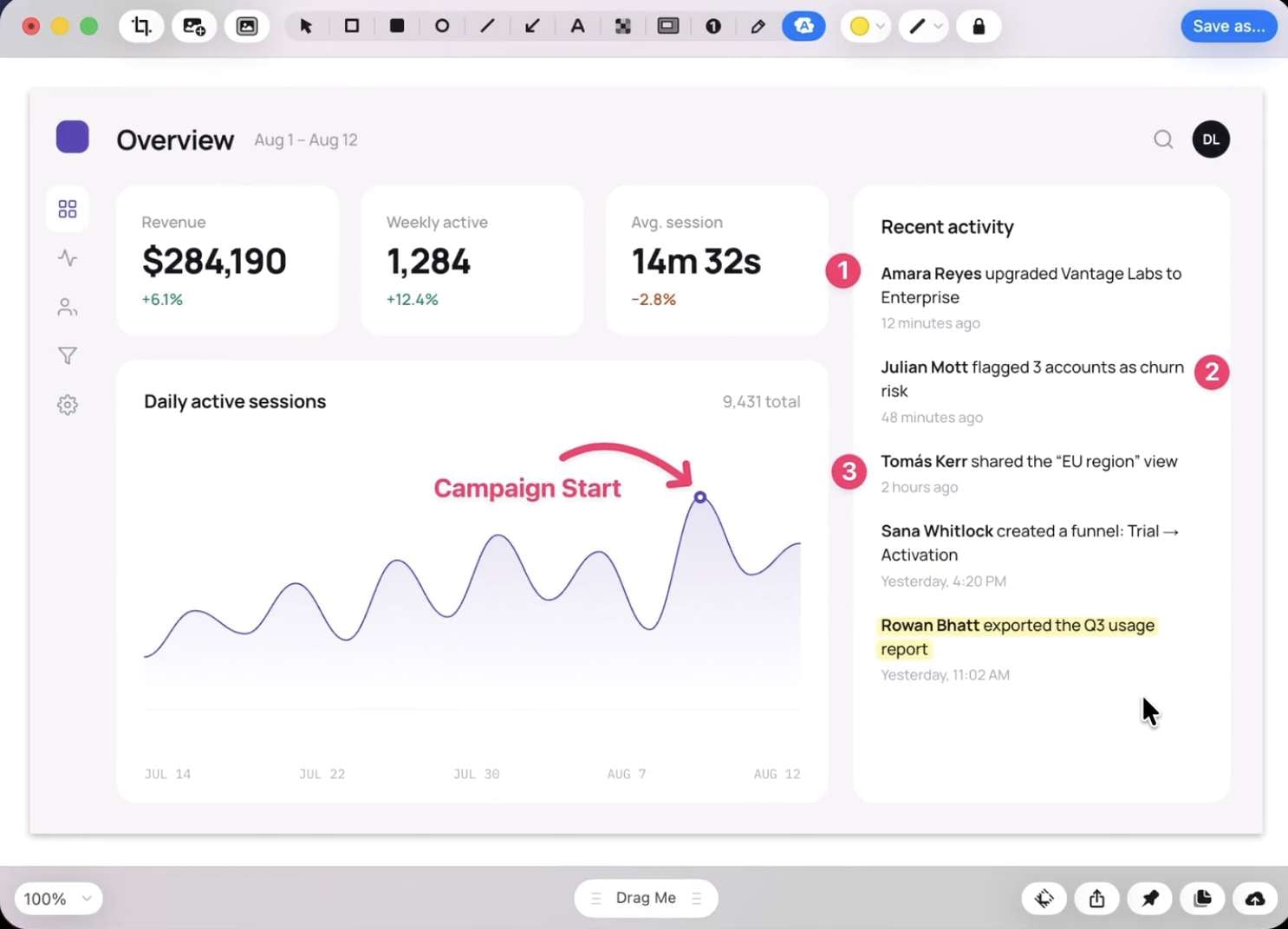
When a screenshot needs an explanation, you can add notes and visual markers directly in CleanShot X without opening another editor.
- Add markup: Use arrows, text, shapes, highlights, and numbered steps to point out specific details.
- Hide sensitive information: Blur or pixelate private details before sharing.
- Adjust the image: Crop, resize, or add a background to make the screenshot easier to present.
3. Extract Text From Screenshots With OCR
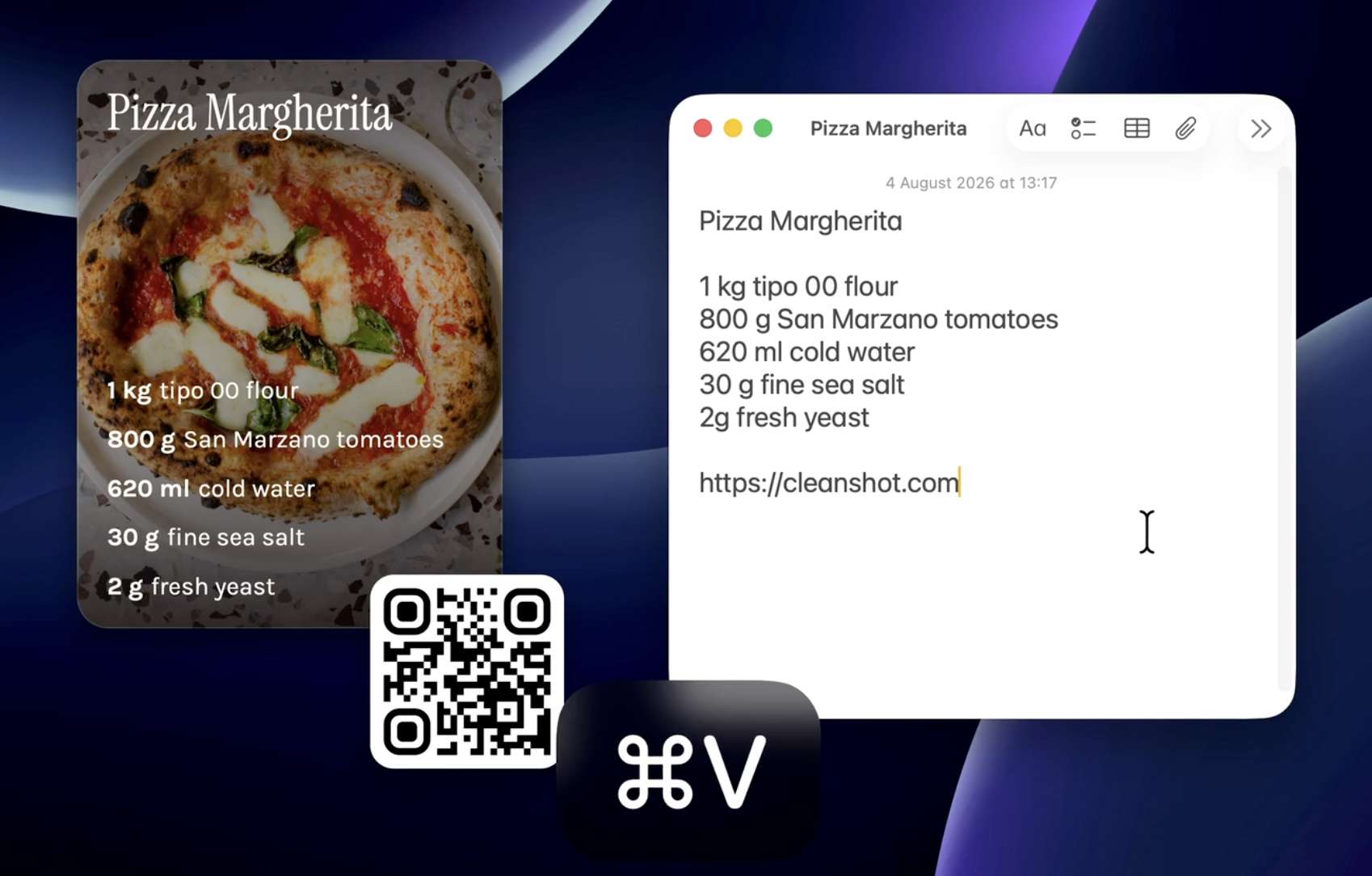
Capture Text is handy when you need to copy an error message, a line of text from an image, or information from a scanned document without typing it out yourself.
- Copy text from images: CleanShot X uses on-device optical character recognition (OCR) to extract text.
- Read QR codes: Scan QR codes without opening a separate tool.
- Check language support: Available OCR languages can depend on your macOS version.
4. Record Your Screen and Export Videos or GIFs
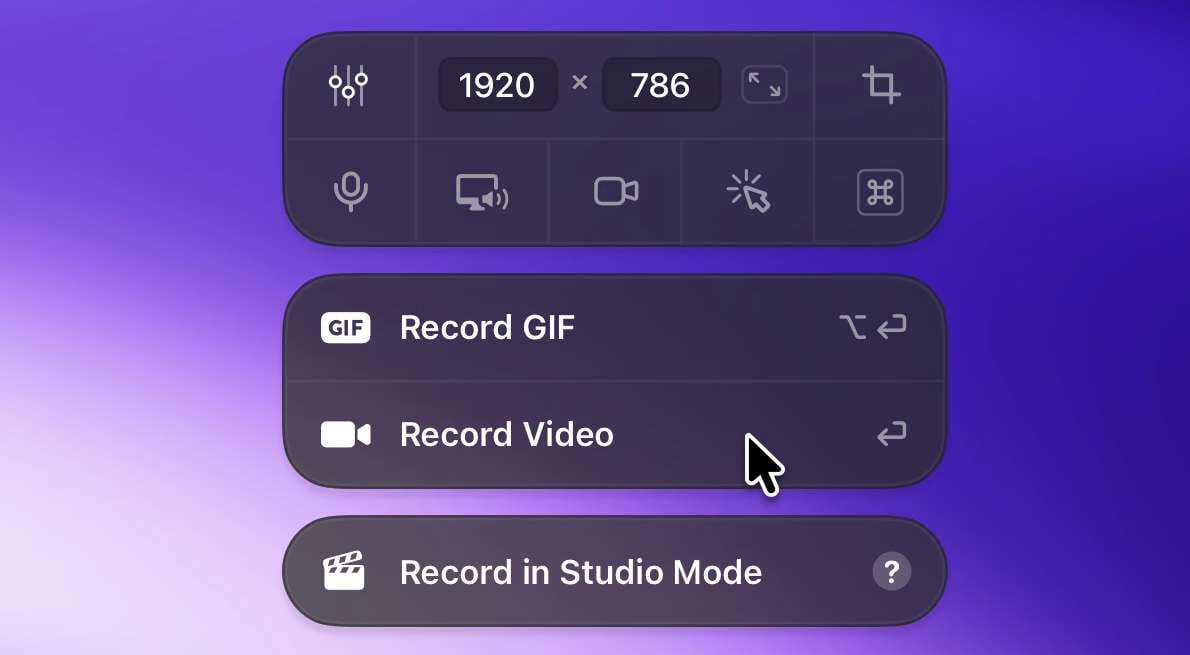
A short recording can show a software bug or explain a process more clearly than a series of screenshots. CleanShot X can add audio and visual cues to your recordings.
- Choose the recording area: Capture a selected area, window, or full screen.
- Include audio and webcam footage: Record microphone or system audio and add an optional webcam overlay, depending on your setup.
- Show clicks and keystrokes: Make on-screen actions easier for viewers to follow.
- Export as MP4 or GIF: Choose a format for sharing a walkthrough, bug report, or quick demonstration.
5. Edit Screen Recordings With Studio Mode
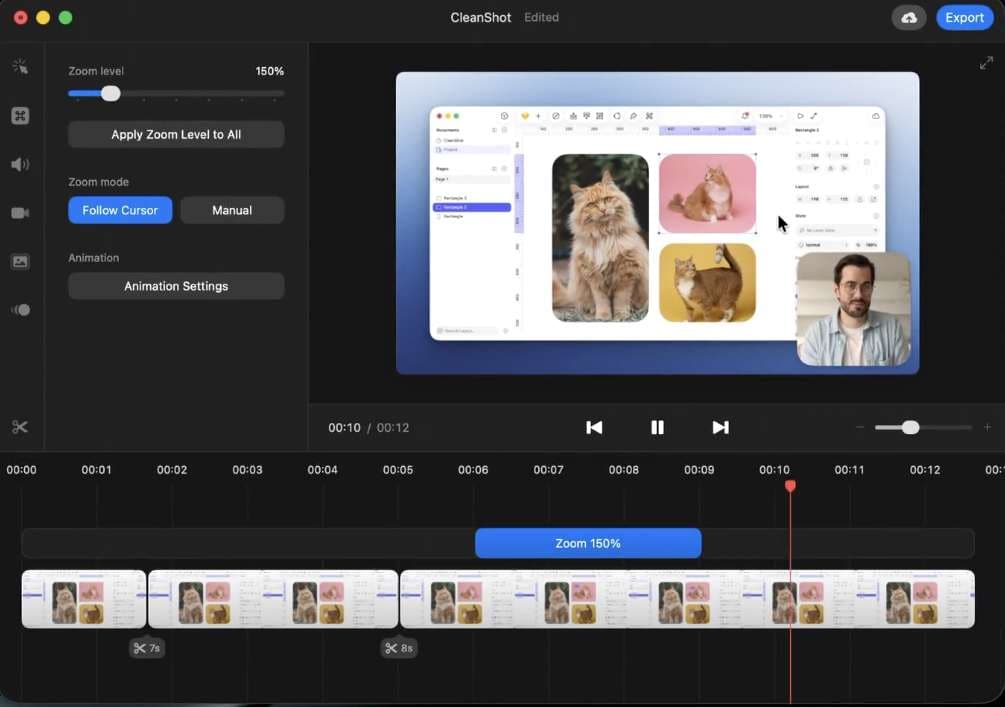
Introduced in CleanShot X 5.0, Studio Mode adds a built-in editor to refine screen recordings before sharing them.
- Trim recordings: Remove unwanted sections or mistakes.
- Add Smart Zooms: Zoom in on areas around the cursor to emphasize interface details.
- Refine cursor movement: Smooth cursor motion and add motion blur.
- Adjust the presentation: Customize backgrounds, webcam overlays, and keystroke displays where supported.
Some editing options are also available outside Studio Mode, so not every adjustment is exclusive to the editor. If you need complex timelines or advanced effects, a dedicated video editor may still be necessary.
6. Share Screenshots and Recordings With CleanShot Cloud
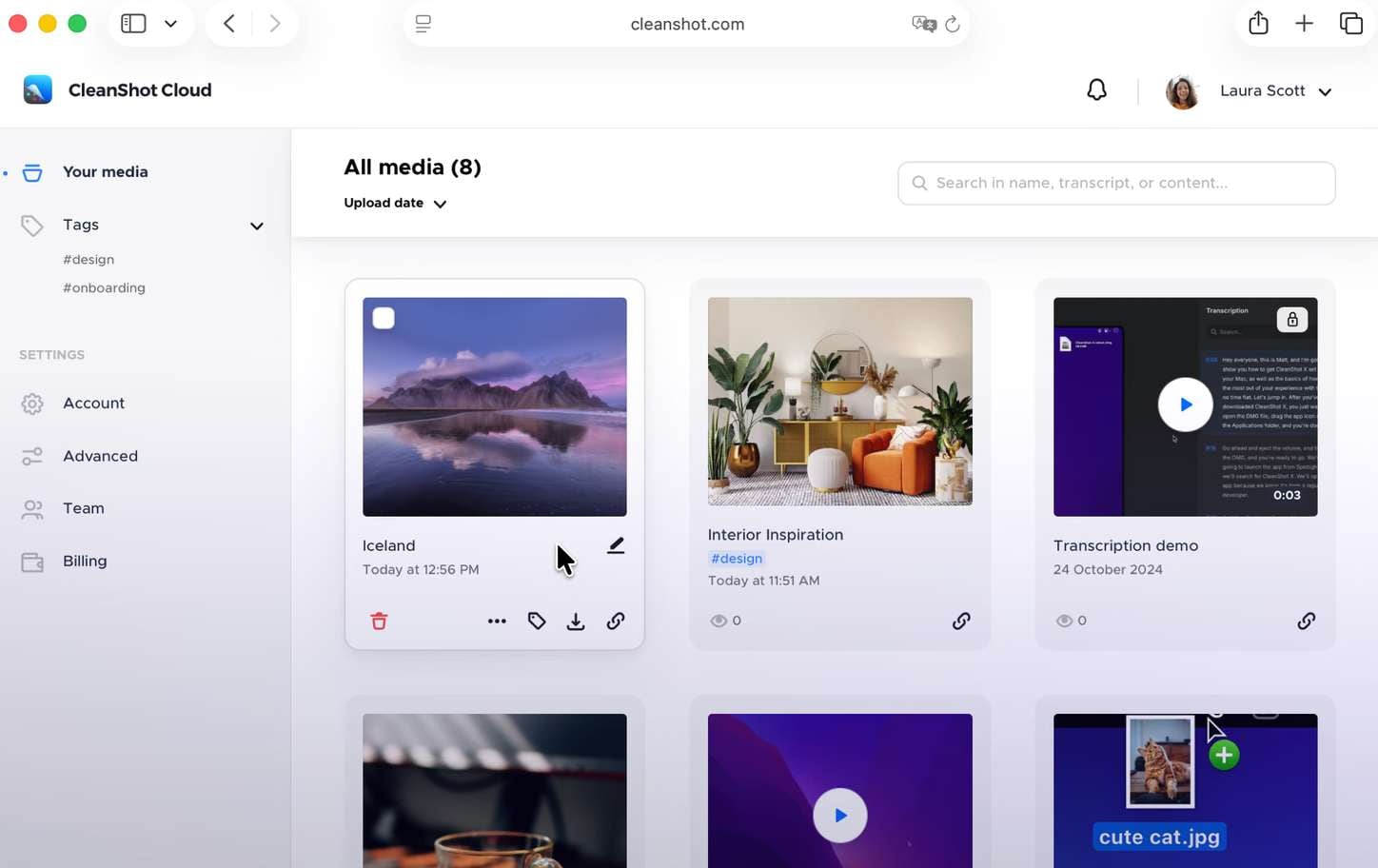
If you regularly send screenshots to teammates or clients, CleanShot Cloud can save you the extra steps of attaching files one by one. Upload a capture to create a shareable link, or keep the file on your Mac instead.
- Share through links: Upload screenshots and recordings for others to view.
- Collect feedback: Recipients can comment on shared content.
- Check storage limits: The Basic license includes 1 GB of cloud storage, while Pro includes unlimited storage.
- Get additional Pro controls: Pro includes options such as custom domains, branding, and team management features.
Cloud uploads are optional. You can use CleanShot X for local screenshots and recordings without relying on its sharing service.
Part 3. CleanShot X Pricing
CleanShot X pricing has two paid plans: a one-time purchase and a subscription. Both include the full Mac app, so you can access screenshot capture, annotations, and screen recording without subscribing to Pro.
| Plan | Price | Details |
| CleanShot Basic | $35 one-time | Full Mac app, one year of updates, and 1 GB of cloud storage |
| CleanShot Pro | $10 per user/month, billed annually | Full Mac app with ongoing updates, unlimited cloud storage, custom domain and branding, advanced sharing and security, and team features |
|
Show More
Show Less
|
||
See the official CleanShot X pricing page for current details.
What Happens When Basic's Update Period Ends?
The Basic license doesn't expire after one year. You can continue using the app, but new updates require an optional renewal at $19/year. If you don't renew, you can keep using your existing version.
Pro includes ongoing updates and unlimited cloud storage with features such as centralized access management, SSO, and SCIM. These extras are more relevant to teams than to someone who mainly takes screenshots on their own Mac.
Is CleanShot X Free? Are Discounts Available?
CleanShot X doesn't offer a free trial or free plan for direct purchase. Instead, purchases come with a 30-day money-back guarantee. If you'd like to try it before buying, you can also get CleanShot X through Setapp, which offers a separate 7-day free trial.
You can also check these official discounts:
- Student discount: 30% off with a university-issued email address.
- PixelSnap 2 discount: 20% off for existing PixelSnap 2 customers.
Check the CleanShot X discounts page for eligibility and redemption details.
Part 4. CleanShot X Review: Pros and Cons
CleanShot X for Mac is ideal for people who regularly capture screenshots, explain bugs, or share visual feedback. This CleanShot X review highlights its biggest strengths and drawbacks, from its built-in editing tools to its paid plans and Mac-only availability.
- Scrolling capture handles long pages. Capture lengthy webpages and other scrollable content without piecing together several screenshots.
- Annotations make feedback easier to follow. Add arrows, highlights, and blur effects to show exactly what needs attention.
- Several tools in one app. Switch between screenshots, OCR, and screen recordings without relying on separate utilities for each task.
- Cloud sharing keeps things simple. Upload screenshots or recordings to CleanShot Cloud and share them through a link.
- Studio Mode helps polish recordings. Trim clips and add smart zooms to make software demonstrations easier to follow.
- No Windows version is available. CleanShot X doesn't support Windows, meaning PC users will need a CleanShot X alternative.
- No free plan. The $35 Basic license may suit frequent users, but the built-in macOS screenshot tool is enough for occasional captures.
- Basic cloud storage is capped at 1 GB. Users who need unlimited storage must choose Pro.
- The extra controls may be unnecessary for some users. You may not need many of CleanShot X’s features if you just want to take a quick screenshot.
- Studio Mode isn't a full video editor. It works for refining screen recordings, but projects with complex edits may require separate software.
Part 5. CleanShot X Alternative for Screen Recording & Video Editing
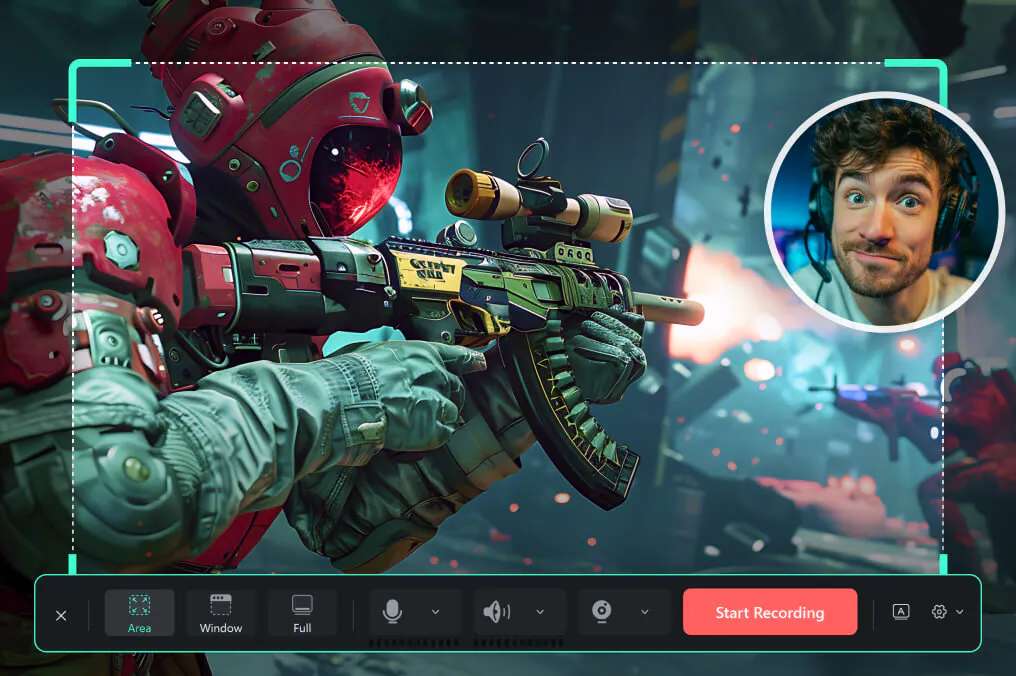
CleanShot X handles screenshots and screen recordings in one Mac app, but its Mac-only support and limited video editing may not suit everyone. Wondershare Filmora is a CleanShot X alternative for Windows and Mac users who need screen recording and more video editing tools, especially for tutorials, product demos, and gameplay videos.
Why We Recommend Filmora
Filmora combines a built-in screen recorder with a video editor, so you can move straight from recording to editing without switching apps. It's a convenient alternative to CleanShot X for creators who need more control over the finished video. Here are some of its screen recording features:
- Screen and webcam recording: Capture your screen and webcam together, with options to record microphone and system audio.
- Multiple-source audio recording: Record your voice and computer audio, then adjust the audio tracks during editing.
- Built-in teleprompter: Read a prepared script while recording on Windows without showing the script in the final video.
- Video editing tools: Trim footage, add captions and transitions, and adjust audio before exporting tutorials, software demos, or gameplay videos.
Filmora vs CleanShot X
| Feature | Filmora | Cleanshot X |
| Operating system | Windows and Mac | Mac only |
| Main purpose | Screen recording and video editing | Screenshot capture, screen recording, and sharing |
| Video editing | Includes tools for trimming, captions, transitions, and audio adjustments | Includes recording edits such as trimming and Smart Zooms |
| Screenshot tools | Basic screen capture as part of the recording workflow | Advanced tools, including scrolling capture, annotations, and OCR |
| Cloud sharing | Share finished videos through your preferred platform | Built-in CleanShot Cloud sharing |
| Free option | Free version available with a watermark on exported videos | No free plan; Basic starts at $35 one-time |
|
Show More
Show Less
|
||
Which one should you choose? Filmora is a good alternative if you need screen recording and video editing on Windows or Mac. CleanShot X is better suited to Mac users who regularly capture, annotate, and share screenshots.
 Secure Download
Conclusion
CleanShot X makes everyday screenshot tasks easier with scrolling capture, annotations, OCR, and quick sharing. For Mac users who often document bugs or explain ideas visually, its one-time Basic license may be worth the cost. However, the lack of Windows support and limited video editing may be a drawback if your work requires more than screenshots.
If you need a CleanShot X alternative for Windows or want to create polished tutorials, demos, or gameplay videos, Filmora lets you record your screen and refine the footage with editing tools.
FAQs
-
1. Can You Keep Using CleanShot X After the First Year?
Yes. The $35 Basic license includes one year of updates, but you can keep using your existing version indefinitely. Renewing updates costs $19/year and is optional. -
2. Does CleanShot X Have a Watermark?
No. CleanShot X lets you export screenshots and screen recordings without a watermark. Both Basic and Pro include the full Mac app. -
3. Can CleanShot X Record Internal Audio and Webcam Video?
Yes. CleanShot X can record your screen, microphone, system audio, and webcam overlay (optional). You can also use Studio Mode to trim recordings and add animated zooms before exporting. -
4. Is There a CleanShot X Version for Windows?
CleanShot X requires macOS 13.0 or newer, and a Windows version is currently unavailable. Windows users who need screen recording and video editing can consider Filmora as an alternative.