


 TL;DR:
Clipify is a lightweight, template-driven Windows video editor ideal for beginners creating fast, casual projects, though its watermarked free version and basic feature set make Wondershare Filmora a necessary alternative for creators requiring modern AI tools and complex timeline control.
● The free version exports videos with a watermark and restricts premium assets, requiring an upgrade to the Standard, Deluxe, or PRO lifetime tiers to access full capabilities like video stabilization, background swapping via chroma key, and screen recording.
● The application demands low system specifications, requiring only 2 GB of RAM and a 1 GHz CPU on Windows 7 through 11, but preview rendering performance noticeably degrades on lower-spec machines when stacking multiple clips, effects, and overlays.
● Wondershare Filmora is the recommended alternative for frequent content creators, as it replaces Clipify's dated, manual workflow with multi-layer stability, modern social media export formats, and AI-assisted tools like auto-captions and audio denoising.
Ask AI for a summary
 ChatGPT
 Perplexity
 Gemini
 Claude
 Grok
Grok
Too many editors already feel heavy and confusing. This is what Clipify aims to change.
Clipify is built for creators who want fast, beginner-friendly edits using templates, effects, and simple editing tools. Its positioning as a free automatic video editor for users of all skill levels is what encouraged us to put together this Clipify review.
Is it good enough to fit into your current workflow? We will break down what the Clipify video editor actually does, how the Clipify free version compares to the Clipify full version (including PRO), and what you should know before you hit the Clipify download button.
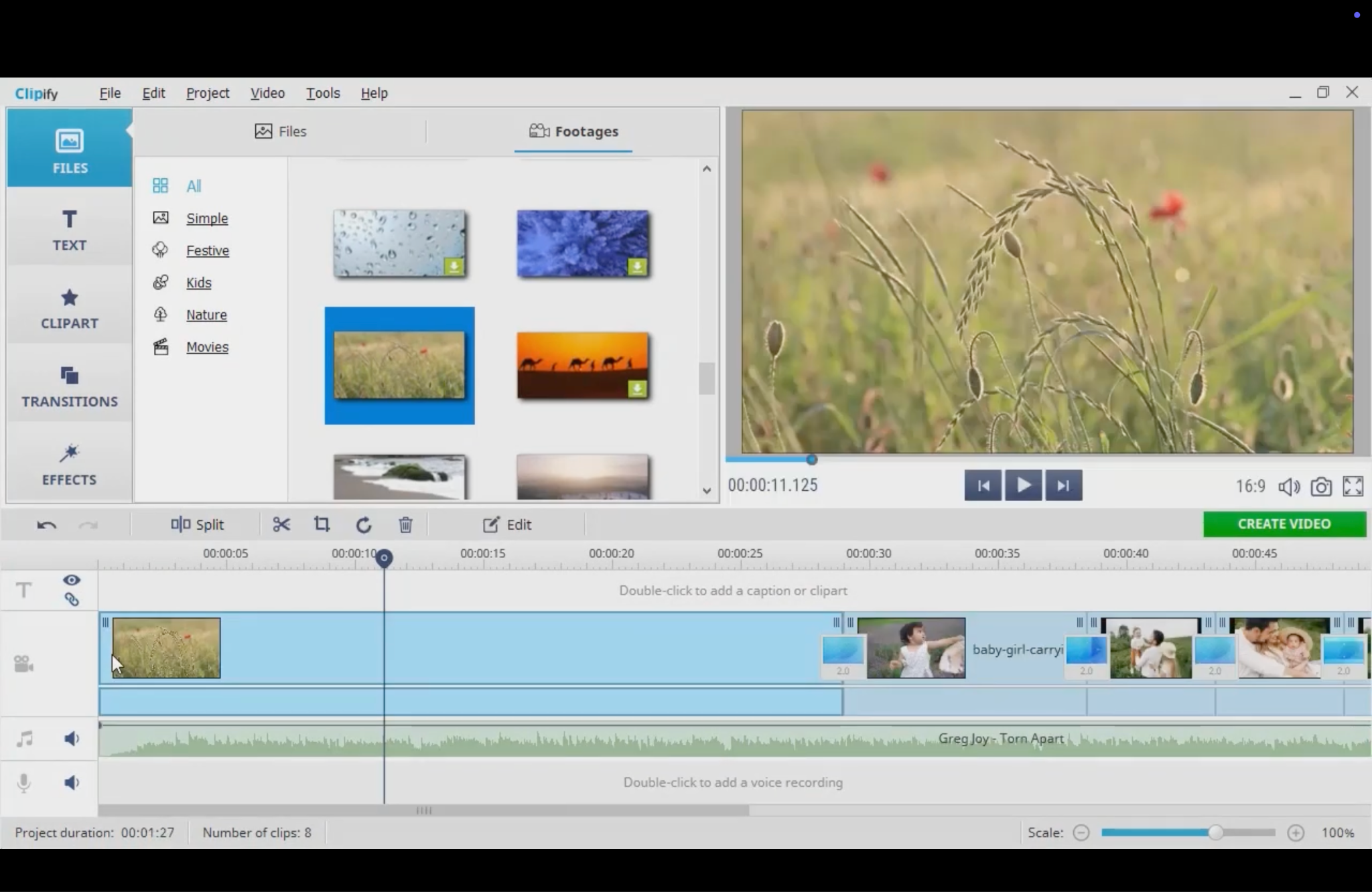
Table Overview of Clipify
| Category | What to evaluate | Score |
| Feature | Templates, effects library, audio tools, export destinations | 4.2/5 |
| Editing Features | Trim/split, transitions, titles, stabilization, chroma key, overlays | 4.0/5 |
| Ease of Use | Learning curve, UI clarity, beginner workflow speed | 4.4/5 |
| AI Capabilities | "Auto video creation" or one-click automation, smart enhancements | 3.5/5 |
| Performance & Speed | Launch time, preview smoothness, GPU acceleration impact | 3.8/5 |
| Value for Money | Free value, PRO upgrades, how it compares to rivals | 4.1/5 |
Part 1. Price and Version of Clipify (2026)
Clipify is positioned as a free Windows video editor, so you can start editing right away after downloading it from the official site. It’s designed for quick edits and template-based projects when you don’t want a heavy editor.
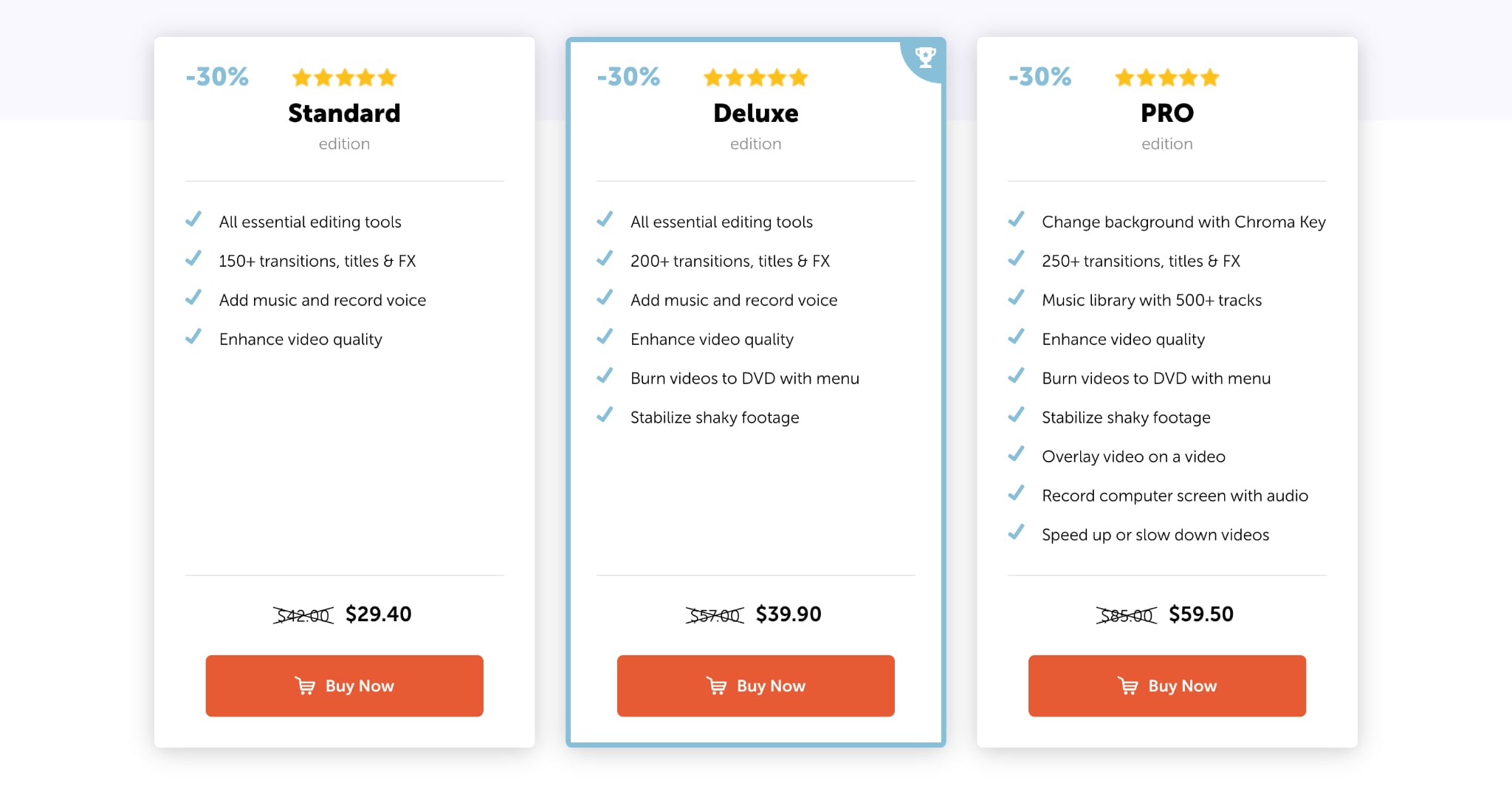
However, it also sells "full version" access as paid editions. IIt follows a lifetime license model, which includes 12 months of updates and technical support. Each tier includes:
- Standard (entry paid tier): Best for basic editing, with 150+ transitions/titles/FX, music + voice recording, and video enhancement. Listed at $29.40 on promo (was $42.00).
- Deluxe (adds stability helpers for home footage): Includes Standard features plus DVD burning with menu and stabilization. Listed at $39.90 on promo (was $57.00).
- PRO (the "Clipify full version" tier): Adds tools that feel more advanced, plus 250+ transitions/titles/FX and a larger music library. Listed at $59.50 on promo (was $85.00).
Note: Skip any "Clipify PRO free download" offers from random sites. They are a common malware trap.
Is the Clipify Free Version Enough?
The free version of Clipify adds a watermark to your video and limits access to premium features such as selected effects and music tracks. There’s only so much you can do for free, though, it can still serve as a decent starting point to test how the software works.
Part 2. Clipify Video Editor Key Features & Capabilities
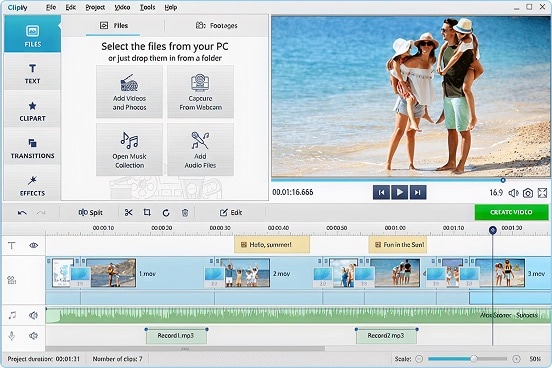
Clipify focuses on tools that help you finish a video fast without learning a complex editor. You get a mix of template-driven creation and classic timeline editing, so it works for both quick montages and basic manual edits.
Auto video creation and templates
Clipify is built around an "auto video editor" idea, so you can move fast. The basic flow is simple: drop in your clips, make quick trims, add titles and effects, then export. It is clearly aimed at casual projects like family and holiday videos.
Core editing tools
For day-to-day editing, Clipify covers the essentials: cutting, trimming, stitching, and rotating footage. It also leans into one-click cleanup, such as quick video enhancement, plus manual color work with Curves for simple corrections.
Effects, transitions, titles
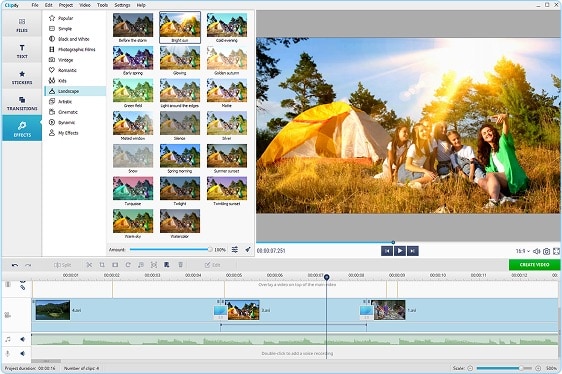
If you like decorating edits, Clipify puts a lot of emphasis on style tools: effects and filters, "cool transitions," and lots of title cards. On the paid side, Clipify highlights bigger packs like 250+ transitions, titles, and FX in PRO.
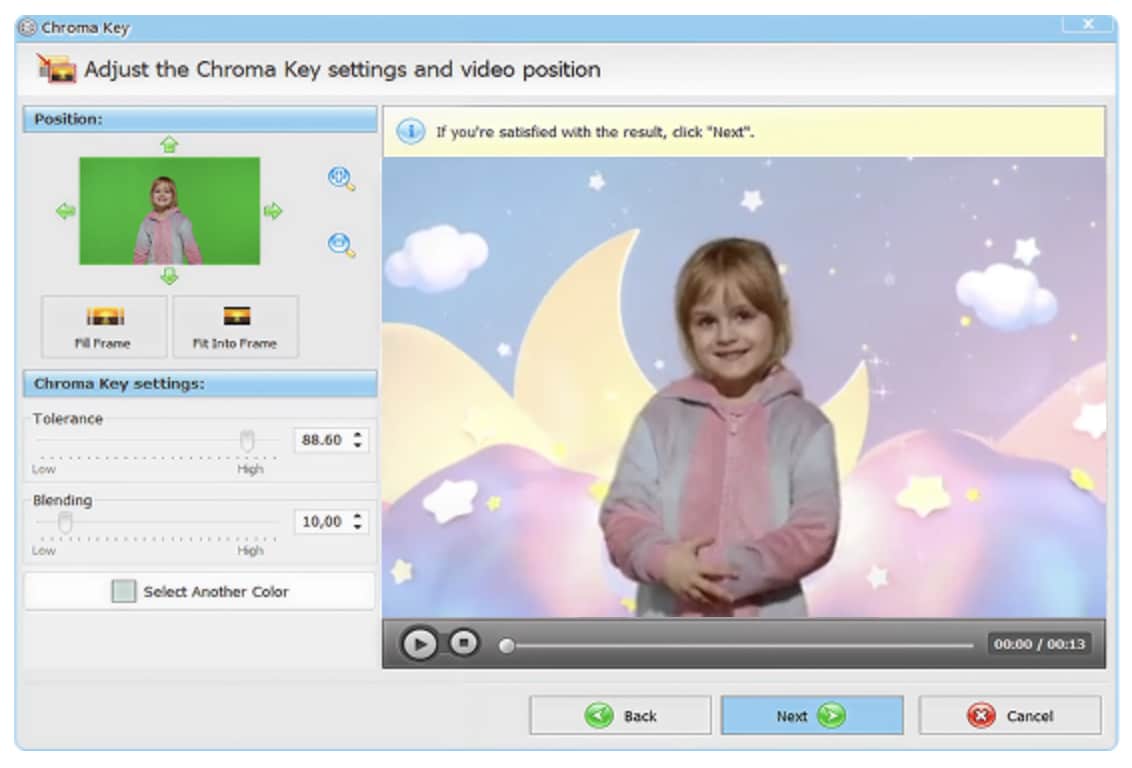
Chroma key (green screen) and overlays
This is one of Clipify’s headline features. The Chroma Key tool is designed to swap backgrounds in a few clicks, so you can do green screen-style edits without a complicated workflow. PRO also calls out overlaying video on top of video.
Stabilization and quality enhancement
Clipify positions stabilization as a "fix shaky footage" tool (included in higher tiers), along with general video quality enhancement. These are the kinds of features that matter most for handheld phone clips and travel footage.
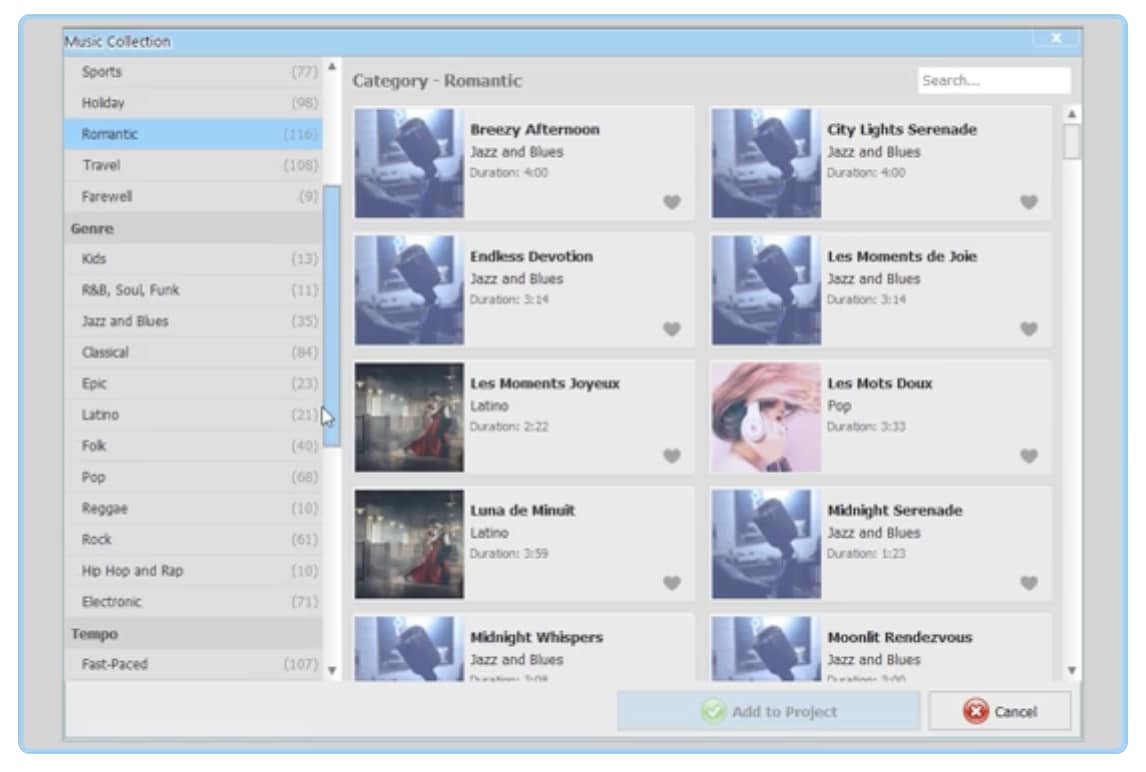
Audio tools and music library
Clipify includes a built-in music library and claims 500+ royalty-free tracks, organized by genre and mood. PRO also highlights the same 500+ music library. This is a big deal if you want quick background music without hunting for tracks elsewhere.
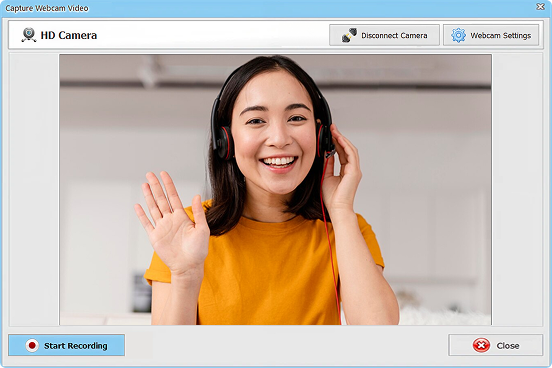
Screen recorder (PRO)
If you want to record tutorials or software demos, PRO includes screen recording with audio. That makes Clipify more useful for simple content creation beyond montage-style edits.
Part 3. Our User Experience & Interface Review of Clipify
There aren’t many strong public ratings available for the Clipify video editor. On Capterra, it has a score of 3.7 based on 19 user reviews. On Trustpilot, the rating is higher at 4.4 based on 100+ user reviews.
Still, ratings alone don’t tell the full story. We also wanted to test the software ourselves and share how it actually feels to use in real editing situations.
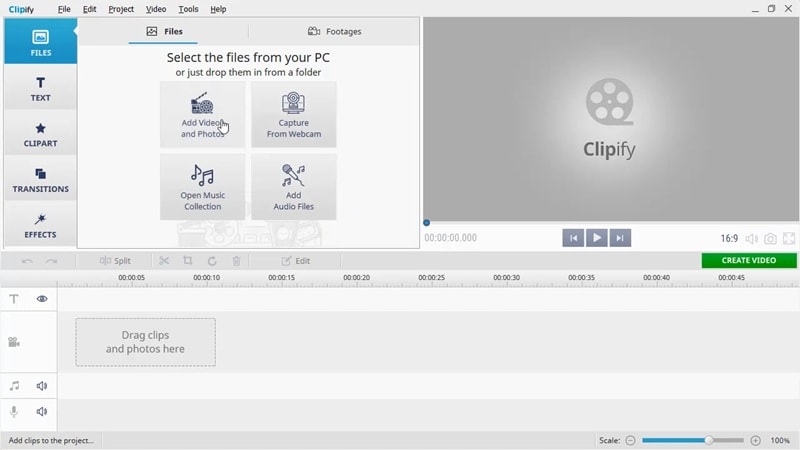
UI design (layout and navigation)
Judging by its cover, Clipify feels dated and may remind you of the old look of Windows Movie Maker. It’s not actually a bad thing, as the layout is clean. But it lacks the modern polish you see in newer editors. Using it can feel like working with older desktop software.
Ease of use (beginners vs advanced users)
The software is clearly designed with beginners in mind. For more experienced editors, the features can feel limited, even in the PRO version. If you’re used to precise keyframing, advanced color grading, or complex multi-layer editing, Clipify may start to feel restrictive once your projects demand more control.
Workflow (how editing usually goes)
Just like any video editing software, getting started in Clipify is fairly simple. You only need to import your clips, drag them onto the timeline, and make some edits before exporting. It still lacks advanced AI and deeper automation tools, though. So, most tasks need to be handled manually.
Part 4. Clipify’s Performance & Rendering Speed
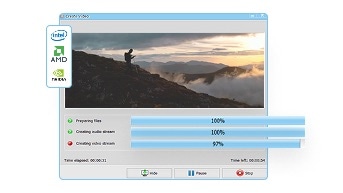
Clipify is designed to run on modest Windows PCs, so the experience is usually smooth for simple edits. The moment you stack lots of clips, effects, and overlays, preview performance becomes the real test. Clipify also highlights Version 23.0 with performance improvements like GPU acceleration.
App stability and speed
- On light edits (trim, add text, a few transitions), it usually feels smooth, especially at 1080p projects.
- On heavier edits (many clips, effects, overlays), preview can slow down on lower-spec machines, so scrubbing the timeline becomes the real test.
Export and output
- Best default, Clipfy allows export to MP4 for easy sharing. It also lists common formats like AVI, WMV, 3GP, MKV, and more.
- Clipify emphasizes exporting movies in Full HD, plus options like uploading to YouTube and burning to DVD (tier-dependent).
Clipify video editor system requirements
Clipify lists low requirements, which is good news for casual editing.
- OS: Windows 11/10/8/7
- CPU: 1 GHz or faster
- RAM: 2 GB or more
- Storage: 500 MB or more
Part 5. Alternatives to Clipify If You Want More Control – Filmora
If the Clipify video editor feels too basic, Wondershare Filmora is the easiest upgrade that still feels friendly.
Filmora is a popular all-in-one editor for creators who want a cleaner timeline workflow, a bigger effects library, and built-in AI tools that speed up everyday editing like captions, cutouts, and audio cleanup. It keeps the learning curve reasonable, but gives you more room to grow than Clipify’s template-first approach.
 Secure Download
Why Filmora is the best alternative for Clipify
- More complete editing toolkit: Filmora goes beyond basic trim-and-template editing with stronger timeline controls, richer effects, and more creative options for regular content creation.
- Better AI features: Filmora typically offers more AI-assisted tools (auto captions, audio cleanup, smart cutouts, and more) that help speed up editing while improving output quality.
- Smoother performance for heavier projects: If you work with longer videos, more layers, or effect-heavy edits, Filmora is usually more stable and faster to preview and export than entry-level editors.
- Stronger export and social formats: Filmora is built for modern content workflows, with easier exports for platforms and multiple aspect ratios for short-form video.
- Easier growth path: If Clipify starts to feel limited, Filmora is a natural step up without becoming as complex as pro tools like DaVinci Resolve or Premiere Pro.
| What matters | Clipify | Filmora |
| Editing depth | Great for quick edits and presets, PRO adds chroma key, overlays, screen recording | Deeper timeline control for regular content creation |
| AI tools | More focused on "auto" style editing and speed | Broader AI toolset like Auto Caption, AI Smart Cutout, AI Audio Denoise |
| Heavy projects | Best for short to medium edits, Full HD focus | Better suited for layered workflows, plus GPU acceleration options |
| Social formats | Works for simple exports | Built for modern creator formats like vertical and square workflows |
| Best fit | Beginner edits, family videos, fast montages | Creators who edit often and want room to scale |
If you compare it with other one-time purchase options like Wondershare Filmora, it sounds cheaper at first. But considering the overall feature depth and long-term flexibility, spending a few dollars more can unlock far more tools.
Author’s Verdict
Pick Clipify free if you want a lightweight editor for short projects, quick trims, titles, transitions, and simple MP4 exports. It’s best when you just need to finish a Clipify video fast without learning a complex workflow.
Move to Filmora if you want more control and a better long-term setup, stronger timeline editing, more effects, and AI tools like captions, cutouts, and audio cleanup. It’s the smarter upgrade when Clipify's full version features still feel limiting for layered or effect-heavy edits.
Secure DownloadConclusion
Clipify is a decent Windows editor for quick, template-first edits, and Clipify free is enough for short, simple projects. The full version (PRO) adds tools like chroma key, overlays, and screen recording, but it can still feel limited once you edit more often.
If you want a stronger long-term editor, Filmora is the best alternative. It gives you deeper timeline control, more effects, and helpful AI tools like captions, cutouts, and audio cleanup. It is especially suitable for heavier, layered projects and creator-style exports.
