


A product video catches your eye, and suddenly, you're ready to buy. Sound familiar? Plainly's mini-survey found that around 51% of consumers turn to product videos when deciding what to buy. What's more, nearly 91% of respondents reported having bought a product or service after watching a video.
That's one reason businesses and brands can benefit from using video to market their products and services. If you want to create marketing videos without filming new footage, GenVideo AI is worth a look. It lets you turn product images into shareable social media videos. This review covers its key features, pricing, pros, and cons.
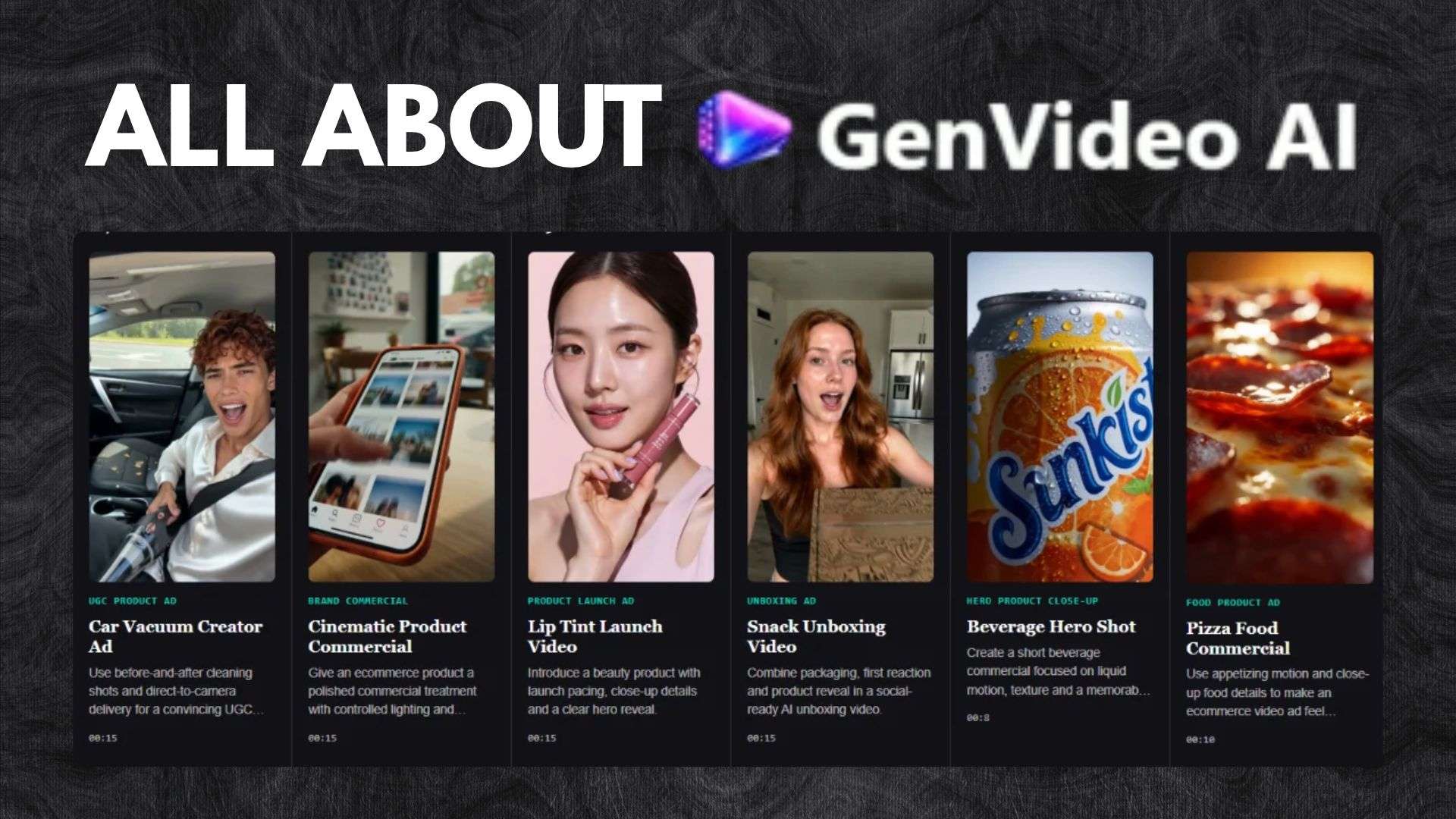
Part 1. GenVideo AI: What Can You Do With It?
With tools for generating images and videos, GenVideo AI makes it possible to create images and videos without having to build everything from scratch. You can create different types of visuals, but the platform is known for its product and marketing video generation capabilities.
1. Create Images for Different Projects

GenVideo AI comes with an image generator that turns text prompts into visuals. It supports a range of popular AI models, including GPT-Image 2.5. You can also upload an existing image and make changes to it or turn it into a new visual.
2. Generate Videos for Your Needs
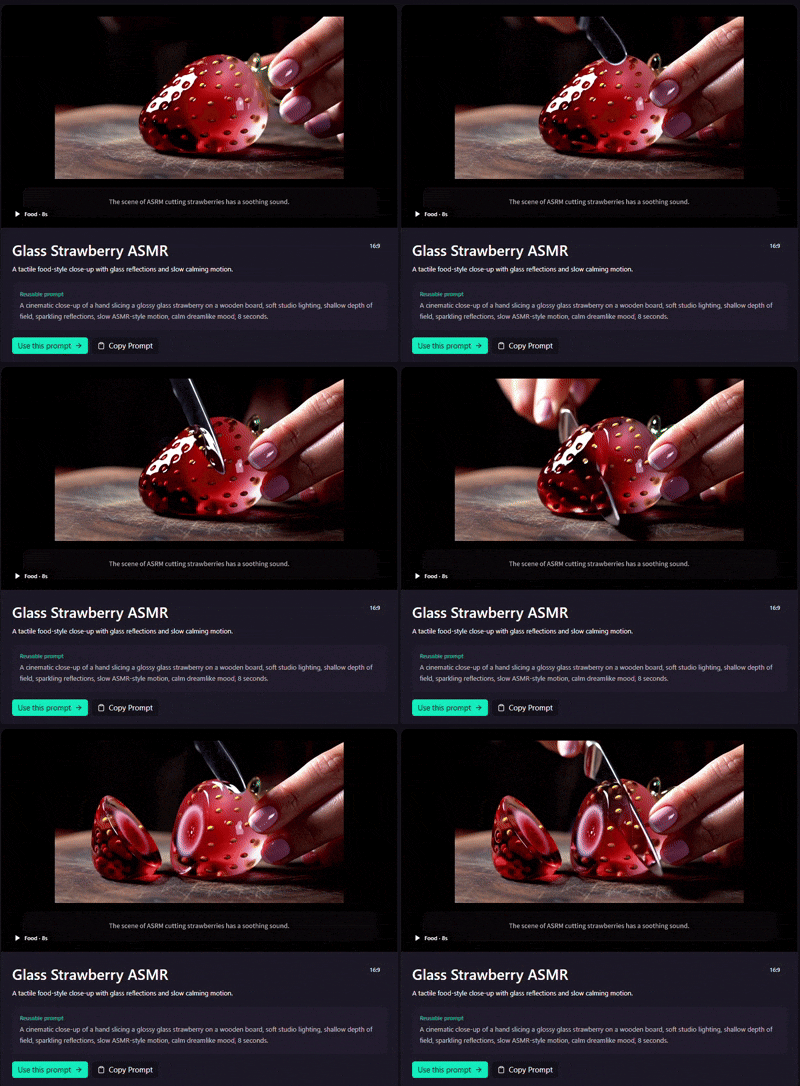
GenVideo AI video generator offers different ways to create or transform video content. You can describe a scene in a text prompt to generate a video, add movement to a still image, or use a reference video to guide a character's movements.
3. Turn Your Portrait Into a Cartoon Video
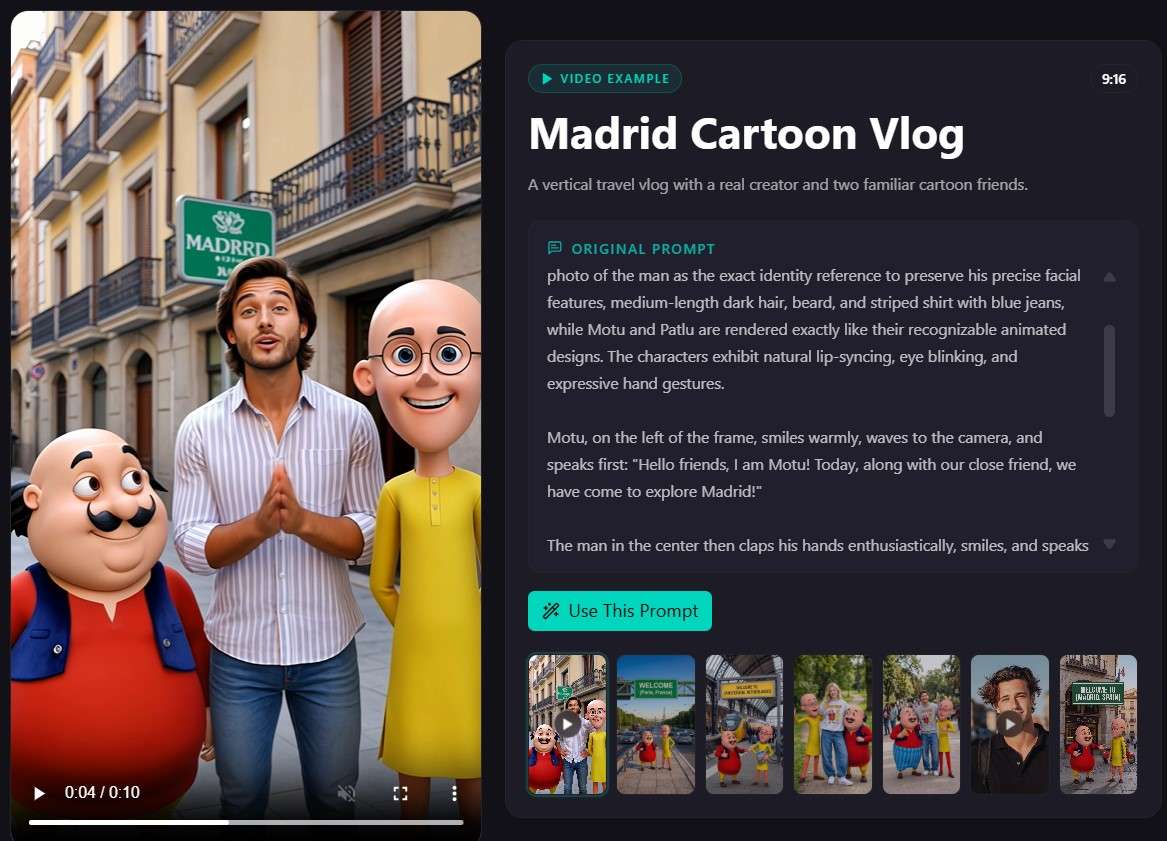
You don't need to be an experienced animator to make cartoon videos. GenVideo AI offers AI Motu Patlu videos. Start by uploading a portrait and selecting a template, then customize the character, background, dialogue, and actions to shape the scene.
4. Improve Your Videos With GenVideo AI
If you already have video footage, GenVideo AI offers several tools to help you work with it. From adjusting specific details to making broader visual changes, these features give you more ways to modify your clips without starting over.
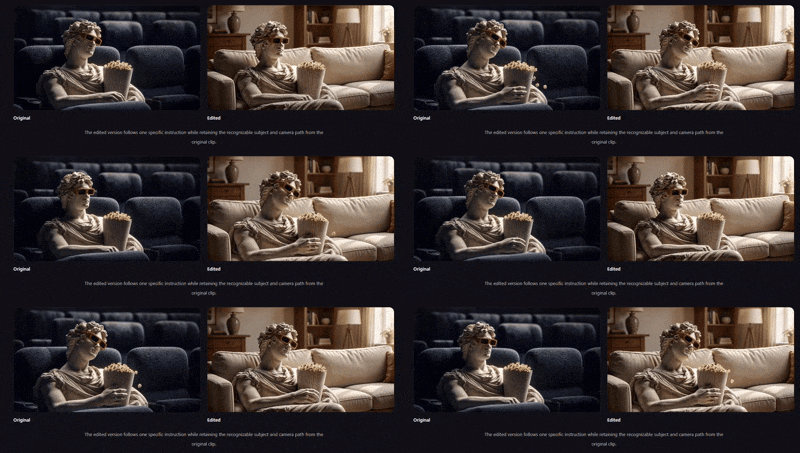
Let's look at some of the features available:
- Prompt-Based Video Editor: Use text prompts to replace objects, switch backgrounds, or change the visual style of a scene.
- Video Extender: If your footage feels too short or ends before the scene feels complete, you can extend it with GenVideo AI. Describe what you want to happen next, and the tool generates additional footage to continue the scene.
- Video Upscaler: For blurry or low-resolution videos, GenVideo AI can help improve the quality. You can increase the resolution to make the footage more suitable for viewing on larger screens, cropping, or exporting.
- Video Frame Interpolation: If movement in your video looks choppy, this tool can help smooth it out. It creates additional frames between existing ones, so movements appear more fluid instead of jumping from one frame to the next.
Part 2. How Much Does GenVideo AI Cost? Pricing Explained
GenVideo AI runs on a credit system. The number of credits you spend depends on which AI model you use and the settings you select for each generation.
What about GenVideo AI free credits?
Signing up doesn't necessarily give you credits to use right away. However, you may be able to earn free credits through daily check-ins. There's also a referral program that lets you earn additional credits by inviting others to use the platform.
If you need to generate content regularly, upgrading to a paid plan may be a better option. GenVideo AI offers three plans to consider: Creator, Pro, and Studio.
| Category | Creator | Pro | Studio |
| Price | $29/month or $174/year | $79/month or $474/year | $199/month or $1194/year |
| Monthly Credits | Start from 5.250 | Start from 16.000 | Start from 45.000 |
| Video Models | All Access | All Access | All Access |
| Storage and Generation History | Permanent | Permanent | Permanent |
| Best For | Repeatable projects | Campaigns and client work | High-volume production |
GenVideo AI also offers one-time credit purchases. These can be a practical alternative if you don't want to commit to a recurring subscription. You can buy credits when you need them, making this option worth considering if you only generate videos occasionally.
| Credits | Price |
| 7,000 | $49 |
| 20,000 | $109 |
| 45,000 | $229 |
Part 3. What Types of Product Video Ad Templates Does GenVideo AI Offer?
One of GenVideo AI's key features is its collection of over 90 product video ad templates. These give you a starting point for creating different types of marketing videos. Some popular options to explore are:
1. UGC Product Demos
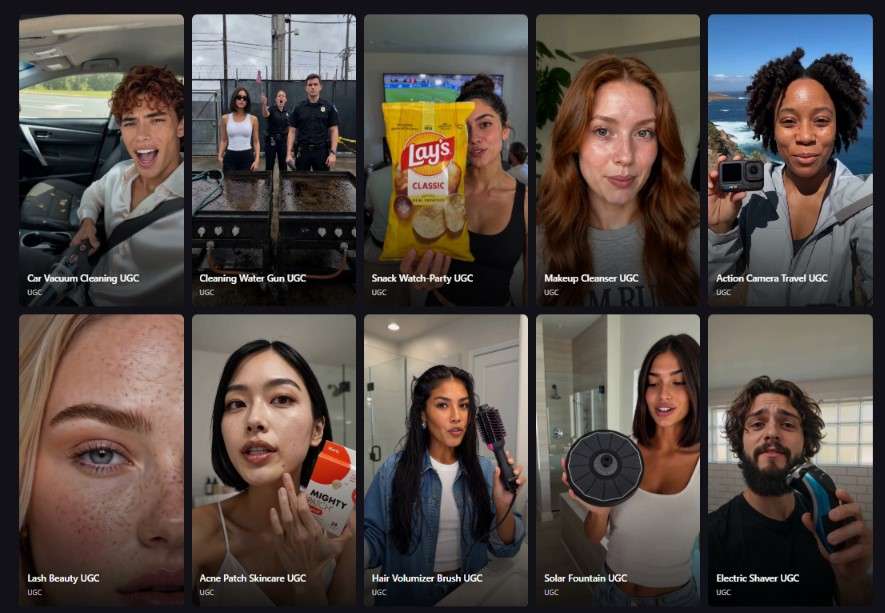
With GenVideo AI, you can create creator-style product content without filming a person yourself. You only need to provide product images and avatar references. Then, generate videos featuring AI characters demonstrating products, reacting to them, or recommending them.
2. TV Commercials and Brand Ads
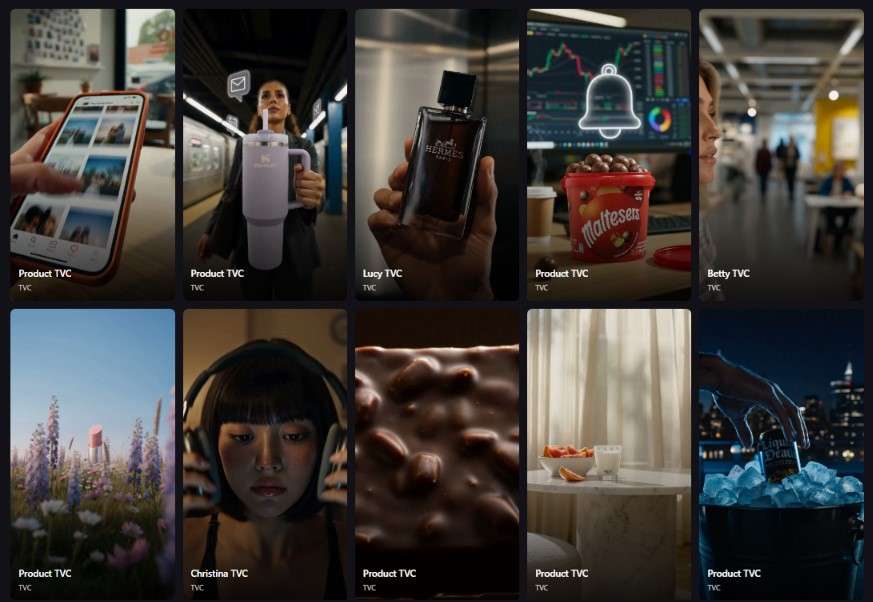
GenVideo AI also offers templates for product ads with a more polished, commercial-style look. They are designed to give product videos a professional look, with controlled camera framing and lighting that complements the product. You can also adjust the visual aesthetic to fit your brand identity.
3. Product Launch Videos
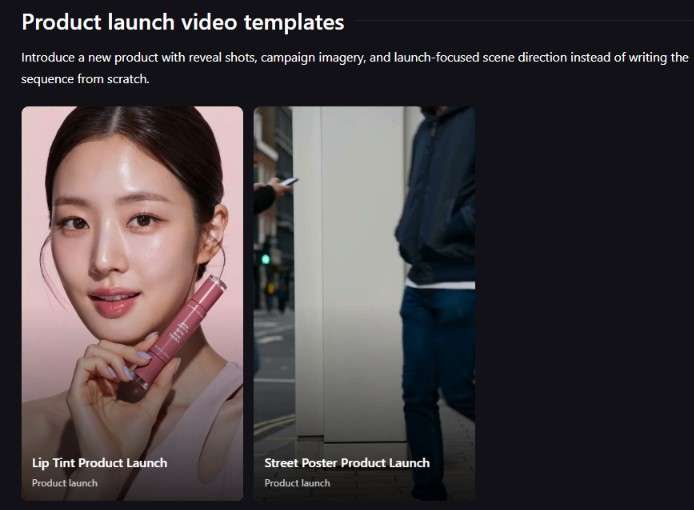
If you're working with a limited budget for a product launch, GenVideo AI's templates can help you get started. Adjust the prompts to create reveal shots that introduce your new product, along with campaign visuals and scene directions tailored to your launch.
4. Product Tutorials
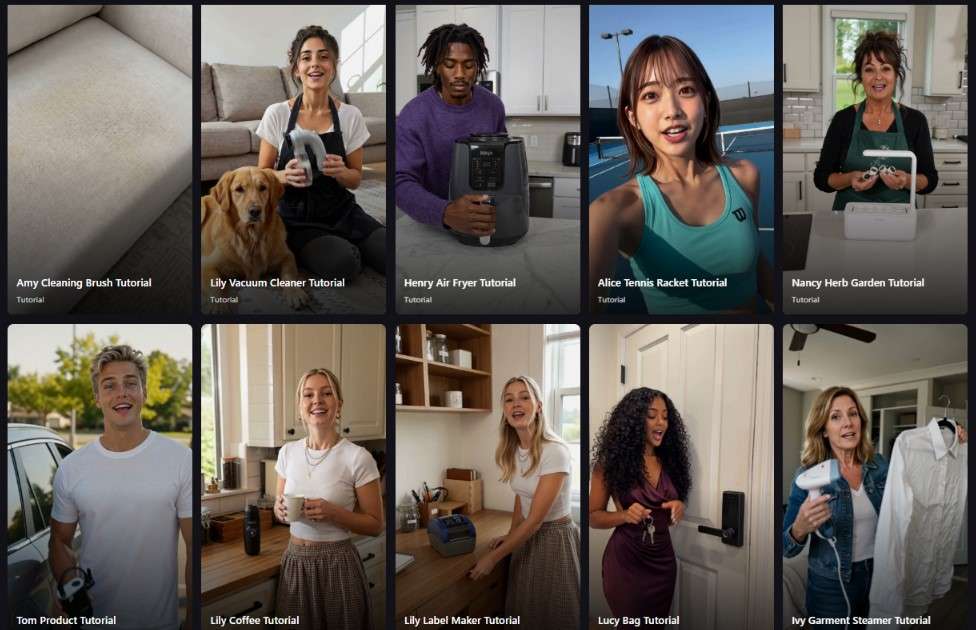
A good product tutorial can answer common questions and show customers how to use your product. If you don't have the time or resources to record one yourself, GenVideo AI provides templates you can customize. Use them to demonstrate product functions, explain important features, or take viewers through the setup step by step.
5. Problem-Solution Videos and Try-Ons
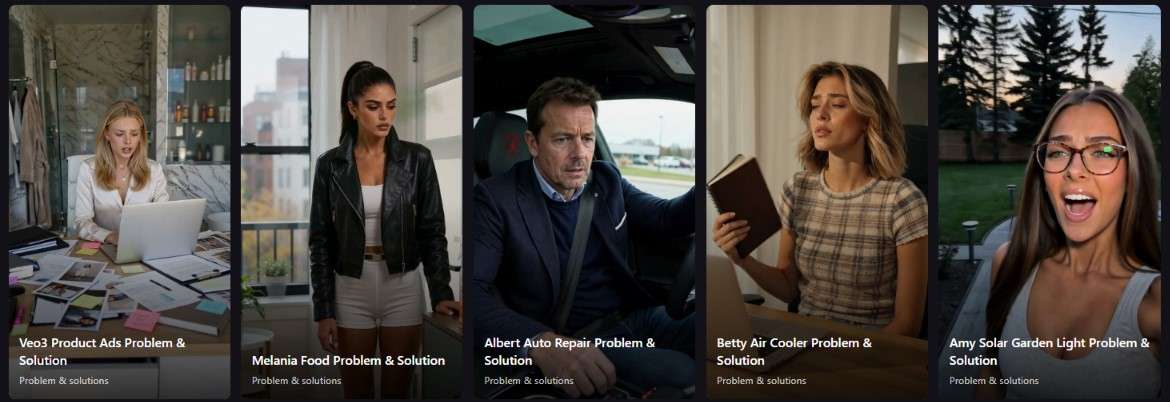
GenVideo AI can help you create videos that show customers why a product is worth considering. Start by presenting a common problem, then show how the product can help solve it. You can also combine person and product references to generate try-on videos for fashion, beauty, and accessories.
6. Unboxing Videos
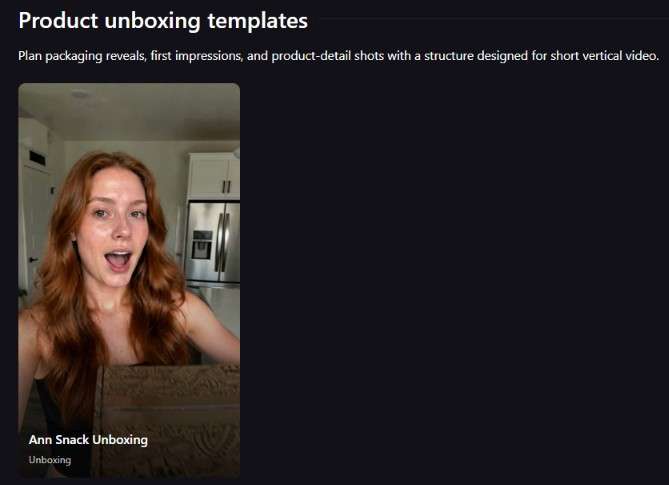
Unboxing videos give potential customers a closer look at a product before they buy it. With GenVideo AI, you can create short vertical videos featuring packaging reveals, first impressions, and close-up shots of product details.
Part 4. Is GenVideo AI Worth It? Pros and Cons
GenVideo AI has several features that can make product and marketing video creation easier. Still, there are a few things to consider before using it.
- Simple Generation Process: The generation process is easy to understand, so you can get started even without prior video editing experience.
- Wide Selection of AI Models: You can experiment with different styles from a range of established AI models.
- Multiple Aspect Ratios: GenVideo AI supports multiple aspect ratios, so you can choose a format that suits your intended platform.
- Generations Can Be Costly: Generating a video can require anywhere from hundreds to thousands of credits. This can use up your credit allowance quickly, especially if you need multiple attempts to get the result you want.
- Resolution Limitations: GenVideo AI video generator's output is limited to 1080p.
- Short Clips Require Further Editing: Since the generated videos are short, creating a complete video may require several generations. You'll then need another tool to put everything together.
Part 5. Wondershare Filmora: Create Marketing Videos With More Control
GenVideo AI is a convenient option for creating marketing videos online, but it has a few limitations. It requires an internet connection, and making precise changes to generated footage may take several rounds of prompt adjustments. You'll also need additional editing tools if you want to combine short clips into a complete video.
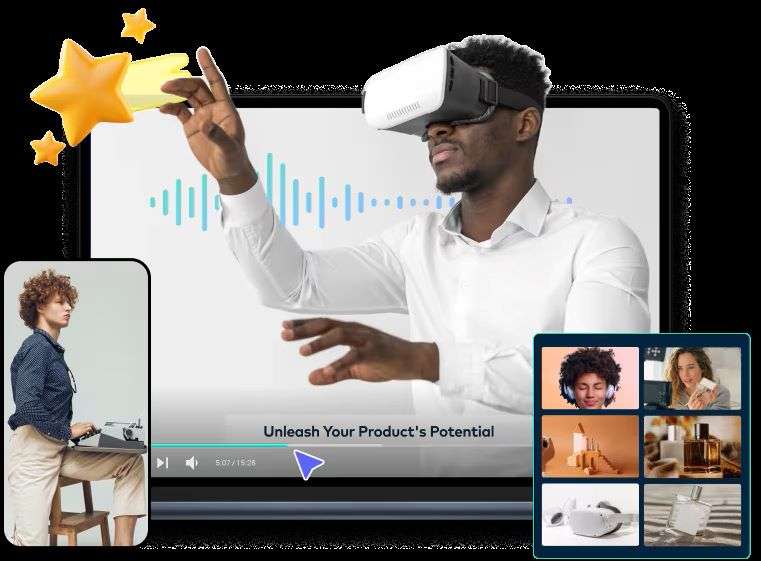
Wondershare Filmora is an alternative worth considering. It combines traditional video editing tools with AI features, giving you more ways to create and refine product videos, promotional content, and social media ads. It's available for Windows, macOS, iOS, and Android, so you can choose a version that suits your workflow.
Edit Videos With Ease
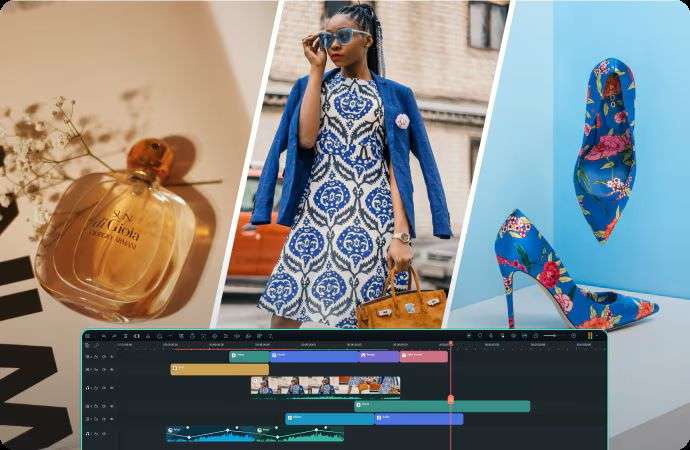
Filmora has an intuitive interface that makes video editing straightforward. Simply drag your GenVideo AI-generated clips, images, and audio files onto the timeline, then arrange them and make any necessary adjustments. Once everything looks right, you can export your finished video.
Find a Template for Your Marketing Videos

Want a quicker way to put a video together? Filmora has a collection of more than 1,000 templates you can customize to fit your needs. These templates can work for a range of projects, from product promotions and event announcements to brand introductions.
Create Videos That Reflect Your Brand
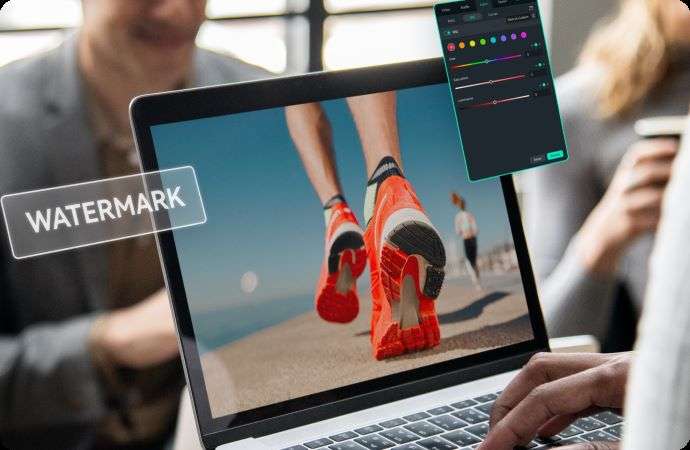
Make your product videos feel more aligned with your brand by customizing motion graphics and color grading. Add your company logo or watermark so viewers can easily identify your content. Adjust the color palette to maintain a consistent visual style across your marketing videos.
Post Videos Across Your Social Media
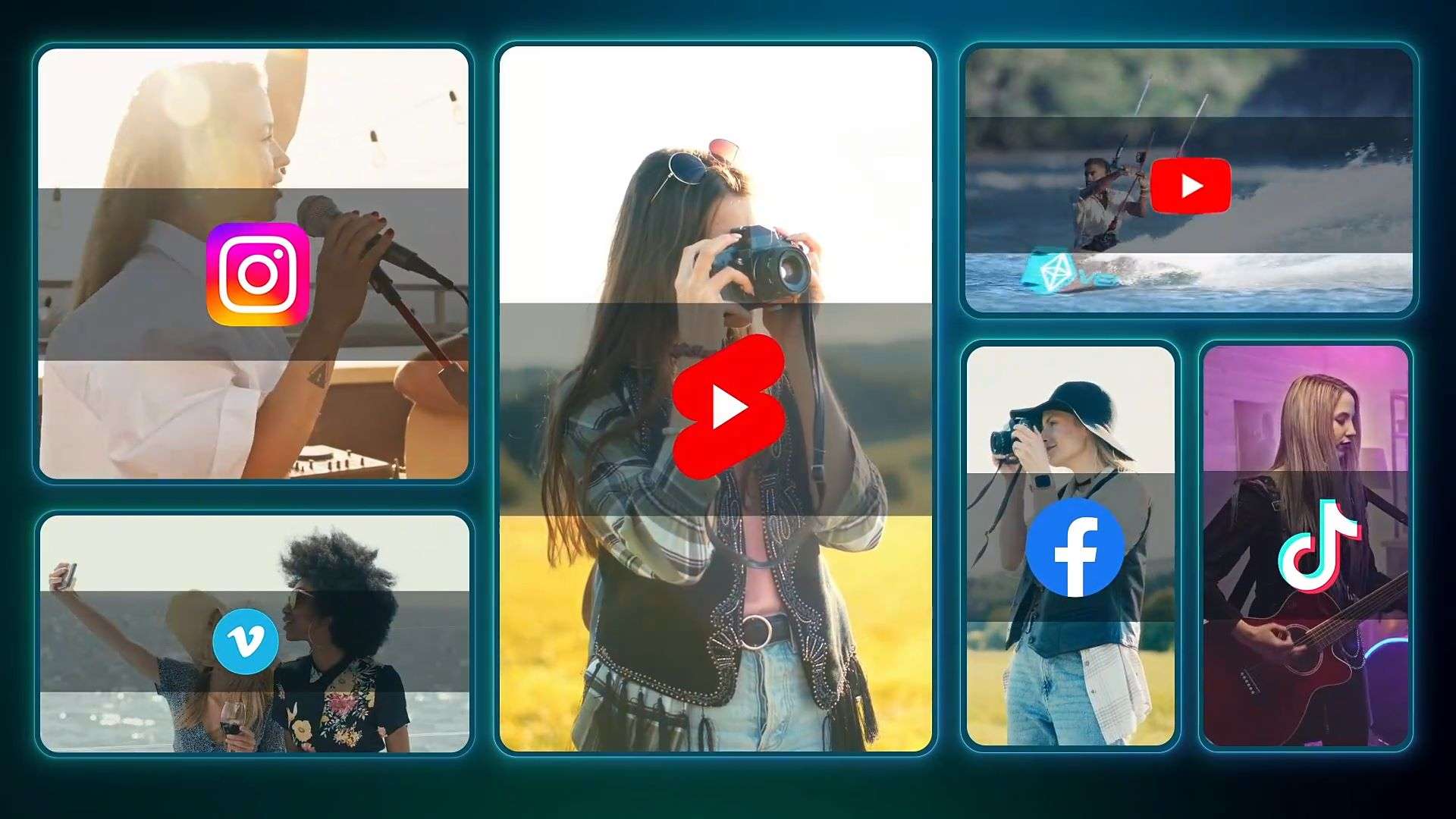
Filmora includes a Social Content Planner to help you manage your video publishing schedule. Plan your posts in advance so you can focus on producing videos rather than uploading them one by one. You can also monitor post performance and review audience engagement to see what may work better for your next campaign.
 Secure Download
Conclusion
GenVideo AI lets you generate images and videos for different purposes, but its product and marketing video templates are a standout feature. They cover formats such as product ads, unboxing videos, and tutorials, giving you different ways to showcase your products. However, the generated clips are short, so you'll need an additional tool to combine them into a complete video.
Wondershare Filmora is a solid alternative to consider. Available across desktop and mobile devices with project synchronization, it offers over 1,000 templates and useful tools for product and marketing videos. Its timeline editor also lets you combine clips and refine your video in one place.
FAQs
-
1. Can I generate product videos from a URL in GenVideo AI?
No. You need to upload product images or videos. -
2. Can I use an existing product ad as a reference in GenVideo AI?
Yes. You can use existing ad examples from GenVideo AI's gallery as a starting point and customize them with your own assets and prompts. -
3. Can I use my own photo to generate videos in GenVideo AI?
Yes. Upload your photo as a reference or avatar, then describe the video you want in your prompt.
