

 TL;DR:
Lovart AI functions as an autonomous design agent that replaces standard static prompting with real-time, conversational layer editing to help marketers and freelancers iteratively build cohesive branding assets on an infinite canvas.
● While Midjourney is better for surreal concept art and Canva remains superior for manual template customization, Lovart AI is specifically optimized for businesses generating consistent product photos, label mockups, and marketing flyers through prompts.
● The free tier is restricted to 30 daily credits that usually exhaust after one initial generation, meaning extensive refinement and commercial usage require a paid plan, and users must avoid using temporary emails to prevent account activation lockouts.
● Despite utilizing advanced models like Flux, Stable Diffusion, and Kling AI, the platform occasionally suffers from beta-like glitches such as incorrect output dimensions, imprecise localized edits, and choppy video outputs that are best resolved by importing the static designs into Wondershare Filmora for final video assembly.
Ask AI for a summary
 ChatGPT
 Perplexity
 Gemini
 Claude
 Grok
Grok
In the evolving landscape of 2026, Lovart AI has emerged as a game-changer in agentic design. Unlike standard AI image generators, this AI Design Agent offers a collaborative workflow for branding and marketing. In this Lovart AI review, we'll put its "Design Agent" claims to the test.
In this Lovart AI review, we'll explore how the platform works, test its workflow, and see whether it can actually deliver useful design results.
Part 1. What is Lovart AI? Understanding the "AI Design Agent" Workflow
Most AI image generators work in a simple way. You write a prompt, and the system generates a set of images. If the result isn't right, you usually have to try another prompt.
As an autonomous AI design agent, Lovart AI streamlines the creative workflow. Unlike Midjourney, which relies on static prompts, Lovart allows for real-time design iteration and layer-based editing. You can refine designs and adjust specific elements through conversation without having to rewrite prompts or redo the whole design.
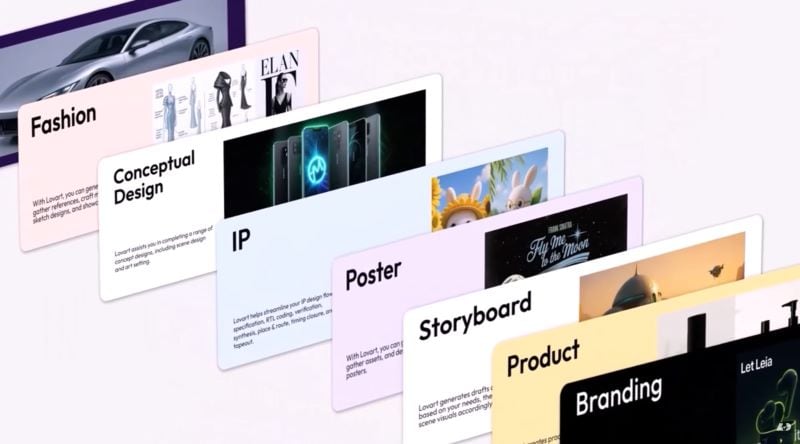
How the Lovart AI Workflow Works
As a Design Agent, Lovart AI works as your creative partner when generating images. The workflow is quite simple and designed to make the design process easier.
- Talk with Natural Language: Describe the design you want using everyday language. You can explain the style, concept, or mood based on your ideas and needs. Lovart AI listens to your request and generates a design based on that description.
- Tab to Edit Real Time: Once the design is generated, you can click on any part you want to adjust or improve, maybe the color feels off or the text size needs adjustment. Just type the change you want, and Lovart AI updates that element right away.
- Tune with Layer Control: Lovart AI can tweak details, suggest variations, or generate a better version based on the elements already in your design. The idea is to refine things gradually until it looks the way you want.
Features That Make Lovart AI Stand Out
It's easy to see why the Lovart AI Image Generator has been getting attention recently. Let's explore some of the features that make Lovart AI stand out.
Infinite Canvas Workspace
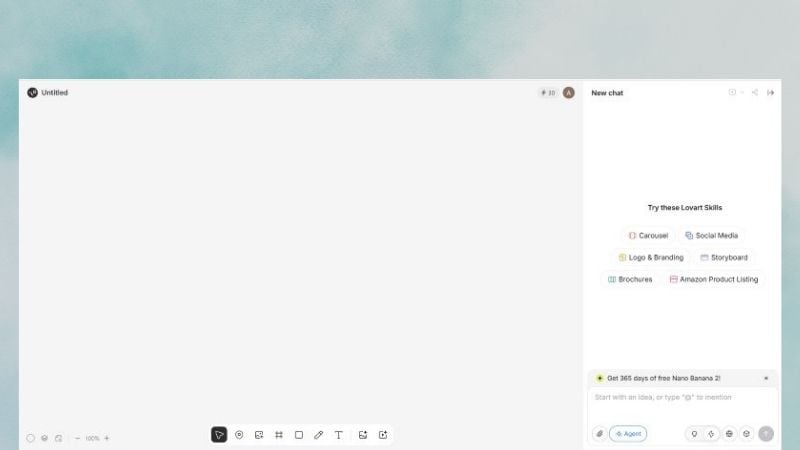
Lovart AI provides a large workspace where you can organize ideas and references in one place. You can upload images, sketch rough concepts, and view several design versions on the same canvas. This setup makes it easier to review ideas, leave notes, and guide the AI while refining the design.
Powerful Editing Suite
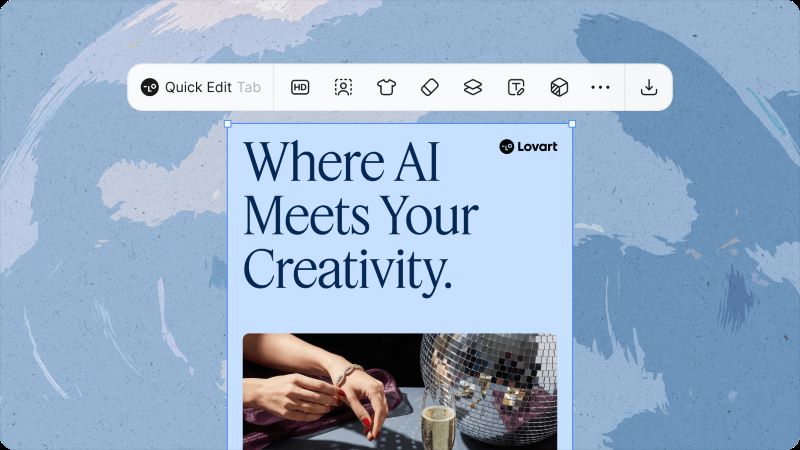
Lovart AI includes advanced editing tools that allow creators to modify generated visuals more precisely. You can adjust individual elements, change text, or refine design details directly within the image. The platform also separates elements into editable layers, making the design easier to update and improve.
High-Quality AI Design Output
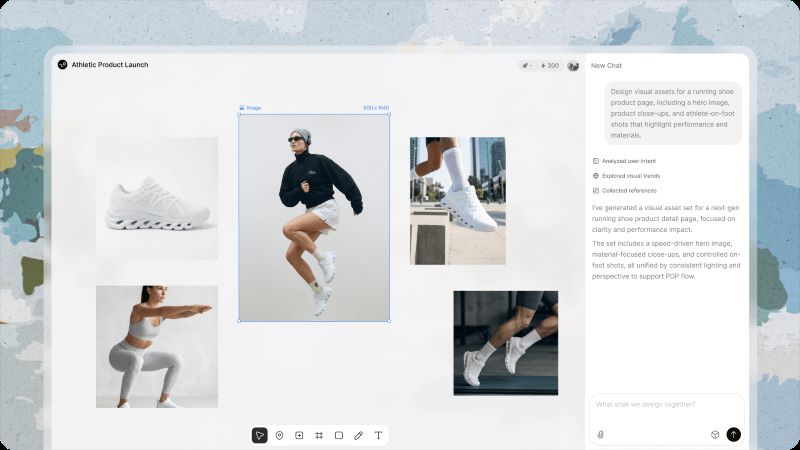
Lovart AI can generate a full set of design assets from just one prompt. This includes logos, marketing visuals, social media templates, and packaging concepts. It also produces high-resolution images and supports formats suitable for professional use.
Part 2. Hands-on Test: Putting Lovart AI to Work
We've talked about what Lovart AI can do. But how does it actually perform in real use? To find out, we tested the Lovart AI Image Generator in a practical workflow.
Test 1: Designing a Brand Identity (Logo, Packaging, and Mockups)
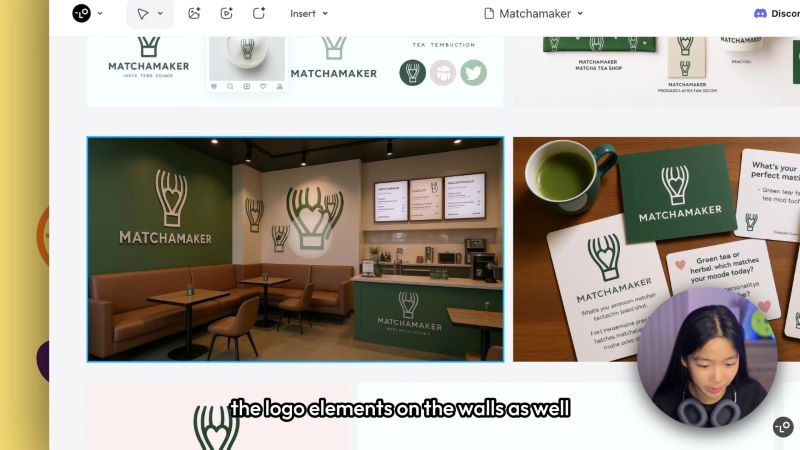
To test this feature, we looked at an official tutorial from Lovart AI. The tutorial walks through the process of creating a tea shop brand called Matchamaker, which specializes in matcha.
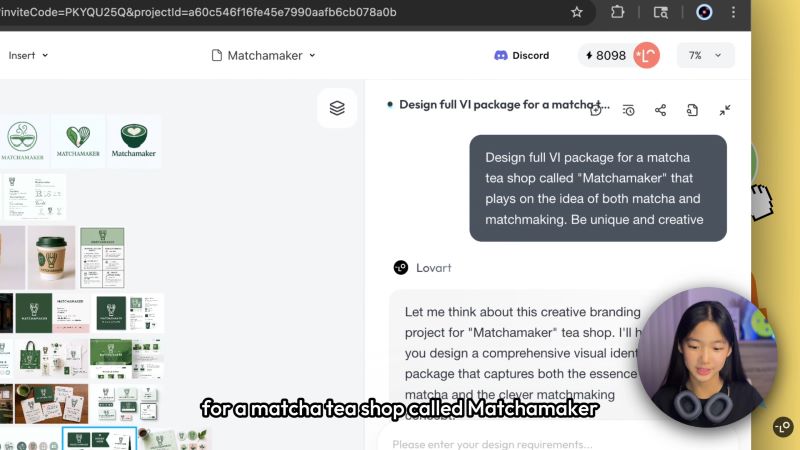
Lovart AI processes your request and quickly generates several results.'
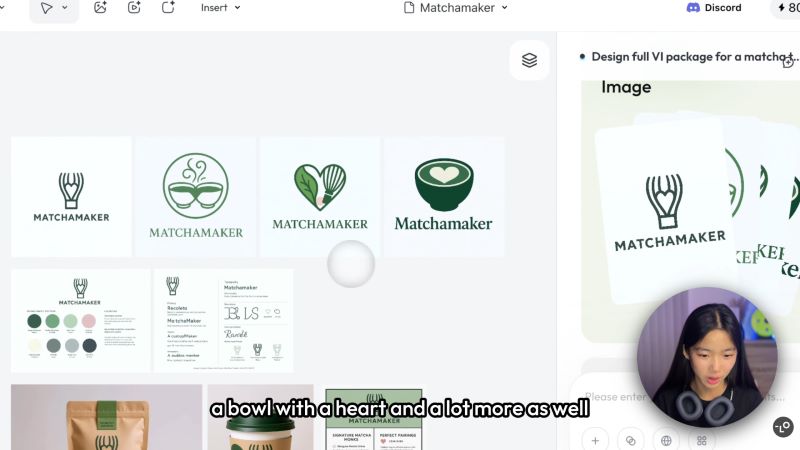
You get four different logo options to choose from. Not only that, but Lovart AI also creates a basic brand guide, including color palettes and fonts that can be used for future designs.
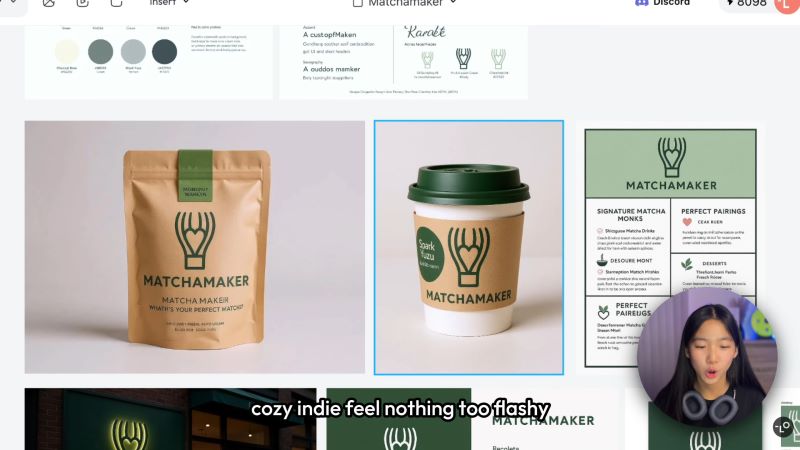
Lovart AI doesn't stop there. It also creates a store concept that can help visualize how the brand might look in the real world. Overall, we can see that Lovert AI is doing a great job keeping the design consistent across different elements.
Test 2: Creating Marketing Visuals vs. Traditional AI Design Tools
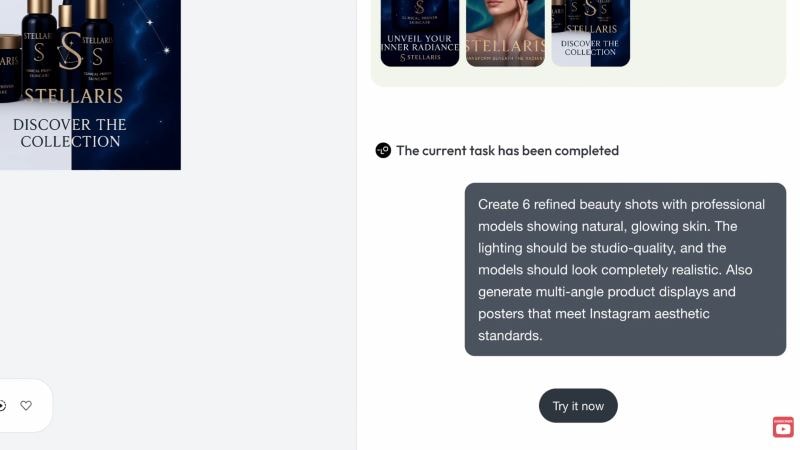
In this test, we followed a tutorial from DesignWithArash to explore how the Lovart AI Image Generator can create marketing visuals. In the example, Arash created a luxury skincare brand called Stellaris and wanted to produce marketing content for Instagram.
You can ask Lovart AI to generate posters, flyers, or product photos for a campaign or promotion. This helps create visuals that look more professional and ready to use. For this example, DesignWithArash requested a flyer and beauty shots.
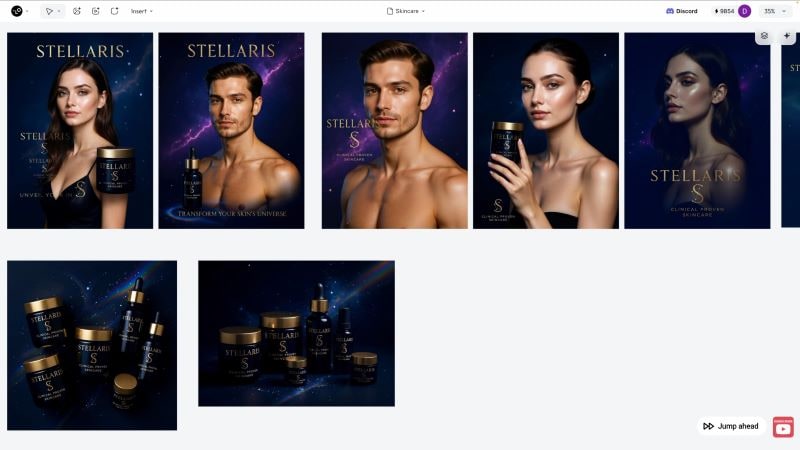
Here are the results.
The Lovart AI Image Generator produced several visual options, including product images and product shots featuring a model. This can be a practical way to create product visuals without organizing a full photoshoot.
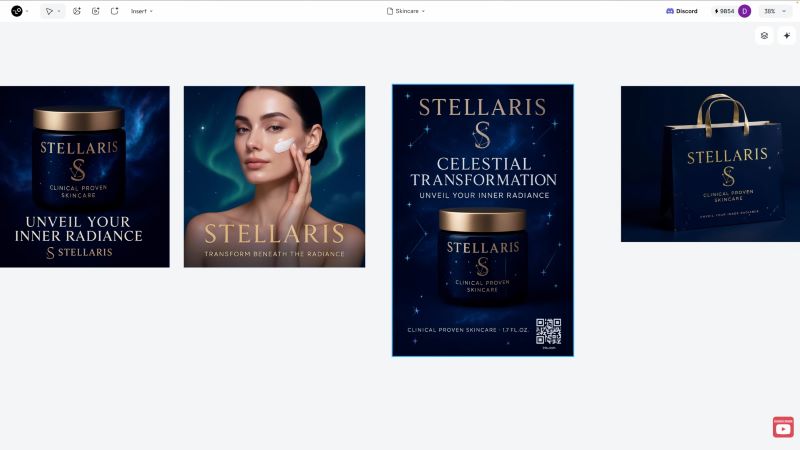
Bonus: The platform also generated a ready-to-use flyer that can be posted on social media, even including a barcode that can direct users to the purchase page. With Lovart AI, these promotional materials are generated instantly, saving the time usually needed for manual design.
Test 3: Exploring Lovart AI's Video Creation Features
For this part, we used a demo from AI Geeked. The example features a watch, with the goal of generating a short promotional video showing the watch worn by a model.
In the prompt, you can describe the camera angles, transitions, lighting style, aspect ratio, or the overall look you want. For example, AI Geeked asked for a short video with slow camera movement and soft lighting to highlight the watch.
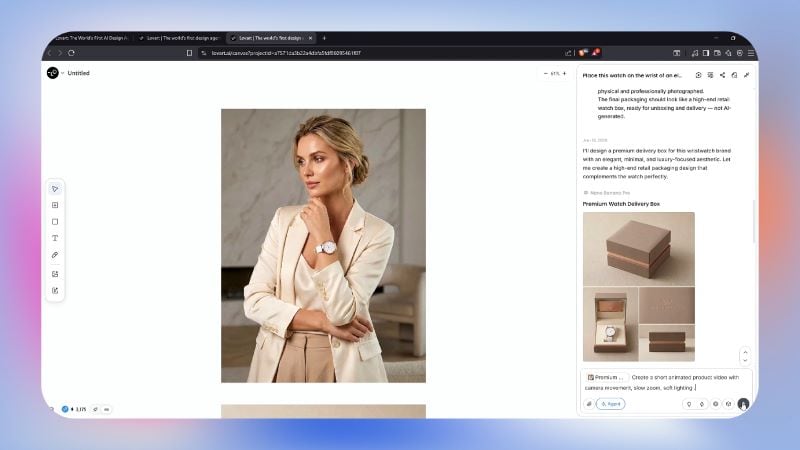
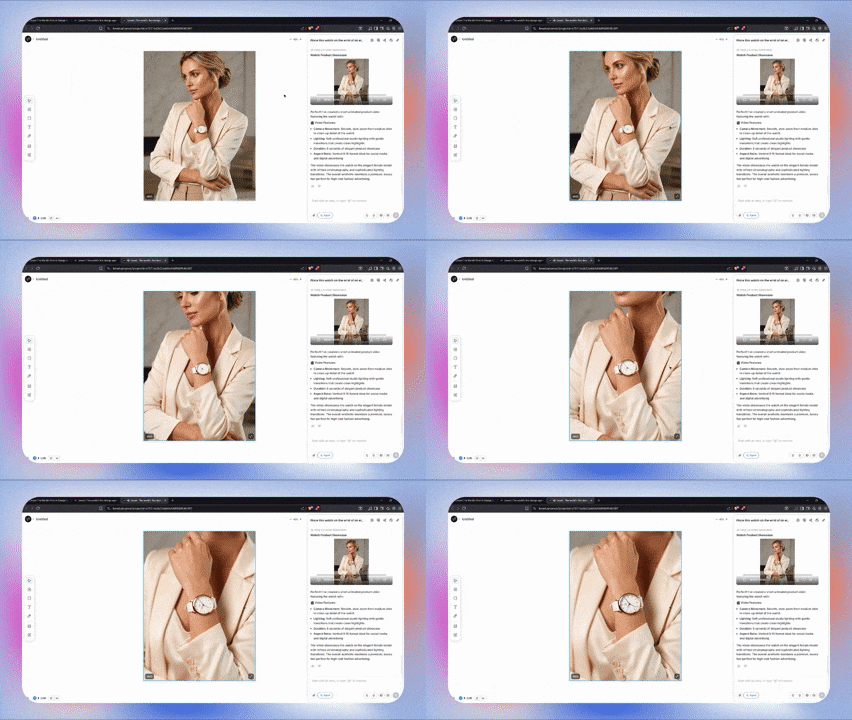
In just a few moments, the video is ready.
The zoom-in effect looks smooth and gradually brings focus to the watch. This kind of short clip is suitable for social media posts or as raw material for a more complete video edit.
Part 3. Comparative Analysis: Lovart AI vs. Industry Leaders
Now, it's time to ask a crucial question: Can the Lovart AI Image Generator handle different types of creative and design needs? To find out, let's compare it with two well-known tools in the industry: Midjourney and Canva. Each platform has its own strengths, so this comparison will help highlight where Lovart AI stands.
Lovart AI vs. Midjourney: Who Wins on Aesthetics vs. Workflow Integration?
Midjourney is known for producing eye-catching AI images with artistic and sometimes surreal styles. To use it, you simply type a prompt describing the image you want. The tool then creates several variations that you can refine or regenerate.
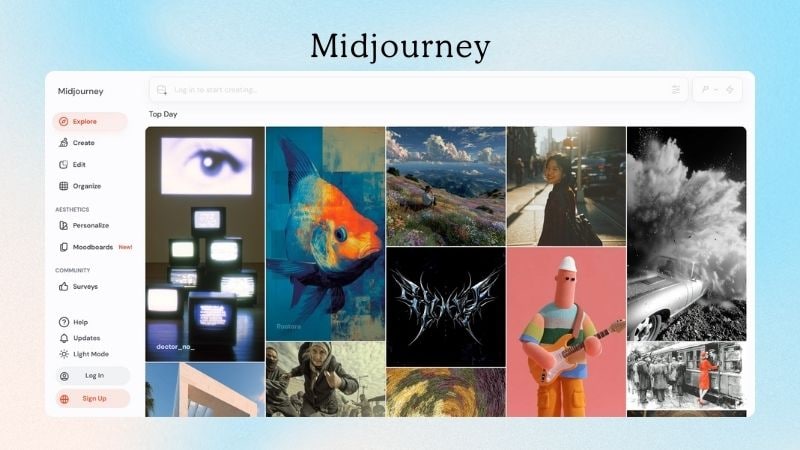
To make the comparison easier to see, here's a quick overview of Lovart AI and Midjourney.
| Aspect | Lovart AI | Midjourney |
| Generated Image Style | Design-focused visuals | Aesthetic and surreal images |
| Editing Precision | Can refine specific elements | Mostly prompt-based |
| Layer Control | ||
| Learning Curve | Easier to explore if you want a guided workflow and visual editing options | Can take time to master since results rely heavily on prompt writing |
| Best Use | Poster, ads, branding assets | Concept art and creative visuals |
| Best For | Marketers and creators | Artists |
|
Show More
Show Less
|
||
As the table shows, each platform shines in different areas. If you're mainly looking for visually striking or experimental AI images, Midjourney is often the go-to choice. On the other hand, if you need a tool that helps you produce usable design assets more easily, Lovart AI may be a better fit.
Lovart AI vs. Canva: Where Does the AI-Agent Approach Offer More Value?
Canva is one of the most widely used design platforms today. It offers thousands of templates that you can edit using simple drag-and-drop tools. Compared with AI design agents, Canva still follows a more traditional workflow where you manually adjust layouts, text, and elements. Many creators still enjoy this method because it gives them more control over the final design.
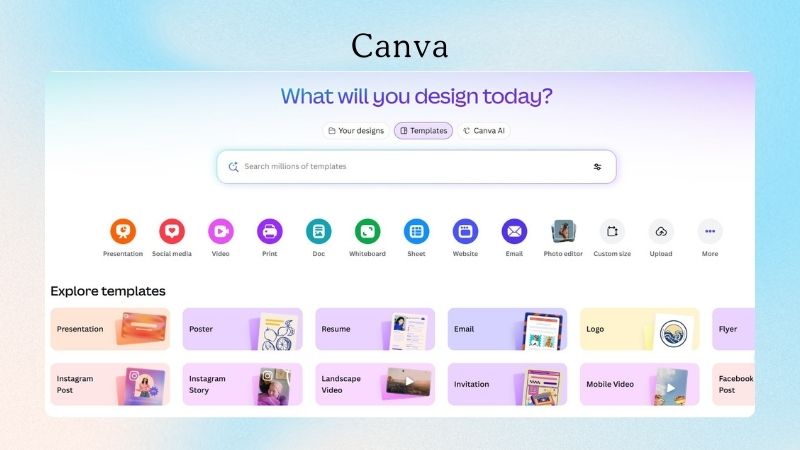
To better understand the difference, here's a quick comparison between Lovart AI and Canva.
| Aspect | Lovart AI | Canva |
| Core Approach | AI design agent that generates visuals from prompts | Template-based design platform |
| Design Process | Type a prompt and refine the result | Choose a template and customize it |
| Primary Use | Creating posters, ads, branding visuals, and marketing assets | Designing social media posts, presentations, and simple graphics |
| Best For | Businesses, freelancers, creative teams | Students, educators, small teams, social media creators |
|
Show More
Show Less
|
||
Looking at the comparison, the two tools focus on different workflows. If you want a simple platform with ready-made templates, Canva might be the easier option. But if you prefer generating designs through prompts, Lovart AI Image Generator might be worth exploring.
Highlight: When to Choose Lovart AI for Your Creative Pipeline
After comparing these platforms, it becomes clear that each tool serves a different purpose. The best choice often depends on what you want to create. Check the table below to help you decide when Lovart AI, Midjourney, or Canva might be the better fit.
| What You Want To Create | Recommended Tool |
| Logos, Brand Colors and Moodboards | Lovart AI |
| Artistic Photos & Backgrounds | Midjourney |
| Realistic Product Photos | Lovart AI |
| Packaging and Label Mockups | Lovart AI, Canva |
| Big Signs, Billboards, and Shop Fronts | Lovart AI |
| Digital Banners, Headers, and Ads | Lovart AI, Canva |
| Characters and Drawings | Midjourney |
| Presentation Slides | Canva |
| Social Media Posts | Lovart AI, Canva, Midjourney |
| Animated Product Shots | Lovart AI |
|
Show More
Show Less
|
|
Part 4. Pricing & Value Assessment
Cost is often one of the deciding factors when choosing a design platform. So, is Lovart AI free? Well, it offers a free trial with 30 credits that renew daily. However, those credits usually only cover one prompt result. If you want to tweak the output or generate additional versions, you may need to upgrade.
Below is a simple overview of the Lovart AI pricing tiers to help you compare the options. Each plan mainly differs in the number of credits you receive, how many tasks you can run at the same time, and the AI models included.
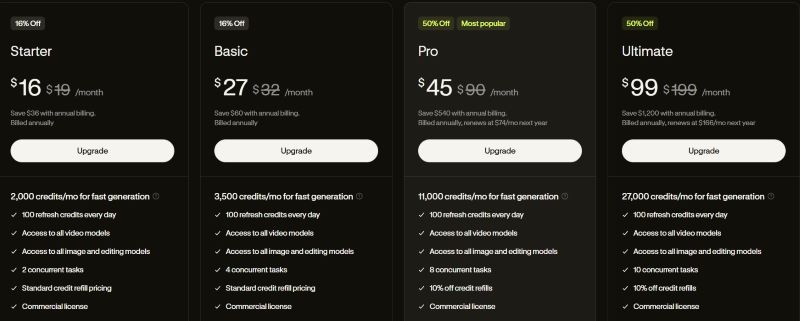
So, is the Lovart AI pricing worth it for freelancers or small business owners? It really depends on how often you plan to use the platform.
If you're generating designs regularly, a paid plan can make sense since all tiers include a commercial license. But if you only need it occasionally, the free plan may still be enough as long as you don't mind waiting for the daily credits to refresh.
Part 5. User Trust & Credibility
Whenever a new AI tool becomes popular, people often ask the same question: Is it legit? Well, Lovart AI is no different. To understand this better, we looked at community feedback and common user experiences from Trustpilot and Reddit.
| Area | What Users Say |
| Account Security | Most users can log in to Lovart AI without problems, though some experience temporary sync issues after payment. |
| Billing & Credits | The most common complaint is "wasted credits," as credits may still be used even if results are unsatisfactory or errors occur. |
| Software Stability | A few users report bugs, such as issues with image sizes or high-resolution exports not loading properly. Customer support is available but may respond slowly. |
Helpful Tips for New Lovart AI Users
Using Lovart AI Image Generator is fairly simple, but a few tips can make the experience smoother. These small suggestions can help you avoid common beginner mistakes.
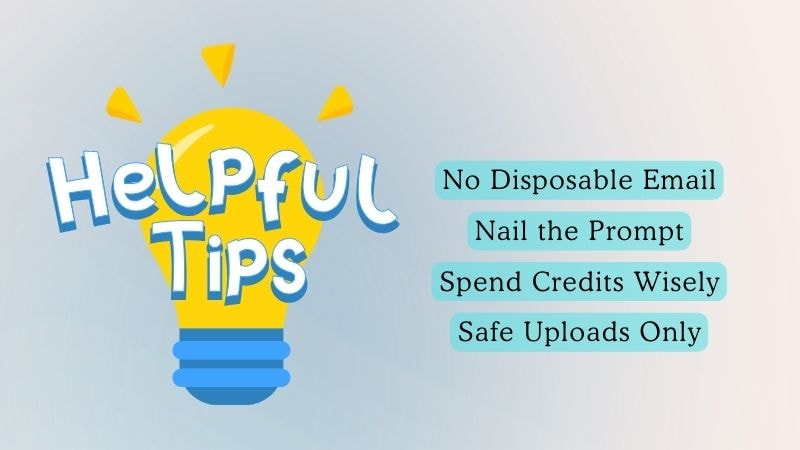
- Avoid Temporary Emails When Logging to Lovart AI: Temporary emails may cause problems with account activation. Even if the login works at first, you might lose access or progress later.
- Specific Prompting: Try not to use overly simple prompts like "create a logo." Lovart AI usually produces better results when the prompt includes style, context, and design goals.
- Monitor Credits: Before generating too many images, keep an eye on your credit balance. This way, you won't suddenly run out while you're still working on your ideas.
- Avoid Uploading Sensitive Data: It's best not to upload sensitive files or private company data.
Part 6. Who Should Use Lovart AI? (Use Cases)
AI design tools are not just for professional designers anymore. Platforms like Lovart AI make it easier for different creators to produce visuals quickly. This time, let's take a look at who can benefit the most from using Lovart AI Design.
Marketers Creating Campaign Assets Quickly

If you're one of the marketing teams that often need many visuals for ads, campaigns, and social media posts. Lovart AI can generate posters, promotional graphics, and even product photos. This helps teams try different creative ideas without spending too much time or budget.
Freelancers Speeding Up Their Design Workflow
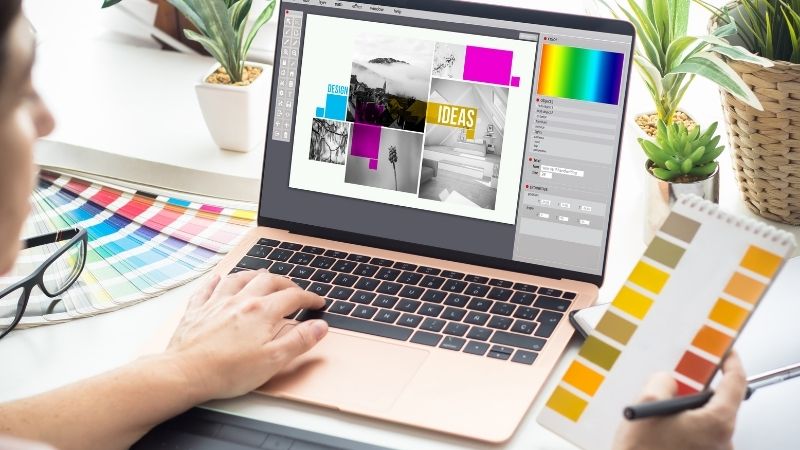
If you're freelancers who often handle multiple projects at the same time. Lovart AI can help them create quick design concepts before refining the details. This way, you can move faster through the early stages of the project.
Video Creators Combining Lovart AI with Filmora
For professional creators, the Lovart AI to Filmora pipeline is a productivity powerhouse. Use Lovart AI to generate high-quality branding assets, then import them into Wondershare Filmora to create stunning AI-powered video ads. With Filmora's AI Image-to-Video tools, your static designs become cinematic content in seconds.
So, why choose Filmora? It's a powerful video editor with various AI tools designed to make editing easier and more creative. The interface is also clean and intuitive, so you can navigate the editor easily without feeling lost.
 Secure Download
If you're still not convinced yet, we'll break down what Filmora can do to help you create high-quality and engaging videos.
Build a Video from Generated Images
With Filmora's Image Sequence to Video, you can quickly transform the images or short clips created with Lovart AI into a full video. If the video feels too short, the AI Video Extender can help extend certain scenes so the overall result feels smoother. The timeline editor also makes it easier to arrange and refine your clips.
Enhance Your Video with Transitions and Effects
Once the images are combined into a video, you can add transitions, overlays, or effects to make the video more dynamic. Filmora offers a wide variety of options, so you can easily choose ones that fit your style and content.
Match Your Visuals with the Right Sound
Adding the right sound can make your visuals feel more alive. In Filmora, you can upload your own audio, browse the sound library, or create one using AI Music Generator and AI Sound Effect Generator. You can even create voiceovers instantly with the AI Text-to-Speech feature.
Export Videos for Any Social Platform
You can also prepare your content for different social media platforms without extra effort. The Auto Reframe feature automatically adjusts the aspect ratio for you. As a result, one video can easily be reused across several platforms.
Part 7. Lovart AI Image Generator: Strengths and Weak Points
After exploring how Lovart AI works, it becomes easier to see both its strengths and its limitations. Some features can be very helpful for creators, while others may still feel restrictive depending on how you use the platform.
Let's break down the main strengths and drawbacks of Lovart AI.
- Almost No Learning Curve: Because it works through prompts, Lovart AI is easy to start using. You can jump right in and learn how the tool works as you go.
- Access to Advanced AI Models: Lovart AI Image Generator brings together several powerful AI models in one workspace, including Flux, Stable Diffusion, GPT-4o, and video models like Kling AI. These models help produce high-quality results.
- Consistent Designs Across Multiple Outputs: You can generate multiple visuals at once while maintaining a consistent design style across the outputs.
- Sometimes Feels Like a Beta Version: At times, Lovart AI can be slow or glitchy, especially during peak times. Also, it occasionally produces outputs that don't match the requested image size.
- Not Always Precise for Small Adjustments: While Lovart AI allows you to edit specific parts of an image, the process still relies on prompts and basic tools. Because of this, the results may not always match exactly what you have in mind.
- Video Output Can Feel Choppy: The generated videos may sometimes look like a slideshow, with transitions that feel less smooth than traditional animation.
Conclusion
If you're starting a new business and need a full set of visuals or simply want high-quality images for your products, Lovart AI can be a helpful tool. You don't need advanced design skills, a production team, or a big budget to get started. With just a few prompts, Lovart AI Image Generator can create visuals that match what you're looking for.
To take the visuals further, Filmora can turn them into a complete video. The platform helps combine images or graphics into a polished video that looks professional. You can choose whether you want to edit the video manually or let AI tools handle it. Filmora also allows you to reframe the video into different formats, making it easier to create content for several platforms.

FAQs
-
Can beginners with little to no editing experience use Lovart AI?
Yes. Even if you don't have editing experience, you can still use Lovart AI. Just type a prompt to create an image, then use the built-in tools to adjust certain areas. You can remove backgrounds, add elements, delete objects, or regenerate parts of the image with just a few clicks.
-
Can I use images generated by Lovart AI for commercial purposes?
Yes. Lovart AI allows commercial use of generated images under its paid plans.
-
Can Lovart AI maintain visual consistency across designs?
Yes. You can save style references and visual directions so that the generated images keep a similar look.
-
Does Lovart AI support collaborative work?
Yes. Lovart AI offers team plans that allow multiple people to work on projects together. It's about $99 per person per month.
-
Is Lovart AI free?
Lovart AI offers a free trial with 30 daily credits, but professional features and commercial licenses require a paid subscription starting at $XX/month.
