

 TL;DR:
Luminar Neo Relight AI provides photographers with advanced 3D depth-mapping to selectively fix lighting in still photos, but video creators in 2026 must use Wondershare Filmora to achieve consistent, flicker-free dynamic relighting.
● Best suited for standalone static editing or as a Photoshop and Lightroom plugin, Luminar Neo lets users independently control near and far exposure while utilizing a Dehalo tool to remove edge artifacts.
● Because the tool processes images individually and lacks motion tracking, attempting to apply its relighting to video requires inefficient frame-by-frame extraction that produces visible flickering.
● Wondershare Filmora serves as the essential alternative for motion graphics, replacing static mapping with dynamic scene analysis to deploy up to eight customizable light sources directly onto the video timeline.
Ask AI for a summary
 ChatGPT
 Perplexity
 Gemini
 Claude
 Grok
Grok
Achieving professional lighting in post-production has evolved. While Luminar Neo Relight AI is a powerhouse for photographers using 3D depth mapping, video creators often find themselves searching for a similar solution. In this 2026 review, we'll dive deep into Luminar's features and explore why Wondershare Filmora is the essential AI relighting alternative for motion graphics and video editing.
Part 1. What is Luminar Neo Relight AI?
Luminar Neo Relight AI is a smart lighting tool that fixes uneven or poor lighting in photos more naturally than basic editing tools. Unlike tools that brighten the entire image, this tool adjusts lighting based on the position of objects in the scene. This helps improve the subject without ruining the background.
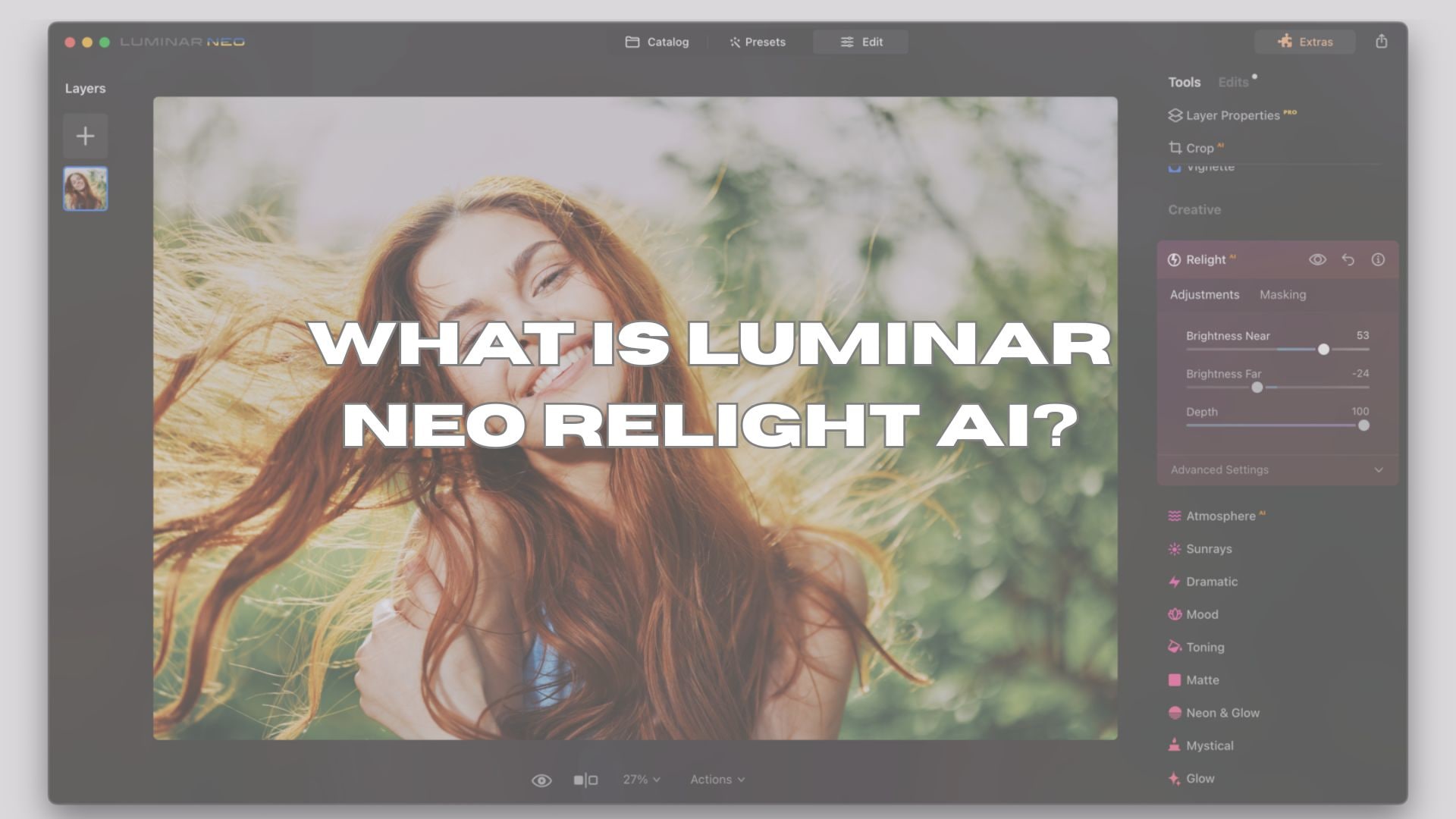
How It Works: 3D Depth Mapping
Luminar Neo utilizes 3D Depth Mapping to distinguish between close and distant parts of the image. With this depth awareness, it can brighten the foreground, adjust midtones, or soften the background separately. The lighting changes blend smoothly, so photos look realistically lit, not overly edited.
From Luminar AI Relight to Luminar Neo Relight
Luminar AI Relight introduced depth-based lighting, but Luminar Neo improves it. The Neo engine is more accurate, separates subjects better, and creates smoother lighting transitions. This results in more natural shadows, better skin tones, and cleaner backgrounds.
Why Luminar Relight Is Better Than Exposure Sliders
Exposure sliders adjust brightness uniformly across the entire image, often resulting in overly bright highlights or a flat-looking appearance. Luminar Relight AI adjusts light selectively based on depth, so you can brighten your subject, keep the sky under control, and preserve detail. This makes it a better choice for fixing difficult lighting situations.
Part 2. Key Features of Luminar Neo Relight
Luminar Neo Relight AI provides simple yet powerful controls to adjust lighting with precision, without making the edited results look artificial.
Brightness Near & Far
This feature allows you to control the foreground and background separately. You can brighten the subject while maintaining the balance of the background, or darken distant areas to add depth. This feature is useful for portraits with backlighting and landscapes with uneven lighting.
Depth Control
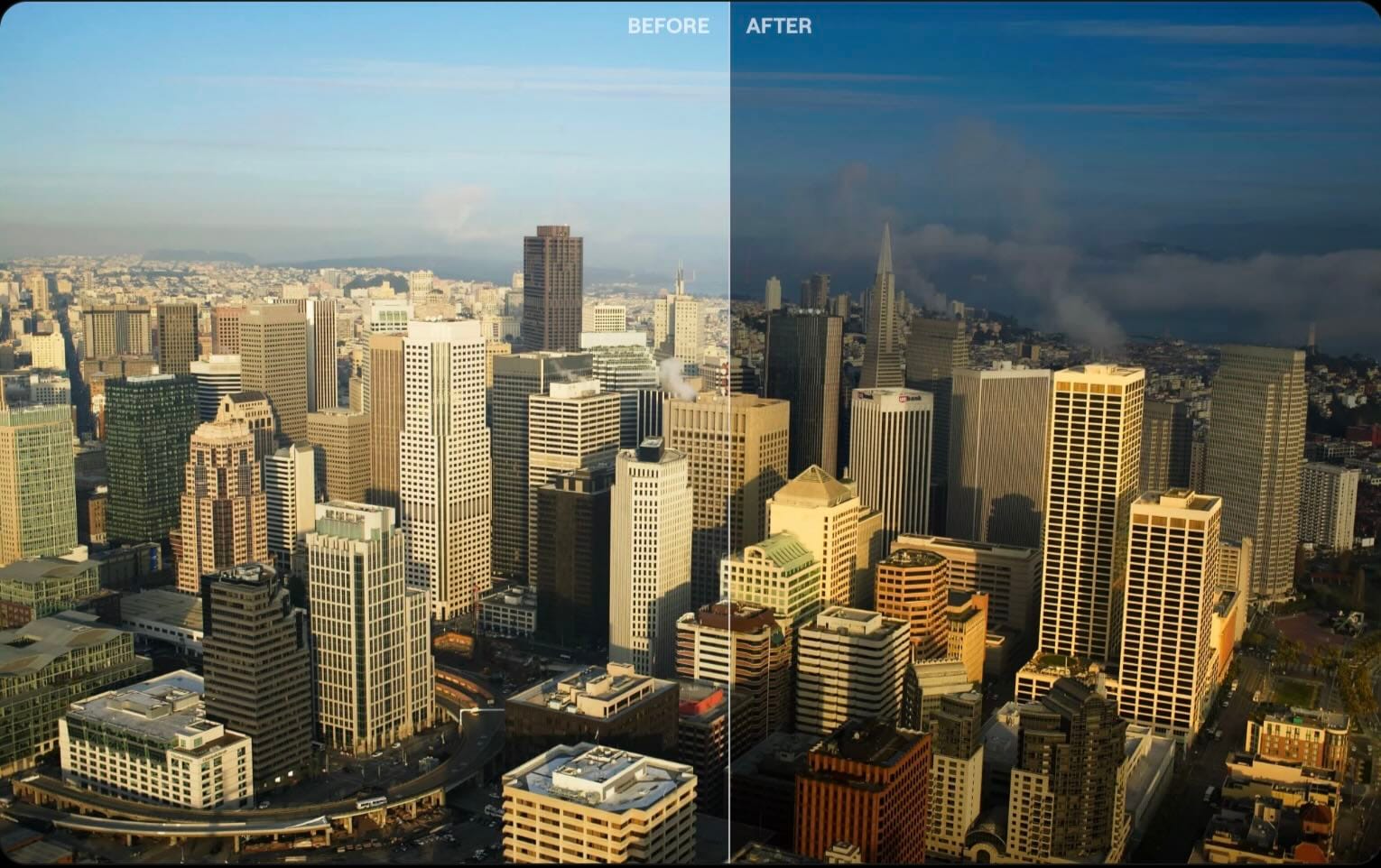
Depth Control lets you adjust where the lighting transition occurs in the image. By sliding this slider, you decide how far the foreground lighting extends into the scene. This helps create a smooth and realistic blend between light and shadow across different depth layers.
Dehalo Tool
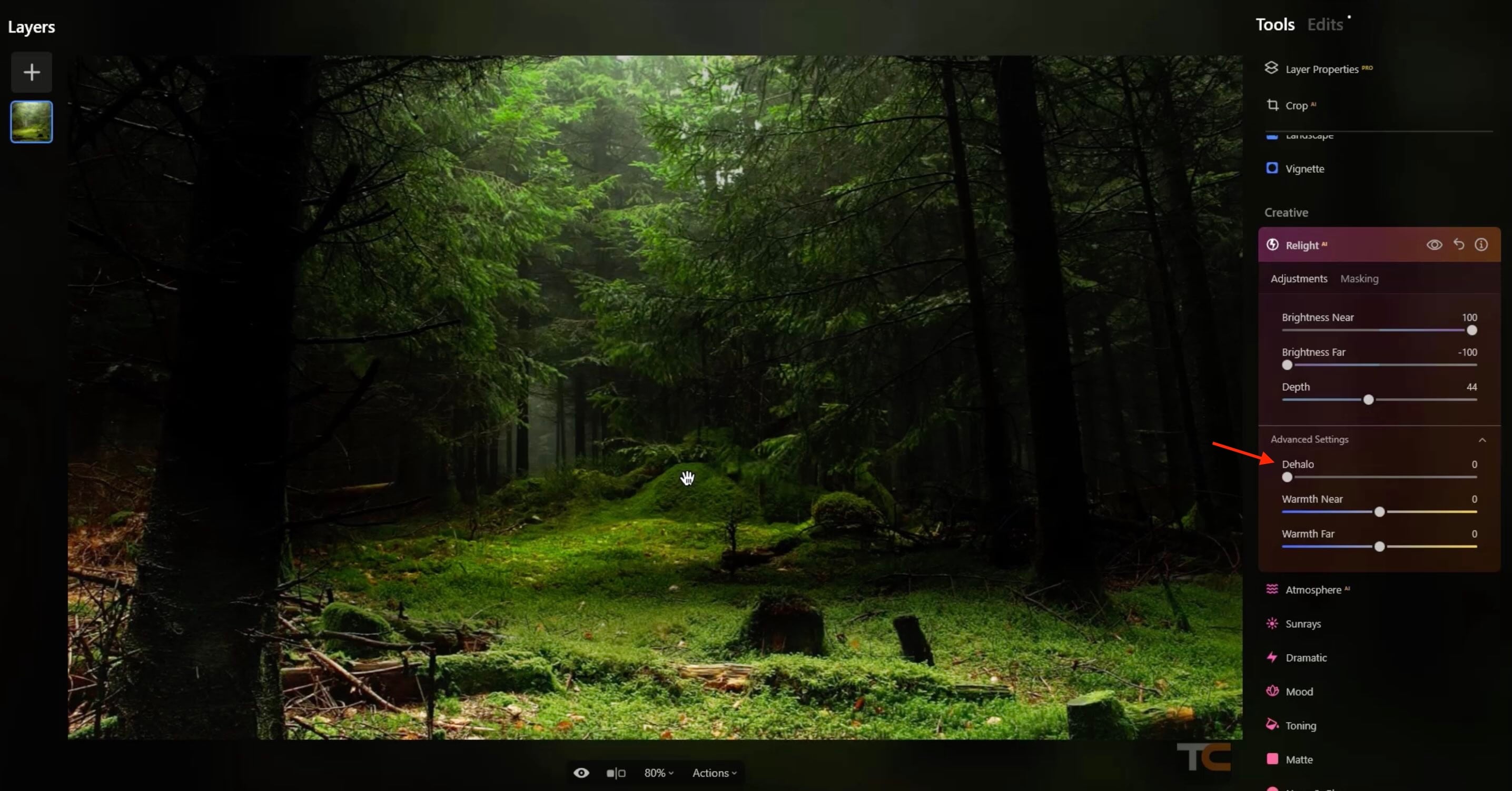
When strong lighting adjustments are applied, unwanted halos can appear around edges such as hair, trees, or buildings. The Dehalo Tool removes these artifacts, keeping edges clean and natural, even with heavy relighting.
Warmth Adjustment
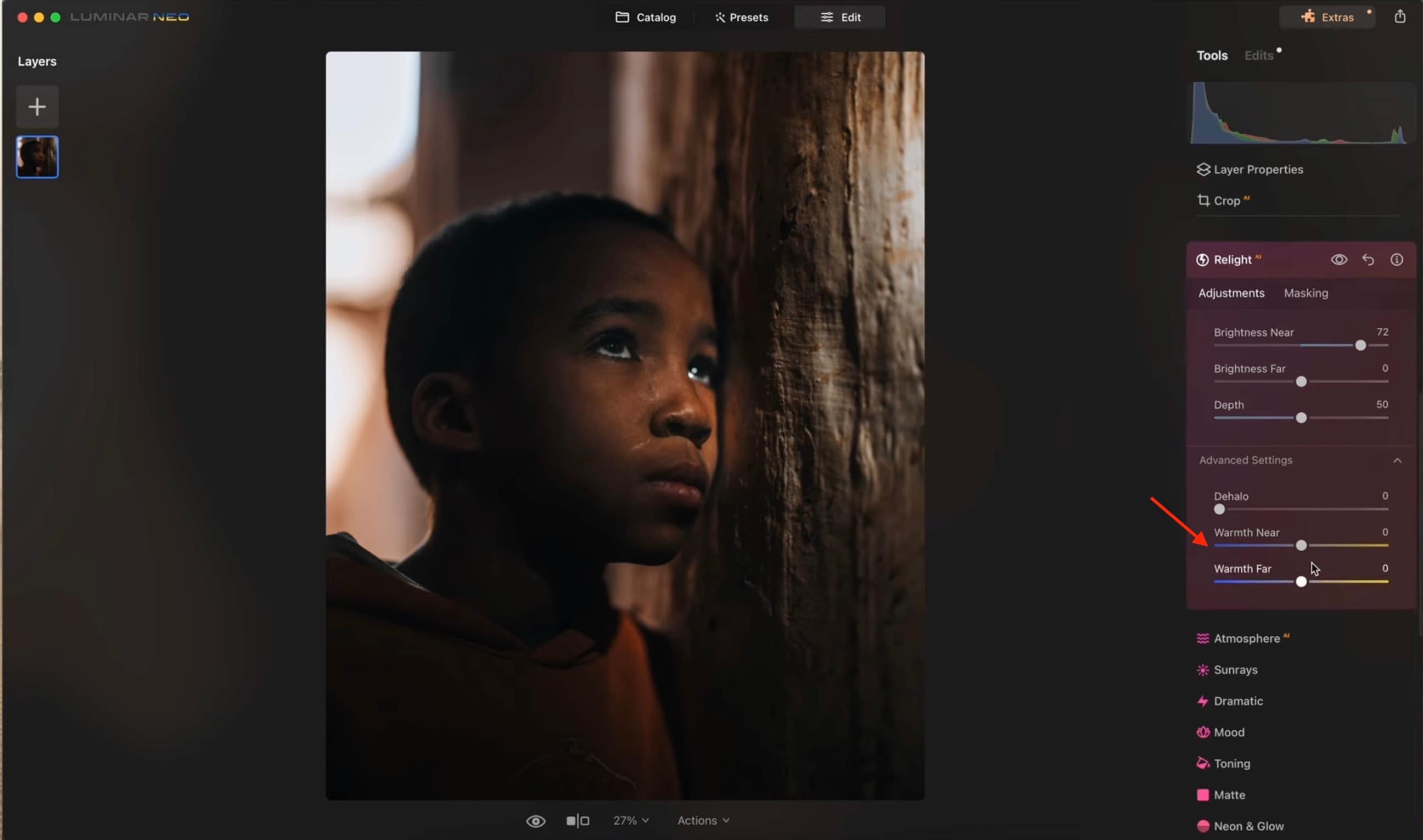
Relighting often affects color temperature. Warmth adjustment helps you match the light tone across the image, so subjects and backgrounds feel like they belong in the same scene. It's ideal for fixing mixed lighting or restoring natural skin tones after relighting.
Part 3. How to Use Luminar Neo Relight AI for Stunning Results (Step-by-Step)
Follow these simple steps to get natural, well-balanced lighting using Luminar Neo Relight AI.
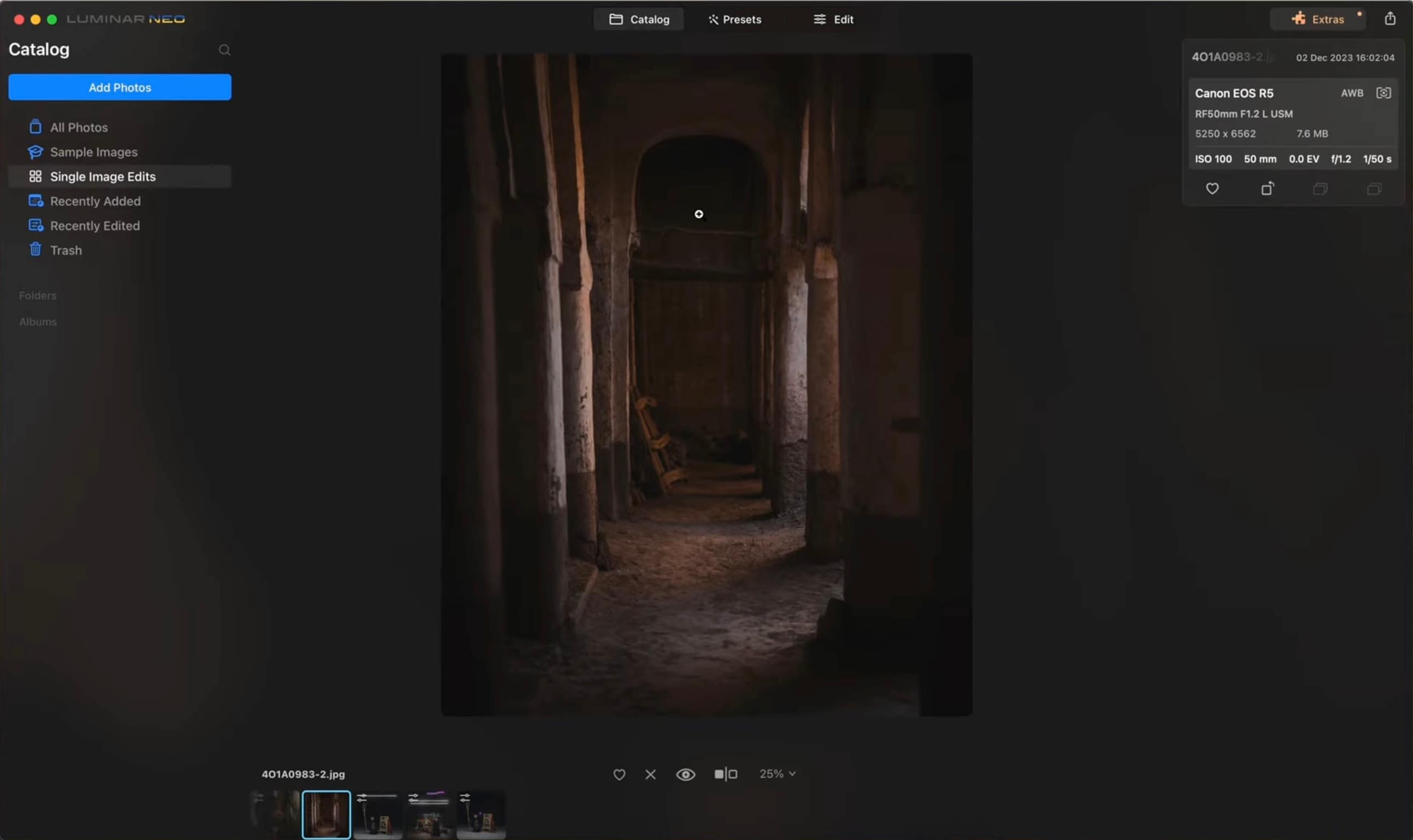
Launch Luminar Neo and import the image you want to edit. Double-click the photo to open it in the Edit workspace.
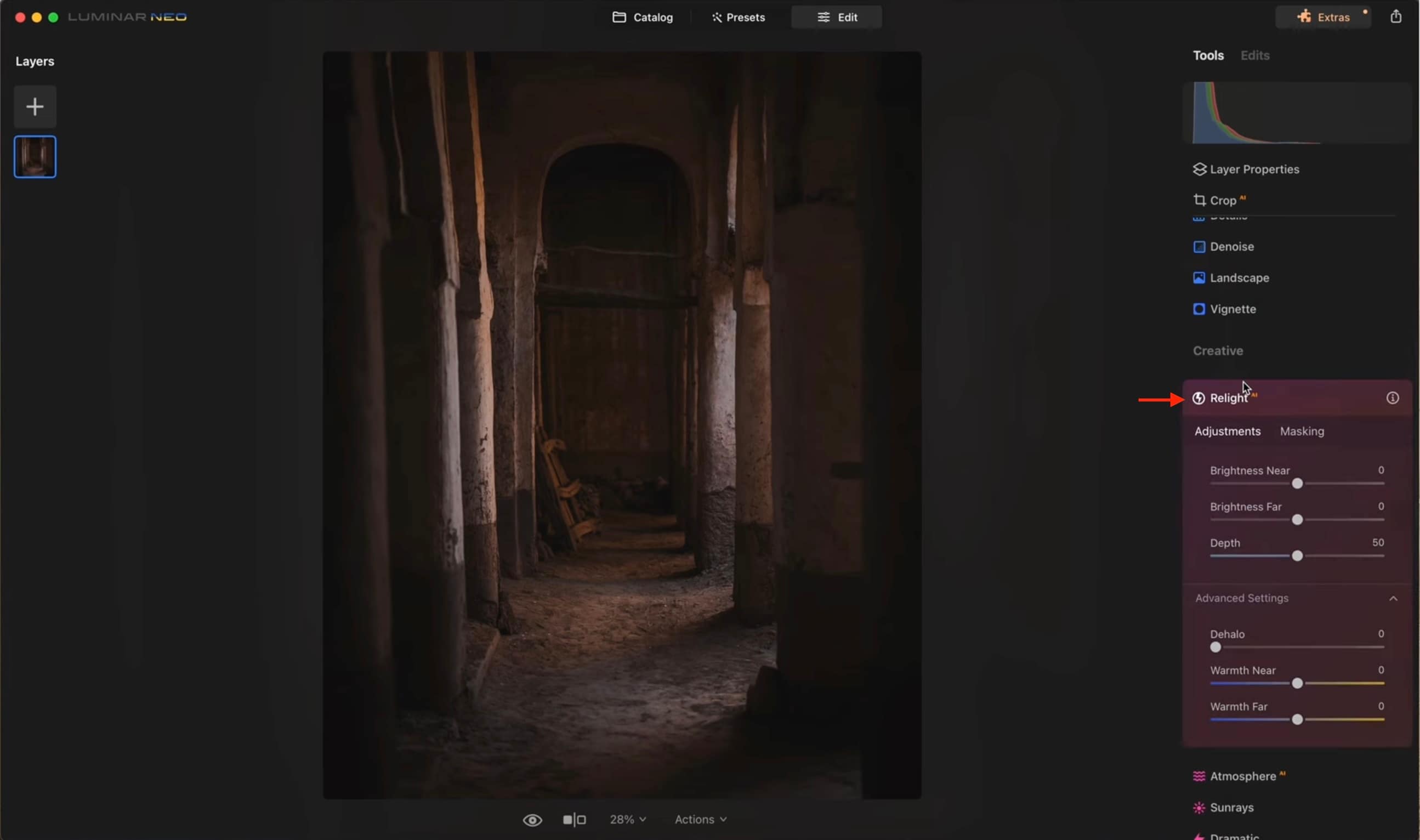
In the right-hand toolbar, scroll down to the Creative Tools section and click on Relight AI. This opens the relighting controls.
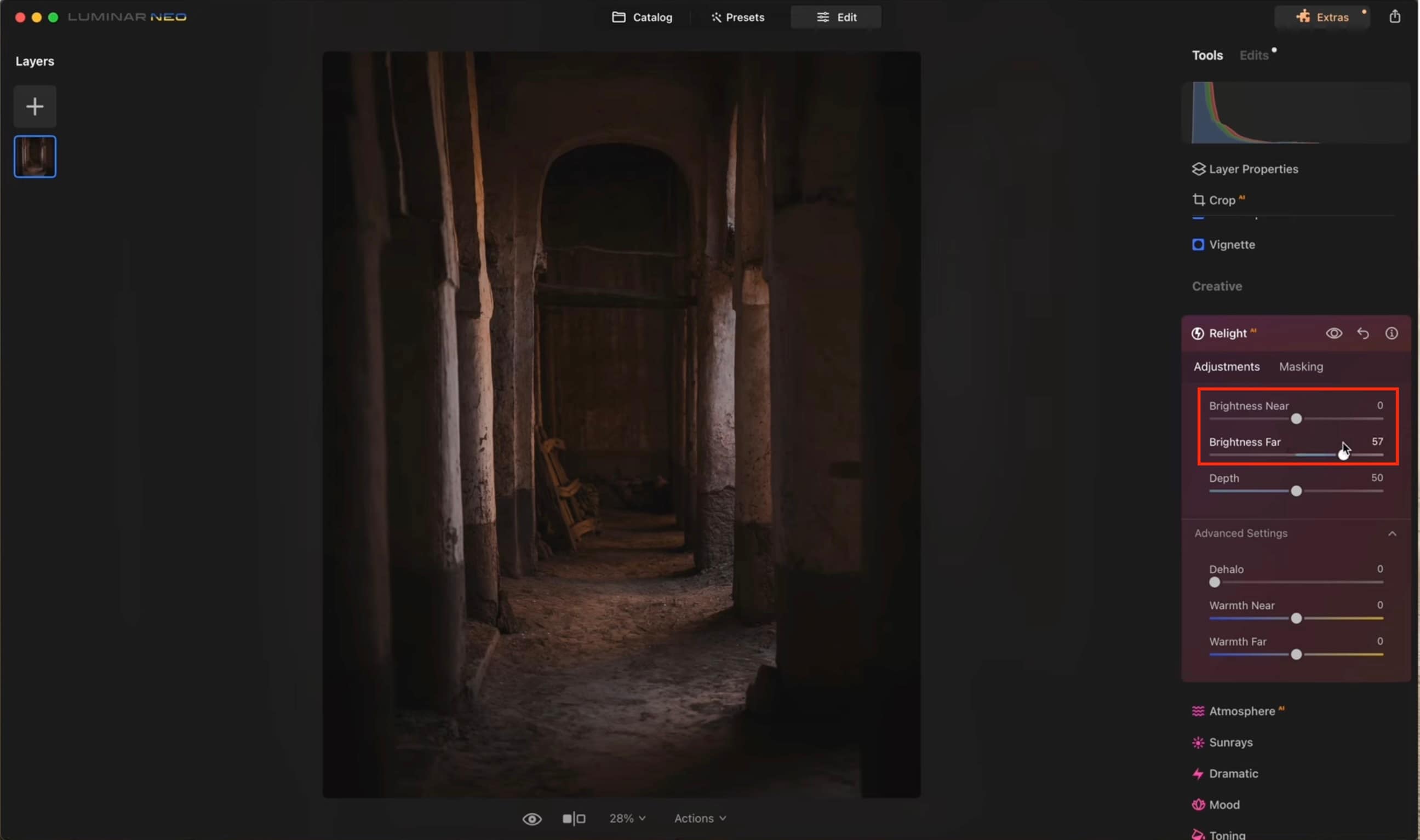
- Move the Brightness Near slider to brighten or darken the foreground (closer elements).
- Move the Brightness Far slider to adjust the background lighting. Try sliding both to see how they affect your image's depth.
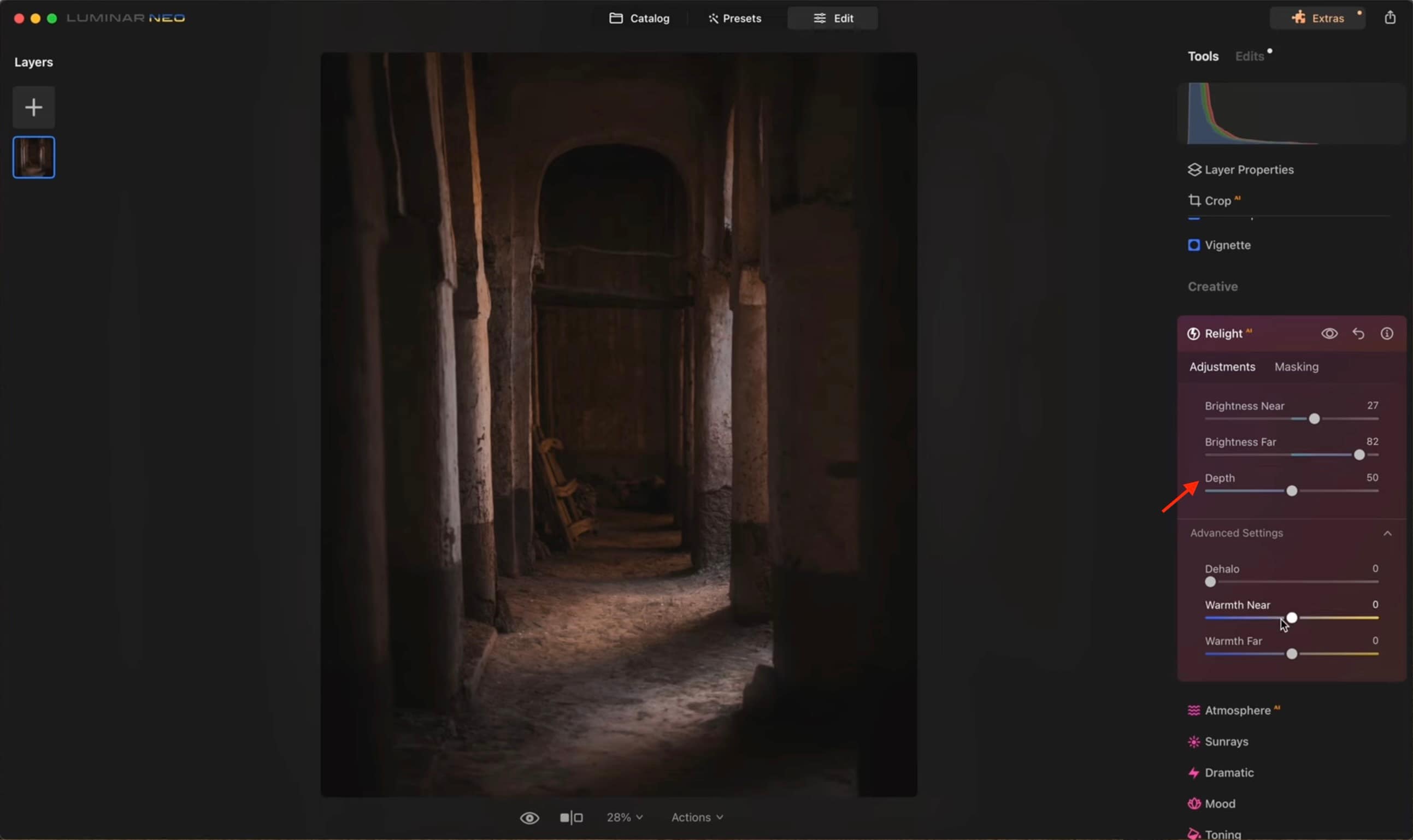
Use the Depth slider to shift where Luminar defines the boundary between near and far areas. Slide it until the lighting transition feels balanced and natural in your photo.
- Dehalo: Reduce unwanted light halos around edges after strong lighting changes.
- Warmth Near & Warmth Far: Adjust the color temperature of nearer vs. farther lighting to match the overall mood.
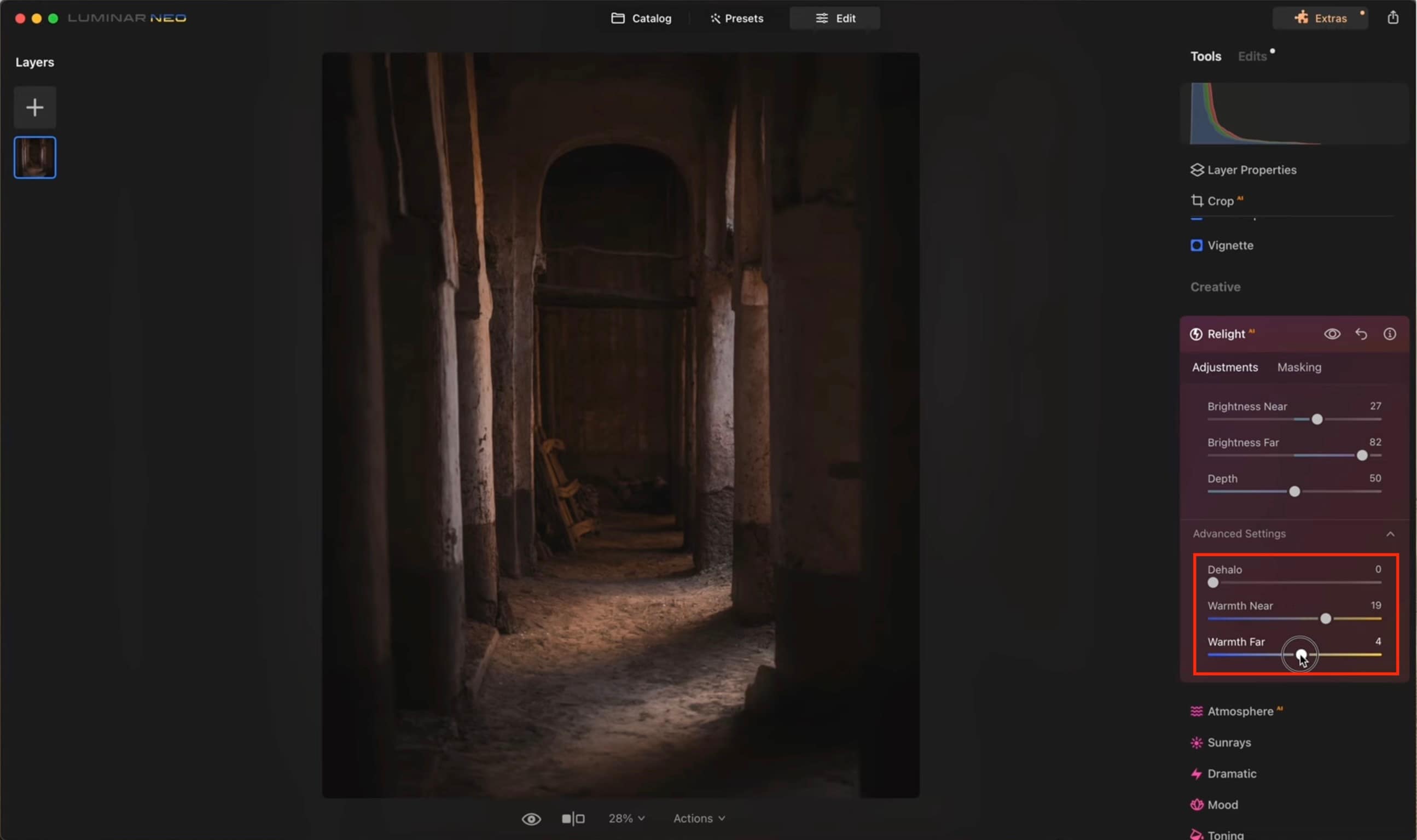
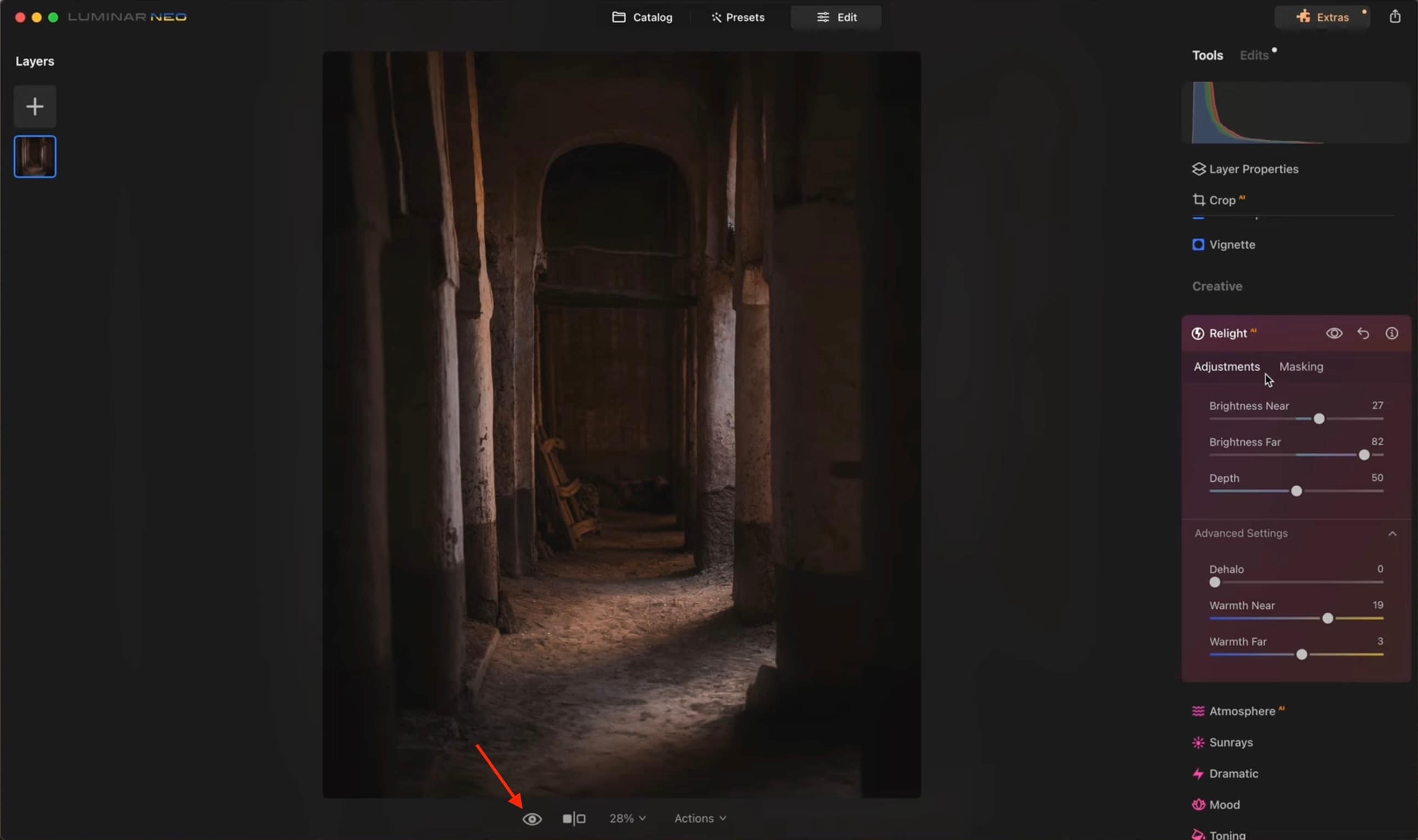
Toggle the before/after view (an eye icon) to compare your relit version with the original and fine-tune as needed.
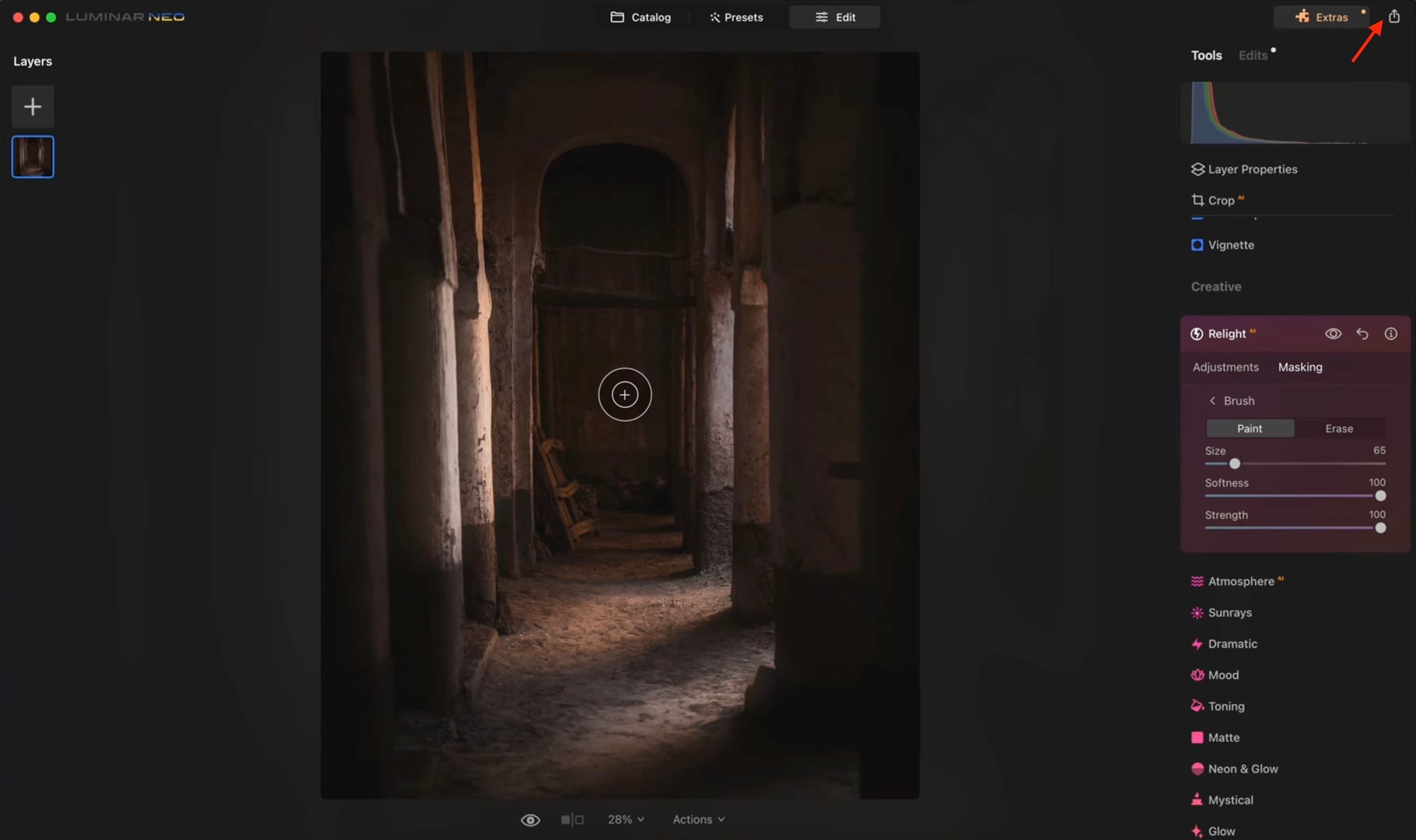
Once satisfied, export your image or save it to your Luminar Neo catalog.
Part 4. Luminar Neo Relight vs. Luminar AI Relight: What's Changed?
Luminar Neo Relight AI offers significant improvements over the older Luminar AI Relight feature. While both tools focus on adjusting lighting with depth awareness, Luminar Neo enhances the user experience with better performance, smarter depth processing, and more accurate object separation.
These changes make the relighting process faster, cleaner, and more reliable, especially when working with complex scenes or challenging lighting conditions. Below are the key improvements in Luminar Neo Relight AI:
Part 5. Luminar Neo Relight AI for Video: Limits and What You Need to Know
Luminar Neo Relight AI is powerful for photo editing, but it has clear limitations when used for video. While it excels at depth-based lighting adjustments on static images, it is not designed to handle motion or video timelines. Here are the main limitations to note.
- Does Not Support Original Video: Luminar Neo is a photo editor, and Relight AI only works on single images. The standard Luminar plugin does not support video clips or frame-by-frame video editing.
- Photo Plugins Are Frame-Based: Relight AI processes one image at a time. Applying it to video would require exporting and editing individual frames, which is time-consuming and inefficient.
- Inconsistent Lighting Between Frames: Small differences in lighting from one frame to the next can cause visible flickering. Maintaining smooth, consistent lighting across hundreds or thousands of frames is very difficult without motion-aware tools.
- Not Designed for Motion Tracking: Relight AI does not track moving objects or changes in lighting over time, which is essential for professional video relighting.
Part 6. Best Alternative for Video: Wondershare Filmora AI Relight
For creators asking, "How do I relight a video with AI?"—the answer lies in Wondershare Filmora. Unlike Luminar's static 3D mapping, Filmora AI Relight offers dynamic scene analysis. It maintains consistent lighting across moving frames, preventing the flickering common in frame-by-frame photo edits. With 8+ customizable light sources and one-click presets, it's the professional choice for video relighting in 2026.
This means you can enhance the lighting across your entire moving footage without having to export individual frames or deal with inconsistent results.
 Secure Download
Filmora's AI Relight uses intelligent scene analysis to optimize brightness, shadows, highlights, and color temperature throughout your video. It makes lighting adjustments look natural and balanced from start to finish.
Check out the key features that make Filmora's relighting tool ideal for your video.
Feature Highlights
- One Click Intelligent Relighting: Filmora AI Relight offers ready-to-use presets such as Basic Front Light and Ambient Color Light. With one click, the AI automatically analyzes the scene and applies balanced lighting.
- Directional Light for Subject Focus: Directional Light allows you simulate light coming from a specific angle, which helps to highlight the subject or create dramatic, cinematic lighting. This feature works seamlessly on moving videos.
- Circular Light for Soft Fill Lighting: Circular Light adds gentle, wraparound illumination to the subject. This feature mimics studio fill lighting and is highly effective for portraits, interview videos, and indoor scenes with uneven lighting.
- Ambient Adjustment for Mood Control: Ambient lighting controls the overall brightness and atmosphere of the scene. You can subtly lift dark environments or tone down harsh lighting to match the desired mood.
- Highly Flexible Custom Lighting: For advanced users, Filmora supports up to eight independent light sources. Each light can be customized by position, color, intensity, range, highlights, and coverage area.
Why Video Creators Prefer Filmora for Dynamic Relighting Over Static Photo Editors
Video creators prefer Filmora for dynamic relighting because tools like Luminar Neo Relight AI are designed for static images, not motion. Filmora AI Relight Tool applies lighting consistently throughout video clips, preventing flickering and uneven lighting between frames.
This feature works directly in the timeline, ensuring that lighting stays aligned with moving objects, and combines one-click AI presets with advanced custom controls in a single workflow. Visual elements in a drag-and-drop light ball make quick and intuitive adjustments easy, something that static photo editors cannot handle for video projects.
Conclusion
Good lighting can change how a photo or video feels, but getting it right during the shoot is not always possible. This is what Luminar Neo Relight AI tries to solve by letting you adjust lighting after the shot, using depth-aware controls instead of basic exposure sliders.
However, its strength stops at still images. Luminar Neo Relight AI is not built for video, which can be a lot trickier. If your work involves moving footage, a video-focused tool like Filmora also offers AI Relight that works as a more practical solution by applying lighting adjustments across entire clips with ease.

FAQs
-
Is Luminar Neo relight AI worth it for beginners?
Yes. This application is easy to use and supported by an AI-based slider, so even beginners can improve lighting without requiring advanced editing skills.
-
How does Luminar relight handle complex backgrounds?
This application uses 3D depth mapping to separate the subject from the background, which allows for more accurate lighting adjustments with fewer artifacts.
-
Can I use Luminar AI relight as a plugin for other software?
Yes. Luminar can be used as a plugin with photo editors such as Photoshop and Lightroom, and can be easily integrated into existing workflows.
