

 TL;DR:
Skywork AI operates as a unified productivity workspace that rapidly converts research into citation-backed documents, slides, and 5 to 10-second video drafts, making it highly effective for analysts and marketers but less suited for creators requiring precise visual design control.
● Video generation is restricted to Google Chrome or Microsoft Edge browsers and limits free users to two trial credits, requiring a Plus plan subscription at $49.99/month or $509.90/year to unlock premium AI models like Sora, Veo, Seedance, Pixverse, Kling, and Wan at up to 1080p resolution.
● The built-in SkyReels technology is strictly designed for fast prototyping and social media snippets, requiring users to export their AI-generated drafts into professional software like Wondershare Filmora to apply frame-by-frame control, AI Extend, Auto Beat Sync, and advanced color grading.
● While the platform utilizes a GDPR-compliant DeepResearch engine to scan hundreds of sources and automatically format academic citations, processing large volumes of complex data will noticeably slow down the system's performance.
Ask AI for a summary
 ChatGPT
 Perplexity
 Gemini
 Claude
 Grok
Grok
Imagine generating a full documentary from just a text script. With the global AI video generator market booming, Skywork AI emerges as a powerful "AI Super Agent" that unifies research, document creation, and video production in one workspace. In this comprehensive Skywork AI review, we will explore if its SkyReels technology can truly streamline your creative workflow. You can generate docs, slides, and videos in one place.
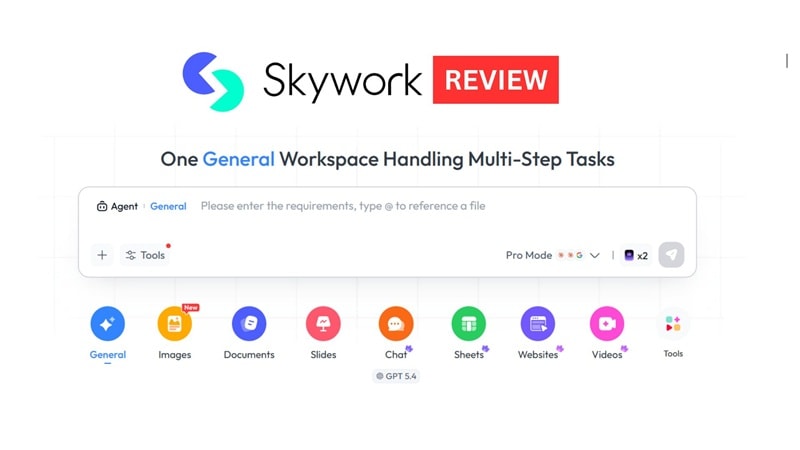
The purpose of this article is to provide a Skywork AI review, go beyond the hype and illustrate where its video generation could fit into real workflows. We'll explore how it works, why it matters and what it actually creates.
What is Skywork AI? (More Than Just Video Generation)
Skywork AI is not built as a single-purpose video tool. It is designed as a full productivity system. The platform works as an AI Super Agent that supports research, writing, analysis, and media creation in one place.
At the center of the system are "Super Agents." These agents are task-driven AI modules. They can:
- Interpret complex instructions
- Analyze large volumes of data
- Summarize findings clearly
- Produce formatted outputs
Since launching Skywork Super Agents, the platform has reportedly improved the work efficiency of nearly 100 million users. Moreover, you can build personal knowledge bases by uploading files, which the agents then use as context for generating outputs.
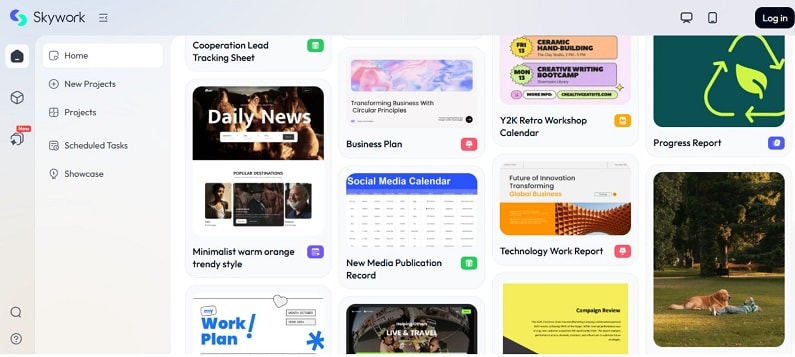
Multimodal Content Creation
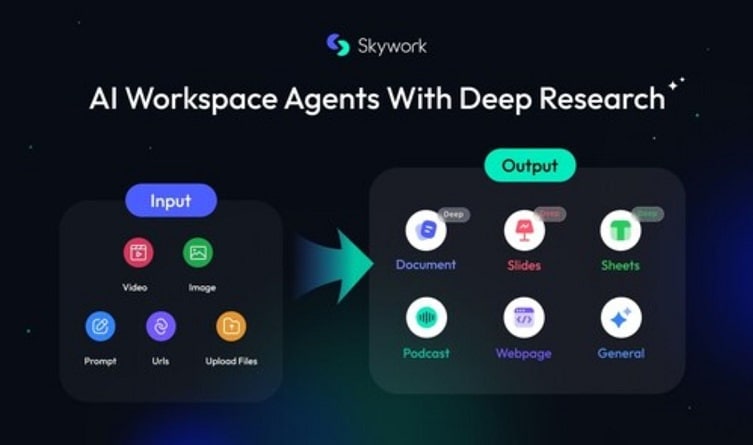
One of Skywork AI's strongest advantages is multimodal generation. From a single prompt or source file, you can create:
- Professional documents
- Structured PPT slides
- Data summaries
- Script drafts
- Podcasts
- Webpages
- AI-generated videos
This one-stop flow is important for teams. Marketing departments can turn reports into pitch decks. Educators can convert lesson notes into video explainers. Analysts can transform data into visual presentations.
Built for Workflow Efficiency
Skywork AI is designed to reduce repetitive work. You can:
- Automate structured tasks
- Create reusable templates
- Organize projects in shared environments
- Sync updates across collaborators
This makes it useful for remote teams and fast-moving businesses. Instead of jumping between tools, teams can operate inside one AI-driven environment.
Deep Dive into Skywork AI Video Generator & SkyReels Features
The Skywork AI video generator is not a separate app. It works inside the main Skywork AI workspace. This video feature is powered by SkyReels technology and operates as a built-in Video Agent. You can move from research or slides to video without switching platforms.
Technical Logic Behind SkyReels
SkyReels works in stages:
- Script analysis
- Scene segmentation
- Visual template mapping
- Voice and caption layering
- Final rendering
The engine is optimized for social media clips, marketing videos, and internal communication. It is built for efficiency.
Core Functions of the Skywork AI Video Generator
1. Text-to-Video/Image-to-Video
This is the main engine. Users input a script or structured prompt. The system converts it into short scenes with text overlays and background visuals. The focus is clear communication.
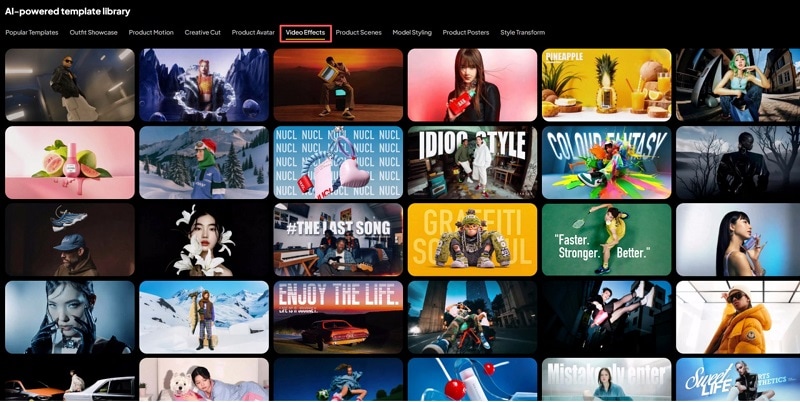
2. Video Templates
For a faster workflow, Skywork offers a library of pre-made templates. These allow you to:
- Select a specific style or theme.
- Quickly swap out assets while maintaining the template's effect or style.
- Maintain brand consistency by starting with a structured design rather than a blank canvas.
3. Smart Editing Controls
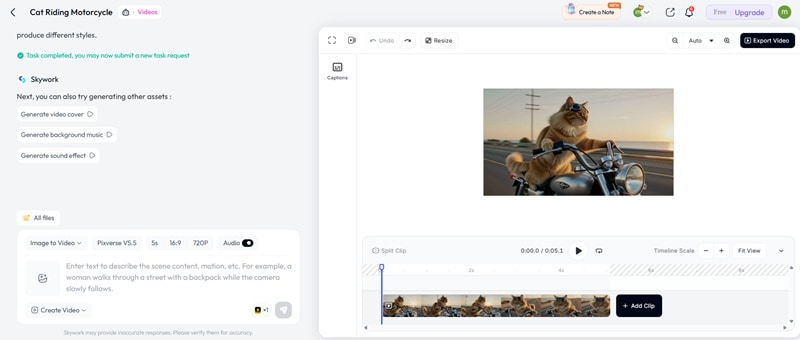
Once the AI generates your content, the built-in editor provides a user-friendly timeline. You can adjust scene timing, replace visuals, and insert brand elements. Controls are basic but practical.
How to Use Skywork AI for High-Quality Video Creation (Step-by-Step)
If you are using the Free plan, you typically receive two trial credits to test out video generation. To unlock more video generation, you need to subscribe to the Plus plan for $49.99/month or $509.90/year.
To generate a video in Skywork AI, you have two primary options:
- Start from a prompt
- Use a video template or a faster result
How to Use Skywork AI to Create AI Videos from Prompt
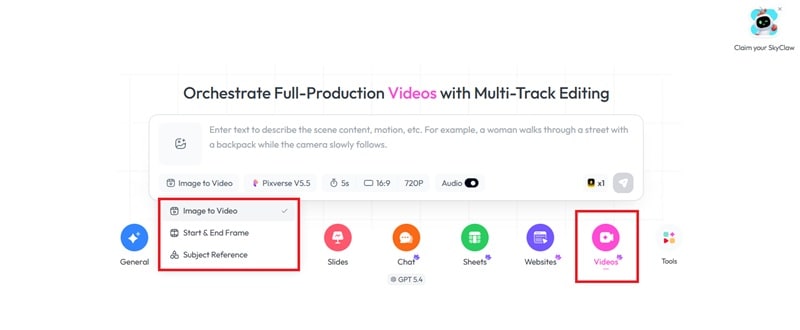
For the steps on how to use Skywork AI, the process is simple. Make sure you are using a supported browser (Google Chrome or Microsoft Edge), and start by following the steps below.
- Image-to-Video: Upload a static image to bring it to life (you can leave the image field blank if you only want to generate from a prompt).
- Start & End Frame: Upload two images to define the beginning and final shots.
- Subject Reference: Provide a character or object reference.
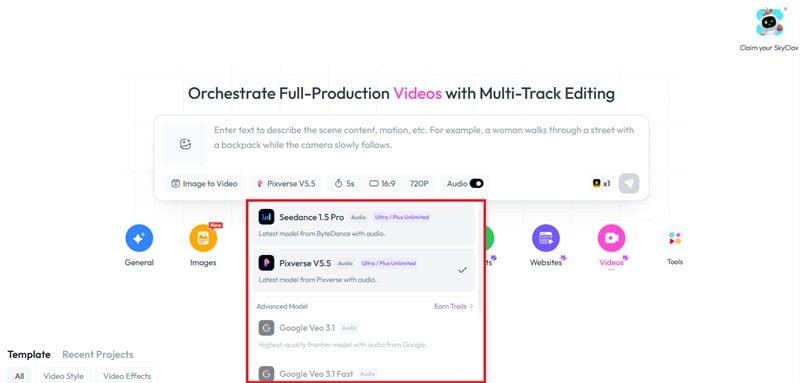
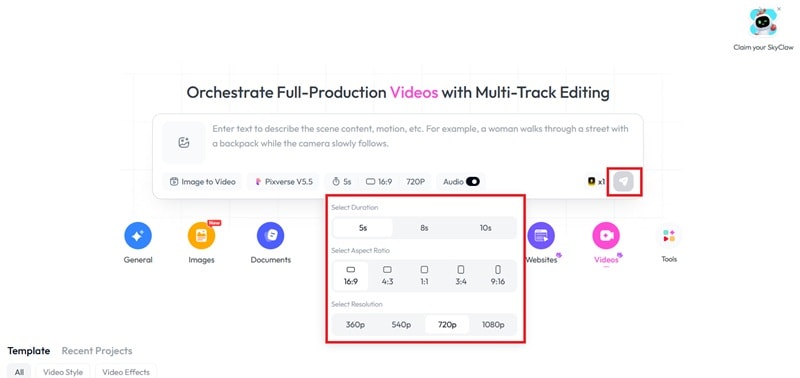
- Duration: Choose between 5–10 seconds.
- Aspect Ratio & Resolution: Set your framing and quality (up to 1080p).
- Audio: Enable the Audio toggle if you want to include sound.
- Adding or rearranging clips.
- Inserting captions.
- Splitting or trimming clips for better timing.
How to Create AI Videos with Skywork AI from Templates
To create from a template, simply scroll down the home dashboard until you see the various video effect or style templates available for use.
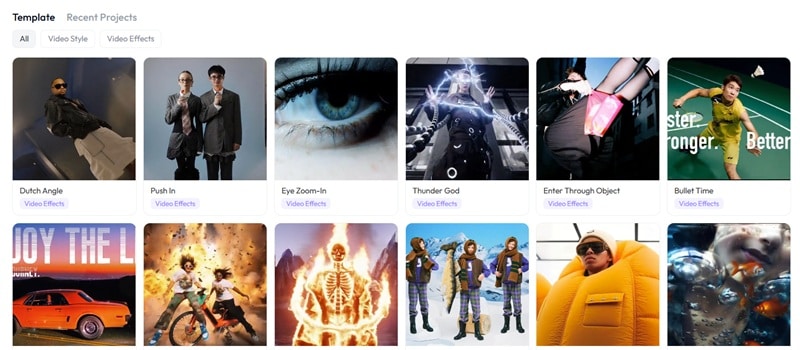
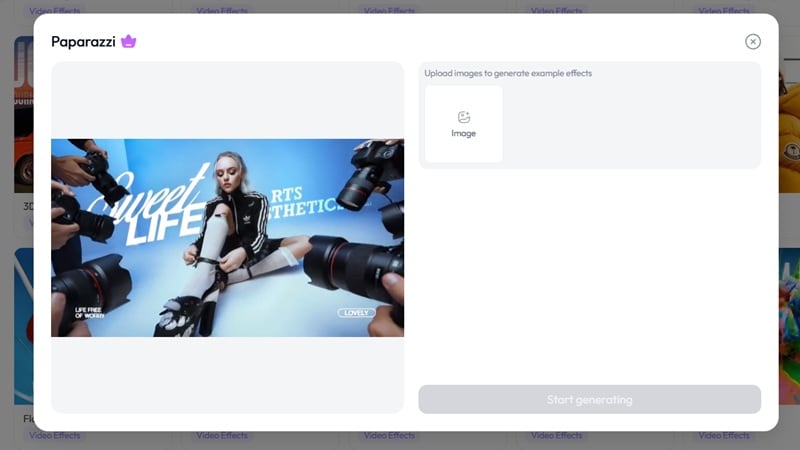
Select the template you like to open the preview. From there, you can upload your own picture. The AI will then apply either the style or effect of that template to your content.
Part 4: Skywork AI vs. Professional Video Editors (The Filmora Perspective)
Since the editing tools within Skywork AI are still pretty limited, combining its rapid generation with a more professional-grade video editor like Wondershare Filmora creates a "hybrid workflow" that addresses the core limitations of using either tool in isolation.
While Skywork AI excels at producing structured video drafts in minutes, Filmora provides the precision needed to cross the finish line with cinematic quality. You have full control over pacing, color grading, audio enhancement, and advanced transitions that Skywork AI alone can't deliver.
 Secure Download
4.1 Competitive Advantage Analysis
| Feature | Skywork AI (Generation) | Wondershare Filmora (Editing) |
| Primary Strength | Speed. Text/image prompts to clips at 2–4 minutes for 30-second clips | Precision gives you frame-by-frame control, advanced color grading and complex transitions. |
| Learning Curve | Near-zero; designed for non-technical users to create content without filming. | Moderate; intuitive interface but requires time to master advanced effects and keyframing. |
| Output Type | Fast prototyping, social media snippets and "presenter-led" company videos. | Films, high-budget commercials and long YouTube projects. |
| AI Integration | Unified workspace for research to video pipelines (docs > slides > video) | AI-features utilized include Smart Cutout, Auto Reframe, and Motion Tracking to expedite manual work. |
4.2 The Hybrid Workflow: Bridging the Quality Gap
So, how do you combine Skywork AI with Filmora? There are at least three phases to this workflow, each handling a different part of the production process.
Phase 1: AI Generation with Skywork AI
First, use the Video Agent inside Skywork AI to create:
- B-roll sequences
- Background scenes
- Digital human presenters
This removes the need for costly filming or stock footage searches. Production starts fast. If you need more creative control than what the initial AI draft provides, Wondershare Filmora offers advanced Text to Video and Image to Video capabilities. Powered by cutting-edge models like Sora and Veo, Filmora allows you to regenerate scenes directly within your professional editing timeline, ensuring a seamless AI video creation workflow. and AI video templates that let you regenerate or supplement any scene directly inside the editing timeline.
Secure DownloadPhase 2: Professional Polishing in Filmora
Import the generated clips into Filmora. Now refine them with these tools:
- AI Extend – when a generated clip is too short to cover the audio, AI Extend continues the footage forward or backward with consistent motion and style,
- Auto Beat Sync – aligns scene cuts to music automatically, adding rhythm and pacing
- AI Smart Cutout – brush the area you want to keep and Filmora automatically isolates the subject for layered compositions.
- AI Object Remover – detects and removes watermarks, unwanted people, signage, or stray objects.
- Motion Tracking – pins text, logos, or graphic overlays to moving subjects across generated scenes for dynamic, branded compositions.
Phase 3: Final Enhancement
With your footage looking clean and well-paced, you can now put the finishing touches on it using these tools:
- AI Video Enhancer to sharpen clarity.
- AI Audio Enhancer & Audio Stretch for clean, aligned sound.
- Professional color grading tools for consistent tone.
- AI Translation & Lip-Sync for multilingual delivery.
Part 5: Pros and Cons: Is It Worth Your Time?
Skywork AI is best for analysts, consultants, marketers and researchers needing detailed, structured, multi-format research output. It's not as well-suited to casual chatbot users or highly design-minded creators.
- Advanced DeepResearch engine scans hundreds of sources per task for structured synthesis.
- Built-in citation support in multiple academic formats improves credibility.
- Specialized super agents for reports, slides, and media generation.
- Unified workflow connects documents, presentations, and the Skywork AI video generator.
- Data privacy commitment with GDPR compliance.
- Free daily usage tier for testing features before upgrading.
- Learning adjustment needed to fully use specialized agents.
- Slower processing for large, data-heavy research tasks.
- Limited granular design control in slide outputs.
- Not a substitute for expert domain knowledge in technical fields.
- The customer support ecosystem is still developing.
Let's break down Skywork AI across three essentials: performance, output quality, and overall ease of use.
| Criterion | Evaluation |
| Performance | The DeepResearch engine gathers and synthesizes structured information quickly, often within minutes. |
| Output Quality | Professional and analytical. Produces organized, citation-backed documents. Visual outputs are clean but may appear template-based. |
| Ease of Use | Intuitive for basic tasks. Advanced Super Agent workflows require moderate familiarity. |
| Audience | Best Use Cases | Key Advantage | Why Use It |
| Marketers & Agencies | Data-driven whitepapers, blog posts, campaign strategy documents, and branded visuals. | Research-backed claims with citations for evidence-sensitive campaigns. | Move from research to slides or landing pages inside one unified workspace. |
| Content Creators | Educational guides, detailed long-form content, and video scripting via the Video Agent. | Turns ideas into structured, optimized scripts while maintaining source support. | Overcomes creative blocks with research-based outlines and structured writing. |
| Analysts & Researchers | Market analysis, competitive reports, literature reviews, and financial modeling. | Generates charts, data visuals, and structured summaries automatically. | Cleans data, detects patterns, and formats insights without manual spreadsheet work. |
Conclusion
This Skywork AI review confirms that the platform is built for structure, not noise. It unifies research, documents, slides, and video inside one intelligent system. The Skywork AI video generator stands out for speed and clarity, especially in business and educational workflows. Its DeepResearch engine adds credibility by reducing guesswork and improving content accuracy.
Still, AI drafts are a starting point. They organize ideas, but refinement shapes impact. When those drafts move into Wondershare Filmora for motion tracking, color grading, and audio enhancement, the difference becomes clear. Rhythm improves. Visual depth increases. Storytelling feels intentional.
In summary, Skywork AI is a top-tier tool for research-driven content. However, for those seeking cinematic excellence, combining its speed with Wondershare Filmora's precision is the ultimate strategy. Start your AI video editing journey today by integrating these two powerful platforms.

FAQs
-
Is Skywork AI free?
Skywork AI offers limited free credits for new users to test core features, but advanced usage requires a paid plan. -
Can Skywork AI replace professional editors?
No. Skywork AI creates fast, structured drafts, but it cannot fully replace professional editors for cinematic polish and detailed control. -
How to integrate Skywork AI into your content workflow?
Skywork AI is used to research and write a script and create a first-draft video (in the Skywork AI video generator). Export the draft, import it into Wondershare Filmora for pacing, color-correction, audio improvement and advanced transitions before creating your polished professional final.
