


Most online AI video generator platforms hit you with strict guardrails, limiting what you can actually create. But a few tools ditch the red tape entirely, and Unlucid AI is one of them.
While Unlucid might not have mainstream clout yet, it provides creators with raw stylistic freedom and fast AI video effects. So, is this hidden gem worth your time, or is it just chasing quick viral hype? Let's dive in and find out!
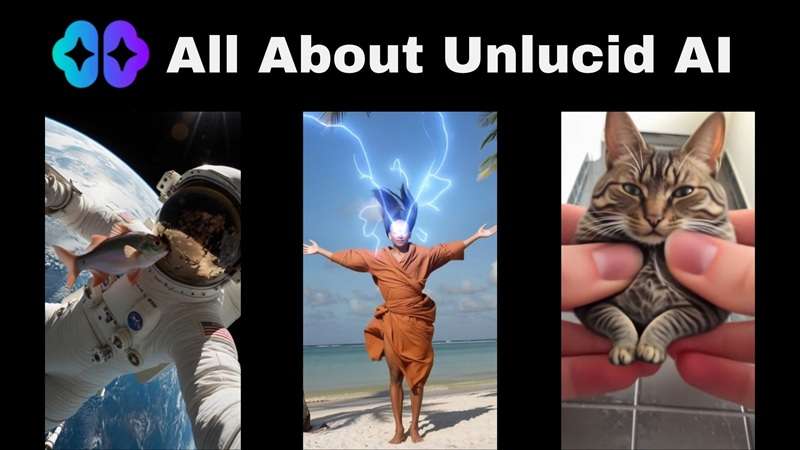
Part 1. Unlucid AI Explained: A Quick Look at the Platform
The platform is organized around four core workspaces: Video AI, Effects AI, Create Image, and Edit Image, all sitting inside one account. But before we dive into that, let's begin by trying to understand what Unlucid AI is trying to be, and why its pitch reads so differently from most of its competitors.
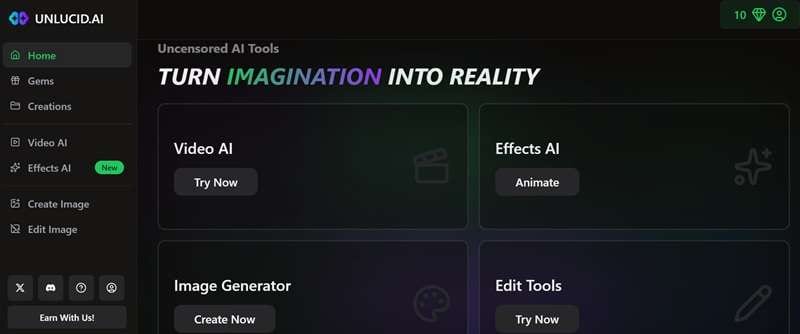
The platform openly markets itself as a place with far fewer content restrictions than mainstream generators, giving creators room to explore ideas that stricter platforms would flag or reject outright. That doesn't mean there are zero rules behind the scenes, but the filter is undeniably looser than what you'd run into elsewhere.
How to Access Unlucid AI
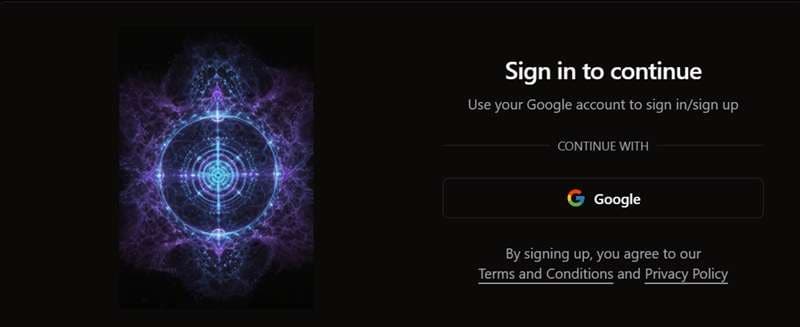
There's nothing to install here. Unlucid AI is web-only, with no dedicated app or downloadable software of any kind. You simply head to https://unlucid.ai/ in your browser, register or sign in to your account, and every tool on the platform runs right there.
Part 2. Understanding Unlucid AI Gems and Pricing
So, every generation on Unlucid AI costs something, and that something comes in the form of Gems, which are the platform's version of credits, spent every time you create, edit, or animate.
When you first set up an account, you get 10 free Gems to play with, plus a daily drop of 5 free Gems. However, free Gems disappear quickly if you start generating content regularly, especially videos. For heavier use, you'll eventually need to top up the Gems.
| Pricing | Gems | Advertised Usage |
| $8.99 | 120 Gems | Up to 120 images, 60 edits, or 12 videos |
| $29.99 | 450 Gems | Up to 450 images, 225 edits, or 45 videos |
| $59.99 | 1,200 Gems | Up to 1,250 images, 625 edits, or 125 videos |
Paid Gem bundles also advertise no watermark on the generated content.
Part 3. Unlucid AI Features: A Look at Its Video Effects and Creative Features
Once your account is stocked with Gems, you step into the main studio dashboard. As mentioned above, there are four separate tools where you can actually put them to use. Here's what you can actually do with Unlucid AI:
1. Video AI
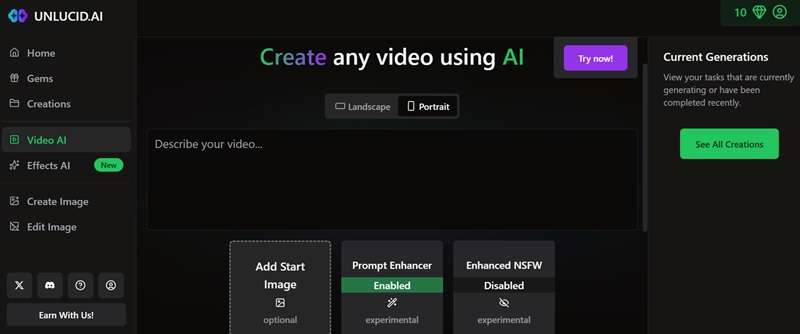
This is the straightforward text-to-video generator: type a prompt, and the Unlucid AI builds a short clip around it. You can also upload a reference image to guide the first frame, choose portrait or landscape orientation, and flip on the Prompt Enhancer, which expands a short, rough prompt into a more detailed one before generation.
2. Effects AI
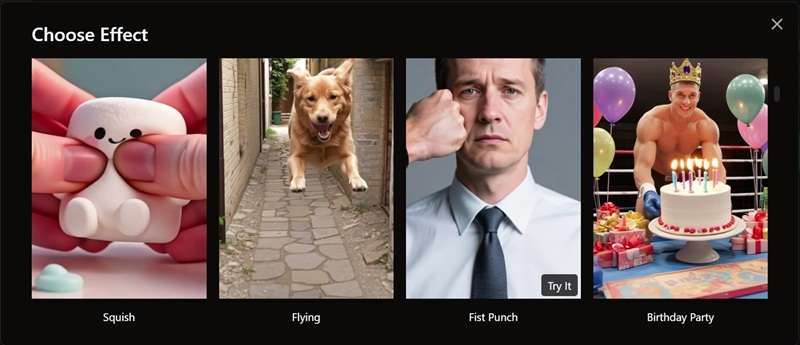
If you do not want to write long text prompts, you can use the AI effects. It's basically similar to picking a creative template, except the movement is generated around your uploaded subject. Unlucid currently promotes effects such as:
- Squish
- Flying
- Fist Punch
- Birthday Party
- Muscles
- And more.
3. AI Image Generator
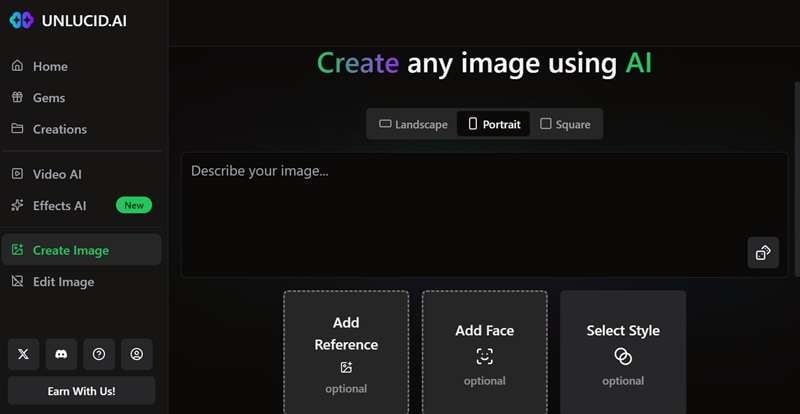
Before you make videos, you often need cool base pictures. For that, you can use Unlucid's text-to-image tool. It lets you type a description and pull a still image out of it in a handful of visual styles, including:
- Realistic
- Cartoon
- 3D Render
- Anime
- Pencil
It's a solid way to test a concept or generate a starting image before feeding it into the video tools.
4. Edit AI Image
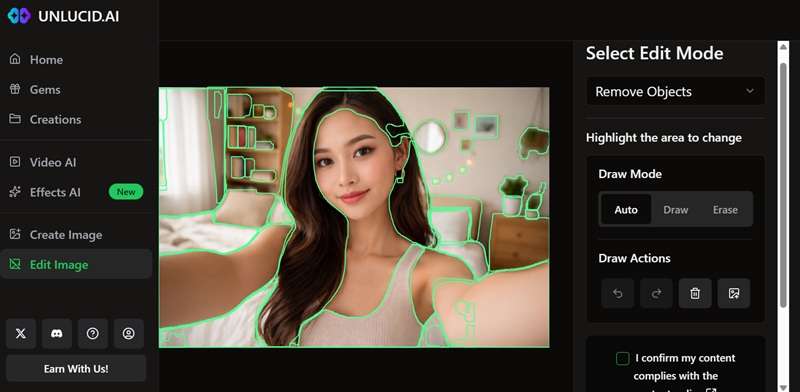
Unlucid also includes AI image editing tools. This tool lets you upload your base photo and modify specific details, adjust stylistic themes, or tweak elements without throwing away the whole composition. The available editing options include:
- Removing objects
- Adding or replacing objects
- Changing clothing
Part 4. The Upsides and Limitations of Unlucid AI
Unlucid has a clear identity and some genuinely fun features, but it also leaves out things that more serious creators might need. So, weighing both sides honestly is worth doing before you spend a single Gem. Let’s break it down.
- No Restriction At All: The platform markets itself as "uncensored," meaning its content filters are noticeably looser. You get total freedom to generate uncensored, surreal, and dark visuals without getting flagged.
- Super Easy to Try: No setup time or tech headaches. You just need to log in and start generating.
- No Subscription Lock-in: Gems are bought once and spent as you go, so you're never billed for a month you didn't use.
- The Tools Work Well Together: You can generate an image, edit it, then animate it. That kind of workflow makes sense for someone starting with nothing more than an idea.
- Limited Effects: The preset library isn't huge, and a fair chunk of what's there leans into adult-oriented content rather than everyday social templates.
- Inconsistent Video Quality: Independent testing has flagged a "melty" or watery look in some clips, with objects occasionally morphing mid-shot.
- Thin Public Track Record: Unlucid is still young, with far less documentation and independent review coverage than established platforms.
- No Real Video Editing: The Edit AI tool only works on still images. Once you've got a video clip, there's no trimming, layering, or timeline tool waiting for you.
Part 5. Want More Than AI Effects? Explore Wondershare Filmora
The creative freedom Unlucid AI offers genuinely makes a case for itself with certain creators, especially anyone experimenting outside the mainstream box. But once you look past that one selling point, the platform comes up short in a lot of places.
If you're working on something more serious than a quick social clip, Unlucid AI simply can't carry the weight. So, you'll need a more complete tool like Wondershare Filmora.
Filmora is a full video editor that also includes AI video generation, AI image generation, and creative templates of its own. The difference is that it pairs all of that with advanced AI editing features and an actual timeline, so you're not stuck the moment your first generation comes out slightly wrong.
Why Filmora Is The Next Step for AI Video Creation
1. Create AI Video from Audio
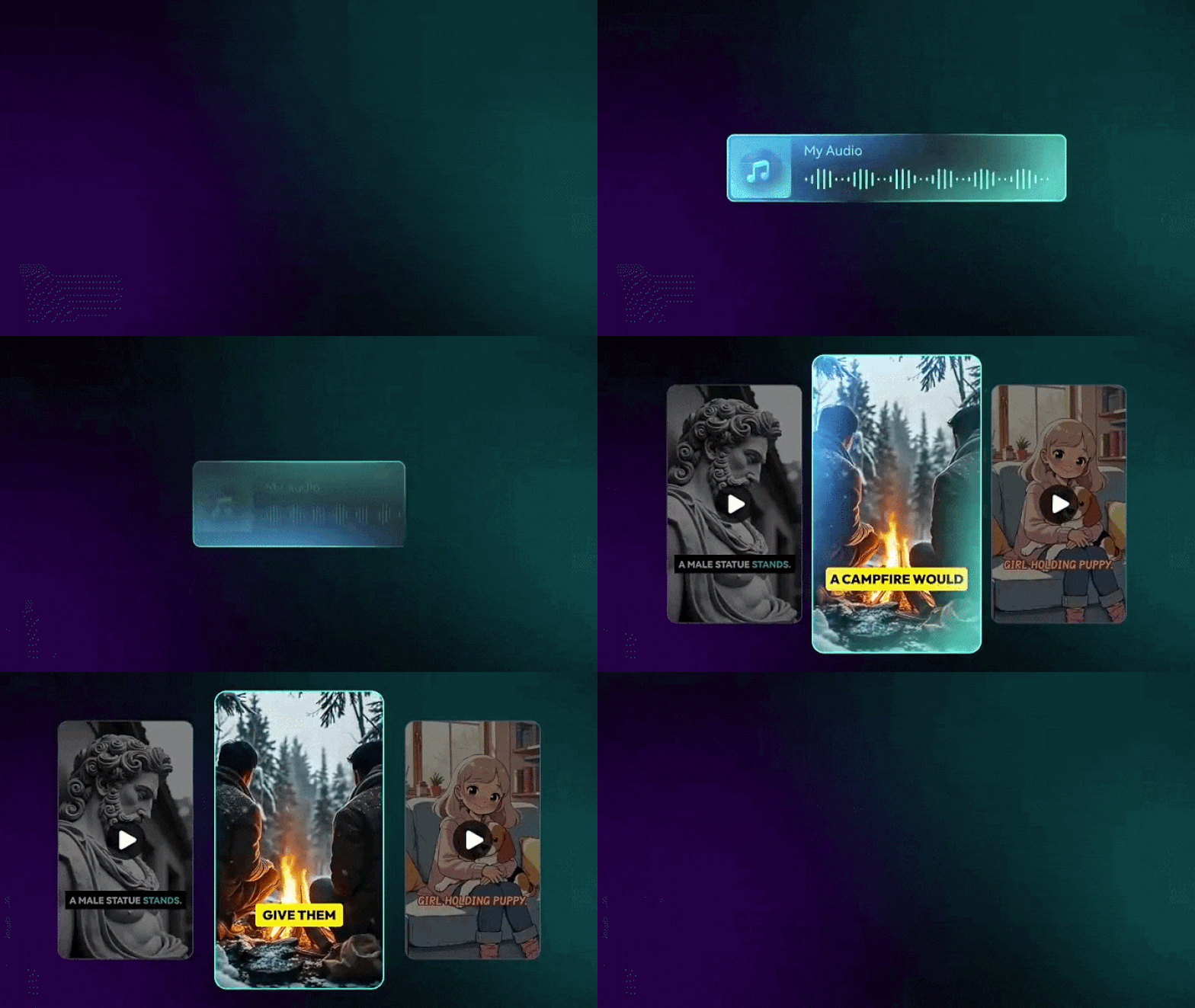
Instead of typing out long text prompts, you can feed an audio file straight into Filmora's AI Audio-to-Video. Its AI analyzes the sound pacing, mood, and spoken content to automatically generate matching video scenes that fit your audio track.
2. A Complete Short Story With AI
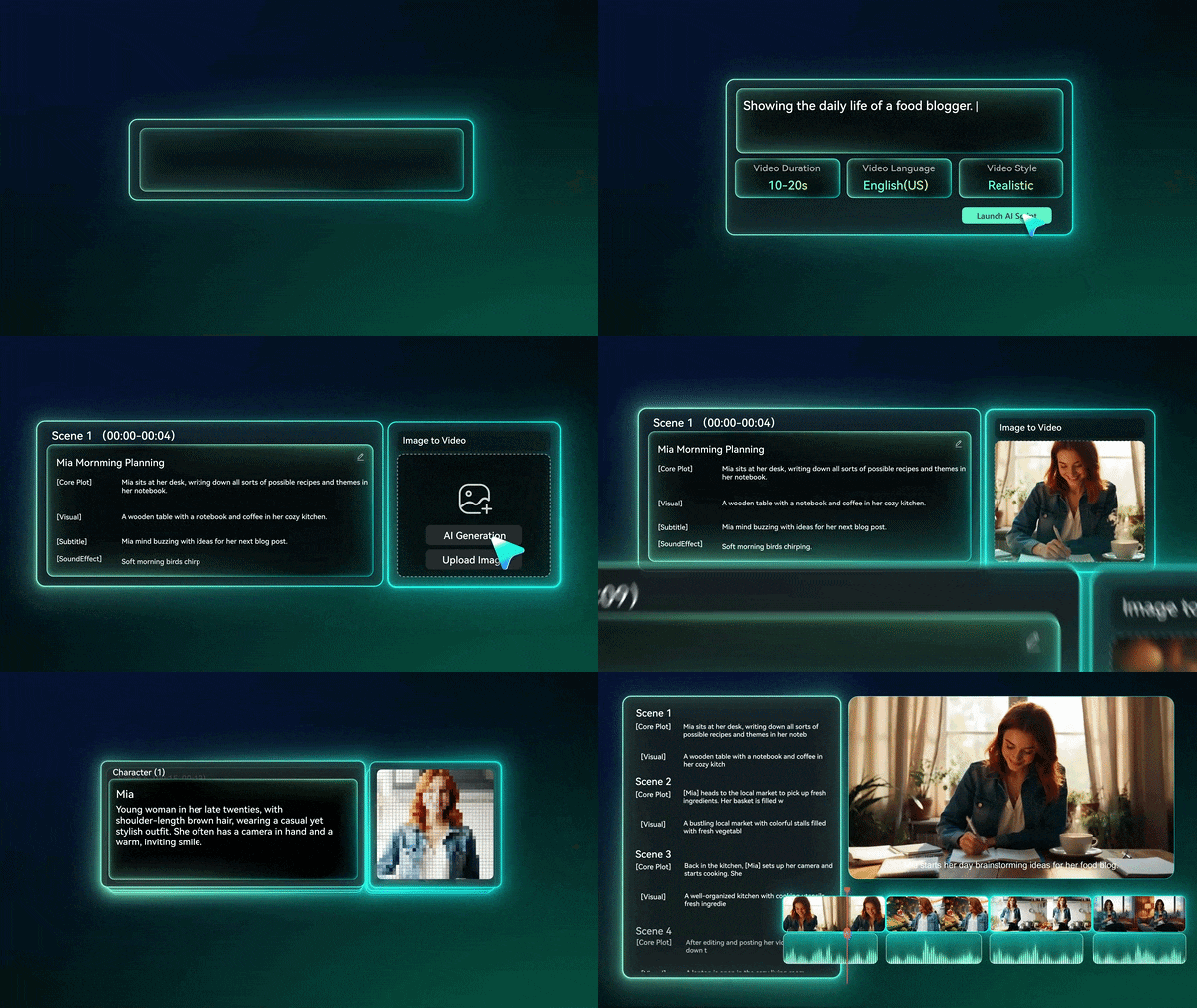
Beyond single clips, Filmora can carry a full narrative arc through its AI idea-to-video and AI script-to-video tools. It can turn a simple topic idea or script into a fully structured rough cut complete with visual scenes, transitions, and voiceovers in minutes.
3. Extend Your AI Clips
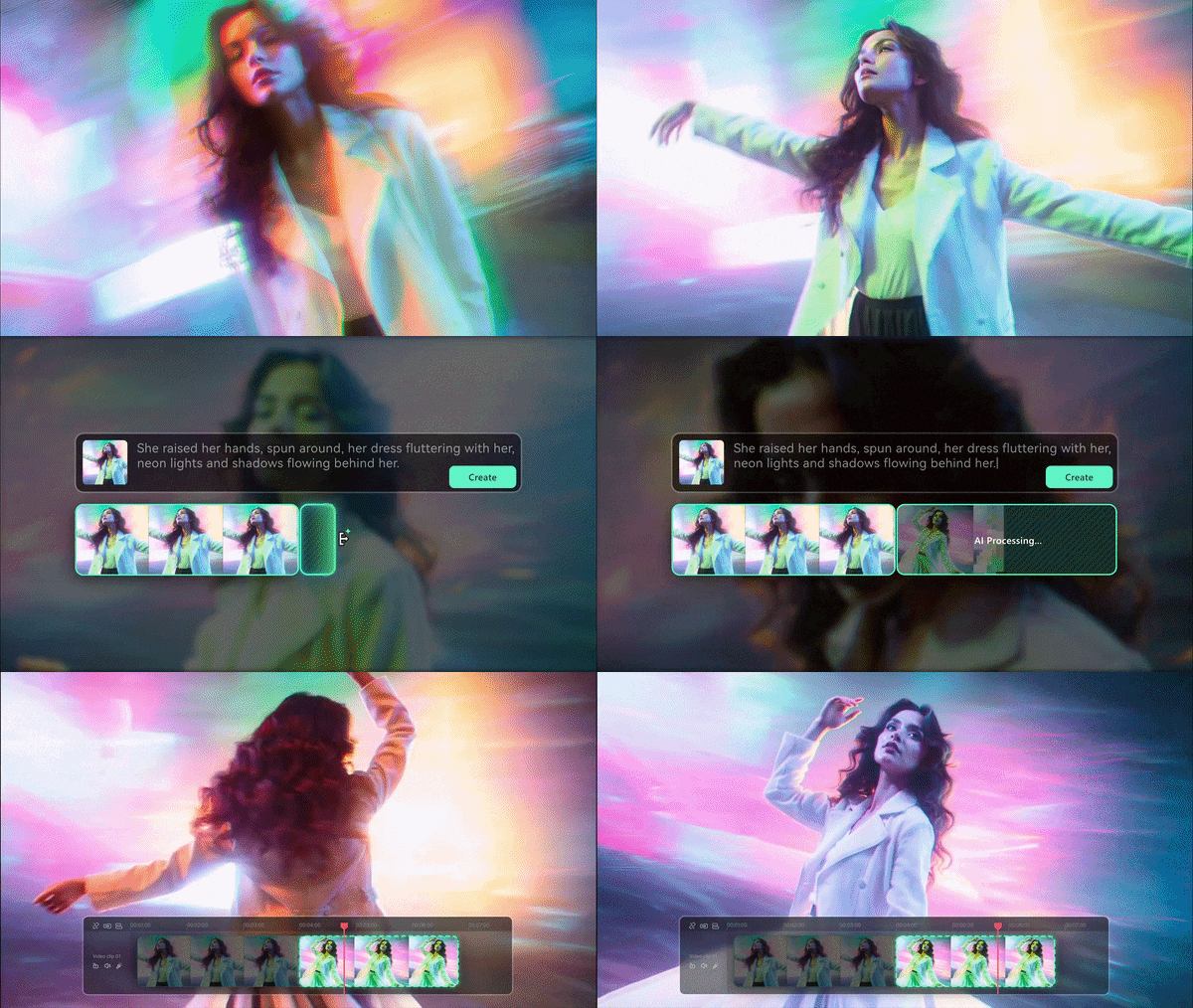
Hate when a cool AI video clip cuts off after a few seconds? Filmora's AI video extender stretches existing footage into a longer, more complete shot, rather than forcing you to regenerate the whole thing and hope it matches.
That can be especially useful when:
- A scene ends too soon.
- You need a smoother transition.
- You want to add more context before a clip begins.
- Your AI-generated story needs another moment to breathe.
4. Edit Your Creation With Advanced Features
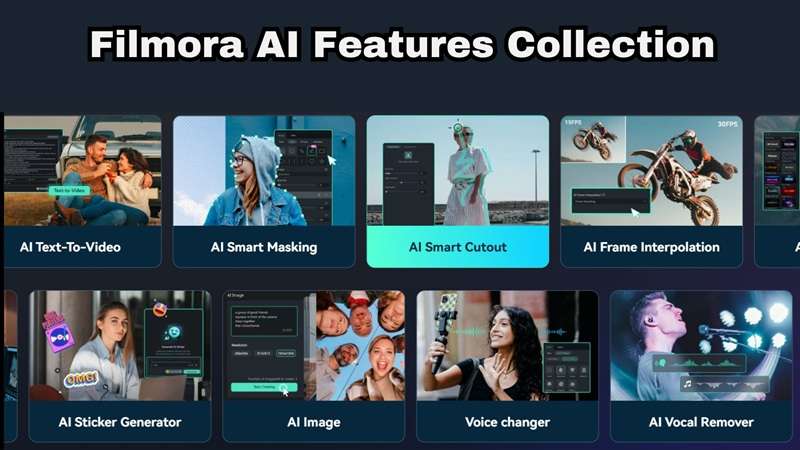
Once a clip is generated, Filmora doesn't just hand it back to you as a finished file. Its AI toolset can keep refining it, with features like AI Smart Cutout to remove backgrounds, AI Audio Stretch to fit music track lengths, or AI Translation to reach international audiences instantly.
 Secure Download
Conclusion
Unlucid AI earns its niche honestly: it's fast, easy to try without commitment, and gives creators room to explore ideas that stricter platforms would shut down immediately. That freedom is genuinely the whole draw here, and for casual experimentation or quick social clips, it delivers on that promise.
Where it runs out of road is anything more ambitious. There's no real video editing, the effect library skews narrow, and output quality can be inconsistent. For those bigger projects, Wondershare Filmora picks up exactly where Unlucid leaves off, pairing its own AI generation tools with a full editing timeline so a rough AI clip can actually become a finished video.
FAQs
-
How does Unlucid AI handle content moderation compared to mainstream platforms like Sora or Runway?
Much more loosely. Sora and Runway run tight content filters that block a long list of prompts and subjects outright, while Unlucid brands itself as "uncensored" and lets a lot of that through. That said, Unlucid's own terms still prohibit things like non-consensual intimate imagery of real people and other clearly illegal content, it just polices a much narrower list than the big-name platforms do. -
How long can Unlucid AI videos be?
Short. Unlucid is built around quick, shareable clips rather than long-form video, and most outputs land in the same few-seconds range you'd expect from a Reels or TikTok-style effect. The platform doesn't publish a hard maximum duration, but nothing here is aiming to replace a full video project. -
Can I edit Unlucid AI videos after generating them?
No, Unlucid AI does not include a multi-track editing timeline. Once your video render finishes, you can only download the raw clip. To trim cuts, layer sound effects, color grade, or stitch multiple generated scenes together, you will need to import your render into a traditional editor like Wondershare Filmora.
