


There are plenty of AI video generators online now, and many of them bundle multiple AI models through API integrations. Vidgo AI is one of them, offering text-to-video, image-to-video, and a range of AI effects in one platform. It’s also known for its Vidgo AI kiss feature, which can turn photos into smooth romantic animations.
But is a trendy feature all it has to offer, or can it handle more serious video creation? Our complete Vidgo AI review will dig deep into its overall value to see if it actually deserves a spot in your toolkit.
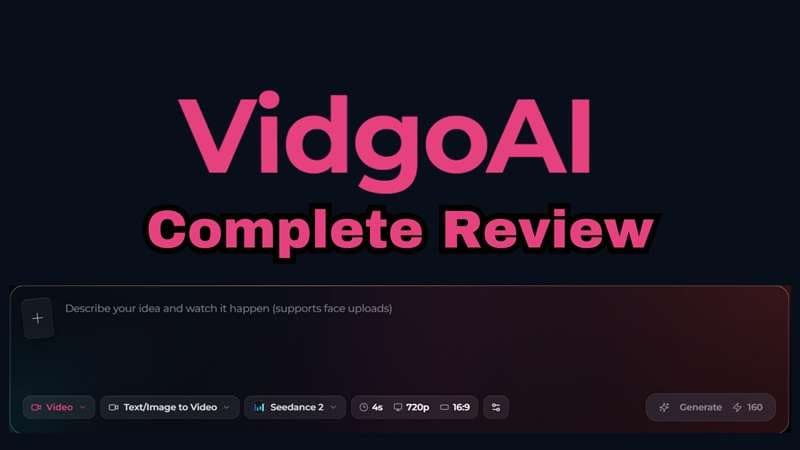
Part 1. What Is Vidgo AI and What Does It Do?
Vidgo AI is an online AI creation platform built around video, image, and music generation. The model selection is one of Vidgo's biggest selling points. Sign in once and you can pull from Sora 2, Sora 2 Pro, Veo 3.1, Kling, Wan 2.2, Hailuo, Nano Banana Pro, Flux, GPT-4o's image tools, plus Vidgo's own image-to-video, text-to-video, and consistent-character tools, all inside the same workspace.
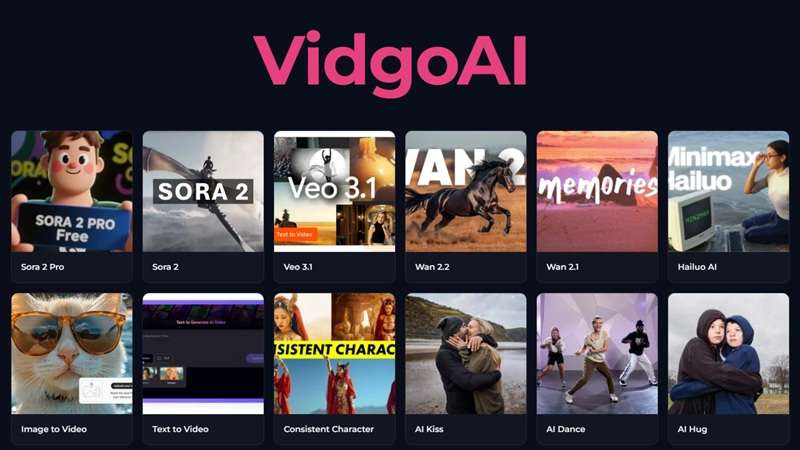
Accessing Vidgo AI
The platform is primarily a web-based service. There is no official Vidgo AI app to download on desktop or app stores right now. The process is pretty straightforward:
- Open Vidgo AI in your browser.
- Create or log in to your account.
- Choose a video, image, or other AI tool.
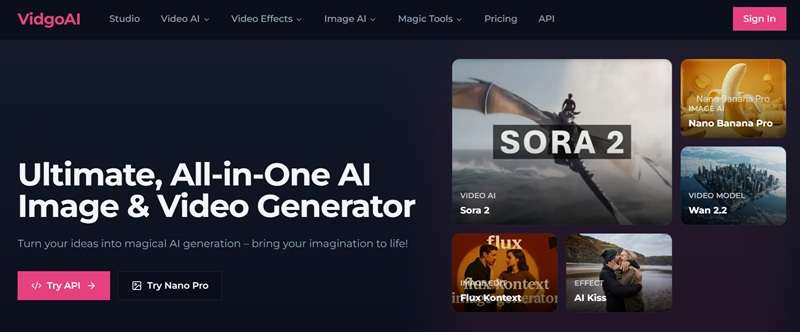
Exploring Vidgo AI API
For developers and tech teams building their own tools, the Vidgo AI API is a major highlight. The pitch is simple: one API key, one billing account, and consistent endpoints across dozens of models instead of separate contracts with OpenAI, Google, Kuaishou, and everyone else.
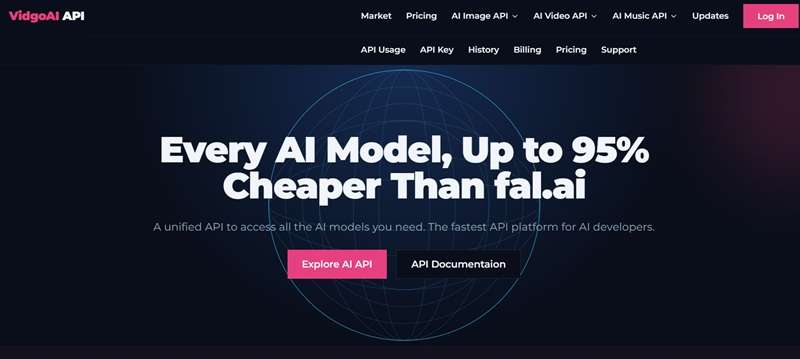
API usage is credit-based. For example, Sora 2 Official currently uses 48 credits for a 4-second generation, while Veo 3.1 pricing varies by speed, resolution, audio, and duration.
Part 2. Vidgo AI Video Generator: Key Features Explained
While the platform includes a massive suite of image creation tools powered by Nano Banana, Flux, and GPT-4o, most creators land on the site specifically for the Vidgo AI video tools. So, let's look at how the Vidgo AI video generator features perform when you throw your ideas at them.
1. Text-to-Video
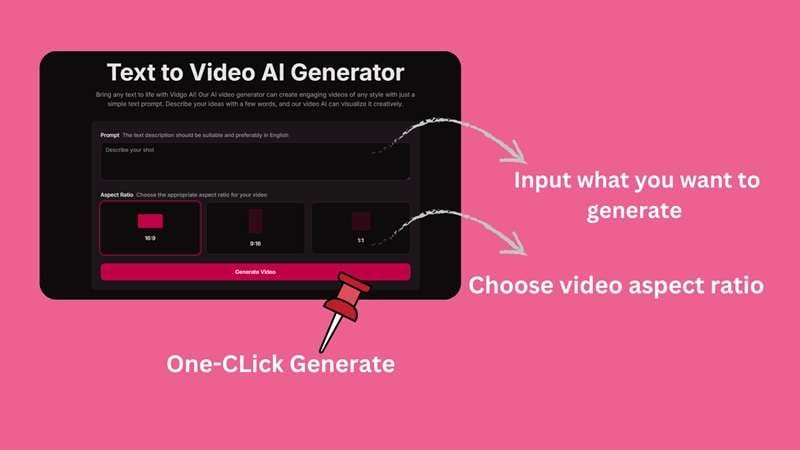
The Vidgo AI text-to-video feature lets you describe the scene you want and have AI generate a video from the prompt. You can pick your preferred backing model like Sora 2 or Wan 2.2, select your aspect ratio, and let the renderer build your clip from scratch. Basically, it's aimed at people who don't want to fuss with reference images and get results immediately.
2. Image-to-Video
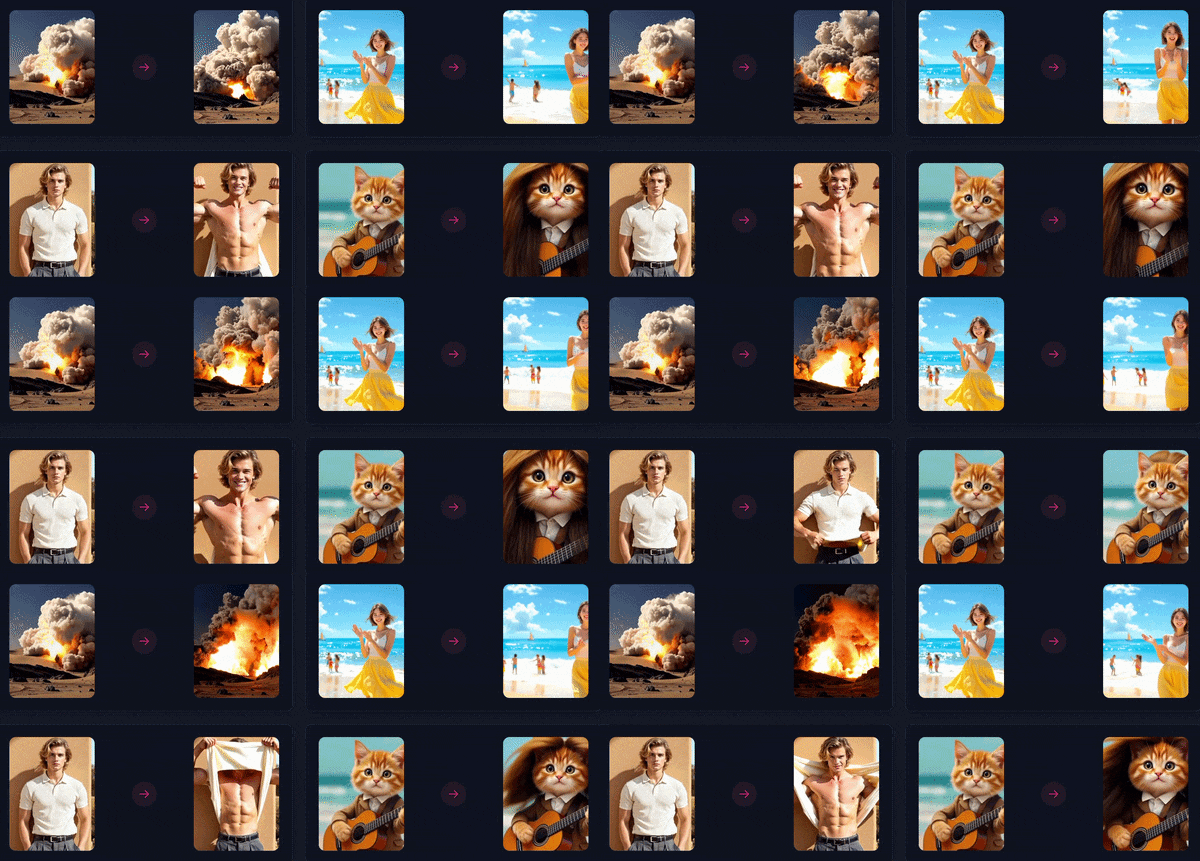
This is another method to create a Vidgo AI video. You upload an image and tell the AI what should happen. It's the workflow most product photos and personal photo animations go through, and it tends to hold up better than pure text-to-video because the model has an actual starting frame to anchor to instead of guessing everything from scratch.
3. Consistent Character Video Generator
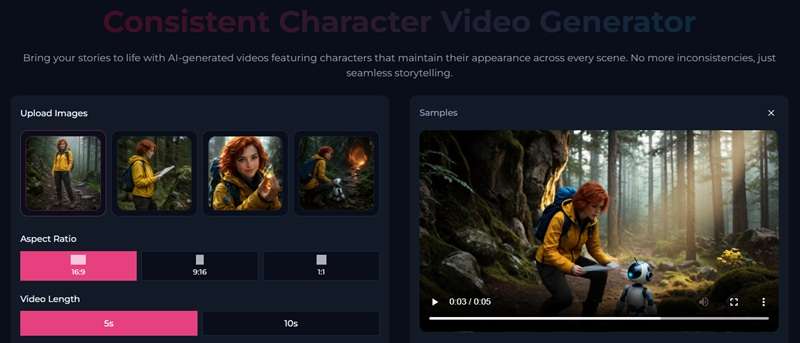
This one's aimed squarely at anyone trying to tell a story rather than make a single clip. You upload up to three reference images of the same character, set a length (5 or 10 seconds) and an aspect ratio, then describe what that character should do in the scene. The point is that the face, hair, and outfit stay recognizably the same shot to shot, instead of drifting the way a lot of pure text-to-video generators tend to.
4. Video AI Effects
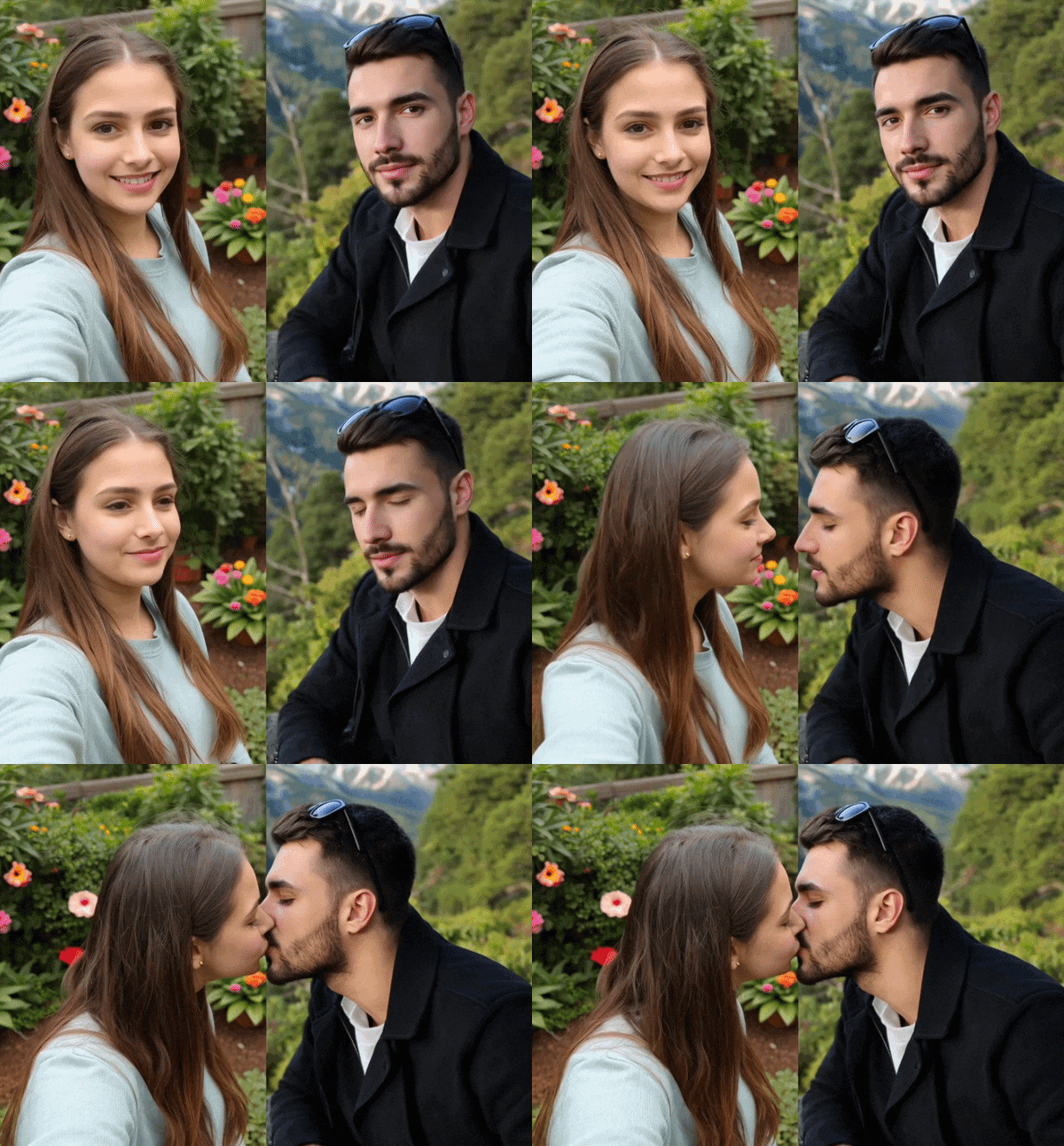
Beyond the standard generators, Vidgo runs a library of ready-made templates for unique effects. This is exactly where you'll find the Vidgo AI kissing video generator, alongside AI Hug, AI Dance, AI Muscle, AI Baby, and even an AI Hulk transformation. You just need to feed it two photos, pick the effect, and it handles the rest.
Part 3. Vidgo AI Pricing: How Much Does It Cost?
Unfortunately, there is no Vidgo AI free option, and Vidgo makes that clear early. The whole platform runs on a credit system, and once you register an account, you’ll only get 10 credits, which is not enough to test anything for video generation.
To actually use the platform for anything ongoing, you'll want one of the three subscription tiers: Lite, Pro, or Pro Max.
| Lite | Pro | Pro Max | |
| Monthly Price | $15 / month | $29 / month | $59 / month |
| Monthly Credits | 600 | 1,600 | 4,720 |
| Image-to-Video / Text-to-Video Clips | Up to 120 each | Up to 320 each | Up to 944 each |
| AI Effect Clips | Up to 60 each | Up to 160 each | Up to 472 each |
| Standard AI Images | Up to 600 | Up to 1,000 | Up to 4,720 |
| Simultaneous Tasks | 2 | 3 | 3 |
|
Show More
Show Less
|
|||
If a monthly subscription feels like overkill for occasional use, Vidgo AI also sells one-off credit top-ups:
- $19.99 for 600 credits.
- $39.99 for 1,600 credits.
- $69.99 for 4,720 credits.
That's a reasonable option if you just need one batch of clips for a single project rather than an ongoing subscription.
Part 4. Vidgo AI Strengths and Weak Spots
Vidgo AI has a lot going for it. The number of tools alone can make the platform look impressive at first glance. That said, no creative platform does everything perfectly. And weighing the good against the bad honestly is really the only way to know if it fits what you actually need it for.
- Plenty of AI Models Available: Sora 2, Sora 2 Pro, Veo 3.1, Kling, Wan 2.2, Hailuo, Nano Banana Pro, and Flux all live in the same tab.
- Developer-Friendly API: One key to access top-tier models with auto-refunds on error tasks makes backend integration smooth.
- Clean Web Workspace: The dashboard layout keeps model switching straightforward, so you spend less time configuring settings.
- Fun Viral Templates: The Vidgo AI kiss generator and hug tools deliver quick, entertaining social media clips with zero learning curve.
- Visual Inconsistencies: Complex physics, rapid hand movements, and intricate multi-person scenes can still produce weird warping artifacts.
- Strict Free Limit: That initial 10-credit allocation runs out almost instantly, forcing you onto a paid plan just to test real video outputs properly.
- Queue Waiting Times: Server processing speeds depend heavily on upstream provider load during peak hours.
- No Built-in Timeline: You can't edit clips together, layer text, adjust multi-track audio, or trim footage directly inside the platform.
Part 5. Want More Editing Control? Try Filmora Instead
Between the thin free-credit allowance and output quality that, honestly, isn't always a leap ahead of other platforms in the same price bracket, Vidgo AI doesn't quite land as the best all-around option out there. There are plenty of other AI video generators competing for the same space, and several of them hand you more control for the same money.
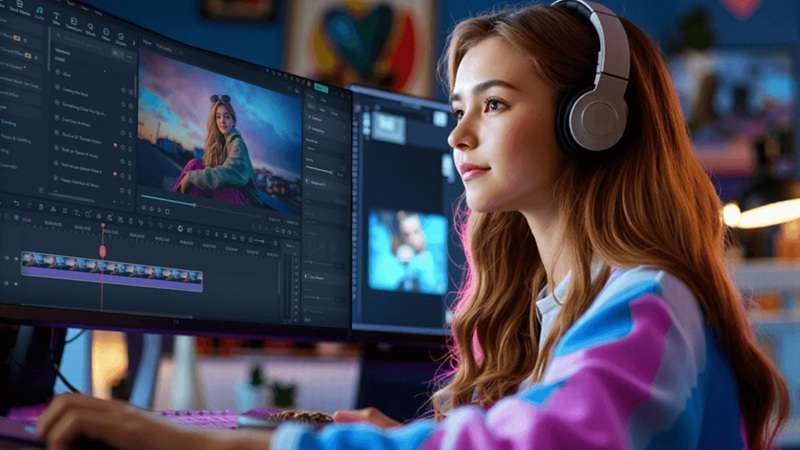
Beyond staying purely online, though, there's another route worth considering: a proper video editor that can generate AI content and edit it in the same place. Wondershare Filmora is the strongest option in that lane. It covers a lot of the same generative ground Vidgo AI does, but wraps it inside an actual editing suite instead of leaving you to assemble clips somewhere else.
Why Filmora Stands Out
1. Extend Your AI Clip With Ease
Filmora includes an AI video extender, so a clip that's too short doesn't mean starting over. It can extend existing footage forward by up to 5 seconds or backward by up to 8 seconds, using your original clip, a prompt, and the duration you choose.

2. Stitch Your Clips Inside the Timeline
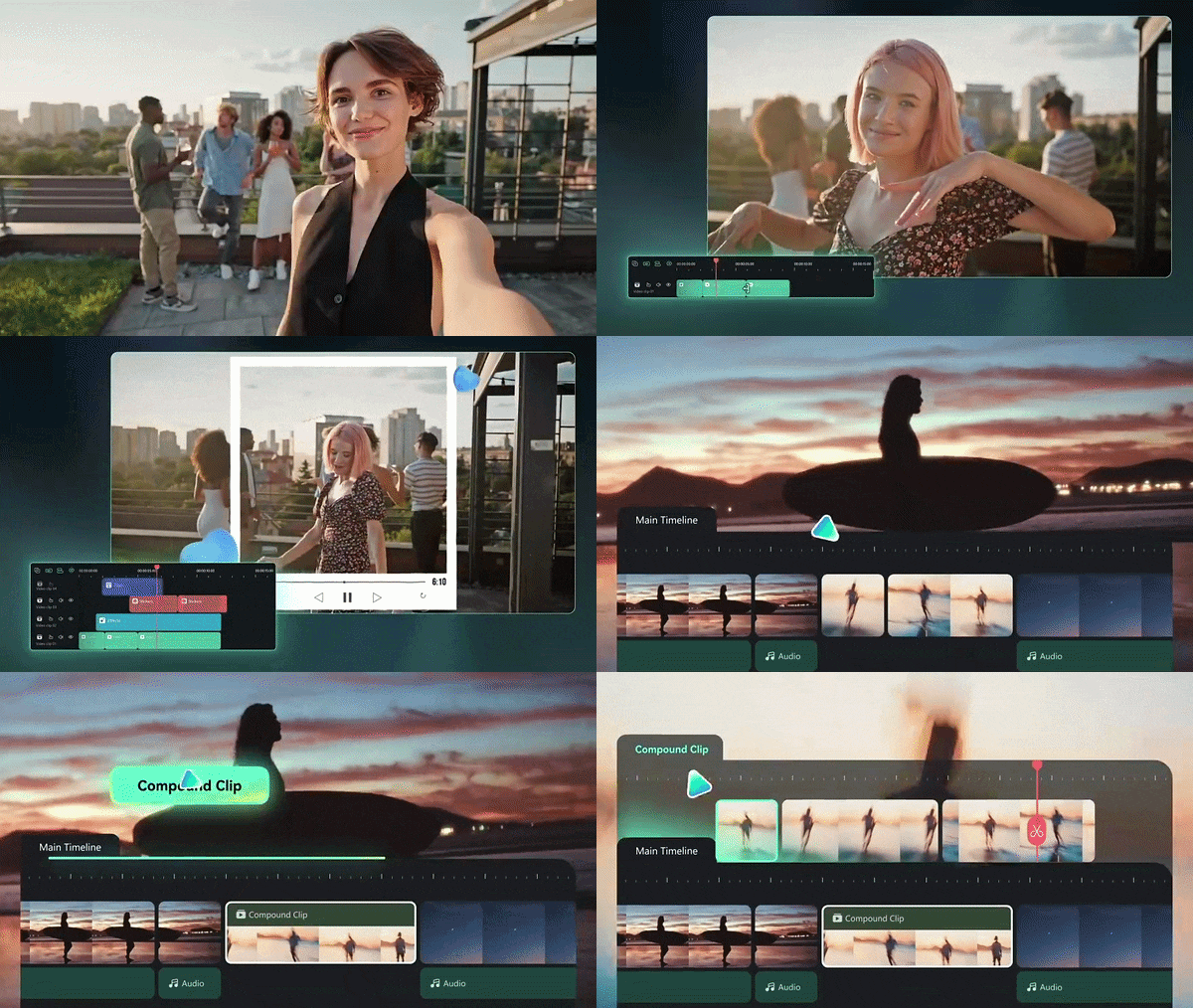
This is the part Vidgo AI genuinely can't do: once you've got a batch of AI-generated clips, Filmora lets you drop them straight onto a real timeline, trim, reorder, add transitions, and layer in your own audio, all without exporting to a third piece of software just to assemble the final cut.
3. More Creative Templates
Filmora doesn't stop at the basic AI kiss, AI hug, or AI baby effects. Its template library spans a much wider range of niches like entertainment clips, storytelling, travel videos, product content, and more.

4. Social Media Friendly Feature
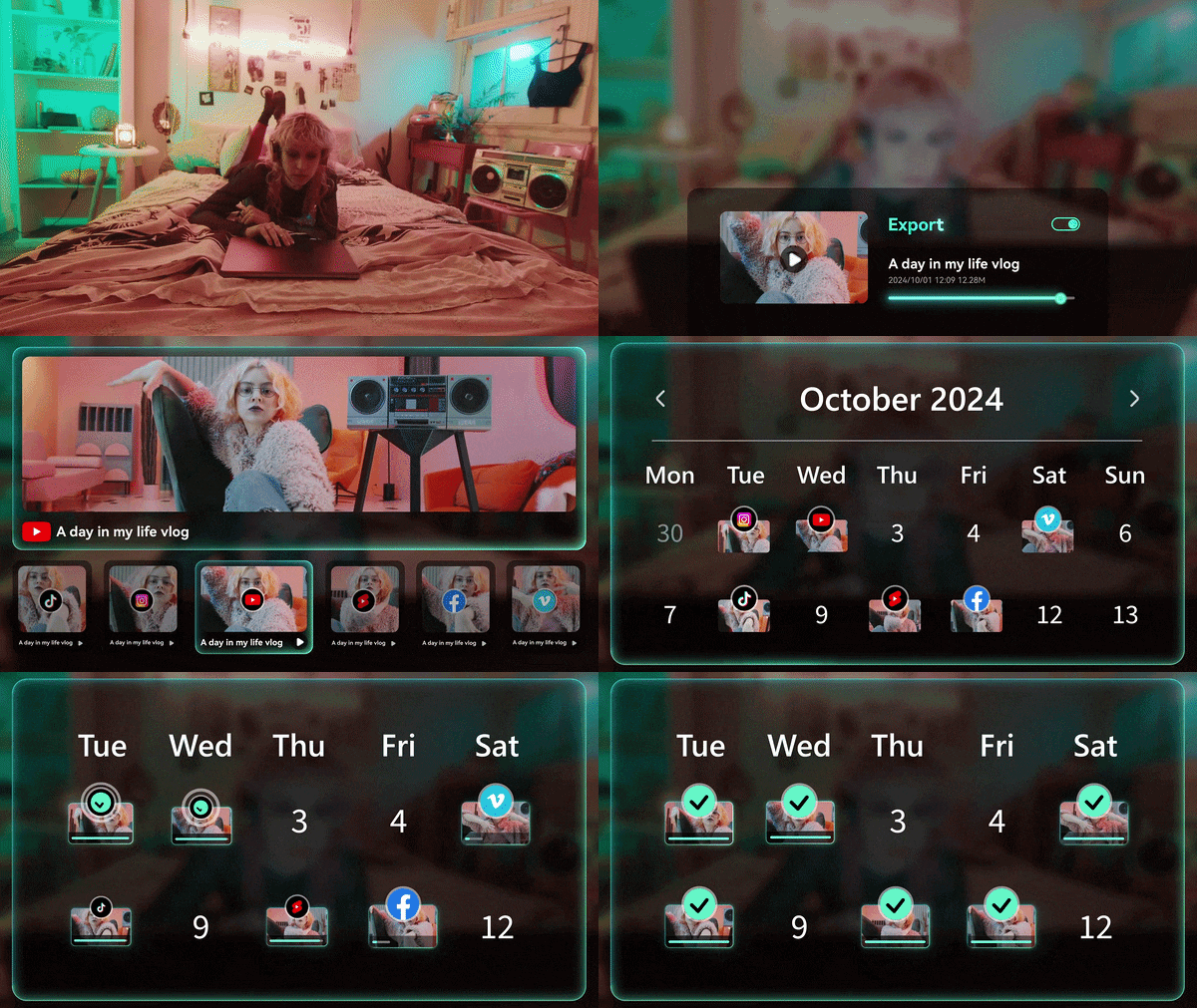
Filmora also leans hard into content built for platforms, not just clips built in a vacuum. An AI Social Content Planner to help map out what to post and when, an AI Thumbnail Maker for the still that actually gets the click, and AI Auto Reframe to reshape a single edit across 16:9, 9:16, and 1:1 without manually re-cropping every version.
 Secure Download
Conclusion
Vidgo AI offers a convenient shortcut for creators who want fast access to multiple high-end generative models without paying for half a dozen separate platform fees. Its unique effect generators and robust API make it a handy asset generator for quick visual drafts and social media clips.
However, clip generation is only half the battle. To turn synthetic raw assets into engaging content that captures attention, pairing your generations with a dedicated timeline editor like Wondershare Filmora gives you complete creative control. You get the freedom to trim, stitch, sound-design, and export fully polished videos ready for any audience.
FAQs
-
Can you regenerate a video without starting the prompt from scratch?
Yes. Vidgo AI keeps your project history, so you can reopen a past generation, tweak the same prompt or swap the reference image, and re-run it instead of retyping everything. It's a small thing, but it saves a lot of back-and-forth when you're chasing one specific shot. -
How does Vidgo AI handle credit refunds if a video generation task fails?
If a generation fails on Vidgo's end, the credits it would have used are refunded automatically. That's actually one of the more reassuring parts of using the platform, since some competitors quietly keep your credits even when the result is unusable. -
Does Vidgo AI replace traditional video editors like Filmora or CapCut?
No. Vidgo AI is built to generate raw asset files, isolated visual effects, and music clips. It lacks multi-track timeline editing, precise trimming tools, keyframing, and audio mixing capabilities. Dedicated video editors like Wondershare Filmora are still essential for stitching clips together and producing finished long-form videos.
