


 TL;DR:
Vmaker AI is a browser-based automated video editing platform best suited for marketers and social media creators prioritizing rapid, bulk generation of auto-captioned short clips over precise creative control.
● The Free tier acts primarily as a limited trial that enforces watermarks, a 720p resolution cap, and a 5-minute export limit, requiring an upgrade to the Starter plan at 24 dollars per month to unlock 1080p quality and extended usage.
● Because the automated workflow offers minimal multi-track timeline or pacing adjustments, achieving unique visual styles or precise transition timing requires exporting the AI-generated base video into a dedicated desktop editor like Wondershare Filmora.
● The software operates exclusively online without official downloadable client applications, meaning it requires a continuous internet connection to function and any third-party APK or mod files claiming to be Vmaker pose direct security risks.
Ask AI for a summary
 ChatGPT
 Perplexity
 Gemini
 Claude
 Grok
Grok
Video editing demands a surprising amount of time, even for short clips. Cutting footage, adding captions, syncing audio. By the time you're done, you've spent more time editing than the video actually runs.
Coming from this frustration, Vmaker AI presents itself as a faster way to create videos without getting stuck in that editing workflow. We’ll take an in-depth look at its performance, including its strengths, limitations, and whether it truly saves time or just simplifies the process on paper.
Part 1. What Is Vmaker AI and Who Is It Really For?
Vmaker is an online AI video creation and editing platform designed to turn raw recordings into finished videos with minimal manual work. Rather than dragging clips along the timeline, tweaking every cut, and second-guessing your transition choices, you mostly just give it your content and let it handle the rest. It trims, adds captions, polishes the result, and hands you something that already looks "done."
Those capabilities are exactly why Vmaker appeals to a specific kind of creator, including:
- Creators who post Shorts or Reels often. Speed matters more than perfect edits, and getting content out quickly is the priority.
- Marketers and social teams who need to turn one long video into multiple clips for different platforms without re-editing everything.
- Educators and trainers who just want clear, easy-to-follow videos. The output is clean and usable without spending hours on editing.
Part 2. Core Features People Actually Search For
Once you move beyond the concept of "AI editing," what matters most are the features people actually use. If you are someone who just wants faster ways to add captions, cut clips, or improve video quality, you may find Vmaker easy to work with right away. It focuses on simple tools that can handle those tasks quickly without requiring much manual effort.
AI Video Editor
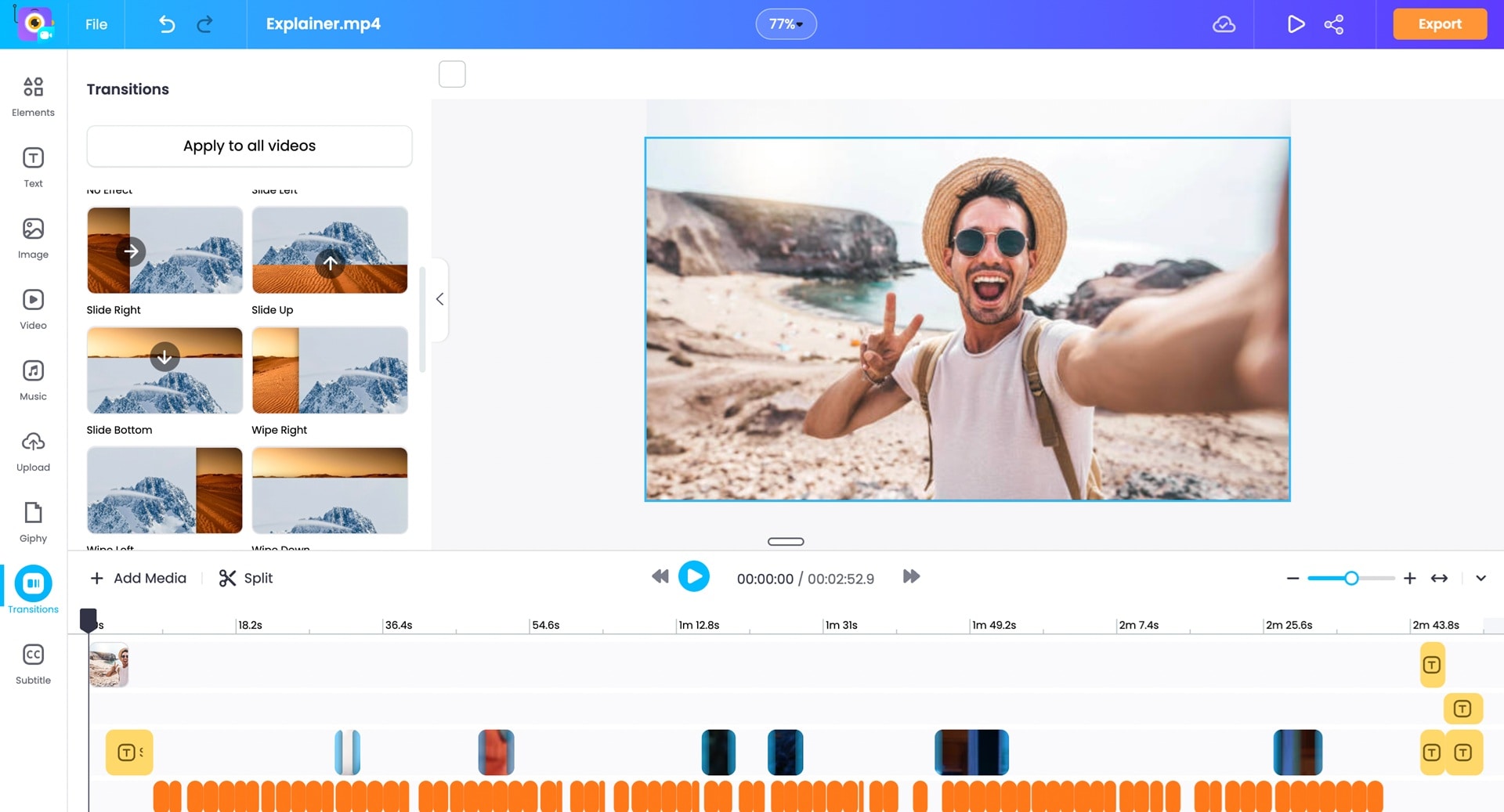
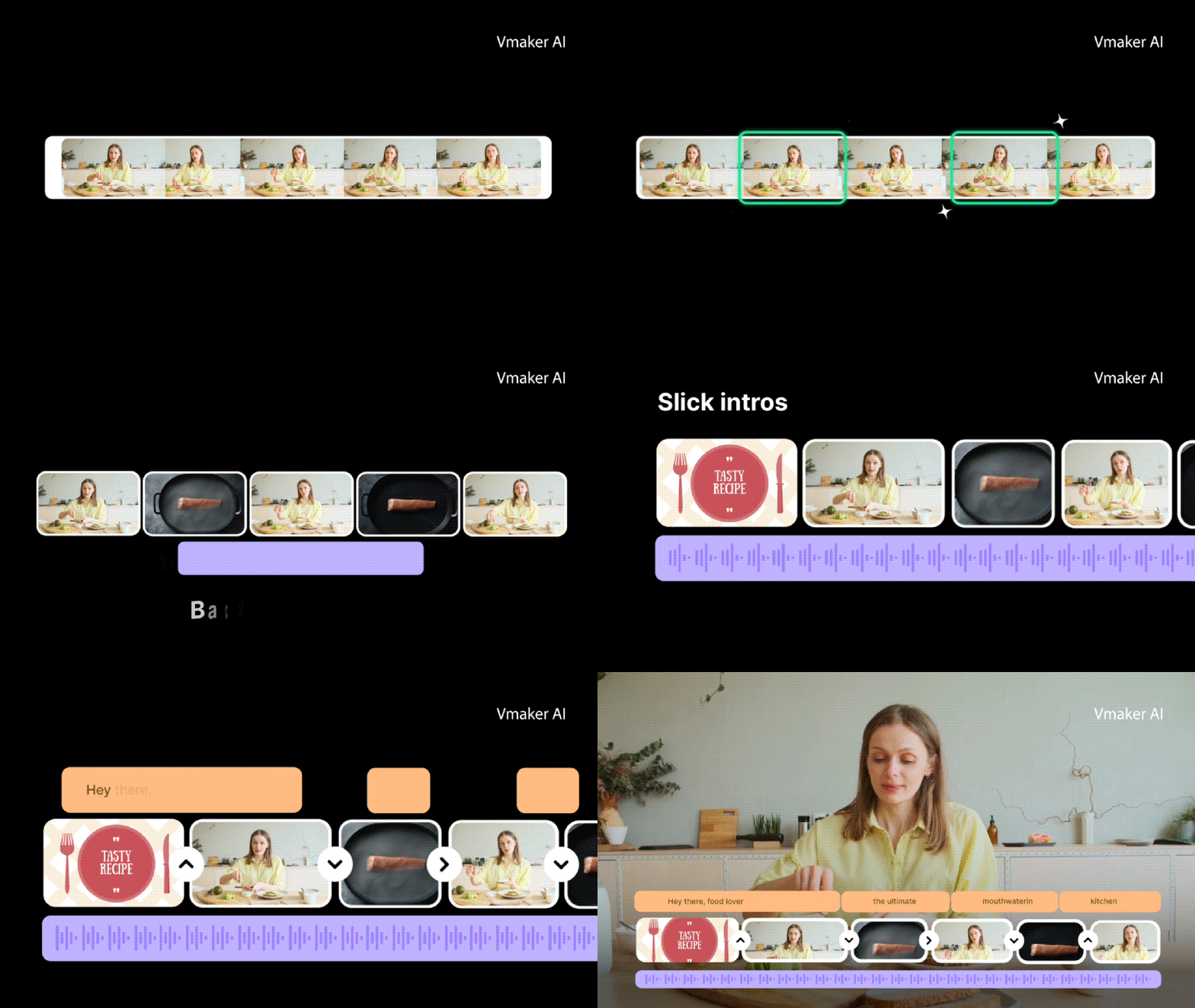
This is the main reason people try Vmaker in the first place. Instead of starting from a blank timeline, the platform automatically creates a rough cut of your video so you don’t have to start from scratch. Vmaker AI editor lets you:
- Automatically trim clips and removes pauses
- Add basic transitions between scenes
- Minimal timeline editing, more "review and tweak" than full control
Subtitle Generator
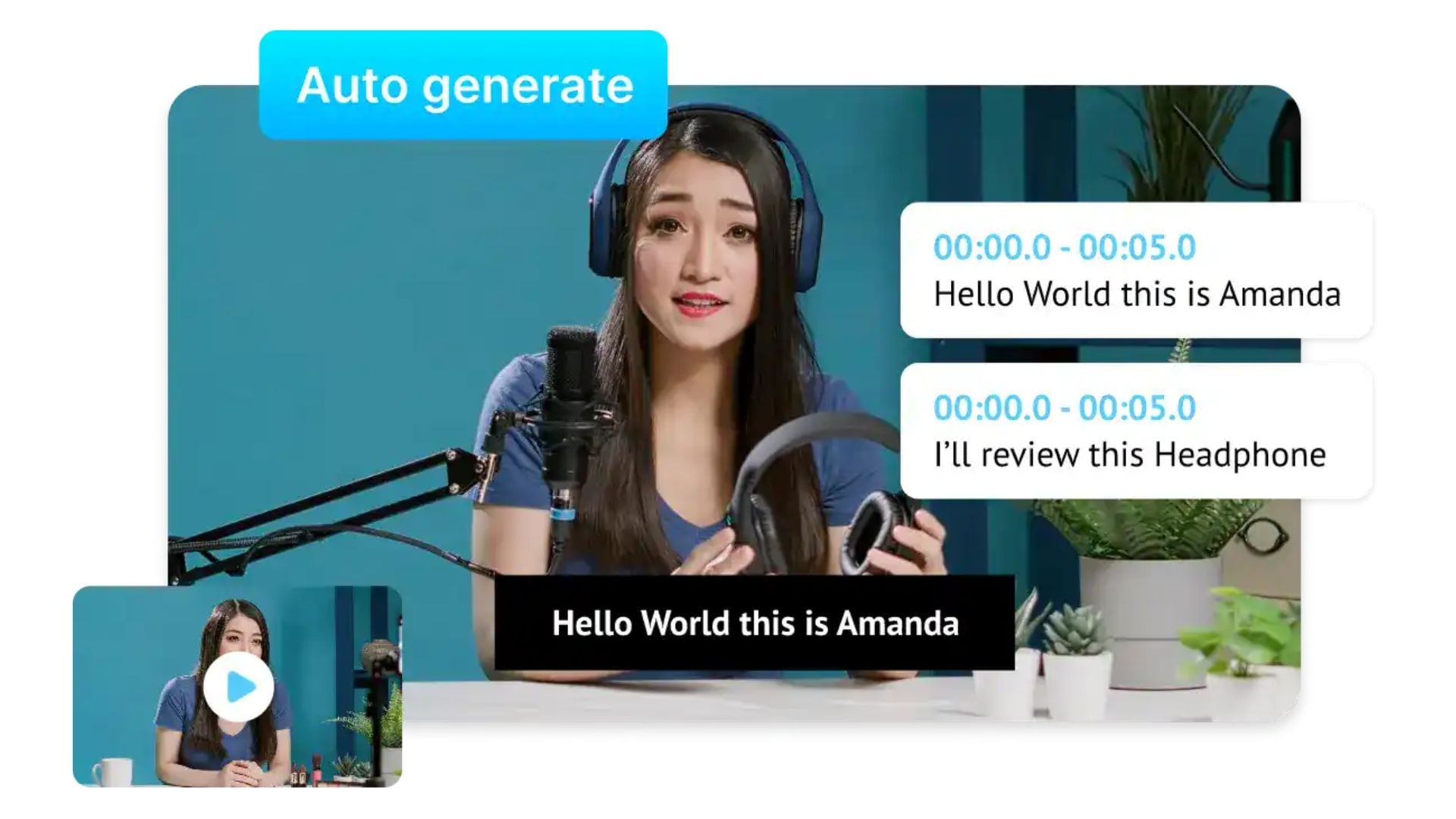
Subtitles have become a must-have, especially for short-form content. Vmaker AI Subtitle Generator focuses on generating subtitles quickly and conveniently without extra steps.
- Auto-generates captions from your video
- Supports multiple languages for wider reach
- It lets you export subtitle files (SRT/VTT)
- Speeds up content for platforms where sound is often off
Video Generator
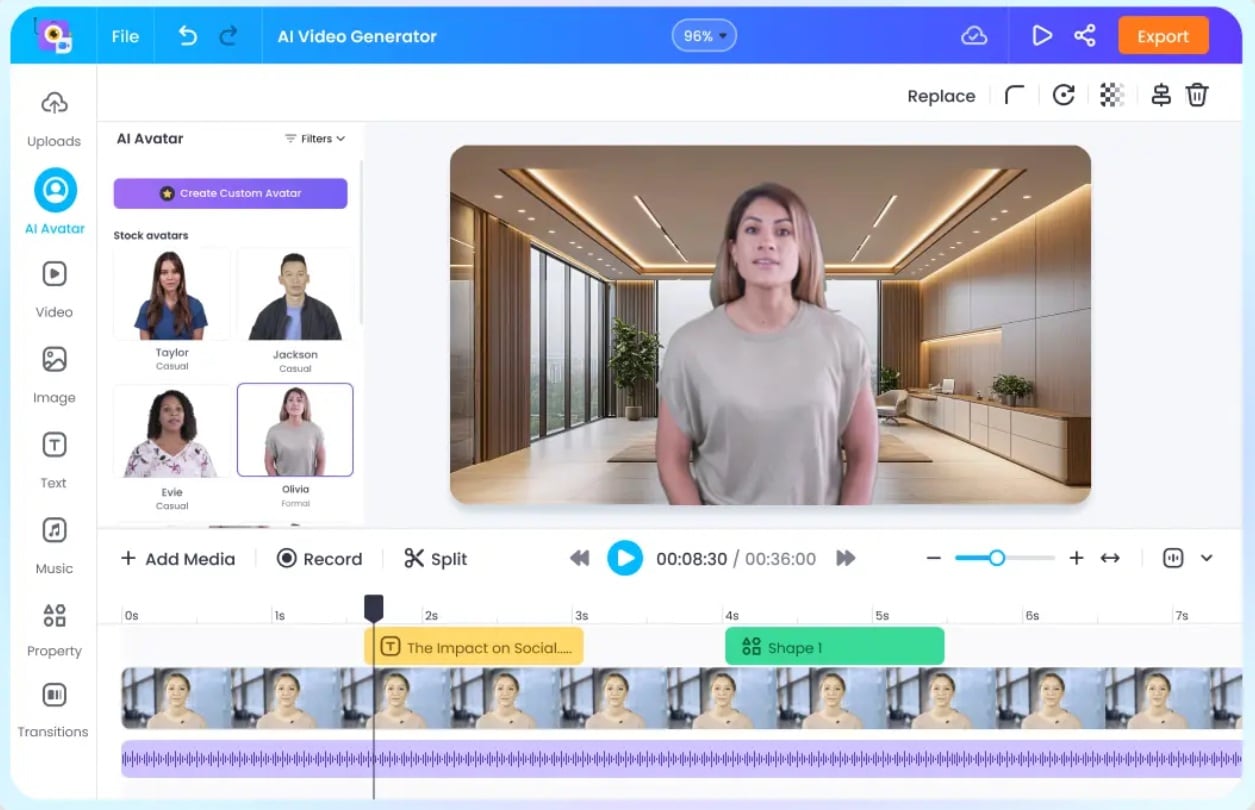
Vmaker AI video generator feature leans more toward content creation than traditional editing. You can start with an idea and let AI develop it to create human-like AI videos in over 120 languages.
- Turns prompts, scripts, or documents into videos
- Includes AI avatars for presentation-style content
- Adds voiceovers automatically
- Useful for explainer videos or quick marketing content
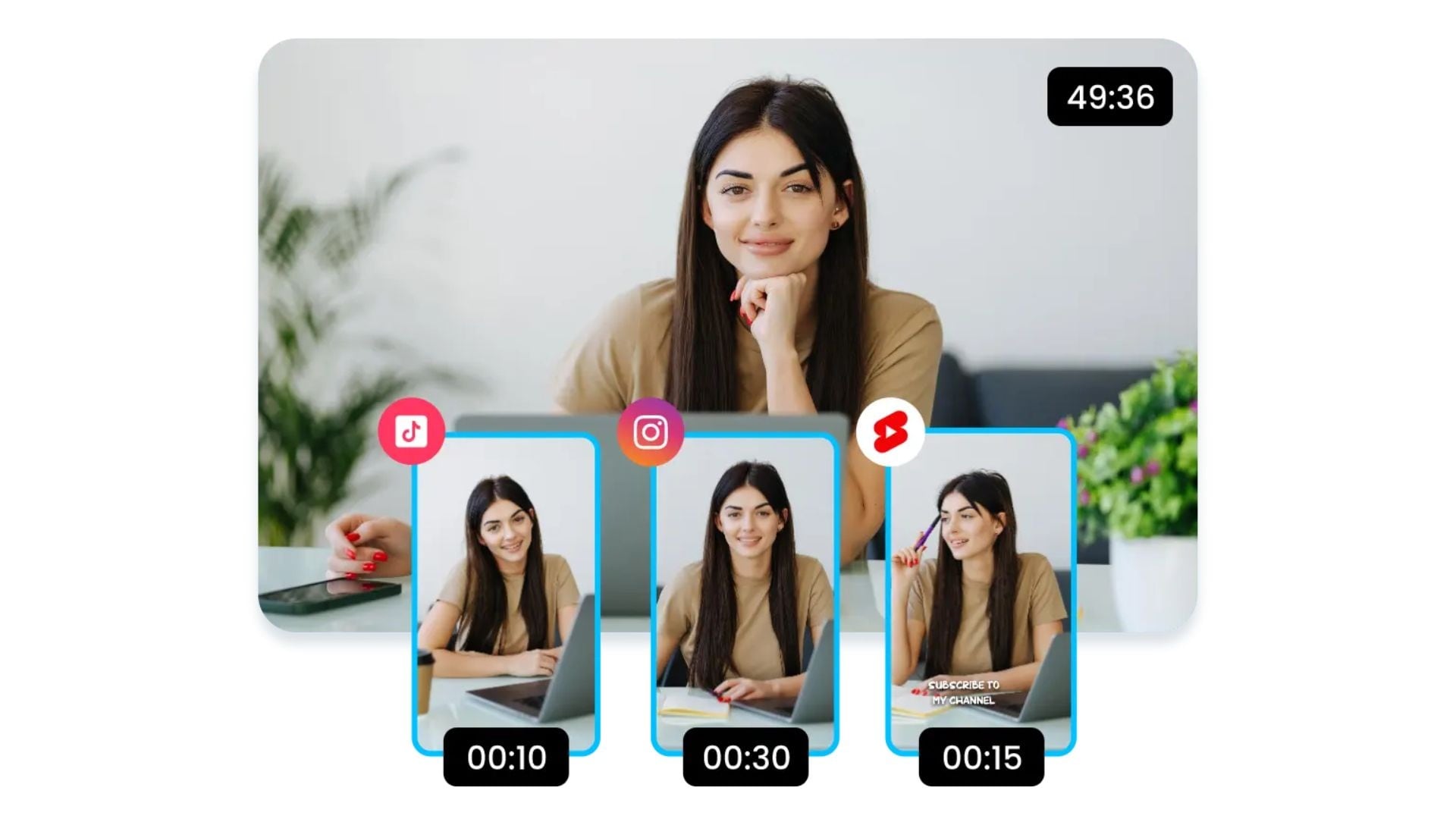
Clip Maker
Built for repurposing, this feature focuses on turning longer content into short, shareable clips without manually re-editing everything.
- Converts long videos into short-form clips
- Identifies key moments automatically
- Optimized for platforms like Reels or TikTok
- Saves time when creating multiple pieces of content
Video Enhancer
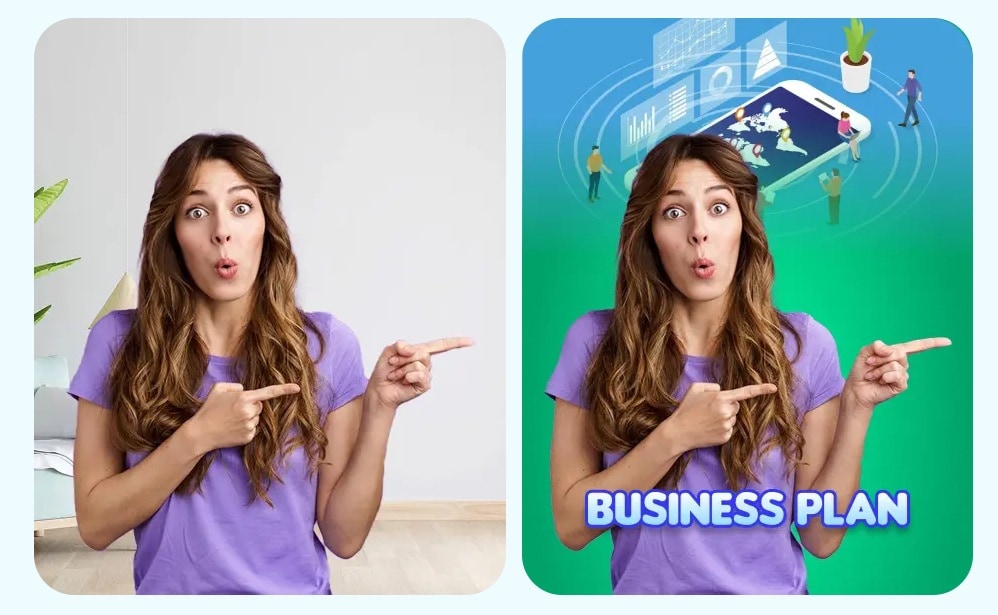
Vmaker AI Video Enhancer provides quick quality enhancement when your footage looks dull, but you don’t want to spend time polishing it. It automatically improves the overall look while adding a few key elements to make the video feel more complete:
- Branded intro and outro with text titles
- Background music that’s synced to the pacing of your video
- Relevant B-roll clips to support your message
- GIFs, stickers, and animated visuals to add a bit more personality
Part 3. How Vmaker AI Works in Real Use
Using Vmaker is straightforward by design. Everything works on browsers, and there’s no need for Vmaker AI download. You just need to pick the tool you need, whether that's the AI video editor, subtitle generator, or the clip maker feature, and start from there.
The general workflow goes like this:
- Upload your video or enter a text prompt
- Let the AI process and edit automatically
- Review the output and make minor adjustments if needed
- Download the final video
Most users can go from raw footage to a finished clip in a few minutes, which is genuinely useful when you're working on volume. The interface is also beginner-friendly, so even first-time users can get usable results right away.
Vmaker actually holds a pretty solid 4.7 out of 5 on G2, with reviewers frequently highlighting the automatic captions as the biggest time-savers. But does the speed come at the cost of quality?
Where the Workflow Feels Limited
Often, faster workflows mean some trade-offs. The AI handles basic edits well, but it doesn’t always make the most accurate decisions. Because the editing is automated, the results can feel a bit predictable when you are using it to edit and create videos.
There are a few things worth keeping in mind:
- Edits follow a similar pattern, so videos may look similar. If you're producing a lot of videos through Vmaker, don't be surprised if they start feeling interchangeable after a while.
- Limited control over timing, pacing, and transitions. There are not many options to fine-tune how scenes flow or adjust cuts with precision.
- It’s harder to refine details or add a personal style. Things like branded intros, specific color grading, or a particular editing rhythm are difficult to achieve consistently through the platform alone.
- Not ideal if you want something more polished or unique. Vmaker has that "distinct" look and editing style that can become noticeable, especially if you’re using it often.
It works best when "good enough" is actually enough. For those who need more control over the final result, a common approach is to bring the export into a dedicated editor like Wondershare Filmora for the finishing touches.
Polishing the Final Output with Wondershare Filmora
Filmora gives you the manual control that Vmaker doesn't. Once you have your base video exported from Vmaker, you can import it into Filmora and work on the details that the AI missed or got slightly wrong.
Some of the things you can do with Filmora include:
- Create or add extra footage with better visual quality
- Adjust timing and pacing with full multi-track timeline control
- Replace or fine-tune cuts, transitions, and scene flow
- Improve visuals using color correction tools like HSL, curves, and LUTs
- Clean up audio, balance levels, or swap in better music
- Add more accurate captions, titles, or branding elements
- Use effects, overlays, and keyframes to create a more distinct style
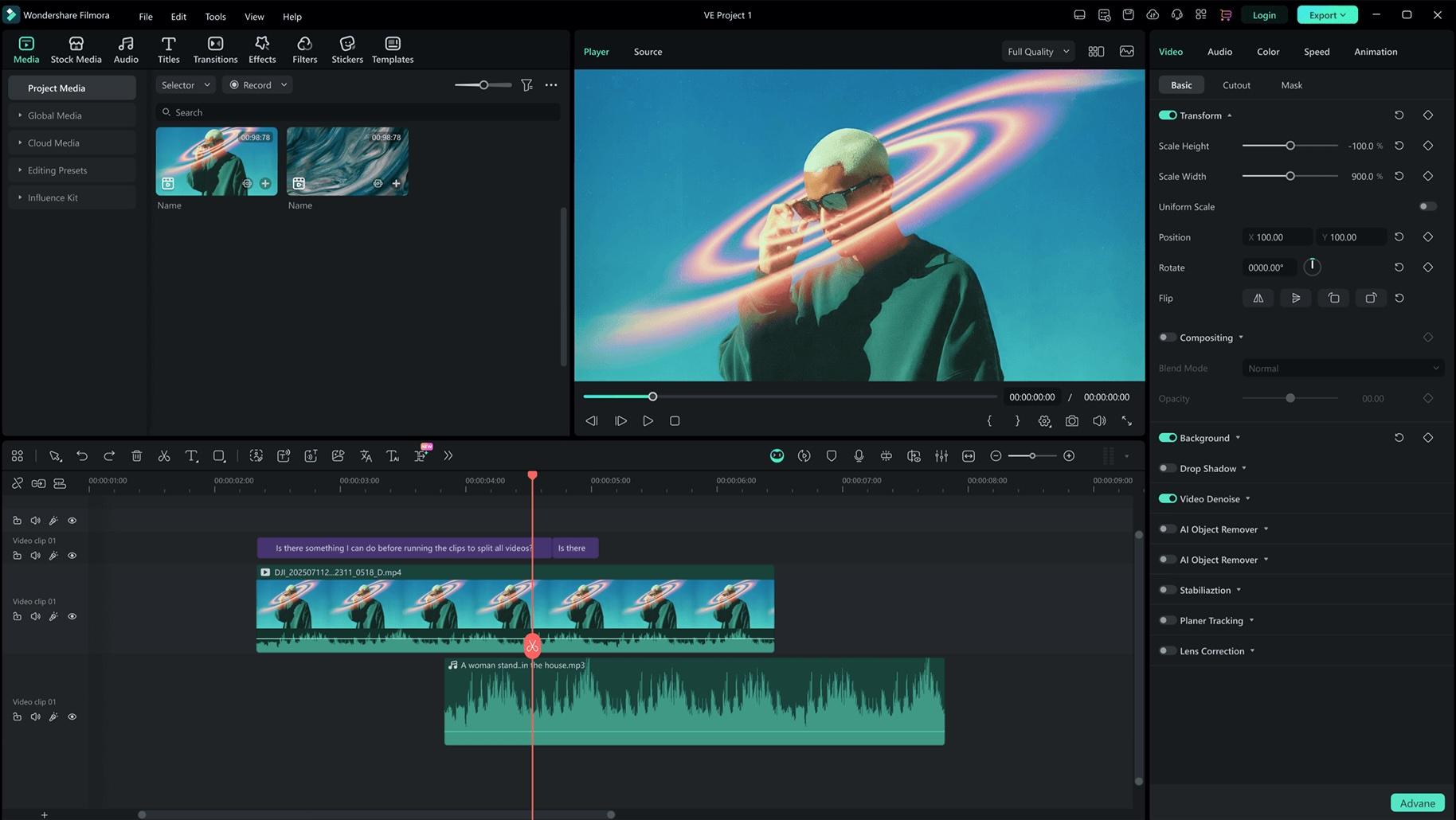
The workflow is pretty simple:
- Export the video from Vmaker as a base version
- Import it into Filmora for manual adjustments
- Adjust cuts, timing, and pacing
- Add custom transitions, effects, or more detailed edits
This way, you get the best of both worlds: fast AI-generated content that’s produced quickly, along with the option to refine it into something more structured and polished.
 Secure Download
Part 4. Pricing Breakdown: Is Vmaker AI Actually Free?
Across its website and product pages, Vmaker often promotes itself as a free AI video tool. Vmaker does offer a free plan with 5 credits to try its AI feature, but it’s more of a trial experience than something you can rely on long-term.
For the paid plans, they are split into two main tiers: Starter and Teams. There’s also an Enterprise plan for larger organizations that need custom pricing, higher usage limits, and more advanced controls.
Vmaker Pricing Plans (2026)
| Feature | Free | Starter | Teams |
| Price | $0 | $24/mo or $216/yr | $39/mo or $300/yr |
| Export Quality | 720p | 1080p | 2K |
| Video Limits | - | 10/mo | 30/mo |
| Export Length | 5 mins | 30 mins | 45 |
| Auto Subtitle | 20 mins/mo | 60 mins/mo | 120 mins/mo |
| Subtitle Translation | 40 mins/mo | 60 mins/mo | |
| AI Avatar Generative Credits | 0 | 36 mins/yr | 144 mins/yr |
| Watermark |
Part 5. Vmaker Pros and Cons
By this point, the pattern is pretty clear. Vmaker is built for speed as the top priority, followed by control. That works really well in some situations, and not so much in others.
- Saves a noticeable amount of time, especially for short-form content
- Very easy to use, no steep learning curve
- Handles repetitive tasks like captions and basic edits automatically
- Useful for repurposing long videos into multiple short clips
- All-in-one setup, you don’t need multiple tools to get started
- Limited control over detailed editing decisions
- Output can feel repetitive or "template-like."
- Not ideal for storytelling or more creative projects
- The free plan becomes restrictive quickly
- Requires an internet connection since everything runs online
It’s not about whether the tool is good or bad, but rather what you expect from it. If your priority is speed and consistency, it does its job well. If you’re looking for precision and creative flexibility, the limitations become more noticeable.
Part 6. Is Vmaker AI Safe and Worth Trusting?
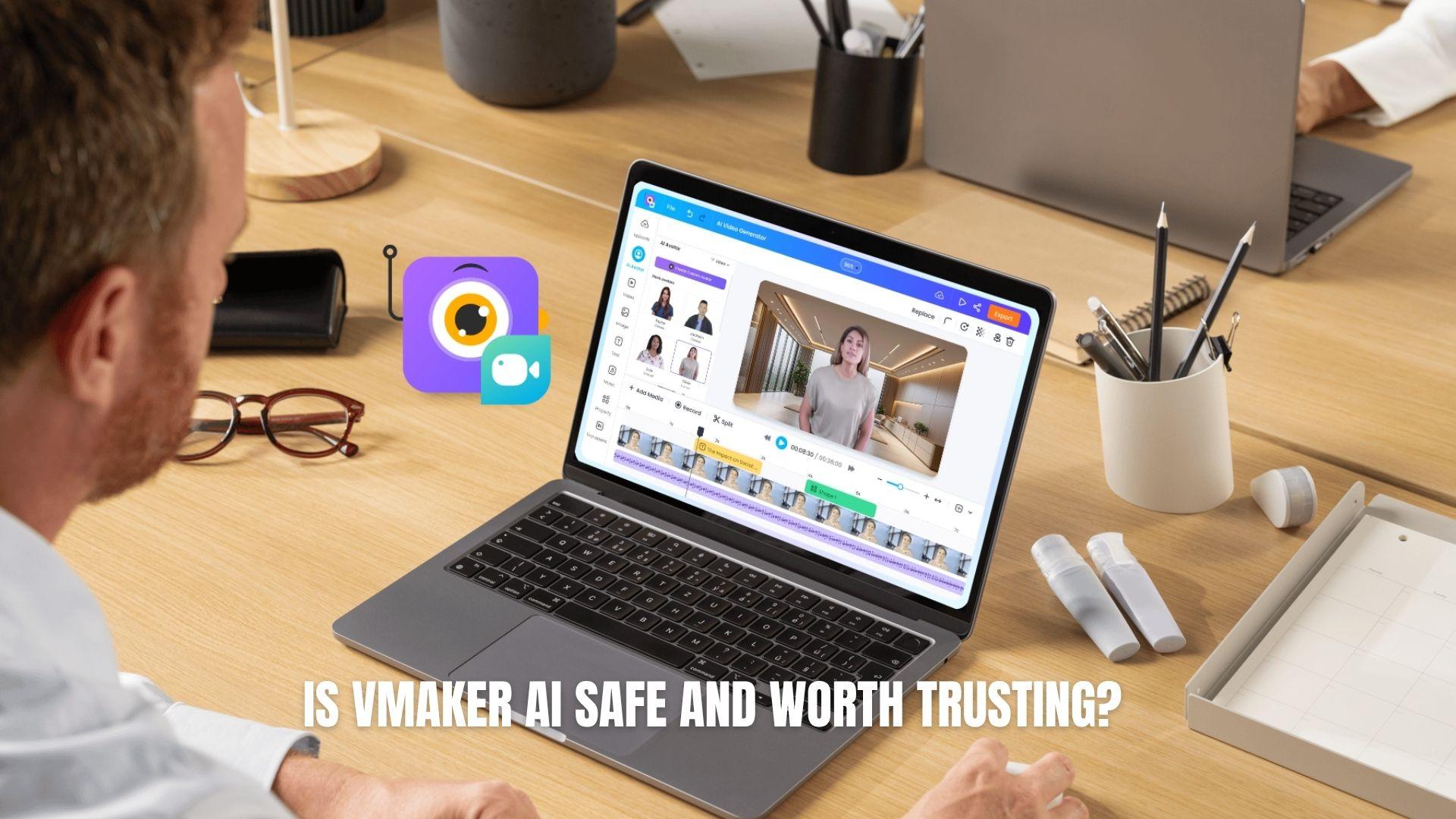
Before relying on any AI tool, it’s natural to question how safe and reliable it really is. With Vmaker, there aren’t any major security concerns, but there are still a few things worth understanding before you fully commit.
Platform Legitimacy
Overall, Vmaker is a safe and legitimate tool when used through its official platform. Most concerns relate more to expectations than to security. As long as you understand its limitations and avoid unofficial downloads, it’s a reliable option for quick, AI-assisted video creation.
- Operates through an official website
- No need to install risky third-party software
- Has an active and growing user base
- Receives regular updates and improvements
Important Warning
Avoid unofficial APK or "mod" downloads. Vmaker works entirely online and relies on its own servers to process videos. These versions are unverified and may pose security risks.
Conclusion
In the end, Vmaker does exactly what it promises, just not in the way some might expect. It’s fast, convenient, and truly helpful when you need to turn ideas into content without getting stuck in the editing process. But that speed comes with trade-offs. You gain efficiency, but give up a level of control and uniqueness.
For quick videos, repurposed clips, or consistent uploads, it fits naturally into the workflow. For anything more detailed, it works better as a starting point than a final solution. If you treat it as a tool to speed things up, not a replacement for creativity, it makes much more sense.
FAQs
-
Is Vmaker free to use?
Yes, Vmaker offers a free plan, but its features are limited. You can create videos, generate subtitles, and test features, but things like export quality (720p), usage limits, and credits are restricted. -
Does Vmaker AI actually edit videos automatically?
Yes, that’s its main purpose. Vmaker uses AI to cut clips, add captions, and apply basic edits automatically, turning raw footage into ready-to-post videos with minimal effort. -
Can Vmaker AI replace professional video editors?
Not really. It’s great for speed and simple content, but it doesn’t offer the level of control needed for detailed or cinematic editing. It works better as a quick editing tool rather than a full replacement. -
Is Vmaker AI safe to use?
Yes, Vmaker is safe to use through its official platform. Vmaker does not require risky downloads, but you should avoid unofficial APK versions or "mods," as these can pose security risks.
