

 TL;DR:
YouCam AI is a fast, automated web and mobile generator best suited for social media creators producing short, trendy video clips, while professionals requiring precise timeline control for vlogs and podcasts should opt for Wondershare Filmora.
● YouCam AI integrates multiple models like Vidu 2.0, Google Veo 3, and Sora 2 for image-to-video generation and upscales videos up to 4K from files under 500MB, but the outputs can be inconsistent with text prompts and lack detailed manual adjustment options.
● The free tier applies watermarks and severely restricts generation, requiring users to upgrade to Pro plans starting at $5.83 per month on the web to obtain commercial use rights, alongside purchasing extra generative credit top-ups starting at $29.99 for 100 credits.
● Wondershare Filmora provides a comprehensive alternative with dedicated desktop software for Windows and macOS, dual-monitor editing, keyframing, and an automated social content planner, making it strictly better for structured, multi-track video projects.
Ask AI for a summary
 ChatGPT
 Perplexity
 Gemini
 Claude
 Grok
Grok
With a simple prompt or a photo, AI can turn your idea into something ready to post. It's one of the reasons many creators can keep their social feeds active without spending hours editing.
One tool people often talk about is YouCam AI. It's gained serious traction recently. In fact, Yahoo Finance reported that by 2025, users across the YouCam ecosystem had created nearly 200 million AI-generated images and videos. That sounds impressive, but the real question is simple: does the quality actually live up to the hype?
In this comprehensive YouCam AI review, we'll dive into the platform's latest 2026 updates. We'll put the YouCam AI image to video feature to the test in a professional social media workflow, break down the YouCam AI pricing, and compare it with pro-level editors like Filmora.
Part 1. What is YouCam AI? Key Features for AI Video & Photo Generation
Developed by Perfect Mobile Corp, YouCam AI is a tool that allows users to edit photos and generate videos quickly. You can access it on the web, iOS, and Android. The platform actually offers quite a lot of features, and in the mobile version, some tools are even separated into different apps.
Below are some of the main things you can do with YouCam AI.
YouCam AI Photo Enhancer

Whether you need to fix a blurry selfie or upscale a professional shot, the YouCam AI Photo Enhancer uses advanced algorithms to restore clarity. It stands out as a top-tier AI image upscaler for creators who need high-quality assets quickly. It works for blurry old photos, low-light images that look noisy, or portraits that don't turn out perfectly. With YouCam AI, the tool automatically restores the image and makes it look clearer, sharper, and more refined.
To save time, you can batch enhance up to 50 photos at once. You can also bring old black-and-white photos to life by turning them into full color using YouCam AI Photo Colorizer.
YouCam AI Video Generator

With YouCam AI Video Generator, you can transform text prompts and still images into dynamic video clips. The platform offers several AI models, including Vidu 2.0, Google Veo 3, Sora 2, Hailuo 02, Kling 2.5 Turbo, and Seedance, so you can experiment with different video styles.
For even faster creation, there are also ready-to-use video templates that help you produce content quickly without starting from scratch.
YouCam AI Video Enhancer
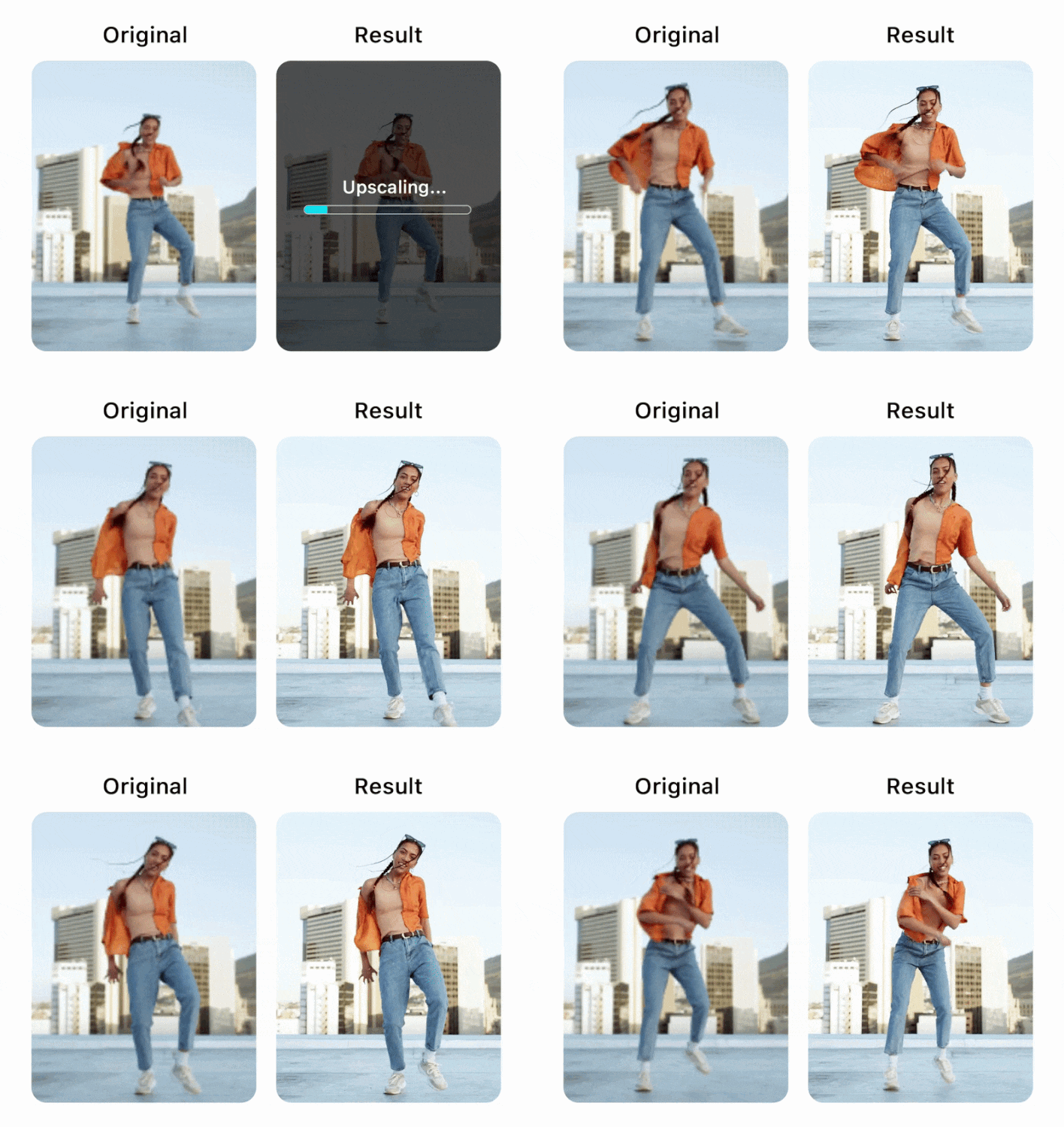
No need to worry about blurry, grainy, or dark videos anymore. YouCam AI Video Enhancer analyzes your footage and improves those imperfections automatically. Simply upload an MP4, MOV, or M4V file up to 500MB, and the AI can upgrade the video from HD to 4K.
Also, YouCam enhanced AI improves visual details while keeping skin textures natural. The result is a sharper, smoother video that feels more polished, so you don't have to throw away usable footage.
Part 2. How to Use YouCam AI for Social Media Content (Step-by-Step)
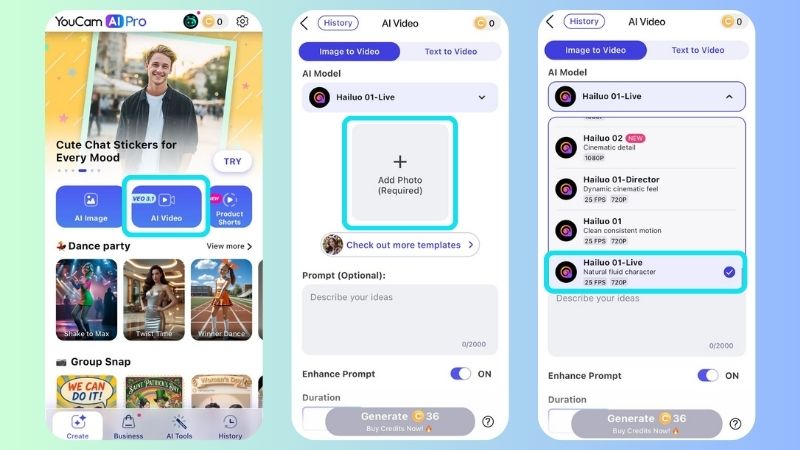
To see how it actually works, we decided to test the YouCam AI Image to Video workflow for TikTok and Instagram Reels. The platform offers two options: prompts and templates.
If you want to customize the final result or match the video with your own style, you can write your own prompt. But if you prefer something quicker, the templates are there to help you create videos based on popular formats without thinking too much about the details.
Let's take a look at how to use YouCam AI on your phone.
Create a Video with Image and Prompt
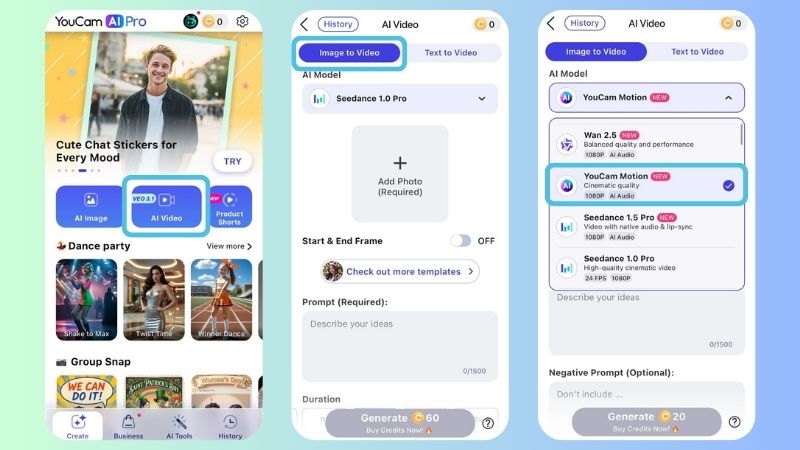
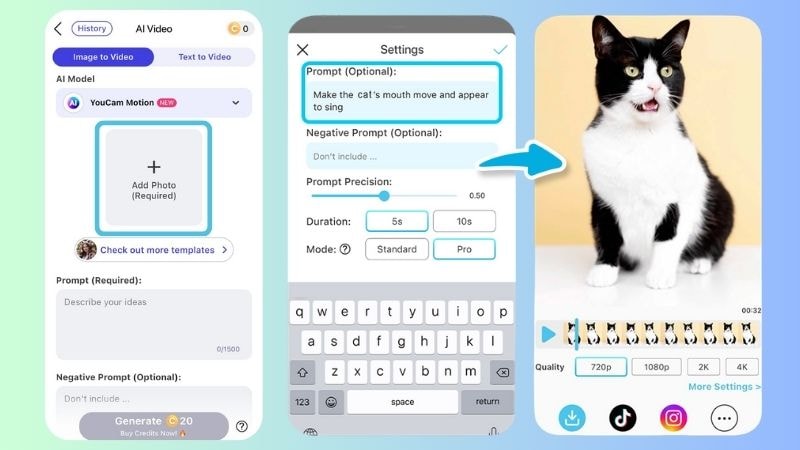
In just a few steps, YouCam AI Video Generator will create your video. Once it's ready, you can post it on TikTok, Instagram Reels, or YouTube Shorts.
Create a Video with a Template
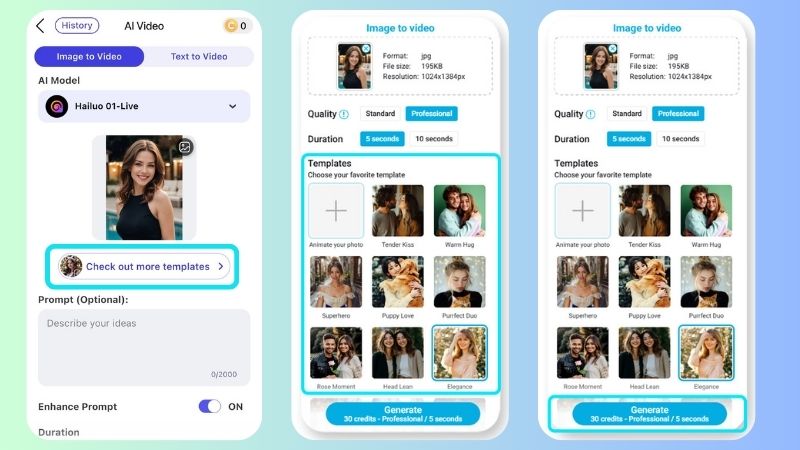
The AI generates the video quickly, so you don't have to wait long to see the result. Here's how the final video looks.

As you can see, from the image we uploaded, YouCam AI Image to Video turns a still photo into something more lively. The original picture only shows a smile, but the generated video adds small movements like blinking and soft hair movement. The animation feels smooth and not overdone, making it perfect for posting beauty portrait selfies on your social media.
Part 3. Is YouCam AI Worth It? Pros and Cons In-depth Analysis
So far, we've explored what YouCam AI can do and tested how it works in a real workflow. The next question is whether it's actually worth using. To find out, let's take a look at the subscription plans. We'll also review the strengths and drawbacks of YouCam AI to help you decide if it's the right tool for your needs.
How Much Does YouCam AI Cost?
In YouCam AI, some tools are limited by how many times you can use them, while others require credits. That's why the platform has two types of payment options: subscriptions and one-time purchases.
That's why the platform has two types of payment options: subscriptions and one-time purchases. Meanwhile, the one-time payment is mostly used to buy extra credits for AI generative features.
YouCam AI has different pricing plans for its online and mobile versions. If you're planning to subscribe, it's worth considering which one you'll use more often. This can help you choose the option that's more worth it for your needs.
YouCam AI Pricing Plans for Web
To make it easier to understand, here's a quick overview of the free plan limitations and the benefits included in each plan.
| Tool | Free | Plus | Pro |
| Price | No cost | Starts at $3.33 per month | Starts at $5.83 per month |
| Credits | 5 credits for first-time sign-ups | 100 credits per month | 300 credits per month |
| AI Photo Enhancer | 2 times/day | 5 times/day | Unlimited |
| AI Photo Colorizer | 3 times/day | Unlimited | Unlimited |
| AI Image to Video | Not enough credit | Ranges from 8–320 credits per video | Ranges from 8–320 credits per video |
| AI Video Enhancer | 10 seconds | 200 seconds | 600 seconds |
| Batch Editing | No | ||
| Watermark | |||
|
Show More
Show Less
|
|||
As you can see, even the credits included in the YouCam AI paid plans are still limited if you plan to use the generative tools frequently.
So, if you want to create more AI-generated content, you can purchase additional credits through a one-time payment. It starts from $29.99 for 100 credits, which can be used within one year.
YouCam AI Pricing Plans for Mobile Apps
If you want to generate AI content directly from your phone, you can also purchase extra credits. The price starts from $7.99 for 45 credits and goes up to $119 for 2000 credits.
If you prefer recurring plans, see the table below.
| Tool | Free | Plus | Pro |
| Price | No cost | Starts at $6.99 per week | Starts at $9.99 per week |
| AI Photo Enhancer | Once per day | Once per day | 200 times per day |
| AI Image to Video | 1 video | Ranges from 5–240 credits per video | Ranges from 5–240 credits per video |
| Watermark |
The mobile version of YouCam AI comes with fewer main features compared to the web version. So, it really depends on what works better for you, whether you want the convenience of using your phone or the extra features available on the web version.
YouCam AI: Pros and Cons
After testing YouCam AI ourselves, we can see more clearly where it works well and where it could still improve. Let's break down the strengths and drawbacks.
- Fast Processing: The wait time when YouCam AI Video Generator processes your video is relatively short. Plus, the steps to turn a photo into a video are simple and straightforward.
- AI Photo & Video Enhancement: YouCam Enhance AI provides several tools to improve image and video quality. From skin smoothing and facial retouching to noise reduction, and upgrading video resolution up to 4K.
- Wide Range of AI Tools: Beyond YouCam AI Photo Enhancer and YouCam AI Video Enhancer, it also offers many other AI tools. For example, you can perform face swaps, remove unwanted objects, change backgrounds, expand photos, and more.
- Frequent Updates: YouCam AI frequently updates its models and continues improving its platform to deliver better results and new features.
- Limited Access on Free Plan: The free version of YouCam AI is useful for basic tasks, but many advanced features are only available through the paid plan.
- Inconsistent Results: Most of the time, YouCam AI Video Generator delivers good results. However, there are moments when the output doesn't fully match the prompt, so you may need to adjust or rewrite it to get the result you want.
- Not Ideal for Detailed Editing: YouCam AI relies strongly on automation, which makes it easy to use. However, professional editors may feel restricted when they want more precise manual control.
- No Dedicated Desktop Software: YouCam AI works mainly through web and mobile platforms. Without a dedicated desktop app, its performance may also depend on your internet connection.
Part 4. Beyond YouCam: Why Filmora is the Professional Choice for Video Editing Strategy
While YouCam AI is useful for generating AI visuals or enhancing photos, it is not designed for full video production. For creators who need a complete editing workflow, a dedicated video editor like Wondershare Filmora offers far more flexibility. Here are some reasons why:
Timeline-Based Video Editing for Full Creative Control
With Filmora's Timeline Video Editing, you can precisely control and layer video, audio, and additional elements like text, filters, and effects for a more structured editing flow. Filmora also supports Dual Monitor Video Editing, allowing you to edit on one screen while previewing the video on another. This makes it easier to see the overall result more clearly.
Powerful Video Editing Tools
Filmora comes with many features that help with video editing, whether you want to edit manually or use AI tools. For example, you can add animation to clips using Keyframing or Motion Tracking. When it comes to audio, you can use Filmora's built-in audio library or create your own soundtrack with the AI Music Generator.
Extensive Library of Effects, Transitions, and Motion Graphics
YouCam AI has tools like Photo Colorizer, but Filmora focuses more on video editing with a large library of over 14,000 effects and filters. You can apply different styles depending on the mood or direction of your video. This can help creators make their content more visually interesting.
Seamless Editing Across Devices
Filmora supports multiple platforms, including iOS and Android for mobile, and Windows and macOS for desktop. You can save projects on one device and continue editing on another. It also provides cloud storage so your projects can be stored online.
Plan and Schedule Your Social Content
Once your video is edited, it's time to post it online. With Filmora's Social Content Planner, you can schedule and automatically publish your content to different social media platforms. The tool also tracks engagement metrics like views, likes, shares, and comments. This helps you see how your content performs and plan better content for the future.
Part 5. YouCam AI and Filmora: Which Tool Fits Your Workflow?
After exploring the features of YouCam AI and Filmora, it's clear that both tools have their strengths. If you're still deciding between the two, the comparison below should help you see how they differ.
| Aspect | YouCam AI | Wondershare Filmora |
| Platform Support | Web, iOS, Android | iOS, Android, Windows, macOS |
| Core Features | AI-based photo and video generator | All-in-one AI video editor |
| AI Video Generator | Available | Available |
| AI Photo Enhancer | Available | Available |
| AI Video Enhancer | Available | Available |
| Best Use | Trendy short videos | Vlogs, podcasts, learning videos, digital ads |
| Best For | Social media creators | Content creators & professionals |
|
Show More
Show Less
|
||
From the table above, YouCam AI is more suitable for users who want to create or edit things one at a time, such as generating short AI videos, improving photo quality, or doing basic video edits. Meanwhile, if you're looking for a full video editor that allows both manual editing and advanced AI features, Wondershare Filmora would be a better option.
Conclusion
We've explored the main features of YouCam AI and tested how the YouCam AI Image to Video tool performs in real use. From what we've seen, YouCam AI works well for creating trendy short clips that are ready to share on social media.
However, if you are looking for a complete video editor where you can have more control over your video, Wondershare Filmora is a strong choice. It allows you to customize your videos more freely on both mobile and desktop. Once your video is ready, plan or schedule your posts so you can focus more on creating.

 Secure Download
FAQs
-
Can I use YouCam AI results for commercial use?
Commercial use of YouCam AI results is limited to Pro users and images generated using the API. -
Are the results generated from YouCam AI watermark-free?
The free version includes a watermark. To remove it, you need to upgrade to a paid plan.
