With ZenCreator, you can create AI influencers, lifestyle portraits, product visuals, and short videos. The platform offers several tools for creating and editing visual content, including image and video generation, face swapping, upscaling, and lip-sync.
But do the results look as good as the examples on its website? And how much does it cost to use these tools? This ZenCreator review will explore its editor, test its image-to-video feature, check the available plans, and look at user feedback to see what the platform actually offers.
Part 1. ZenCreator AI at a Glance
For many creators, the challenge isn't just generating an image. They may also need to change a face, enhance image quality, or animate the finished picture. ZenCreator covers these tasks through separate image and video tools, including an AI image editor, face swap, upscaler, image-to-video, and lip-sync.
You can access them through the web app, while developers and AI assistant users can connect through its MCP server or public API.
| Feature | Details |
| Platform | Web-based |
| Core tools | Image generation, image editor, image-to-video, face swap, lip-sync, upscaling |
| Pricing model | Credit-based |
| Starting price | $19.99 for 200 credits |
| Free plan | No free trial or free sign-up credits |
| Best for | AI influencers, social media content, and promotional visuals |
| Our rating | 4.5/5 |
|
Show More
Show Less
|
|
How to access and use ZenCreator
ZenCreator runs through a web browser. There’s no ZenCreator app to download or install. To get started:
- Visit zencreator.pro and click Start to open the platform.
- Create an account or use ZenCreator login if you already have one.
- Choose a tool, such as ZenCreator Image Editor, Image to Video, or Face Swap.
- Upload your reference image or enter a prompt, depending on the selected tool.
- Choose an available model and check the required credits before submitting.
- Preview and download your result.
Your generated files are saved under My Generations, where you can easily revisit and download previous results.
MCP and API
ZenCreator also supports integrations for users who want to access its tools outside the standard editor.
- MCP (Model Context Protocol): Connects ZenCreator to ChatGPT, Claude, Cursor, and Claude Code. You can request image generation, face swapping, or video creation through chat. It uses OAuth 2.1 authentication and draws from your existing ZenCreator credit balance. The MCP server is currently in beta.
- Public API: Designed for developers who want to add ZenCreator's image and video generation capabilities to their own applications. It uses API key authentication, with generation requests submitted and processed asynchronously.
Part 2. ZenCreator Features Reviewed
ZenCreator offers tools for generating images and videos, modifying existing visuals, and creating AI characters. The most useful features depend on the type of content you're making. Here's how its main tools work and what to consider before using them:
1. AI Video Generation
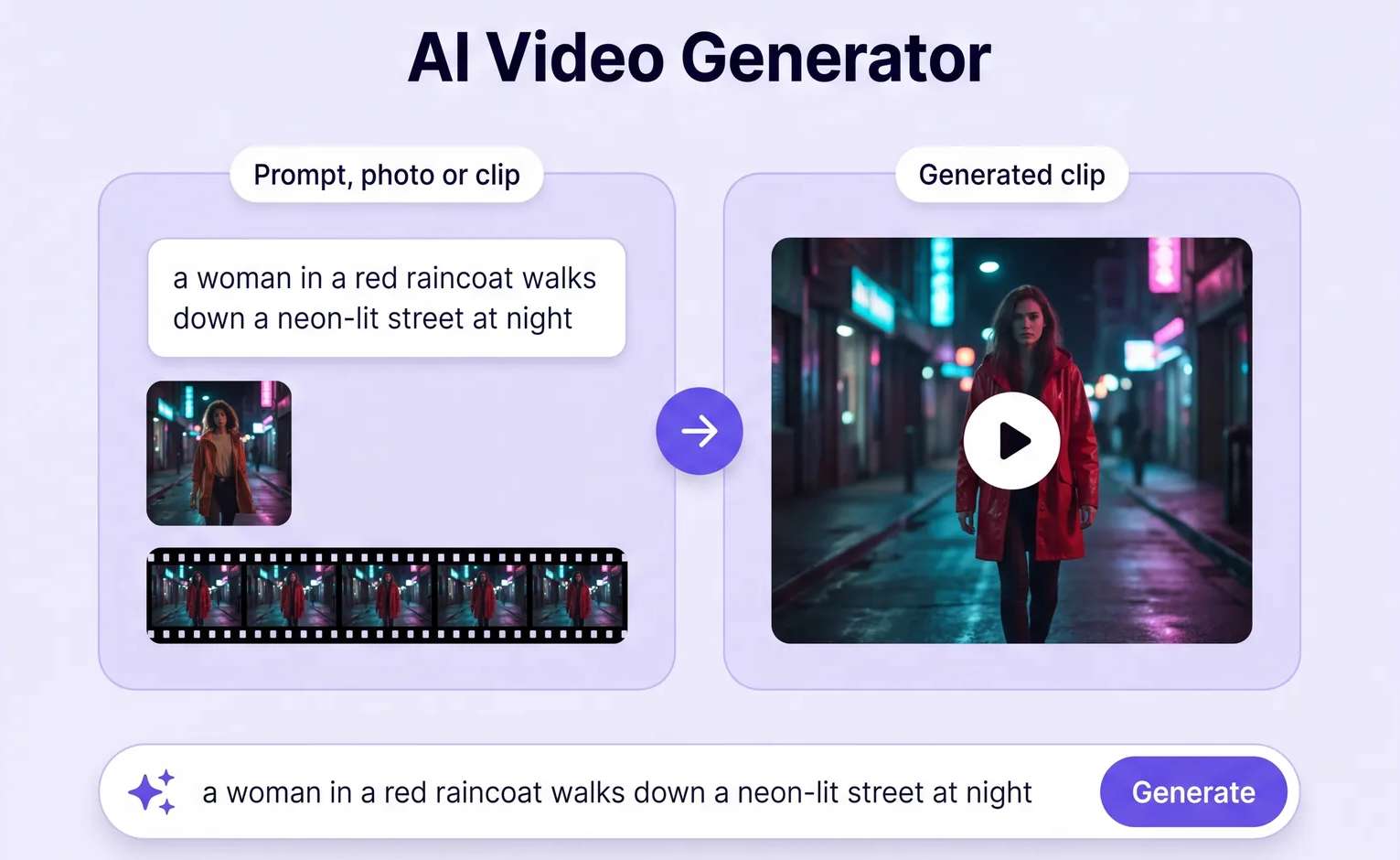
ZenCreator supports three ways to generate videos:
- Text-to-video: Turns a written prompt into a video without a reference image.
- ZenCreator Image-to-video: Animates a still image with subject movement and camera effects.
- Video-to-video: Uses reference footage to guide movement or replace a person in an existing clip.
Some notable video generation models include:
| Model | What stands out |
| Wan 3.0 Spicy | Generates videos up to 30 seconds, with resolutions up to 1080p and optional native audio. |
| Seedance 2.5 Uncensored | Supports multiple image, video, and audio references for more controlled video generation. |
| Kling 2.6 Motion | Focuses on motion transfer, including choreography and dance movements. |
| DreamActor M2.0 | Transfers movements, gestures, and expressions from a reference video to a still character image. |
|
Show More
Show Less
|
|
What to consider: Model capabilities, video length, and resolution vary by generation mode. NSFW generation is limited to selected models and requires Trusted Status after the first credit purchase.
2. AI Image Generation
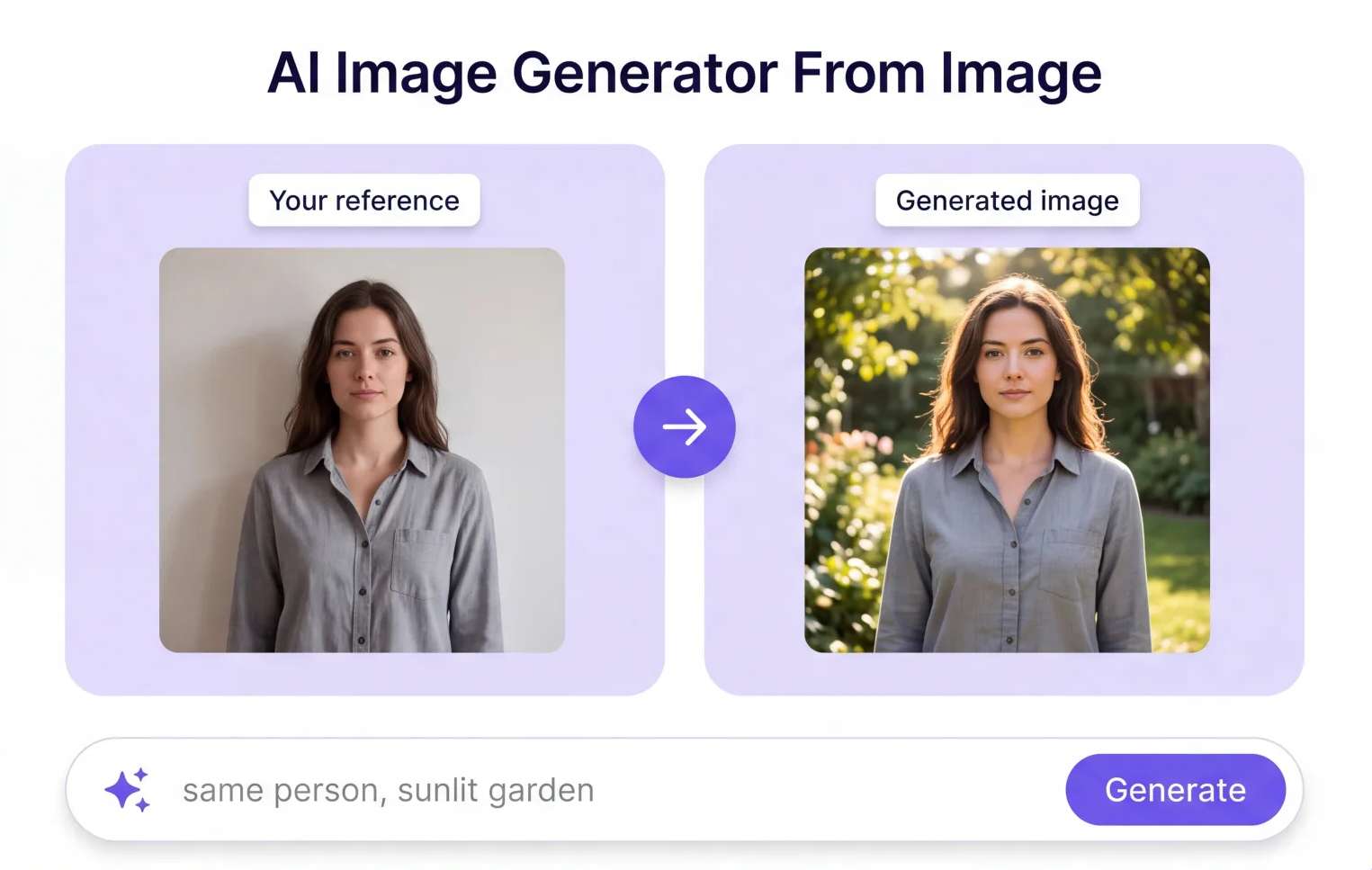
ZenCreator provides several ways to work with images. You can generate visuals from text prompts, use reference images to guide a new creation, or edit existing pictures with ZenCreator Image Editor. The model you choose affects the output quality, resolution, content restrictions, and credit cost.
Some models worth noting include:
| Model | What stands out |
| Nano Banana 2.1 | Generates images up to 4K, with consistent characters and readable text for posters, signs, and infographics. |
| Seedream 5 Pro | Offers detailed, controlled results, supports up to 10 reference images, and provides 1K and 2K output options. |
| WAN 2.7 Image | Handles varied prompts and compositions with fewer content restrictions. It can also transform NSFW reference images. |
| Qwen Image Pro | A higher-quality option for realistic and stylized visuals, with good facial likeness. |
| Flux Klein NSFW | Supports explicit image generation and reference-based creation, although results may contain more visual artifacts. |
|
Show More
Show Less
|
|
Credit costs and content restrictions:
- Credit usage varies by model and resolution. Nano Banana 2.1 costs 1 credit at 1K, 2 at 2K, and 4 at 4K. Seedream 5 Pro costs 2 credits at 1K and 3 at 2K.
- Content restrictions differ between models. Nano Banana 2.1 is SFW-only, while selected models support NSFW generation or reference-image processing.
- Trusted Status is required for selected NSFW features. ZenCreator grants it automatically after your first successful credit purchase
3. AI Face Swap
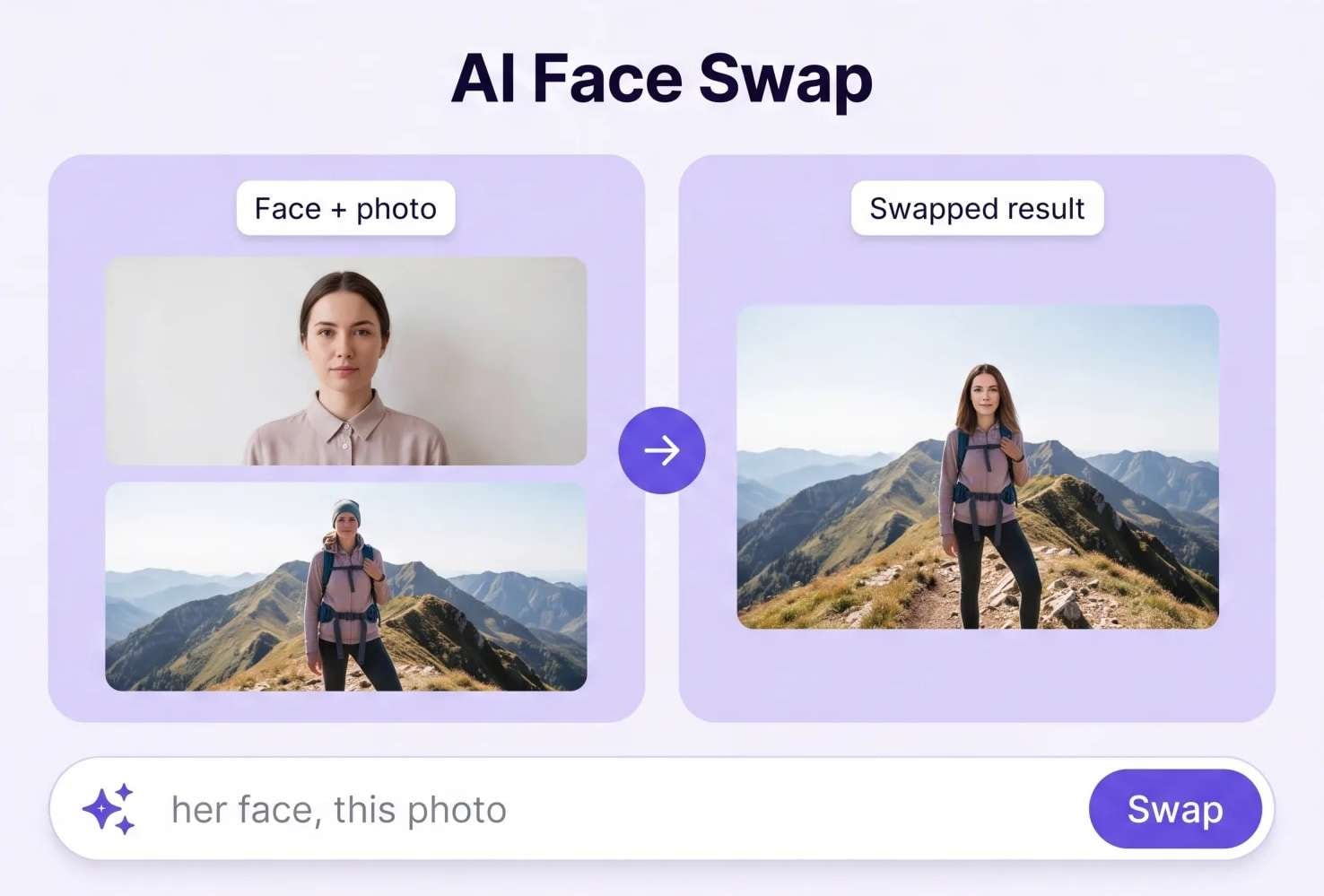
ZenCreator's Head & Face Swap tool replaces a face or head in existing photos using a reference portrait. You can process up to 1,000 target images in one batch to maintain an AI character's appearance consistent across multiple scenes.
| Option | What it replaces | Credit cost |
| Fast - MuleRouter | Face or full head, depending on the selected mode | 1 credit/image |
| Full Head & Face (New Beta) | Face and head, with improved blending | 1 credit/image |
| Seedream 5 Pro | Face, head, or entire person | 2 credits (1K) / 3 credits (2K) |
The main difference is how much of the target image changes. Face swap alone preserves the target's hairstyle and other features, while a head swap also transfers the reference's hair. Seedream 5 Pro adds a Person option for transferring the character into another scene.
4. Upscaler
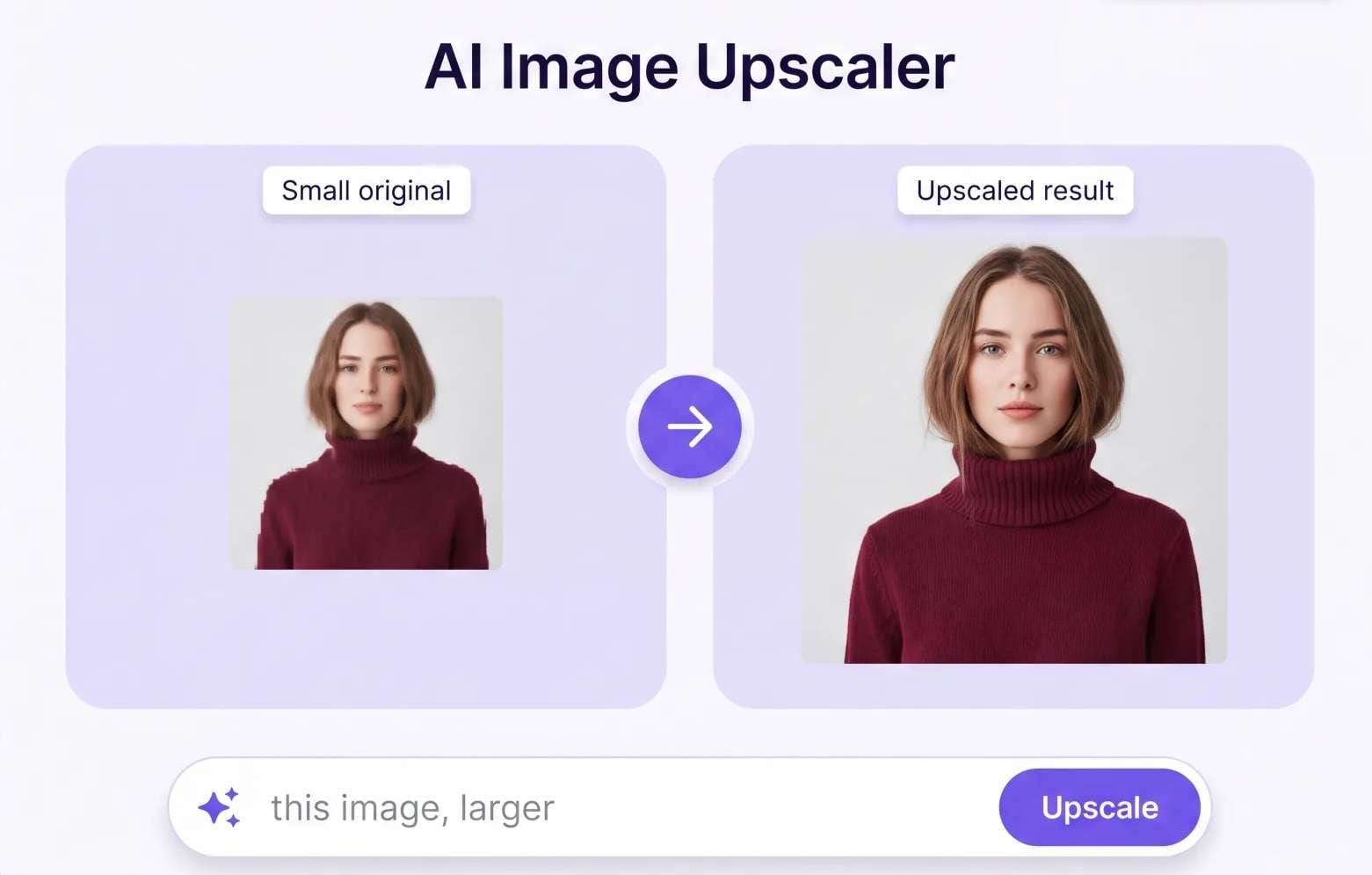
ZenCreator editor has separate tools for improving image and video quality. The image upscaler offers several enhancement models, while the video version processes footage frame by frame.
Image Upscaler
- SeedVR2 3B Base: Enhances images at 2K, 4K, or 8K resolution.
- SeedVR2 7B Premium: Offers higher-fidelity enhancement at 4K or 6K.
- Natural Clarity and Ultra Clarity: Provide alternative enhancement options, with Ultra Clarity supporting outputs up to 32MP.
- Credit cost: SeedVR2 3B costs 1 credit per image. SeedVR2 7B costs 2 credits at 4K and 3 credits at 6K.
Video Upscaler
- Resolution: 1080p, 2K, and 4K.
- Quality modes: Standard and Pro.
- Video length: Up to 180 seconds.
- Output frame rate is fixed at 30 fps.
- Credit usage: Depends on the quality mode, resolution, and video duration. Pro costs approximately 10 times the Standard rate.
5. Lipsync
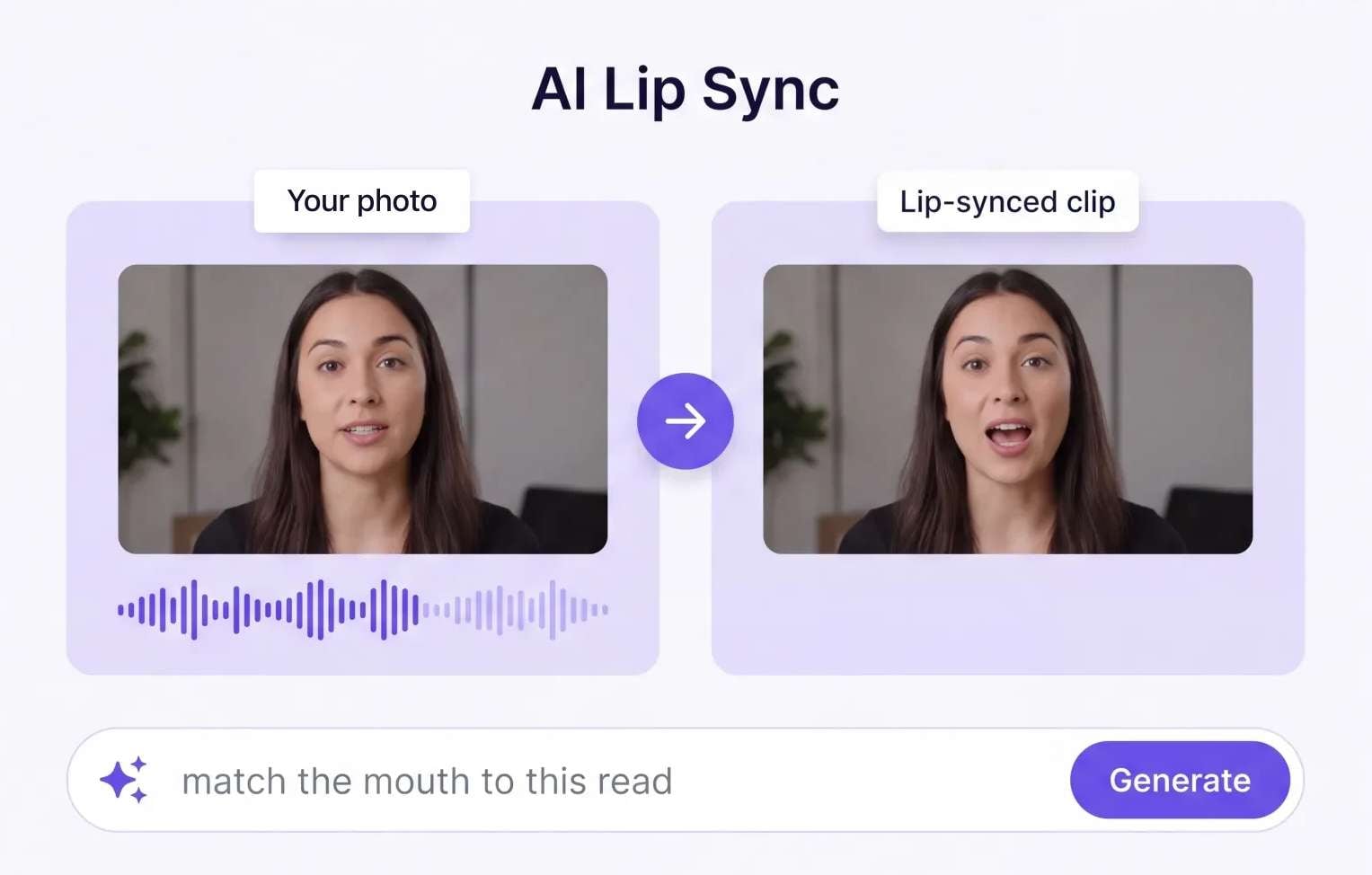
ZenCreator's LipSync tool animates a static portrait using an uploaded audio recording. Powered by OmniHuman 1.5, it generates synchronized mouth movements, facial expressions, and head motion to create a talking character.
Key specifications
- Output resolution: Fixed at 1080p.
- Image file size: Under 5 MB.
- Maximum image resolution: 4096 × 4096.
- Credit cost: 3 credits per second of audio.
The credit cost increases with audio length. For example, a 20-second recording requires 60 credits. You can use it to create short AI influencer clips, virtual presenters, and talking-character videos, although longer recordings can use credits quickly.
6. Other Editing Tools
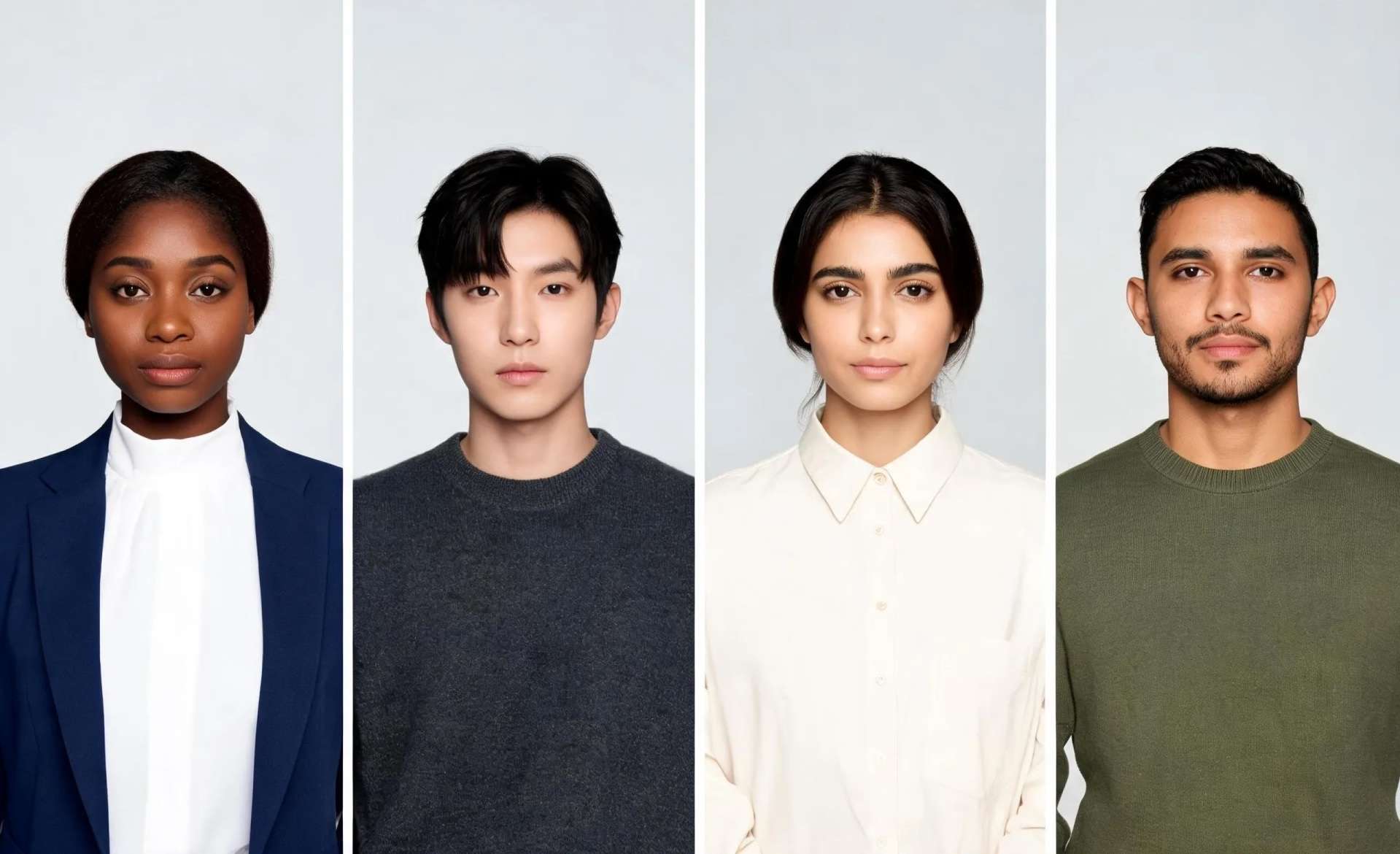
ZenCreator also includes other tools for creating character assets, producing image variations, and combining existing clips.
| Tool | What it does |
| Face Generation | Creates AI portraits by setting appearance details such as age, hair, and eye color. |
| AI Photoshoot | Generates batches of lifestyle or themed photos using face and body references while maintaining character identity. |
| Variations | Produces alternative angles and crops from reference images, without requiring a text prompt. |
| Collabs | Combines two characters in one image and generates a shared scene or interaction. |
| Video Merger | Combines 2–5 clips, with transition, trimming, and audio options. |
| LoRAs AI Effects | Applies ready-made style templates to images using the Flux Klein LoRA model. |
|
Show More
Show Less
|
|
Part 3. ZenCreator Pricing and Free Plan
ZenCreator's pricing system uses a pay-as-you-go credit system rather than a monthly subscription. Simply purchase a credit pack once and use the balance across image generation, AI video creation, face swapping, upscaling, and other tools. Unused credits do not expire.
ZenCreator Pricing Plans (2026)
| Plan | Credits | Price |
| Starter | 200 | $19.99 |
| Creator | 550 | $49.99 |
| Influencer | 1,200 | $99 |
| Professional | 6,300 | $499 |
|
Show More
Show Less
|
||
Larger packages offer a lower cost per credit, from approximately $0.10 with Starter to $0.079 with Professional. Prices may vary depending on the payment provider, so check the final amount on the billing page before purchasing.
Can You Use ZenCreator for Free?
No. ZenCreator has no free trial or free onboarding credits for content generation. You need to purchase a credit pack to start generating images and videos. There's also no recurring subscription, and you can buy more credits whenever your balance runs low.
Part 4. Is ZenCreator Good? Reviews and User Feedback
Based on ZenCreator reviews on Trustpilot, the platform has a 4.4/5 rating. Many reviewers praise its easy-to-use interface and the quality of its AI-generated images and videos. Its range of tools, including image generation, face swapping, and lip-sync, also receives positive mentions.
However, some users report that generated results don’t always match their prompts, and repeated attempts can quickly use up credits. Overall, feedback is mostly positive, but generation consistency and costs remain common concerns.
Pros and Cons of ZenCreator
- Combines image generation, video creation, face swapping, lip-sync, and upscaling.
- Offers multiple AI models for different visual styles and generation needs.
- Supports batch face swapping for up to 1,000 images.
- Includes character-focused tools such as AI Photoshoot, Collabs, and image variations.
- Purchased credits never expire.
- No free generation credits to test the main AI tools.
- Video generation and upscaling can use credits quickly.
- Generated images and videos may contain visual artifacts or miss prompt details.
- Consistent character results may require several attempts.
- Credit-based pricing can make total project costs difficult to predict.
Part 5. Finish and Edit Your ZenCreator Clips with Filmora
ZenCreator can produce images and short video clips, but those assets usually need some editing before they're ready to publish. You may need to trim footage, arrange clips into a sequence, add captions and background music, or adjust the final export settings. These steps require a separate video editor.
To edit ZenCreator's generated assets, Wondershare Filmora provides the tools that let you turn individual clips and images into finished videos. Its multitrack timeline lets you combine footage, text, transitions, and audio in one project. Filmora also includes AI-assisted tools to generate captions, extend footage, and remove backgrounds.
What You Can Do with Filmora
1. Arrange and Trim Your Clips
Import your ZenCreator videos and images, then arrange them in your preferred order. Split clips, remove unwanted sections, adjust their length, and add transitions between scenes. You can place titles and other visual elements on separate timeline tracks.
2. Generate Captions and Add Text
Filmora's AI Speech-to-Text and Auto Caption features can convert spoken dialogue into subtitles. Review the transcription, correct any errors, and customize the font, color, animation, and placement. You can also add titles or on-screen text manually.
3. Add Music and Refine Audio
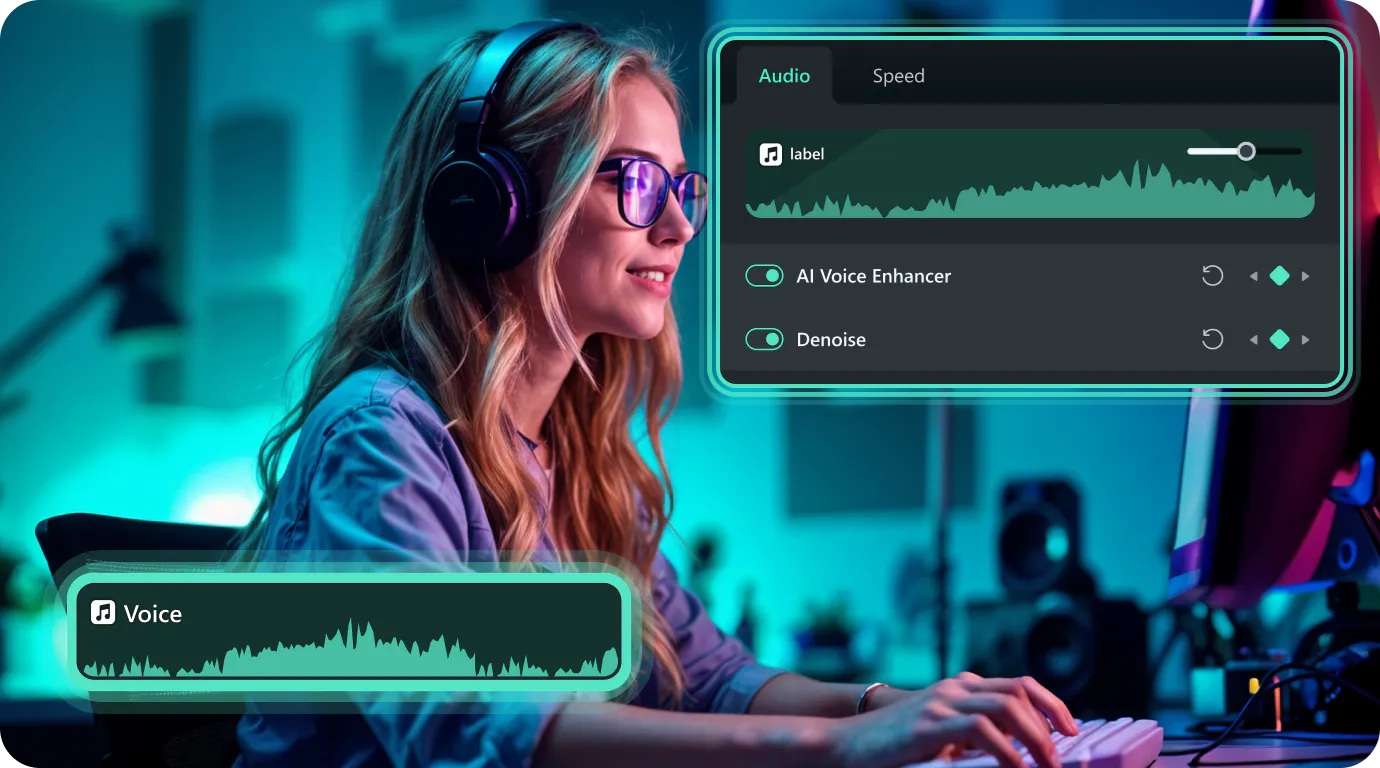
Add background music and sound effects, then adjust their volume to match the video. Audio Ducking lowers background music when dialogue plays, while AI Audio Denoise helps reduce unwanted background noise.
4. Use Additional AI Editing Tools
Filmora also includes AI features to enhance the generated footage. AI Video Extender adds footage to a short clip, AI Smart Cutout separates people or objects from their backgrounds, and AI Media Analysis identifies subjects and activities in imported videos.
Once the edits are complete, preview your video and export it in your preferred format and resolution. Filmora provides a complete editing workflow for the assets you create with ZenCreator.
 Secure Download
Conclusion
ZenCreator is worth a look if you regularly create AI portraits, influencer content, face swaps, or short videos. Its selection of AI models and generation tools makes it easier to try different ideas without switching between platforms.
However, the results may not always match your prompts on the first try, so be prepared to spend extra credits on revisions. ZenCreator also doesn’t yet support full video editing, which means you’ll need another tool to arrange clips, add music, and finalize your video.
Overall, ZenCreator is ideal for creators who prioritize AI image and video generation and don't mind handling the final edits in a separate program.
FAQs
-
Does ZenCreator have an app?
ZenCreator doesn't have a dedicated iOS or Android app. You can access its website through your phone's browser or use its Telegram mini-app. Use the website to access the full set of tools. -
Is ZenCreator safe and legit?
Yes, ZenCreator is a legitimate AI creation platform operated by Dimeris Ltd, a registered company in Cyprus. It provides official terms of service, a privacy policy, and customer support. However, review its data and payment policies before uploading personal photos or purchasing credits, especially if you're creating content with someone else's likeness. -
What is a good alternative to ZenCreator?
It depends on which ZenCreator features you use most:
- OpenArt: A powerful alternative for AI image and video generation, with character creation and consistency tools.
- Leonardo AI: Better suited to image generation, character designs, and detailed visual assets.
- Runway: A good choice for AI video generation, image-to-video, and more advanced video editing.
OpenArt is the closest match if you want several AI creation tools in one platform. Leonardo AI and Runway are more focused on specific creative needs.