


 TL;DR:
Zight is an asynchronous visual communication platform best suited for remote teams needing to instantly share quick screen recordings, screenshots, and GIFs via auto-generated links, though its lack of advanced editing makes it unsuitable for polished post-production.
● The Free plan restricts users to 5-minute recordings at 720p resolution, 15-second GIFs, and a 50-capture history, while paid tiers starting at $9 per month unlock unlimited 4K recording, AI-powered transcriptions, and password-protected sharing.
● While Zight supports macOS Catalina, Windows 10, iOS 13, and Chrome, it entirely lacks an official Android application and reportedly experiences occasional crashes when processing desktop recordings that exceed 10 minutes.
● Zight edges out Loom if you require a single interface for both video and screenshot sharing, but users needing multi-track timelines, audio mixing, or scene structure should opt for a dedicated editing suite like Wondershare Filmora.
Ask AI for a summary
 ChatGPT
 Perplexity
 Gemini
 Claude
 Grok
Grok
If you’ve ever needed to explain something quickly without typing a long message, Zight is built for exactly that. The Zight screen recorder is built for fast video messaging, letting you capture your screen, webcam, or both and instantly share it with a link.
Before you start using it regularly, you’ll want to know what you’re actually getting. We’ve put together everything you need to know, from features and pricing to real limitations, so you can decide if Zight is really the tool you are looking for.
Part 1. What Is Zight and Who Uses It?
Zight is a cloud-based screen recording and visual communication platform. It was initially launched in 2010 as CloudApp, which originally enabled users to instantly share screenshots and file assets as short links that didn't require a download to view.
In April 2023, CloudApp changed its name and became Zight. The old CloudApp share links still work, and existing accounts are carried over automatically. But Zight today goes well beyond basic file sharing. It's now an AI-powered platform that helps teams collaborate and communicate through screen recording, GIF creation, screenshots, and file sharing.
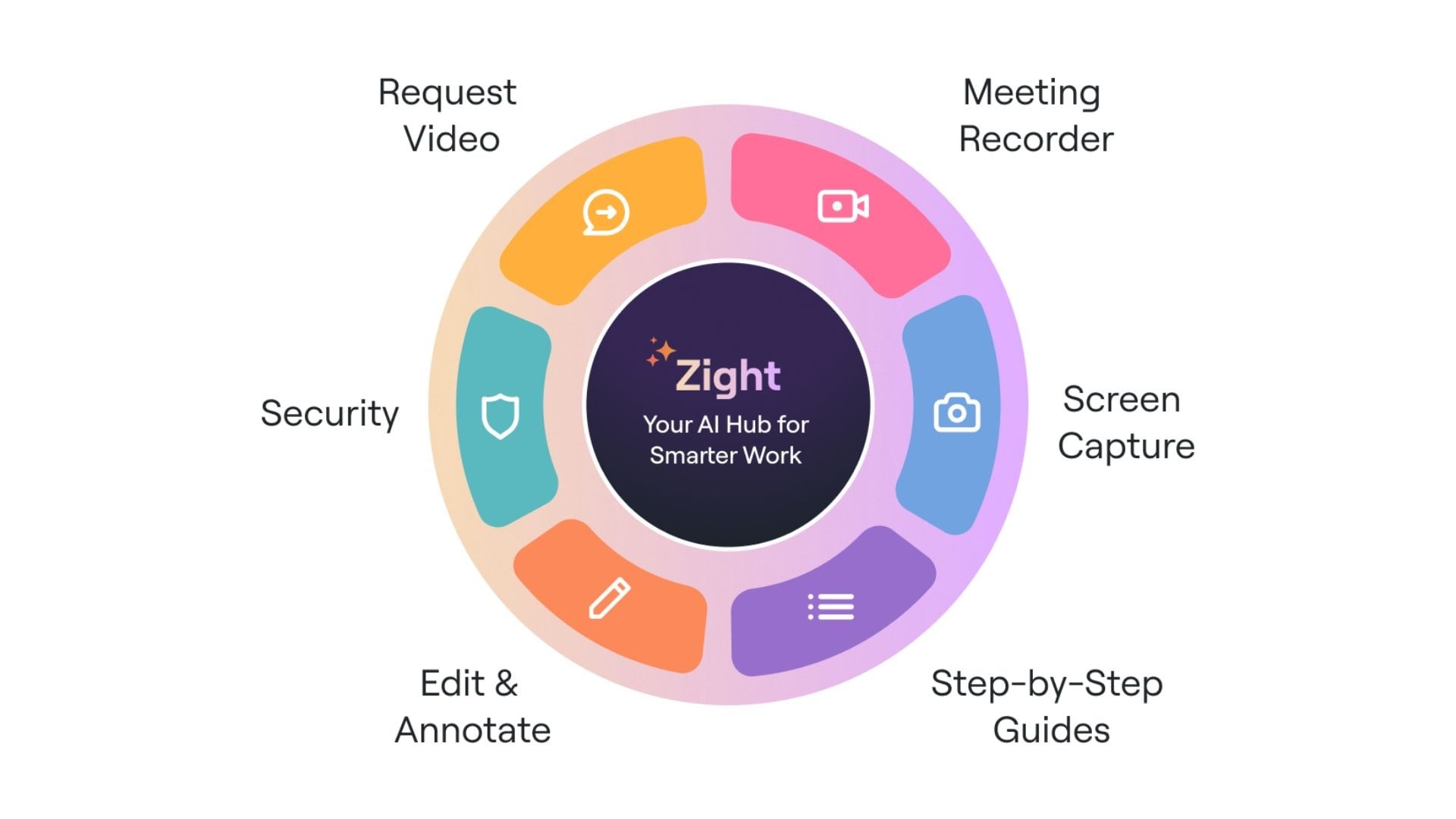
What is Zight used for?
The core use case of Zight is asynchronous communication. You no longer need to jump on a call or type a paragraph of instructions. Just record a quick video or an annotated screenshot and share a link. The other person watches on their own time. The goal is to reduce meetings, cut down emails, and improve productivity.
Common use cases include:
- Remote team collaboration (sharing feedback, walkthroughs, and design reviews without scheduling meetings)
- Customer support (recording visual replies to support tickets instead of writing out multi-step instructions)
- Product demos (sending personalized screen recordings to prospects)
- Internal documentation (creating SOPs, onboarding videos, and training materials)
Zight is available for desktop and mobile use, though on mobile, it’s only available for iPhone users. There’s no native Zight Android app at the moment.
| Platform Supported | Download Link |
| macOS Catalina or later | Download from the Mac App Store or Zight's website |
| Windows 10 or later | Download from Zight's website |
| iOS 13.0 or later | Download from the App Store |
| Chrome | Chrome extension |
Part 2. Core Features of Zight Screen Recorder
What makes Zight different from most screen recorders is its focus on speed, not deep editing.
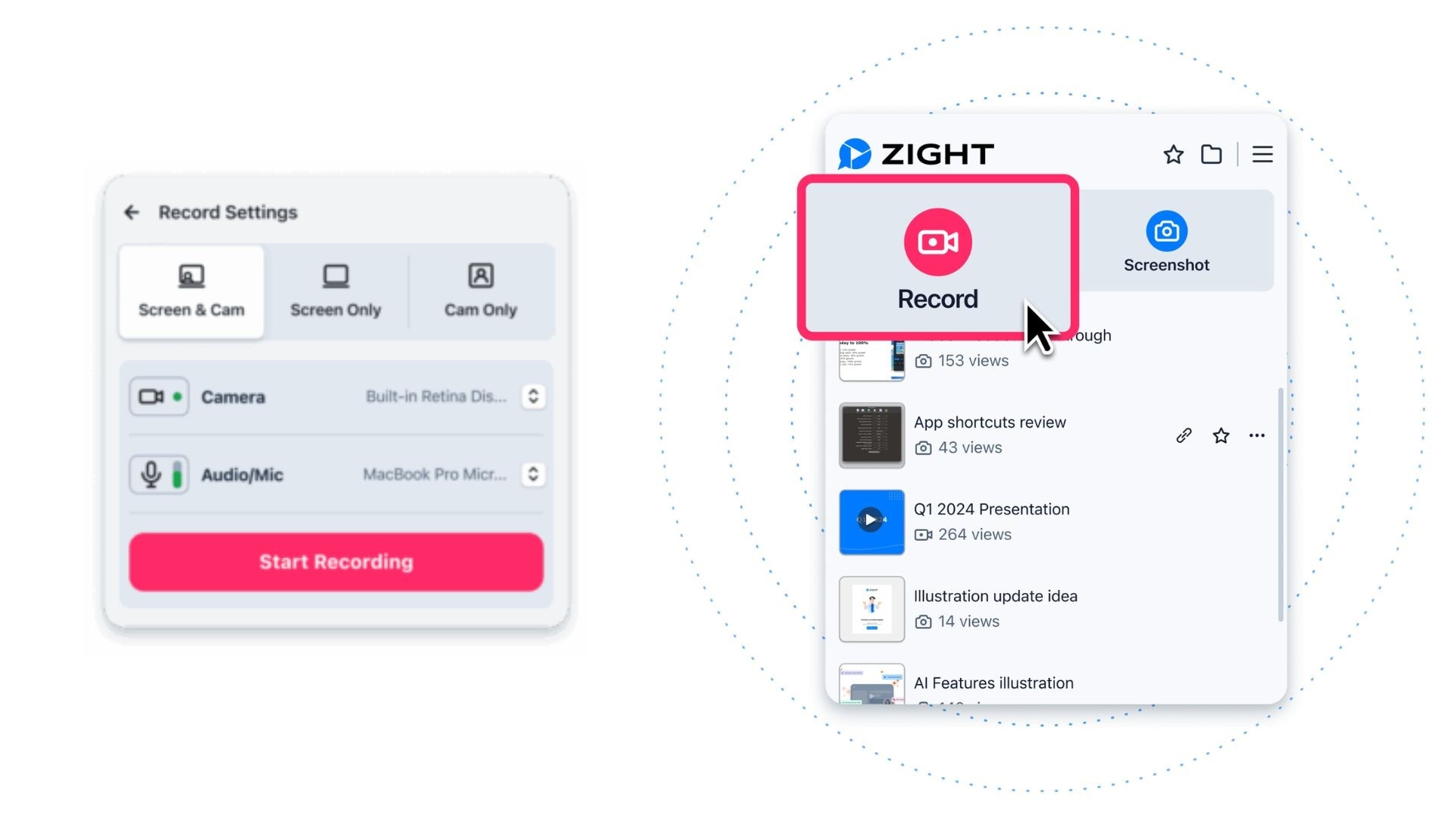
1. Screen, Camera, and Audio Recording
Zight screen recorder lets you capture your screen, webcam, and microphone at the same time. You can record your entire desktop, a specific application window, or just your webcam. The recording length is unlimited on paid plans, with video quality up to 4K resolution.
2. Instant Sharing and Cloud Storage
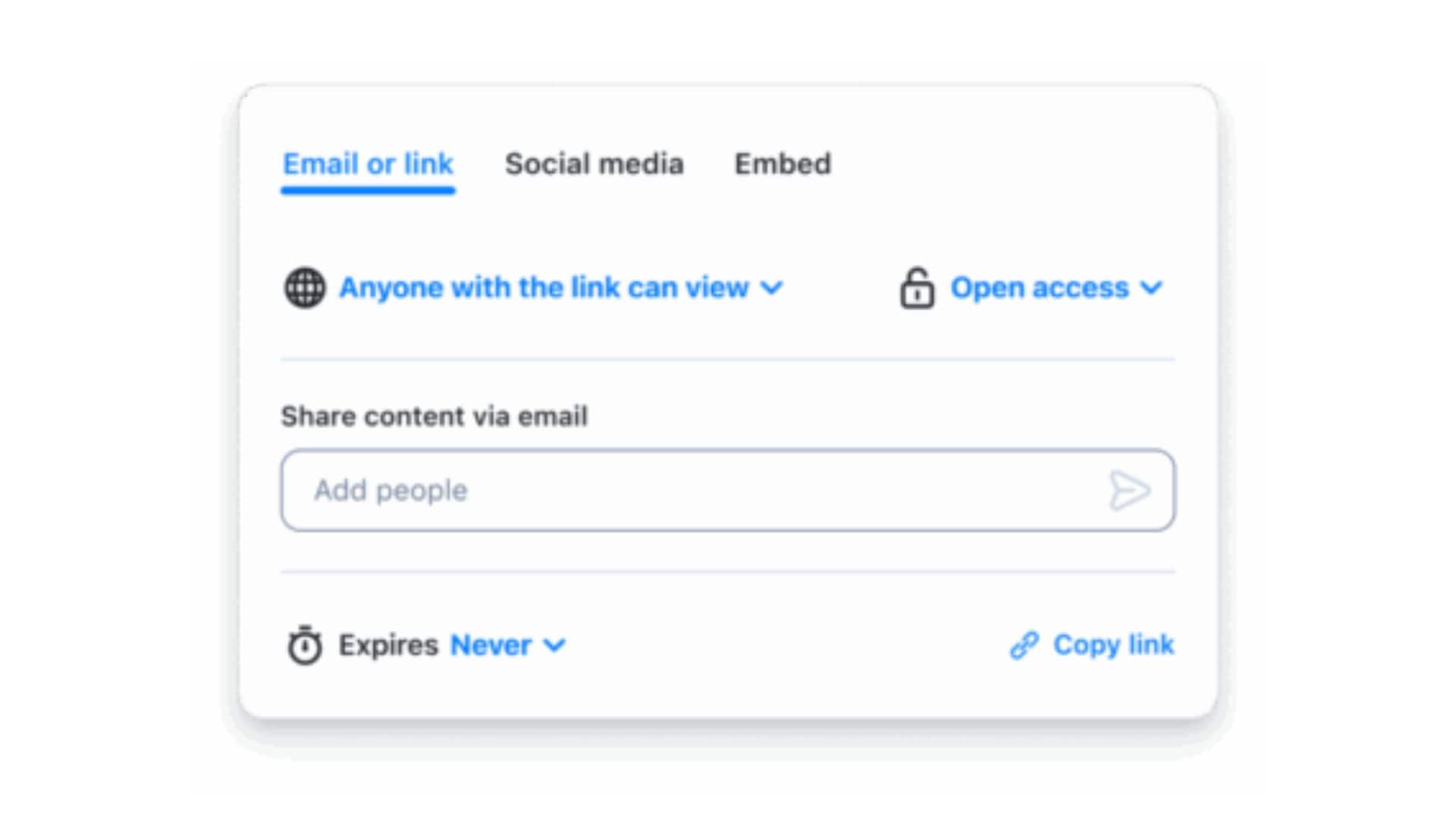
Every recording and screenshot automatically uploads to Zight's cloud and generates a shareable link. Everything is automatic; you don't have to manually save, upload, or create a link. You can control privacy with public, private, and password-protected settings, and content renders as previews in email and collaboration apps (Slack, Jira, Notion, Teams, and more).
3. Screenshot and GIF Capture
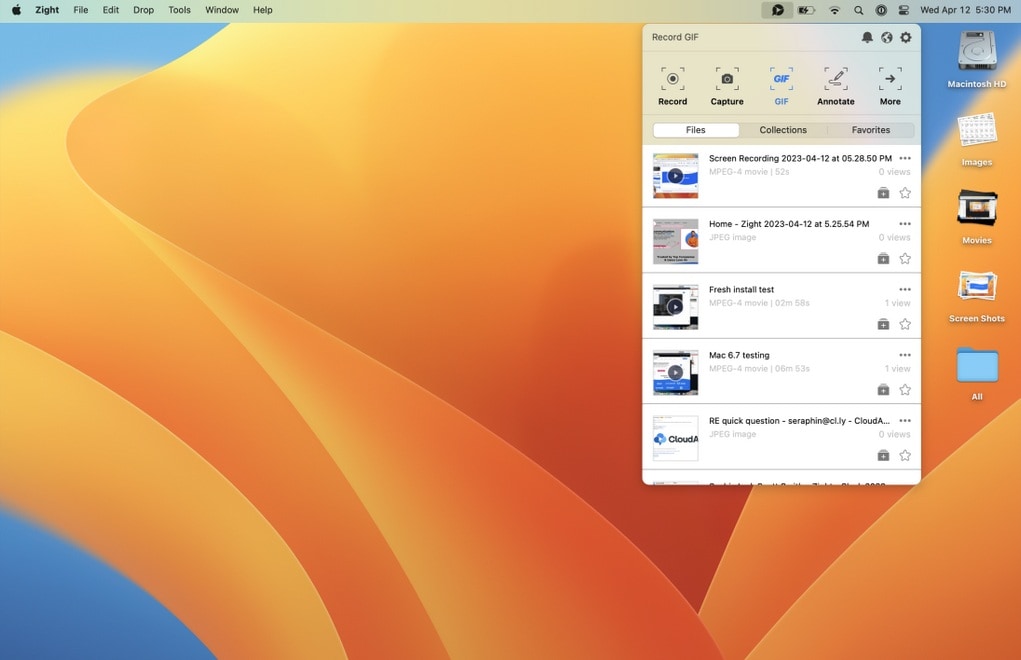
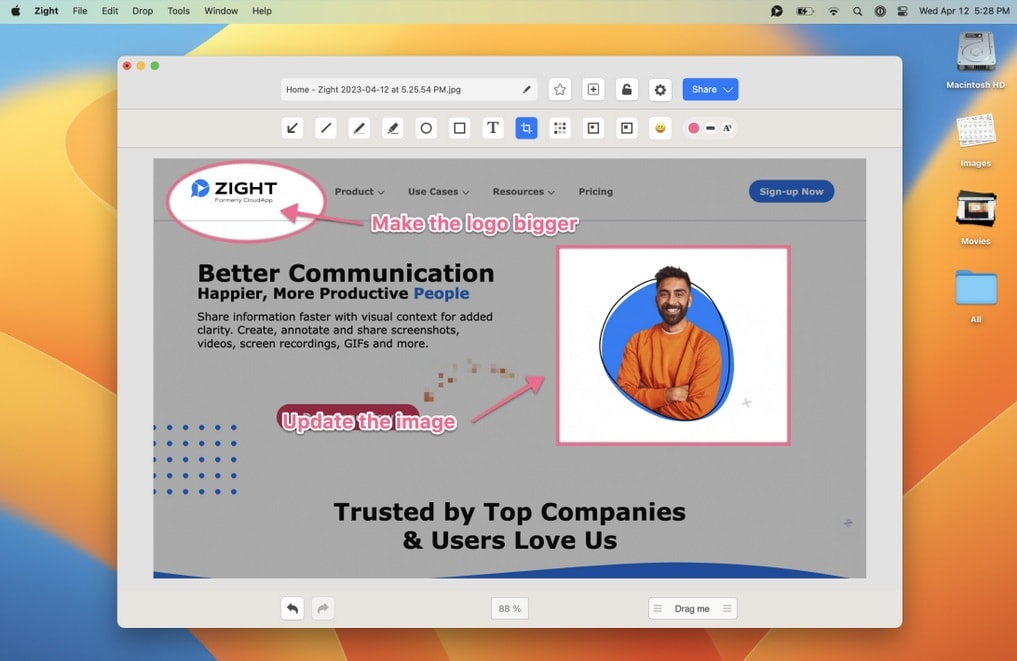
Beyond video, Zight handles screenshots and GIFs from the same interface. For screenshots, you can add arrows and text, crop, blur, and more. Once annotated, your screenshot is available via an auto-generated link immediately.
For GIFs, Zight records a section of your screen and converts the output to a shareable GIF. It can be used for short, looping visual explanations, like showing where a button is in a UI or demonstrating a micro-interaction.
4. AI-powered Tools
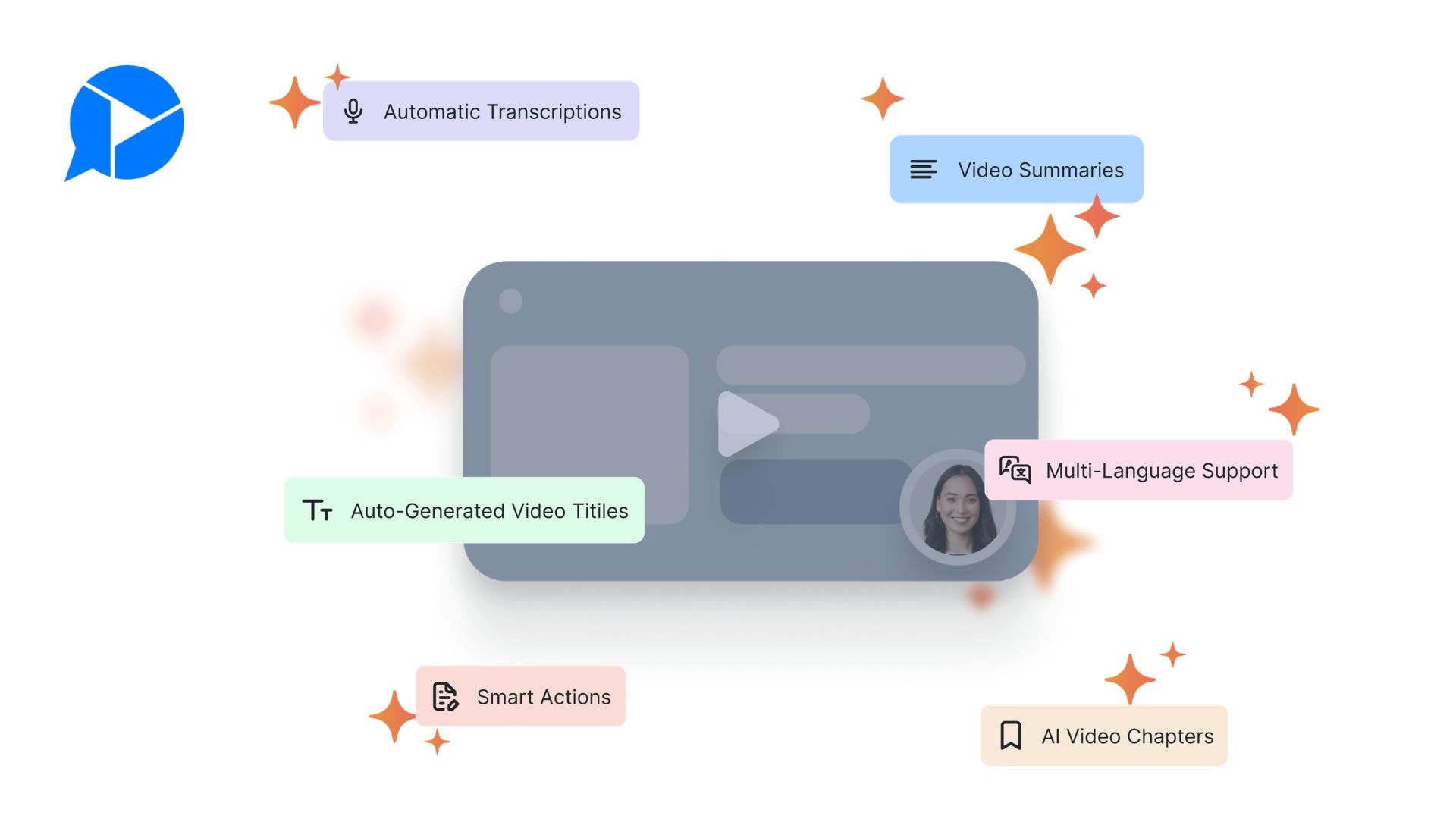
Zight AI is a paid add-on that handles the tedious post-recording work for you, from transcribing, summarizing, organizing, to turning videos into ready-to-share documents.
- Auto Transcription with Captions: Automatically adds transcripts and captions to your videos for viewers who watch without sound or need quick context.
- AI Translation: Transcriptions and captions are supported in over 50 languages. Accuracy may vary with different accents or dialects.
- Smart Chapters and Titles: Generates a relevant title based on your video content and breaks longer recordings into clearly labeled, navigable sections.
- TLDW Video Summarizer: Generates a concise summary of your video so recipients can get the key points without watching the whole thing.
- Smart Actions: Turns a recording into a structured document (e.g., a step-by-step guide, SOP, FAQ, or bug report) with one click.
5. Basic Editing Tools
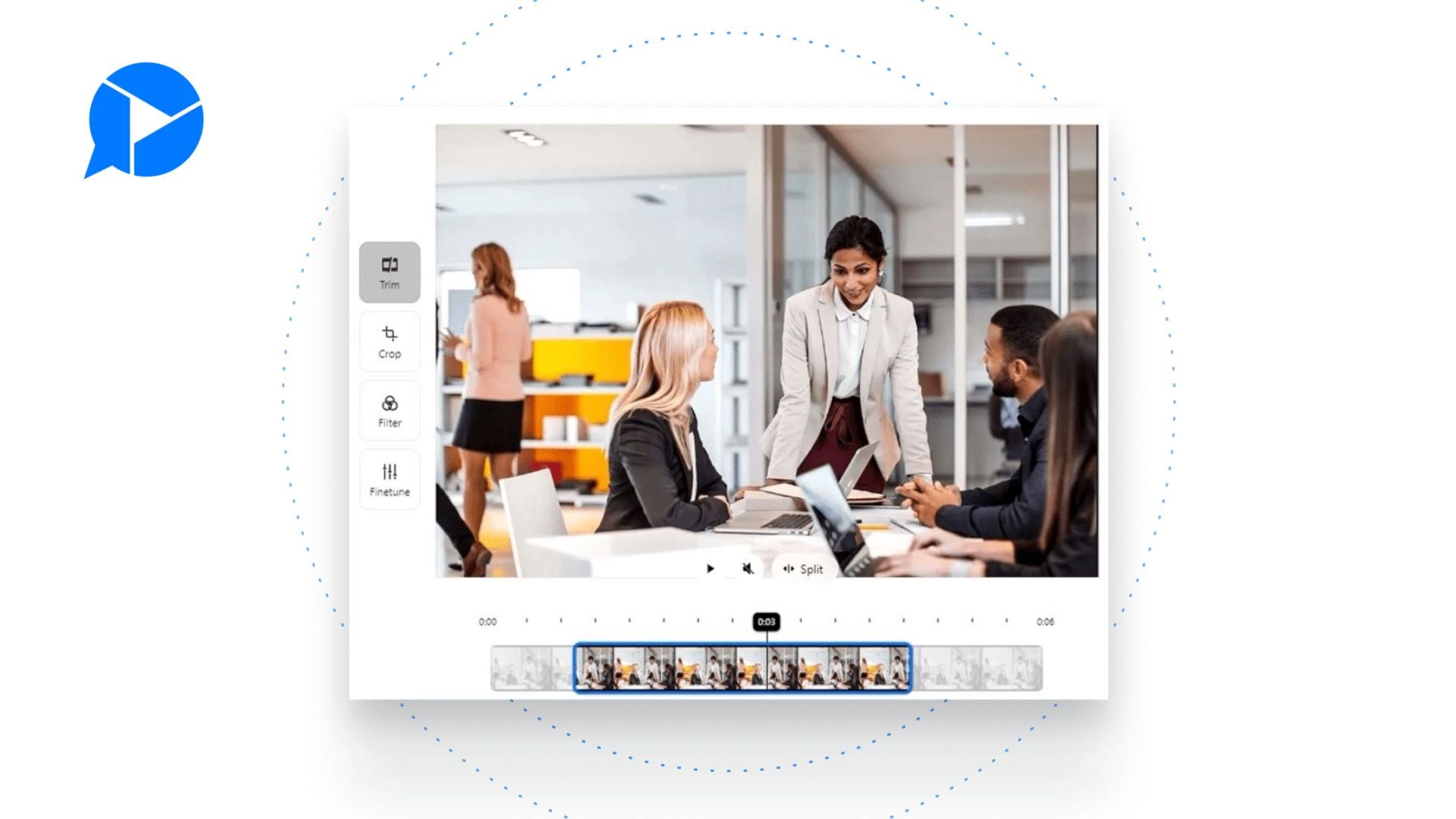
Zight includes an in-built editor for trimming and annotating content. You can add arrows, text boxes, shapes, highlights, and freehand drawings directly on screenshots and recordings. However, the editing tools are pretty basic by design. There's no timeline editing, no multi-track audio, no filters or transitions.
Note: Editing features like trimming and splitting are only available on the Mac and Windows apps.
Part 3. Zight Pricing and Free Plan Availability
Zight uses a per-user, per-month pricing model with four primary tiers: Free, Pro, Team, and Enterprise.
| Free | Pro | Team* | Enterprise | |
| Pricing | $0 | $9/mo | $11/user | Custom |
| Total Captures | Access the last 50 | Unlimited | Unlimited | Unlimited |
| Recording Length | Up to 5 minutes | Unlimited | Unlimited | Unlimited |
| Recording Quality | Up to 720p | Up to 4k | Up to 4k | Up to 4k |
| GIF Maker | 15 Seconds | 60 Seconds | 60 Seconds | 60 Seconds |
*Team plan requires a minimum of 2 users.
Free Plan Limitations
Zight’s free plan is fine for occasional, low-stakes recording. But if you use Zight more often, you’ll start running into these limits:
- No password-protected sharing
- No custom branding on share pages
- No team workspace or shared collections
- No viewer analytics
- AI features (transcription, Smart Actions, summaries) are not included
Part 4. Zight Review: First Impressions and Experience After Using It
Zight holds a 4.6 out of 5 stars rating on Capterra and G2. The feedback across platforms is fairly the same, with most users happy with what the tool does, and the frustrations tend to cluster around what Zight doesn't do: advanced editing.
First Impression: Genuinely Fast and Easy to Pick Up
Zight screen recorder is simple and easy to use. You can trigger screenshots with shortcuts and record your screen in two clicks. It's flexible enough to handle screenshots, screen recording, file uploads, GIF creation, and image annotation, covering everything most users would expect from a tool like this.
Moreover, the link copies to your clipboard automatically the moment you finish recording, and recipients don't need a Zight account to view content. For support teams, remote teams, and anyone who communicates across time zones, that speed is the main draw.
Common Complaints
While it does the job fast and well, the editing tools are thin. Zight lets you trim and annotate, but there's no timeline editor, no transitions, no multi-track audio. It would be nice to see improvements as well on the annotation elements to make shared files look more professional and high-end.
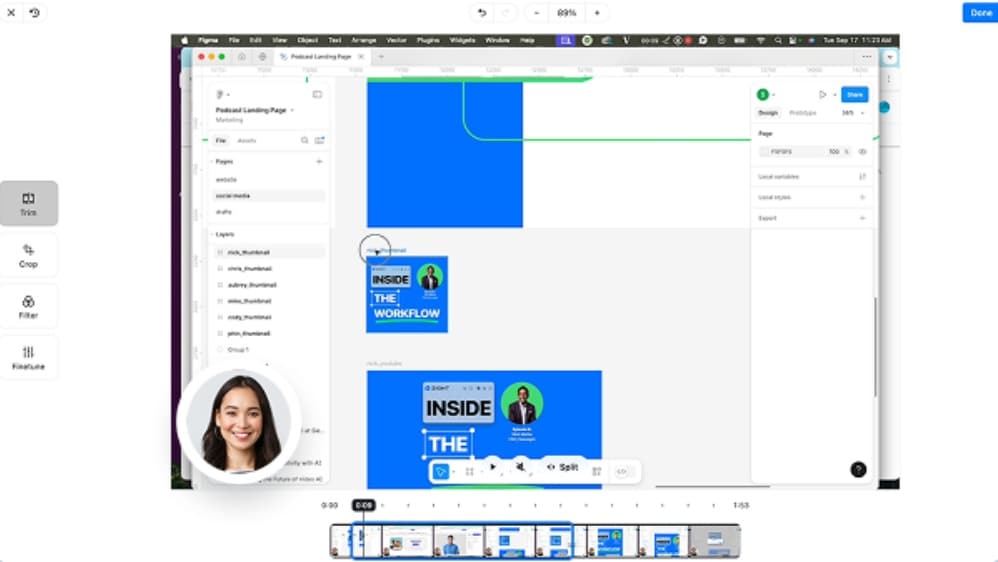
Many users use Zight due to its deep system integration, but for those who need advanced editing or polished video output, that advantage only goes so far. Plus, some users report crashes during longer recordings, particularly those exceeding 10 minutes, and microphone recording issues that occur rarely but can be annoying when they happen.
Part 5. Zight Pros and Cons at a Glance
Based on our Zight review and user feedback we have covered so far, here's what Zight does well and where it falls short.
- Only takes around 15 seconds from capture to share with the link.
- Free plan available.
- Integrates with Slack, Jira, Notion, Zendesk, Asana, Gmail, and more.
- Recipients don't need a Zight account to view shared content.
- AI features cost extra.
- No Android app.
- No advanced video editing.
- Occasional crashes reported during longer recordings.
- Per-user pricing adds up quickly for larger teams.
Part 6. Best Zight Alternative If You Need More Editing Power
Zight is built for speed and communication, not post-production. For needs that go beyond quick screen recordings and async messaging, you'll likely find yourself looking elsewhere, especially if you:
- Need advanced video editing like multi-track timelines, transitions, or effects
- Want higher-quality exports with full control over resolution and output settings
- Create content for YouTube, TikTok, Instagram Reels, or any media platform
- Need to edit longer recordings with proper scene structure and audio mixing
Better Option: Filmora
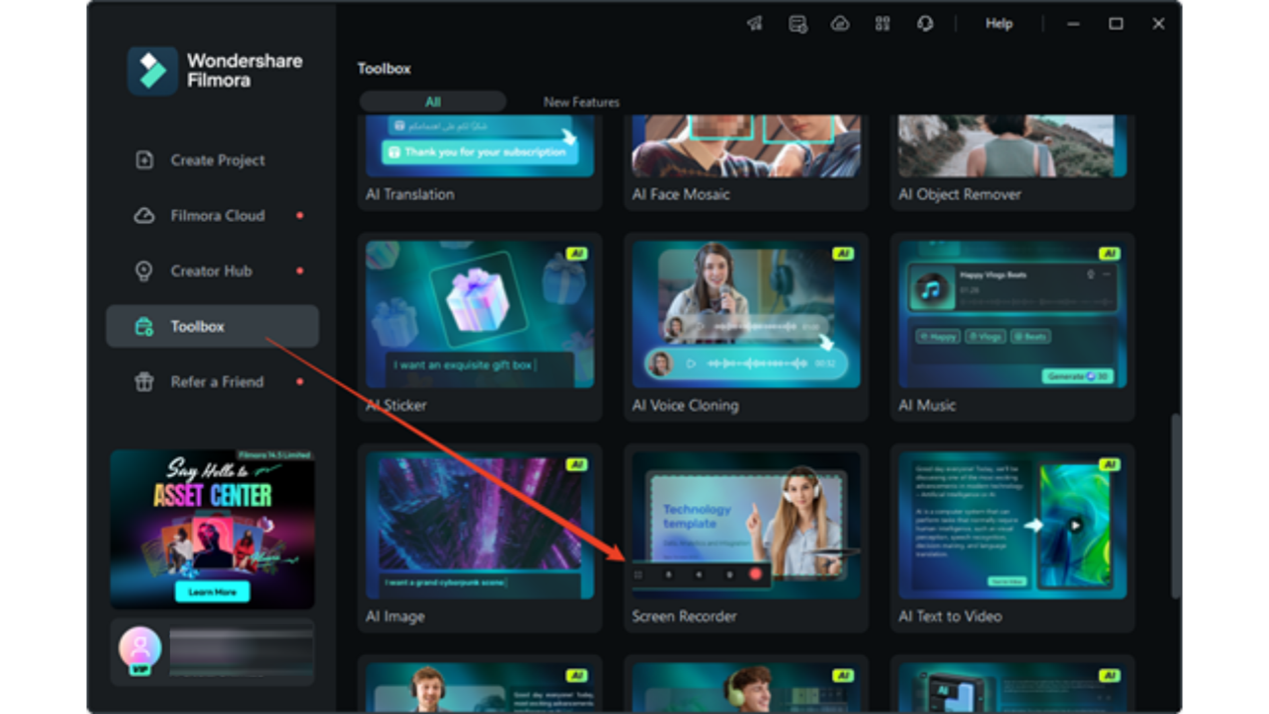
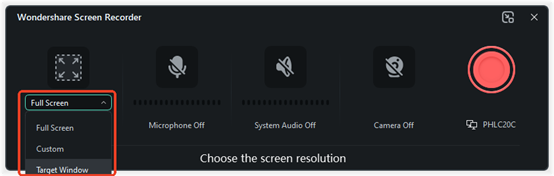
As a video editor that includes a built-in screen recorder tool, Wondershare Filmora is worth looking at. Filmora's Screen Recorder captures your screen, webcam, and system audio simultaneously, with controls for selecting a specific recording area, setting frame rate, and adjusting quality before you hit record.
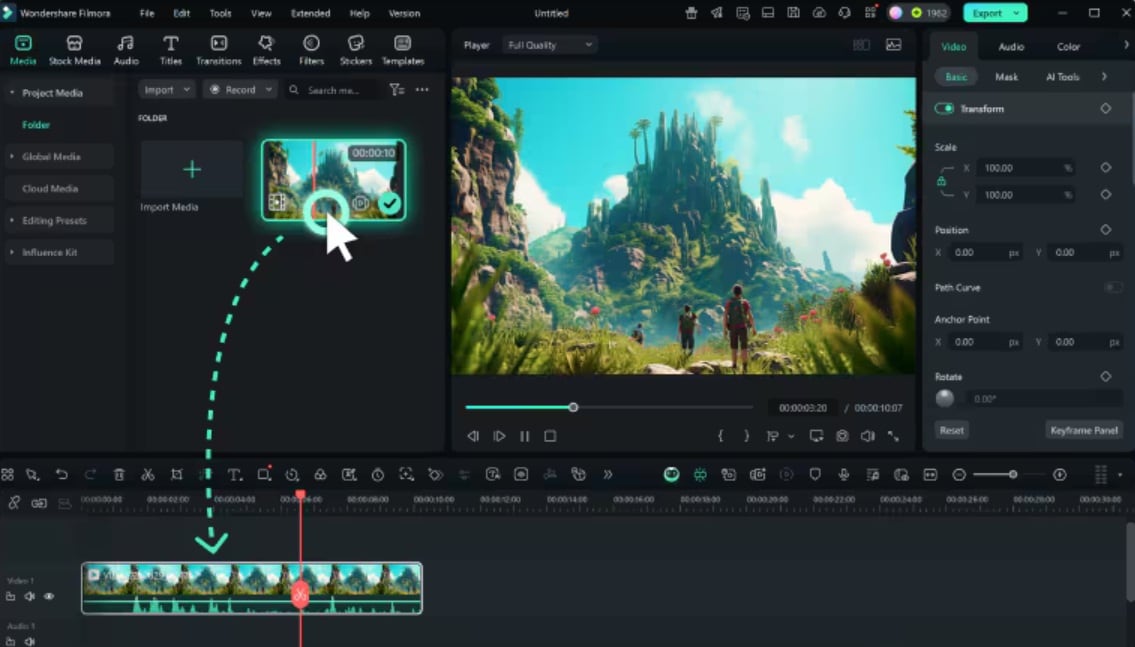
And unlike Zight, it gives you a full editor to work with the footage afterward. Since the recorder and editor live inside the same app, you get direct access to a multi-track timeline, transitions, effects, color correction, and use millions of creative assets to annotate your recording.
 Secure Download
How to Use Filmora’s Screen Recorder
 Secure Download
Conclusion
If your main goal is fast async communication, Zight can cover the basics well. It’s not trying to be a full video editor, and for most remote teams, support replies, bug reports, quick tutorials, and client feedback, it doesn’t need to be. You record, add context, share the link, and move on.
But if you regularly find yourself wishing you could do more with your recordings after the fact, Filmora gives you a proper editing suite with a built-in screen recorder.
FAQs
-
Is Zight better than Loom?
Zight has a slight edge if you also work with screenshots, GIFs, and file sharing since it handles all of that in one place. Loom is more focused purely on video messaging. Pricing is comparable, though Loom's free plan allows longer recordings. Neither is objectively better; it comes down to your specific use case. -
Does Zight support video editing?
Basic editing only. You can trim clips and add annotations like arrows, text, and shapes, but there's no timeline editor, transitions, or multi-track audio. If you need more control over your footage, you'd need a dedicated video editor like Filmora. -
Can I use Zight on Android?
No. Zight currently supports macOS, Windows, iOS, and Chrome. There's no Android app available at this time. If you come across a Zight APK online, don't download it. Zight has no official Android release, so any APK floating around is not official and could be a security risk.
