Explore AI Dining Table Prompts
Browse AI dining table prompts for holiday dinners, breakfast flat lays, modern farmhouse setups, brunch spreads, and clean social covers. Use each idea to create assets for video templates, reels, poster art, and export-ready visuals.
Loading more AI dining table prompts...
 Category:
 Duration:
 Aspect Ratio:
Why Use Dining Table Prompts With Filmora?
Dining table scenes work when place settings feel balanced, materials read clearly, and the frame leaves room for later type. Filmora helps creators generate lifestyle stills, compare model styles, add overlays, animate scenes, and export polished social visuals.
Generate Dining Table Scenes From Prompts
Generate Dining Table Scenes From Prompts
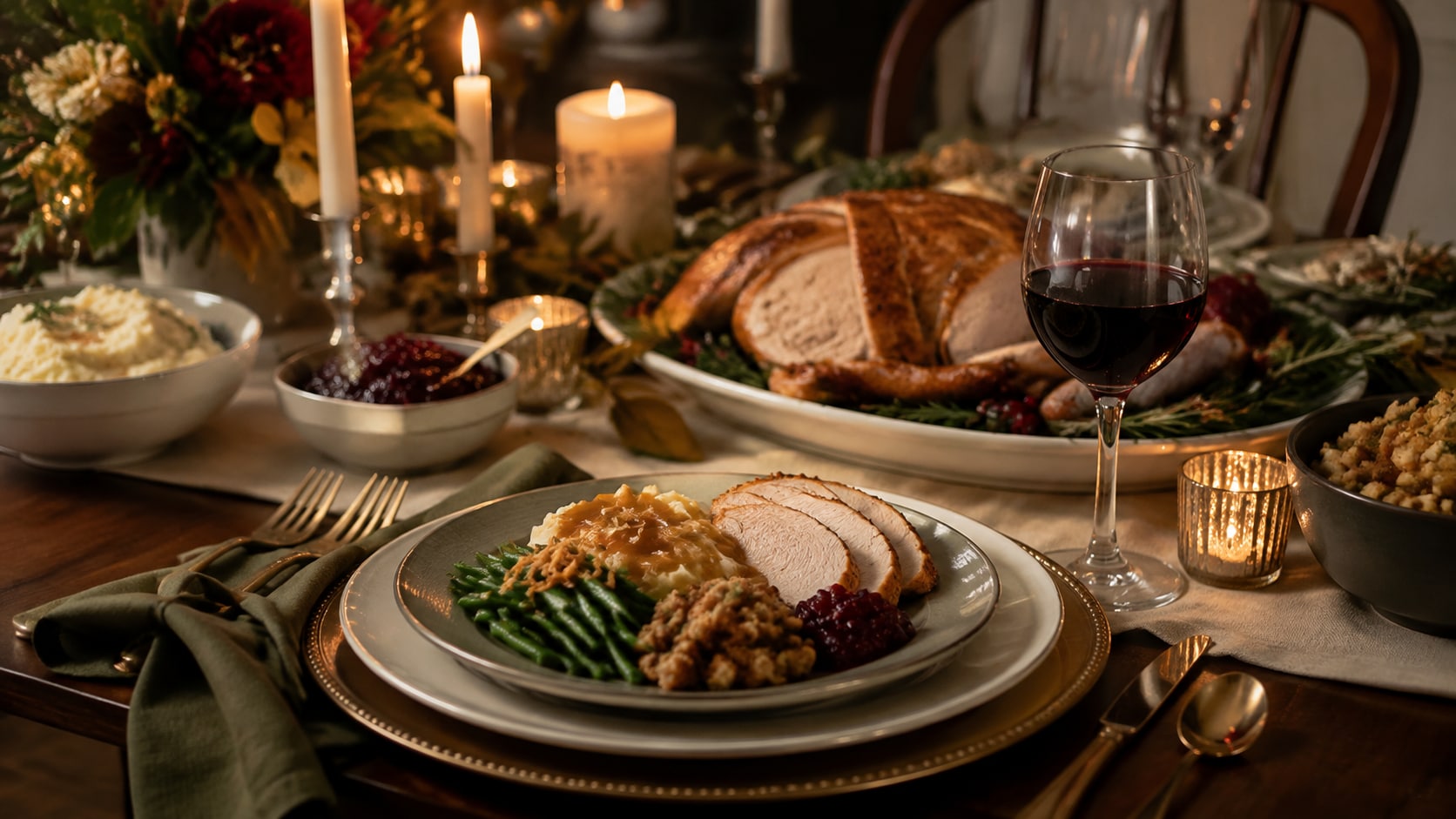
Start with a precise AI dining table prompt, then use Filmora's AI image generator to create clean still images with controlled composition, believable lighting, and edit-ready space. Use it for holiday dinners, breakfast flat lays, modern farmhouse setups, brunch spreads, and product styling tables.
- Prompt to Image - Turn text ideas into portraits, celebration scenes, nature shots, social covers, or campaign assets.
- Clean Layouts - Generate word-free visuals so titles, stickers, greetings, and captions can be added later in Filmora.
- Fast Iteration - Compare multiple crops, lighting moods, and subject arrangements before choosing a final image.
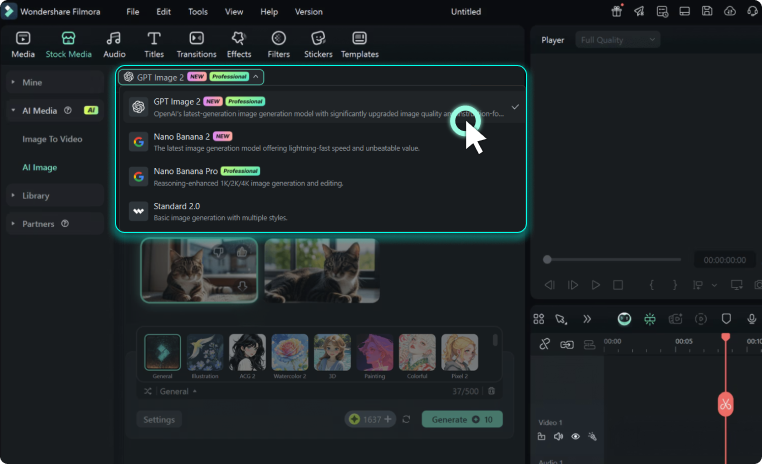
Use GPT Image 2 for Cleaner Detail
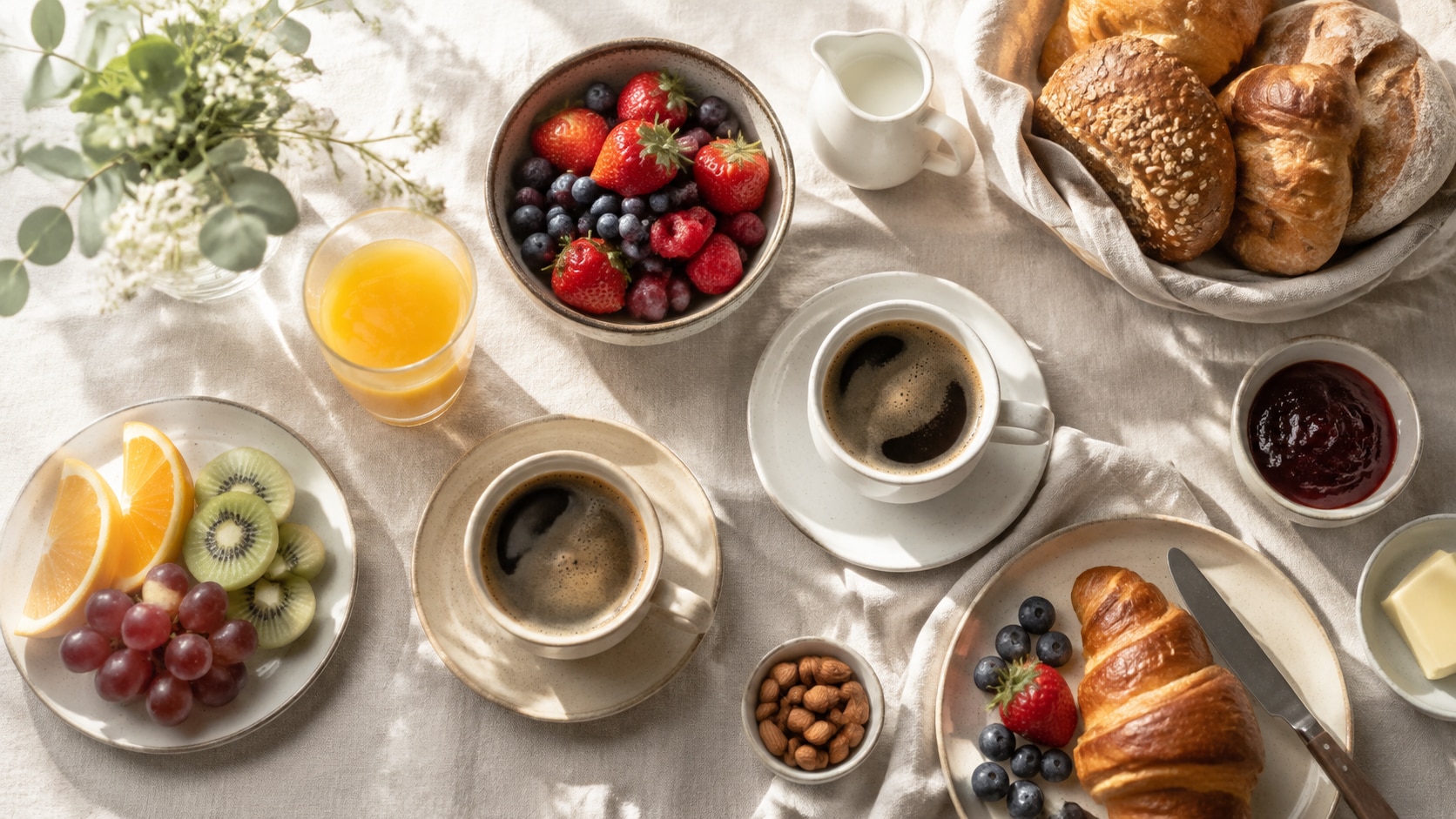
Use GPT Image 2 for Cleaner Detail
When the result needs accurate texture, respectful styling, subject placement, or realistic background detail, Filmora lets creators use GPT Image 2 inside the image-generation workflow. This helps control place setting order, linen texture, plate spacing, warm light, and the negative space you want to keep editable later.
- Prompt Following - Describe the subject, props, setting, lighting, camera angle, and negative space with more control.
- Realistic Detail - Refine clothing, decorations, water texture, facial lighting, shadows, and natural color balance.
- Editable Results - Keep generated images clean before adding overlays, titles, audio, or motion in Filmora.
Try Nano Banana for Style Variants
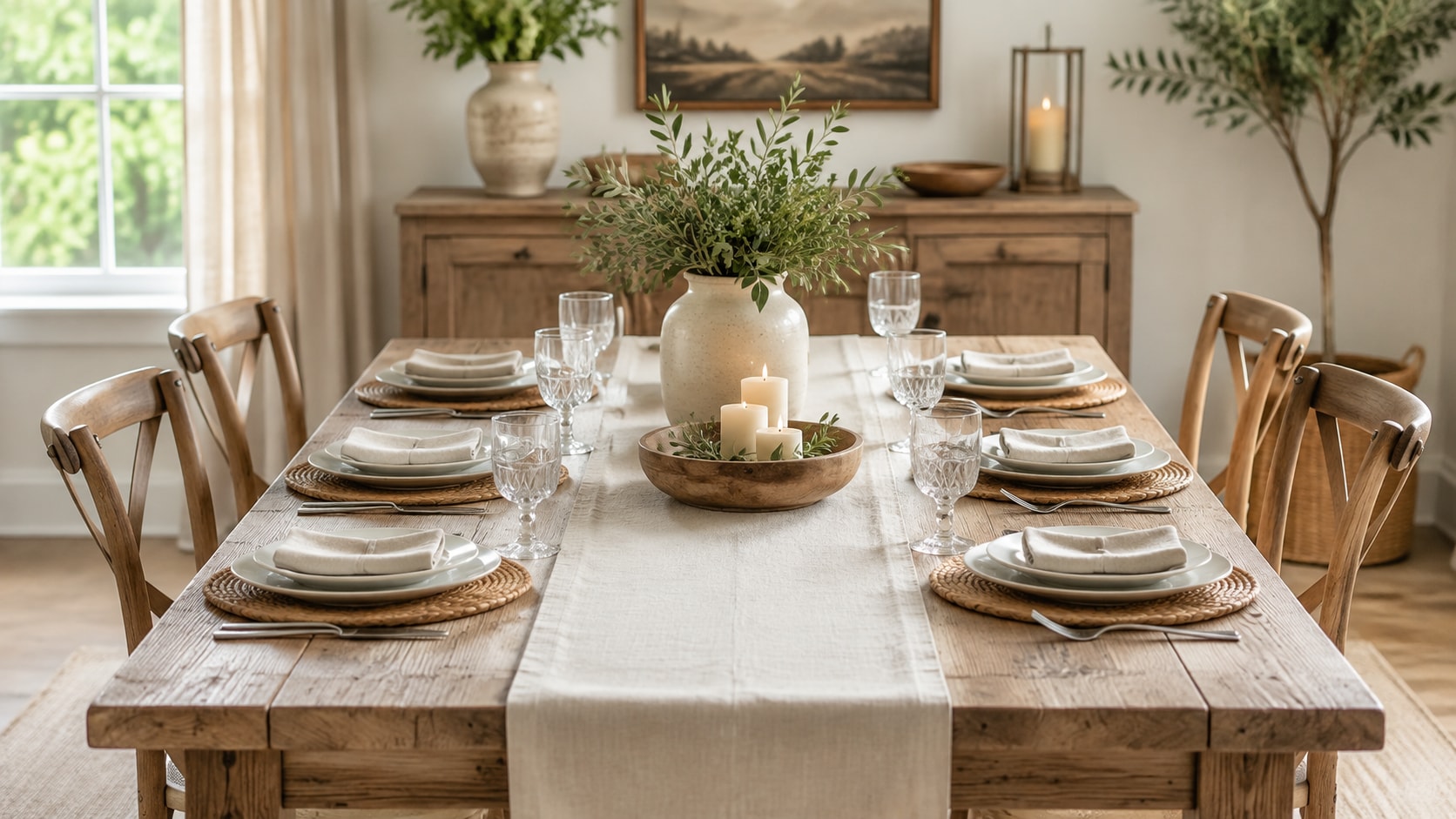
Try Nano Banana for Style Variants
Use Filmora's Nano Banana model when one idea needs alternate color, mood, composition, or social styling. Try richer food color, softer natural light, or tighter overhead crops from the same tablescape idea.
- Style Range - Explore realistic, editorial, cinematic, lifestyle, festival, nature, or social-ready versions.
- Variant Testing - Generate several visual directions before committing to a final page or video asset.
- Creative Flow - Move from prompt to edited image without splitting the workflow across too many tools.
Animate Still Images Into Video
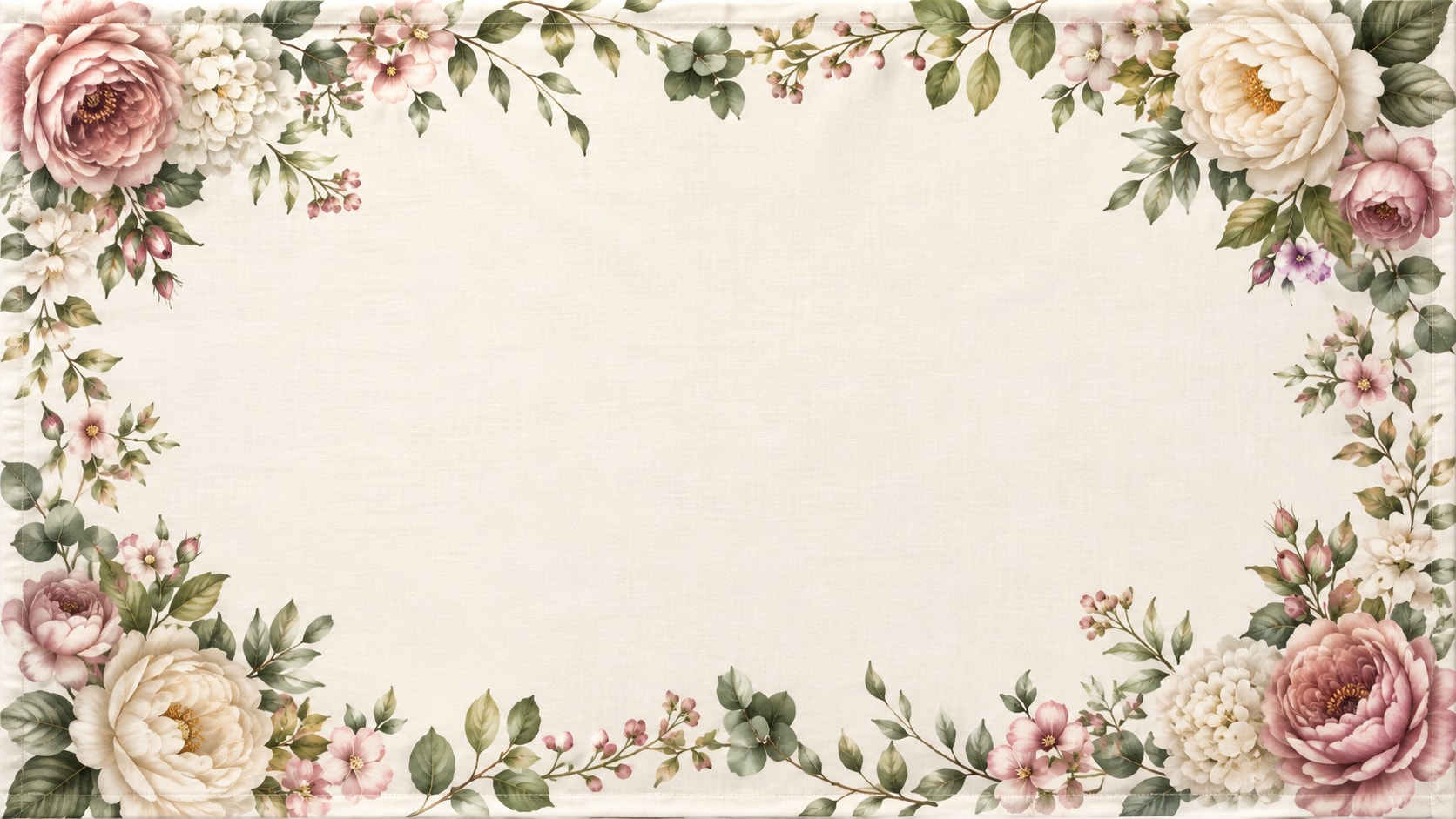
Animate Still Images Into Video
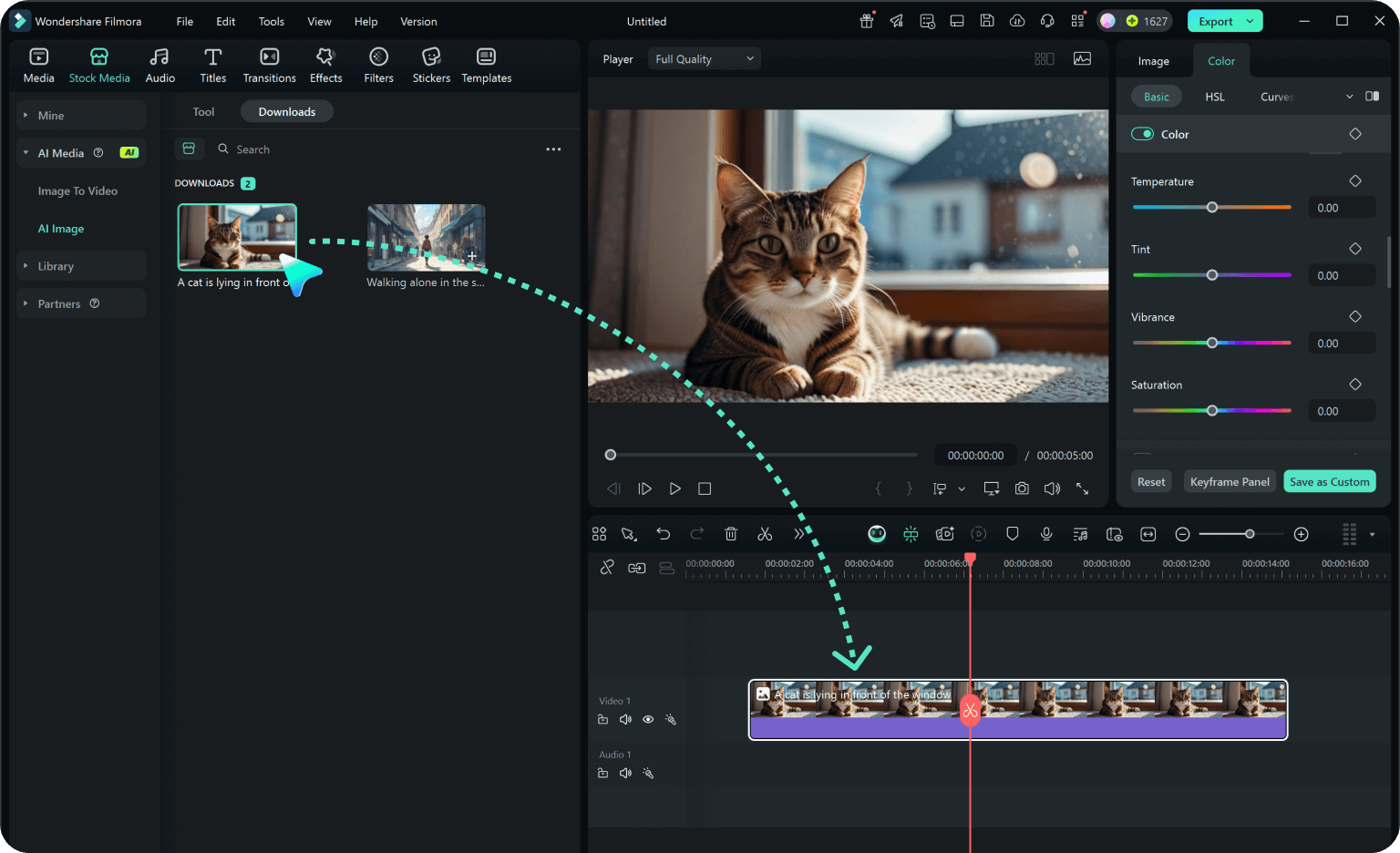
After generating the still image, use Filmora's AI Image to Video workflow to add camera movement, overlays, effects, audio, and social-ready exports. Animate candle glow, subtle steam, title reveals, soft music, and vertical exports.
- Motion Ideas - Add slow zooms, parallax, light movement, drifting petals, flowing water, reveal effects, or gentle camera pushes.
- Social Formats - Crop one generated still into 16:9, 9:16, and 1:1 versions for different channels.
- Final Export - Finish with greetings, music, transitions, effects, and platform-ready output in Filmora.
Frequently Asked Questions About Dining Table Prompts
How to Generate Dining Table Scenes With Prompts
Choose a Dining Table scene, define the style and framing, generate the still, then polish or animate it in Filmora.
Step 1 Choose a Dining Table Prompt
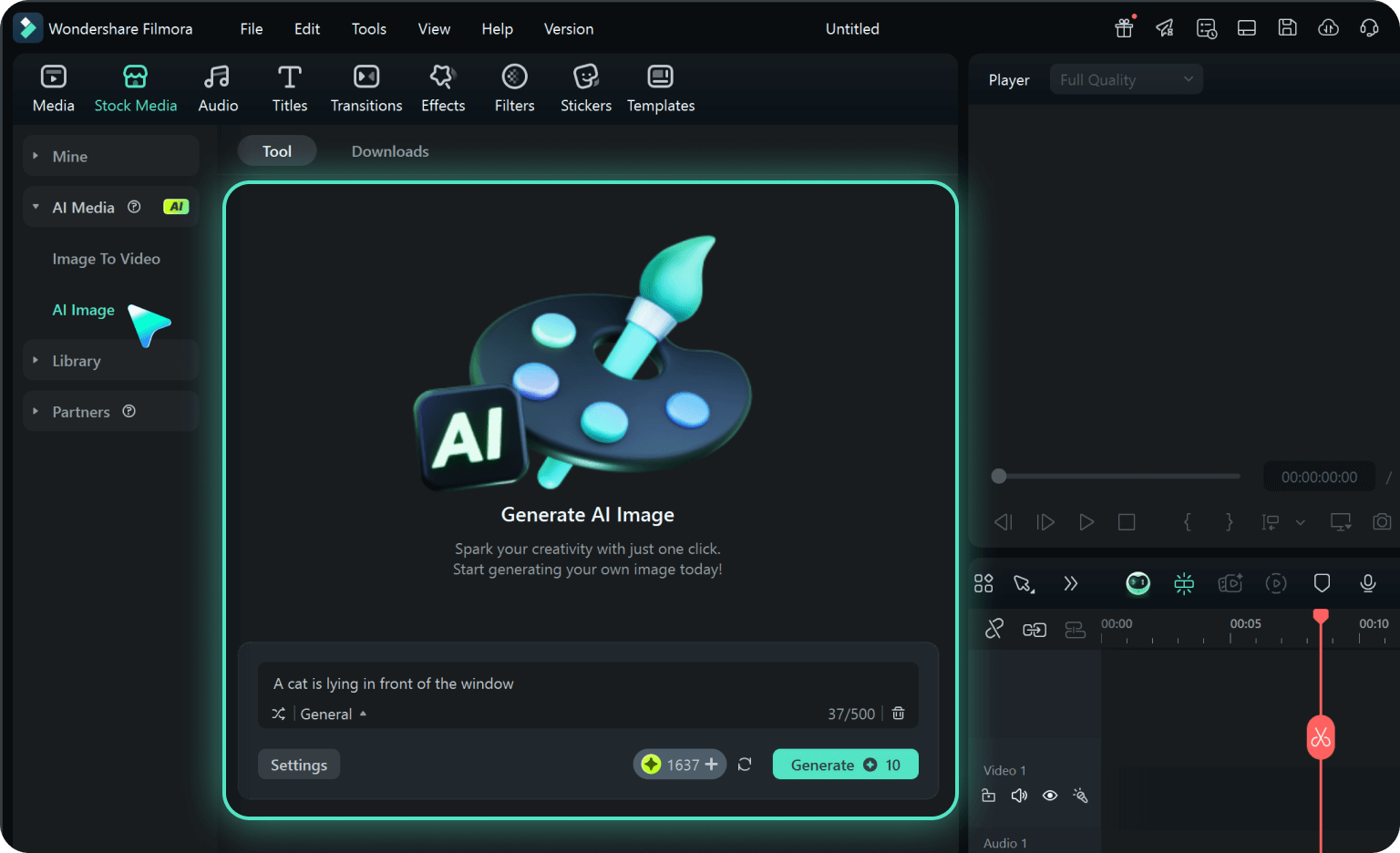
Step 2 Set Style and Ratio
Step 3 Generate, Personalize, and Export
-
1: Choose a Dining Table Prompt
Pick a dining table portrait, scene, still life, wallpaper, or cover idea. -
2: Set Style and Ratio
Paste the prompt into Filmora's AI Image tool, choose GPT Image 2 or Nano Banana, select a ratio, and refine color, texture, and framing. -
3: Generate, Personalize, and Export
Generate the image, adjust crop and color, add motion or overlays if needed, then export it for social posts, reels, or banner art.
AI Dining Table Prompts for Tablescape Scenes
Use AI dining table prompts to create holiday dinners, breakfast flat lays, modern farmhouse setups, brunch spreads, and motion-ready tabletop visuals for Filmora editing.