Explore Hiking Portrait AI Prompts
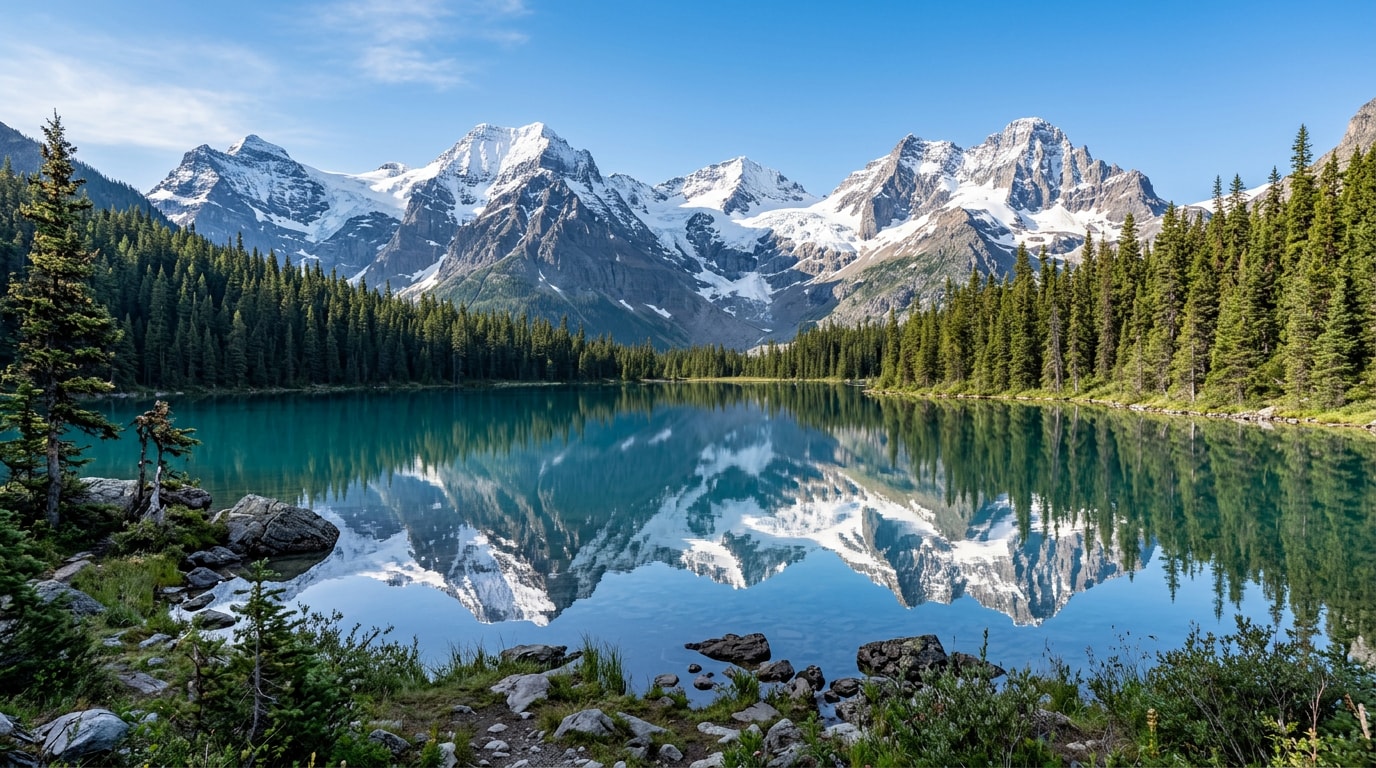
Browse ai hiking prompts for mountain trails, adult hikers, forest paths, alpine lakes, desert ridges, camping moments, and outdoor lifestyle portraits. Use each idea for video templates, reels, social posts, covers, and export-ready visuals.
Loading more hiking portrait prompts...
 Category:
 Duration:
 Aspect Ratio:
Why Create Hiking Portrait Images With Filmora?
Hiking portraits depend on believable terrain, layered depth, weather, and an expressive human scale. Filmora helps turn outdoor stills into travel reels, route stories, and adventure edits.
Generate Hiking Portrait With Filmora
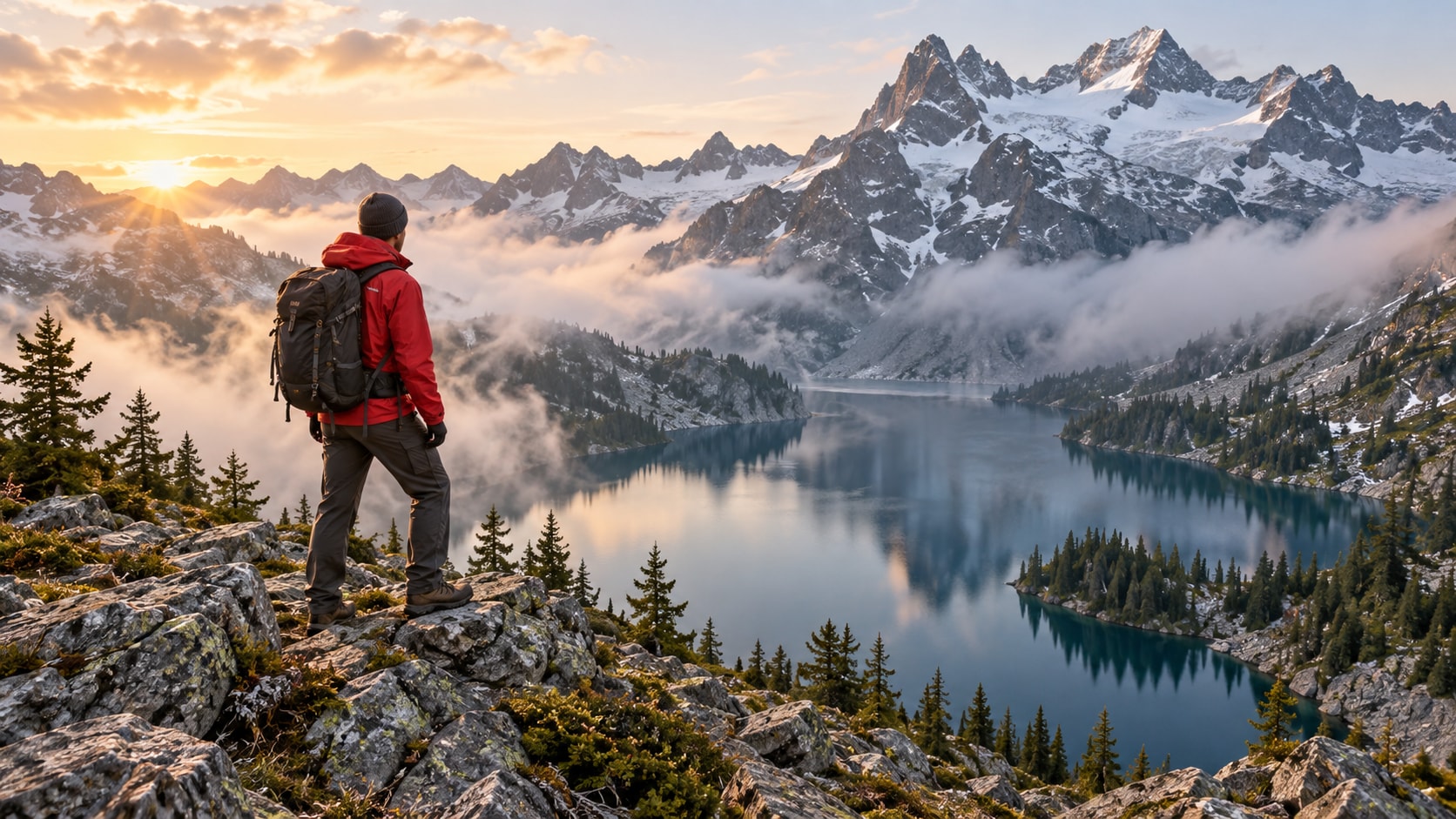
Generate Hiking Portrait With Filmora
Start with a precise hiking portrait prompt, then use Filmora's AI image generator to turn mountain trails, adult hikers, forest paths, alpine lakes, desert ridges, camping moments, and outdoor lifestyle portraits into clean, edit-ready stills. Use it for mountain trails, adult hikers, forest paths, alpine lakes, desert ridges, camping moments, and outdoor lifestyle portraits, then refine crop, color, overlays, and motion in Filmora.
- Prompt to Image - Turn a visual idea into a clear composition with a strong focal subject and useful negative space.
- Clean Visual Structure - Filmora's AI Image Generator helps compare creative directions before the final edit.
- Fast Iteration - Test editorial, poster, portrait, and social treatments without rebuilding the brief.
Use GPT Image 2 for Controlled Composition and Detail
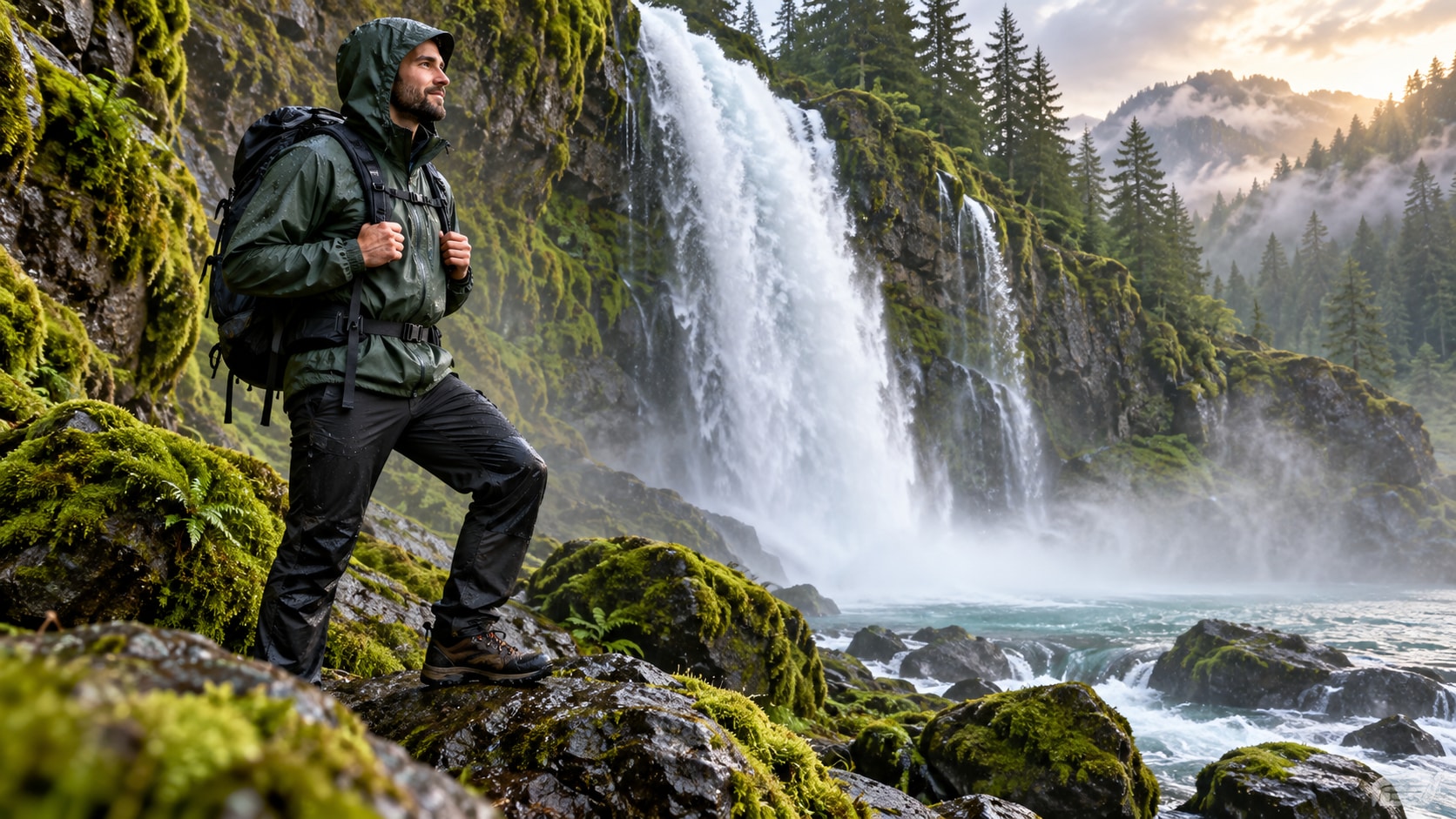
Use GPT Image 2 for Controlled Composition and Detail
When the scene needs dependable subject detail, texture, or background control, Filmora's GPT Image 2 helps follow a structured prompt. GPT Image 2 helps organize the subject, setting, lighting, materials, and clean space reserved for later design.
- Prompt Following - Describe the subject, setting, camera distance, palette, texture, and mood in one focused request.
- Detail Control - GPT Image 2 helps preserve details while Filmora keeps titles, stickers, and overlays editable.
- Edit-Ready Results - Keep generated lettering abstract so accurate copy can be added later in the timeline.
Try Nano Banana for Fast Creative Variations
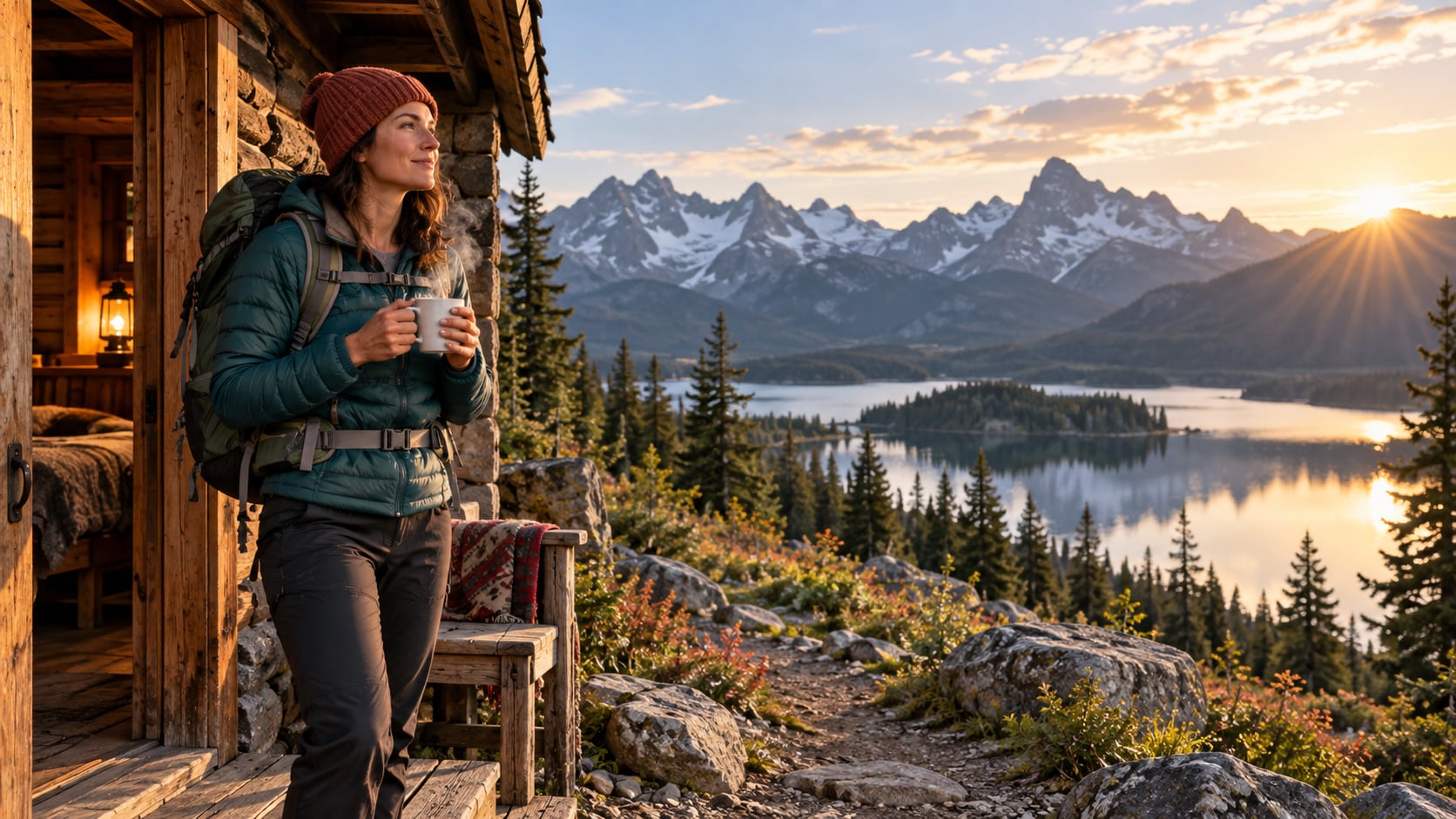
Try Nano Banana for Fast Creative Variations
Use Filmora's Nano Banana when one idea needs another palette, mood, composition, or social treatment. Nano Banana helps test alternate palettes, props, backgrounds, and moods while retaining the main direction.
- Style Range - Try alternate palettes, locations, eras, and compositions from the same creative concept.
- Variant Testing - Nano Banana makes fast visual revisions practical when a scene needs another arrangement.
- Creative Flow - Move from prompt exploration to crop, layout, and platform exports in one workflow.
Turn Hiking Portrait Into Video
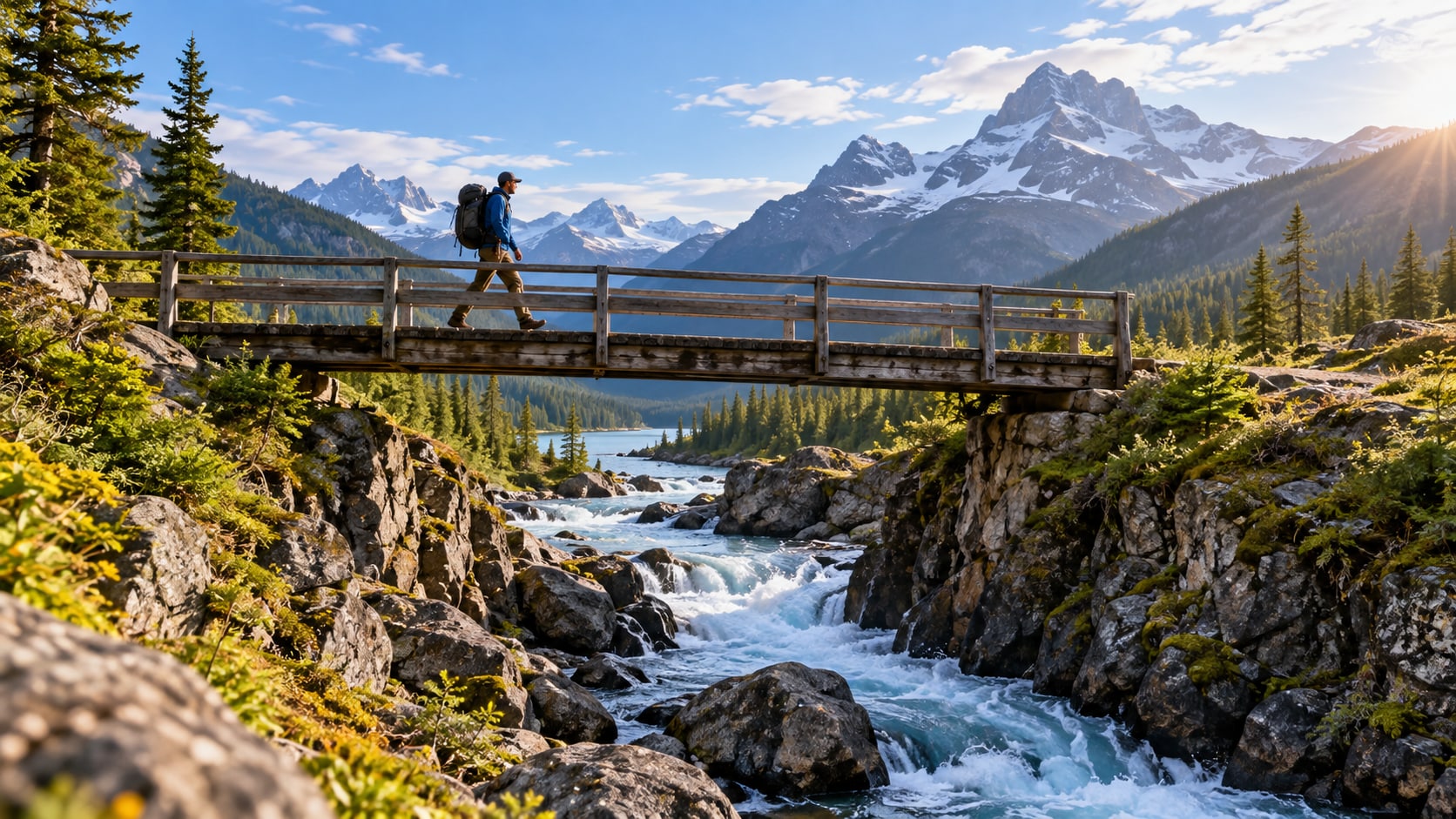
Turn Hiking Portrait Into Video
After generating the still, use Filmora's AI Image to Video workflow to add camera movement, overlays, effects, sound, and social-ready exports. Animate a camera move, light change, crowd motion, star trail, motion blur, or a restrained title reveal.
- Motion Ideas - Animate a camera push, parallax layer, light shift, crowd movement, star trail, or gentle reveal.
- Social Formats - Filmora's AI Image to Video tools turn a strong still into motion-ready content.
- Final Export - Finish with music, transitions, text, and 16:9, 9:16, or square exports.
Frequently Asked Questions About Hiking Portrait Prompts
How to Generate Hiking Portrait Images With AI
Choose a hiking portrait setup, define the visual mood, generate the still, then personalize or animate it in Filmora.
Step 1 Choose a Hiking Portrait Prompt
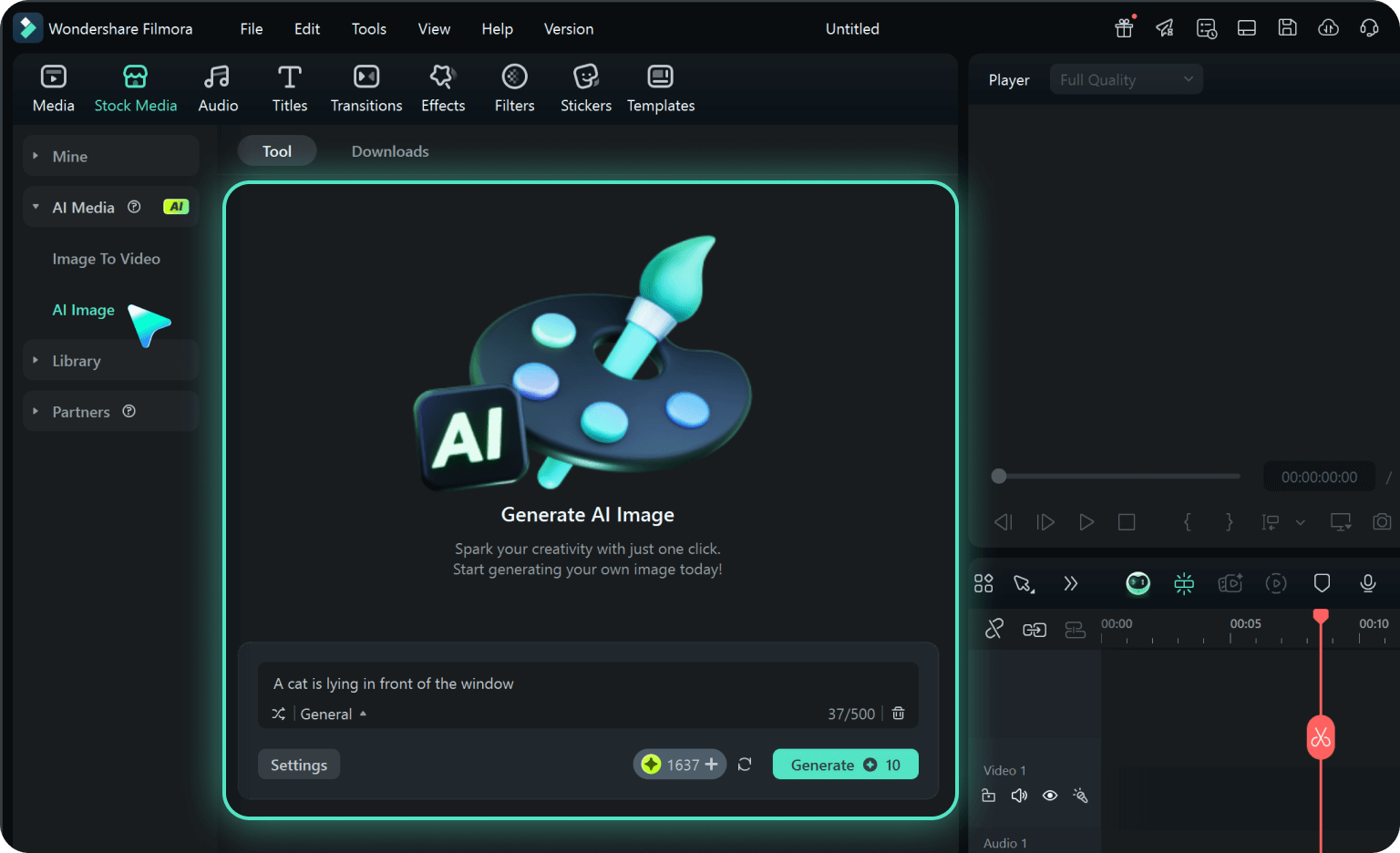
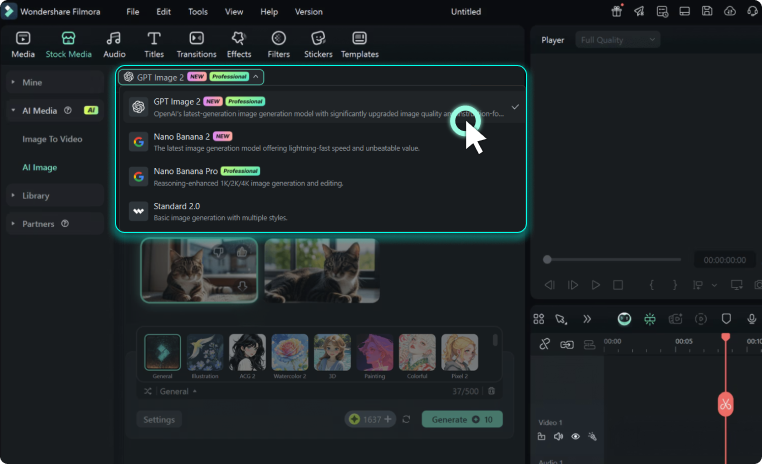
Step 2 Set Style, Model, and Ratio
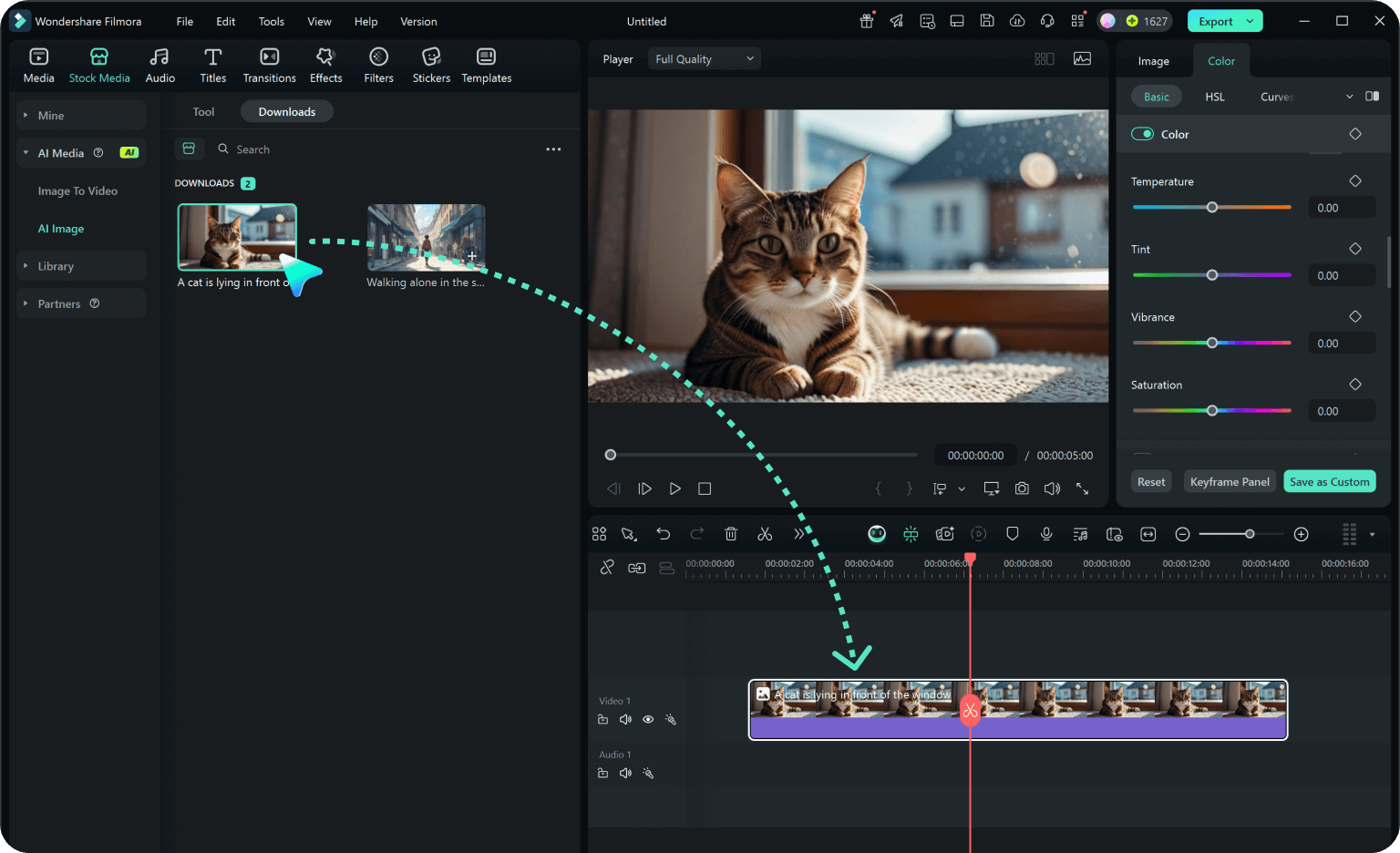
Step 3 Generate, Edit, and Export
-
1: Choose a Hiking Portrait Prompt
Pick a hiking portrait setup such as an adult hiker on a ridge, a forest trail portrait, a lake overlook, or a sunrise campsite. -
2: Set Style, Model, and Ratio
Paste the prompt into Filmora's AI Image tool, choose GPT Image 2 or Nano Banana, select a ratio, and refine subject detail, lighting, and framing. -
3: Generate, Edit, and Export
Generate the still, adjust crop and color, add motion or overlays if needed, then export it for travel profiles, outdoor journals, adventure reels, social portraits, and nature videos.
Hiking Portrait AI Prompts for Premium Visuals
Use ai hiking prompts to create mountain trails, adult hikers, forest paths, alpine lakes, desert ridges, camping moments, and outdoor lifestyle portraits and motion-ready visuals for Filmora editing.