Explore Times Square Photo Prompts
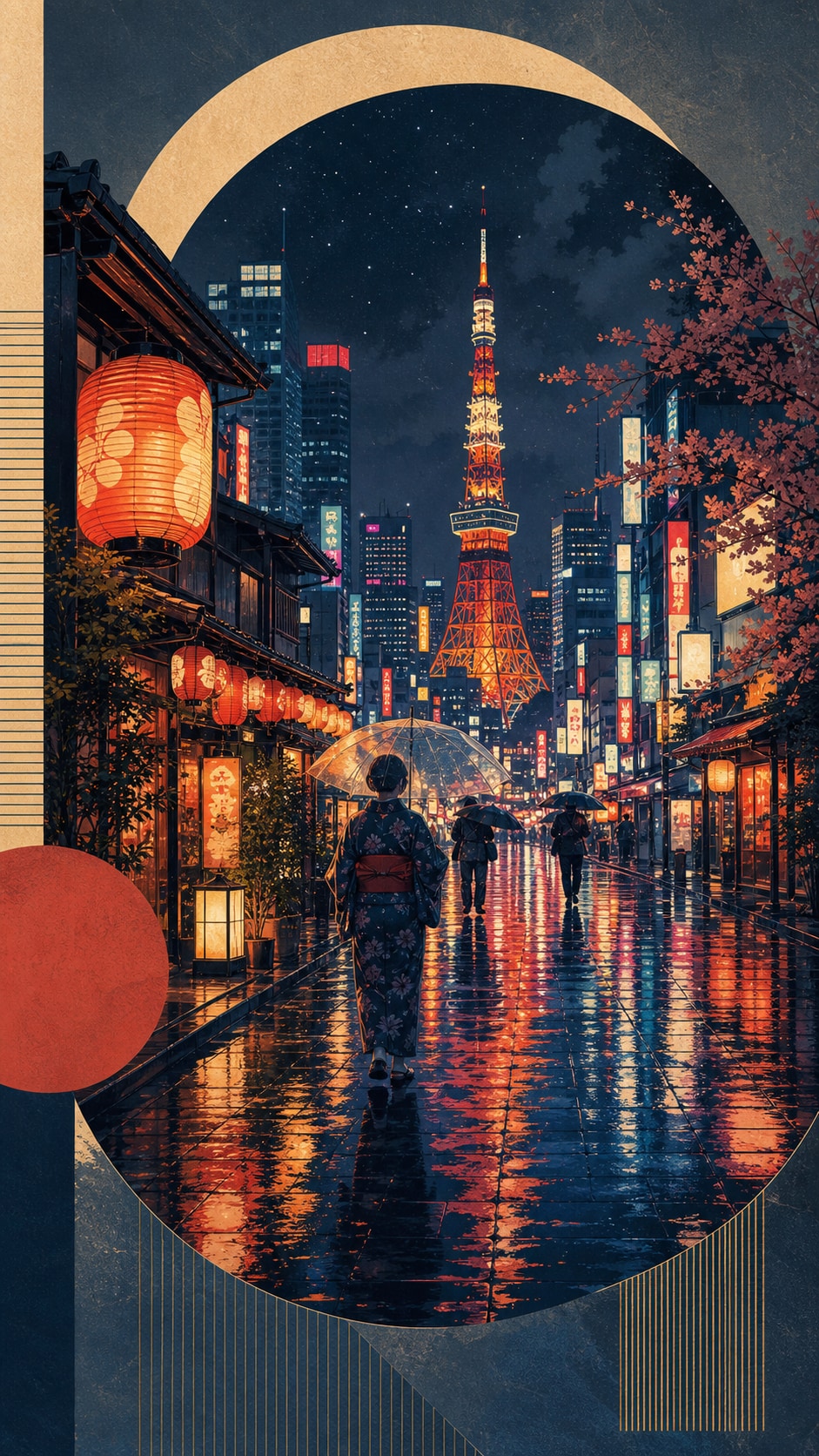
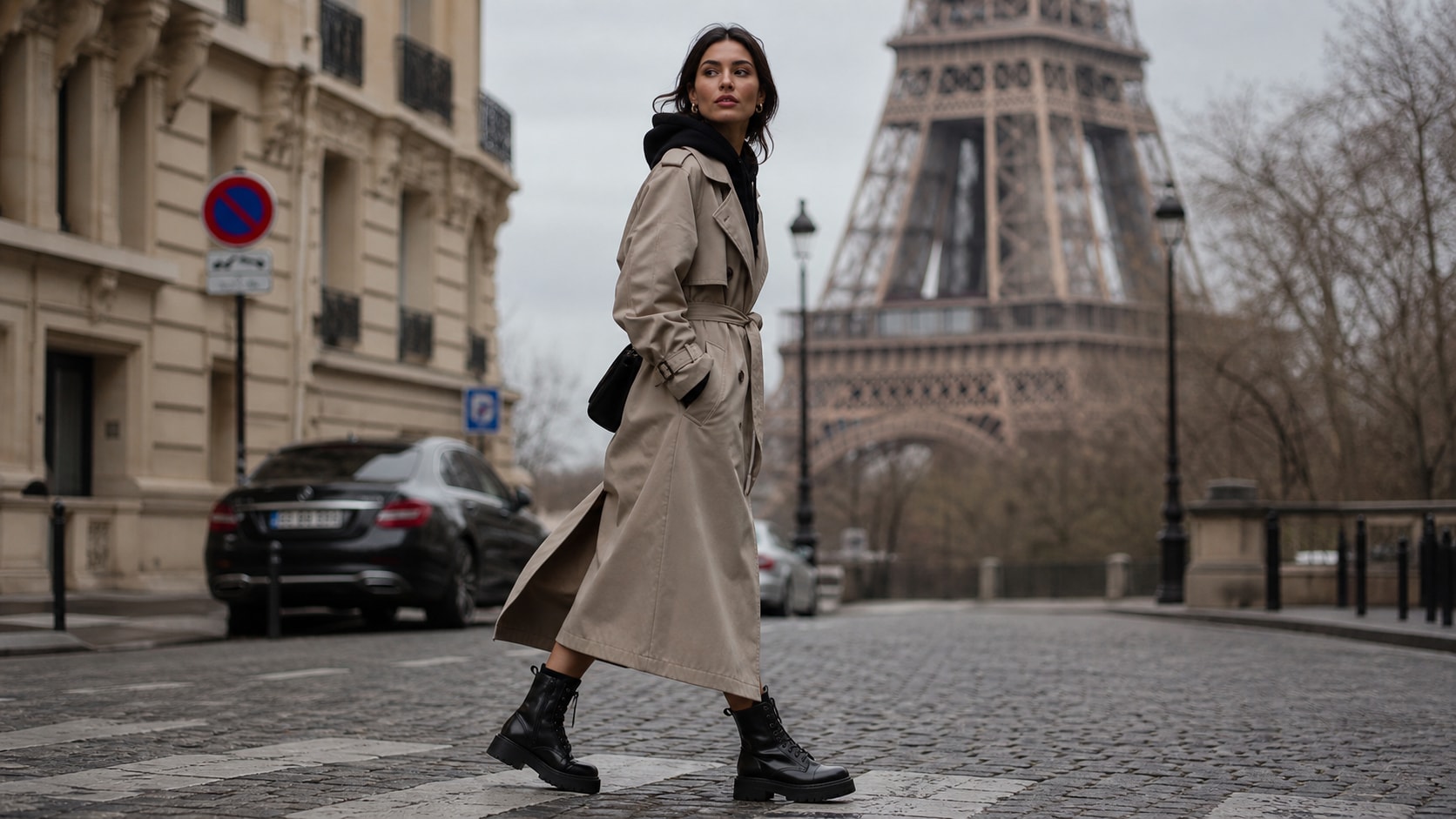
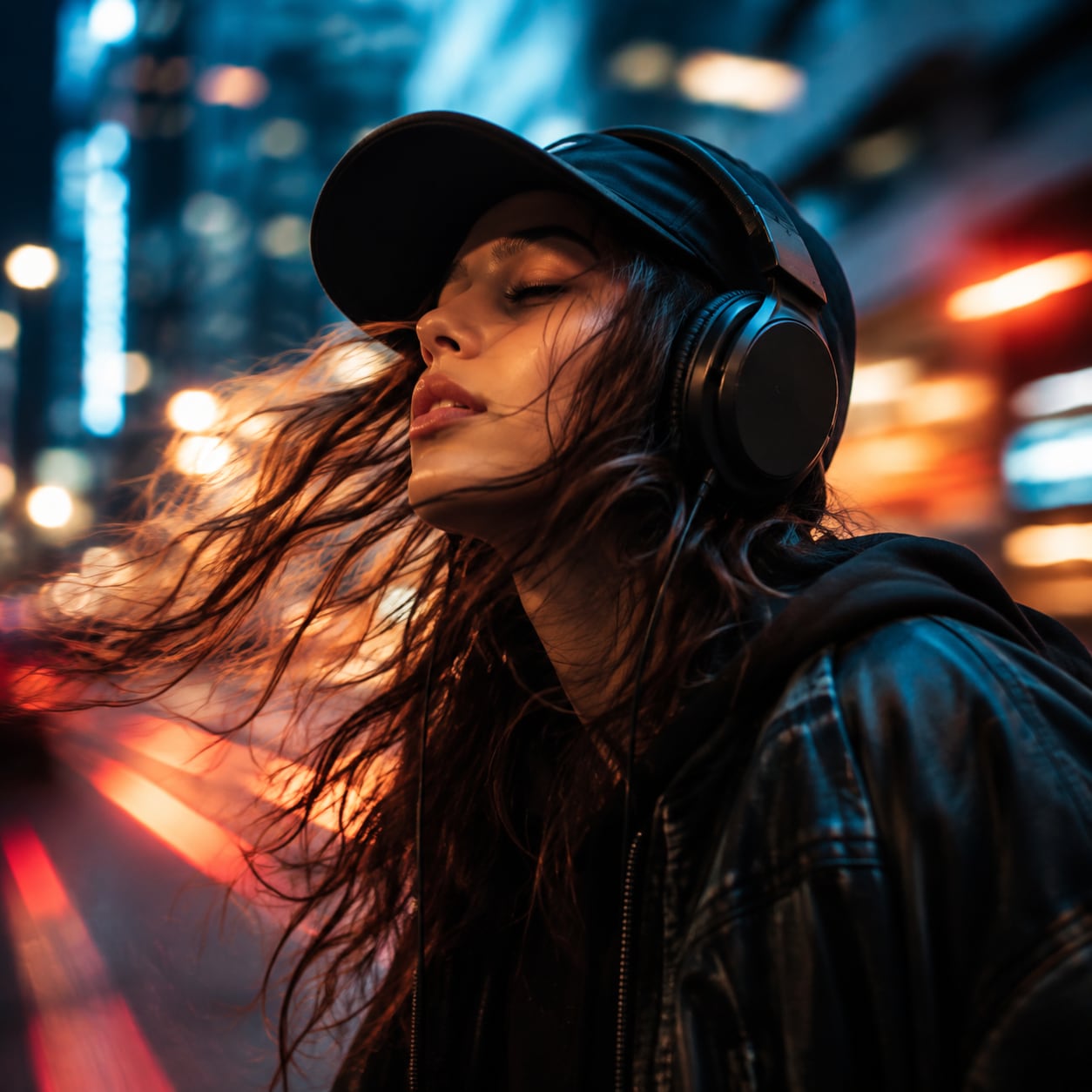
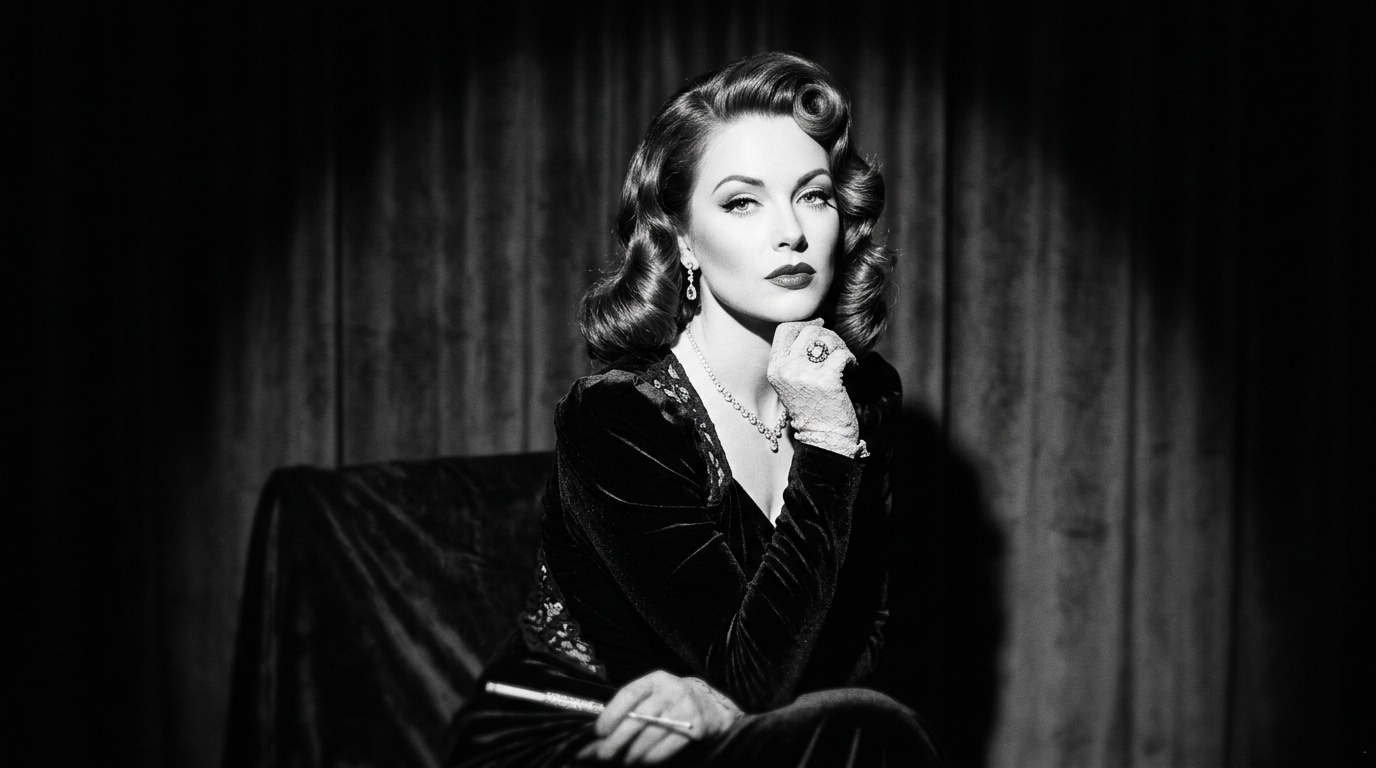
Browse ai photo prompts times square for neon portraits, rainy streets, tourist snapshots, fashion editorials, couple scenes, and cinematic landmark views. Use each idea to create assets for video templates, reels, social posts, covers, and export-ready visuals.
Loading more Times Square photo prompts...
 Category:
 Duration:
 Aspect Ratio:
Why Use Times Square Prompts With Filmora?
Times Square is visually dense: LED color, moving traffic, tall buildings, crowds, and recognizable scale all compete for attention. Filmora helps creators shape that energy into readable portraits, covers, and fast-moving city edits.
Generate Times Square Photos With Filmora
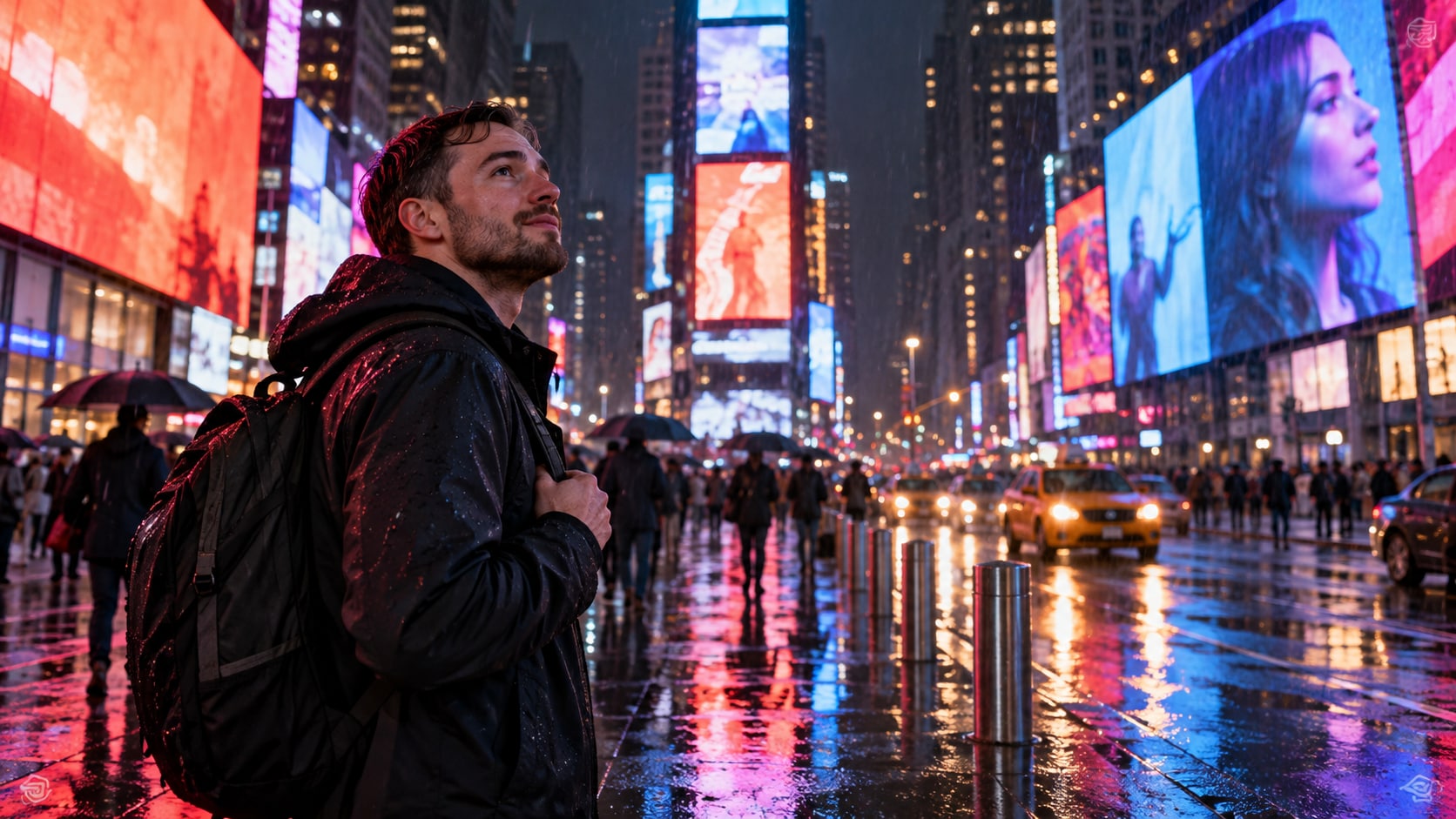
Generate Times Square Photos With Filmora
Start with a precise Times Square photo prompt, then use Filmora's AI image generator to turn neon portraits, rainy streets, tourist snapshots, fashion editorials, couple scenes, and cinematic landmark views into clean, edit-ready stills. Use it for recognizable city scale, street portraits, fashion campaigns, travel memories, rainy-night scenes, and energetic social covers.
- Prompt to Image - Turn the landmark's light, scale, traffic, and human energy into a clean cinematic still.
- Clean Visual Structure - Keep a strong focal point and usable negative space so the image can support a headline or reel cover.
- Fast Iteration - Compare street portrait, travel snapshot, fashion, couple, aerial, and night-crowd directions.
Use GPT Image 2 for Neon, Crowd, and Landmark Detail
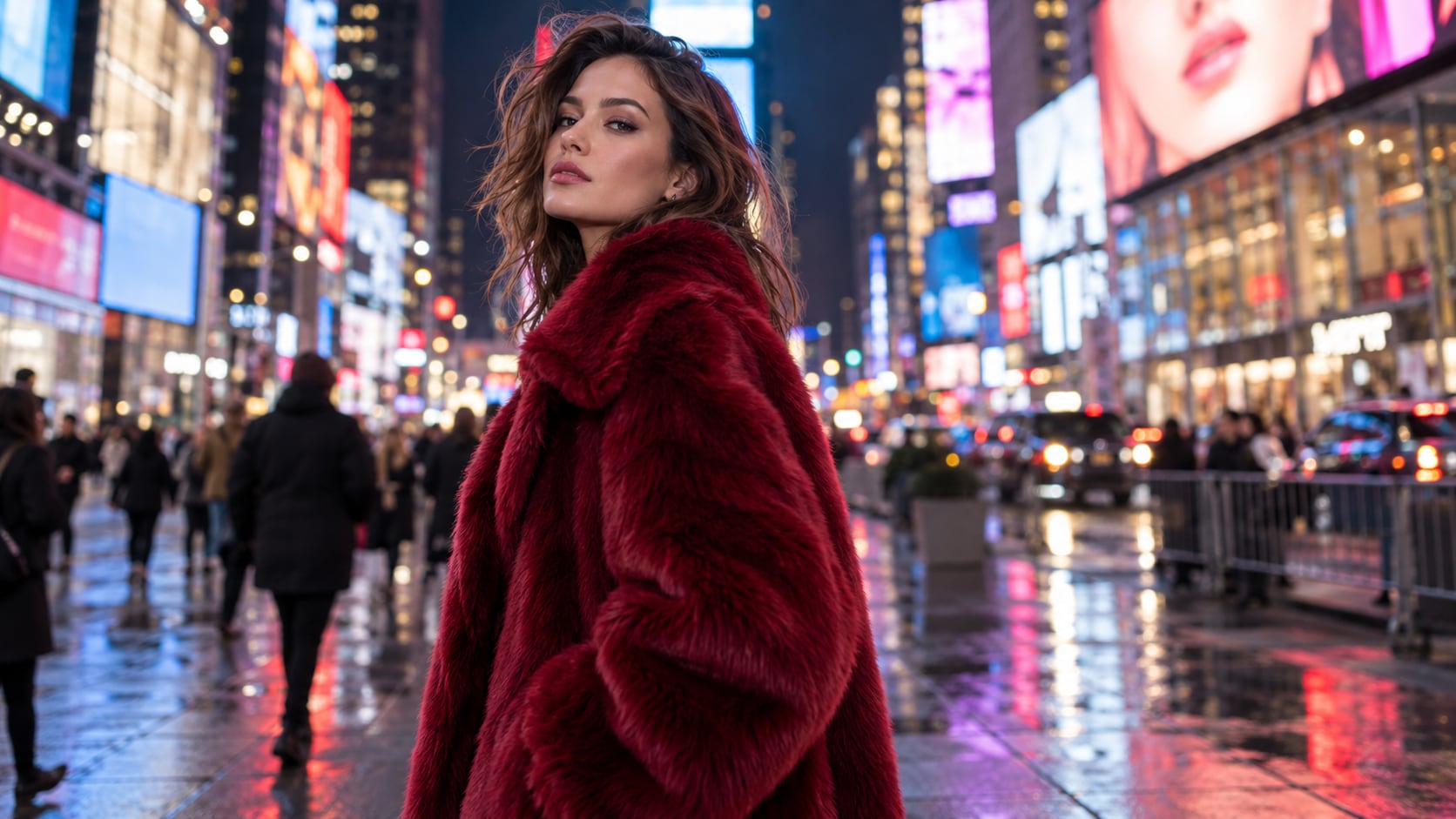
Use GPT Image 2 for Neon, Crowd, and Landmark Detail
When the scene needs dependable subject detail, texture, or background control, Filmora's GPT Image 2 helps follow a structured prompt. This helps balance LED glow, human scale, wet pavement, vehicles, storefront depth, crowd placement, and abstract signage without producing messy readable copy.
- Prompt Following - Describe viewpoint, subject, weather, reflections, landmark density, lens, and time of day.
- Detail Control - Preserve wet pavement, LED glow, storefront depth, moving crowds, and realistic city color.
- Edit-Ready Results - Keep signs abstract or unreadable before adding correct titles and branding in Filmora.
Try Nano Banana for Night City Variants
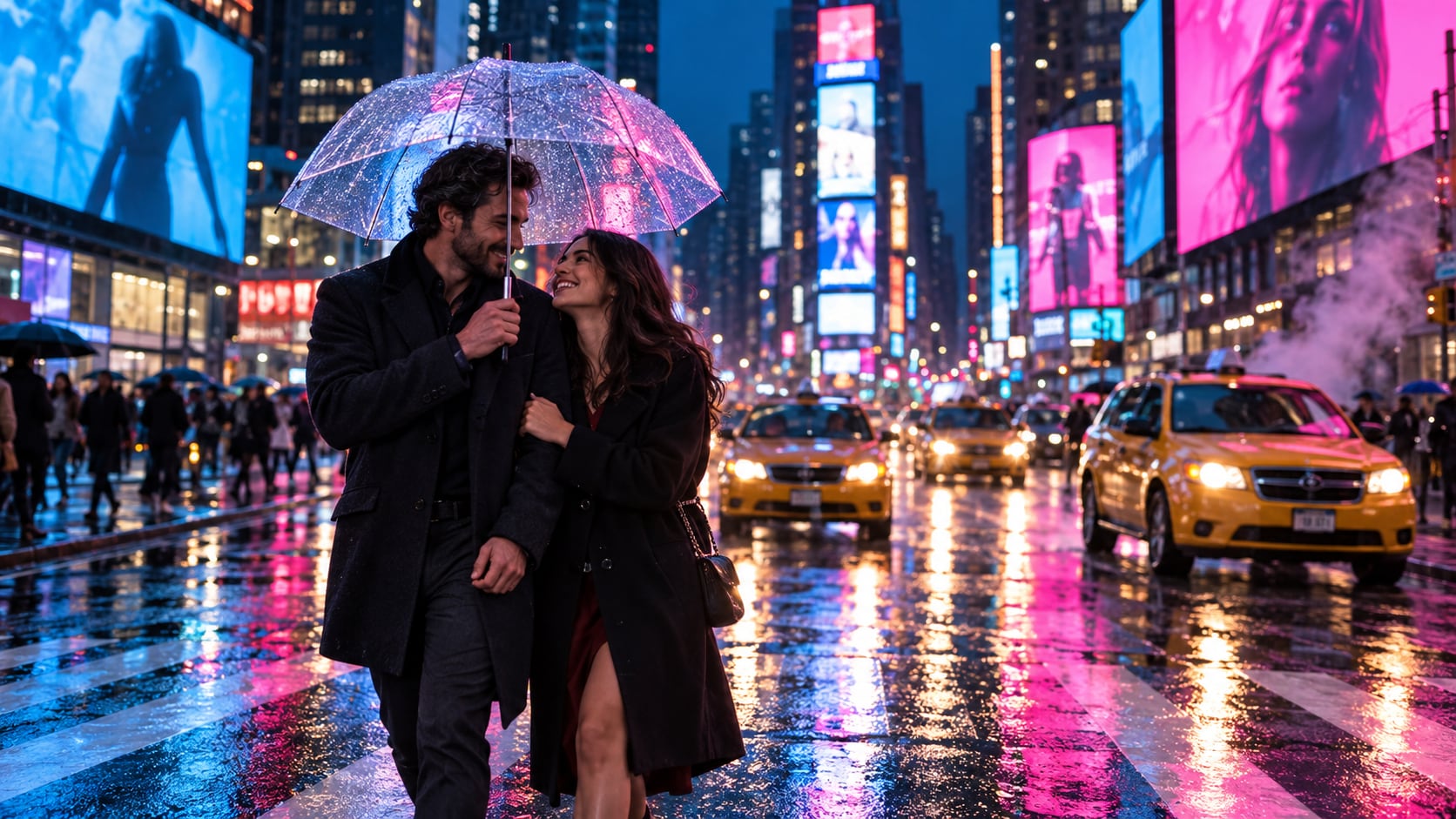
Try Nano Banana for Night City Variants
Use Filmora's Nano Banana when one idea needs another palette, mood, composition, or social treatment. Try rainy romance, black-and-white documentary, high-fashion neon, tourist snapshot, blue-hour street, or elevated skyline treatments.
- Style Range - Move between neon editorial, candid documentary, rainy romance, black-and-white street, and travel-cover styles.
- Variant Testing - Test camera height, color temperature, and subject scale for different social placements.
- Creative Flow - Keep the creative loop focused from prompt to polished export.
Turn Times Square Photos Into Video
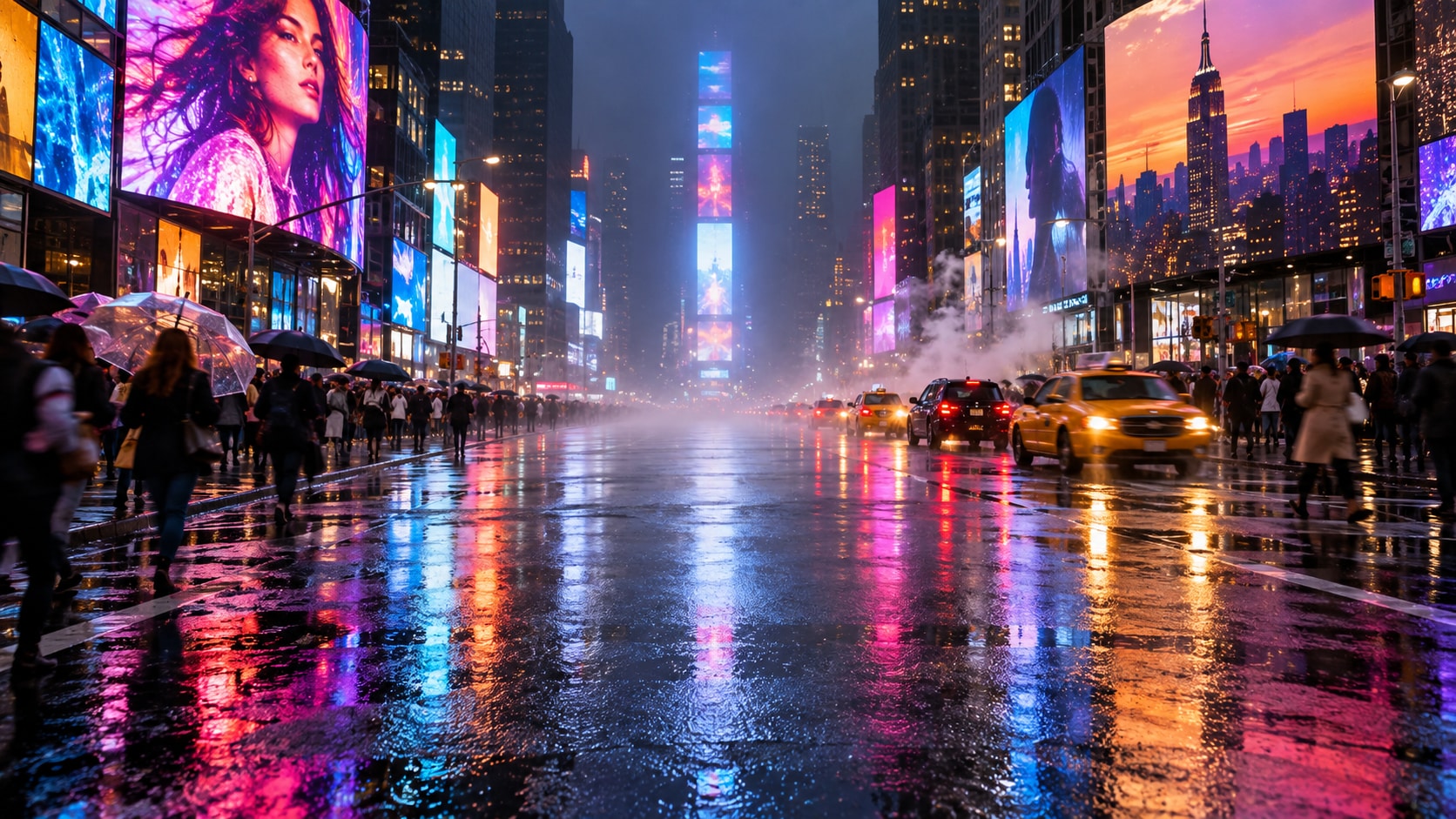
Turn Times Square Photos Into Video
After generating the still, use Filmora's AI Image to Video workflow to add camera movement, overlays, effects, sound, and social-ready exports. Animate traffic light trails, LED flicker, passing umbrellas, crowd movement, taxi reflections, or a slow push toward the city lights.
- Motion Ideas - Animate taxis, LED glow, passing umbrellas, light trails, crowd motion, or a gentle skyline push.
- Social Formats - Reframe one landmark image for 16:9 video, 9:16 shorts, and square social posts.
- Final Export - Complete the scene with captions, music, effects, transitions, and export-ready versions.
Frequently Asked Questions About Times Square Photo Prompts
How to Generate Times Square Photos With AI
Choose a times square setup, define the subject and visual mood, generate the still, then personalize or animate it in Filmora.
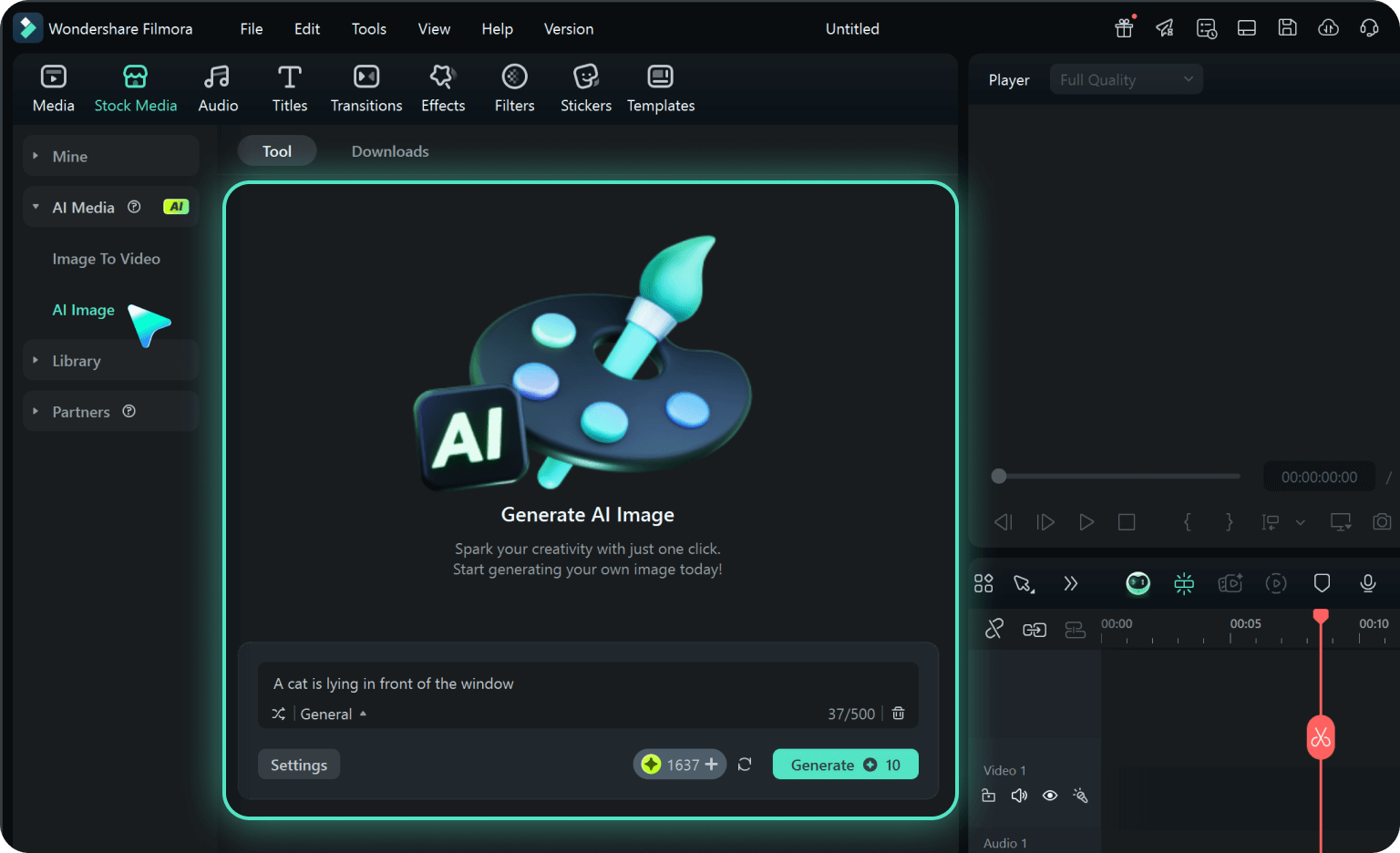
Step 1 Choose a Times Square Prompt
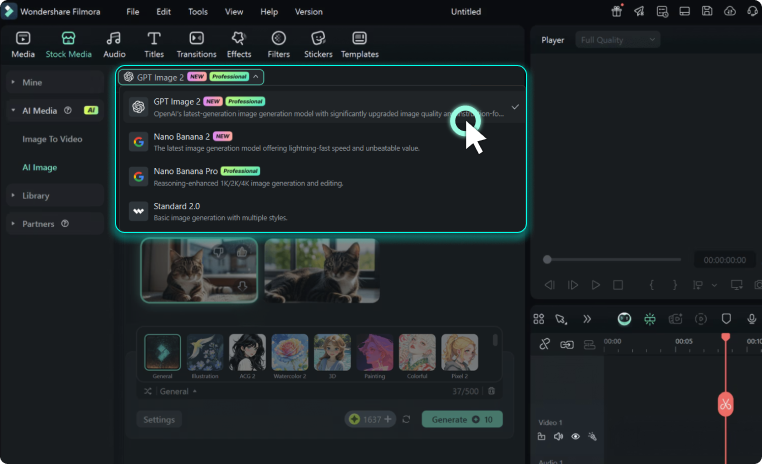
Step 2 Set Style, Model, and Ratio
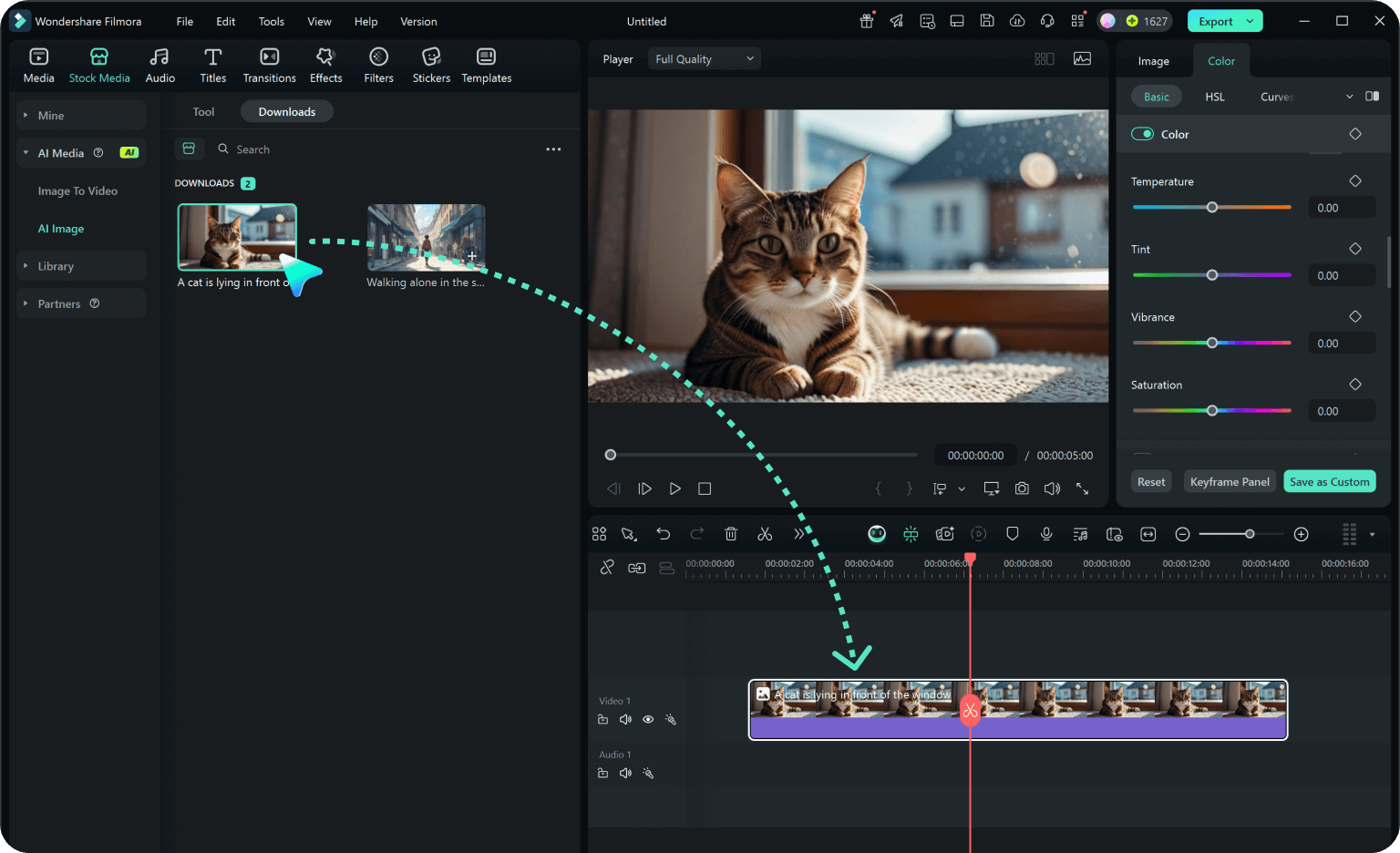
Step 3 Generate, Edit, and Export
-
1: Choose a Times Square Prompt
Pick a times square setup such as a rain-soaked pedestrian portrait, a fashion lookbook frame, a couple under LED light, or a wide landmark view. -
2: Set Style, Model, and Ratio
Paste the prompt into Filmora's AI Image tool, choose GPT Image 2 or Nano Banana, select a ratio, and refine subject detail, lighting, and framing. -
3: Generate, Edit, and Export
Generate the still, adjust crop and color, add motion or overlays if needed, then export it for travel posts, city reels, fashion covers, thumbnails, nightlife edits, and cinematic video backgrounds.
Times Square Photo Prompts for Neon City Photography
Use ai photo prompts times square to create neon portraits, rainy streets, tourist snapshots, fashion editorials, couple scenes, and cinematic landmark views and motion-ready visuals for Filmora editing.