Explore Zombie Apocalypse Prompts
Browse prompts for zombie apocalypse for ruined cities, survivor portraits, abandoned highways, emergency shelters, dark forests, and cinematic horror covers. Use each idea to create assets for video templates, reels, social posts, covers, and export-ready visuals.
Loading more zombie apocalypse prompts...
 Category:
 Duration:
 Aspect Ratio:
Why Use Zombie Apocalypse Prompts With Filmora?
A strong apocalypse image needs more than a ruined building. It needs scale, survival stakes, practical texture, controlled color, and a frame that can carry story titles. Filmora helps turn those ingredients into cinematic stills and trailers.
Generate Zombie Apocalypse Scenes With Filmora
Generate Zombie Apocalypse Scenes With Filmora
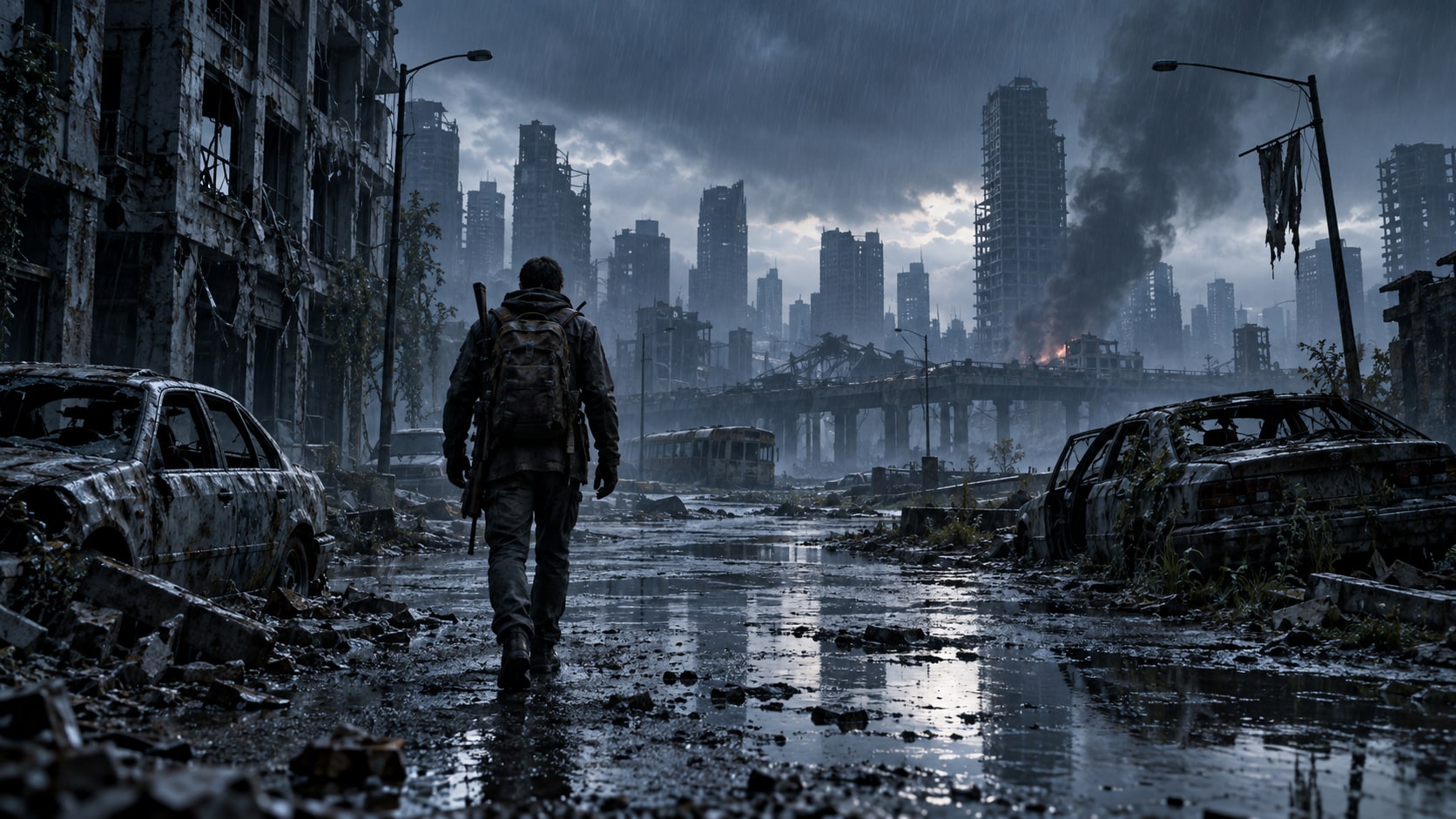
Start with a precise zombie apocalypse prompt, then use Filmora's AI image generator to turn ruined cities, survivor portraits, abandoned highways, emergency shelters, dark forests, and cinematic horror covers into clean, edit-ready stills. Use it for grounded survival scenes, atmospheric ruins, character posters, tense shelters, and story-driven horror visuals.
- Prompt to Image - Turn a survival concept into a cinematic still with clear scale, atmosphere, and story direction.
- Clean Visual Structure - Use readable silhouettes and controlled empty space so the frame can support a title or episode card.
- Fast Iteration - Compare ruined-city, shelter, highway, forest, and character-focused versions quickly.
Use GPT Image 2 for Environment and Story Detail
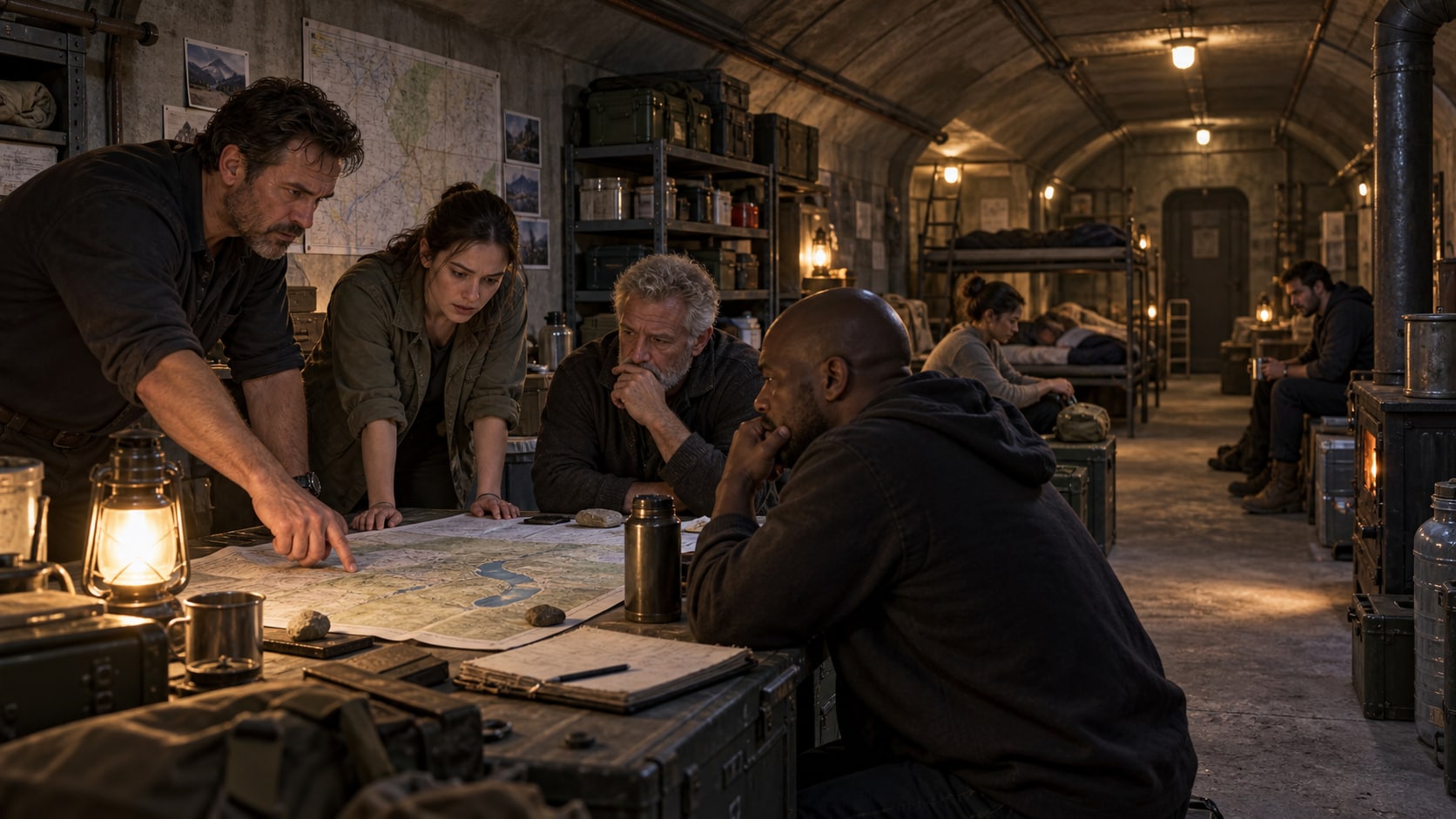
Use GPT Image 2 for Environment and Story Detail
When the scene needs dependable subject detail, texture, or background control, Filmora's GPT Image 2 helps follow a structured prompt. This helps keep ruined architecture, practical survival props, smoke, weather, clothing wear, light direction, and character scale believable.
- Prompt Following - Describe the environment, survivor count, practical props, weather, lens, light, and action level.
- Detail Control - Hold smoke, rain, broken concrete, emergency lighting, fabric wear, and believable depth.
- Edit-Ready Results - Keep the scene free of generated labels before adding cinematic typography in Filmora.
Try Nano Banana for Horror Mood Variants
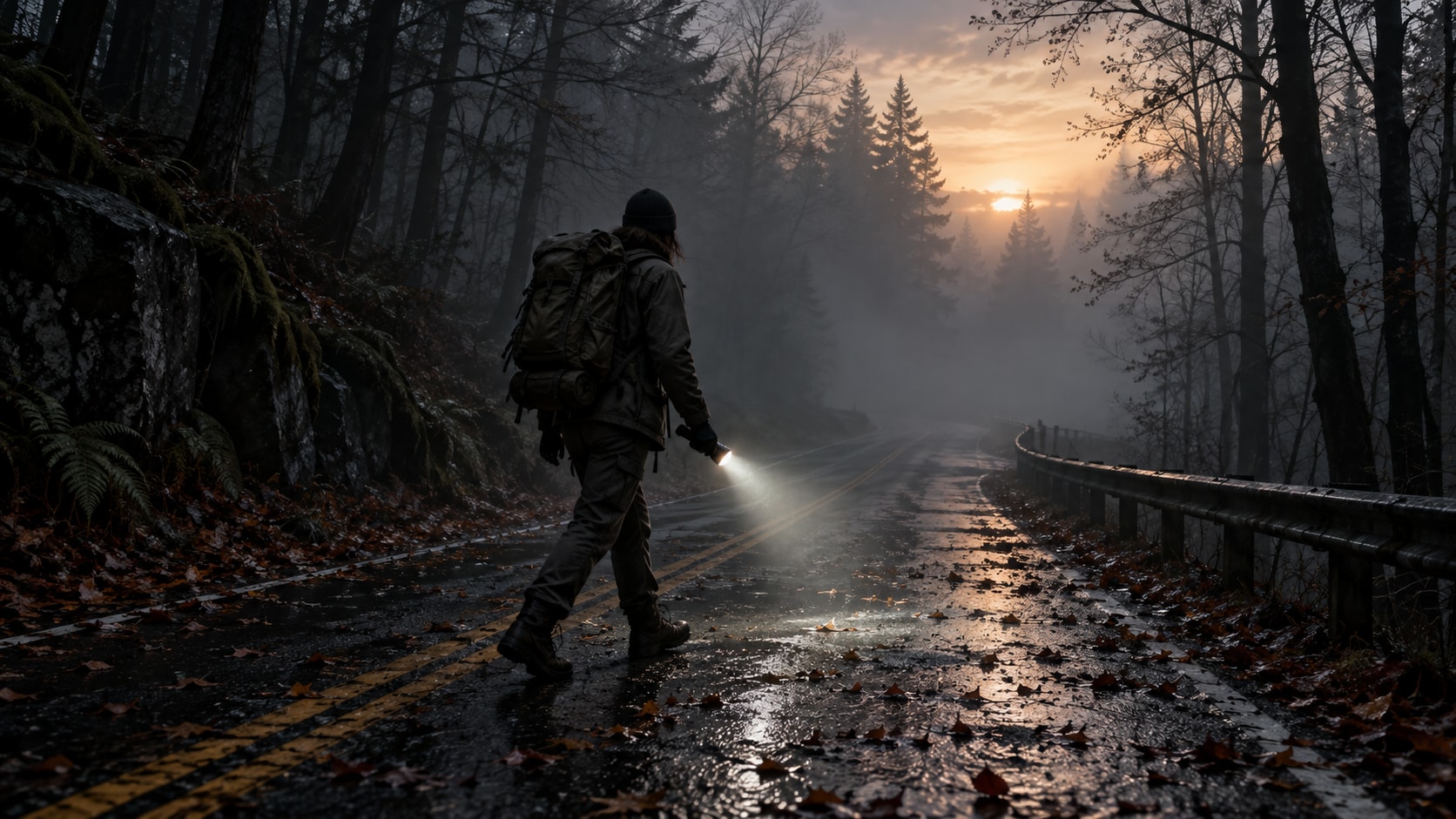
Try Nano Banana for Horror Mood Variants
Use Filmora's Nano Banana when one idea needs another palette, mood, composition, or social treatment. Try documentary realism, blue-hour thriller, retro horror, graphic-novel contrast, abandoned suburb, or storm-lit highway treatments.
- Style Range - Explore grounded documentary, blue-hour thriller, retro horror, comic-book, and blockbuster moods.
- Variant Testing - Try alternate threat distance, color grade, and camera height without losing the story beat.
- Creative Flow - Move from concept still to edit-ready sequence without leaving Filmora.
Turn Zombie Apocalypse Scenes Into Video
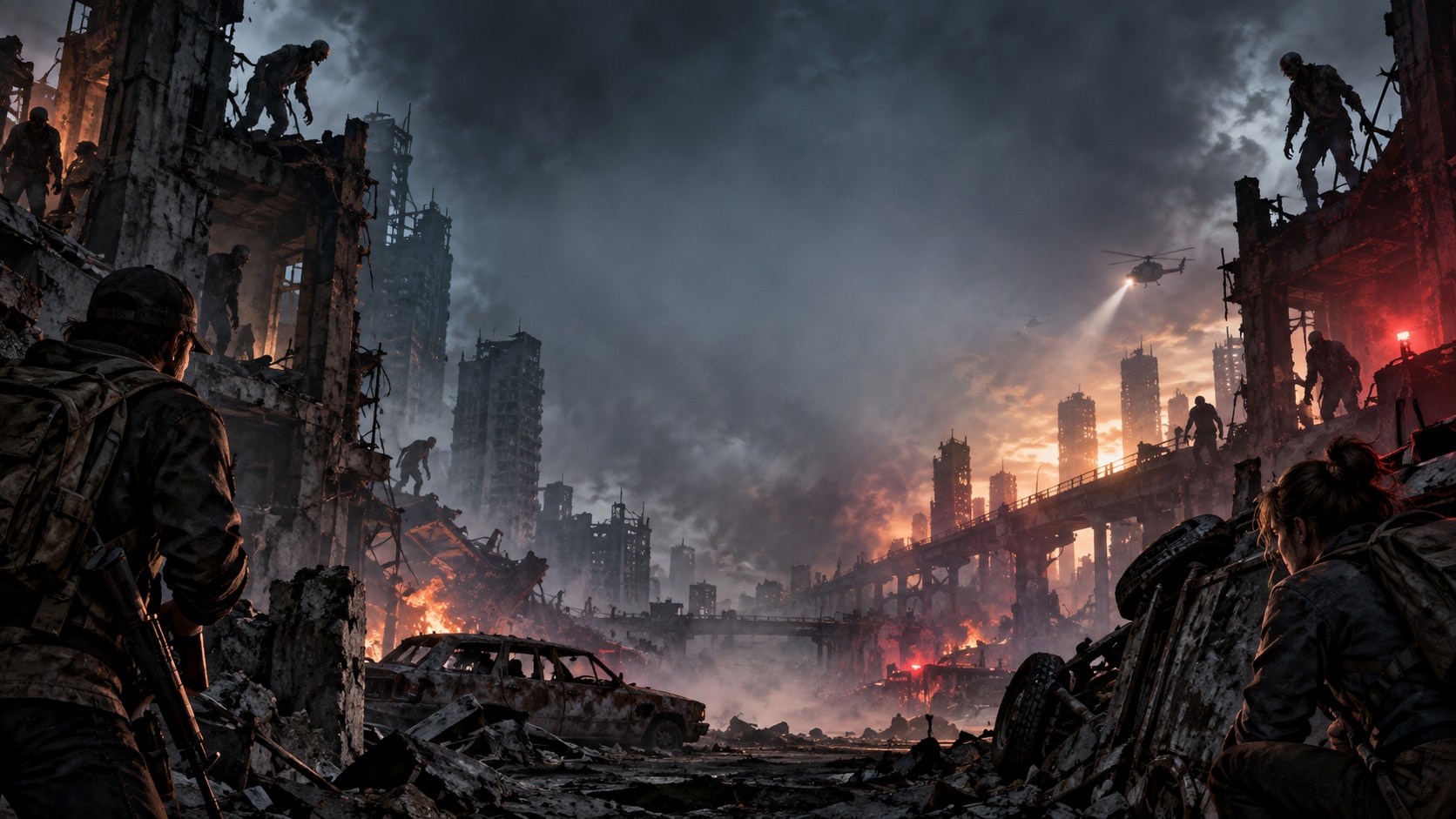
Turn Zombie Apocalypse Scenes Into Video
After generating the still, use Filmora's AI Image to Video workflow to add camera movement, overlays, effects, sound, and social-ready exports. Animate drifting smoke, flashlight beams, distant silhouettes, warning lights, falling ash, or a slow push into a ruined street.
- Motion Ideas - Animate drifting smoke, warning lights, distant movement, flashlight sweeps, or a slow push through ruins.
- Social Formats - Crop one scene for a widescreen episode cover, vertical teaser, or square campaign tile.
- Final Export - Add sound design, captions, transitions, and final export settings in Filmora.
Frequently Asked Questions About Zombie Apocalypse Prompts
How to Generate Zombie Apocalypse Images
Choose a zombie apocalypse setup, define the subject and visual mood, generate the still, then personalize or animate it in Filmora.
Step 1 Choose a Zombie Apocalypse Prompt
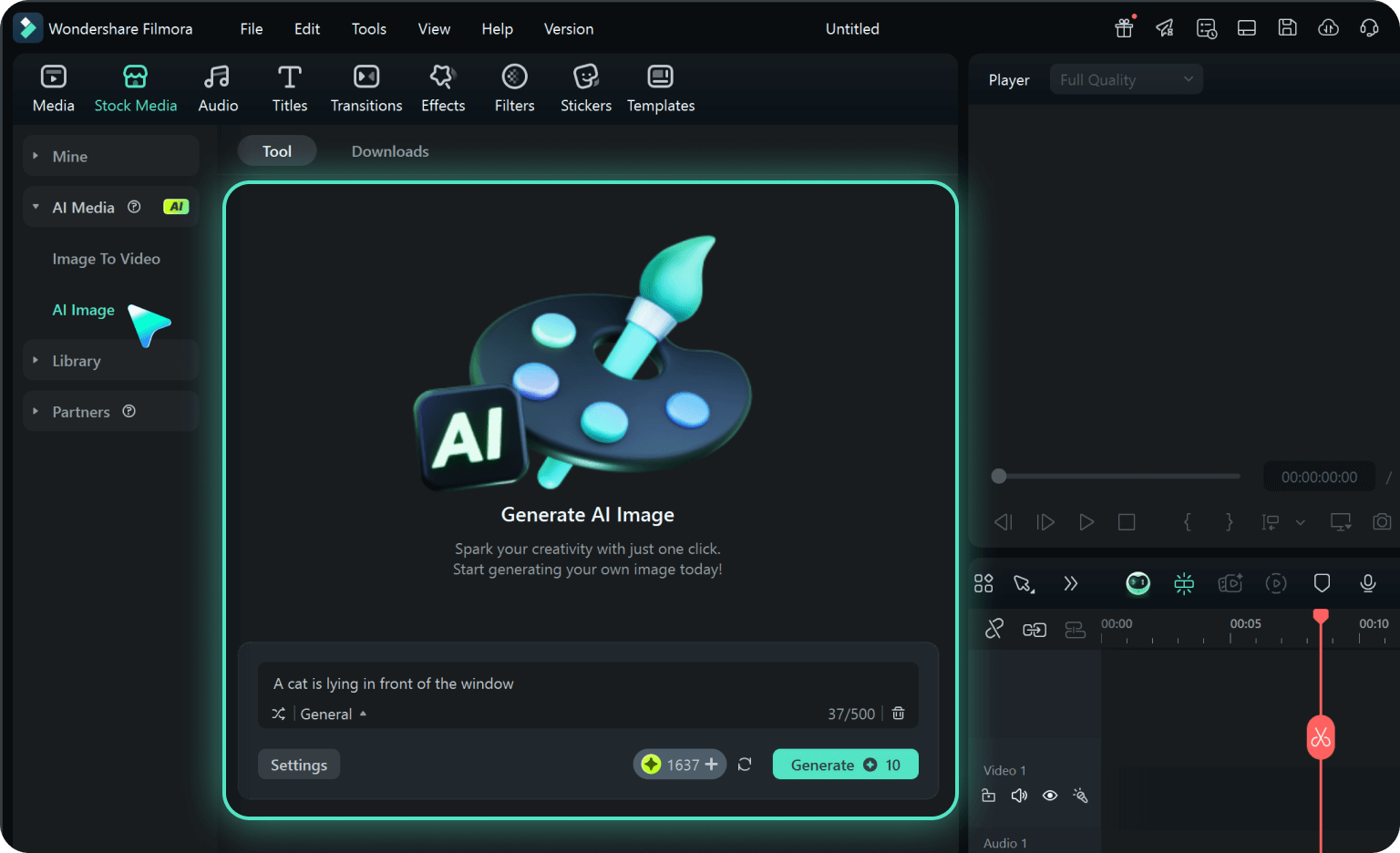
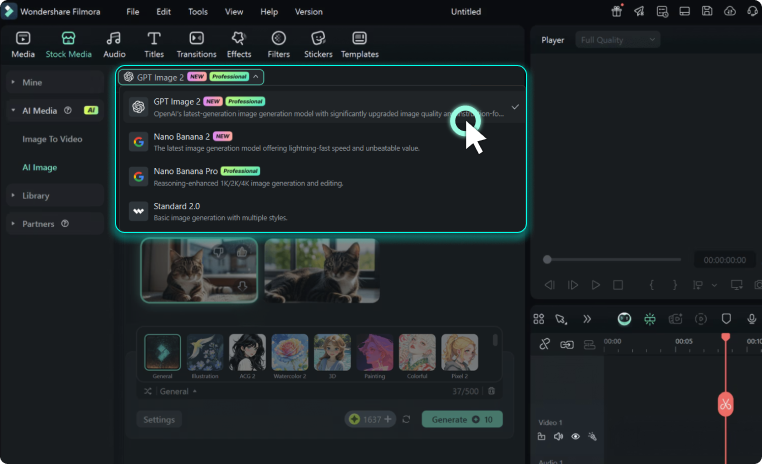
Step 2 Set Style, Model, and Ratio
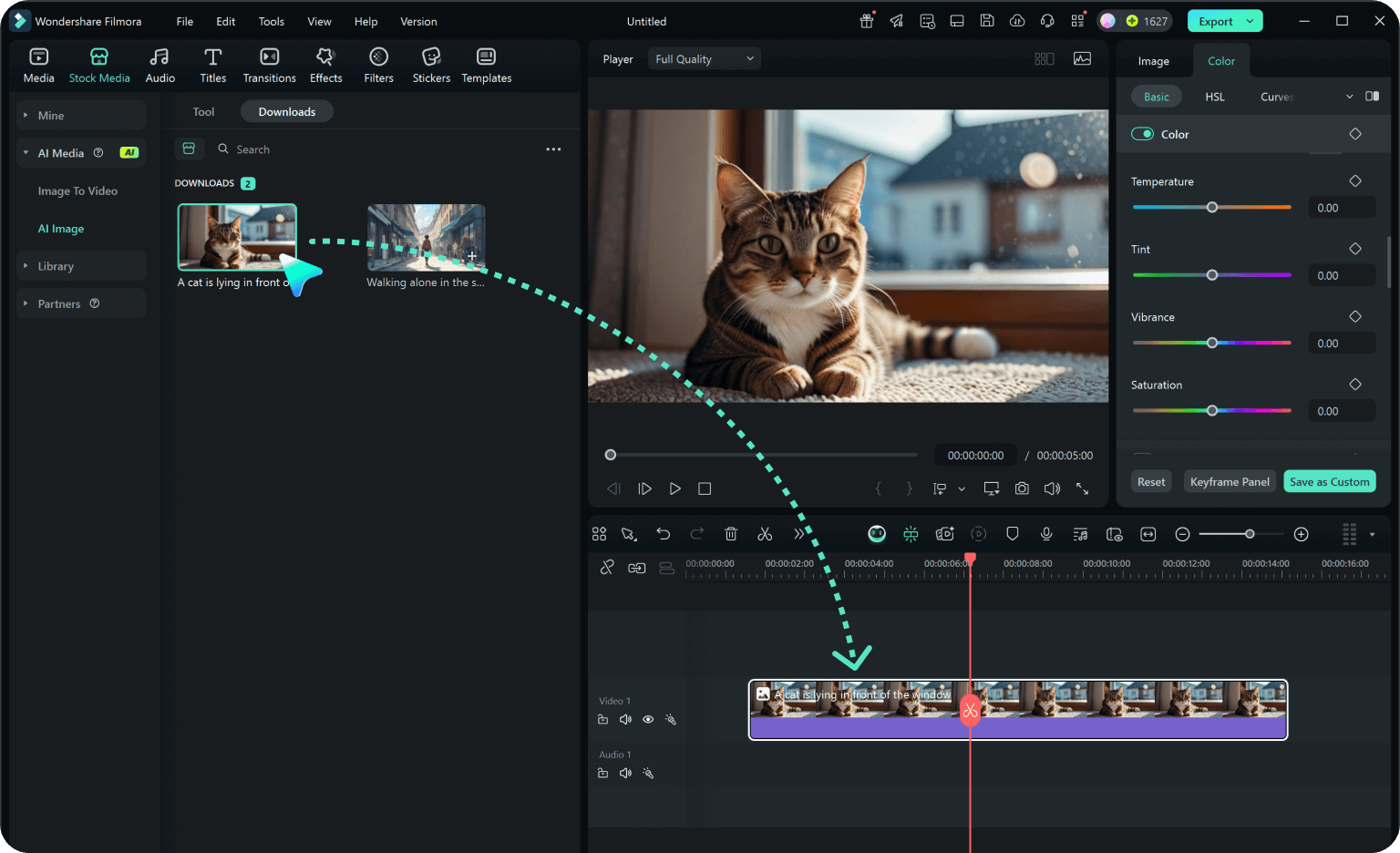
Step 3 Generate, Edit, and Export
-
1: Choose a Zombie Apocalypse Prompt
Pick a zombie apocalypse setup such as a survivor in a ruined city, an abandoned highway, a flashlight-lit shelter, or a foggy forest escape. -
2: Set Style, Model, and Ratio
Paste the prompt into Filmora's AI Image tool, choose GPT Image 2 or Nano Banana, select a ratio, and refine subject detail, lighting, and framing. -
3: Generate, Edit, and Export
Generate the still, adjust crop and color, add motion or overlays if needed, then export it for episode covers, horror thumbnails, short trailers, game concepts, and cinematic social posts.
Zombie Apocalypse Prompts for Cinematic Survival Scenes
Use prompts for zombie apocalypse to create ruined cities, survivor portraits, abandoned highways, emergency shelters, dark forests, and cinematic horror covers and motion-ready visuals for Filmora editing.