


If you're still reaching for your mouse every time you need to cut, trim, or scrub through footage in Premiere Pro, you’re making yourself work harder than you need to. A handful of Premiere Pro shortcut keys can actually speed up those repetitive tasks. Once they’re in your fingers, you’d be surprised at how much easier it is to edit without taking your hands off the keyboard.
Premiere Pro has well over a hundred default shortcuts, but you don't need to memorize all of them. Most editors rely on a smaller set of commands they use repeatedly throughout the day, so that's what this guide focuses on. We've grouped the shortcuts by what you're doing in the moment instead of hunting through a giant list.
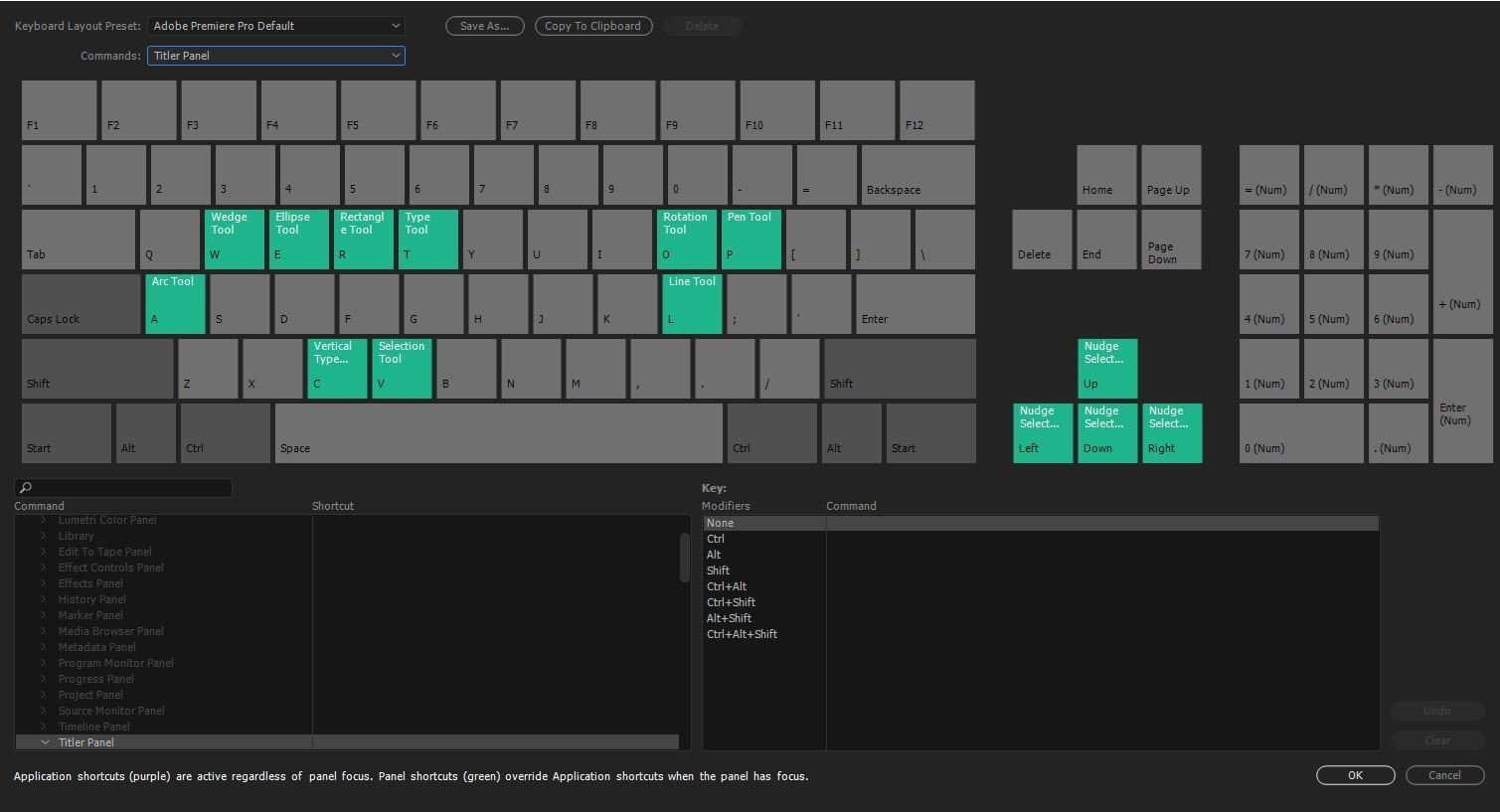
Part 1. Essential Premiere Pro Shortcut Keys
When it comes to keyboard shortcuts in Premiere Pro, many single-key tool shortcuts are the same on Windows and macOS. The main differences usually appear in shortcuts that use modifier keys:
- Ctrl on Windows generally corresponds to Cmd on macOS.
- Alt on Windows corresponds to Option on macOS.
Not every shortcut follows this pattern, though, so you shouldn’t assume every Ctrl-to-Cmd substitution will work. Check the essential Premiere hotkeys below for each editing task.
Basic Editing Premiere Shortcuts
| Action | Windows | Mac |
| Undo | Ctrl + Z | Cmd + Z |
| Redo | Ctrl + Shift + Z | Cmd + Shift + Z |
| Cut | Ctrl + X | Cmd + X |
| Copy | Ctrl + C | Cmd + C |
| Paste | Ctrl + V | Cmd + V |
| Paste Attributes | Ctrl + Alt + V | Cmd + Option + V |
| Select All | Ctrl + A | Cmd + A |
| Deselect All | Ctrl + Shift + A | Cmd + Shift + A |
| Ripple Delete | Shift + Delete | Shift + Forward Delete |
| Clear / Delete | Delete | Forward Delete |
| Duplicate | Ctrl + Shift + / | Shift + Cmd + / |
| Group | Ctrl + G | Cmd + G |
| Ungroup | Ctrl + Shift + G | Shift + Cmd + G |
| Link/Unlink | Ctrl + L | Cmd + L |
| Find... | Ctrl + F | Cmd + F |
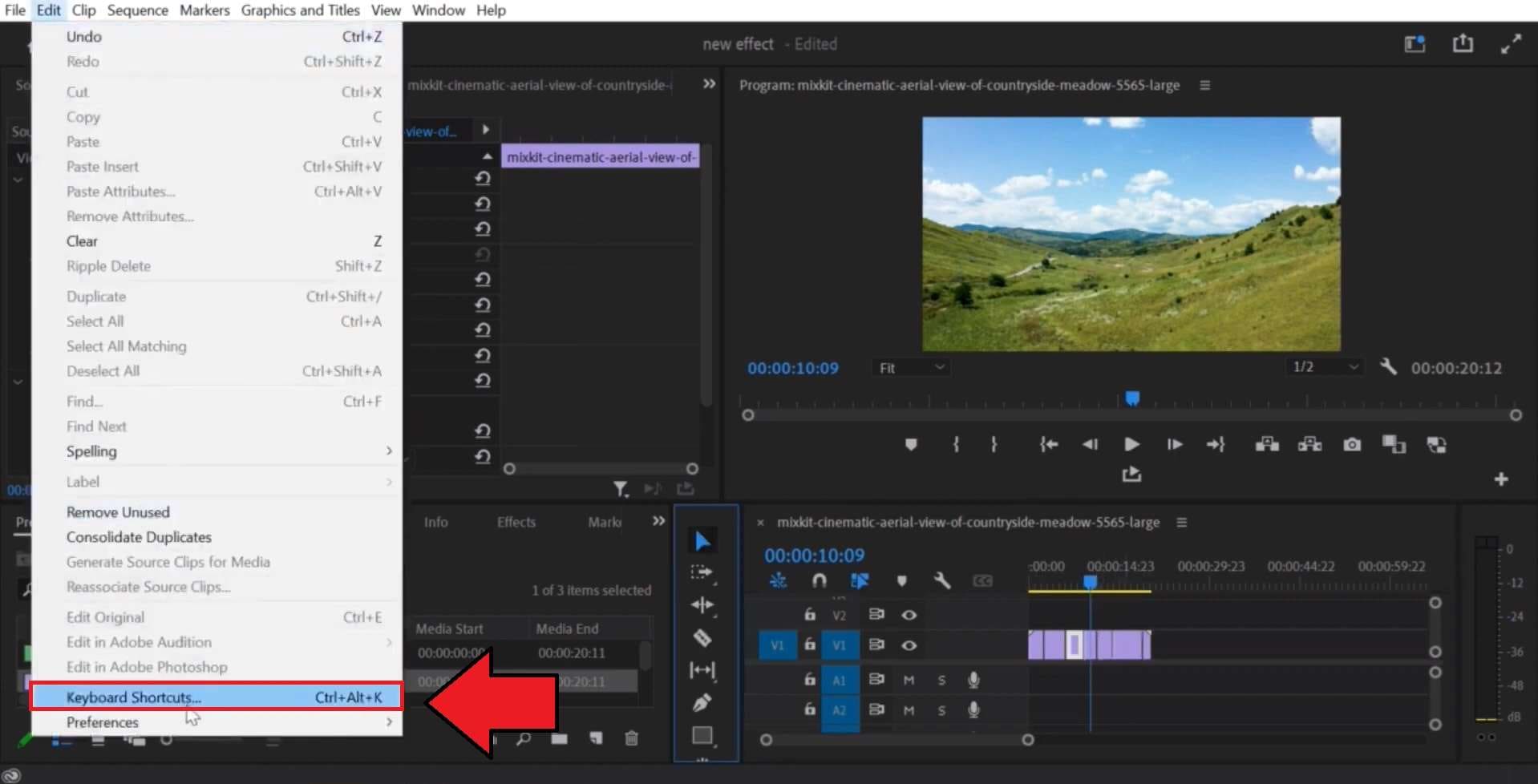
| Keyboard Shortcuts | Ctrl + Alt + K | Cmd + Opt + K |
|
Show More
Show Less
|
||
Trim and Ripple Editing
| Action | Windows | Mac |
| Ripple Trim Previous Edit to Playhead | Q | Q |
| Ripple Trim Next Edit to Playhead | W | W |
| Add Edit (Cut at Playhead) | Ctrl + K | Cmd + K |
| Add Edit to All Tracks | Ctrl + Shift + K | Cmd + Shift + K |
| Extend Selected Edit to Playhead | E | E |
|
Show More
Show Less
|
||
In and Out Point Shortcuts
| Action | Windows | Mac |
| Set In Point | I | I |
| Set Out Point | O | O |
| Clear In Point | Ctrl + Shift + I | Option + I |
| Clear Out Point | Ctrl + Shift + O | Option + O |
| Clear In and Out Points | Ctrl + Shift + X | Option + X |
| Go to In Point | Shift + I | Shift + I |
| Go to Out Point | Shift + O | Shift + O |
| Mark Selection | X | X |
| Mark Clip | Shift + X | Shift + X |
|
Show More
Show Less
|
||
Program Monitor
| Action | Windows | Mac |
| Show Rulers | Ctrl + R | Cmd + R |
| Show Guides | Ctrl + ; | Cmd + ; |
| Snap in Program Monitor | Ctrl + Shift + ; | Cmd + Shift + ; |
| Lock Guides | Ctrl + Alt + Shift + R | Opt + Shift + Cmd + R |
| Nudge Selected Object up by five frames | Shift + Ctrl + Up | Shift + Cmd + Up |
| Nudge Selected Object right by five frames | Shift + Ctrl + Right | Shift + Cmd + Right |
| Nudge Selected Object left by five frames | Shift + Ctrl + Left | Shift + Cmd + Left |
| Nudge Selected Object down by five frames | Shift + Ctrl + Down | Shift + Cmd + Down |
| Nudge Selected Object up by one frame | Ctrl + Up | Cmd + Up |
| Nudge Selected Object right by one frame | Ctrl + Right | Cmd + Right |
| Nudge Selected Object left by one frame | Ctrl + Left | Cmd + Left |
| Nudge Selected Object down by one frame | Ctrl + Down | Cmd + Down |
|
Show More
Show Less
|
||
Playback Shortcuts
| Action | Windows / Mac |
| Play / Pause | Spacebar |
| Play Backward | J |
| Stop / Pause | K |
| Play Forward | L |
| Shuttle Slow Reverse / Forward | Shift + J / Shift + L |
| Step Backward 1 Frame | Left Arrow |
| Step Forward 1 Frame | Right Arrow |
| Step Backward 5 Frames | Shift + Left Arrow |
| Step Forward 5 Frames | Shift + Right Arrow |
| Play In to Out | Shift + Spacebar |
|
Show More
Show Less
|
|
Timeline Navigation
| Action | Windows / Mac |
| Zoom In | = |
| Zoom Out | - |
| Snap in Timeline | S |
| Show Next Screen | Page Down |
| Show Previous Screen | Page Up |
|
Show More
Show Less
|
|
File and Project Shortcuts
| Action | Windows | Mac |
| New Sequence | Ctrl + N | Cmd + N |
| New Project | Ctrl + Alt + N | Cmd + Option + N |
| Open Project | Ctrl + O | Cmd + O |
| Save Project | Ctrl + S | Cmd + S |
| Save As | Ctrl + Shift + S | Cmd + Shift + S |
| Import Media | Ctrl + I | Cmd + I |
| Export Media | Ctrl + M | Cmd + M |
| Close | Ctrl + W | Cmd + W |
|
Show More
Show Less
|
||
Part 2. Adobe Premiere Pro Hotkeys for Tools
While the shortcuts above cover common editing commands, Premiere Pro also has dedicated Adobe Premiere Pro shortcut keys for switching between editing tools.
| Tool / Action | Windows / Mac |
| Selection Tool | V |
| Track Select Forward Tool | A |
| Ripple Edit Tool | B |
| Rolling Edit Tool | N |
| Rate Stretch Tool | R |
| Razor Tool | C |
| Slip Tool | Y |
| Slide Tool | U |
| Pen Tool | P |
| Hand Tool | H |
| Zoom Tool | Z |
| Type / Text Tool | T |
|
Show More
Show Less
|
|
Window Menu
| Action | Windows | Mac |
| All Panels | Alt + Shift + 1 | Opt + Shift + 1 |
| Assembly | Alt + Shift + 2 | Opt + Shift + 2 |
| Audio | Alt + Shift + 3 | Opt + Shift + 3 |
| Captions and Graphics | Alt + Shift + 4 | Opt + Shift + 4 |
| Color | Alt + Shift + 5 | Opt + Shift + 5 |
| Editing | Alt + Shift + 6 | Opt + Shift + 6 |
| Effects | Alt + Shift + 7 | Opt + Shift + 7 |
| Essential | Alt + Shift + 8 | Opt + Shift + 8 |
| Learning | Alt + Shift + 9 | Opt + Shift + 9 |
|
Show More
Show Less
|
||
Part 3. How to Change Keyboard Shortcuts in Premiere Pro
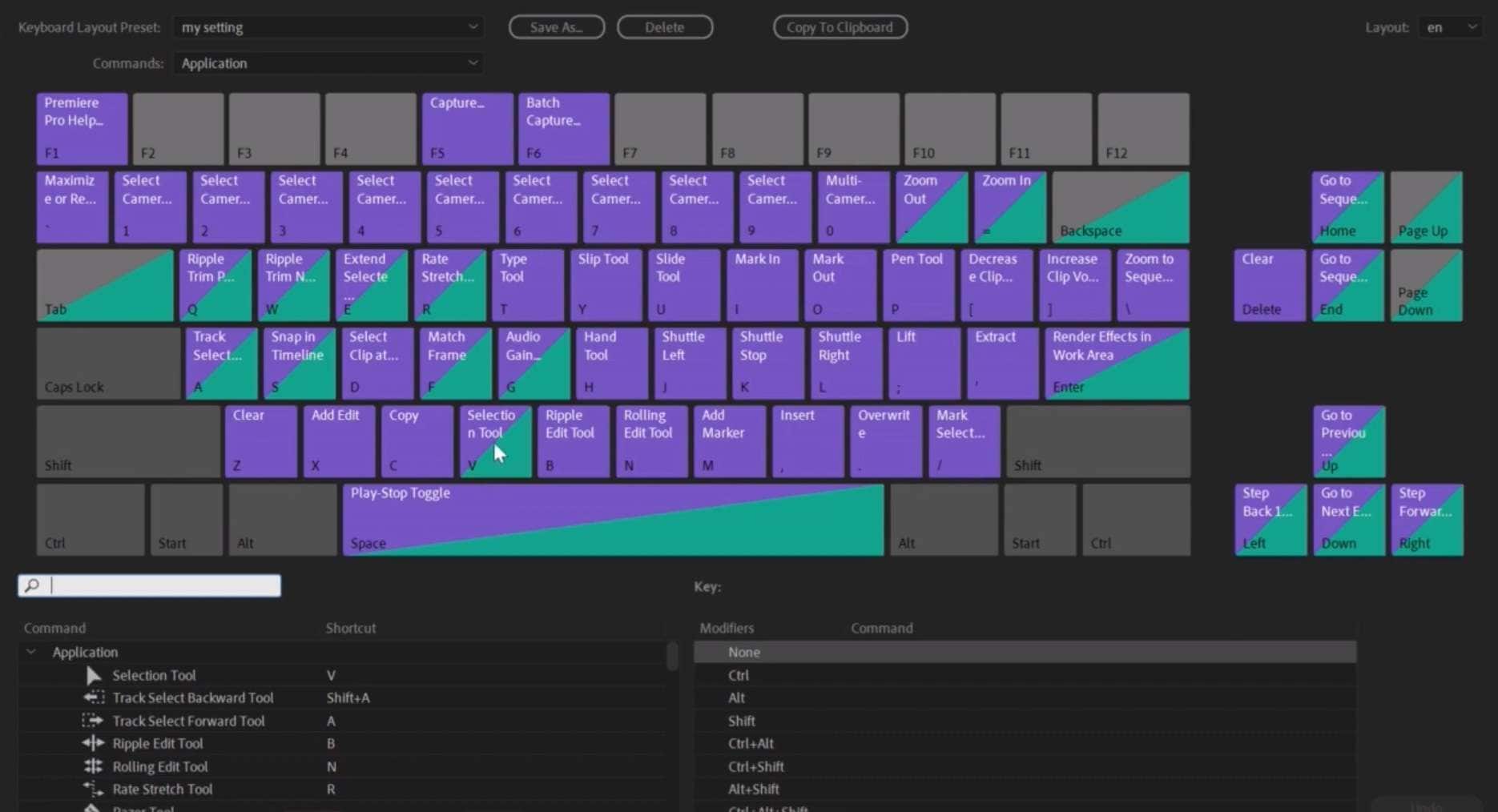
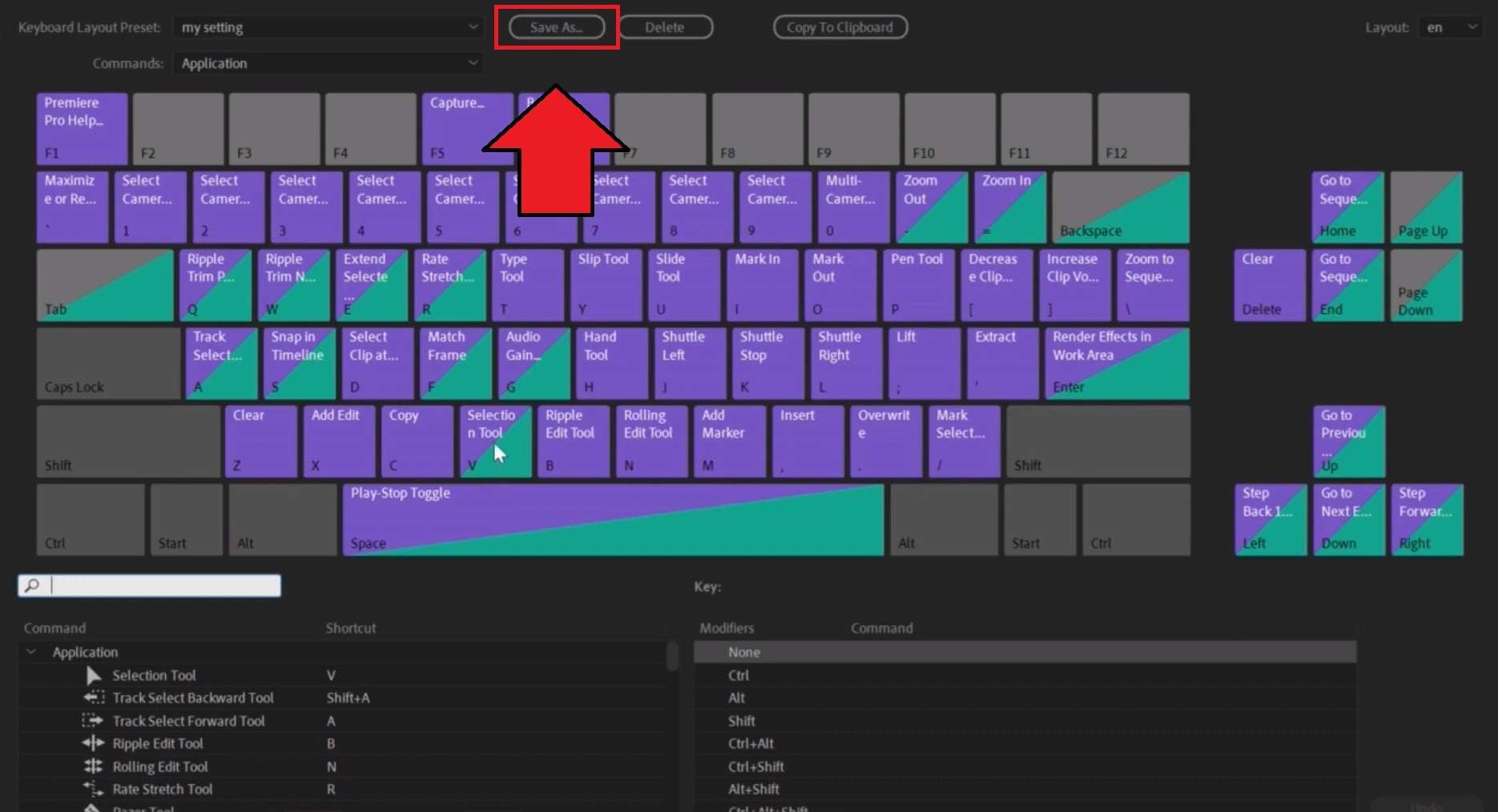
If there’s a command you use often but its default shortcut doesn’t feel intuitive, you can edit the keyboard shortcuts in Premiere Pro to better match the way you edit. You can also assign shortcuts to commands that don’t currently have one or create a custom Adobe Premiere shortcut key layout according to your preferences.
How to Change Shortcuts in Premiere Pro
Part 4. Thinking of Switching? Keep Using Premiere Pro Hotkeys in Filmora
Different video editors use different keyboard shortcuts, so switching to a new editor can mean relearning commands you already know. That alone can make the idea of changing tools feel like more work than it’s worth.
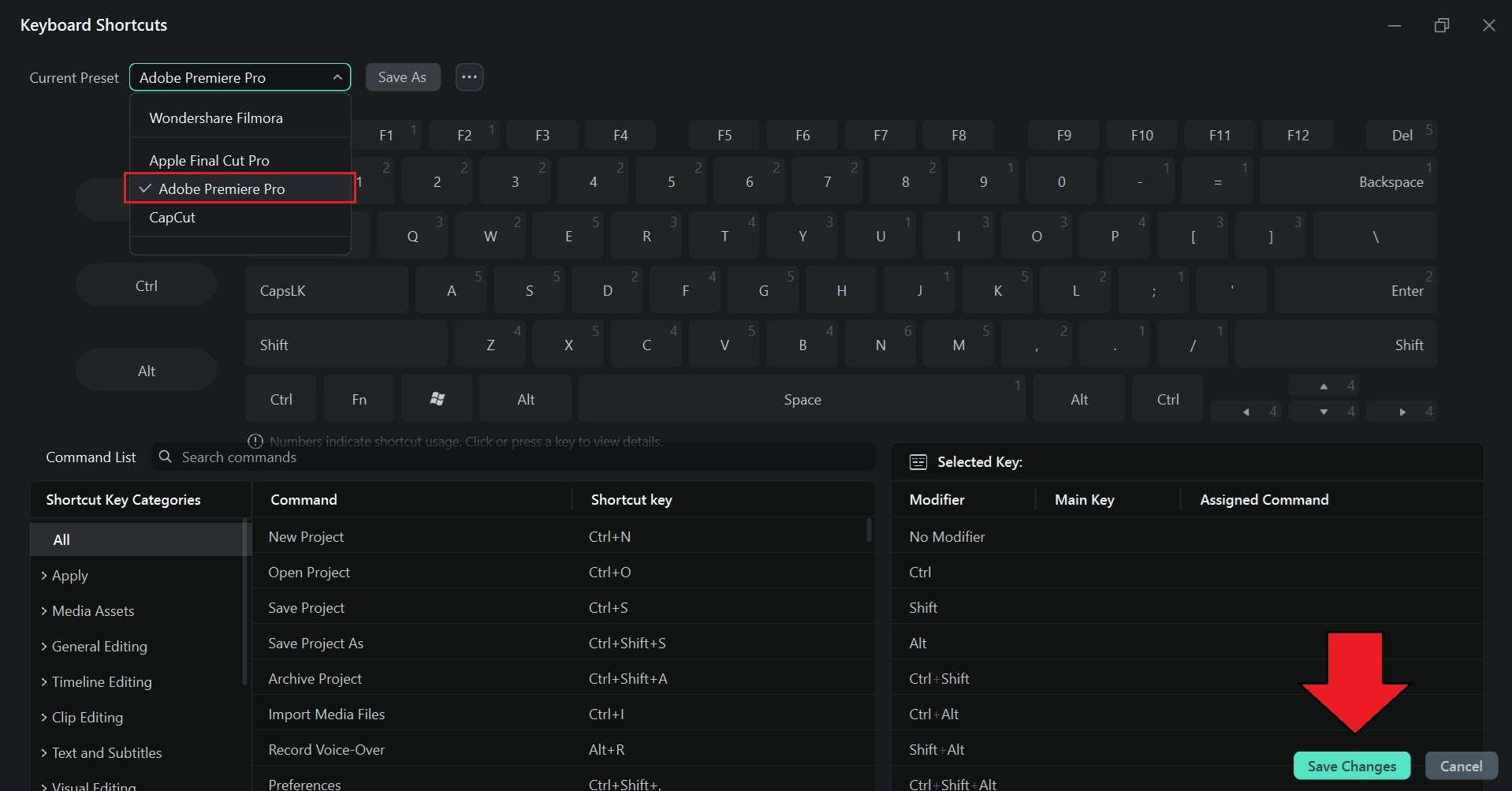
However, if you’re considering using a more beginner-friendly editor alternative like Wondershare Filmora, that won’t be a problem. Filmora’s Keyboard Shortcut Manager has a built-in Premiere Pro hotkey preset. You can use it to carry over a familiar shortcut layout and keep using many of the commands you already know.
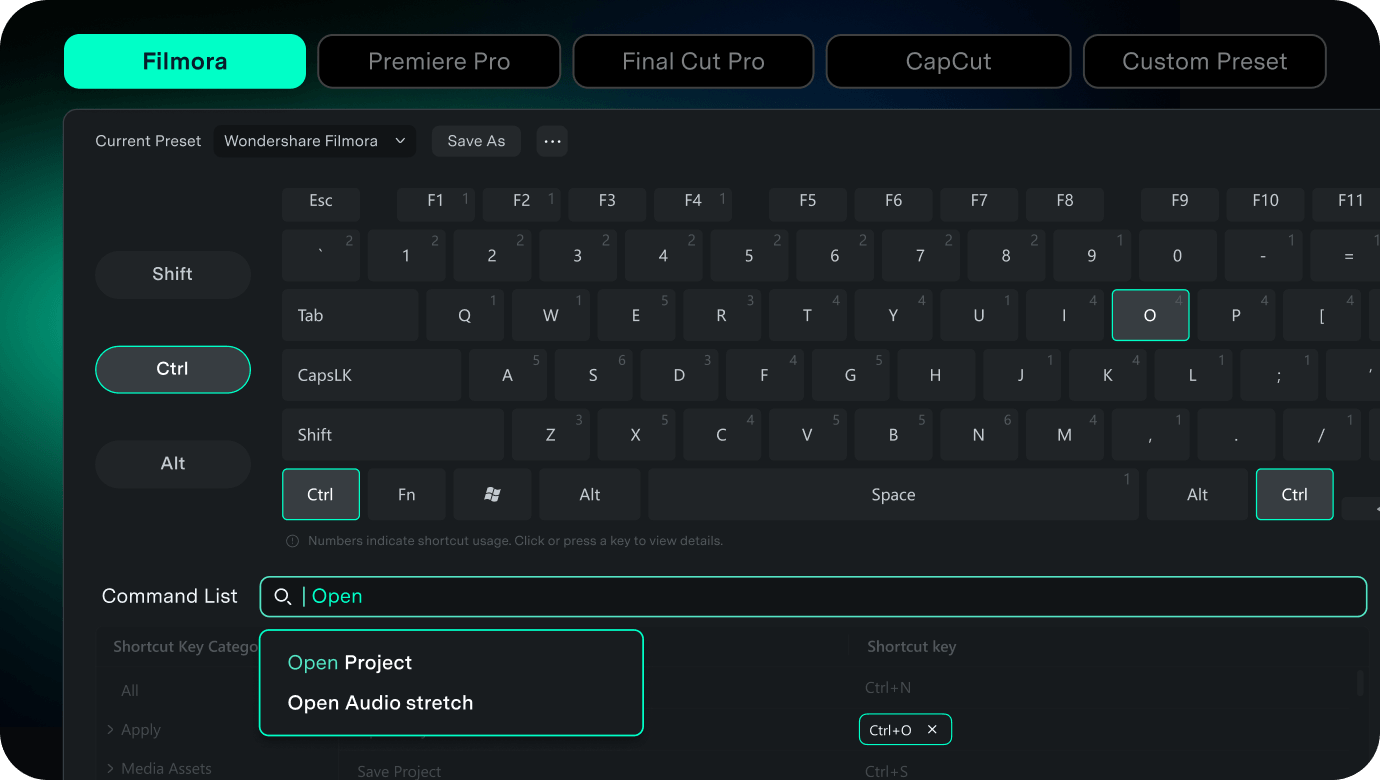
The feature itself is worth a mention on its own. Some of the most useful parts of Filmora’s Keyboard Shortcut Manager are:
- Visual keyboard map: See which keys are already assigned and which ones are available at a glance.
- Command search: Search for a specific command by name or function instead of scrolling through a long list.
- Shortcut conflict detection: Filmora flags a conflict when a new shortcut is already assigned to another command.
- Custom shortcut presets: Save your preferred shortcut setup as a named preset.
- Preset export: Export your shortcut preset so you can use the same setup on another computer.
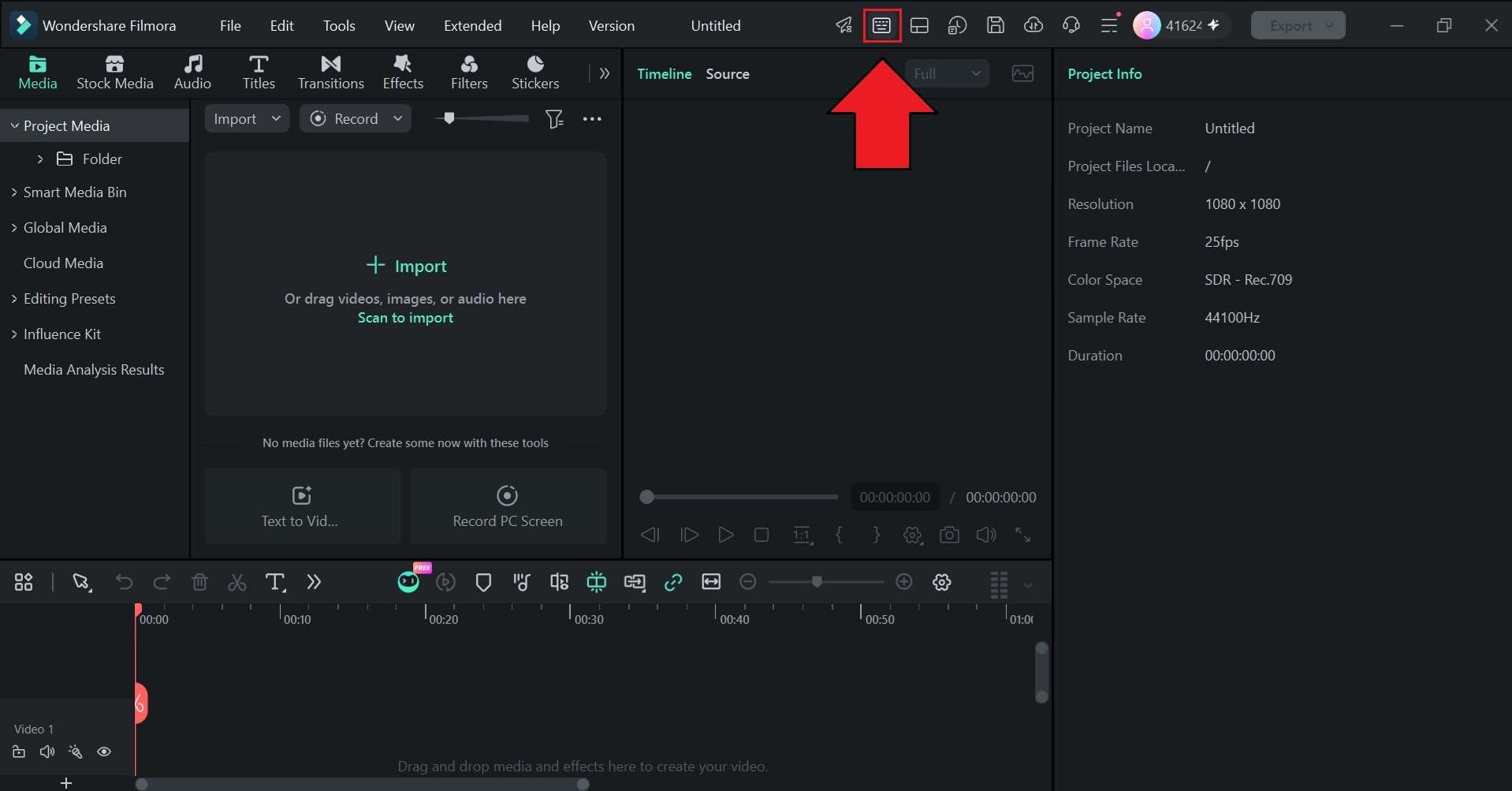
How to Use Premiere Pro Shortcuts in Filmora
 Secure Download
Conclusion
Premiere Pro shortcut keys can make everyday editing faster by reducing the need to switch between the keyboard and mouse. But since the shortcuts for Premiere Pro are a lot, you can start with the ones you use most, then add more as they become part of your editing habits.
And if you want to keep using familiar Adobe Premiere Pro shortcut keys while trying another editor, Filmora’s Keyboard Shortcut Manager includes a Premiere Pro preset. You can also customize, save, and export your shortcut setup to match your preferred editing style.
FAQs
-
Can I use the same Premiere Pro shortcuts on another computer?
Yes. Premiere Pro lets you save your custom keyboard shortcuts as a .kys file, which you can copy to another computer and use there. A video editor like Filmora also lets you use Premiere Pro shortcuts through its built-in Adobe Premiere Pro keyboard preset. -
How do I reset Premiere Pro keyboard shortcuts to the default?
To restore the default Premiere Pro keyboard shortcuts, open Edit > Keyboard Shortcuts on Windows or Premiere Pro > Keyboard Shortcuts on Mac. From the Keyboard Layout Preset menu, select the default Adobe Premiere Pro preset, and then save the changes. -
What are the Premiere Pro shortcuts for zooming in and out of the timeline?
Press = to zoom in on the timeline and - to zoom out. -
What’s the shortcut for cut in Premiere Pro?
The keyboard shortcut for cutting a clip at the playhead using Add Edit is Ctrl + K on Windows or Cmd + K on Mac. If you mean the standard Cut command that removes and copies a selected item, use Ctrl + X on Windows or Cmd + X on Mac.
