

 100% Security Verified | No Subscription Required | No Malware


 ChatGPT
 Perplexity
 Gemini
 Claude
 Grok
Grok
Have you heard about Blend, but still wonder what Instagram Blend is? It's a feature that combines your Reels preferences with someone else. Instagram then builds a shared feed filled with clips that both of you might enjoy.
This guide walks you through how to blend Instagram Reels with your friends and shows what the feed looks like. You'll see how the suggestions work and why it feels easier than sending links back and forth.
Let's learn how to create a blend on Instagram and see how fun it is to stay connected through shared interests.
In this article

Part 1. What is Instagram Blend? How Does it Work?
If you want a clear idea of what Instagram Blend is, think of it as a shared Reels feed inside your direct messages. You and your friends can scroll through one feed shaped by each person's activity instead of switching between separate recommendations.

How Instagram Blend Works
Before learning how to blend Instagram Reels, you need to understand how it works. When you start a Blend, Instagram uses what each person watches, likes, and saves to build a combined feed.
To put it simply, this is how it behaves inside your chat:
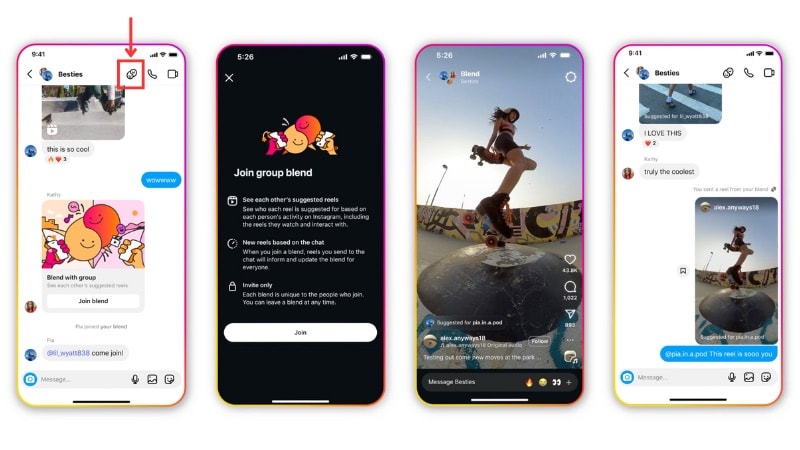
- Blend sits only inside DM threads. You invite a friend or a group, and each person must accept before the shared feed appears.
- The feed updates every day with fresh clips based on the group's recent Reels activity.
- Each Reel carries a small label showing who the suggestion fits.
- Every chat can have its own Blend with different participants. Instagram sends a notification when new content appears.
Instagram built Blend to make Reels sharing more social and easier to enjoy with people you talk with often.
Part 2. How to Create a Blend on Instagram (Step-by-Step)
After knowing how Blend works, it's time to learn how to create a Blend on Instagram. You can only find the Blend feature inside your direct messages, not on your profile or Reels tab. Some users may still wait for access because Instagram releases Blend in stages.

Follow these steps to find it and learn how to use Instagram Blend:
Step 1. Open Instagram, go to your Direct Messages, and open the chat with the friend or group you want to blend with.
Step 2. Tap the Blend icon at the top of the chat (two faces next to each other). Send the invite and wait for your friend or group members to join.
Step 3. Once at least one person accepts, the Blend feed shows up inside that chat. From there, all of you can scroll through shared Reels in one place.
After everyone joins, keep using the chat as usual. Instagram adds a person's suggestions only after they join the Blend.
Part 3. What You Can Do Inside an Instagram Blend
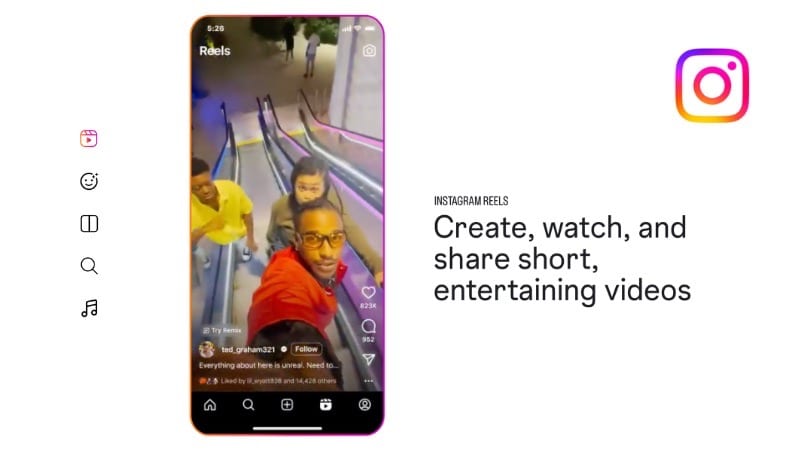
Once you've set it up and learned how to blend Instagram Reels, you can start exploring the shared feed. Blend gives you a space to interact with Reels together while staying inside your DM.
What You Can Do Inside Instagram Blend
- Scroll through Reels that match the combined interests of everyone in the chat.
- React to any clip or reply inside the thread to keep the conversation active.
- Save or share any Reel you like without leaving the chat.
- Check the small tags that show who each Reel was recommended for.
Who Can See Your Blend?
After you create Blend, you might wonder, “Is Instagram Blend private?” The answer is yes, it is. Only the people inside that DM can view or take part in the Blend. It doesn't appear on your profile, in search, or to your followers. Your shared feed remains between you and your chosen friends.
What Happens When You Blend on Instagram?
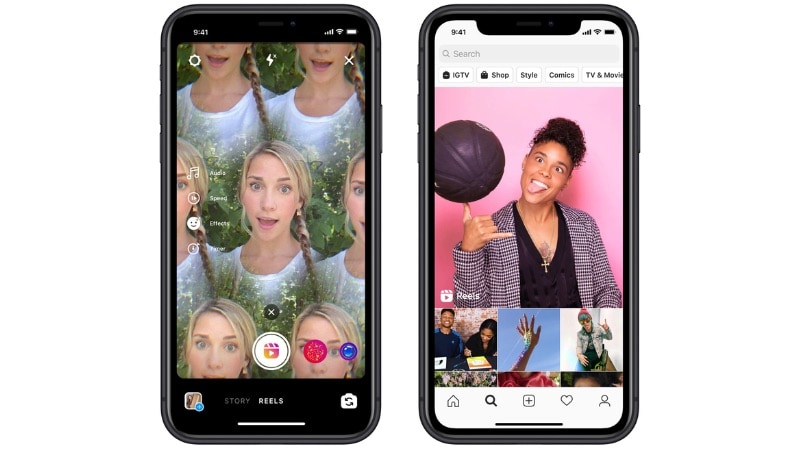
Once you start blending, Instagram uses the viewing habits of everyone involved to shape the feed. Each person's activity helps build the next round of suggestions.
Here's what happens when you Blend on Instagram:
- The algorithm mixes everyone's viewing habits into one shared feed.
- Each person's likes, saves, and watch history influence the suggestions.
- The feed shifts over time as you interact with more Reels.
Bonus: Create Better Reels on Your Phone Using Filmora Mobile
After learning how does blend works in Instagram, you might want to post your own Reels on Instagram as well. To make your videos look clean before they go live, Wondershare Filmora for Mobile can help fix your footage without spending much time on editing.
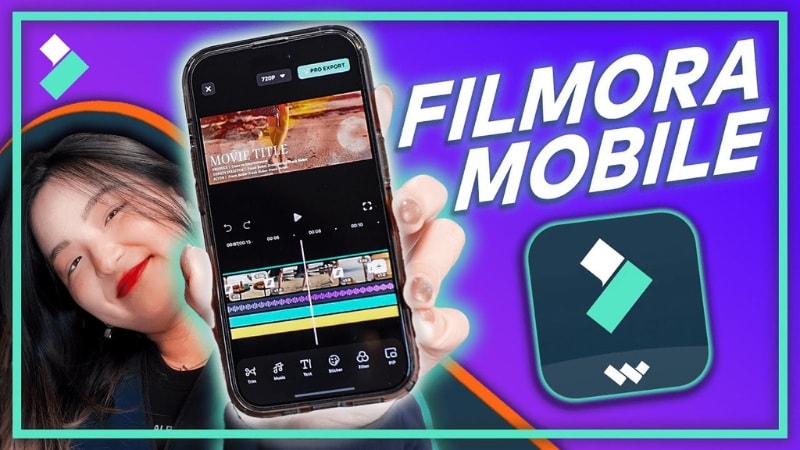
One tool that helps a lot is its AI Auto Cut feature. It removes long pauses and extra parts in your clip with ease, so your final video feels tighter and easier to watch. It's available on Android and iOS devices, so you can edit your Reels anywhere and keep the process simple.


How to use AI Auto Cut in Filmora Mobile
Follow the instructions below to use Filmora Mobile's AI Auto Cut feature:
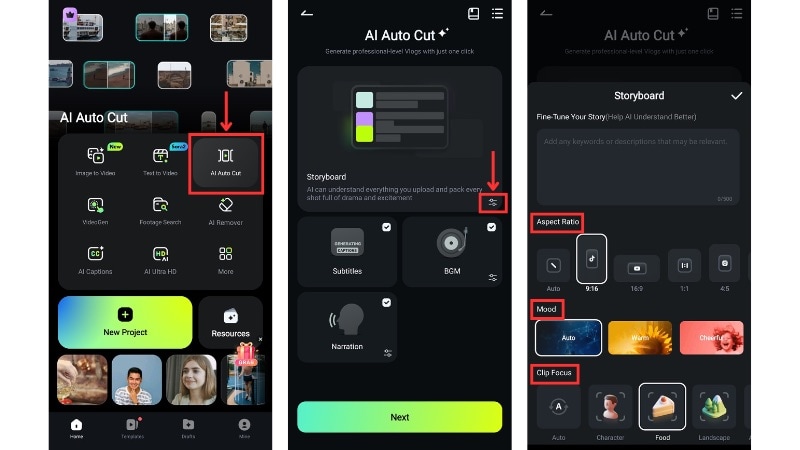
Step 1. Launch Filmora Mobile and tap the AI Auto Cut feature on the home screen.
Step 2. Open the Storyboard Settings icon, then choose your Aspect Ratio, Mood, and Clip Focus. Then, confirm your choices by clicking on the Checkmark icon.
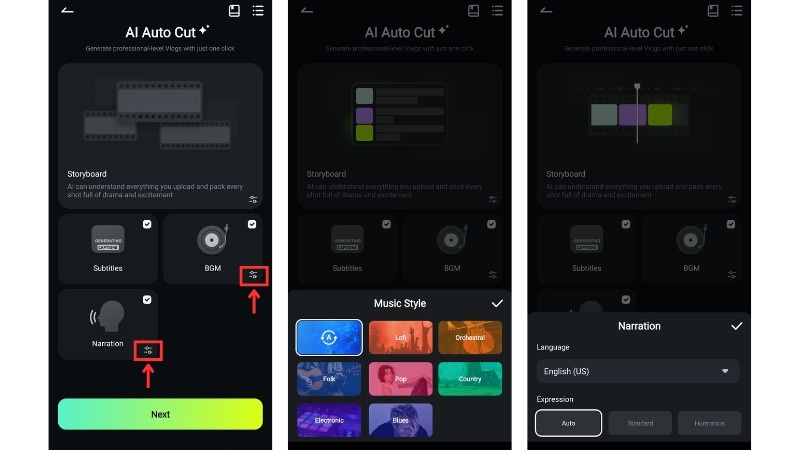
Step 3. Select the elements you want to include, such as Subtitles, Music, or Narration. Tap Next to move forward.
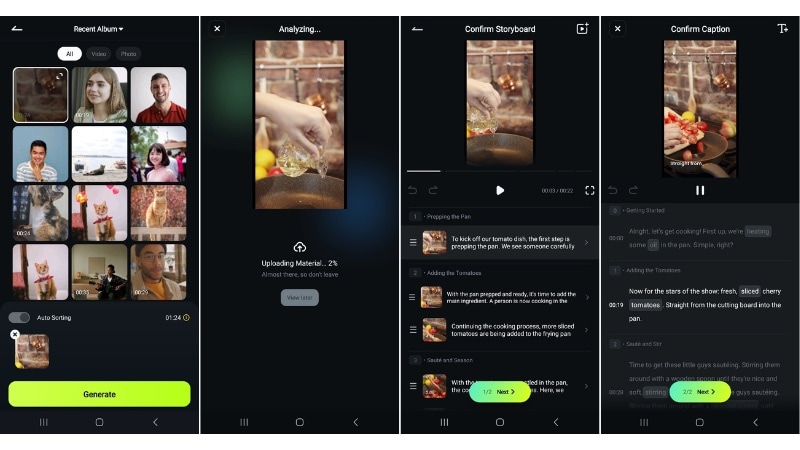
Step 4. Pick the clips you want to work on. You can edit videos from 15 seconds up to 2 hours.
Step 5. Tap Generate to start the process. Filmora needs a few minutes to set things up, depending on the length of your clips.
Step 6. Review the auto-generated storyboard and edit captions Tap Next to continue, and Filmora will generate captions for your video.
Step 7. Review the captions, edit the text, and adjust their style using the toolbar. Tap Next again when you're done.
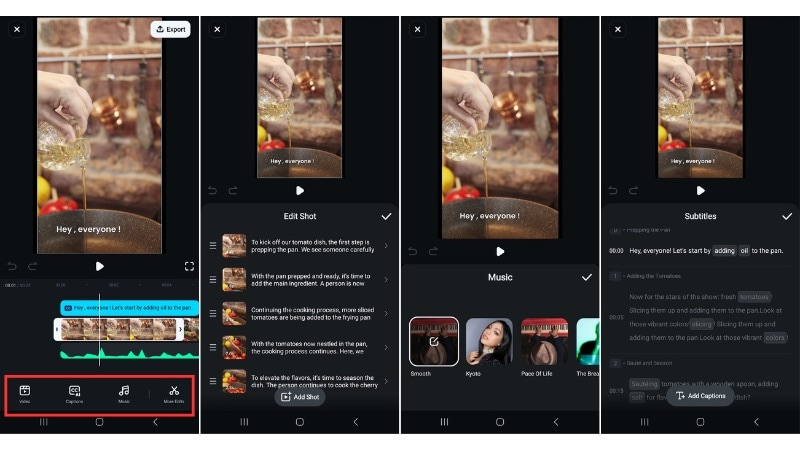
Step 8. Move to the full editor for deeper adjustments. To refine any part of your video, you can go to:
- Video to adjust your shots.
- Captions to edit the text or layout.
- Music: change the background track.
- More Edits: open the full editor for detailed control over visuals, audio, and timing.
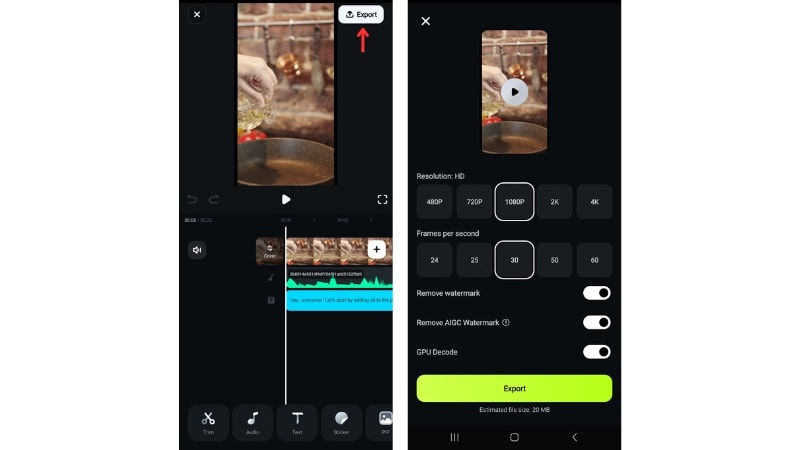
Step 9. Once you're happy with the results, tap Export, choose your resolution and FPS. Then, tap Export again to save the video to your device.
 secure download
Conclusion
Now that you know what Instagram Blend is, you can start sharing a combined Reels feed with your friends. The feature helps you scroll together in one place without sending clips back and forth.
You also learned how to blend Instagram Reels and how the feed shifts as both of you watch, like, or save more videos. Just open your DM, tap the Blend icon, and invite your friend. After that, the shared feed grows along with your activity.
If you plan to post your own videos, use Filmora Mobile's AI Auto Cut to clean your clips before uploading. Try it out and enjoy smoother sharing on Instagram.
secure download
