

 100% Security Verified | No Subscription Required | No Malware


 ChatGPT
 Perplexity
 Gemini
 Claude
 Grok
Grok
It is always a great idea to use free video editing software on landing pages. When you start using it the reality might be quite a bit different. There are a lot of tools which market themselves as free and after some time they present restrictions on exportation or put a watermark. Other editors also require excessive system resources that make them problematic to use on low-end computers.
This can cause frustration as it is difficult for beginners to make simple edits such as cutting clips or adding soundtracks. There are a few tools that are actually free, but need some technical skills, which is another obstacle for new users. This article discusses the best free PC video editing software that actually works.
In this article
Part 1. What Does "Free" Really Mean in Video Editing Software?
The word has various meanings in video editing depending on the model of the video editing software used. With knowledge of these categories, it will be much easier to choose the right tool up front without needing to deal with unwanted restrictions later:
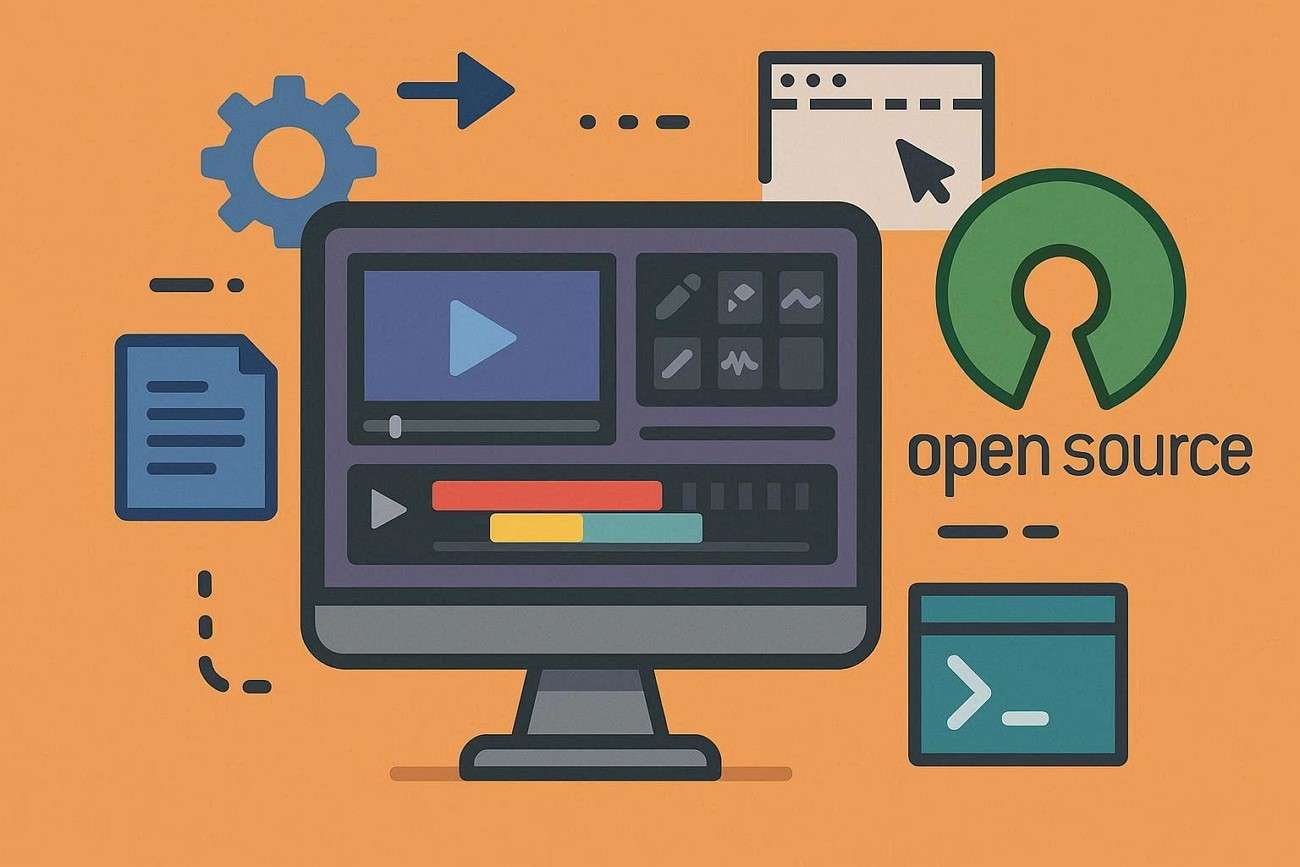
Completely Free Open-Source Tools
They are fully free to use without hidden payments or upgrade traps. These tools are developed by communities and usually offer full access to editing features. The open-source tools are powerful but not always beginner-friendly as the best video editing software for beginners on PC.
Freemium Editors with Free Versions and Paid Upgrades
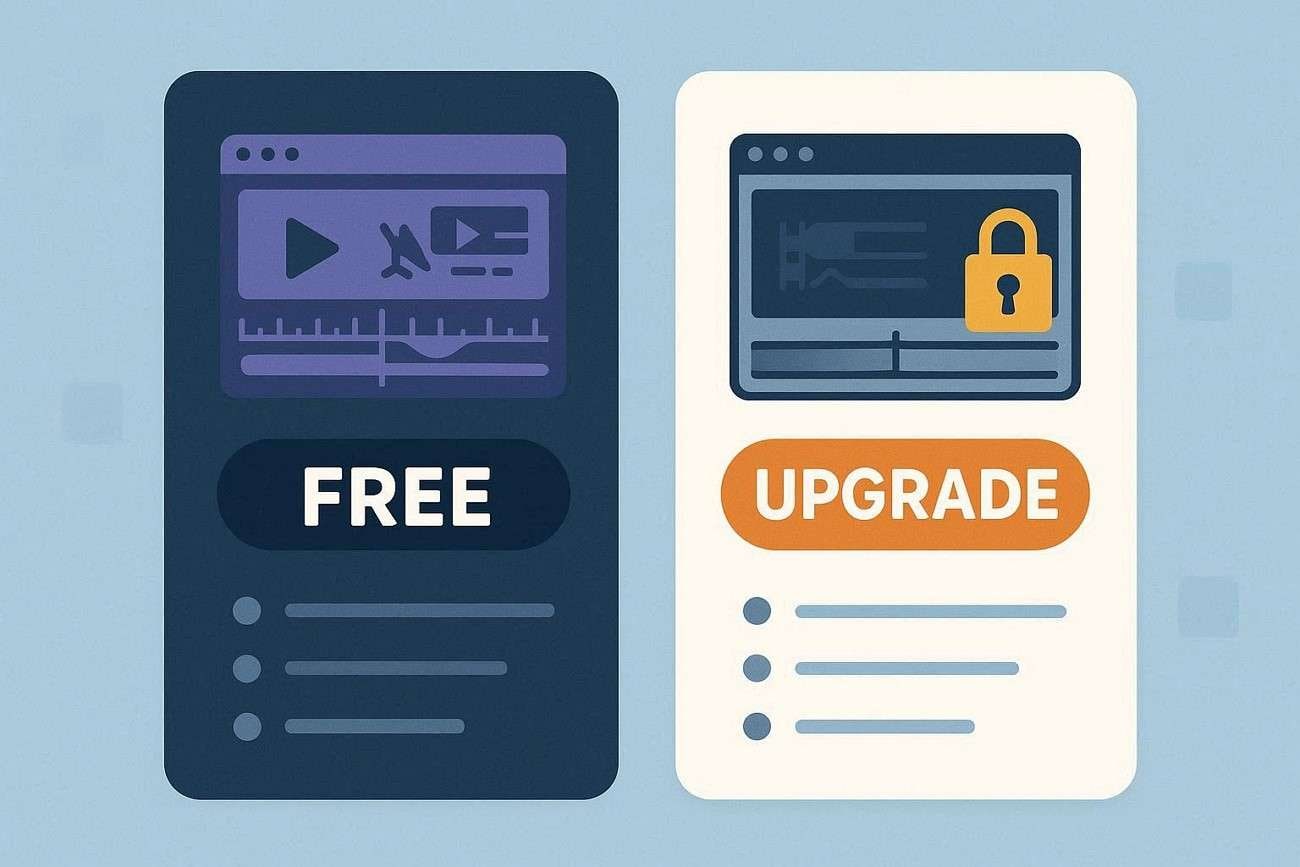
Freemium software is the most common type of "free" video editor. You can download and use the basic version without paying. However, these advanced cheap video editing software for beginners are locked behind a premium plan.
Browser-Based Free Editors with Limits
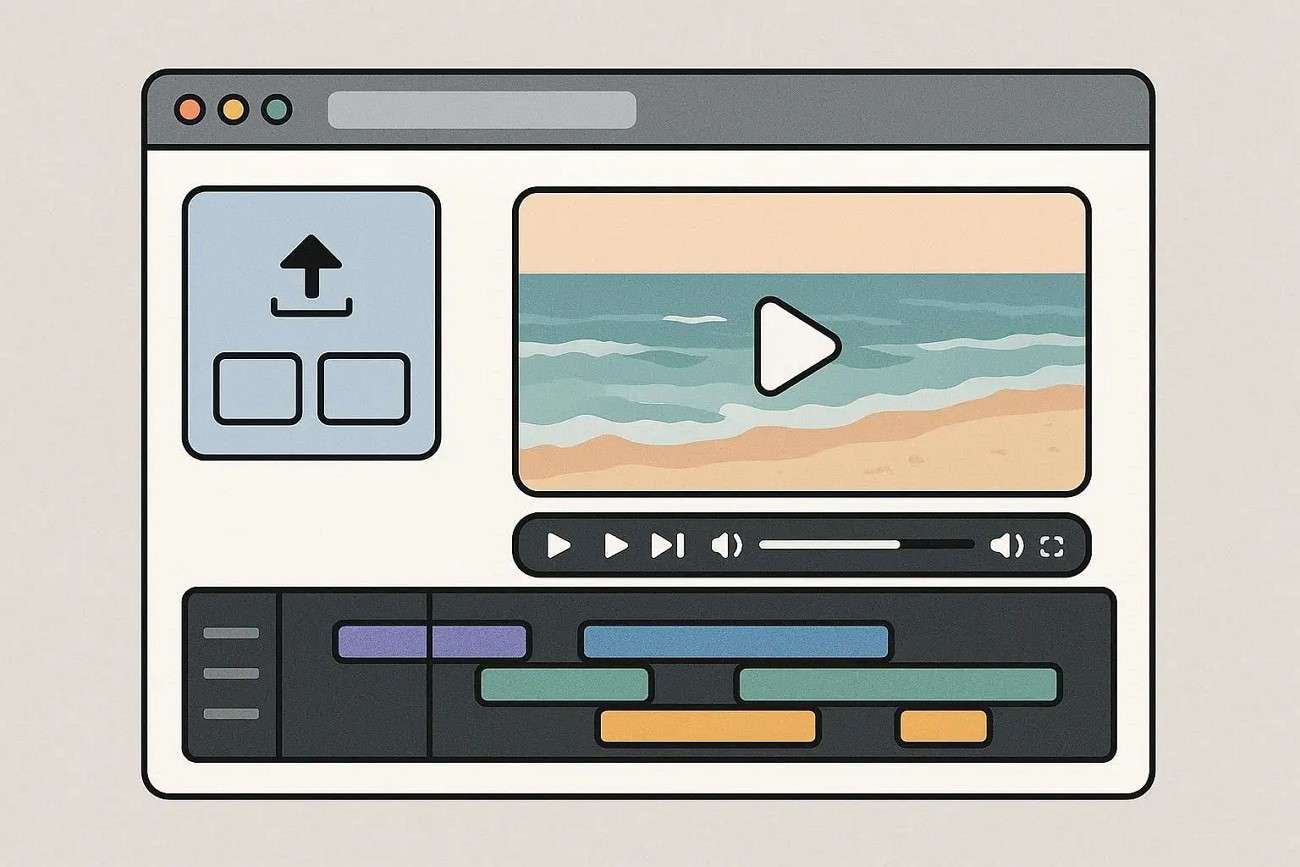
Online video editors work in your web browser and no software installation is needed. They are convenient for quick edits for social media content. These video editors for beginners on PC offer simple and fast editing tasks rather than complex projects.
Part 2. How to Choose the Best Free PC Video Editing Software
Picking the right video editing software is a lot easier when you understand what matters. Here are some tips to look for when selecting:
- Search for an interface which is user-friendly and uncomplicated.
- Select software that will not freeze or lag when running on Windows.
- Test out the exported video quality and make sure that it is compatible with standard formats.
- Opt for tools that have pre-designed templates for quicker and more professional editing.
- Search for subtitle and caption options to enhance videos, making them engaging and accessible.
Part 3. Best Free PC Video Editing Software
It is difficult to choose when there are so many options available. The comparison table between the tools below will help you make the right choice:
| Software | Best for | Ease of Use | Performance | Key Strengths | Limitations |
| Filmora | Beginners & content creators | Very easy | Smooth on most PCs | Templates, AI tools, simple workflow, fast exports, easy upgrade path | The free version may include a watermark |
| DaVinci Resolve | Professional learning & advanced editing | Difficult | Heavy (needs a strong PC) | Industry-grade color grading, advanced editing tools, and full creative control | Steep learning curve, not ideal for low-end PCs |
| Shotcut | Flexible free editing | Moderate | Good on mid systems | Open-source, supports many formats, no watermark | Less polished interface, fewer beginner templates |
| OpenShot | Simple/basic editing | Very easy | Lightweight | Simple drag-and-drop editing, good for basic cuts and trims | Limited advanced features, can lag on large projects |
| Clipchamp | Quick browser-based edits | Very easy | Depends on the internet | Browser-based, templates, stock media, fast social media editing | Requires internet, export limits in the free version |
 secure download

Part 4. Best Free PC Editor by User Type
Matching software with your usage type ensures better performance and a smoother workflow. Here is the breakdown of a beginner-friendly video editor for an old PC according to the users' needs:
-
Best for Beginners
If you desire industry-level skills, then DaVinci Resolve is your best choice. It also includes advanced editing features that enable users to grasp professional editing processes.
-
Best for Professional Learning
DaVinci Resolve is best for users who want industry-level skills. It offers advanced editing tools that help users understand professional workflows, especially in color grading and post-production.
-
Best for Low-End PCs
OpenShot and Shotcut are more suitable for older systems as they are lightweight and do not need a high processing power. They can be used for simple video editing in less time.
-
Best for Quick Social Media Videos
Filmora and Clipchamp are best for fast content creation as they include templates and effects that help users publish videos quickly.
Part 5. Step-by-Step: Start Editing for Free on PC with Filmora
As discussed, Filmora offers an easy-to-use interface along with basic and advanced editing features. Here is how you can use the best free PC video editing software for comprehensive video editing:
- Create Filmora Project
-
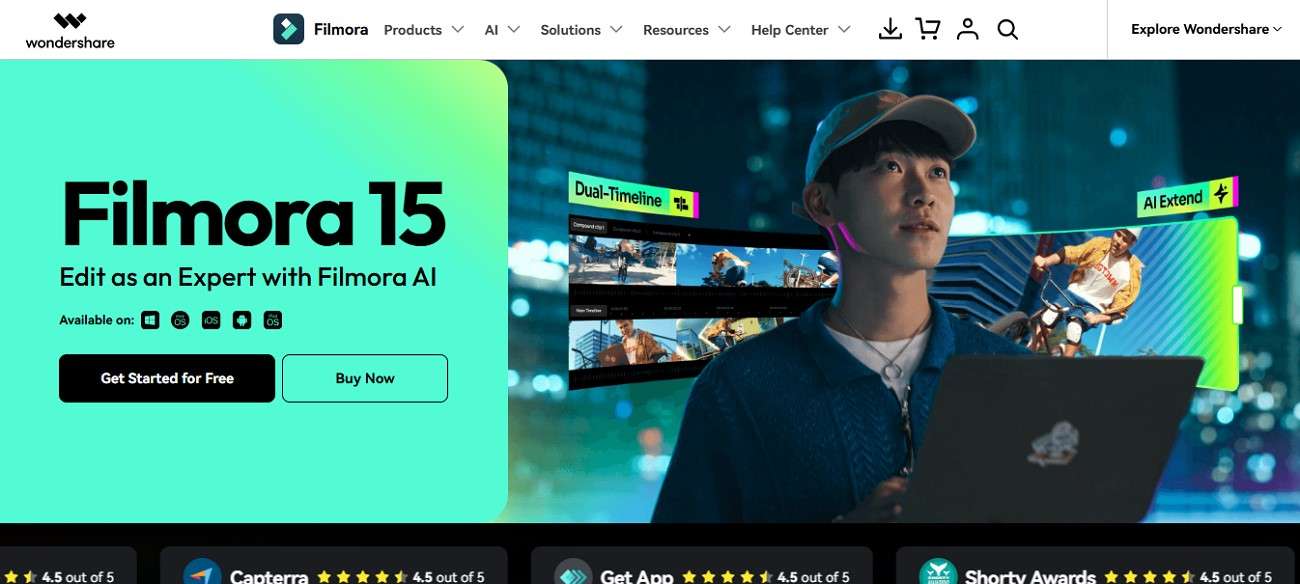
Step 1. Download Filmora from Website
Head to the official website of Filmora and click on "Get Started for Free" to successfully download and install it.
-
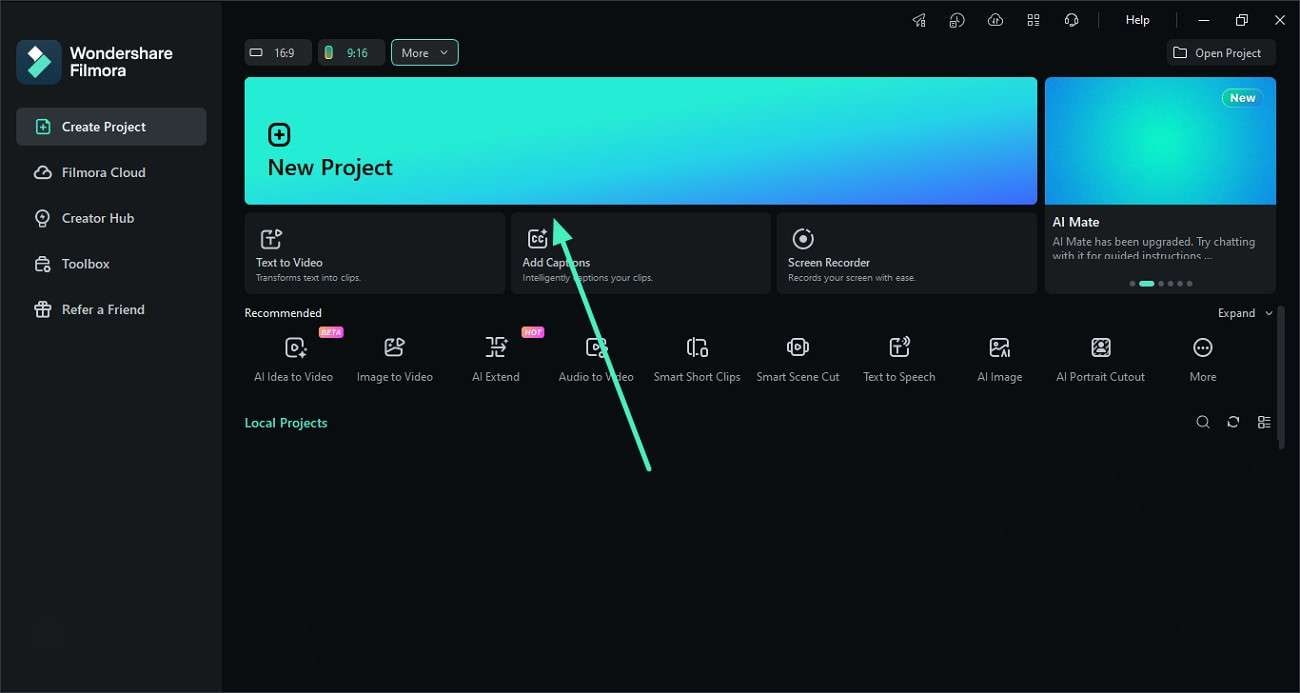
Step 2. Create New Filmora Project
Find the "New Project" option on the platform's homepage and click on it.
-
- Import Media and Choose Templates
-
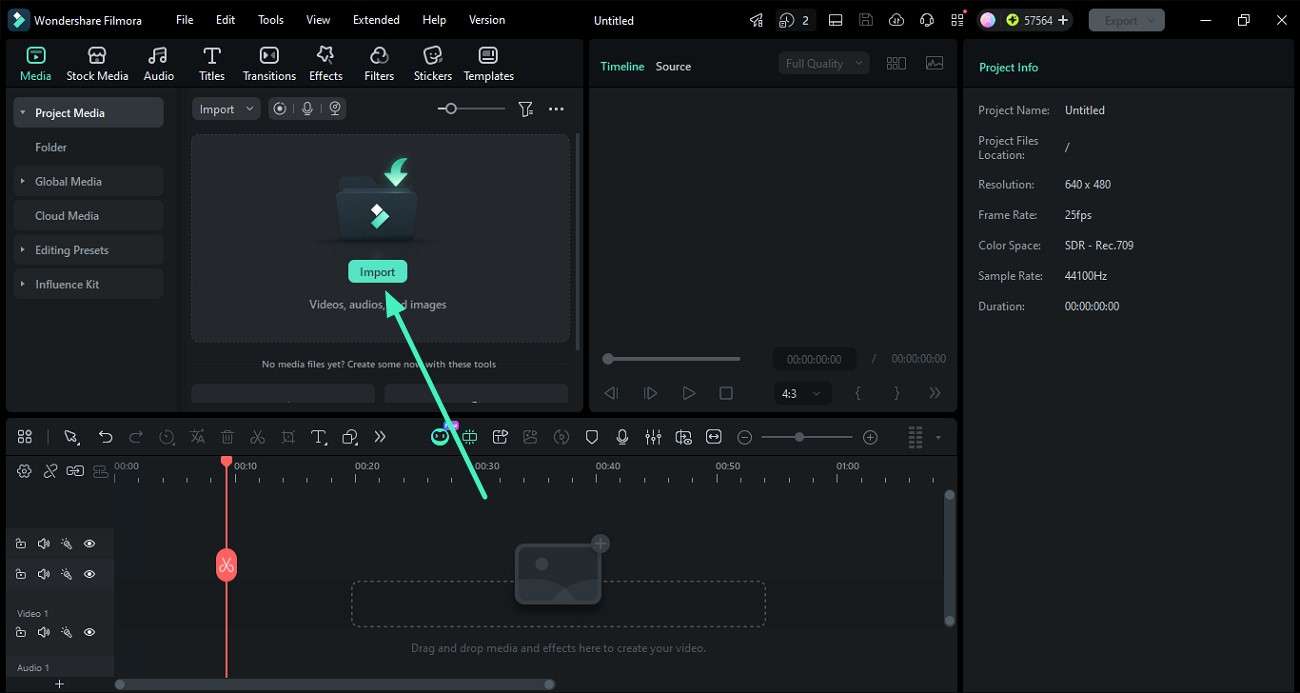
Step 1. Import Media to Tool
You enter the editing interface once you create a new project. Add your video to the tool's interface using the "Import" option. Drag the video to the editing timeline to begin editing.
-
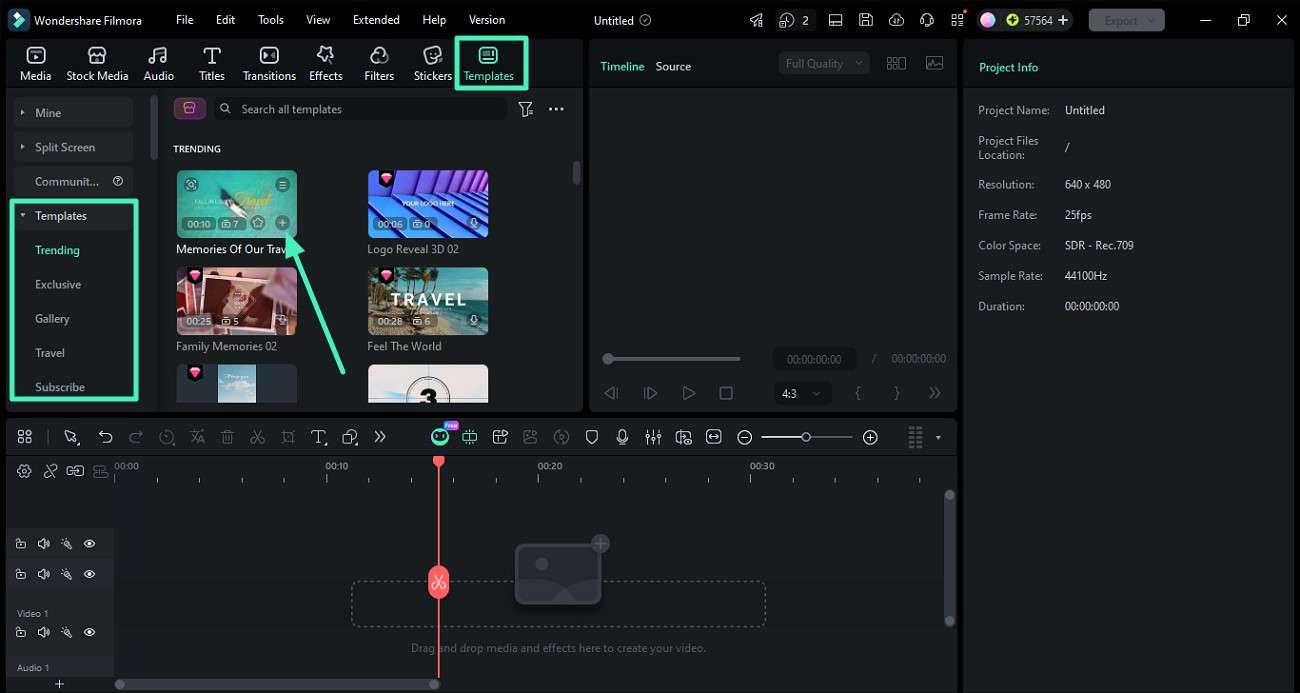
Step 2. Choose Templates for Editing
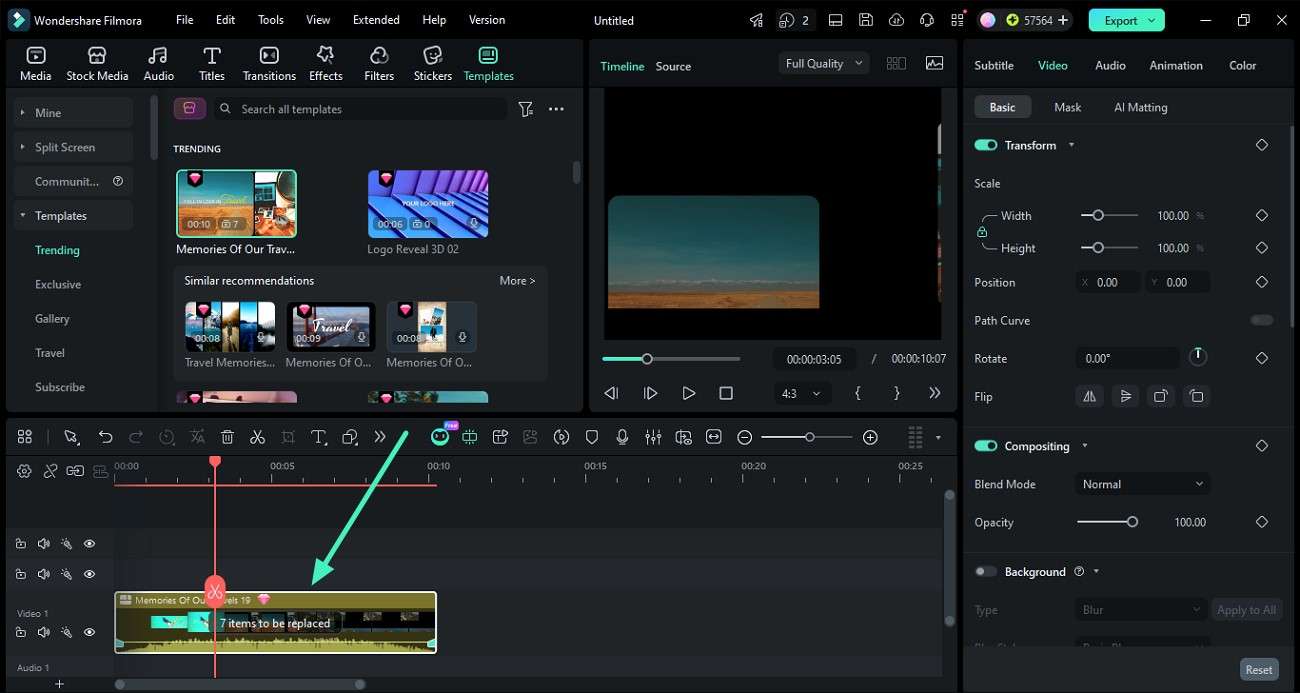
Click the "Templates" option located on the menu bar to enable the templates library. Choose the template of your choice and click on the + icon to apply it.
-
Step 3. Add Media to Templates
Head to the timeline and click on "Items to be Replaced" to add your media files. Preview the results in the preview window of this video editor for beginners on PC and make changes if required.
-
- Add Text to Video
-
Step 1. Open the Titles Panel
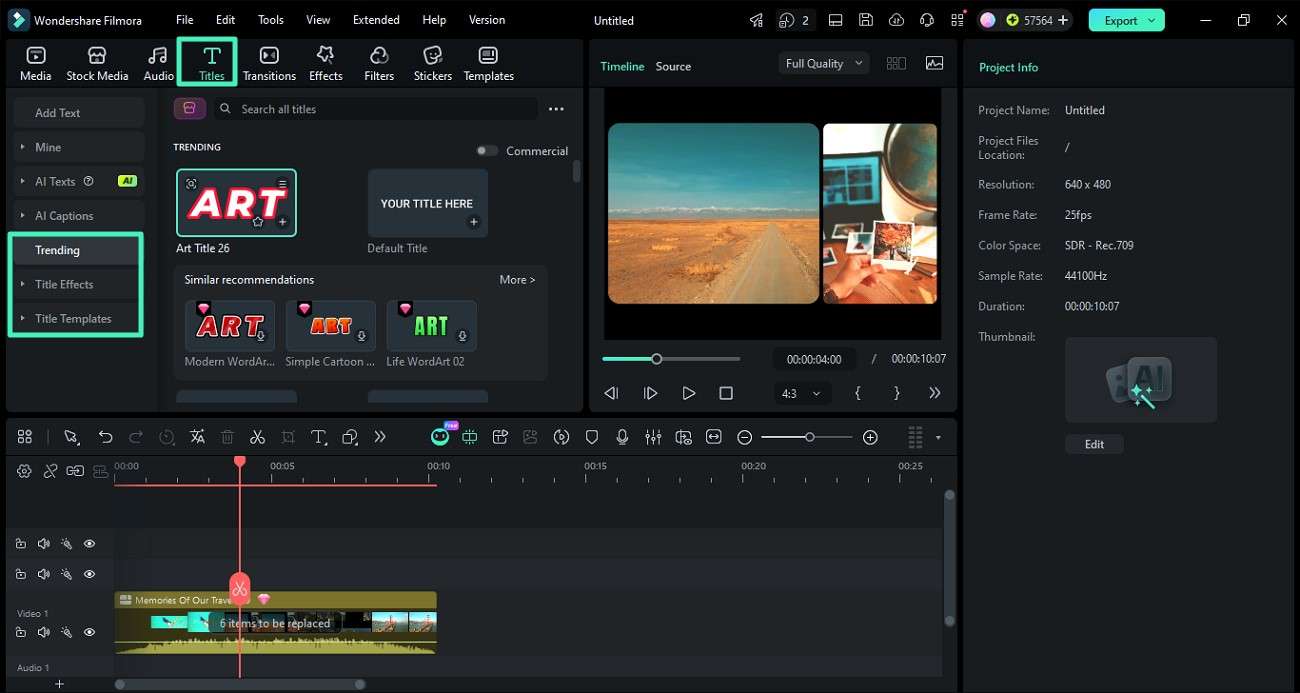
Head to the menu bar and click the "Titles" tab and select the text category or style you want to use in your video.
-
Step 2. Add and Customize the Text
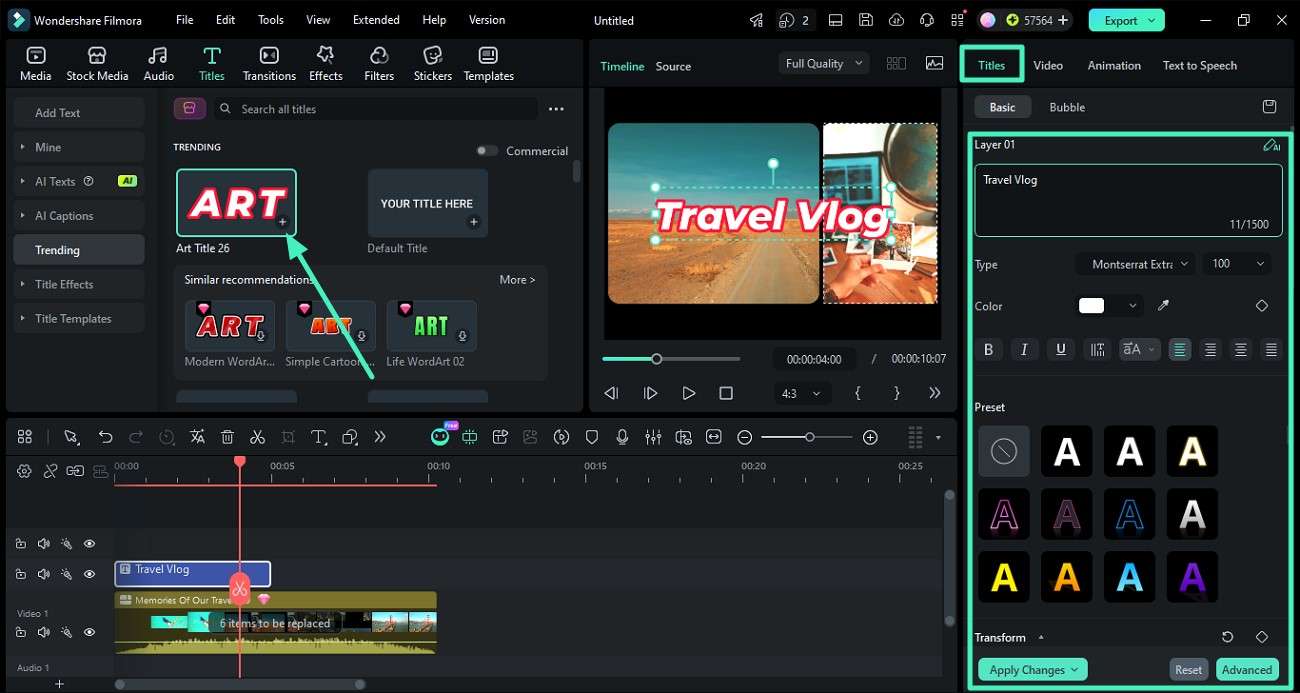
Click the "+" icon to add the template to the timeline and head to the properties panel on the right. Type your text in the designated field under the "Text" section and customize the font using the options provided.
-
- Add Music
-
Instructions
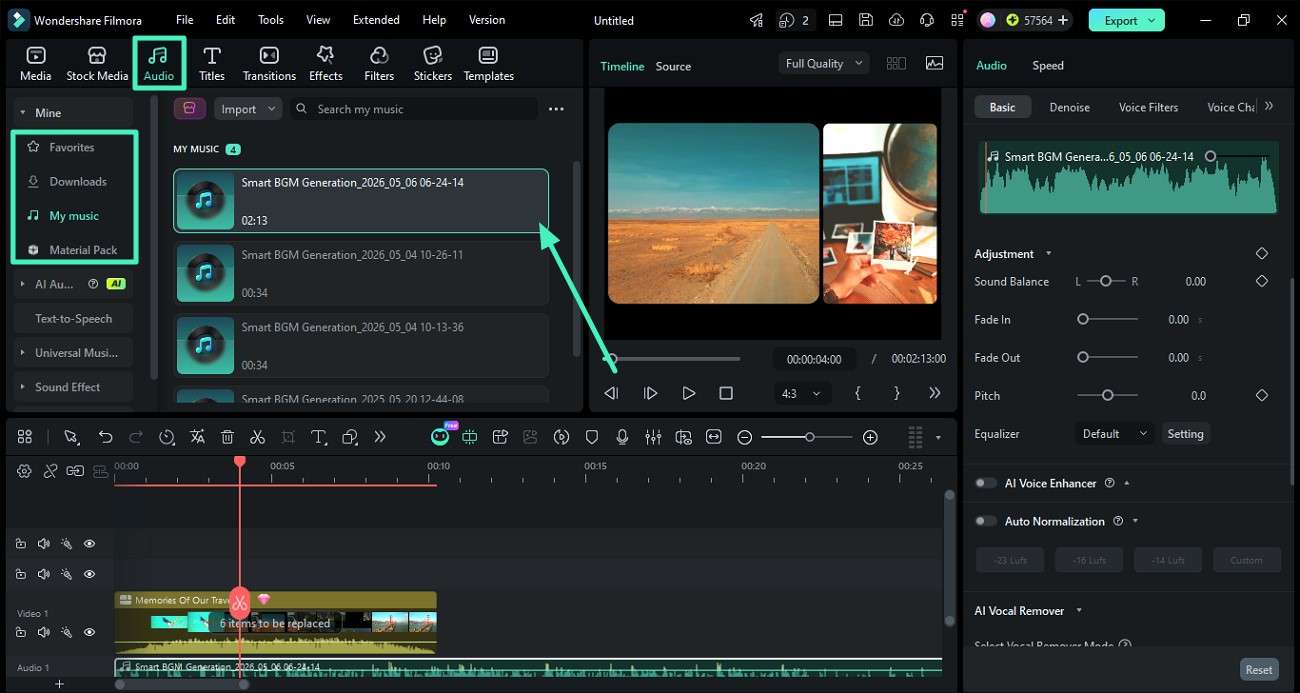
Click "Audio" on the toolbar at the top and expand the "Music" section. Tap on the "+" sign and choose the sound for the video. Customize the audio by heading to the "Audio" properties panel on the right.
-
- Preview with Optimized Playback Settings
-
Instructions
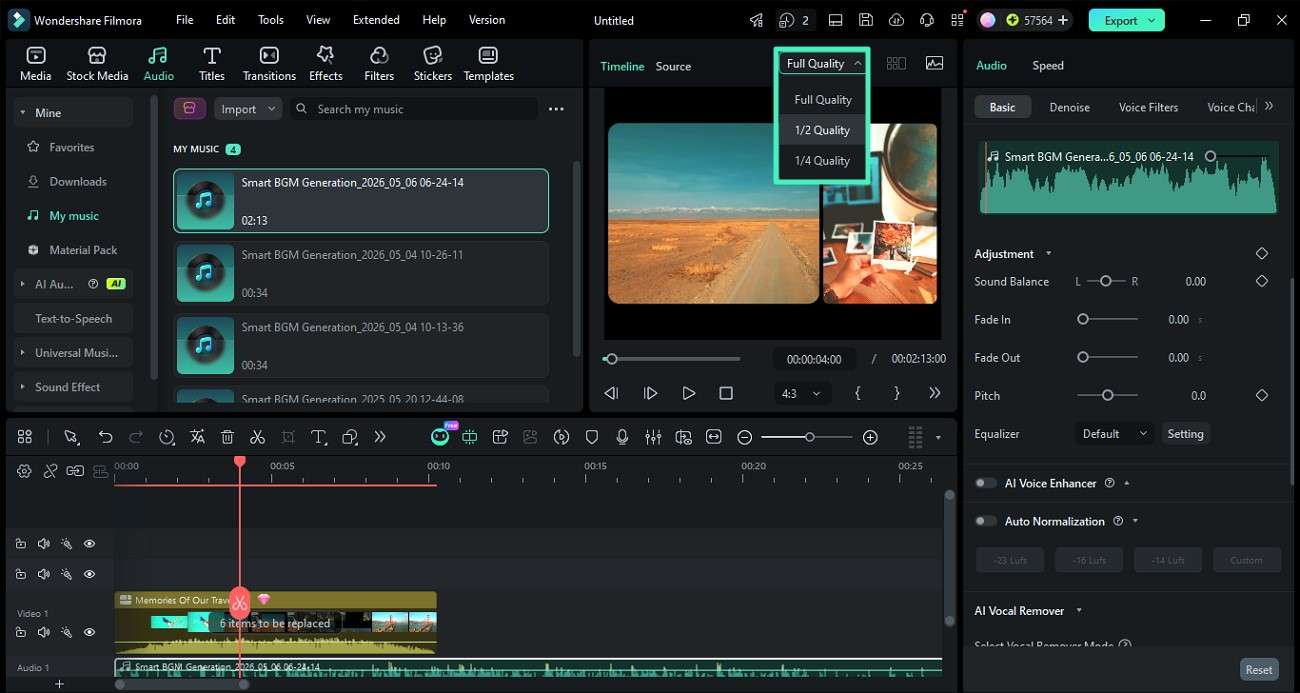
Locate the preview window above the timeline and click the drop-down menu above it. Select a lower preview quality, such as "Half" or "Quarter Resolution." This reduces lag and improves playback smoothness while editing large videos.
-
- Export or Upgrade
-
Step 1. Export the Video
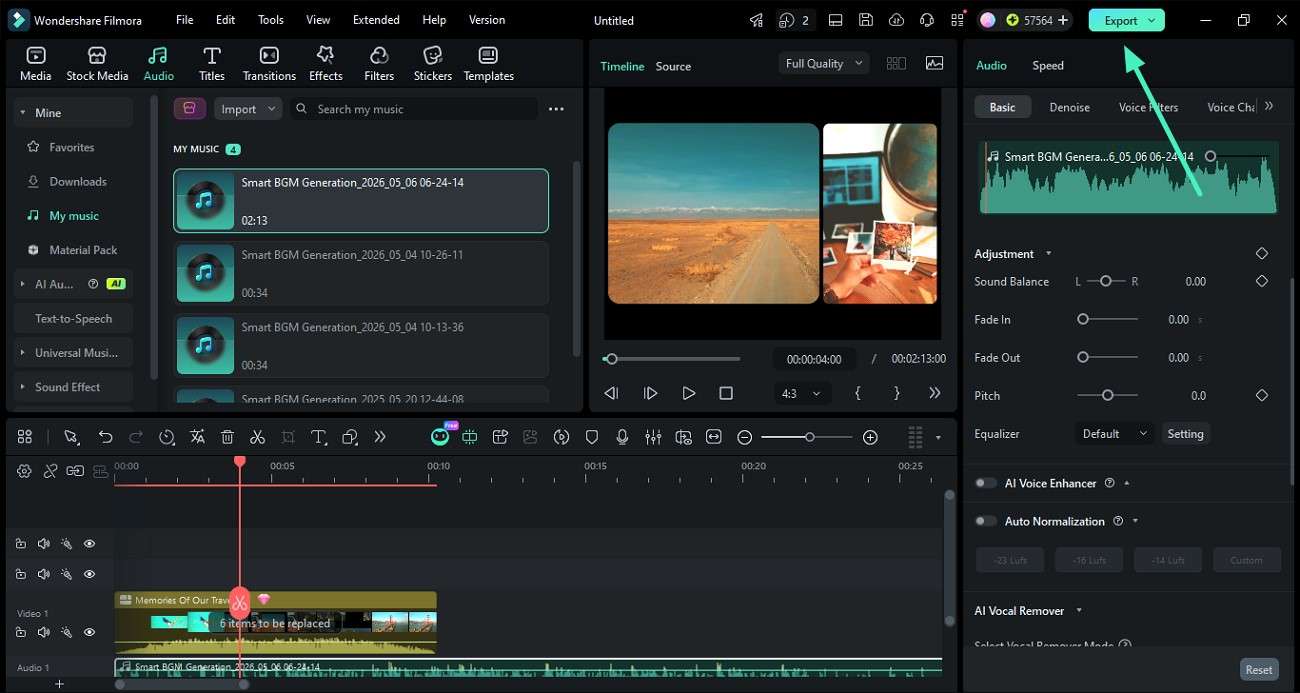
Click the "Export" button located at the top-right corner of the interface after completing the edit.
-
Step 2. Configure Export Settings
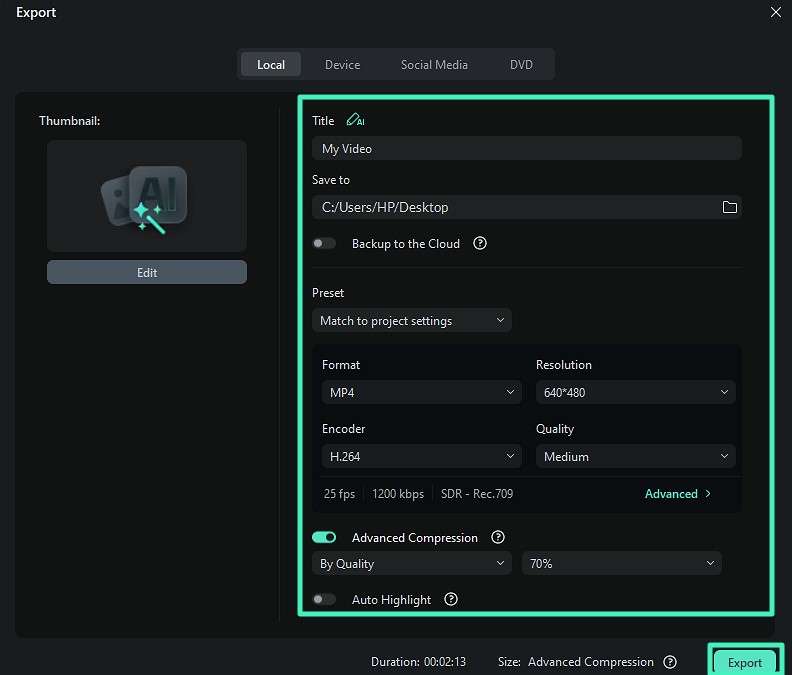
Select the format of your choice in the following interface and hit the "Export" button after configuring the settings.
The final video may include a watermark when users use the free version of Filmora. They can still use the free version to explore features and practice editing. Users who need watermark-free exports may consider upgrading the tool.
-
secure download Conclusion
This article discussed the best free PC video editing software. DaVinci Resolve is one of the best for serious learners. Shotcut and OpenShot are great lightweight free options. Filmora stands out as the most practical choice due to its simple interface and smooth performance. Overall, Filmora offers the best balance of ease, features, and upgrade flexibility for new creators.
Frequently Asked Questions
-
1. What is the best free video editing software for PC?
Many tools offer advanced editing for their users and are considered one of the best options. However, Filmora can be considered one of the most reliable options as it offers various editing functionalities. -
2. Is there free PC video editing software without a watermark?
Various platforms offer video saving without any watermark. However, Filmora is a strong option to consider if you want a more beginner-friendly experience with better templates. -
3. Which free editor is best for beginners?
Tools with simple navigation and easy functionalities are considered to be best for new users. One such tool is Filmora that offers easy to use functions with feature guides. -
4. Which free editor works best on low-end PCs?
For low-end PCs, OpenShot and Shotcut work well because they are lightweight and do not require high system resources. Still, Filmora can also run smoothly with optimized settings.
