


 TL;DR:
To cleanly blur photo backgrounds across devices, choose Canva or Adobe Express for rapid browser-based edits, Snapseed for completely free mobile adjustments, and Adobe Lightroom or Photoshop for realistic depth mapping on professional portraits.
● Adobe Photoshop and Lightroom deliver the highest quality edge detection and realistic bokeh for complex details like hair, though both require a paid subscription for full Lens Blur functionality.
● Wondershare Filmora applies AI Portrait Cutouts and blur effects for both photos and videos across desktop and mobile, but exporting without a watermark requires a paid plan.
● When editing on mobile, Snapseed processes JPG and RAW files completely free with no ads, whereas the Filmora mobile app currently restricts exports to video or Live Photo formats that require manual conversion to a standard image on your phone.
Ask AI for a summary
 ChatGPT
 Perplexity
 Gemini
 Claude
 Grok
Grok
Busy backgrounds can pull attention away from your subject, especially in portraits and product shots. A clean blur photo background effect helps your photo look more polished, like a DSLR-style depth of field.
We picked the most popular photo background blur apps across different systems. You will also learn quick, practical ways to blur image background with high-quality exports. If you need blur background photo iPhone tips, we cover that too.
To keep our recommendations fair and consistent, we evaluate each tool using the same testing criteria:
- We test each tool on the same set of photos: a portrait with fine hair detail, a product shot with sharp edges, and a busy scene with lots of background objects. This helps us see how well each app can blur the photo background and separate the subject without creating messy edges.
- We rate the results based on subject detection accuracy, visible edge artifacts, blur realism, available control options, and overall export quality, including how well the tool preserves blur image background HD detail.
- We also look for common friction points that affect real use, such as forced sign-in, watermarks on exports, and key features locked behind paid plans.
Our Top 3 Picks



Photo Background Blur Apps Comparison Chart
| Tools | Platform | Key Features | Pricing | Best For |
| Wondershare Filmora | Windows, macOS, iOS, Android | Background blur for photos with effect and AI tools | Paid plans plus perpetual option | One editor for photos plus videos, fast results |
| Canva | Online, iOS, Android | One-click style blur options, Auto Focus background blur for portraits | Free, Pro, Teams tiers | Blur background in photo online fast, for beginners and content creators |
| Adobe Lightroom | iOS, Android, Windows, macOS | Lens Blur with depth map and bokeh controls, good realism and refinements | Subscription plans, free mobile app with optional upgrades | Most realistic blur look for photographers |
| Adobe Express | Online, iOS, Android | Quick blur background tool, simple sliders, template-first workflow | Free and Premium plans | Fast blur online with Adobe templates and branding |
| Fotor | Online, iOS, Android | AI photo background blur tool, blur images and backgrounds fast | Free plan available, Pro upgrade for more features | Quick online background blur and simple edits |
| Pixlr | Online (primary), Windows, macOS, iOS, Android | Brush-based blur tool for precise areas, works in the browser | Free tier, paid plans with trial options | Quick edits in-browser, light retouching |
| Snapseed | iOS, Android | Lens Blur for portrait-like bokeh, selective edits, and RAW support | Free | Best free mobile blur for casual edits |
| PicsArt | iOS, Android | Background editing suite, effects, and AI tools, blur workflow fits social content | Free, Plus, Pro tiers | Trendy blur effects, stickers, social-ready edits |
| Adobe Photoshop | Windows, macOS | Pro masking plus Lens Blur controls, the strongest manual control | Subscription, free trial available | Maximum control, complex hair edges, pro retouch |
| Affinity Photo 2 | Windows, macOS, iPad | Depth of Field Blur and pro-grade editing tools | Free | Photoshop-style editing without subscription |
|
Show More
Show Less
|
||||
Top 10 Blur Photo Background Editor with Reviews
To make it easier to choose, this list is split by system and workflow: cross-platform editors that work across desktop and mobile, online tools for quick edits, mobile apps for iPhone and Android, and desktop editors for Mac and Windows.
Each pick below can help you blur the photo background or create a clean depth effect without spending too much time on manual masking.
Best Cross-platform Editor (Desktop & Mobile)
1. Wondershare Filmora
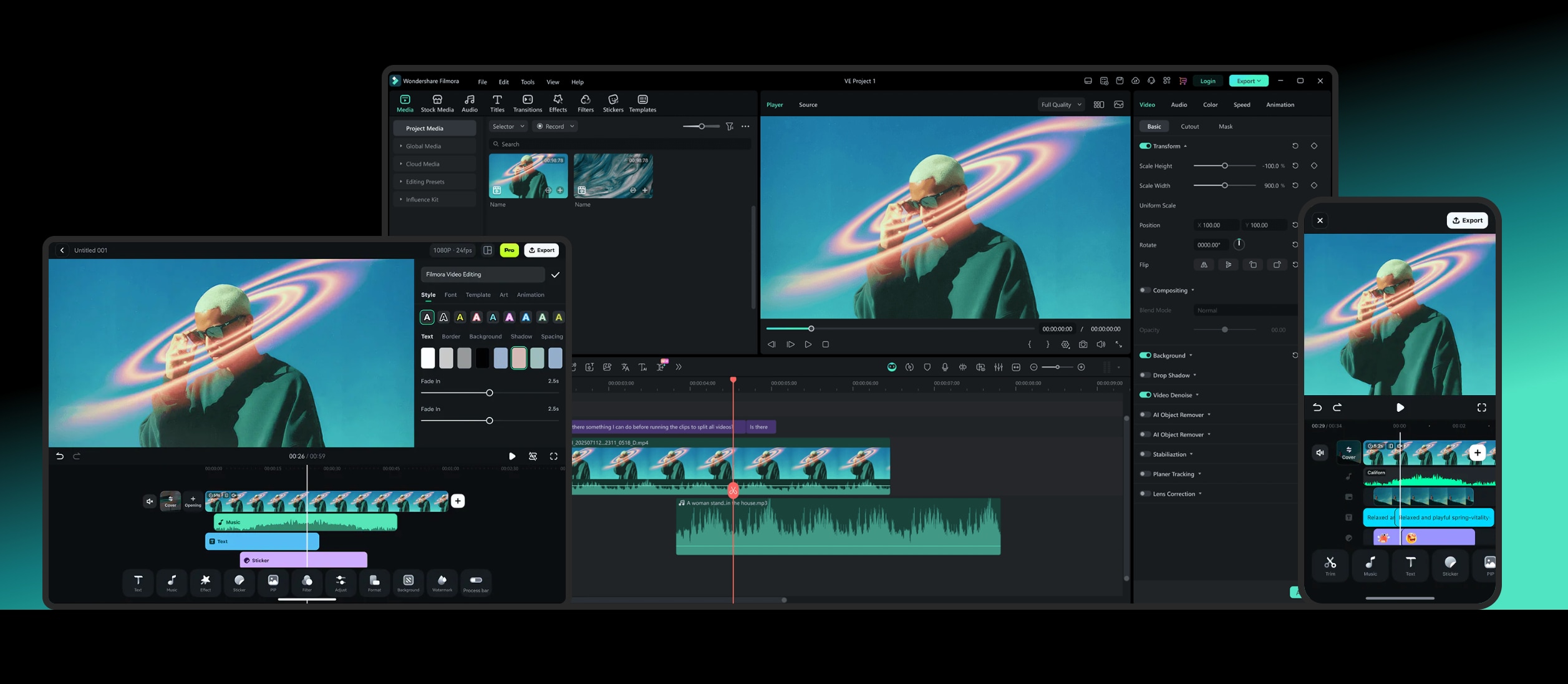
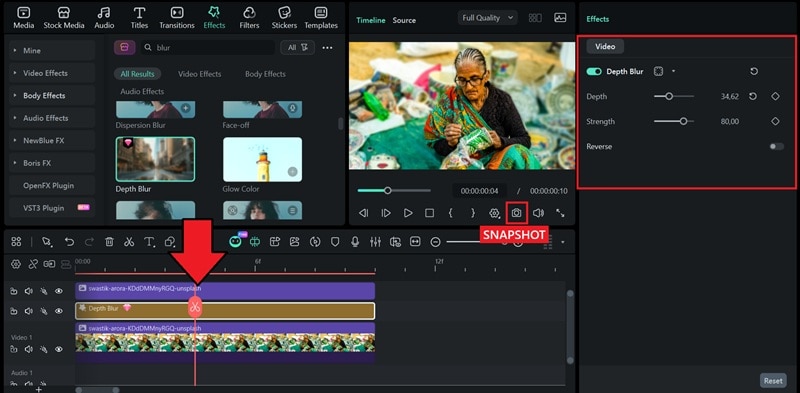
Wondershare Filmora is a cross-platform editor that makes it easy to blur the photo background on desktop, then continue your project on mobile when you need quick edits. On PC and Mac, you can blur the image background by applying the Background Blur effect, and then adjusting the blur style and strength.
If you want cleaner results for portraits, Filmora also includes AI Portrait Cutout, which can detect a person in an image and remove the background with one click. This helps you keep the subject sharp while you blur the background behind it.
 Secure Download
Windows, macOS, iOS, Android
Free version available, paid plans include subscription and one-time options
Creators who want a simple photo editor blur background workflow, plus the option to edit videos in the same tool
- Background blur effect for both photos and videos, with a blur strength slider
- Multiple blur styles to choose from
- Snapshot or Export to save blurred images after editing
- AI Portrait Cutout for cutting out people from images, removing the background, and swapping backgrounds
- Quick and beginner-friendly way to blur background in photos on desktop
- AI Portrait Cutout helps reduce common edge issues in portraits
- Works across desktop and mobile, useful for creators who switch devices
- It requires installing the desktop app for the full workflow
- A paid plan is needed for exporting without a watermark.
Filmora is a strong pick if you want one tool to blur image background quickly, refine portraits with AI cutout, and keep the same editing workflow for photos and videos. It is especially helpful for social content where you want consistent results across different devices.
Secure Download2. Adobe Lightroom
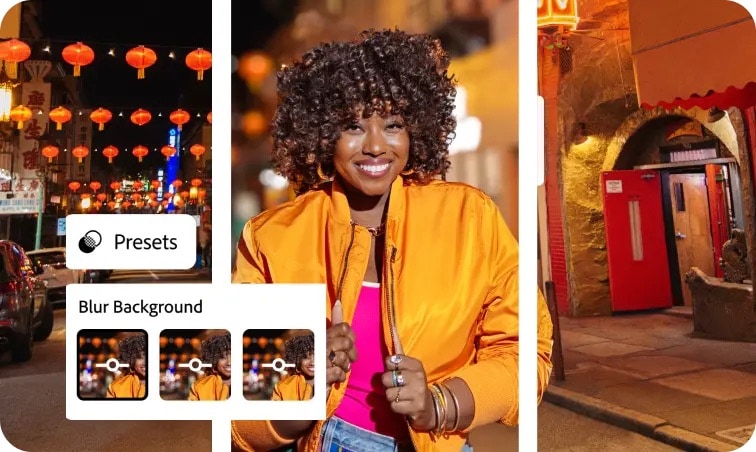
Adobe Lightroom is a popular choice for photographers who want a natural-looking blur photo background effect without complex manual masking. Its Lens Blur tool builds a depth map of your photo, then lets you add optical blur and bokeh so the background looks more realistic. You can also refine the depth map if the blur spills onto hair, glasses, or product edges.
Windows, macOS, iOS, Android, web
Lightroom for mobile is free, premium features require a subscription plan
Users who want realistic blur image background results, plus full photo editing tools and high-quality export
- Lens Blur adds optical blur and bokeh using a depth map, helpful for blur image background HD looks
- Refine controls to fix the depth map and improve edges around the subject
- Masking tools like Select Subject can help you target the background more precisely
- Cloud sync across mobile, desktop, and web for a consistent workflow
- Very natural blur realism compared to basic blur filters
- Strong refinement options when the AI blur misses small details
- Works across devices, good for creators who edit on phone and desktop
- Full Lens Blur and premium tools can require a paid plan
- Some advanced masking features are not available on all mobile devices
Lightroom is one of the best options if you want blur background in photos that looks realistic, with clean bokeh and reliable export quality. It is especially strong for portraits and product photos where edge quality matters.
Best Online Editor for Background Blur Photo
3. Canva
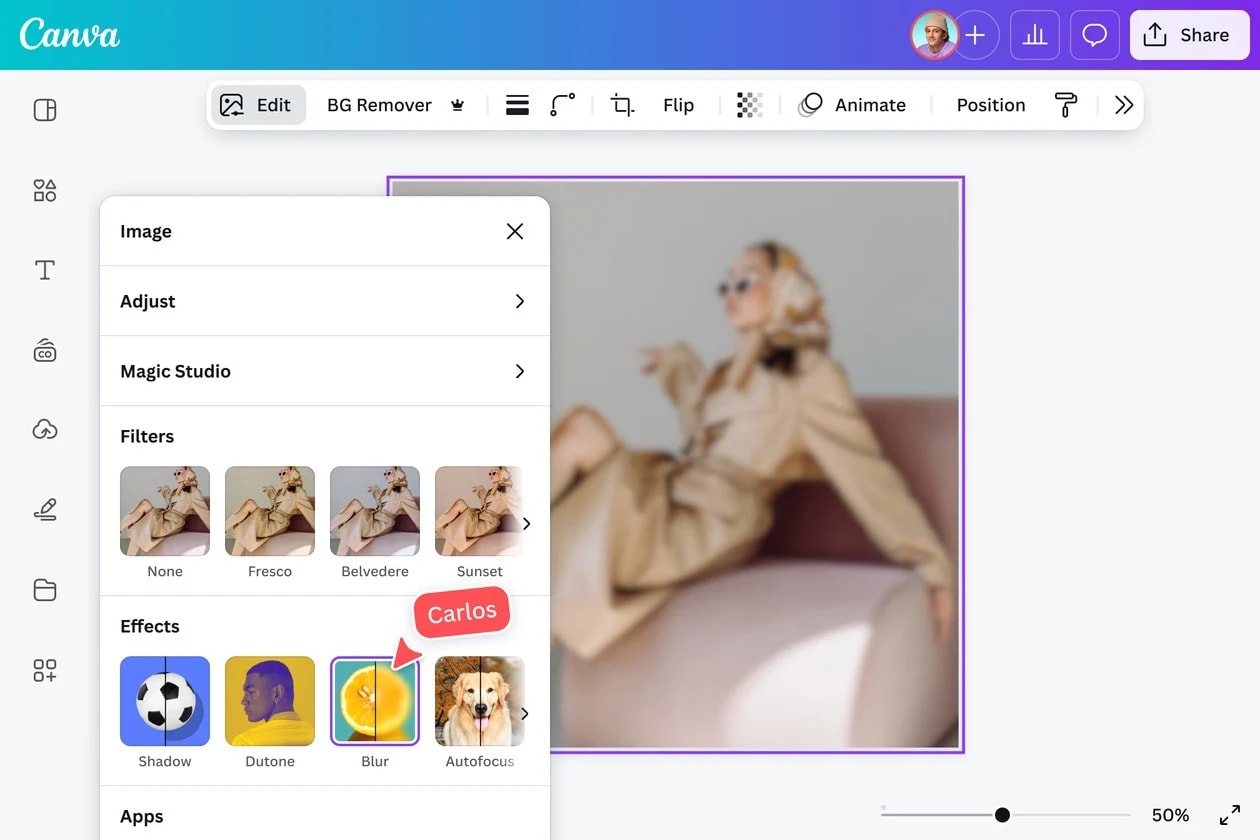
Canva is one of the most popular options if you want to blur background in photo online fast, with a simple upload, blur, and download workflow. It includes a dedicated blur background tool that auto-blurs the backdrop to create a shallow depth-of-field look, plus an Auto Focus option inside its photo editor for quick background blur results.
Web, iOS, Android
Free plan available, paid tiers include Canva Pro and Teams
Quick blur background of photo online free style edits, social posts, thumbnails, and simple design layouts
- Free blur background tool that auto-blurs the backdrop for instant focus
- Auto Focus and photo blur controls for quick blur image background edits
- BG Remover to separate the subject, then change the background color or design
- Very easy for beginners, fast blur background in photo online workflow
- Background remover makes it easier to create clean backgrounds when you need to replace them, besides blurring them
- More limited control than pro desktop editors for complex edges like hair detail
- Some advanced features may require a paid plan, depending on what you use
Canva is a top pick for speed. If your goal is to blur photo background online, export quickly, and reuse the image for social posts or designs, Canva is one of the simplest tools to get clean results with minimal steps.
4. Adobe Express
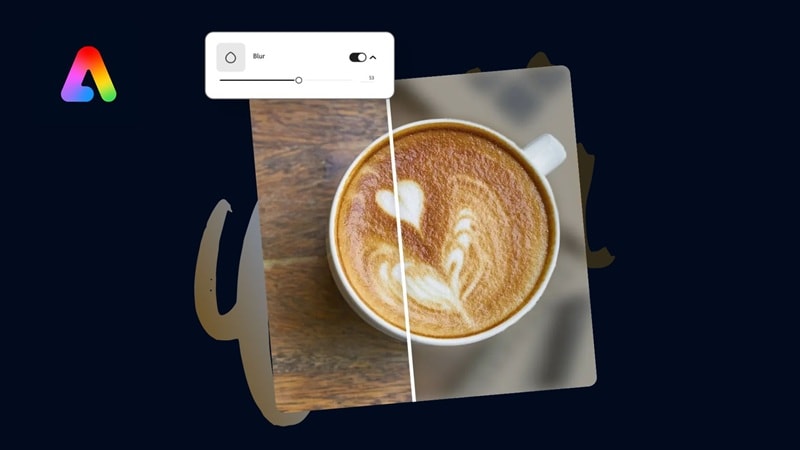
Adobe Express is a popular choice for quick edits when you want to blur background in photo online without learning complex tools. It includes a dedicated blur background tool. You upload an image, the tool highlights the subject, then you adjust the blur to create a clean depth effect.
Web, iOS, Android
Free plan available, Premium plan available
Fast blur background of photo online free style edits, thumbnails, simple social visuals, and quick marketing graphics
- Blur background tool with a simple upload and adjust workflow
- Remove Background tool for one-click subject cutouts, useful before blurring or changing backgrounds
- Templates and built-in assets for fast content creation alongside photo edits
- Mobile app support on iOS and Android, plus access via desktop web
- Very easy to use for blur background in photo online, with minimal steps
- Remove Background helps when you need a cleaner subject edge quickly
- Works on web and mobile, so you can edit anywhere
- Some premium templates, assets, and features are locked behind paid plans
- Mobile app has device and OS requirements, so older phones may not be supported
Adobe Express is a strong pick if you want a simple photo editor blur background workflow online, plus quick tools like background removal and ready-to-use templates for social content.
5. Fotor
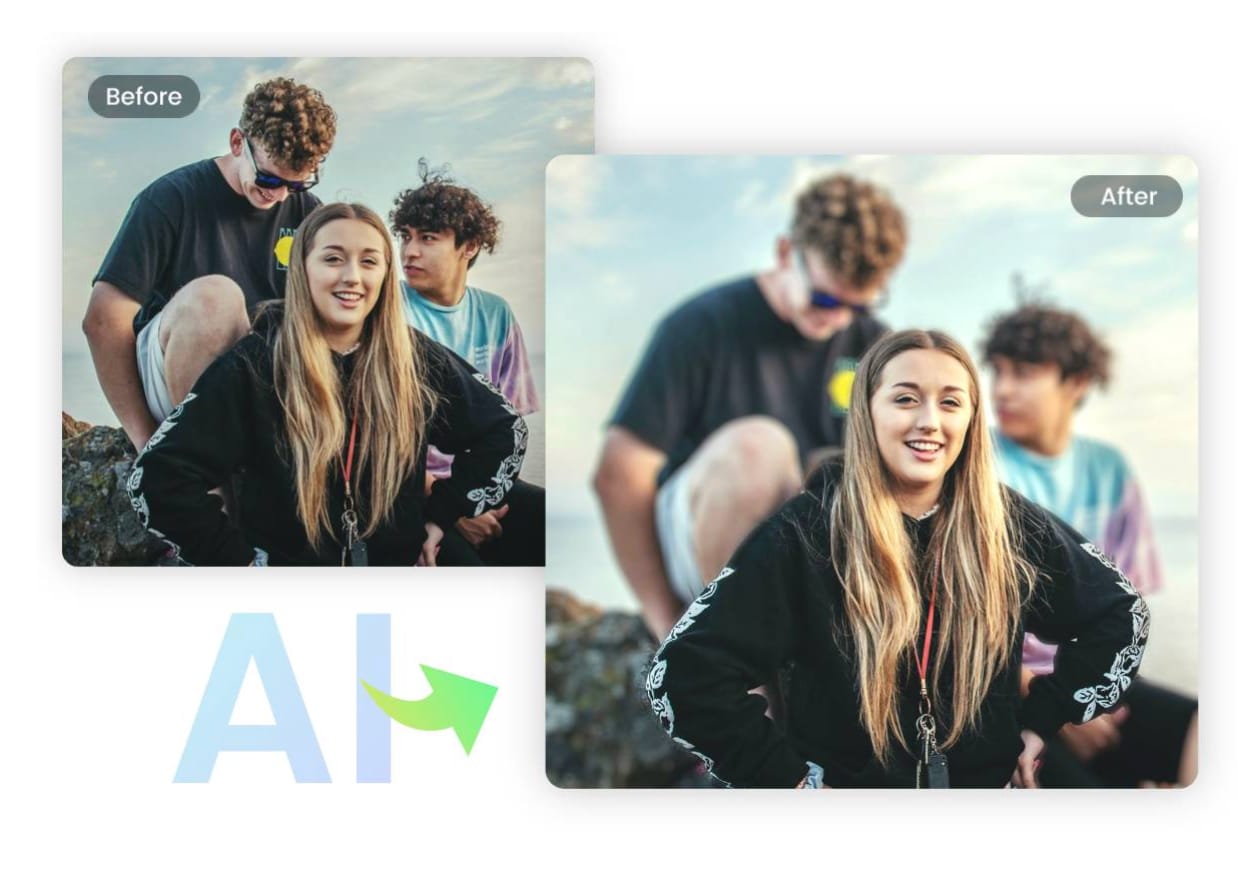
Fotor is a popular choice for people who want to blur background in photo online fast, without learning complex editing steps. Its AI blur background feature can detect the main subject and apply a natural-looking blur to the background in one click, then you can fine-tune the blur to match the style you want.
Web, iOS, Android
Free plan available, Pro and Pro+ plans available
Users who want a quick photo editor blur background workflow online, plus the option to edit on desktop or mobile
- AI Blur Background tool for one-click background blur, adjustable depth look
- Blur Image editor to blur backgrounds or specific parts of a photo
- Circle and linear blur tools for targeted blur control
- Fotor Pro includes advanced editing and AI tools, HD and transparent PNG download, no watermark, ad-free
- Fast, beginner-friendly way to blur photo background online
- Multiple blur options, including targeted circle and linear blur
- Available across web, desktop, and mobile platforms
- Some premium editing features and clean HD downloads are part of the paid plans
- Online editing depends on a stable internet connection for the smoothest workflow
Fotor is a strong pick if you want a quick blur background photo editor online that still gives you a few ways to control the blur, from one-click AI background blur to manual circle and linear blur tools.
6. Pixlr
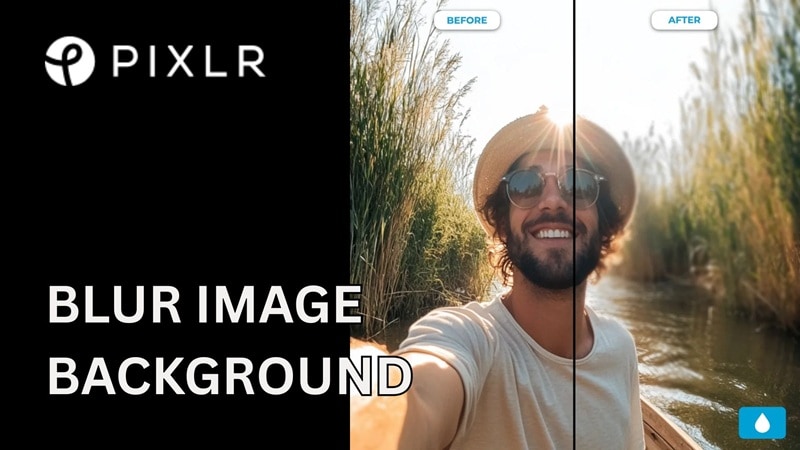
Pixlr is a popular online photo editor that helps you blur photo background directly in the browser. If you want a fast way to blur background in photo online, Pixlr gives you two practical options, a brush-based Blur Tool for manual control, and a Focus Bokeh effect for a more “portrait-style” background blur look.
Web (primary), Windows, macOS, iOS, Android
Free plan available, paid plans available, plus a 7-day Pixlr Premium free trial
Blur pic background online, quick retouching, and simple bokeh-style blur without installing heavy software
- Blur Tool with adjustable brush size, softness, and strength, useful for blurring specific background areas
- Focus Bokeh effect with blur modes like Radial, Symmetric, and Linear, plus sliders to control blur level and placement
- Works across web, desktop, and mobile, so you can edit wherever you prefer
- Easy way to blur image background online, no complicated learning curve
- Two blur styles, manual brush blur and bokeh-style focus blur, depending on the look you want
- Available on multiple platforms, helpful if you switch devices
- Manual blur can take extra time on complex edges like hair detail, compared with dedicated AI portrait tools
- Some premium features and plan limits depend on subscription tier
Pixlr is a solid pick if you want a quick, browser-based blur background editor that still gives you control. It is especially useful when you need to blur background of photo online free style edits, then fine-tune the blur placement with brush or bokeh tools before exporting.
Best Photo Background Blur Apps for Mobile (iOS & Android)
7. Snapseed
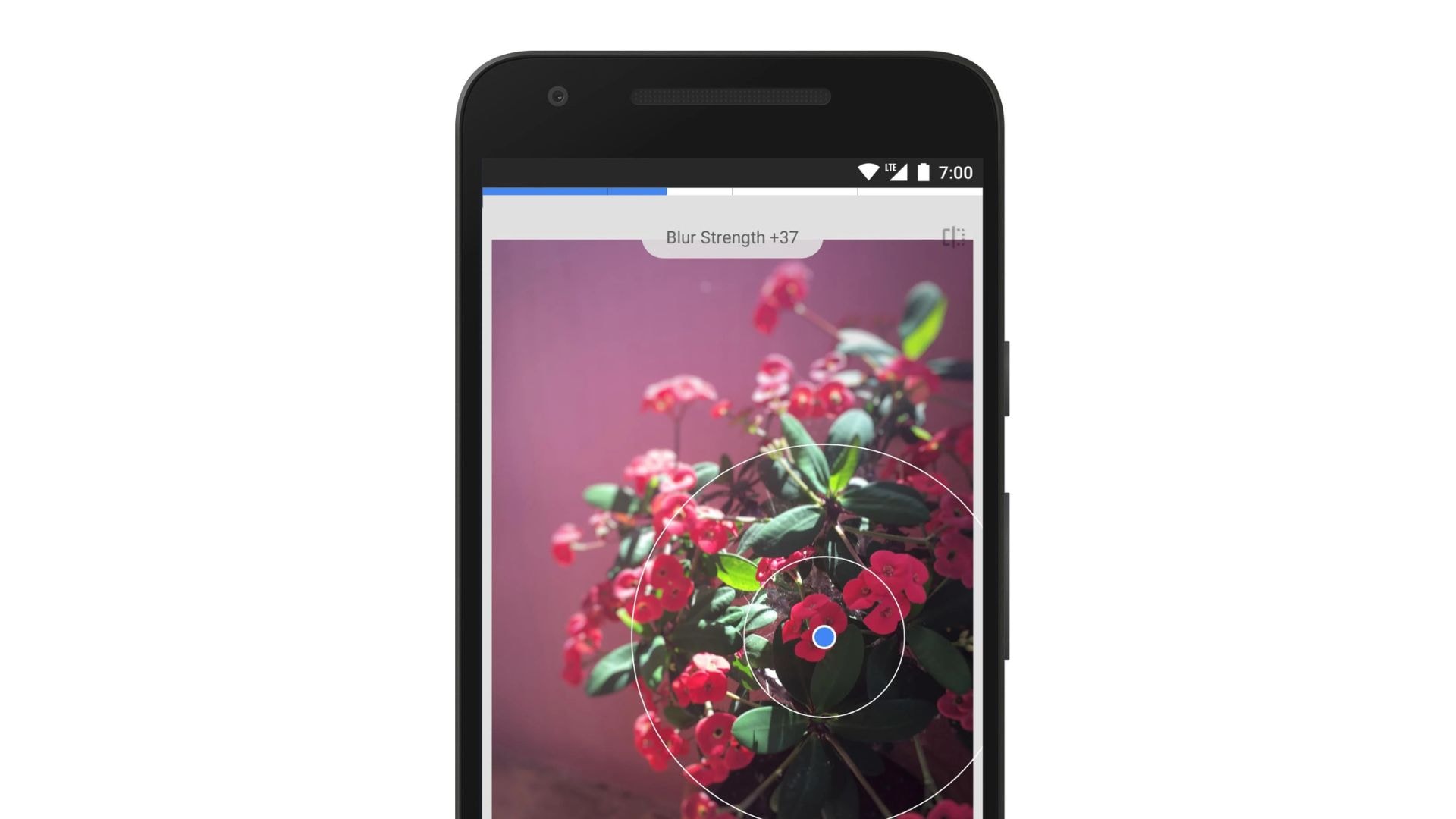
Snapseed is a free photo editor from Google that is popular for quick, natural-looking background blur on mobile. If you want to blur photo background without a subscription, its Lens Blur tool is one of the easiest ways to create a bokeh-style look on iPhone and Android.
You can switch between linear and elliptical focus, resize and rotate the focus area with pinch gestures, and adjust highlight shapes for a more realistic blur image background effect.
iOS, Android
Free, no ads
Users who want a free photo editor blur background workflow on mobile, especially for portraits and quick social posts
- Lens Blur with linear or elliptical focus, pinch to resize, rotate, and control blur placement
- Specular highlight shape controls to enhance the bokeh look in blurred areas
- Opens JPG and RAW files for more flexibility with image quality
- Selective Adjust with Control Points to adjust parts of the image without affecting everything
- Completely free, no ads, good for blur photo background free edits
- Lens Blur gives strong control over focus placement and blur strength
- Supports RAW editing, helpful for higher-quality results
- No automatic subject cutout like some AI photo background blur apps
- Limited desktop workflow, it is mainly built for mobile editing
Snapseed is one of the best free options for blur background photo iPhone and Android edits. It is fast, flexible, and its Lens Blur tool gives you enough control to make the background look soft while keeping the subject sharp.
8. PicsArt
PicsArt is a popular all-in-one photo editor that makes it easy to blur photo background for portraits, selfies, and social content. In the mobile app, you can blur background in photos by going to Effects, then opening the Blur section and choosing the blur style that fits your image.
If you need a cleaner subject first, PicsArt also offers an AI Background Remover, which can help separate the subject so your blur looks more polished.
Web, iOS, Android, Windows
Free plan available, Plus and Pro plans available, free trial offered for paid plans
Creators who want quick blur photo editing background results, plus templates and effects for social posts
- Blur Background workflow in the app via Effects, then Blur styles, fast and beginner-friendly
- Online Blur Image tool for quick browser-based blur edits
- AI Background Remover for cleaner subject separation before blurring or changing backgrounds
- Pro plan includes more AI tools and productivity features like bulk editing up to 50 images
- Fast way to blur background photo iPhone and Android images using built-in blur effects
- Multiple blur styles, good for creative bokeh looks and social
- Free plan available, easy to start without paying
- Some premium tools and assets require a paid plan
- If you use premium tools or premium stock, exports can include a watermark
PicsArt is a strong pick if you want a popular, mobile-first photo editor blur background workflow with lots of effects and quick blur controls. It is especially useful when you want fast edits for social posts, then optionally upgrade for more AI tools and bulk workflows.
Best Mac and Windows Software Editor
9. Adobe Photoshop
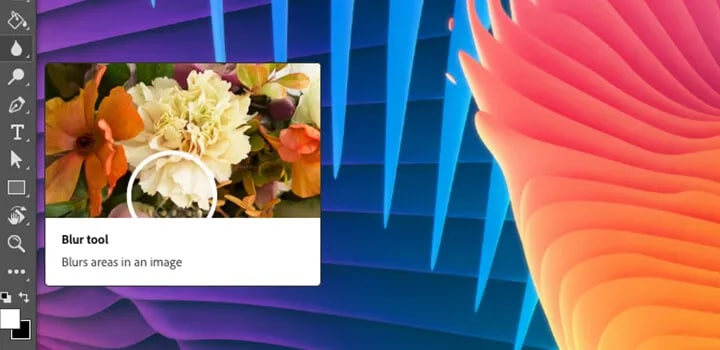
Adobe Photoshop is the classic choice for anyone who needs the most control to blur image background Photoshop style. Adobe also provides a dedicated guide on how to blur a background in Photoshop, and a step-by-step tutorial for creating depth of field using the Lens Blur filter.
Windows, macOS, plus Photoshop on the web for supported desktop browsers
Subscription plans, 7-day free trial available
Advanced users who want the cleanest blur background in photos, with precise masking and pro retouching tools
- Official “Blur background in Photoshop” workflow, uses the Filter menu and blur tools with adjustable sliders
- Lens Blur filter to create depth-of-field effects, Filter > Blur > Lens Blur, with customizable settings
- Works across desktop, web, and mobile under a Photoshop plan, helpful for flexible workflows
- Best-in-class control for complex edges, ideal for portraits and product photos
- Lens Blur can create a more realistic depth effect than simple blur filters
- Official guides make it easier to follow a repeatable blur background workflow
- Subscription pricing, not a one-time purchase
- Takes more time to learn than one-click online background blur tools
Photoshop is still the top option when you need the most precise blur image background results. If you want realistic depth blur and clean subject edges for professional photos, it is hard to beat.
10. Affinity Photo 2
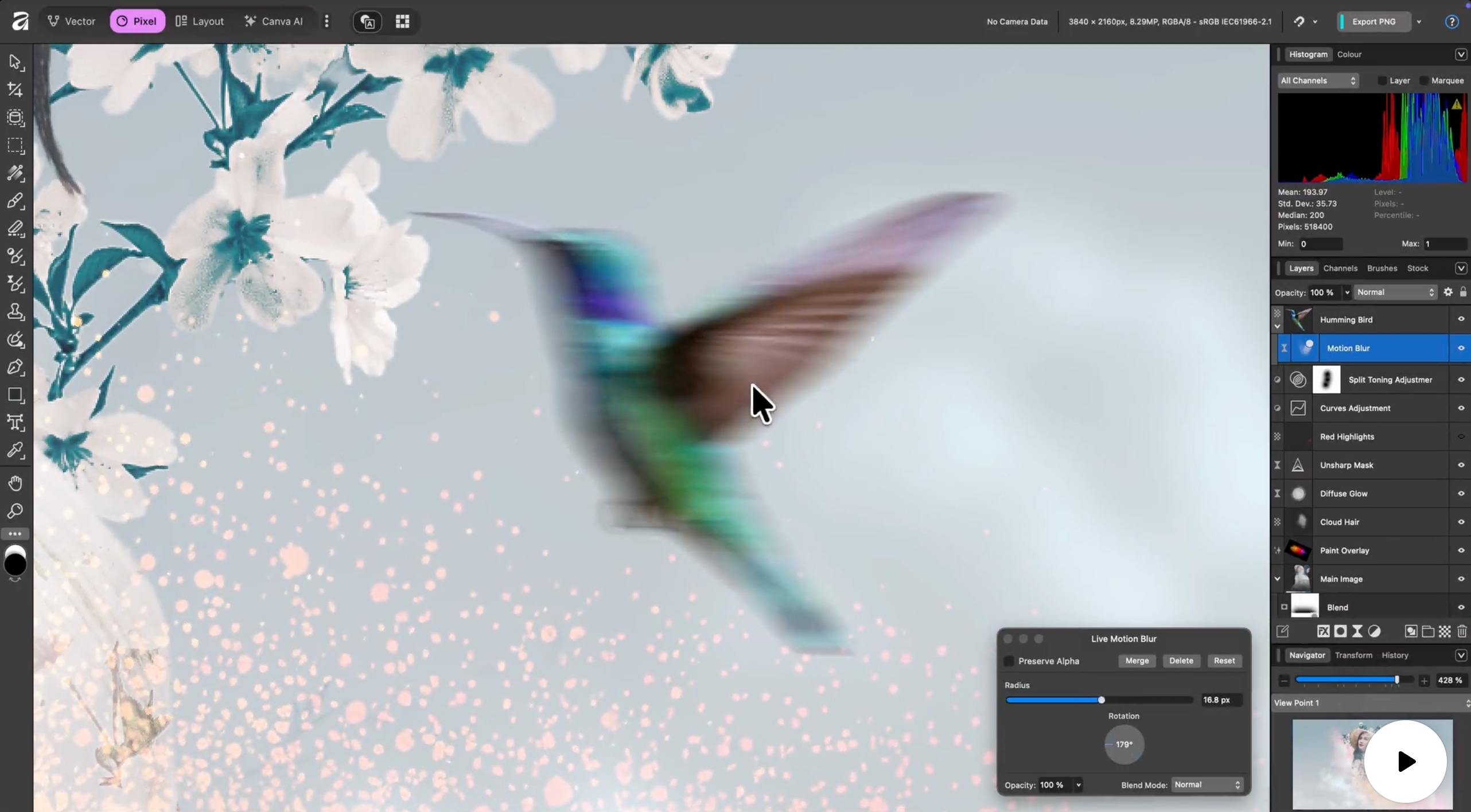
Affinity Photo 2 is a popular Photoshop alternative for users who want strong editing control to blur image background with cleaner edges than most one-click tools. It includes a Depth of Field Blur filter that uses a gradient to simulate realistic focus falloff, including tilt-shift style blur effects, so you can make photo background blur while keeping the subject sharp.
Windows, macOS, iPad
Affinity’s licensing has changed recently. The current Affinity platform is promoted as free, with optional paid AI features tied to Canva subscriptions
Users who want a desktop-grade photo editor blur background workflow, with pro tools and no traditional Adobe-style subscription requirement
- Depth of Field Blur filter that uses a gradient to create tilt-shift and depth effects
- Live filter style workflow for creative depth effects and non-destructive adjustments
- Full photo editing toolkit, including RAW editing and advanced retouch tools, useful when you want blur image background HD results
- Available for Windows, Mac, and iPad, helpful if you edit across desktop and tablet
- Strong manual control for clean background blur and edge detail
- Depth of Field Blur is great for portrait and tilt-shift looks
- Promoted as subscription-free, and positioned as a pro alternative to Adobe workflows
- Not a one-click AI blur tool, it can take more steps than online background blur image editors
- The product and licensing model have been changing. So you may want to confirm the current download and plan details before committing
Affinity Photo 2 is a strong pick if you want a pro-level image editor blur background workflow, with realistic depth effects and solid control. It is especially useful when you need more precision than mobile apps, but you do not want to rely on Photoshop subscriptions.
What to Consider When Picking a Background Blur App
The best background blur app depends on how you edit, how fast you need results, and how clean you want the edges to look. Use the guide below to match the tool to your workflow.
- Fastest online blur
Pick Canva or Adobe Express if you want to blur the background in a photo online with the fewest steps. These are great for quick thumbnails, profile photos, and social posts where speed matters more than advanced controls. - E-commerce and clean product shots
Choose PhotoRoom if you edit product photos and need clean edges fast. It is also a solid option when you want a photo editor black background look, then add blur for a premium, store-ready style. - Best free mobile blur
Go with Snapseed if you want to blur photo background for free on iPhone or Android. It gives you manual control with Lens Blur, so you can place the focus area and adjust blur strength without paying. - Most realistic blur
Use Lightroom Lens Blur or Photoshop if you care about blur realism and edge quality. These are better when you want blur image background with HD results, especially for portraits, hair detail, and sharp product edges. - One app for photos and videos
Pick Filmora if you want one tool that can blur the photo background and also handle video projects. It is a practical choice for creators who want a consistent style across photos, reels, and slideshows, then follow the Filmora how-to section for the fastest workflow.
How to Blur Photo Background in Filmora
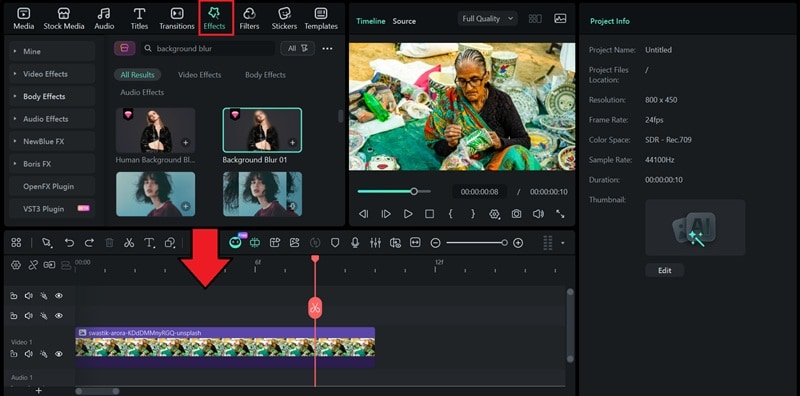
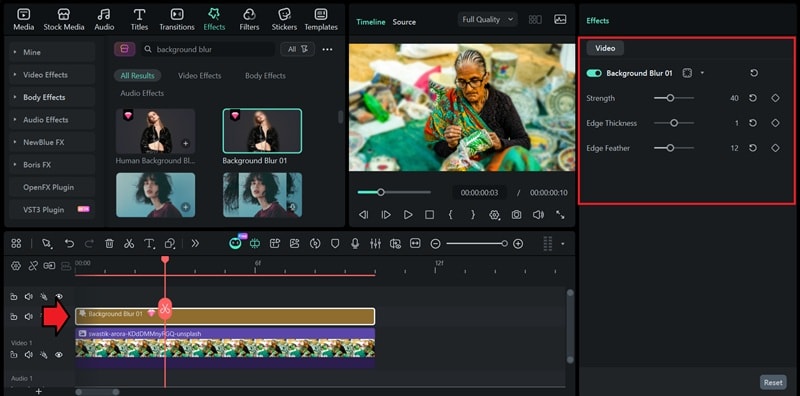
Filmora gives you a few simple ways to blur the photo background without complex masking:
- Directly use a background blur effect for fast results
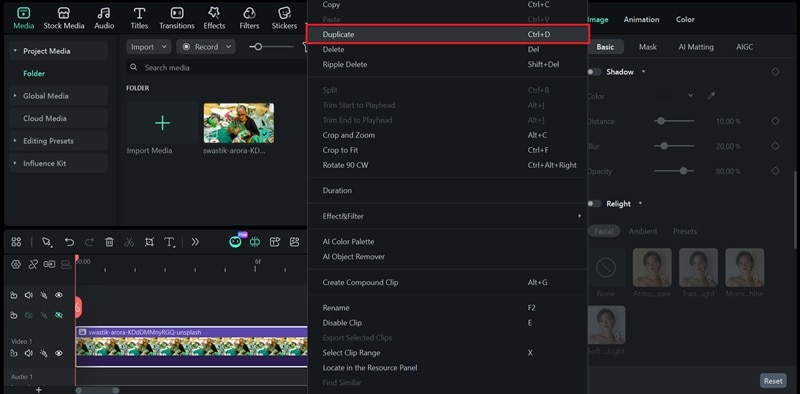
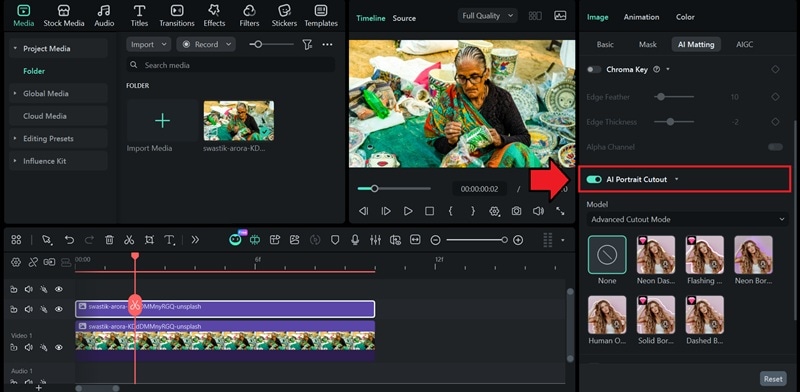
- Apply AI Portrait Cutout first to separate the subject, and then apply the blur effects to the background for more control and cleaner edges on portraits.
If you prefer editing on your phone, Filmora Mobile also includes a quick blur workflow that works well for social posts.
 Secure Download
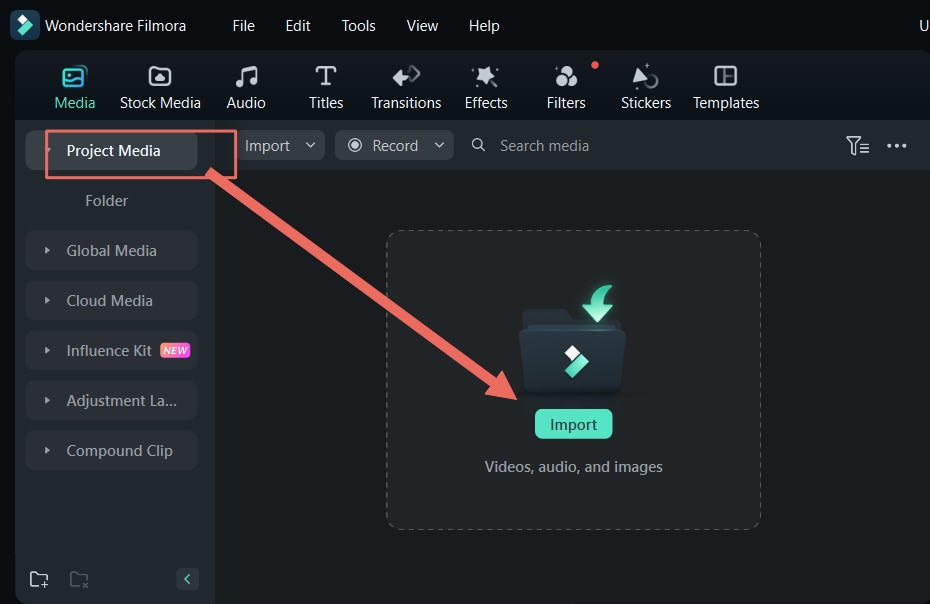
Method 1: Fast background blur for a photo
Method 2: Cleaner portrait blur
Method 3: Blur Photo/Video on Filmora for Mobile
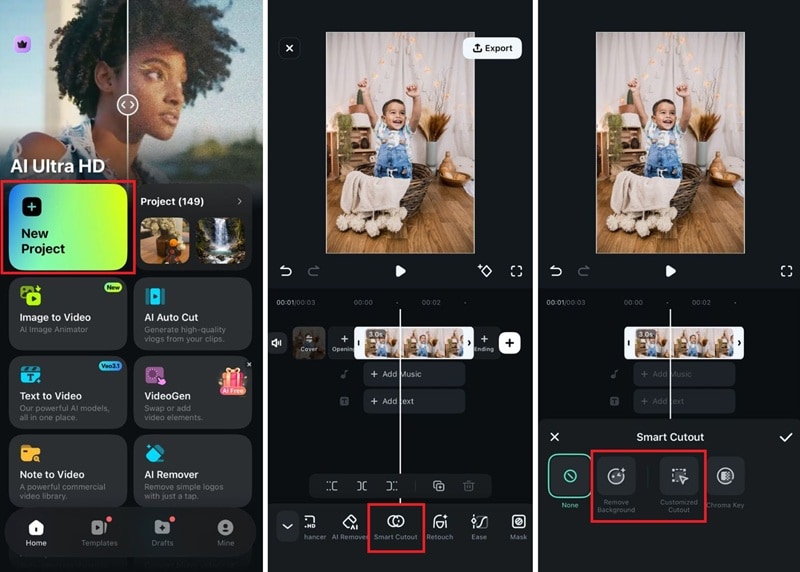
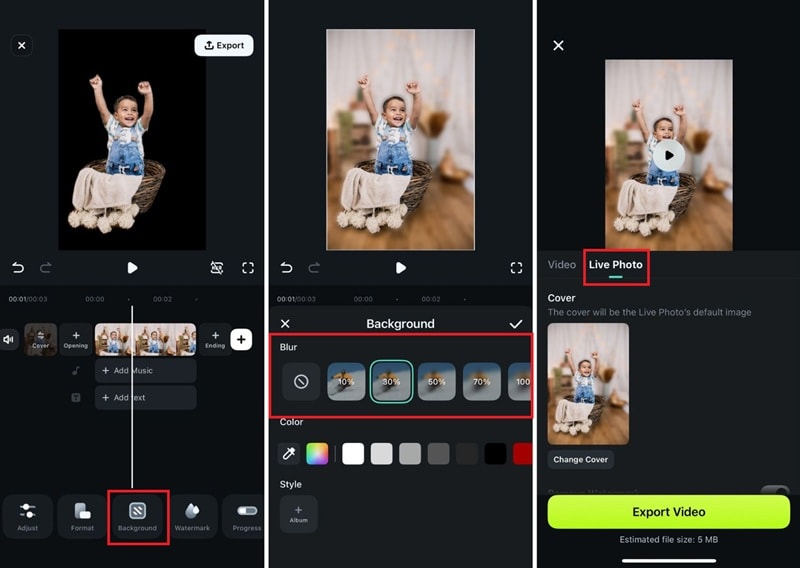
For photo edits, you can save it as a Live Photo and then convert it to a regular image on your phone.
Secure DownloadConclusion
Blurring the background is one of the fastest ways to make your subject stand out and improve the overall look of a photo. If you want quick edits online, Canva and Adobe Express are easy starting points. For more realistic depth and high-quality results, Lightroom and Photoshop give you stronger control.
If you prefer one tool that can handle both photos and videos, Filmora is a practical pick, and its blur tools make it simple to blur the photo background on desktop or mobile. Pick the workflow that matches your device and how often you edit.
