

 TL;DR:
Clipchamp is best for business professionals requiring a secure, Microsoft-integrated environment with watermark-free exports, whereas CapCut is the ideal choice for social media creators prioritizing viral templates, AI effects, and fast mobile editing.
● The free version of Clipchamp provides unlimited 1080p exports without watermarks, a 30-minute screen recorder, and 5GB of cloud storage, while CapCut's free tier lacks cloud storage, restricts noise removal, and appends a brand watermark to finished videos.
● Clipchamp addresses corporate data security concerns by processing files locally in the browser and saving directly to OneDrive or SharePoint, whereas CapCut collects user device, app, and facial data that is stored on its own ByteDance cloud system.
● Both platforms require paid subscriptions for 4K exports and can lag with complex multi-layer projects on lower-spec devices, making Wondershare Filmora the recommended alternative for advanced multi-device editing requiring keyframing and color grading presets.
Ask AI for a summary
 ChatGPT
 Perplexity
 Gemini
 Claude
 Grok
Grok
In 2026, choosing between Clipchamp vs CapCut depends entirely on your creative goals. Both are leading AI video editors, but they serve different masters. While Microsoft Clipchamp is the go-to secure environment for Windows professionals, ByteDance's CapCut dominates social media with viral filters and TikTok integration. In this ultimate Clipchamp vs CapCut comparison, we'll analyze their AI features, pricing, and privacy to help you decide.
Part 1. Clipchamp vs CapCut: AI Features & Video Editing Capabilities
When it comes to Clipchamp vs CapCut, their features and AI capabilities should be the starting point. After all, people tend to choose an editor based on what actually supports their workflow and content goals. Let's dive deeper.
What You Can Actually Do in CapCut
You've probably heard of CapCut before, particularly if you create content for social media. It was developed by ByteDance, the parent company of TikTok, which explains why it integrates so smoothly with short-form video trends.
Here are the main features people usually look for in CapCut:
AI Filter & Effects
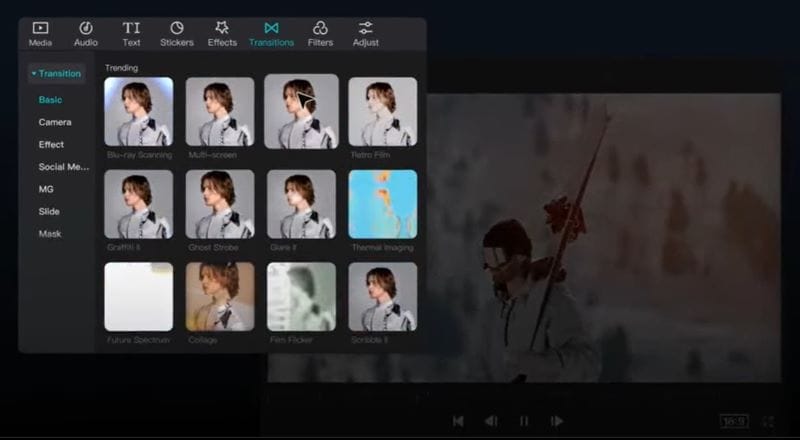
CapCut comes with a large variety of filters and effects that you can use depending on the vibe you're going for. One of the trending ones is AI Body Effects. Just upload a photo, and it transforms your body to look more fit, complete with six-pack visuals.
AI Caption Generator
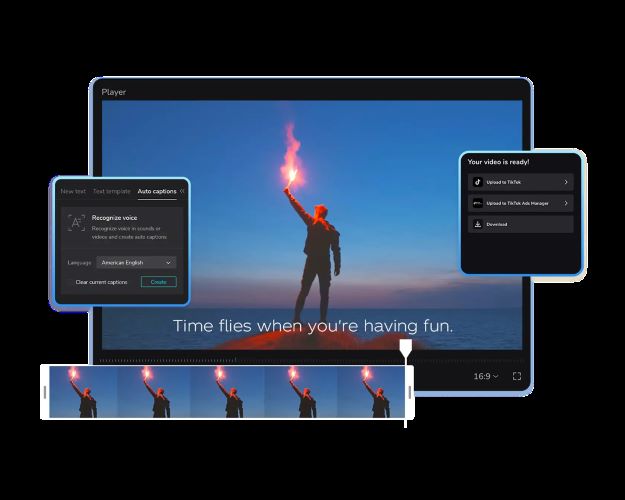
CapCut can automatically generate captions for you, so there's no need to manually listen and type your subtitles one-by-one. It covers more than 20 languages and dialects. Plus, you can apply different subtitle styles to make your video more visually appealing.
Huge Collection of Trendy Templates

CapCut is basically a hub for viral templates. You simply select one and upload the required photos or clips. Most templates already include scene cuts, transitions, and text styles. So, you only need to refine and add your final touch if needed.
What You Can Do with Clipchamp
On the other hand, Clipchamp is a video editor developed by Microsoft. With Clipchamp, you can combine audio and video, apply filters and transitions, add background music, and turn everything into a polished final video.
Beyond the basics, take a look at what else Clipchamp can do:
Text-to-Speech
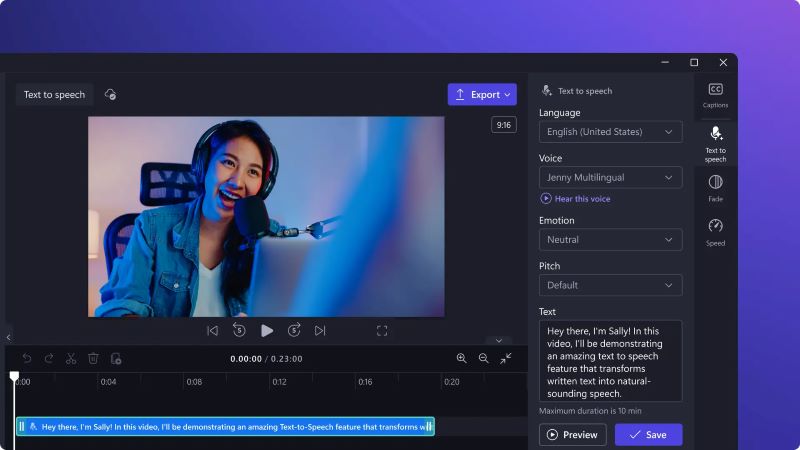
Creating natural-sounding voiceovers is very simple using the text-to-speech feature. This feature is powered by Azure AI Speech, and it supports up to 80 languages and offers more than 400 voice options. You can adjust the tone, emotion, and pace to suit your video style.
Screen Record
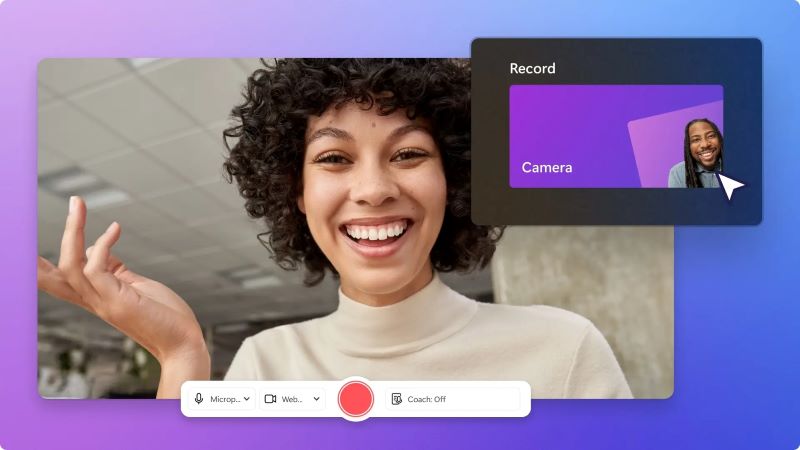
Clipchamp lets you record your screen and webcam in real time for up to 30 minutes. You're free to select a browser tab, a window, or the whole screen, and turn audio on or off as needed. The best part is that it's watermark-free. It's ideal for making clean and professional tutorial or explainer content.
Microsoft 365 Seamless Integration
Since Clipchamp is part of Microsoft 365, everything feels connected and easy to manage. The videos and editing projects are saved directly to OneDrive or SharePoint. You can also access and organize them in Teams or SharePoint. Even sharing and commenting work the same way as other Microsoft apps.
Part 2. Ease of Use & Interface
It may seem like a small detail, but the interface and overall user experience actually matter a lot. When a platform feels smooth and easy to navigate, people tend to stick with it. If it feels overwhelming, they'll probably move on. Let's break them down!
Clipchamp: Simple & Minimalist for Professionals
Platform: Online, Windows, iOS.
Clipchamp has a clean and minimal interface that feels easy to understand from the start. When you open it, you can either create a project from scratch or use AI tools for assistance. If you're short on ideas, the templates are organized by platform and content type, so you won't feel lost.
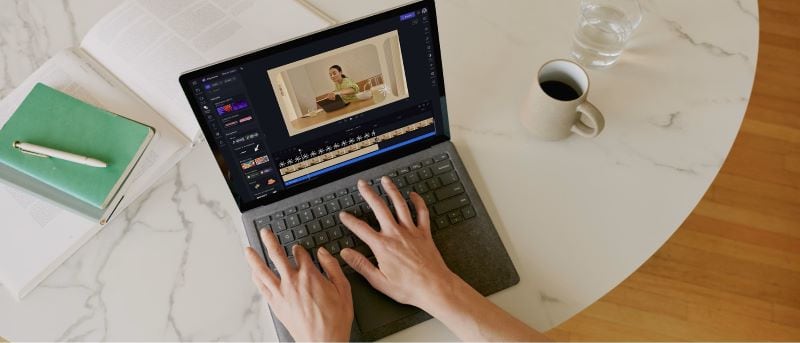
There isn't much of a learning curve, so navigating the platform feels comfortable even for beginners. It works well for office presentations and instructional videos. However, it's not limited to professional use. It works just as well for gaming videos and other types of content.
CapCut: Fast & Practical for Creators
Platform: Online, Windows, Android, iOS.
CapCut's interface feels direct and uncomplicated. You can instantly create a new project or pick up where you left off. From there, just insert the clips you want to edit and start working.
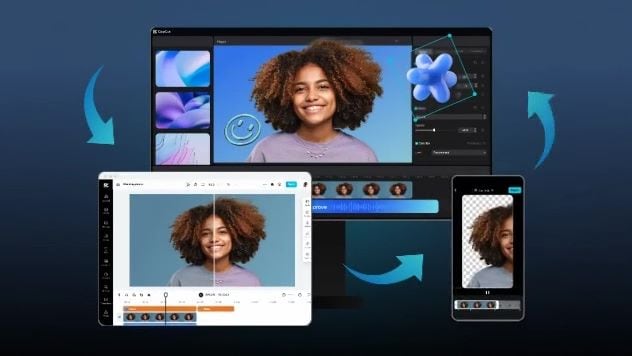
On the web version, the layout feels slightly different. The tools are displayed more openly. It gives you quick access to create a video, use AI for captions or voice-overs, or even brainstorm content ideas.
Even though CapCut is accessible on the web and desktop, many creators rely on the mobile app. It's convenient when you're outside or traveling but still need to edit and post quickly.
Part 3. Pricing & The "Free" Reality
If you're torn between Clipchamp or CapCut, price might help you decide. We've broken down what's actually included in their free plans so you can see the real benefits side-by-side. Let's jump in.
| Feature | Clipchamp | CapCut |
| AI Video Maker | Available | 750 credits |
| Noise Remover | Available | Not available |
| Background Remover | Available | Basic removal |
| Text-to-Speech | Available | Not available |
| Auto Subtitles | Available | 1 per month |
| Long Video to Short Video | Available | 60 minutes |
| Screen Record | Available | Available on web and desktop |
| Filters & Effects | Limited | Limited |
| Stock Media | Limited | Limited |
| Templates | Limited | Limited |
| Brand Kit | Not available | Limited access |
| Watermark | No watermark | Watermark at the end of the video |
| Video Resolution | HD (1080p) | HD (1080p) |
| Cloud Storage | 5 GB | Not available |
|
Show More
Show Less
|
||
When comparing the free version of Clipchamp vs CapCut, users should note that Clipchamp offers more robust features for free, such as unlimited 1080p exports without watermarks, whereas CapCut's free version often adds a brand ending and limits advanced AI tools like noise removal.
Part 4. Privacy & Data Security (The Reddit Concerns)
Privacy and data security often come up in Clipchamp vs CapCut Reddit discussions. Many users are curious about how their data is stored and used, especially when comparing Microsoft Clipchamp vs ByteDance CapCut. For personal creators, this might not feel like a big issue. But for businesses handling important files, it can really affect the final choice.

Here are a few key points often mentioned in Clipchamp vs CapCut Reddit discussions and why businesses prefer Microsoft Clipchamp:
- Company Background & Ownership: Clipchamp is owned by Microsoft, a long-established US tech company. CapCut is owned by ByteDance, the same company behind TikTok, which often raises questions about global data policies.
- Data Access & File Processing: Many users mention that CapCut collects a wide range of user data, including device info, app activity, and facial data when using certain AI features. Meanwhile, Clipchamp is running directly in the browser and processes files locally.
- Data Storage & Cloud Handling: Clipchamp connects directly to Microsoft services like OneDrive and SharePoint. CapCut stores data on its own cloud system, which makes some users question how long files are stored and who can access them.
- Workflow Integration: Clipchamp integrates seamlessly into Microsoft Teams and Microsoft Stream, making it easy to create and share internal communications securely.
Part 5. Performance & Export Quality
At last, we're down to CapCut vs Clipchamp overall performance and output quality. This is where editing speed, stability, and export resolution really start to matter. Let's see how they compare in real use.
Clipchamp: Built for Accessible Editing
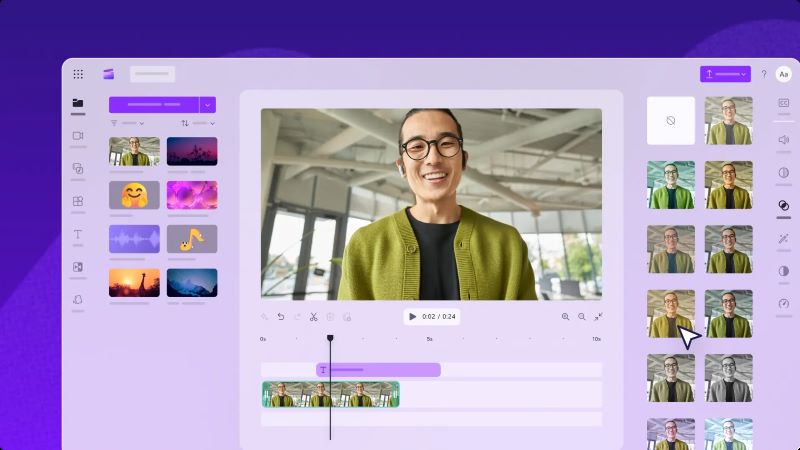
Clipchamp works in your browser, but it's also available as a desktop app and on iOS, so you're not limited to one setup. For basic edits like trimming or adding text, it runs smoothly without much lag.
Free users can export in 1080p, which is more than enough for most content. 4K export is available on paid plans, though it's not really built for complex multi-layer 4K projects. Overall, it's reliable for everyday use.
CapCut: Built for Speed and Social Media
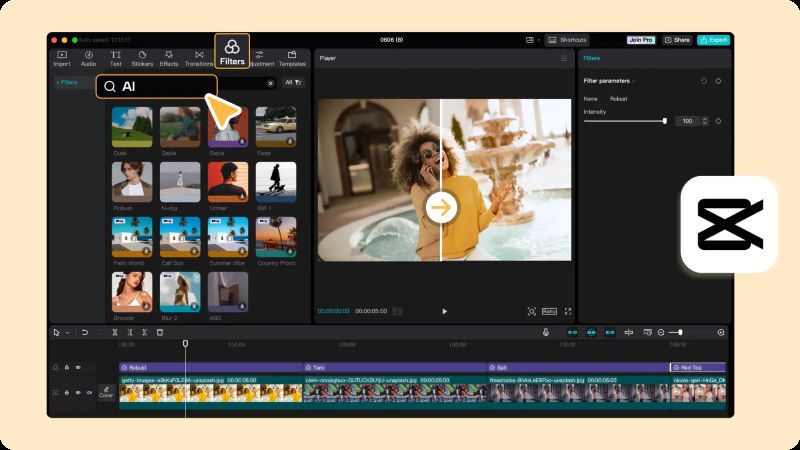
CapCut performs smoothly for quick edits, especially for short-form content like Reels or TikTok. The desktop version handles larger projects better, but once you start adding multiple layers, effects, or AI features, it can feel heavier on lower-spec devices.
For export quality, 1080p is generally accessible, while 4K is only available for Pro users. Overall, it's fast and flexible, but performance really depends on how complex your project gets.
Wondershare Filmora: The Best Professional Alternative to Clipchamp and CapCut
Now that we've compared Clipchamp vs CapCut across different categories, you may already have a preferred choice. However, if you're working on an important project, it can be worth exploring other options as well. And If you're looking for a more advanced and complete video editor besides Clipchamp or CapCut, Wondershare Filmora is worth checking out.
 Secure Download
This all-in-one video editor is available on macOS, Windows, Android, and iOS, allowing you to start a project on one device and continue on another without losing progress. It also includes a wide range of AI-powered features designed for different editing needs. See what it offers below.
Create Smoother, Custom Animations
If you want to create animations from scratch or explore your creativity, Keyframing is a solid choice. For instance, if you want to zoom in on a ship in river footage, just add a keyframe at the start and end of the zoom. The movement will appear smoother and more controlled.
Professional Color Adjustment
Color Grading helps you set the right mood for your video. And in Filmora, there are 40+ presets ready-to-use, so you don't need advanced skills. If you want more control, you can tweak the colors manually and save them for your next project.
Create Videos Instantly with AI
One of Filmora's standout AI tools is the AI Video Generator. Basically, you just need to enter a prompt, upload images, or add audio files, and the AI will generate a video for you. After that, you can continue editing to adjust and refine the result. It's useful to create a full video or extra B-roll shots.
Create Music That Fits Your Video
To complete your video, adding the right music makes a big difference. AI Music Generator helps you create a custom soundtrack. From upbeat and energetic to calm and cinematic, it adapts to your needs. If you're looking for specific sounds like audience reactions or rainstorms, try the AI Sound Effect Generator. It's much faster than searching for separate audio files.
Conclusion
When talking about CapCut vs Clipchamp, both are strong video editors in their own ways. CapCut stands out with trendy templates and effects, making it ideal for social media content. Clipchamp delivers a more polished editing experience, better suited for business, educational, or professional videos.
If you need a more complete editing solution beyond Clipchamp or CapCut, Wondershare Filmora is worth considering. It combines advanced tools like keyframing and color grading with AI-powered features for faster video and audio creation, and works seamlessly across desktop and mobile.

