
It feels like almost every day, a new AI video model arrives with bigger promises, better visuals, and more ways to turn ideas into videos. And right on cue, Google officially launched Gemini Omni 1.2 Flash on November 5, 2026.
This is the latest video-generation powerhouse from Google, so naturally, it's got everyone curious: what actually separates it from Gemini Omni Flash 1.1, and how does it hold its ground against fierce competitors like ByteDance's Seedance 2.5 or Kling 4.0? Our in-depth Gemini Omni Flash review is here to test the limits, break down the features, and see if it truly delivers!
Part 1. Understanding Google Gemini Omni Flash: From 1.1 to 1.2
Before getting into the latest improvements, let's get familiar with the model itself. Google Gemini Omni Flash is a multimodal generative AI model built to create and edit videos using text, images, audio, and existing footage.
The model first appeared as a Gemini Omni Flash preview on June 30, 2026. In August 2026, Google Gemini Omni 1.1 Flash got its stable update (3-10 second clips). Then, on November 5, Google officially introduced Gemini Omni 1.2 Flash.
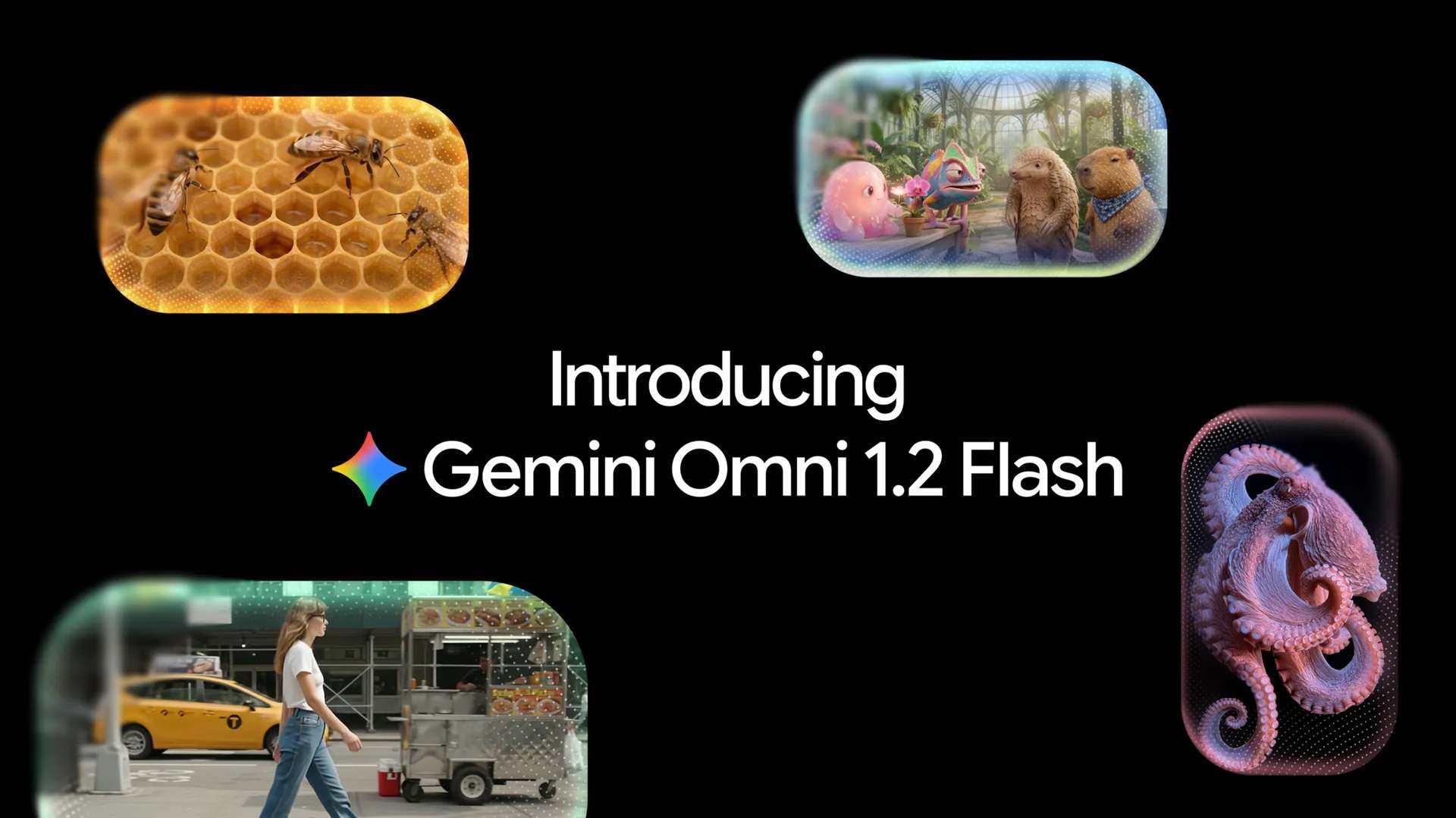
The newer version builds on the same foundation, but brings longer clips, better reference consistency, and a more affordable generation rate.
How Much Does Google Gemini Omni Flash Cost?
One of the biggest talking points of Gemini Omni Flash AI is the cost. Google shaved off 30% of the cost compared to earlier builds. So currently, the Gemini Omni Flash price sits at roughly $0.07 per second for 720p draft renders ($12 per million output video tokens).
But there's one thing to know upfront: there’s no free tier on the direct developer API. Every generation costs money. (If you’re hunting for Gemini Omni Flash for free, the closest thing is Google Vids, where 15-second clips come at no extra cost with a Google account or Workspace subscription. More on that in Part 3.)
To give you an idea of how much you’re going to spend, see the table guide below:
| Video Duration | 720P Estimated Cost |
| 3 seconds | $0.21 |
| 5 seconds | $0.35 |
| 10 seconds | $0.70 |
| 15 seconds | $1.05 |
|
Show More
Show Less
|
|
Part 2. What's New in Google Omni 1.2 Flash?
Gemini Omni 1.2 Flash isn't just a name refresh. Google has introduced several improvements that make video creation more flexible, particularly for people working with references and editing existing clips. Here are six improvements from the previous model:
15-Second Clip Generation
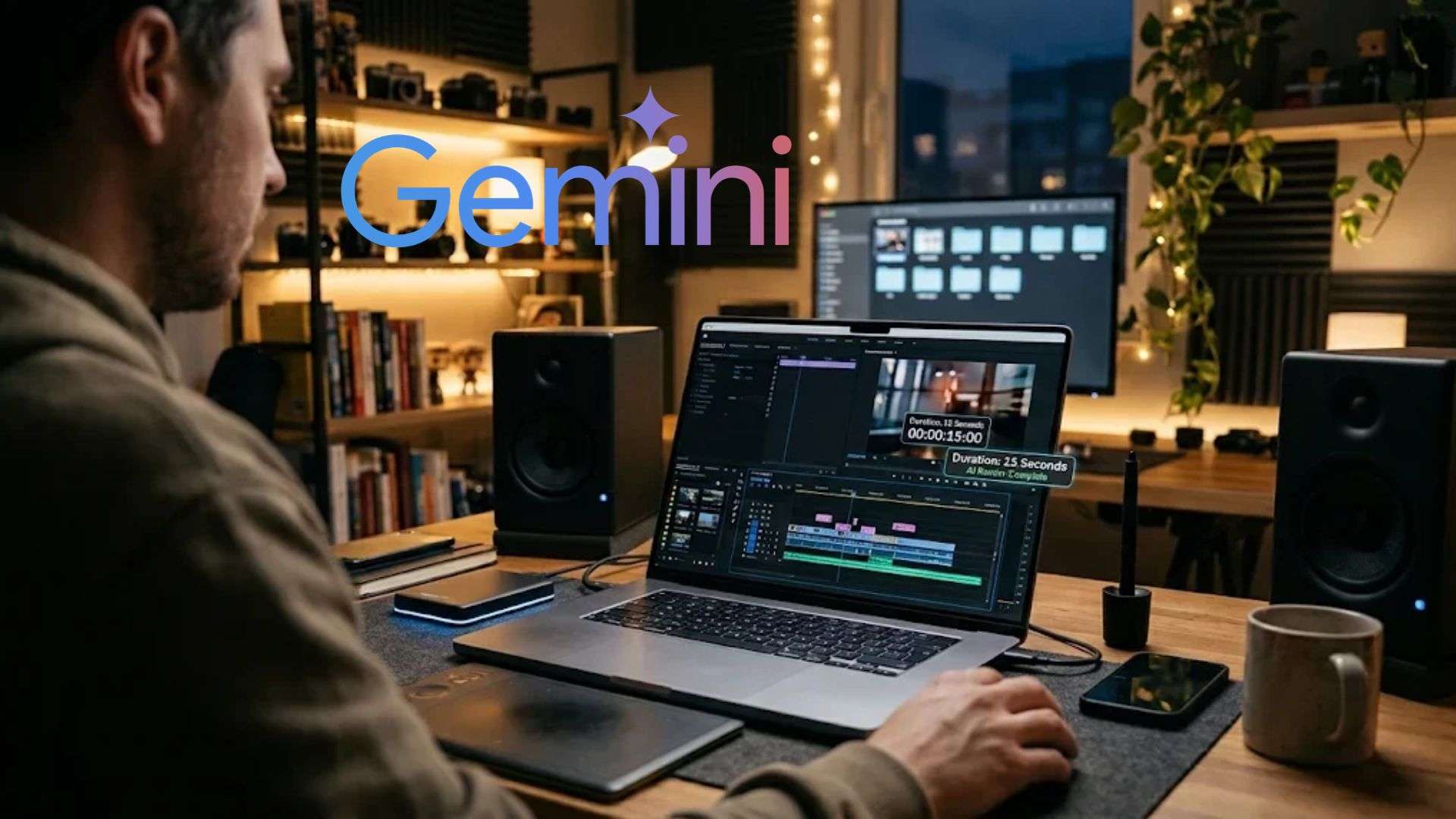
Gemini Omni Flash video generator single-shot length jumps from 10 to 15 seconds, and you can pick any length from 3 to 15 seconds in one-second steps. That’s enough room for a tiny story with a beginning, middle, and end, all in one generation.
Multi-Turn Conversational Video Editing
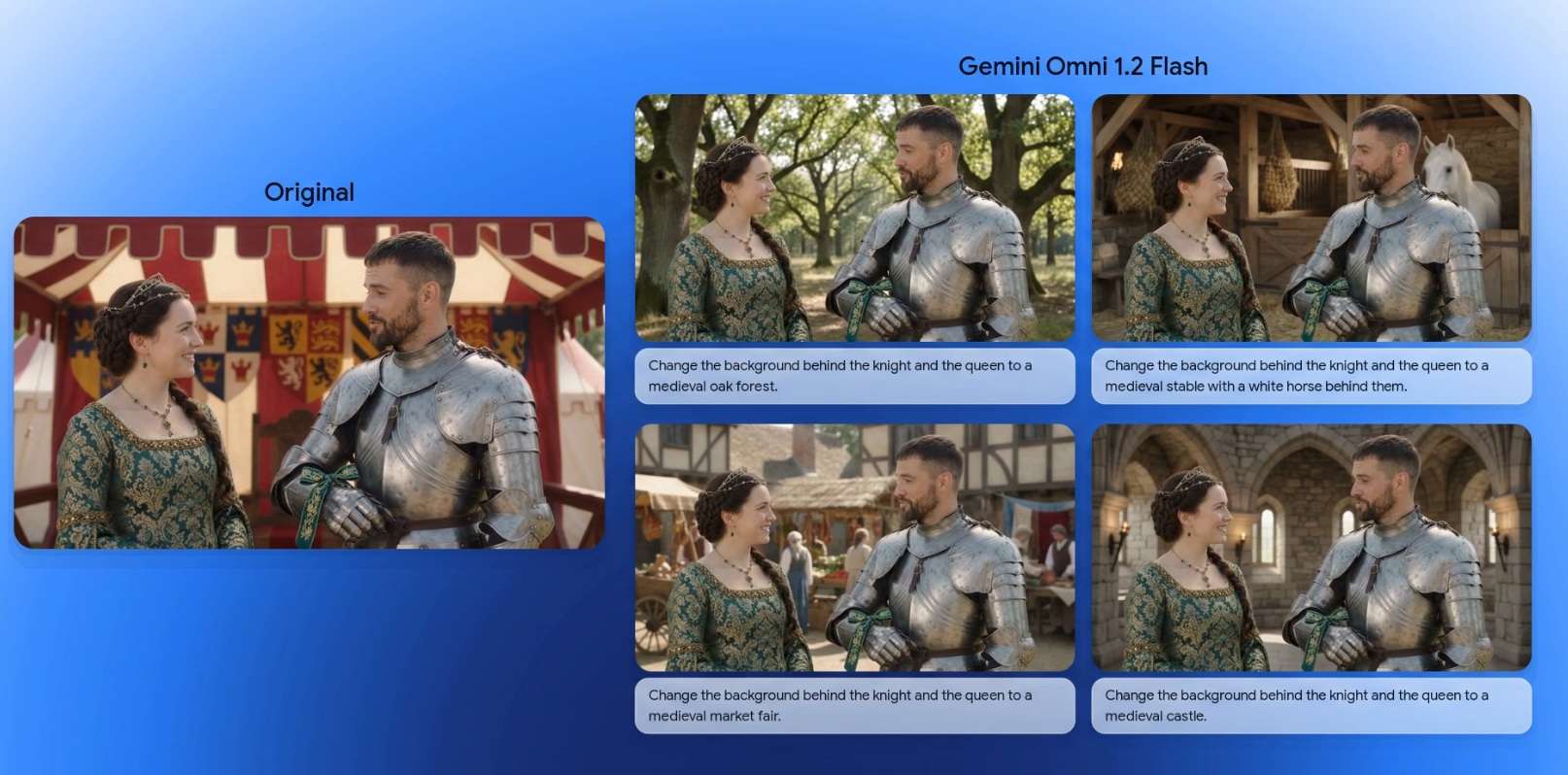
Want a different background, new lighting, a swapped product, or a new aspect ratio? Just write your Gemini Omni Flash prompt. The model changes what you mention and leaves the rest alone, and this now works across the full 15-second clips.
Enhanced Reference Adherence
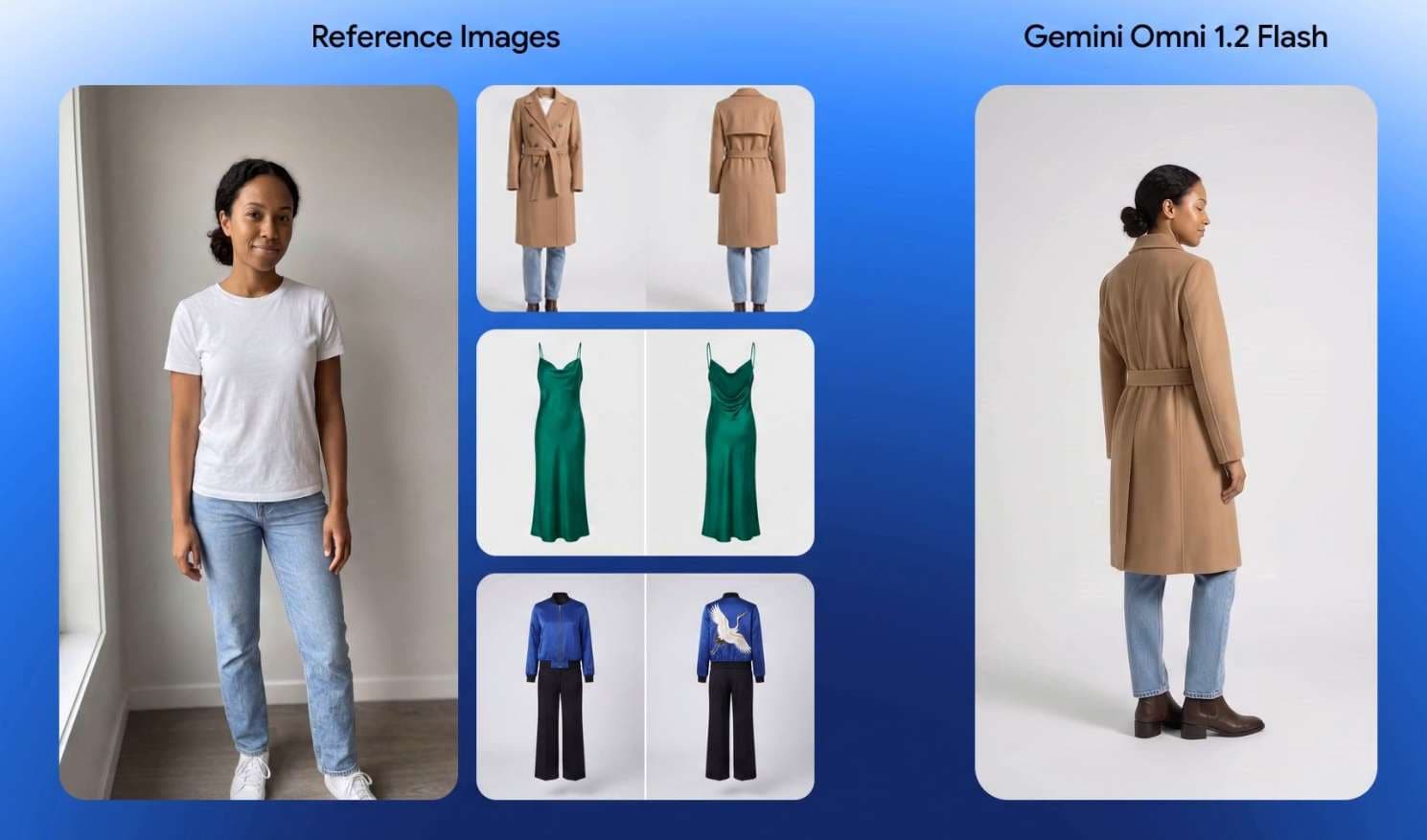
One frustrating problem with AI-generated videos is visual drift. Gemini Omni 1.2 Flash addresses this issue by allowing you to feed the model up to 6 reference images to lock in character faces, clothing details, and brand logos across totally different camera angles.
Improved Lip-Sync & Audio Synthesis
Gemini Omni 1.2 Flash improves lip-sync and multi-speaker conditioning, allowing different characters to have distinct voices during a conversation. This opens up some interesting possibilities for creators making animated conversations, product explainers, and short narrative videos.
Keyframe Interpolation
Give it a first frame and a last frame, and Gemini Omni 1.2 Flash builds the motion in between. The consistency upgrade means products, characters, and environments hold together better across that bridge. Google’s example connects an exterior shot to an interior shot in one continuous camera push.
Cinematic Camera Control
Compared to the previous model, Gemini Omni 1.2 Flash offers more cinematic camera control. It drastically reduces sudden jump cuts or jarring morphing during complex camera moves like FPV drone flythroughs, 360-degree orbits, and dramatic zoom-outs.
Part 3. How to Use Gemini Omni Flash: Official and Third-Party Access
After learning more about its capabilities, it’s time to learn how to use Gemini Omni Flash. After all, one of the first things people usually want to know is where they can try it. Some may even search for a Gemini Omni Flash app or Gemini Omni Flash APK download so they can start generating videos right away.
Thankfully, Google provides several official access points, and a growing number of creative platforms have also integrated the model into their services.
Direct Google Ecosystem Access
Google gives you plenty of official ways in, depending on whether you’re a casual creator, a marketer, or a developer:
| Platform | What You Can Do | Best For |
| Google AI Studio / Gemini API | Prototype, try starter apps, and call the model through the Gemini Omni Flash API | Developers |
| Google Cloud console | Use it in Vertex AI Studio or build with the enterprise API | Businesses & teams |
| Flow | Direct scenes, write multi-character dialogue, and make multi-turn edits | Filmmakers |
| Google Vids | Make 15-second clips at no additional cost with a Google account or Workspace subscription | Casual creator |
| Gemini App | 15-second videos, rolling out to Google AI Ultra subscribers | Casual creator |
| Google Ads | Scale video campaigns with generated assets | Advertisers |
|
Show More
Show Less
|
||
Third-Party Partner Integrations
You don't necessarily have to use Google's own services to experiment with Gemini Omni Flash. Several creative platforms are integrating the model into their existing AI video tools, giving users another way to access its generation and editing features.
- Artlist: Integrated into stock and asset workflows for fast AI scene expansion.
- Flora: Leveraged for automated social video creation and visual effects workflows.
- InVideo: Powers full-scene 15-second script-to-video generation with realistic physics and speech.
- Krea: Enables draft-mode concepting and quick scene/character replacements up to 4K upscaling.
- Picsart: Built into the Web/App suite for 100M+ creators to generate social clips and animated designs.
- Runway: Integrated as an engine option for enterprise video scaling and multi-turn edits.
- Photoroom: Powers the Video Ad Maker and Product Animator for instant virtual try-ons and product videos.
- QuickFrame AI: Used for fast-turnaround commercial ad variant generation.
Part 4. How Does Gemini Omni 1.2 Flash Compare to Others?
Reviewing a new model without checking the neighbors would be pointless. The moment Omni 1.2 Flash launched, people started firing off comparisons like Gemini Omni Flash vs Veo 3.1, or Gemini Omni Flash vs Seedance 2.5 vs Kling 4.0.
| Gemini Omni 1.2 Flash | Veo 3.1 | Seedance 2.5 | Kling 4.0 | |
| Developer | Google DeepMind | Google DeepMind | ByteDance | Kuaishou |
| Max Clip Length | 15 Seconds | 8 Seconds | 30 Seconds | 30 Seconds |
| Native Audio | Yes, with multi-speaker lip-sync | Yes, 10+ languages | Yes, stereo with multilingual lip-sync | |
| Editing Style | Conversational multi-turn chat | Prompt re-entry / render | Direct prompt editing | Iterative masking |
| References | Images, motion clips (up to 3 sec), audio cues | Up to 3 reference images, plus first/last frame | Up to 50 files (30 images, 10 videos, 10 audio) | Up to 15 reference assets and up to 10 keyframes |
| Best For | Cheap drafts and chatty edits | Polished short hero shots | Longer storytelling and multimodal references | Motion, keyframes, and creative control |
|
Show More
Show Less
|
||||
Part 5. Pros & Cons of Gemini Omni 1.2 Flash
After going through everything, it’s clear Omni Flash has real strengths and a few rough edges, which makes sense for something so fresh. So, for this part of our Gemini Omni Flash review, let’s be fair to both sides so you can decide if it fits your workflow.
- Aggressive Price Reduction ($0.07/sec): Lower costs make bulk ad and product video work much more realistic.
- Integrated 15-Second Audio Sync: Native lip-sync and multi-character dialogue remove the need for post-production voice tools.
- Strong Reference Identity Retention: Multi-image reference tracking keeps faces, clothes, and logos consistent across angles.
- Regional & Feature Limits: Video extension tools and uploaded video edits face geographic access limits across the EEA, UK, and Switzerland.
- Struggles with Fast Sports & Complex Physics: Google admits fast sports action and complex physics are still works in progress, so expect the occasional weird artifact.
- Non-English Language Limitations: Prompts and voices are best supported in English, so other languages are a gamble.
Bonus: Create a Complete Project with Other AI Models in Wondershare Filmora
Gemini Omni 1.2 Flash is exciting, no doubt. But it’s brand new, and access can be patchy depending on where you live and which tools you use. And as the comparison showed, other models like Seedance still win in certain areas, such as top-end resolution or longer clips.
Not to mention, 15 seconds is too short for a complete project. You’ll need to generate 4 different AI clips just so you have one minute clip. So, why not try Wondershare Filmora? This all-in-one editor supports various AI video models like HappyHorse 1.1, Seedance 2.0, along and ToMoviee 2.5 Pro, so you can generate a clip with whichever model suits the shot and keep editing right where you are.
On top of that, Filmora pretty much has all you need to create a complete project. This combination of AI models and a suite of editing toolkits makes Filmora a convenient solution for all kinds of creators.
Why Choose Filmora
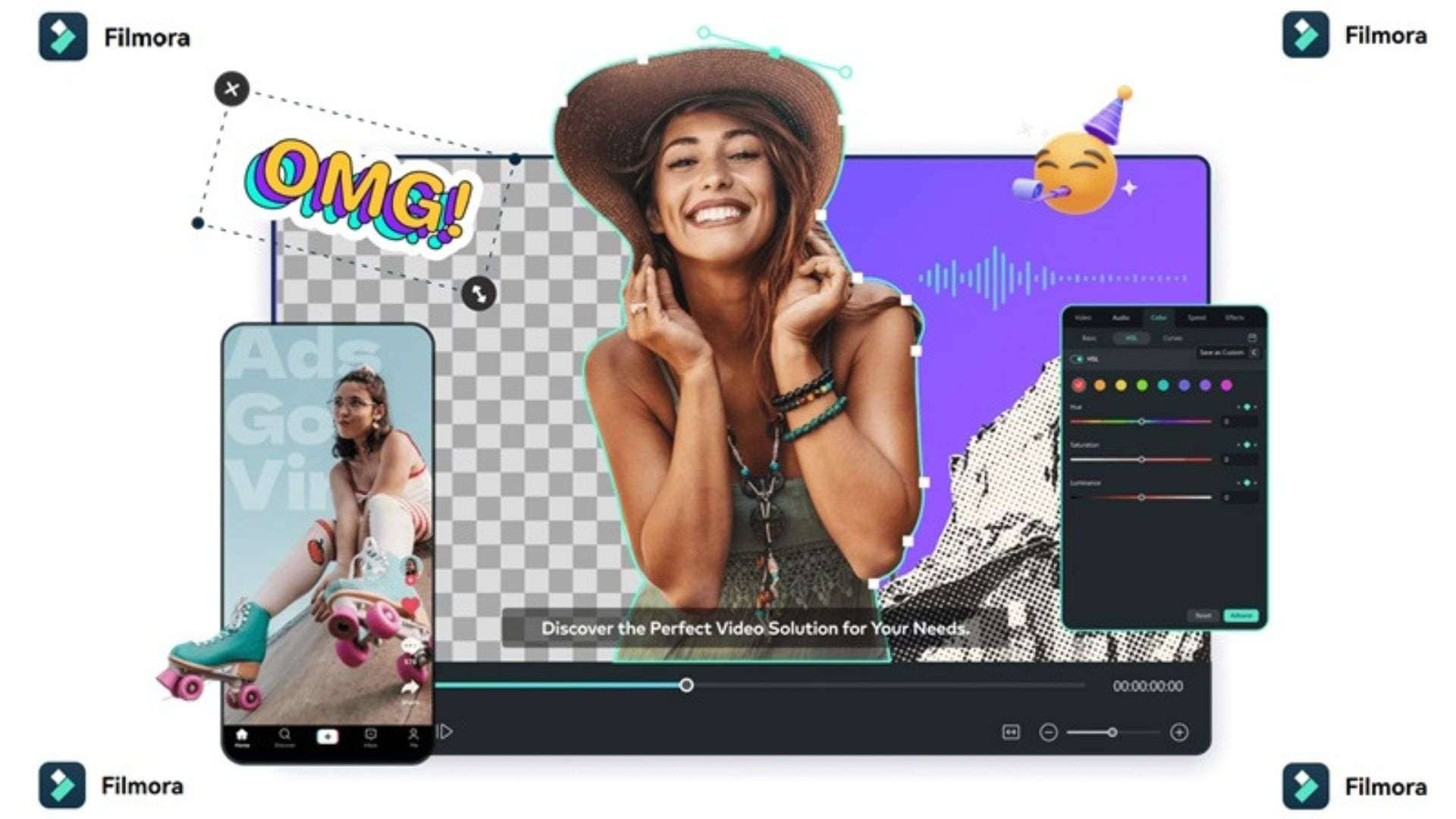
Generating the clip is only half the job. Here’s what Filmora adds on top:
- Professional Editing Timeline: Drop your AI-generated clips straight onto a full multi-track timeline to trim, arrange, overlay text, and color-grade your cuts immediately.
- Huge Stock Media Library: Elevate your AI scenes with millions of royalty-free music tracks, video effects, animated stickers, and transitions.
- Built-in Smart AI Tools: Speed up your edit with built-in features like AI Auto Captioning, AI Matte Editing, AI Text-Based Editing, and AI Audio Adjustments.
- Cross-Platform Sync: Work on your video project seamlessly across Windows, macOS, iOS, and Android.
- One-Click Social Exports: Use Auto Reframe to export your video in ideal aspect ratios tailored directly for YouTube, TikTok, or Instagram Reels.
 Secure Download
Conclusion
Gemini Omni 1.2 Flash earns its hype for one reason: it makes AI video cheaper and easier to fix. Longer 15-second clips, steadier references, and chat-style edits are real upgrades. It won’t beat Seedance 2.5 or Kling 4.0 on clip length, or Veo 3.1 on polish, but for fast, affordable iteration it’s a smart pick.
And if you’d rather not chase every new model separately, try Wondershare Filmora. This all-in-one video editor allows you to generate with Veo 3.1 and other supported models, then trim, polish, and export everything in one editor.
FAQs
-
Does Gemini Omni 1.2 Flash automatically replace Gemini Omni 1.1 in existing workflows?
Yes, starting December 3, 2026, API calls pointing to the 1.1 model endpoint automatically route to version 1.2 at the updated $0.07/sec price rate without requiring code rewrites. -
How does Gemini Omni 1.2 Flash protect visual content rights and authenticity?
Every clip generated by the model includes an imperceptible SynthID digital watermark alongside C2PA metadata, allowing platforms and viewers to easily verify the visual provenance of the video. -
Does Gemini Omni Flash support negative prompts?
No. There’s no negative-prompt field. If there are specific elements or visual styles you want the model to avoid, you need to write what you don’t want right into the prompt, for example, “do not show any text on screen.”