


The AI creative platform space is getting genuinely cutthroat, and every new tool that shows up is trying to stand out by packing in more. But Getimg AI has taken a different bet: pull 29+ of the best AI models across image, video, audio, and editing into one platform. More recently, the platform also introduced support for Seedream 5.0 Pro, giving users another high-end model to create even more detailed AI images.
On paper, that sounds almost too good to be true. But sounding impressive in a feature list and actually being worth your time (and money) are two very different things. Before you put a single dollar toward a subscription or waste your afternoon clicking around, our review breaks down everything you need to know about Getimg AI and its everyday value.
Part 1. Getting to Know Getimg AI
Getimg AI launched in 2022 out of the EU, at a point when most teams were still trying to figure out what the early wave of Stable Diffusion could realistically do in a production. Fast-forward to 2026, it has now become a platform with 10 million+ users, 29+ integrated AI models, and tooling that spans image generation, video generation, audio creation, AI editing, and even virtual hairstyle try-on.
Quick Overview of Getimg AI
| Category | Details |
| Platform | Getimg AI |
| Founded | 2022 |
| Website | https://getimg.ai/ |
| Platform Type | Cloud-based AI creative platform |
| AI Models | 29+ leading models including Seedream 5.0, FLUX.2, Google Veo 3.1, Kling, and ElevenLabs |
| Supported Tasks | Image generation, video generation, audio, AI editing, hairstyle changer |
| Target Audience | Content creators, video editors, social media marketers, and design teams |
How to Access the Platform (Watch Out for Scams!)
Getting into the studio is super straightforward because the entire workspace is hosted completely online. So, you just need to visit the site at https://getimg.ai/, create an account, and start using the platform directly from your browser.
There's no desktop app, no mobile app, and no official Getimg AI download of any kind.
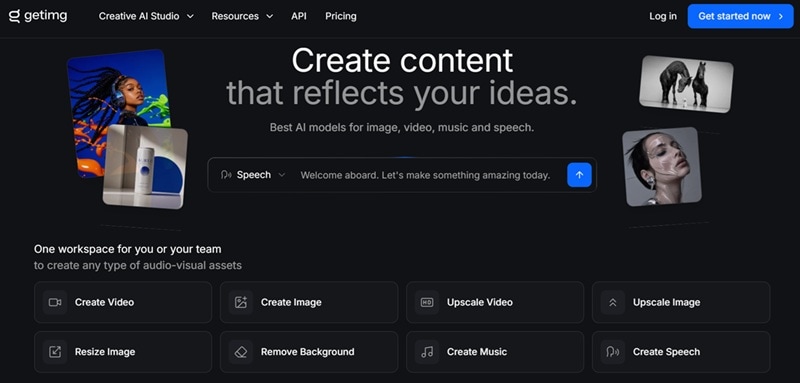
If you've been searching for a Getimg AI app to download or seeing results for a Getimg AI APK, stop there. Those don't exist as official releases. Any APK file or third-party download claiming to be Getimg AI is not from the official platform, and installing unknown APKs always carries real security risks: malware, data theft, or worse.
Part 2. Getimg AI Pricing
Before you get excited about the feature list, there's one thing worth knowing upfront: Getimg AI does not have a free plan. The platform runs on a credit-based system where different tasks consume different amounts of credits depending on the model, resolution, and output type.
And while you can browse around the UI when you first register, you won't get recurring free monthly credits to churn out heavy batches without subscribing. To get real work done, you'll need to pick one of their four core membership tiers: Entry, Core, Plus, or Ultra.
| Plan | Monthly Price | Yearly Price | Monthly Credits | Best For |
| Entry | $10/month | $96/year | 3,000 credits | Light personal use; testing the platform |
| Core | $30/month | $300/year | 15,000 credits | Regular individual or small team use |
| Plus | $65/month | $660/year | 35,000 credits | Active creators and growing teams (most popular) |
| Ultra | $175/month | $1,800/year | 100,000 credits | High-volume professionals and studios |
Part 3. Getimg AI Core Features
Now for the fun part. Pricing tells you how much you'll spend, but features tell you whether that money is actually worth it. In Getimg AI, you get a full suite of multimedia tools right inside your browser window.
1. Image Generation
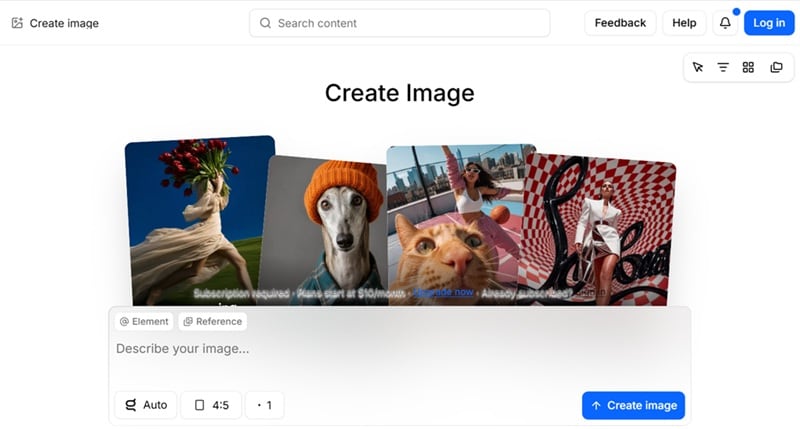
You can generate images from text prompts (text-to-image) or use the Getimg AI image editor (image-to-image) to transform or restyle an existing photo. Plus, you can switch between top-tier models like FLUX.2, Seedream 5.0, and Nano Banana in a single click.
2. Video Generation
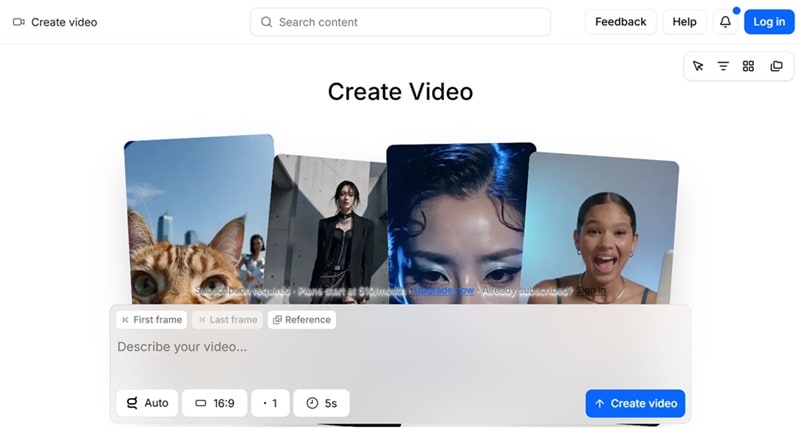
For video generation, Getting AI image-to-video and text-to-video are supported. On top of that, the video model lineup is equally strong, including Kling 3.0 Pro (native audio + multi-shot cinematic), Kling O3 (character and scene consistency), Seedance 2.0 (cinematic camera control), Google Veo 3.1 (realistic motion with synchronized audio), Wan 2.7 (multimodal, multi-shot narratives), and MiniMax Hailuo 02, among others.
3. Audio Generation
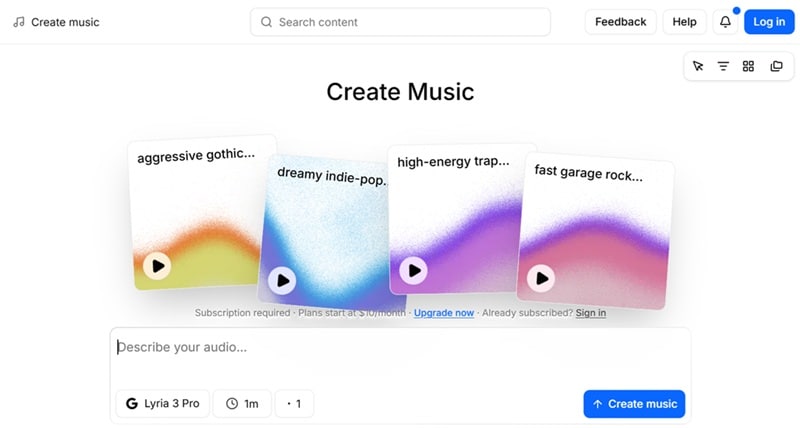
In Getimg AI, two audio tools live inside the platform. The AI music generator is powered by Google Lyria 3 Pro and ElevenLabs, capable of producing full music tracks from text descriptions. The AI text-to-speech generator (powered by Google) handles voiceover and narration generation from any written text.
4. Hairstyle Edit
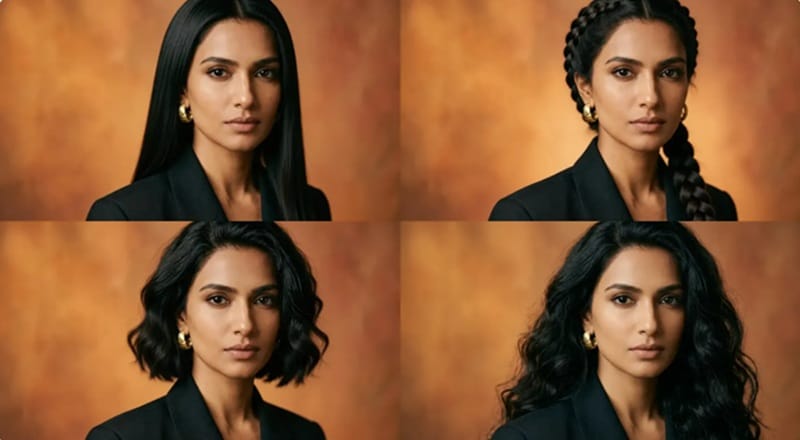
Out of everything on the platform, the Getimg AI hair changer is the one feature that tends to catch people off guard. This feature lets you upload your own photo and virtually try different Getimg AI haircuts before making a real-life decision.
The tool also supports both Getimg AI hairstyle male and Getimg AI hairstyle female transformations, making it useful regardless of your preferred style.
Part 4. Getimg AI Pros & Cons
While this creative studio packs an unbelievable amount of power into a single web tab, no software is flawless. So, after spending time testing Getimg AI and exploring its workflow, here are the biggest things we liked and the areas we think could still be improved.
- Tons of AI Models to Experiment With: Access 29+ cutting-edge models (FLUX, Veo, Seedream, Kling) under one dashboard.
- Helpful Guides for Beginners: There's a thorough documentation library, use-case guides, and a detailed FAQ section built into the platform.
- Smart Auto-Selection: The platform picks the best model for your task automatically, which means you don't need to research which model handles portraits versus landscapes versus cinematic video.
- The Hairstyle Tool Is Useful: The results are realistic enough for salon consultations, dating profile updates, and even brand campaign visuals.
- No Free Plan Available: You have to commit to a paid plan before you can generate a single image.
- No Editing Timeline: You'll need a separate video editor for assembling, trimming, and sequencing those assets into a finished project.
- Credits Don't Roll Over: Unused credits expire at the end of every billing period. If you have a quiet month, those credits just disappear.
- 100% Internet Dependent: Requires a fast, steady web connection. It lacks dedicated mobile apps and offline desktop rendering isn't supported.
Part 5. The Perfect Getimg AI Alternative: Wondershare Filmora
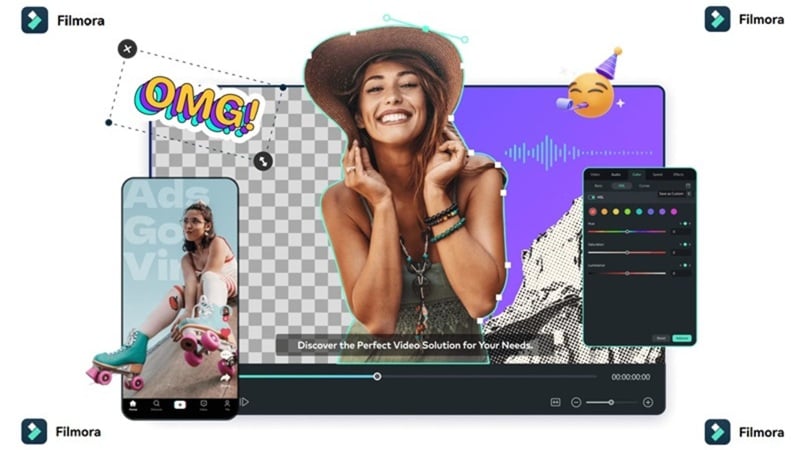
One thing we genuinely appreciated about Getimg AI is how much creative freedom it gives you. But once you've generated all those assets, you'll need somewhere to organize everything, cut unnecessary scenes, sync audio, add transitions, and fine-tune timing. That's something Getimg AI wasn't designed to do, but can be done in Wondershare Filmora.
Although Filmora doesn't integrate quite as many AI models as Getimg AI, it supports several advanced generation models, including Google Veo 3.1, OpenAI Sora 2, Seedance 2.0, and TooMovie 2.5, alongside a full-featured video editor.
 Secure Download
What More You Get from Using Filmora
Beyond the obvious benefit of having a proper multi-track timeline to assemble your project, Filmora adds a whole layer of production tools that Getimg AI simply doesn't cover:
1. Generate Video directly from Audio

Filmora's AI Audio to Video tool lets you upload a recorded audio file, podcast clip, or even paste a YouTube link, and it automatically builds a video around the strongest moments. That's a completely different creation workflow that Getimg AI doesn't touch.
2. More AI Features for Everyday Editing
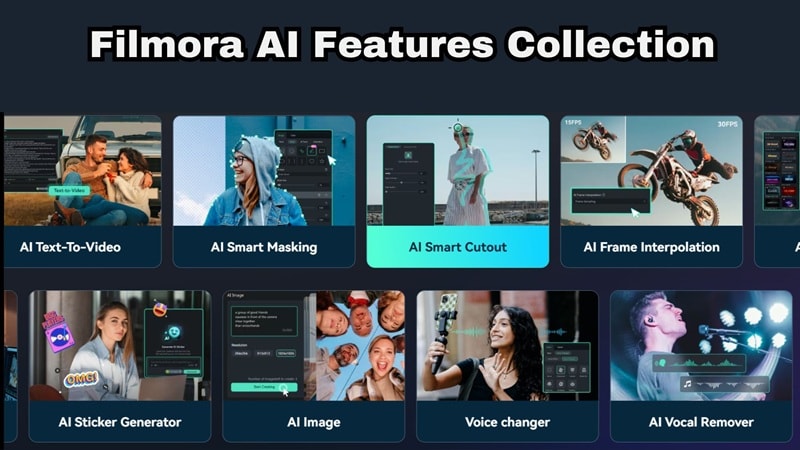
Filmora includes dozens of AI-powered tools beyond generation. Some favorites include:
- AI Auto Caption
- AI Color Palette
- AI Smart Cutout
- AI Thumbnail Creator
- AI Copywriting
- AI Text-Based Editing
Instead of opening multiple software programs, many everyday editing tasks can be completed in just a few clicks.
3. Massive Royalty-Free Media Library
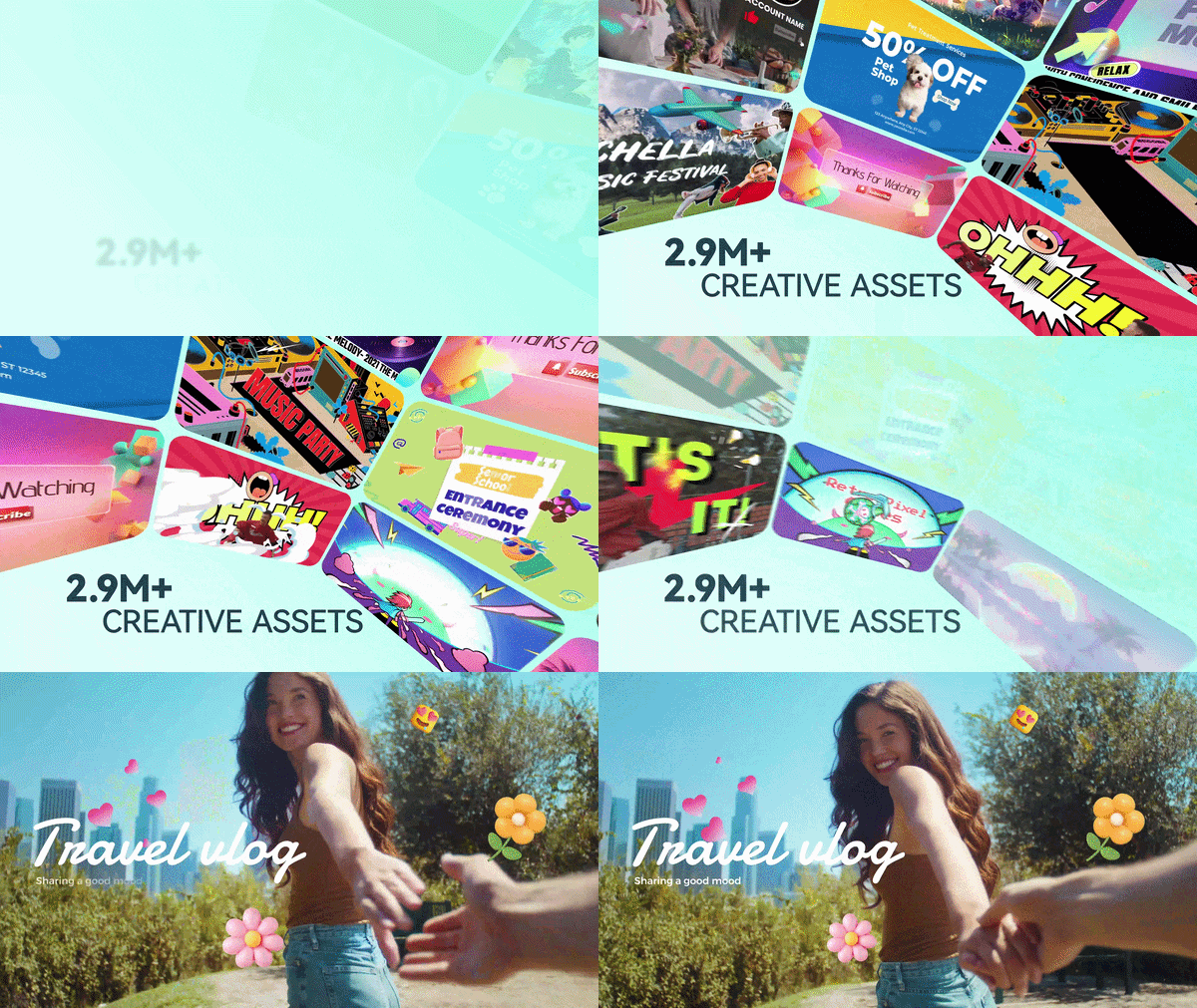
Gain instant access to millions of stock videos, high-energy music tracks, sound effects, animated stickers, and cinematic transition presets.
Combine Getimg AI with Filmora
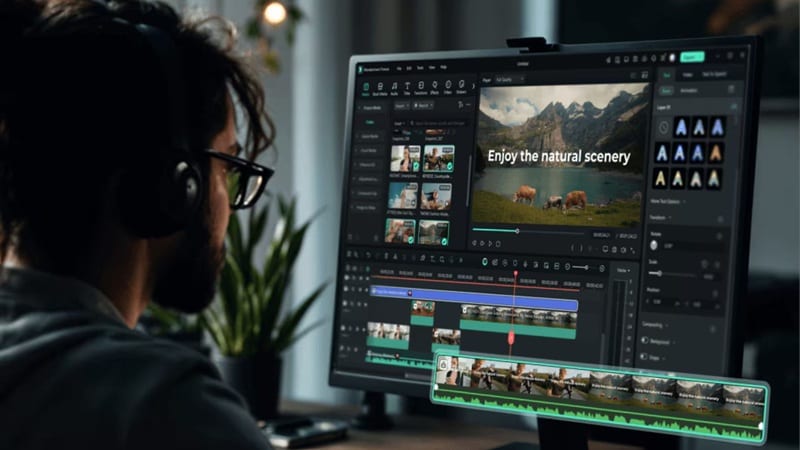
If you want the absolute best of both worlds, combine both tools into one seamless creation pipeline! You can use Getimg AI to generate concept art, create AI videos and images, make AI music, etc. Then, move all those pieces into Filmora. You can arrange clips on a proper timeline, add transitions, synchronize music, insert subtitles, and export your final video.
Secure DownloadConclusion
For creators who need access to a wide variety of AI models for image and video generation, Getimg AI is a strong option. The model depth is real, and the Getimg AI hairstyle feature is surprisingly useful. Just keep in mind that because it focuses on generating individual assets, you'll need a proper editor when it comes time to stitch your clips together.
If you want to transform those raw visual generations into stunning videos ready for the big screen or social media feeds, pairing your workflow with Filmora is a complete game-changer! You can use Getimg AI image-to-video to generate high-quality creative assets, then bring everything into Filmora's professional editing timeline to fine-tune your video.
FAQs About Getimg AI
-
Is Getimg AI free to use for everyday projects?
No. At the time of writing, Getimg AI does not offer a free plan or free credits for new users. To use the platform, you need to subscribe to one of the four paid plans: Entry ($10/month), Core ($30/month), Plus ($65/month), or Ultra ($175/month). -
Does Getimg AI have an API for developers?
Yes, and it's genuinely well-built for developers. The Getimg AI API runs on a separate pay-as-you-go system that's completely independent from the subscription plans. You pay per generation; no monthly fees, no idle costs. -
Can I use my own photos with Getimg AI?
Absolutely. For example, you can try the Getimg AI hairstyle tool to preview different haircuts and styles on your own photo before making a real-life change. -
Are the images and videos I generate safe to use for commercial projects?
Yes, commercial rights are included on all paid plans. Everything you generate through the platform (images, video, audio, hairstyle previews) is cleared for commercial use, including client work, brand campaigns, product listings, and social media publishing.
