


 TL;DR:
Gling AI is a highly efficient, browser-based video editor that saves YouTubers and podcasters hours by automatically removing silences and filler words through a transcript-editing interface, though creators requiring multi-track timelines should choose Wondershare Filmora instead.
● The free tier allows users to test the core AI cut detection and text-based editing workflow, but strictly imposes watermarks and usage caps that necessitate upgrading to the Creator or Pro plans for clean MP4 exports.
● The platform operates entirely without a traditional visual timeline and completely lacks motion graphics, color grading, or multi-track capabilities, functioning strictly as a rapid cleanup tool for dialogue-heavy footage.
● Wondershare Filmora serves as the recommended 2026 alternative for creators who need to generate videos from scratch using AI or require precise manual control over pacing, stacking clips, and applying visual effects.
Ask AI for a summary
 ChatGPT
 Perplexity
 Gemini
 Claude
 Grok
Grok
Editing talking-head videos sounds easy… until you actually sit down and start cutting. The awkward pauses. The "uh" and "um." The bad takes you forgot to delete. Suddenly, a 20-minute video turns into hours of trimming.
That's why tools like Gling AI are getting so much attention. But the question is, is the Gling app as good as they say? That's the question we're trying to answer in this honest Gling AI review. So, we'll break down what it really does, how it performs in real-world editing, whether Gling AI free is enough to get started, and when you might need a more powerful alternative.
If you create dialogue-heavy content and care about speed, this one's worth a closer look!
Quick Verdict: Is Gling AI Worth Using?
According to analysis published by Towards Data Science referencing Microsoft's 2015 research, the average human attention span dropped from 12 seconds in 2000 to around 8 seconds by 2013. For creators, that means every awkward pause and filler word can cost you viewers.
That's the gap Gling AI is designed to fill. It automatically removes silences and bad takes through a text-based editor, making it especially useful for YouTubers, podcasters, and educators working with dialogue-heavy videos.
So, if speed is your top priority, Gling AI is worth it. But if you want more advanced creative control, then it's wise to consider a Gling AI alternative.
Gling AI at a Glance (Feature Overview Table)
If you don't feel like reading the whole review right away, here's the quick version.
To better understand what Gling AI offers at a glance, the table below summarizes its core strengths, limitations, and overall value for creators who prioritize speed and simplicity.
| Category | Details |
| Editing Features | Automatic silence removal, filler word detection, smart cut suggestions, text-based video editing |
| Ease of Use | Great for beginners, minimal learning curve, no traditional timeline required |
| AI Capabilities | AI-powered cut detection, transcript-based editing, and basic caption generation |
| Performance & Speed | Fast cloud processing, optimized for short and mid-length talking-head videos |
| Export Quality | Clean MP4 exports with preserved audio quality, limited advanced export controls |
| Platform Support | Web-based editor, works on Windows and macOS via browser |
| Value for Money | Strong value for solo creators and YouTubers who focus on efficiency rather than advanced editing |
Part 1. What Is Gling AI? Introduction & Overview
Ultimately, Gling AI app is an AI-powered video editor designed to help creators edit talking-head videos faster and with less effort. So, instead of manually cutting clips on a timeline, Gling AI automatically removes silences and filler words, letting you edit videos by simply editing the text transcript.
In short, here's what you need to know:
- What it is: An AI video editor that cleans up videos using text-based editing and automatic cut detection.
- Who it's for: YouTubers, podcasters, educators, and content creators focused on audio-based content.
- Why it's popular now: Growing demand for quick editing and short-form content across YouTube Shorts, Reels, and social platforms.
- How it's different: No traditional timeline editing, just review the transcript and let AI apply the cuts.
Part 2. Gling AI Pricing & Plans: Is Gling AI Free?
Before committing to a subscription, many creators want to know whether Gling AI is free and what the limitations are. Well, Gling AI does have a free plan. It's not one of those "free but useless" versions either. You can actually test the core feature that matters most, which is automatic silence and filler word removal.

Gling AI Free Version Overview
The Gling AI free plan is designed for beginners who want to try the core AI editing features before upgrading. It lets you:
- Remove silences and filler words with AI.
- Edit videos using the text-based workflow.
- Export videos (with a watermark).
- Work within limited usage and export caps.
Gling AI Paid Plans & Subscription Tiers
Meanwhile, the paid plans provide access to higher usage limits, cleaner exports, and greater flexibility for routine content production. Pricing typically offers monthly and discounted annual billing options.
Here's a simpler breakdown:
| Plan type | Pricing Structure | Key Features Unlocked | Best For |
| Free | $0 | Basic AI cuts, text-based editing, watermarked exports | First-time users |
| Creator Plan | Monthly or Annual | No watermark, higher export limits, faster processing | Solo creators, YouTubers |
| Pro / Team Plan | Monthly or Annual | Maximum usage limits, priority processing, and collaboration tools | Teams and agencies |
Compared to other AI video editors, Gling AI isn't about flashy effects or cinematic tools. It's about speed. If you publish often and just want your talking-head videos cleaned up fast, the Creator plan usually hits the sweet spot. That said, if you're running a team or agency, the higher-tiers make more sense.
Part 3. Key Features & AI Capabilities of Gling AI
At the core of this Gling AI review is its focus on automation and speed. Gling AI is not trying to replace full video editors. Rather, it removes the most time-consuming parts of editing so creators can publish faster.
AI Silence & Bad Take Removal
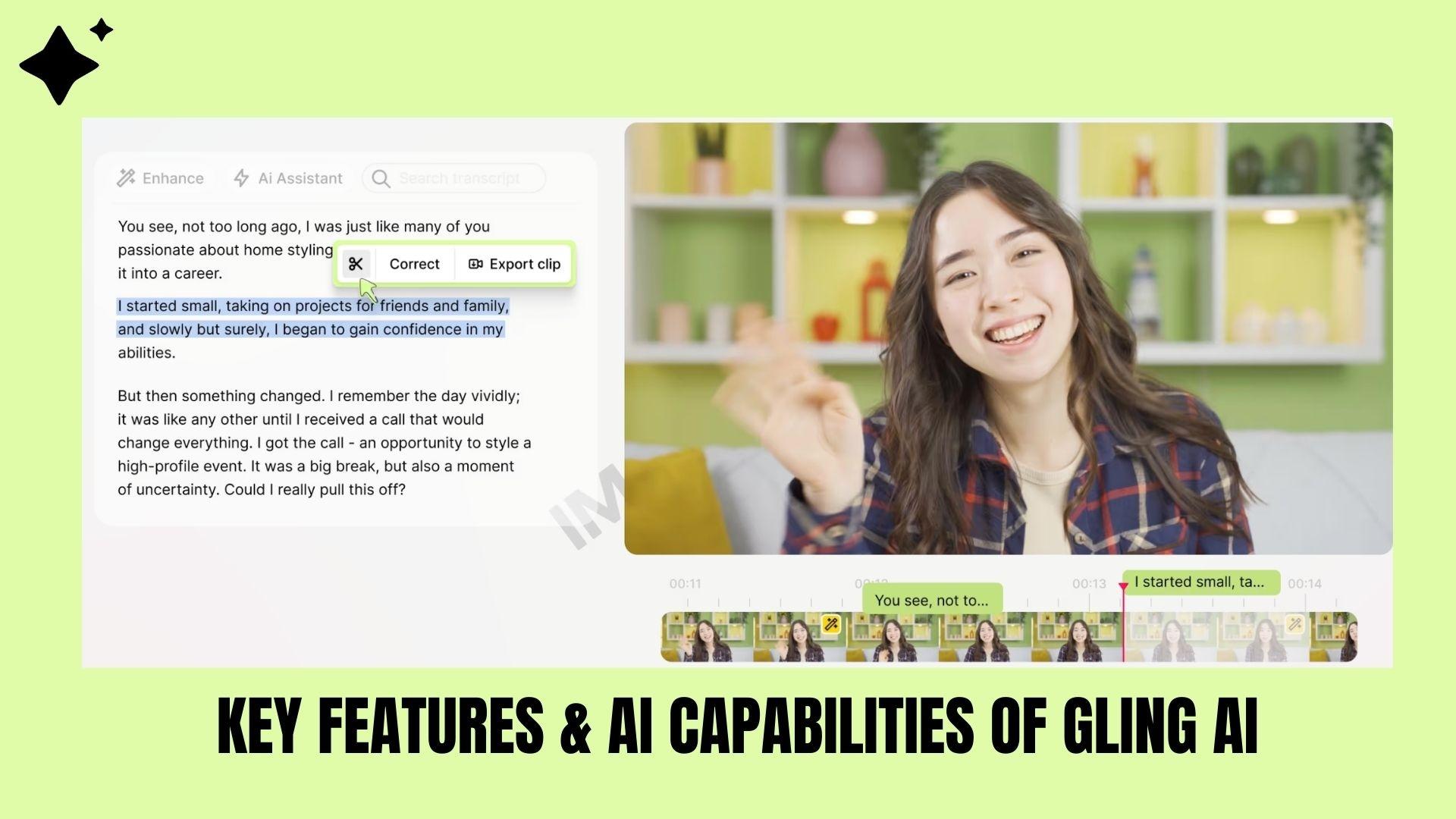
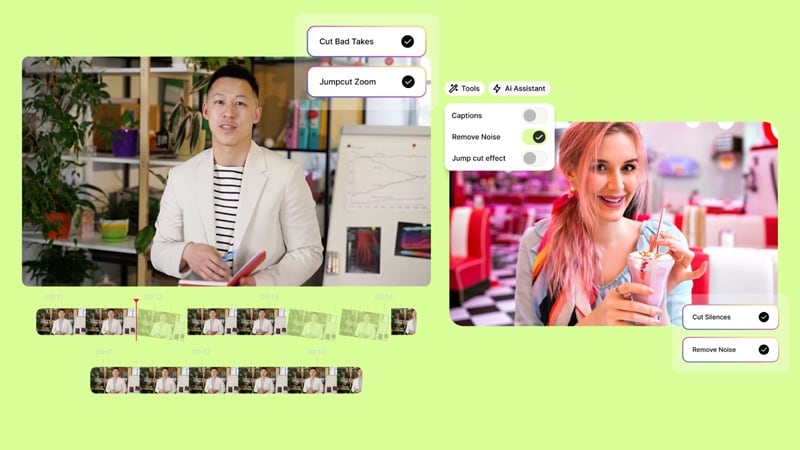
Gling AI automatically detects long pauses, filler words, and awkward moments, then removes them with a single click. This significantly reduces manual cutting, especially for talking-head and podcast-style videos.
Text-Based Video Editing
Instead of dragging clips around on a traditional timeline, you edit the transcript. Delete a sentence in the text, and that part disappears from the video. It feels more like editing a Google Doc than using a video editor. If you're new to editing, this makes things way less intimidating.
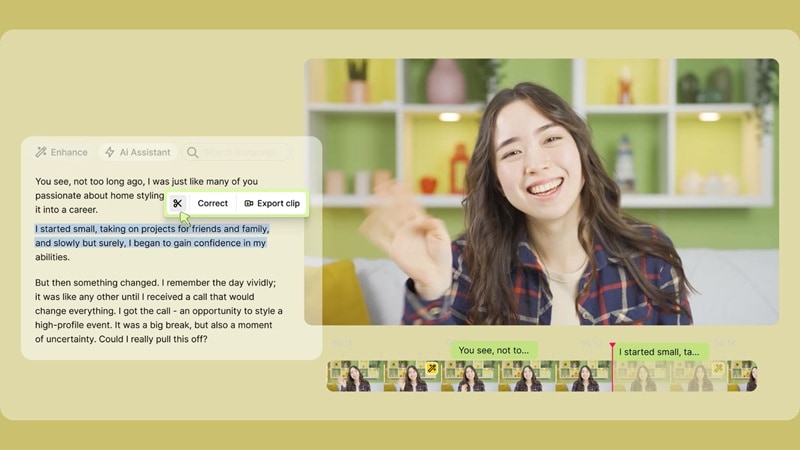
Auto Captions & Transcript Editing
Gling AI generates a full transcript automatically. You can tweak it, clean it up, and use it for basic captions. It's not a full subtitle design tool, but it's fast and practical for social content.
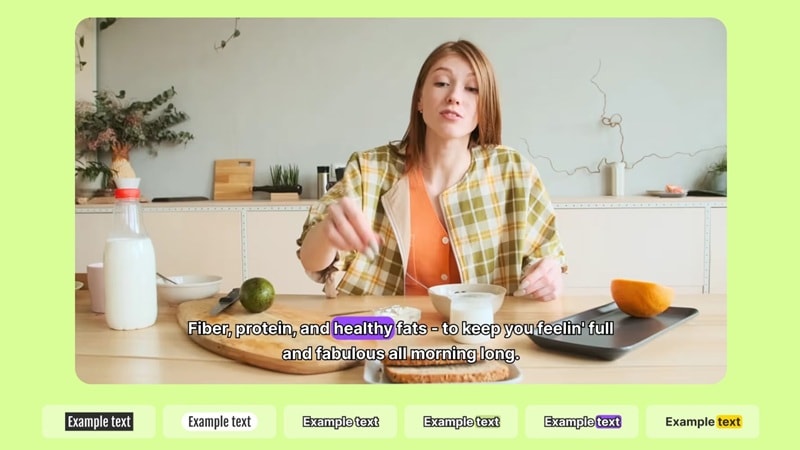
Export & Editor Integration
Once editing is complete, Gling AI allows you to export clean MP4 files or project files compatible with other video editors. This makes it easy to start with Gling AI and finish advanced edits elsewhere if needed.
Overall, Gling AI's features are designed for efficiency, which makes it a practical choice for creators who prioritize speed over deep creative control.
Part 4. User Experience & Interface of Gling AI After Testing
After testing the Gling AI app, the overall user experience feels intentionally simple and focused on efficiency. The platform is clearly designed for creators who want to edit faster without dealing with complex tools or traditional timelines.
Below is a detailed explanation of how Gling AI performs in real use.
Gling AI Interface Design
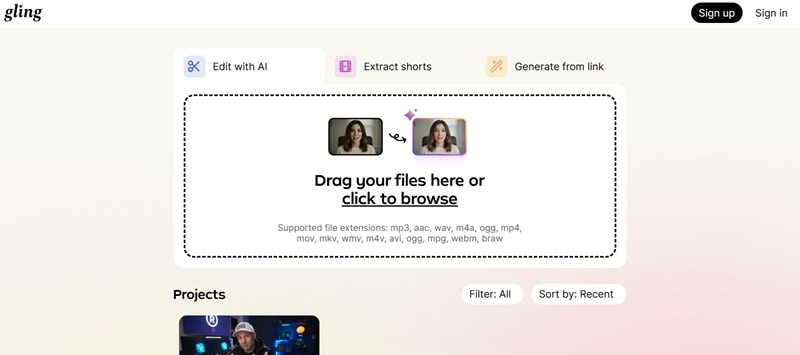
- Clean, distraction-free layout focused on essential editing features.
- Fully browser-based editing experience with no installation required.
- Easy navigation between uploads, transcripts, and export settings.
Ease of Use for Beginners vs Advanced Users
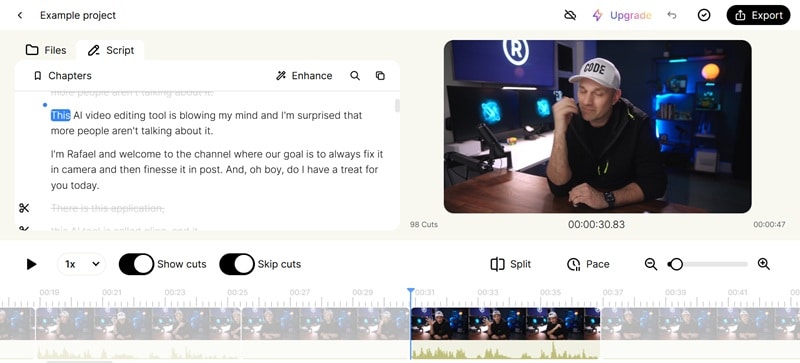
- Ideal for beginners and non-editors with a minimal learning curve.
- Text-based editing removes the need for timeline skills.
- Limited advanced controls, which may feel restrictive for professional editors.
Editing Workflow Efficiency
The workflow is straightforward: Upload → let the AI cut → review → export. That's it. For long talking-head videos or podcasts, it's noticeably faster than manually trimming clips in traditional editors. What would normally take hours can be reduced to a short cleanup session.
To make this practical, here's how the Gling AI workflow compares to traditional manual editing for dialogue-heavy videos:
| Step | Traditional Editor | Gling AI Workflow |
| Import Footage | Import → create sequence → place on timeline | Upload video to browser |
| Remove Silences | Manually scrub timeline and cut pauses one by one | AI auto-detects and removes silences |
| Cut Filler Words | Zoom in on waveform and trim manually | Delete directly from transcript |
| Review Edits | Play back full timeline and adjust cuts | Review suggested cuts in text view |
| Final Output | Render after full manual cleanup | Export after AI cleanup |
Overall, Gling AI offers a smooth and accessible editing experience that works best for creators who prioritize time savings over advanced visual control.
Part 5. Pros & Cons of Gling AI
Now, after considering all the factors in our Gling AI review above, we can say that Gling AI is great at one thing: cleaning up talking videos fast. But it's not trying to be a Hollywood-level editor. So whether it's right for you really depends on what kind of videos you make.
Here's the honest breakdown after testing.
- Fast AI editing: Automatically removes silences, filler words, and awkward pauses
- Text-based workflow: Easy to edit by modifying the transcript instead of using a traditional timeline
- Beginner-friendly: No editing experience required; intuitive browser interface
- Time savings: Significantly reduces editing time for talking-head and dialogue-driven videos
- Web-based: Works in a browser on Windows and macOS with no download required
- Limited creative control: Not suitable for advanced visual effects or cinematic editing
- Basic export options: Export quality and format settings are limited compared to full editors
- Free plan restrictions: Watermarks and export restrictions on Gling AI's free tier
- Not ideal for complex projects: Lacks multi-track editing, motion graphics, and detailed color tools
Overall, Gling AI excels at fast, efficient editing for creators who want clean, ready-to-publish videos with minimal effort. However, professional editors or those seeking deep creative flexibility may find its capabilities too basic.
Part 6. Best Gling AI Alternatives for Creating YouTube Videos – Filmora
Although Gling AI excels at fast and simple video cleaning, creators who want more control, flexibility, and creative features may prefer a Gling AI alternative like Wondershare Filmora. Compared to Gling, Filmora is better suited for creators who want hands-on editing with a simple workflow, powerful AI tools, and support for both basic and advanced video production.
 Secure Download
Here's how Filmora stands out as a strong alternative:
- Hands-On Timeline Editing: Unlike Gling's text-based cuts, Filmora lets you manually trim, stack clips, and adjust every element on a visual timeline.
- Flexible Trimming & Keyframes: Precise control over motion, pacing, and effects for YouTube videos.
- Wide Format & Export Support: Optimized exports for YouTube, social platforms, and custom settings.
Filmora's Key Features for YouTube Creators
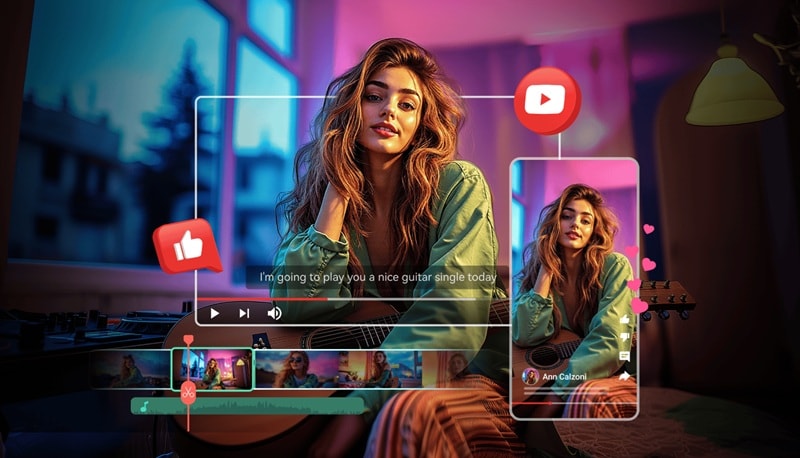
What makes Filmora interesting is that it mixes automation with manual control. So you get speed without losing flexibility.
AI-Assisted Tools
- Auto Caption: Automatically generates editable subtitles that can be customized and added to your videos.
- AI Audio Denoise: One-click audio noise reduction for cleaner sound.
- Auto Reframe: Reframe footage for vertical, square, or cinematic ratios without manual adjustments.
- Thumbnail Generator: Create eye-catching thumbnails directly inside the app.
Creative & Efficiency Features
- Drag-and-Drop Effects: Easily apply transitions, overlays, and motion graphics.
- Color Grading: Tone and style your video with presets or manual controls.
- Multi-Track Editing: Stack video, audio, titles, and effects for richer storytelling.
- Export Presets: Choose optimized settings for platforms like YouTube, Instagram, and TikTok.
Generate Videos with AI
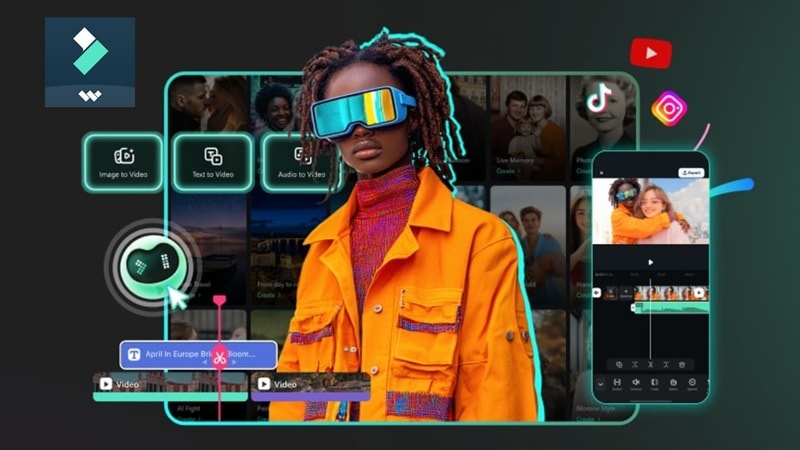
In addition to traditional editing, Filmora also stands out as a Gling AI alternative thanks to its built-in AI video generation tools. These features help creators produce content faster, even when starting without raw footage.
- Text to Video: Turn written prompts or scripts into short videos using AI-generated visuals, transitions, and pacing. This feature is useful for explainer videos, promos, and social media content.
- Image to Video: Convert a set of images into a dynamic video with automatic transitions, background music, and motion effects. Ideal for slideshows, product showcases, and quick YouTube visuals.
- AI Audio to Video: Start with just an audio file or voiceover, and Filmora automatically generates matching visuals, stock footage, and pacing around it. This is especially useful for podcasts, narration-based videos.
- AI Templates: Pre-built AI-powered templates help speed up video creation while maintaining a polished look.
These AI generation tools give Filmora an advantage for creators who want both automation and creative control. While Gling AI focuses on cleaning up existing footage, Filmora allows creators to generate videos from scratch, offering a more flexible option for YouTube and multi-format content creation.
Secure DownloadConclusion
In this Gling AI review, the platform proves to be a reliable option for creators seeking faster, simpler editing for talking-head videos. Gling AI excels at removing silences and cleaning up dialogue through an easy-to-learn text-based workflow.
The Gling AI free plan is useful for testing core features, but regular creators will benefit more from the paid plan. Despite not being designed for advanced visual editing, Gling AI offers significant time savings. For those needing more creative control, exploring a Gling AI alternative like Filmora may be the better long-term choice in 2026.
