


GoPro Player is one of the better-known tools for viewing and working with 360° footage from GoPro cameras. With versions for Windows and Mac, the GoPro Player app gives users a convenient way to handle their footage across different devices.
But with more 360 video tools now available, is GoPro Player still worth your time, or are there better options out there? This GoPro Player review will take a closer look at its features, compatibility, and overall experience to help you decide.
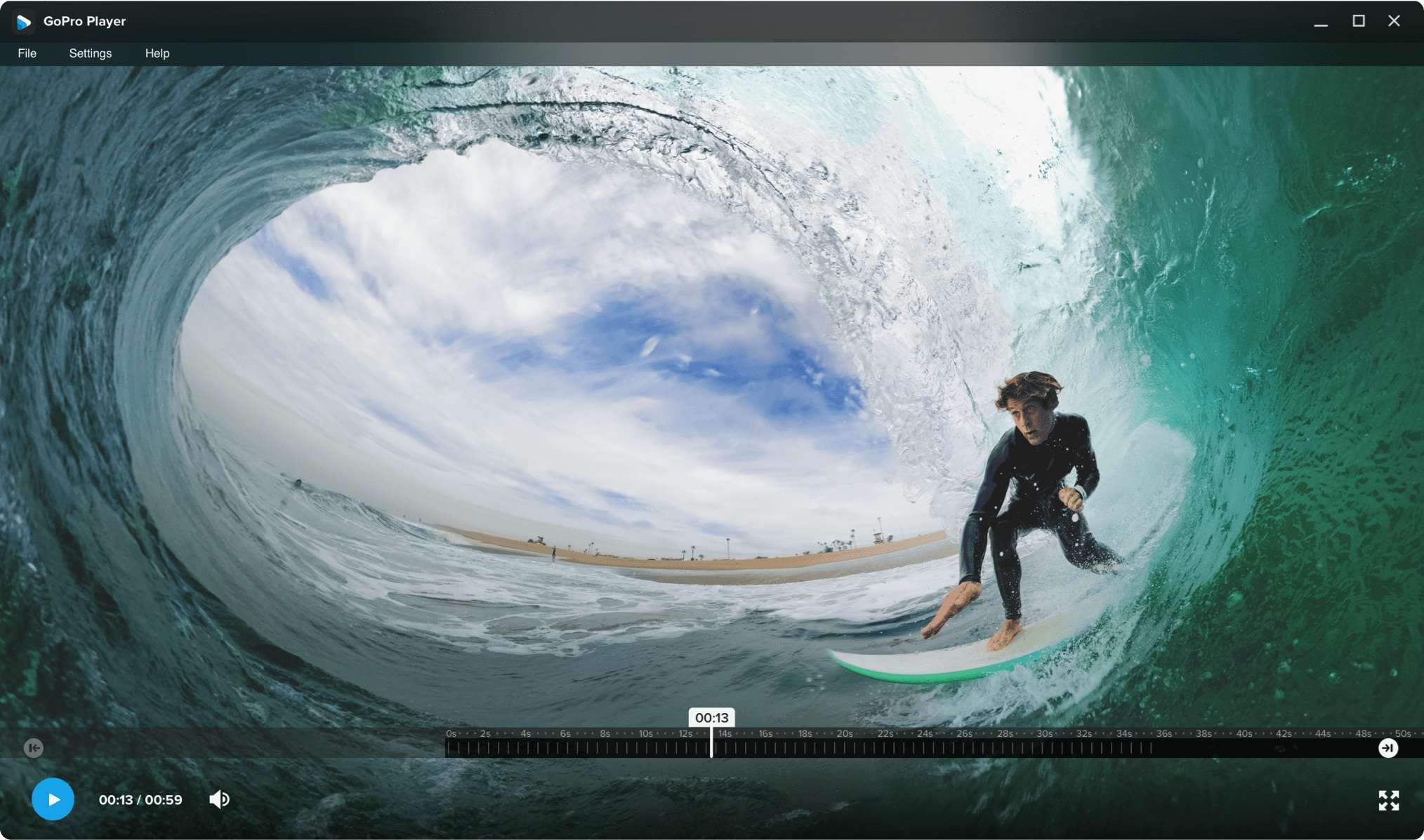
Part 1. GoPro Player Explained: What Does It Do?
A 360° camera like GoPro MAX can capture everything around you in a single shot, but the resulting footage isn’t always ready to share as-is. You may need to choose a viewing angle, level the horizon, trim unwanted parts, or convert the spherical footage into a standard video first.
For these tasks, GoPro offers GoPro Player, a desktop media player and footage tool designed for working with GoPro videos and 360° content. It lets you view, trim, reframe, grab frames, and export footage, with additional tools available for supported HERO camera clips.
GoPro Player is different from GoPro VR Player. GoPro VR Player is an older 360° video viewing tool, mainly focused on playing and viewing 360° content. It was previously known as Kolor Eyes before GoPro acquired Kolor and rebranded the software.
Part 2. Pricing and Access: How to Download GoPro Player
The GoPro Player app is free to use. You can download and access its features without paying. Just keep in mind that some advanced features may have additional requirements, and your computer needs to meet the supported system requirements to run the app properly.
How to download GoPro Player
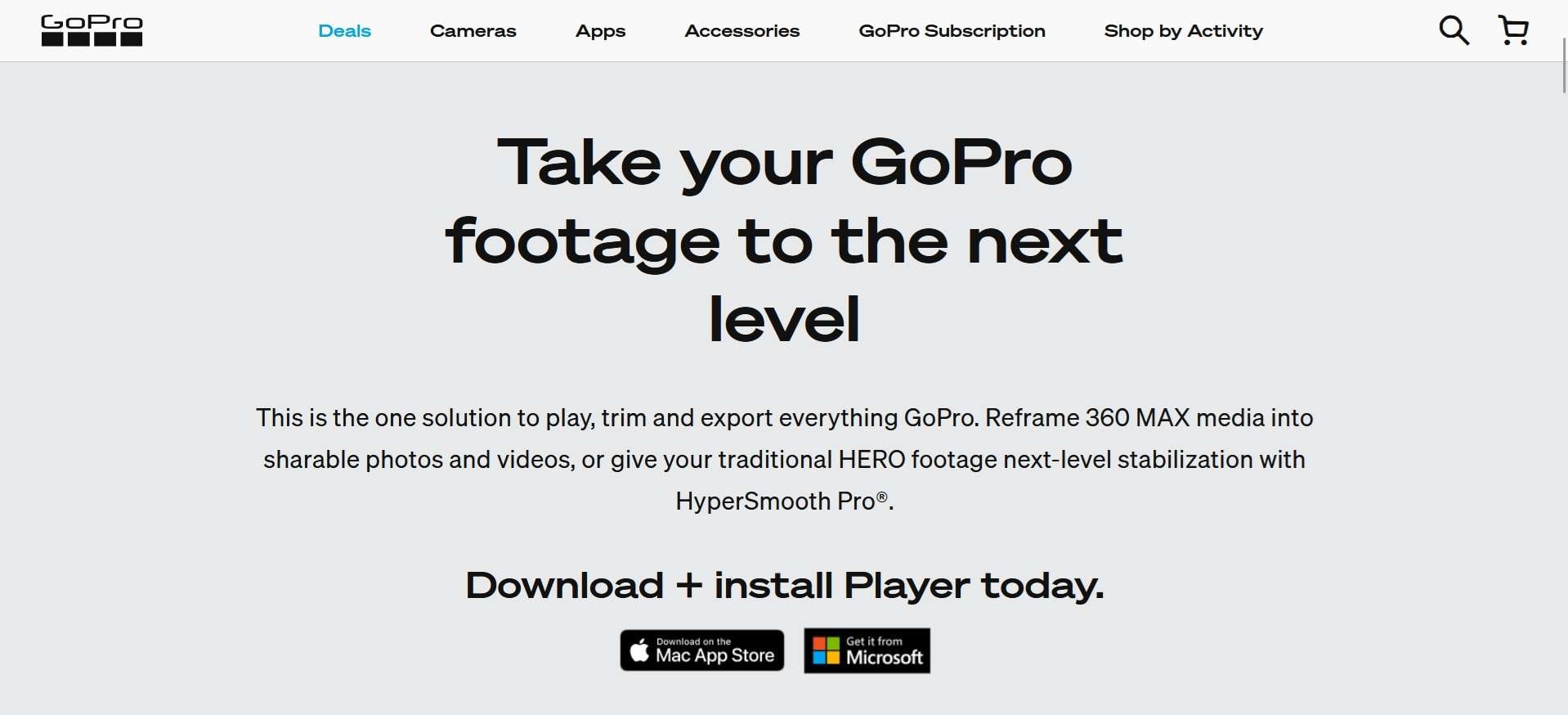
You can get GoPro Player through GoPro's official website or the relevant app store for your computer:
- GoPro Player for Windows: download link (Microsoft Store).
- GoPro Player for Mac: download link (App Store).
GoPro’s compatibility information lists Windows 10 or later (GoPro Player for PC) and macOS 10.14 Mojave or later (GoPro Player for Mac). However, the current Mac App Store listing requires macOS 10.15 or later. If you’re using an older Mac, check the latest system requirements before installing to make sure your device is supported.
Part 3. Core Features: What Can You Do in GoPro Player?
GoPro Player software packs a handful of niche but genuinely useful tools that go beyond the basics. Some are built specifically around 360° footage, while others work across both traditional and spherical formats. Below are some of the most useful features in GoPro Player and what they do.
1. 360° Keyframing and Reframing
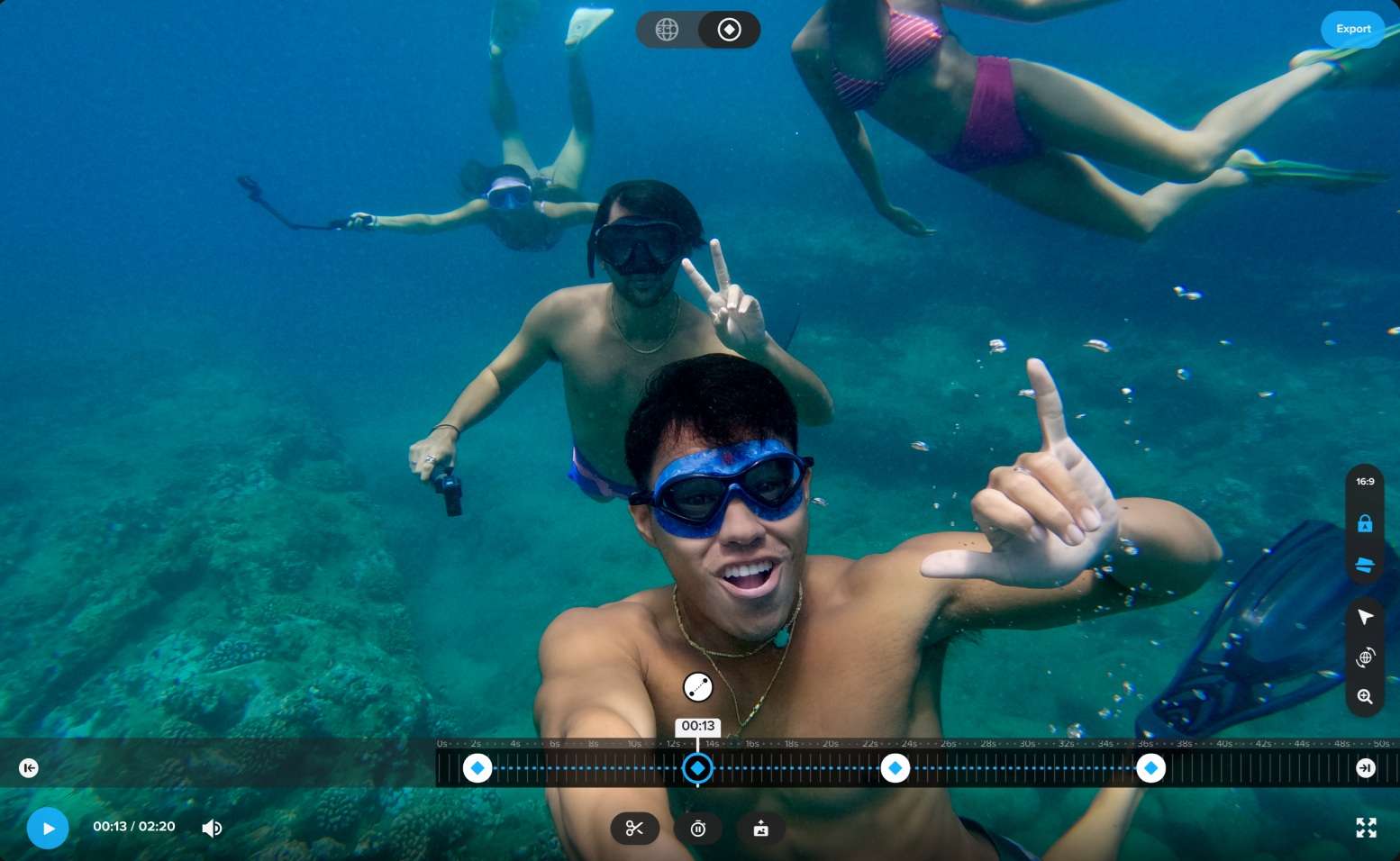
For anyone shooting on a MAX-style 360 camera, keyframing and reframing is probably the single most useful tool in GoPro Player. It lets you pick different viewpoints within a 360 clip and set keyframes to move between them over time, effectively turning a spherical recording into a traditional flat video with camera movement you control after the fact.
Moreover, you can move between views throughout the clip to create a conventional video from the original spherical recording. GoPro also supports exporting 360 media in standard formats when you want to preserve the immersive format. You have the freedom to record first and decide later which direction should be the focus.
2. Horizon Leveling, Lens Correction, & World Lock
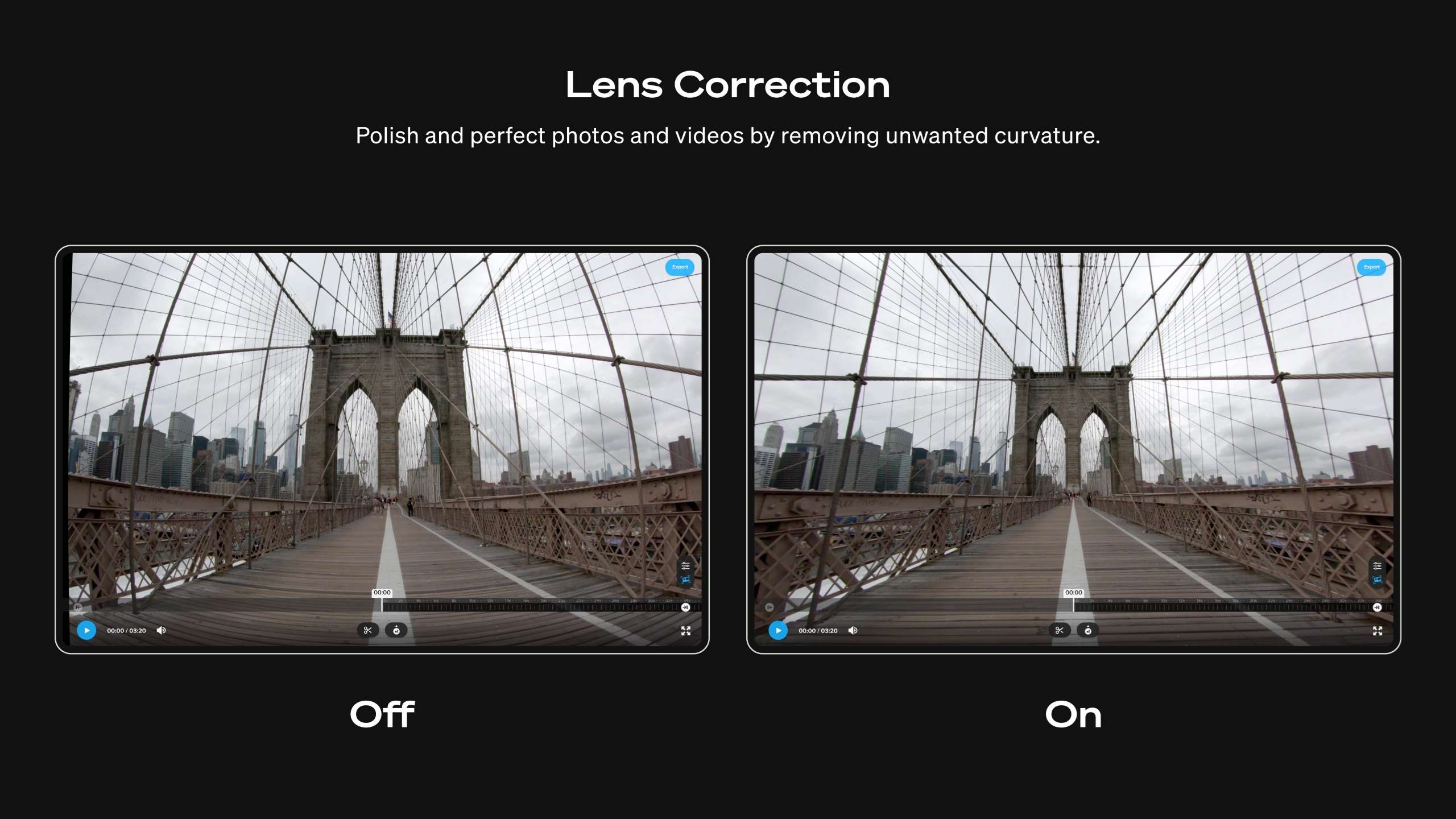
Horizon Leveling in GoPro Player software corrects the orientation of your footage in post-production, which can be useful when the camera rotates or changes position and the horizon appears tilted. GoPro has also offered tools such as Lens Correction and World Lock when you need to correct the perspective or keep the scene's orientation consistent in 360° footage, though the available controls may vary depending on the footage and GoPro Player version.
3. HyperSmooth Pro Stabilization
HyperSmooth Pro (formerly ReelSteady) is one of the more advanced stabilization features in GoPro Player. It uses motion data captured by compatible HERO cameras to stabilize footage after recording. Currently, GoPro lists support for HERO8 through HERO13 models, along with limited support for some older models.
However, HyperSmooth Pro Stabilization doesn’t support 360° clips. If you're using GoPro Player mainly for MAX 360 footage, you won’t be able to use it.
4. High-Resolution Frame Grabs
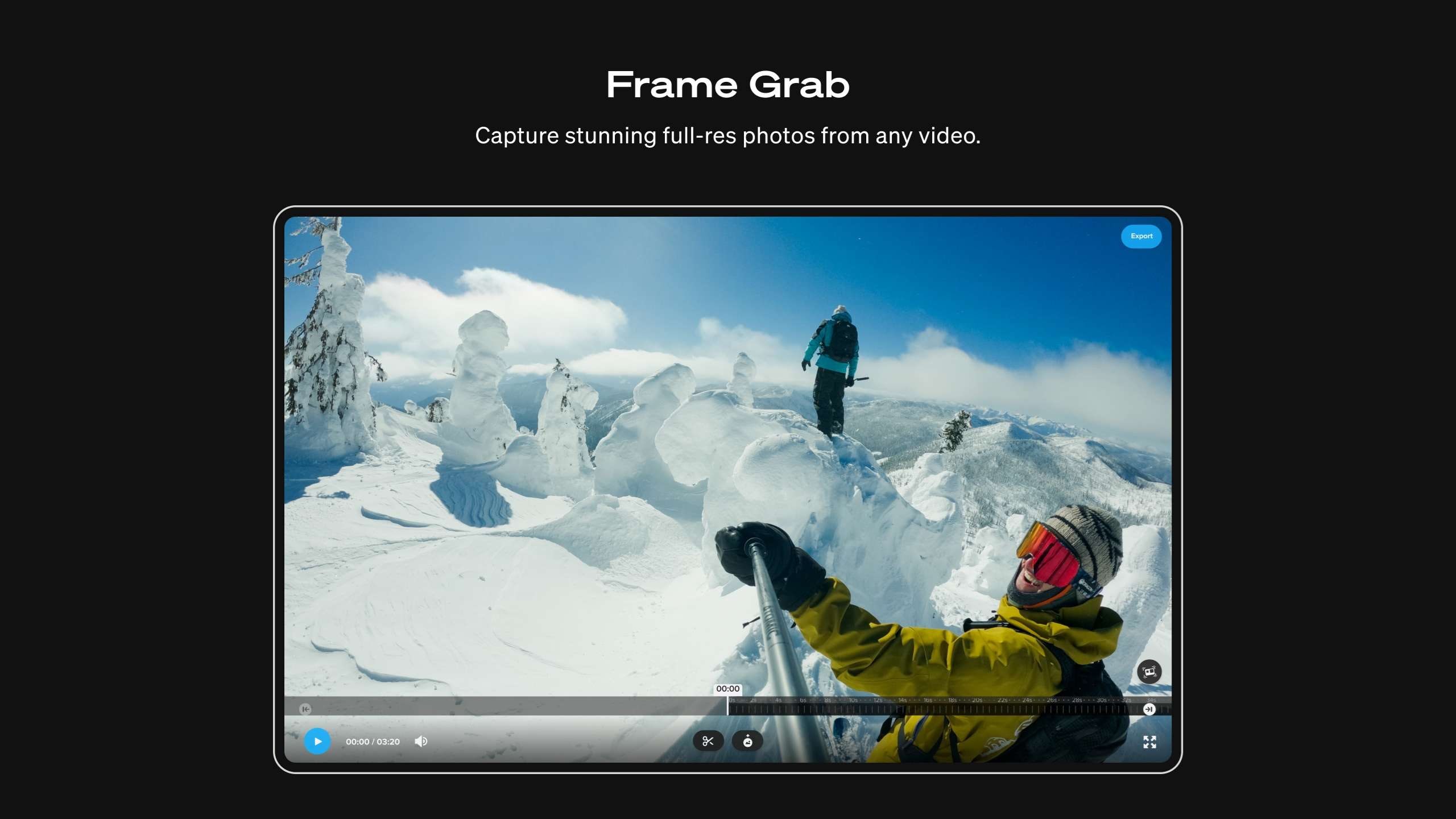
Need a still image from a video? GoPro Player lets you grab full-resolution frames from both traditional and 360° footage while maintaining the original image quality. You can save a specific moment as an image without going back to the original recording or capturing a screenshot from the video player.
5. Batch Export
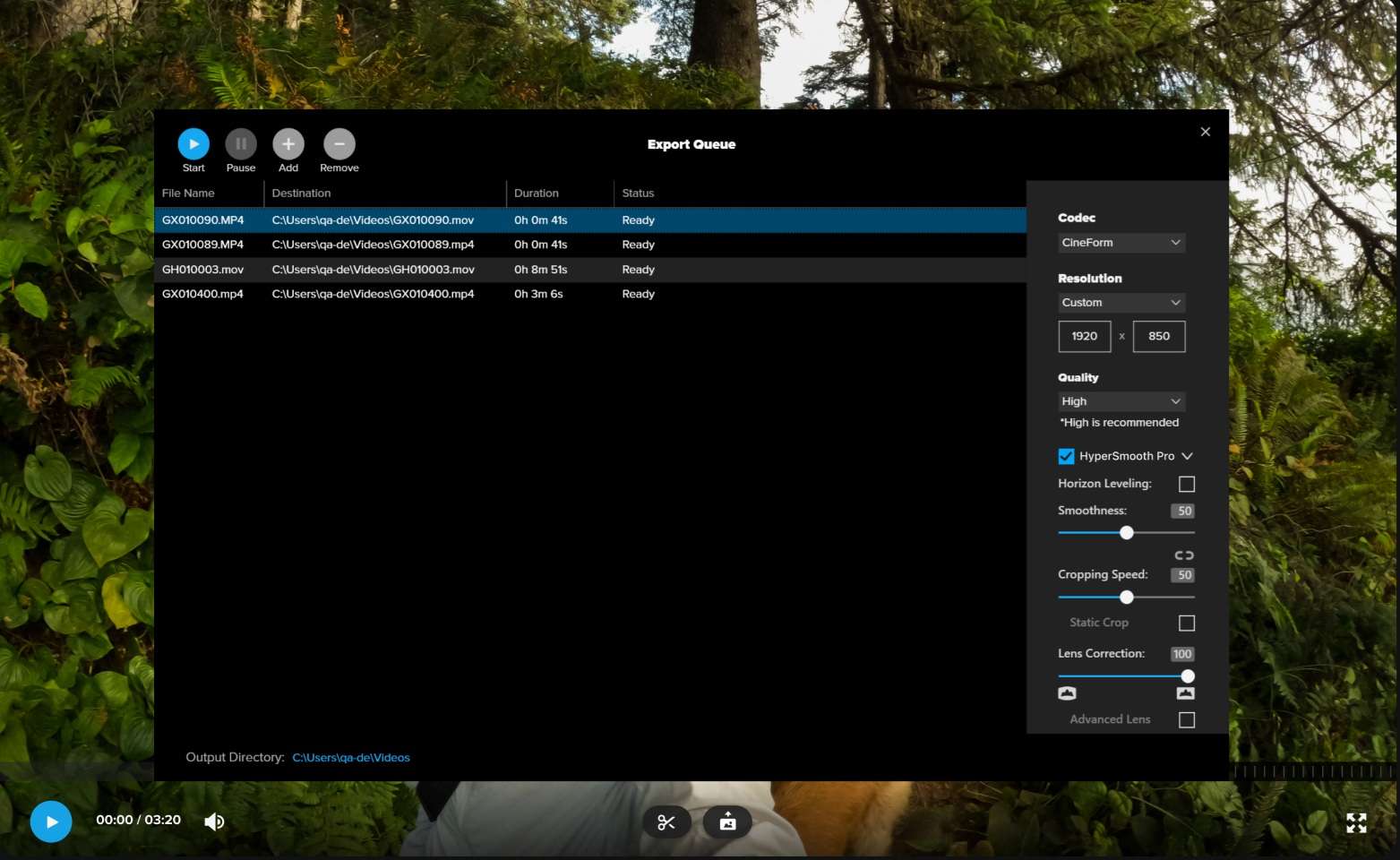
GoPro Player also supports batch exporting, so you can queue multiple files rather than exporting each clip individually. It supports professional encoding options and a range of formats and codecs, including HEVC, H.264/H.265, Apple ProRes, and CineForm. GoPro lists support for 8K, 5.6K, 4K, and other 360 formats, depending on the footage.
Part 4. GoPro Player Strengths and Weaknesses (Review)
GoPro Player is popular for a reason, but being useful doesn't mean being perfect. It handles several common GoPro and 360° tasks well, yet its limitations are apparent when you expect it to function like a complete video editor.
- Free to use without a subscription.
- Designed for GoPro 360 footage, which lets you view, reframe, and export compatible 360° footage without a hassle.
- Keyframes give you control over the viewing angle throughout a 360° clip.
- Horizon Leveling and lens correction help fix common orientation issues in 360 footage during post-production.
- HyperSmooth Pro delivers solid post-production stabilization.
- Batch export supports professional codecs (ProRes, CineForm, HEVC, H.264/H.265) and resolutions up to 8K.
- Despite being built by GoPro for GoPro footage, HyperSmooth Pro doesn’t work with 360 footage from the MAX or MAX2.
- Feature support varies by camera model and Player version, so results aren't always predictable across your library.
- Editing is pretty limited to reframing, correction, and export rather than full timeline editing, transitions, or layered effects.
- Not built to function as a standalone editor, as you may still need a second program to polish the video.
- Best suited to GoPro's own ecosystem, with less flexibility for footage from other camera brands.
GoPro Player is convenient if you mainly need to view, reframe, and export your footage, but you may need more if you want to turn it into a finished video with effects, transitions, text, audio, and more detailed color adjustments. In that case, you may need a full editor that saves you from moving between a 360° camera app and another editing program.
Part 5. GoPro Player Alternative for 360° Video: Filmora
If you want to reframe, polish, and fully edit 360 videos in one place, Wondershare Filmora offers a more complete solution to work with both standard and 360° footage. The video editing software now supports a 360° video editing feature that lets you reframe and add effects to spherical footage, along with other standard editing tools, in the same timeline.
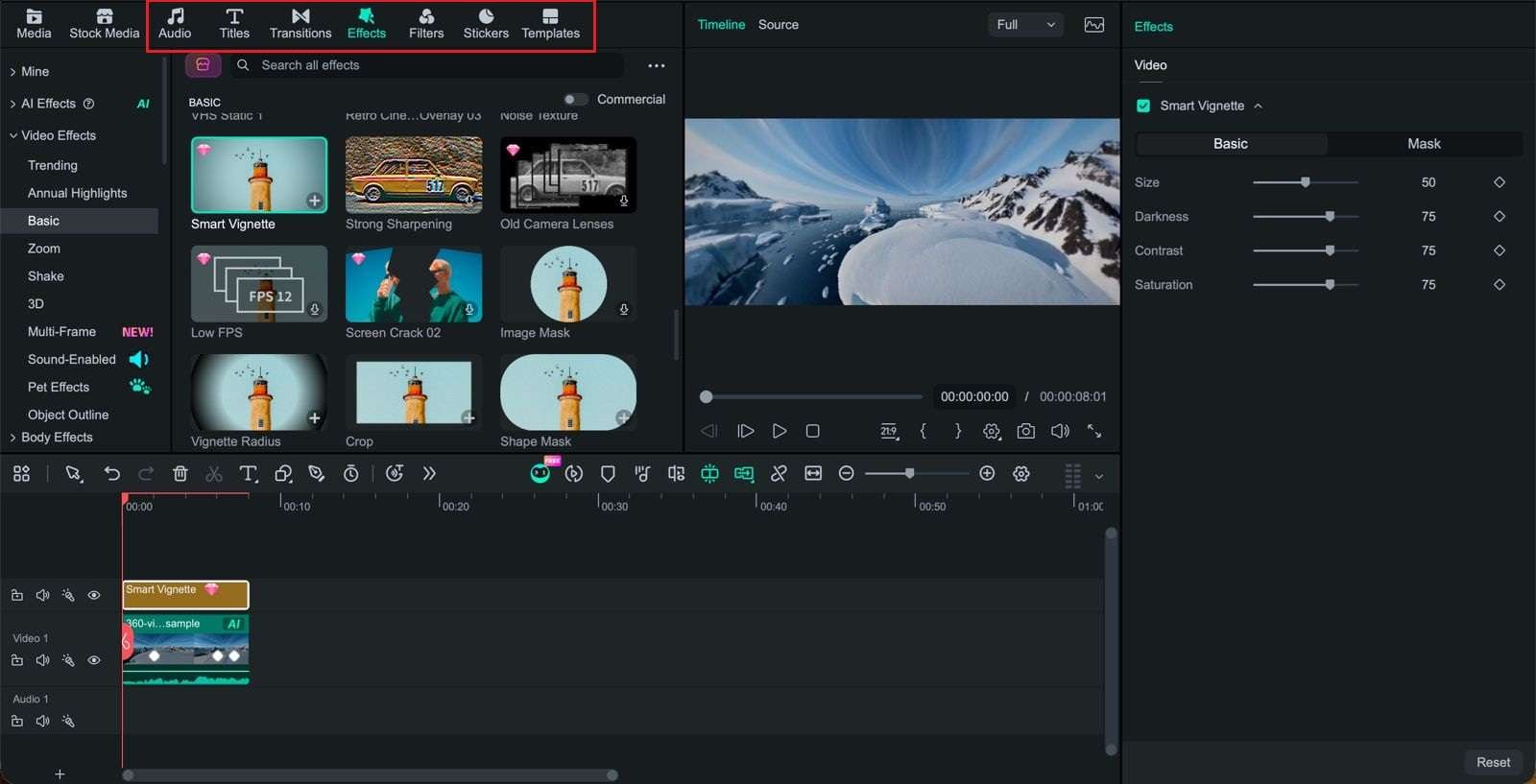
Some of the editing tools you can use include transitions, effects, text, audio editing, color adjustments, and more. Filmora gives you more room to continue editing after reframing your 360° footage compared to the GoPro Player app.
 Secure Download
Filmora 360° Video Editing: Key advantages
- All-in-One Editing Suite: Filmora lets you import 360° footage, reframe it, and continue editing on the same timeline with effects, transitions, text, audio, and other editing tools.
- Shoot First, Frame Later Concept: You can capture the entire scene with a 360° camera and decide which direction to show during editing instead of setting the framing while recording.
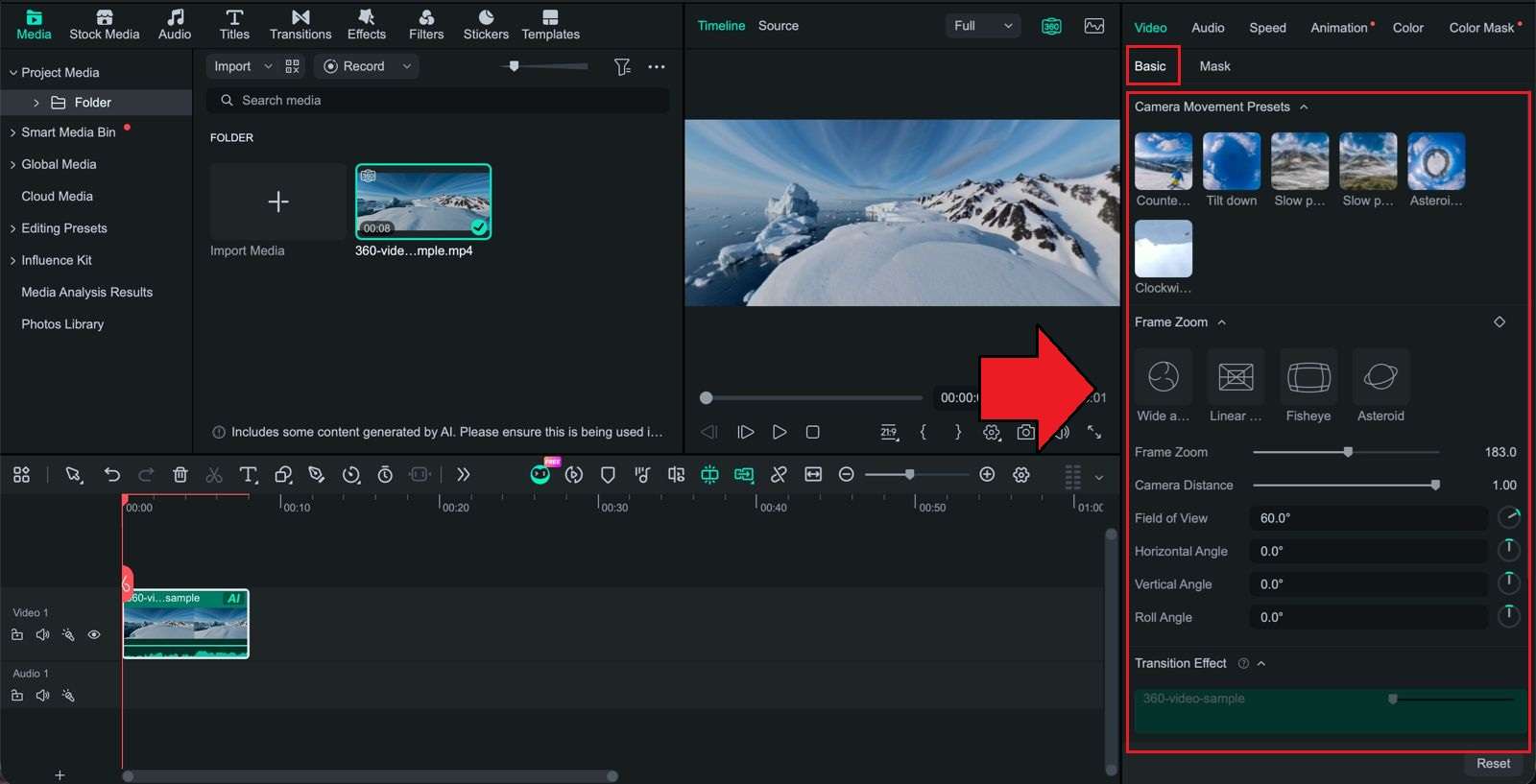
- One-Click Presets & Camera Movements: Apply preset camera movements to change the viewing direction and create smoother perspective changes without adjusting every movement manually.
- Interactive Viewport Controls: The interactive viewport lets you adjust the viewing angle and perspective more intuitively while working with 360° footage.
- Multi-Camera Format Support: Filmora's 360° editing feature supports footage from different compatible 360° cameras.
- Lower Learning Curve: If you're already familiar with Filmora’s timeline and editing tools, you can handle 360° reframing and regular video edits in the same interface without learning a separate program.
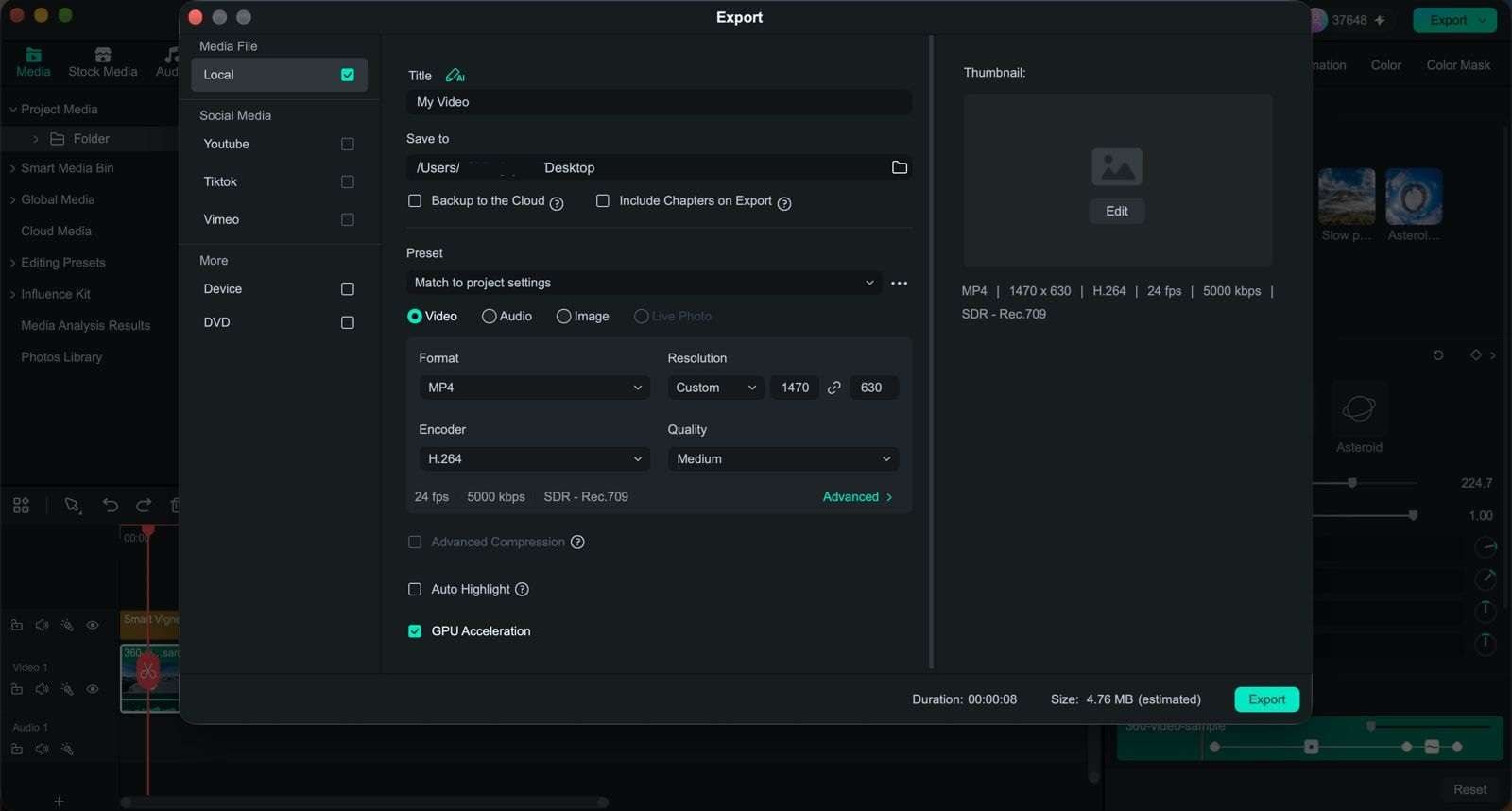
With your clip ready, you can export the final video in high-quality 2D formats with settings suited for platforms like YouTube, Instagram Reels, and TikTok.
How to Use Filmora 360° Video Editing?
Using Filmora’s 360° Video Editing feature requires the latest version of Filmora and a compatible computer. Before you start, make sure your system meets the basic requirements:
- Windows: Windows 10 or later, Intel 8th Gen or AMD Ryzen 3000 series or later, 16 GB RAM, and GTX 1660 or better.
- macOS: macOS 11.0 or later with an Apple M1 chip or better.
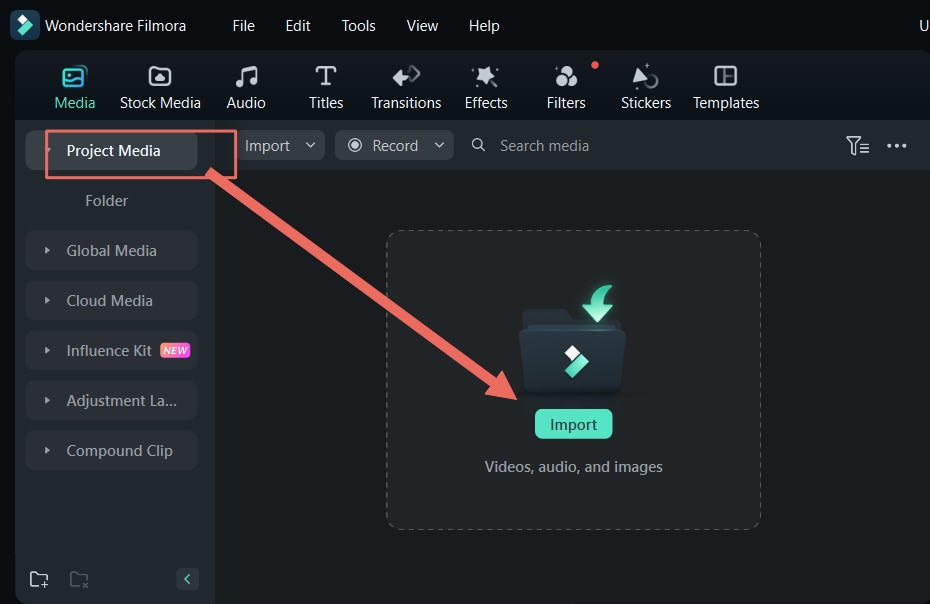
If your computer meets these requirements, you can import your 360° footage into Filmora and start editing it directly on the timeline.
Editing options include:
- Camera Movement Presets: Quickly create changes in perspective without setting every movement manually. Options include Tilt Down, Slow Pan, Counter Pan, and more.
- Frame Zoom: Adjust how much of the 360° scene appears in the frame and control the viewing area of your reframed video. You can also find more panoramic parameters for fine-tuning the perspective.
- Transition Effect: Create smoother changes between different viewpoints or camera movements. When you change the perspective, the shift between reframed views can feel more natural rather than abrupt.
 Secure Download
Conclusion
GoPro Player is a good free option if you mainly need to view, reframe, stabilize, and export GoPro footage. However, its limited editing tools mean you may still need another program for a more complete video.
If you want to handle GoPro 360° footage and finish the rest of your video in one place, you can consider using Filmora. Its 360° Video Editing feature combines reframing, camera movements, transitions, and regular editing tools in the same timeline.
FAQs
-
What is the difference between GoPro Player and the GoPro Quik app?
GoPro Player is a desktop app for Windows and macOS that focuses on playing, trimming, reframing, and exporting GoPro footage, including 360° video. GoPro Quik is GoPro’s mobile-focused app for iOS and Android, with more tools for quick edits, 360° reframing, sharing, and cloud-based media management. -
Can I use GoPro Player on Android?
No. GoPro Player app is currently available for Windows and macOS, with Apple TV also supported (for GoPro Premium subscribers). For Android devices, GoPro offers the Quik app, which supports 360° reframing and other editing features on mobile. -
Does GoPro Player upload or back up my 360 clips directly to cloud storage?
No. GoPro Player itself is not the app for cloud backup. GoPro’s cloud backup and auto-upload features are handled through the Quik app and GoPro’s cloud services with an eligible subscription. You can also access cloud-stored media through GoPro’s web app.
