


 TL;DR:
ImagineArt is an all-in-one AI creation platform that quickly generates images, videos, and audio from text prompts, making it highly effective for rapid content conceptualization but restricted by a credit system that limits heavy experimentation.
● Users can generate content through a beginner-friendly Quick Mode or build custom generation pipelines via a Node-Based Workflow, utilizing specific models like ImagineArt 2.0 for images and Topaz or Magnific Precision V2 for video enhancement.
● The platform provides a free tier with 100 daily credits for basic tools, but achieving consistent results—particularly for video—often requires repeated generations that rapidly consume credits because every adjustment requires rebuilding the output.
● While ImagineArt's dedicated Film Studio and Ad Studio are ideal for generating structured promotional or narrative clips from scratch, Wondershare Filmora is the recommended alternative for users who need a timeline-based editing workflow to manually refine AI outputs without spending additional credits on every modification.
Ask AI for a summary
 ChatGPT
 Perplexity
 Gemini
 Claude
 Grok
Grok
What if you could turn a simple text prompt into a detailed illustration, cinematic artwork, or even a short video in just a few clicks? That's the idea behind ImagineArt, an AI-powered creative platform designed to help users generate visual content without traditional design or editing skills.
By bringing image and video generation tools into a single workspace, ImagineArt AI aims to speed up and simplify the content creation process. But how well does it perform beyond the marketing claims? To find out, we tested its key features, evaluating output quality, generation speed, ease of use, and pricing to see whether it offers real value for creators, marketers, and everyday users.
Part 1. What Is ImagineArt?
One aspect that sets ImagineArt apart from many AI generators is the way the platform approaches content creation. The platform offers two different creation modes: Quick Mode and Node-based workflow.
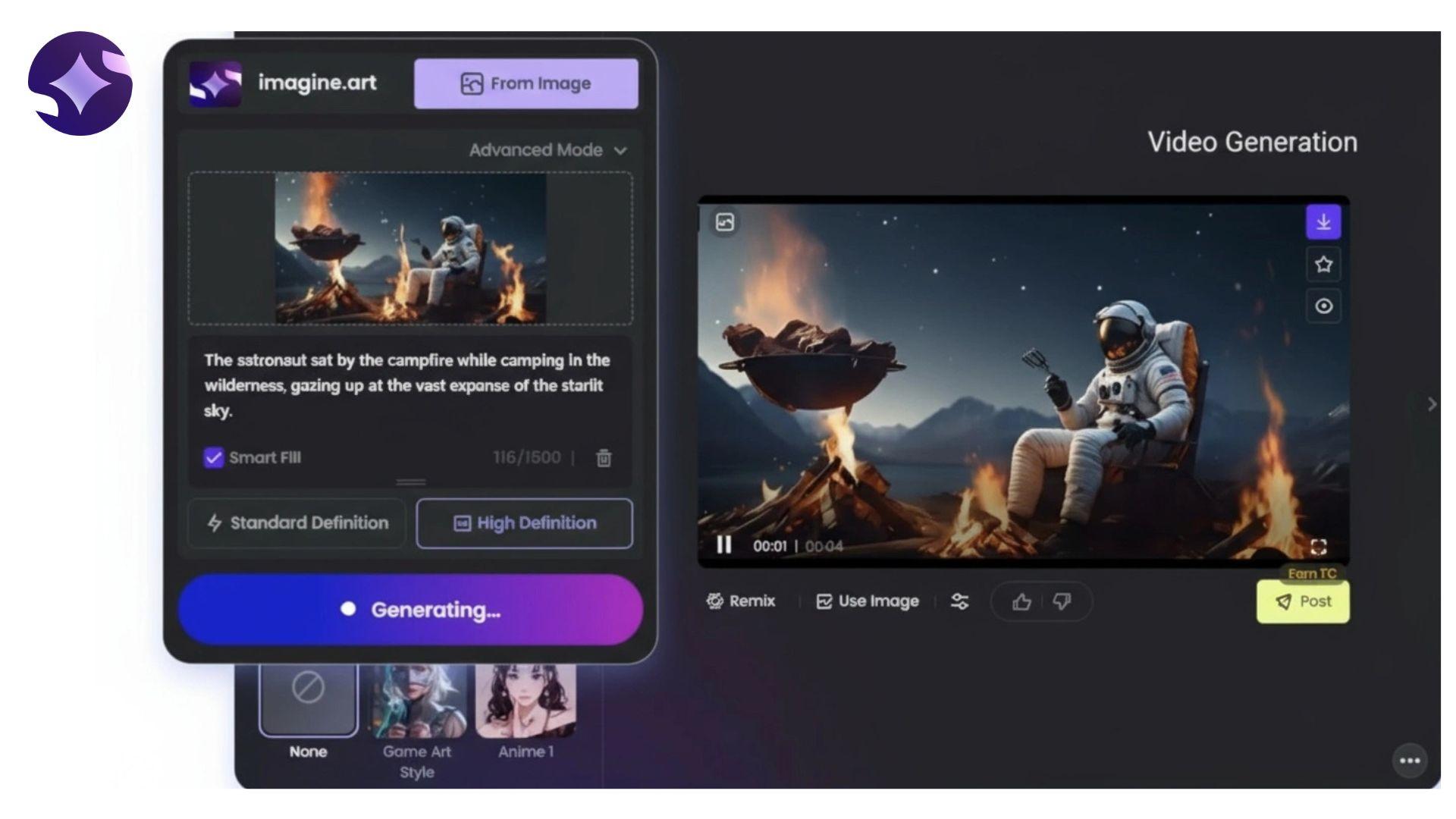
Quick Mode
Quick Mode is the fastest way to create content in ImagineArt AI. After selecting the type of content you want to generate, simply enter a prompt, choose a model or style if needed, and start generating.
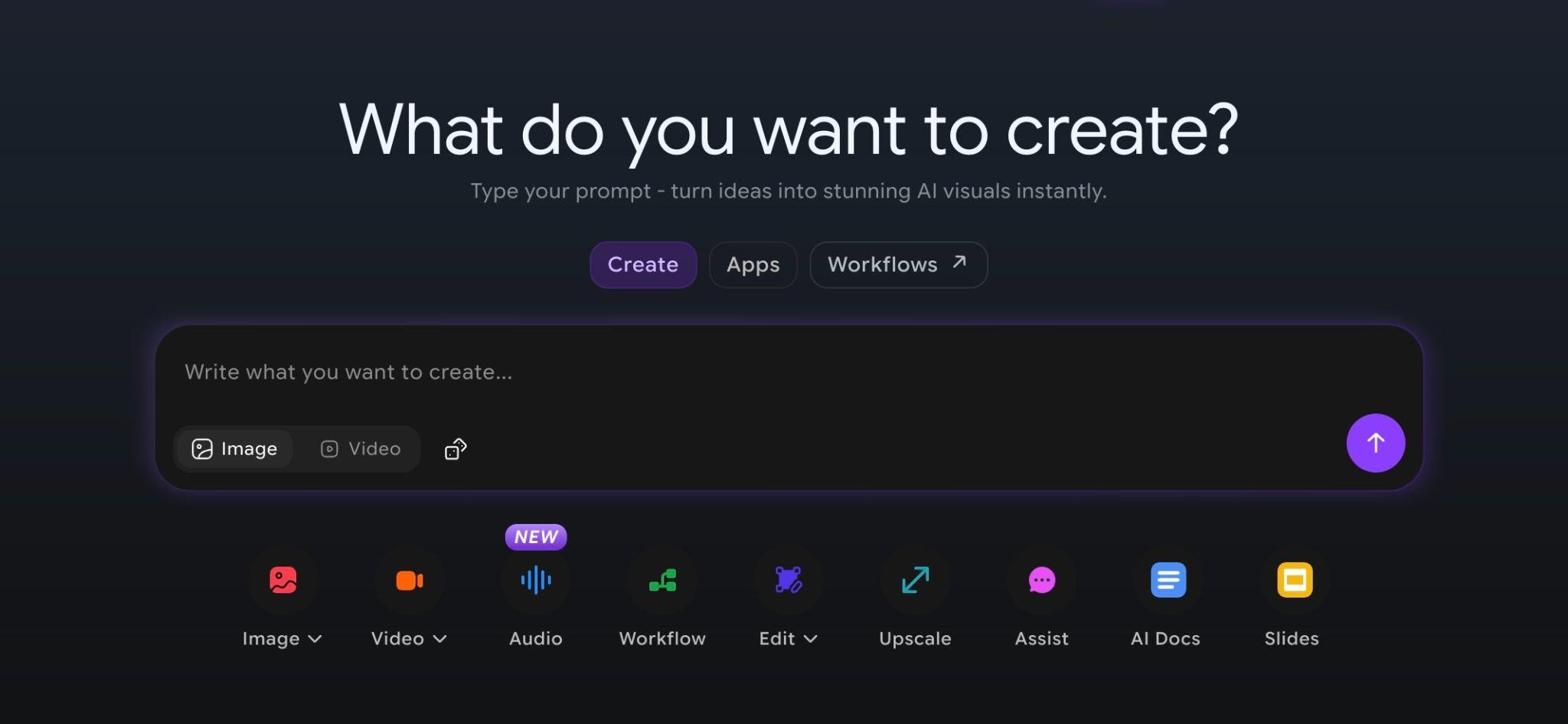
What you can do in Quick Mode:
- Describe an image or video idea using a text prompt.
- Select from available models and visual styles.
- Adjust settings such as aspect ratio and output format.
- Generate multiple variations from the same prompt.
- Modify and regenerate results without rebuilding the project.
Node-Based Workflow
ImagineArt AI’s node-based workflow lets you build a visual workflow by connecting various nodes instead of working from a single prompt screen. Each node represents a step in the generation process, so you can control how the AI handles prompts, models, inputs, and outputs.
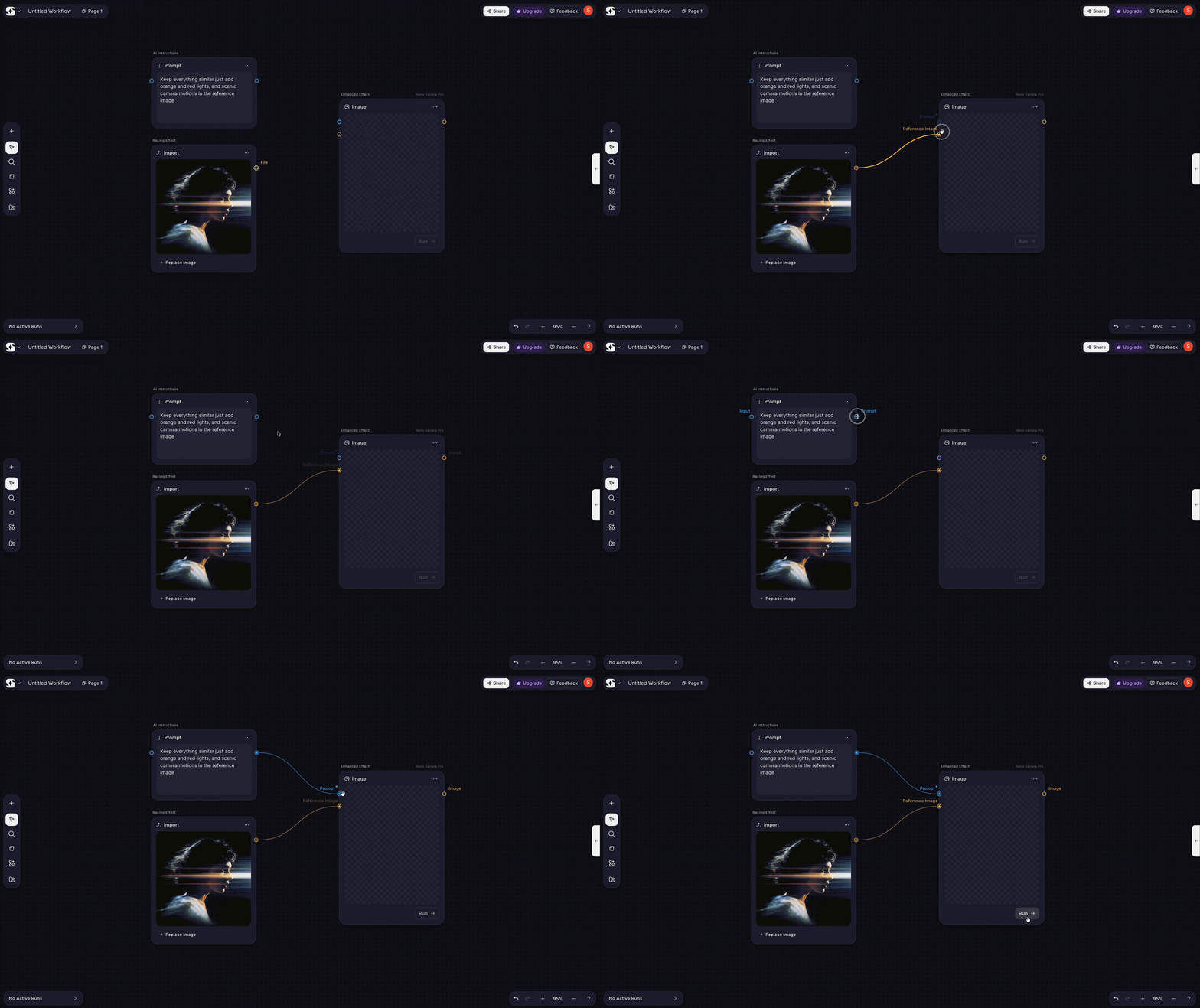
With the node-based workflow, you can:
- Build custom generation pipelines from scratch.
- Connect multiple AI tools within a single workflow.
- Control individual stages of image or video creation.
- Experiment with different models and processing paths.
- Save workflows for future projects.
In addition to these two creation methods, ImagineArt also lets you jump directly into dedicated studios and tools. If you already know what you want to create, you can open a specific workspace for images, videos, presentations, editing, upscaling, and other AI-powered tasks without navigating through the full creation dashboard first.
Part 2. How Much Does ImagineArt Cost?
ImagineArt runs on a credit-based system. The exact cost per generation depends on the model and quality settings you choose, so more complex outputs usually consume more credits.
But before looking at paid plans, it’s worth noting that ImagineArt does include a free tier, which is enough to test the platform before paying.
Free Plan (Yes, You Can Use It for Free)
When you first complete your ImagineArt login, you can start with the free plan and access basic AI creation tools with the following benefits and limitations:
- 100 free credits every day
- Credits reset daily (not a one-time trial)
- Access to basic image and video tools
- Limited or no access to premium models
- Lower resolution and fewer advanced features
ImagineArt's Pricing (2026)
| Plan | Monthly Price | Monthly Credits | Key Access Level |
| Free | $0 | 100 credits/day | Basic tools only |
| Basic | $9/month | 2,000 credits | Entry-level access to premium models and faster generations |
| Standard | $30/month | 8,000 credits | More models, higher quality outputs, team collaboration (limited seats) |
| Ultimate | $50/month | 16,000 credits | 4K video support, higher limits, priority processing |
| Creator | $250/month | 100,000 credits | Large-scale production use, highest limits, team-focused workflow |
| Enterprise | Custom | Custom credits | Tailored plans for organizations and large teams |
Part 3. Key Features of ImagineArt
More than just an image or video generator, ImagineArt offers a full range of creative tools on a single platform. The platform is generally divided into several core areas: AI Image, AI Video, Audio Tools, and Enhancement Tools, each designed to handle different parts of the content creation process.
ImagineArt AI Image
The ImagineArt AI image generator is built on multiple models, including its own ImagineArt 2.0 model, which is designed to improve prompt understanding and output consistency compared to earlier versions.

The image generation system typically includes the following tools:
- Text-to-Image Generation: Creates images directly from written prompts. You describe the scene, style, or subject, and the model generates a visual output based on that input.
- Edit Image: Allows you to modify existing images by adjusting elements, improving composition, or refining details without starting from scratch.
- Style Reference: Lets you guide the output using a reference style, helping maintain a consistent visual direction across multiple generations.
- Reference: Uses an uploaded image as a visual guide to influence composition, structure, or subject alignment in new generations.
- Inpaint: Enables targeted editing of specific areas in an image, useful for fixing details or replacing elements while keeping the rest of the image intact.
- Image Upscale: Enhances the resolution and sharpness of generated images, making them more suitable for print or high-quality digital use.
ImagineArt AI Video
The ImagineArt AI video generator supports both text-based creation and image-driven animation. Users can either generate a video from scratch using prompts or start with existing images and animate them using motion tools and templates.
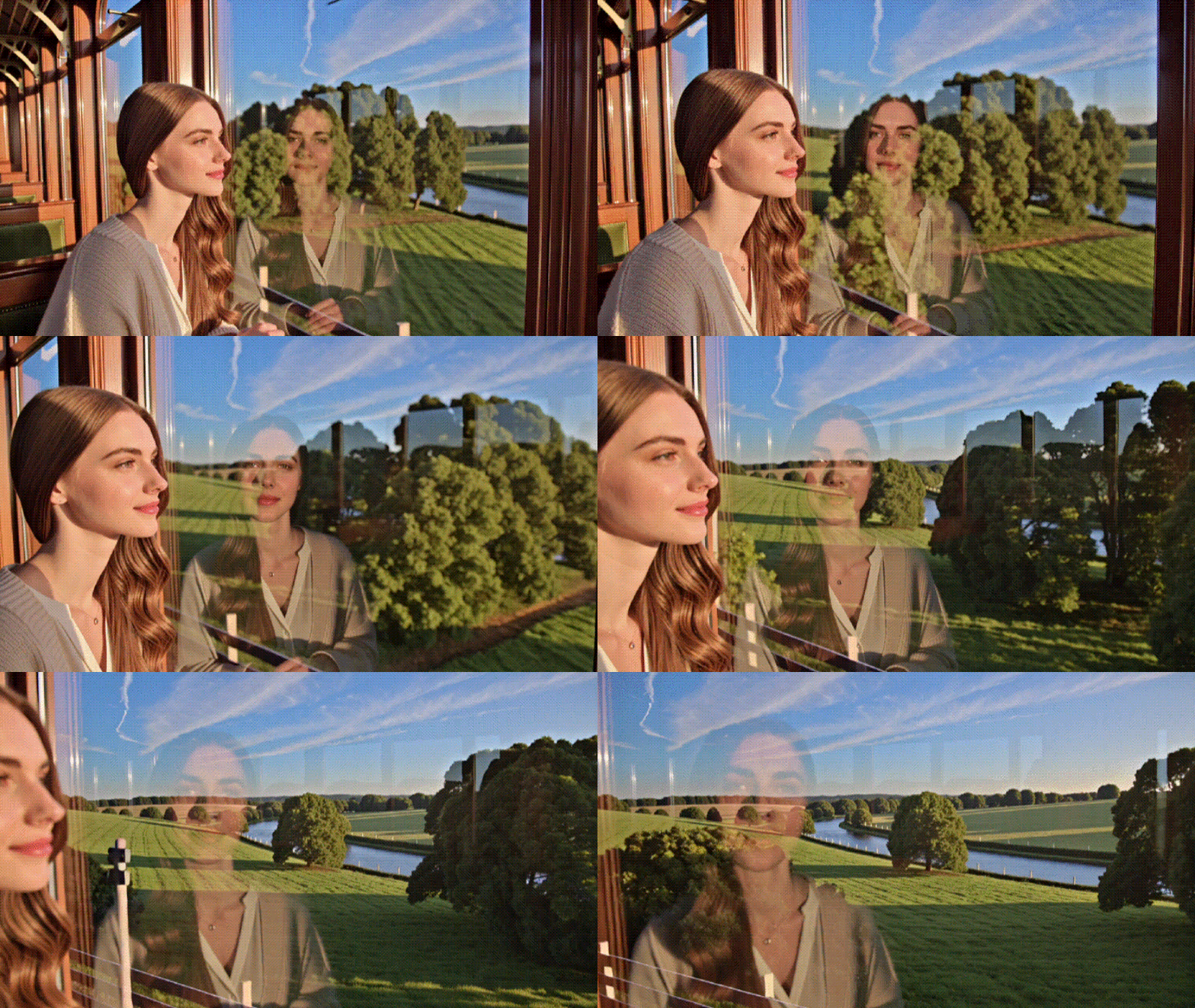
Key video tools inside the ImagineArt AI video generator include:
- Text-to-Video: Generates short video clips based on a written prompt, automatically interpreting scenes, motion, and style.
- Image-to-Video Animation: Turns static images into moving visuals by adding motion, depth, and camera movement.
- Lipsync Studio: Syncs generated or uploaded voice audio with character lip movements for talking avatars or narrative scenes.
- Video Extend: Extends existing video clips by generating additional frames while maintaining visual continuity.
- Video Edit: Enables quick modifications to generated video outputs, such as trimming, enhancing, or adjusting.
- Reference Image/Video to Video: Uses an existing image or video as a structural guide to maintain consistency in style and motion.
- Face Swap: Replaces faces in video clips for character customization or creative edits.
- Background Changer: Removes or replaces video backgrounds without requiring manual masking.
- Video Object Removal: Helps remove unwanted objects from a video while preserving surrounding motion.
- Video Reframe: Adjusts aspect ratios and compositions for different platforms such as TikTok, Instagram, or YouTube Shorts.
ImagineArt Audio Tools
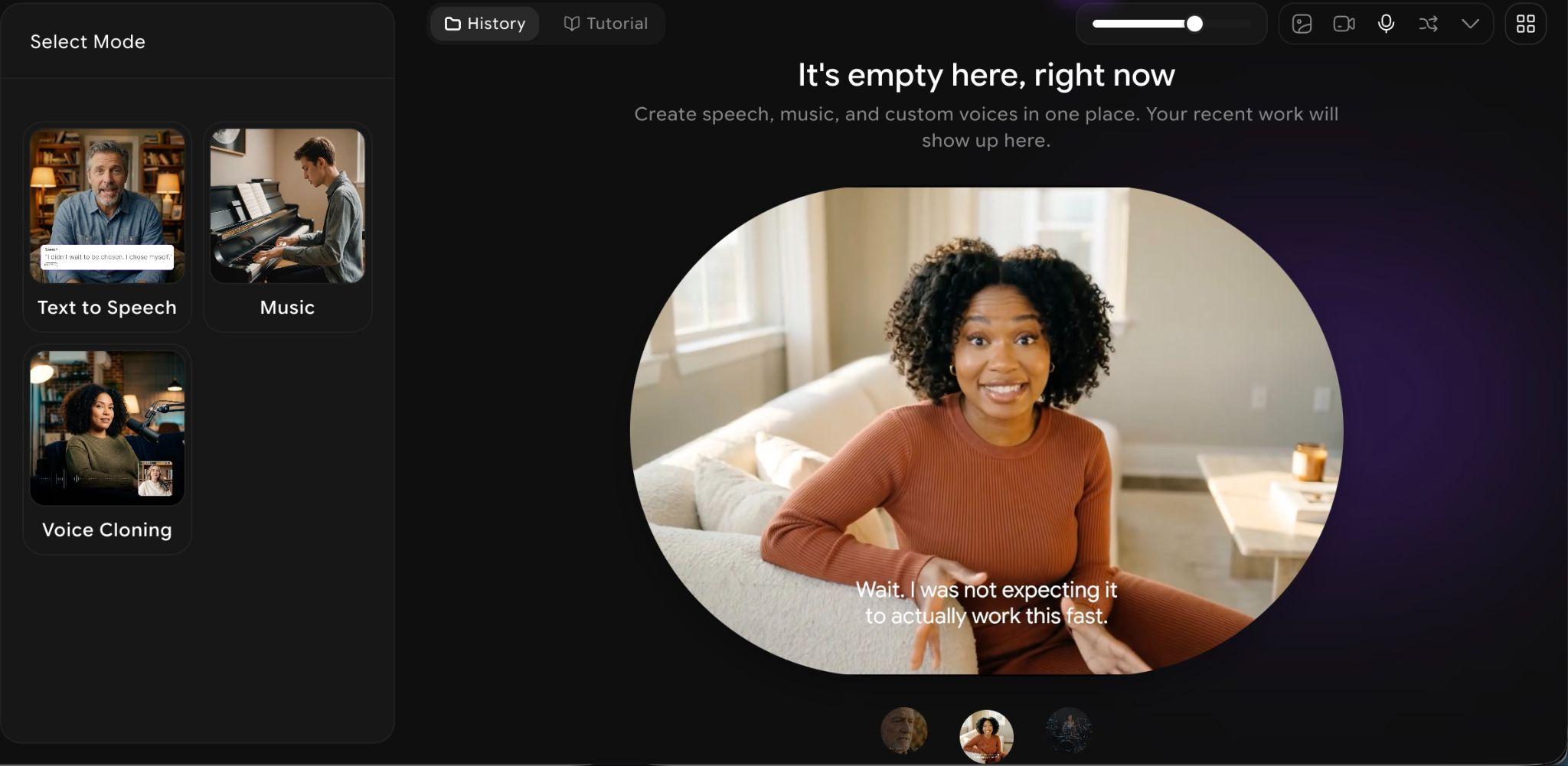
ImagineArt also includes a set of audio tools that support multimedia creation workflows. These tools are designed to complement both image and video generation.
ImagineArt covers:
- Text-to-Speech: Converts written scripts into spoken audio for narration or voiceovers.
- AI Music: Creates background music tracks based on mood or style prompts.
- Voice Cloning: Allows users to replicate or design custom voice styles for consistent narration across projects.
Video Upscaler
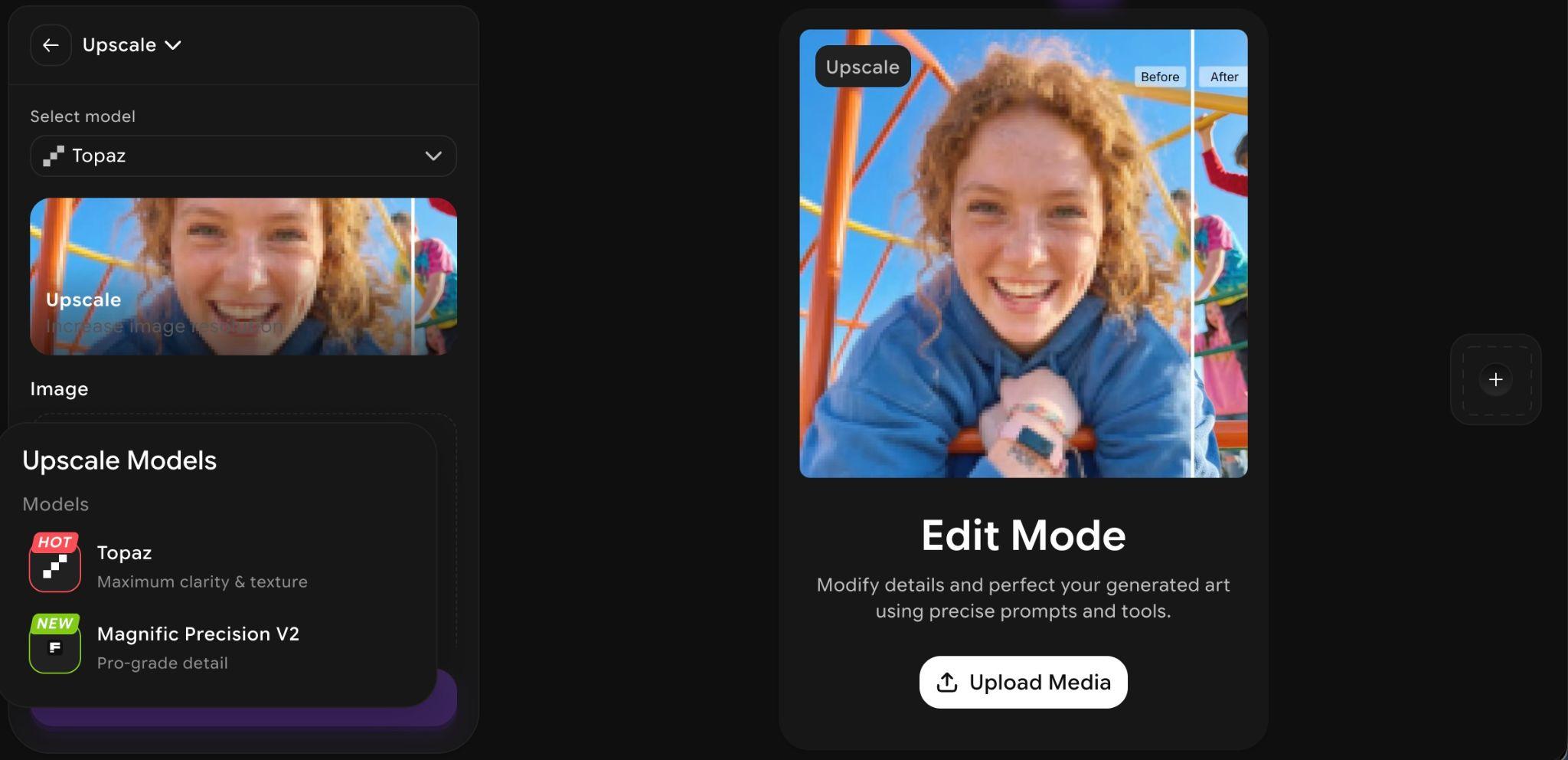
ImagineArt includes a video upscaler tool that improves the resolution and clarity of generated or uploaded videos, supported by two different enhancement engines:
- Topaz: Improves sharpness and clarity while maintaining natural-looking video. It focuses on clean enhancement without changing the original style too much.
- Magnific Precision V2: Adds stronger detail and texture, making the video look more enhanced and visually rich. It can produce a more stylized result compared to Topaz.
Part 4. ImagineArt Studio: Create a Film and Ad Quickly
One of the more interesting additions in ImagineArt is the introduction of Studio-based creation modes, especially the Film Studio and Ad Studio. These features shift the platform from single-image or single-video generation into more structured content creation, where you can build complete visual stories or marketing materials with less manual setup.
Film Studio
Film Studio is designed for creating short narrative-style videos. Instead of generating isolated clips, it helps structure scenes more efficiently.
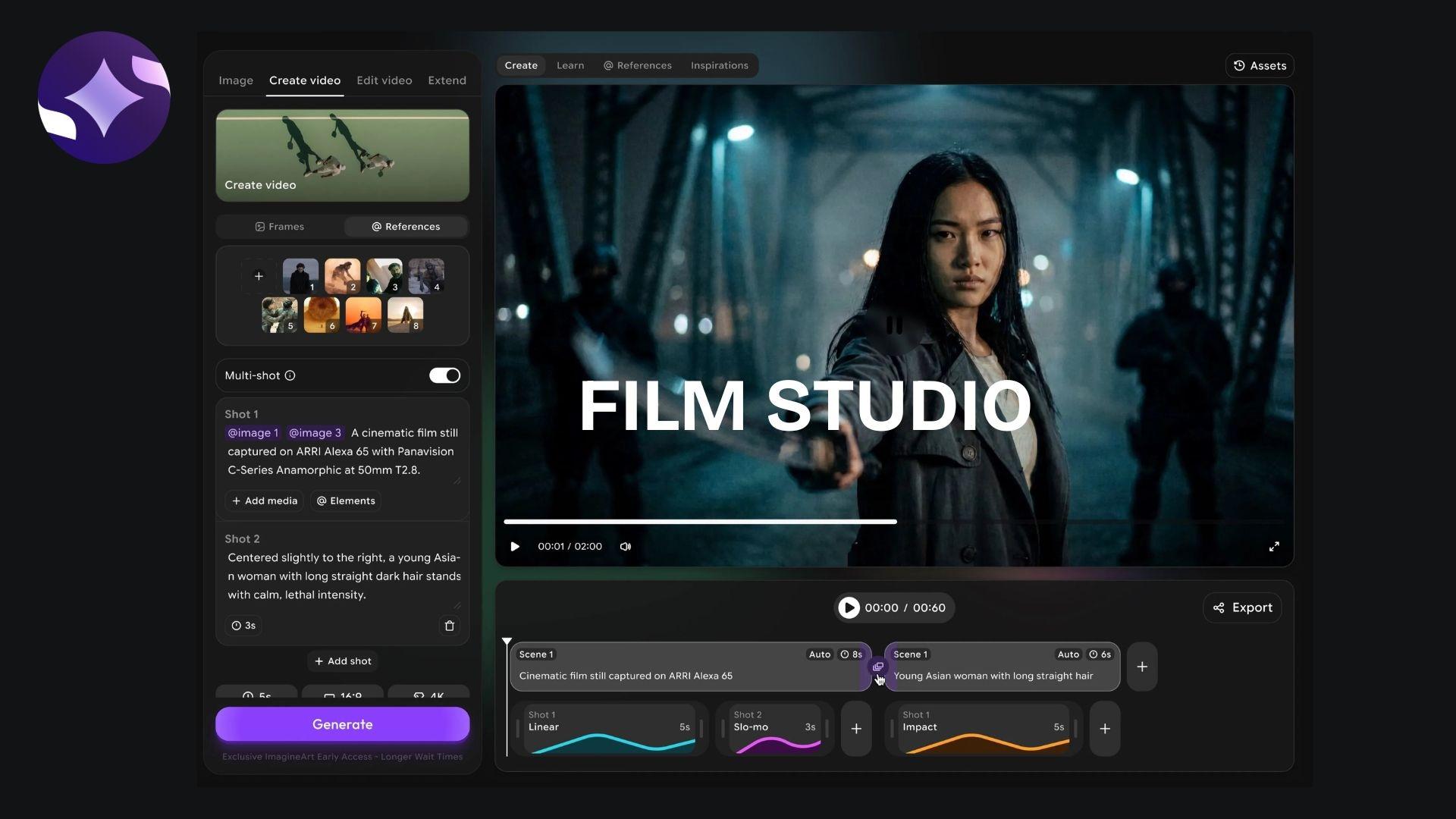
Key features:
- Building short cinematic sequences
- Maintaining visual consistency across scenes
- Helping users turn ideas into story-driven videos
- Offering guided generation for pacing and structure
In practice, Film Studio is useful for concept videos, storytelling experiments, and short cinematic drafts. It reduces the need to create and combine multiple clips manually.
Ad Studio
Ad Studio is designed specifically for marketing-style content. It focuses more on producing quick, structured results, which can be used for promotional purposes.
Key features:
- Creating short promotional videos and ad creatives
- Generating content with a clear message and visual focus
- Supporting product or brand-based storytelling
- Faster output for social media ads and campaigns
How Studio Mode Differs from Regular Generation
Compared to the standard AI generation tools in ImagineArt, Studio Mode feels more guided and structured.
| Standard Generation | Studio Mode | |
| Creation Approach | Prompt-based and flexible, allowing you to experiment with different ideas | Workflow-based and structured, guiding you through the creation process |
| Creative Focus | More open-ended and adaptable | More guided with specific goals, such as storytelling or marketing |
| Content Creation | Often requires combining multiple generated clips or images manually | Helps create complete projects with fewer separate generations |
| Main Use Case | Experimentation, social media clips, and creative freedom | Streamlined production for narrative videos or promotional content |
Part 5. ImagineArt Review: Pros and Cons You Should Know
After testing ImagineArt for image creation, video production, and its studio tools, the platform shows a clear mix of strengths and limitations. It performs well as an all-in-one creative tool, especially for quick content production, but sometimes feels more limited, and consistency feels more restricted compared to dedicated professional tools.
- A wide range of tools in one platform (image, video, audio, editing, and enhancement)
- Quick Mode makes it easy to generate content without technical setup
- Strong variety of AI models, including ImagineArt 2.0 for improved image quality
- Studio tools (Film Studio and Ad Studio) help speed up structured content creation
- Useful built-in editing features like inpainting, upscaling, and background removal
- A free plan is available for testing before committing to a subscription
- Suitable for both beginners and more advanced users, depending on workflow choice
- The credit system can feel limiting during heavy experimentation
- Video generation quality may vary depending on the model and the prompt detail
- Advanced workflows (node-based system) require time to learn
- Some outputs still need refinement in external editors for professional use
- Premium features and models are locked behind higher-tier plans
- Consistency across generations isn't always reliable, especially when it comes to video
Part 6. ImagineArt’s Alternative for AI Images, Videos, and Editing
ImagineArt works well for generating visuals quickly, but once you start refining results or building a full video project, the credit system and regeneration workflow can feel limiting. Every adjustment often means generating again, which can slow down the creative process and consume additional credits.
For users who want greater control over post-creation editing, Wondershare Filmora is a practical alternative. Unlike relying on repeated AI generation, Filmora focuses on a timeline-based editing workflow, where you can freely create, adjust, and refine content without worrying about credits.
Why Filmora Fits Better for Editing Workflows
One of the biggest advantages of using Filmora is flexibility. Once you generate or import AI visuals, you can edit everything directly in the timeline without having to create assets from scratch. This gives you more control over the entire production process and allows you to:
- Avoid regenerating content repeatedly, so you don’t waste credits when making changes
- Adjust and arrange images, videos, audio, transitions, and effects exactly how you want
- Refine AI-generated assets into polished final videos with less effort
- Make changes faster without disrupting your overall creative process
What Filmora Offers
- Generate and Edit in One Place with Multimodal Support: Filmora brings AI image generation, video generation, AI audio tools, and text-based assets together in a single editing environment.
- Timeline-Based Editing: Arrange clips, adjust timing, and fine-tune transitions with full manual control, similar to professional video editing software.
- AI-Powered Editing Tools: Includes more AI features like auto-subtitles, background removal, AI Extend, smart enhancements, and more to speed up post-production.
- Desktop and Mobile Support: Available on both desktop and mobile devices, making it easier to continue editing across platforms.
- Creative Assets and Templates: Offers built-in templates, effects, transitions, and stock assets that help turn raw AI outputs into complete videos faster.
 Secure Download
Conclusion
ImagineArt feels most useful when you need to quickly turn ideas into visuals without setting up a complex workflow. In testing, it handled simple prompts well and offered enough variation through its models and studio tools to explore different directions for images and short videos.
However, the results are not always consistent, and refining outputs often takes a few attempts, which ties back to the credit system. If you prefer a more complete and flexible creative workflow, you may find a dedicated video editor like Filmora more suitable.
FAQs
-
What is ImagineArt used for?
ImagineArt is used to create AI-generated images, videos, and other visual content from text prompts. It’s commonly used for social media content, marketing visuals, concept art, and short video creation. -
What is ImagineArt 2.0?
ImagineArt 2.0 is one of the platform’s latest image-generation models, designed to improve prompt understanding, image detail, and overall output consistency compared to earlier versions, with a core focus on photorealism, prompt accuracy, and style range. -
Does ImagineArt have a mobile app?
Yes, you can download a mobile ImagineArt app on the (for iOS) and (for Android) to generate and edit AI visuals directly on your phones. -
Is ImagineArt free?
Yes. ImagineArt offers a free plan with daily credits allowing users to try creating images and videos, although advanced models and higher usage limits are available on paid plans. -
What is ImagineArt MCP?
ImagineArt MCP refers to its model control and workflow system to help manage how AI models interact within the generation workflow, especially for more advanced or node-based creation setups.
