


Finding the right AI tool for a creative project can be harder than making the content itself. You may want one model for realistic video, another for image generation, and a third for editing, only to end up switching between platforms and keeping track of different credits and workflows.
But with MakeShot, you can generate videos and images using models such as Veo, Kling, Seedance, Nano Banana, and Flux. You can choose a model based on the result you want and save your work right in the platform.
Even so, having a long list of models doesn't guarantee better results. This review puts MakeShot AI’s video and image tools to the test, focusing on output quality, ease of use, and how well it fits into a complete creative workflow.
Part 1. What Is MakeShot?
If you need different AI models for various types of content, MakeShot gives you those options from the same dashboard. It’s an AI platform for generating videos and images, with separate models available for each type of generation.
You can choose a model based on the desired results, then compare outputs when one model doesn't quite get the look or movement you want. For creators who like testing different models, having these options in one place can save the time they’d normally spend going back and forth.
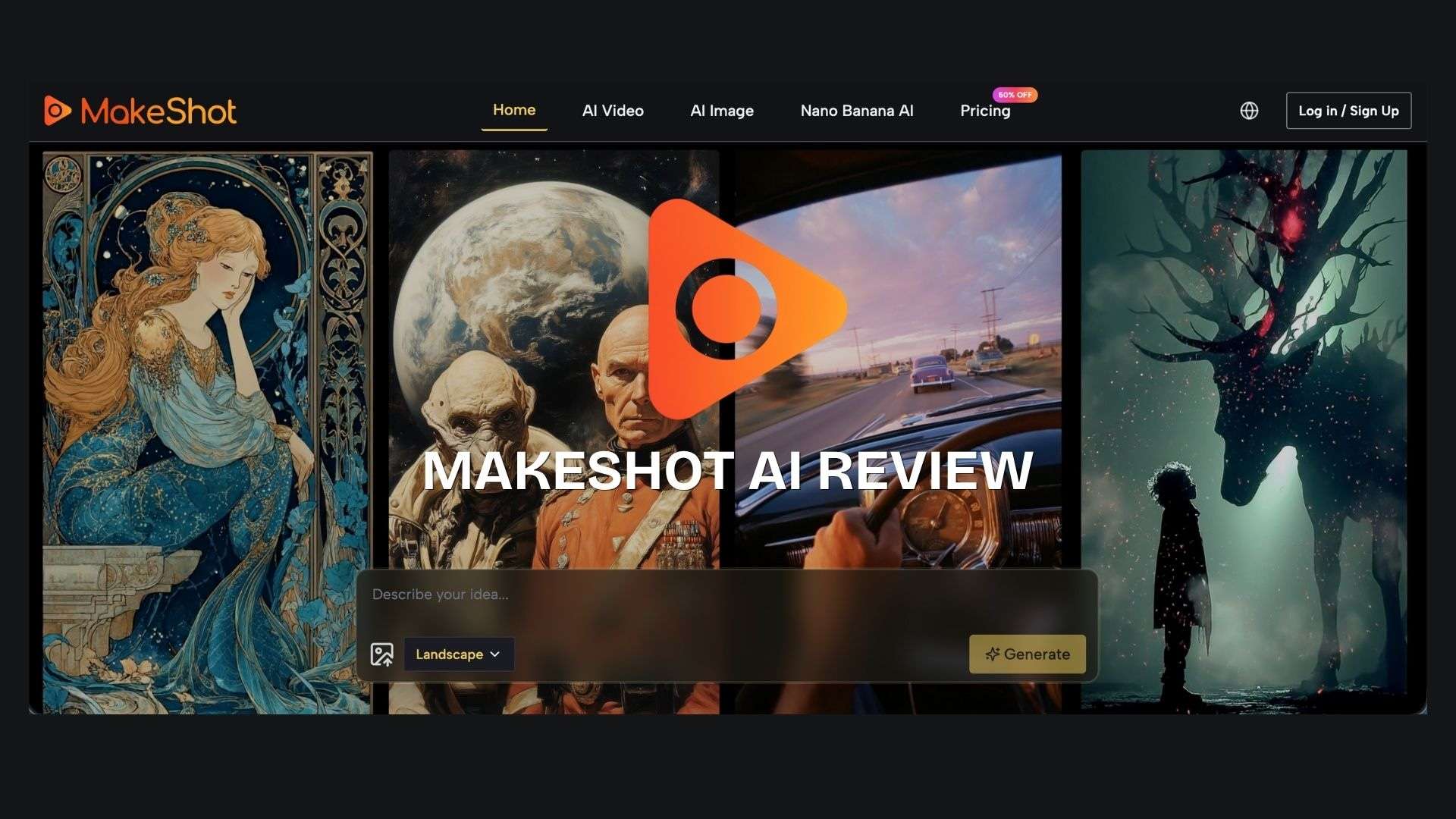
Popular models available on MakeShot include:
AI Video
- Veo
- Seedance
- Kling
- Wan
- Grok
- Runway
AI Image
- Nano Banana
- Qwen
- Grok
- Seedream
- Flux
- GPT-4o
Part 2. MakeShot AI Features
MakeShot AI is split into two main creative tools. The AI video generator turns prompts or still images into moving clips, while the AI image generator handles both new image creation and edits to existing visuals.
AI Video Generator

MakeShot AI Video Generator lets you create clips from either a written prompt or an existing image.
- Text-to-video: Describe a scene and let the selected model turn it into a video.
- Image-to-video: Upload an image and use it as the starting point for an animated clip.
- Video models: Choose from different models based on the style, motion, or quality you want to create.
AI Image Generator
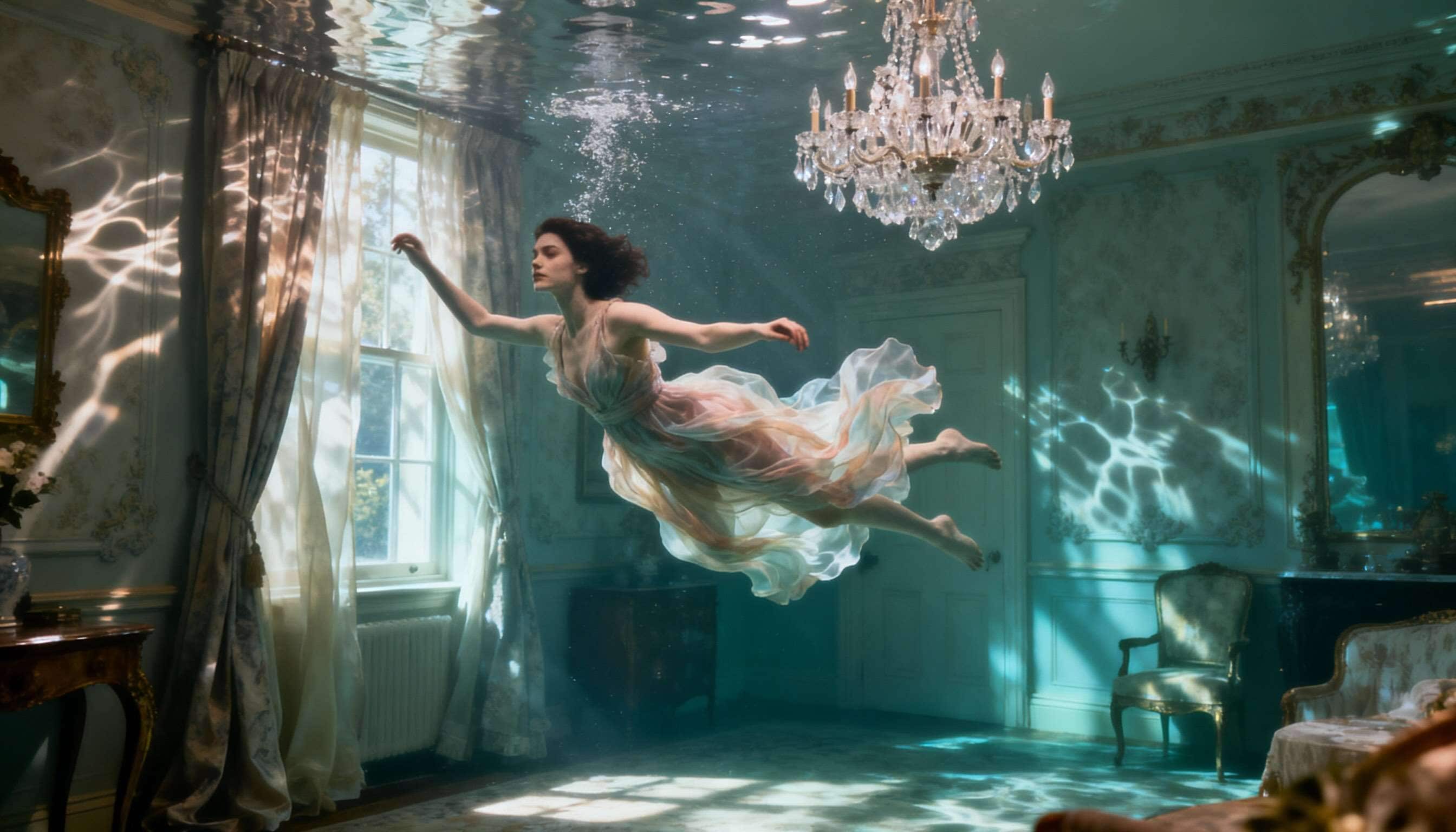
MakeShot AI Image Generator covers both image creation and editing, giving you more ways to refine visuals before turning them into video.
- Text-to-image: Generate an image from a written prompt.
- Image editing: Modify an existing image based on your instructions.
- Reference images: Use uploaded images to guide the generated result and maintain visual details.
- Image models: Choose from different models depending on the type of image or edit you need.
Part 3. MakeShot AI Test: How Good Are the Results?
Having several MakeShot AI models to choose from does sound useful, but the real test starts when you enter a prompt and wait for the result. We tested the tool’s videos and images to see how well it performs when tested with real prompts.
Video Test
For the video test, we used prompts with different scenes, subjects, and movements. We focused on four areas:
- Prompt accuracy: How closely the video follows the prompt
- Video quality: Sharpness, detail, and overall visual quality
- Motion: How naturally the subjects and camera move
- Consistency: Whether characters, objects, and details stay stable
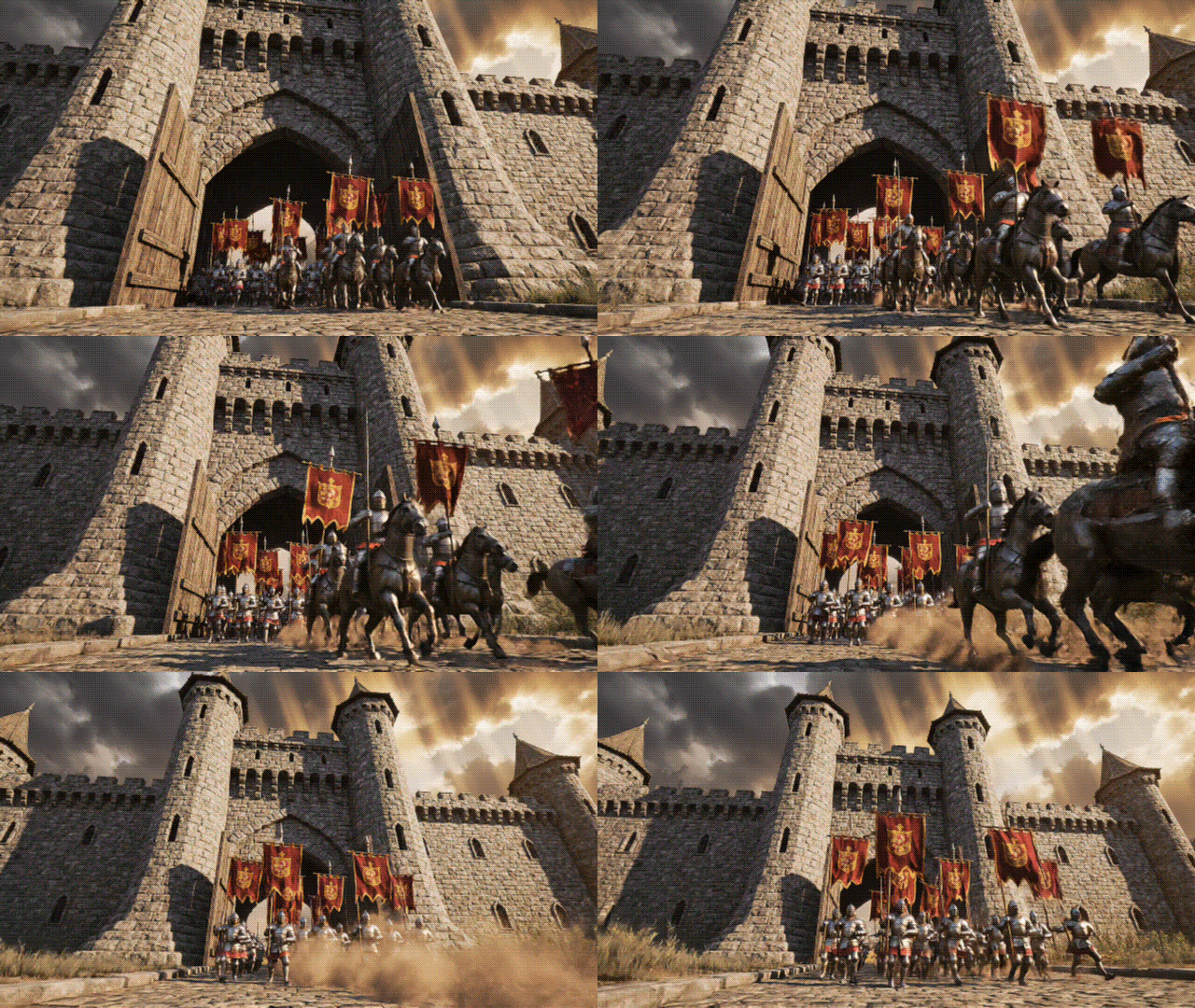
Prompt: “A cinematic low-angle shot of a tall medieval castle. The camera moves forward and tilts up as knights march through the gates. Their banners wave in the wind while horses gallop past, kicking up dust. Dramatic fantasy atmosphere with realistic details and natural movement”
Model: Veo 3
Result: The overall result is quite convincing, although some minor details become less consistent when multiple subjects move simultaneously.
Rating: 4.7/5✮
Image Test
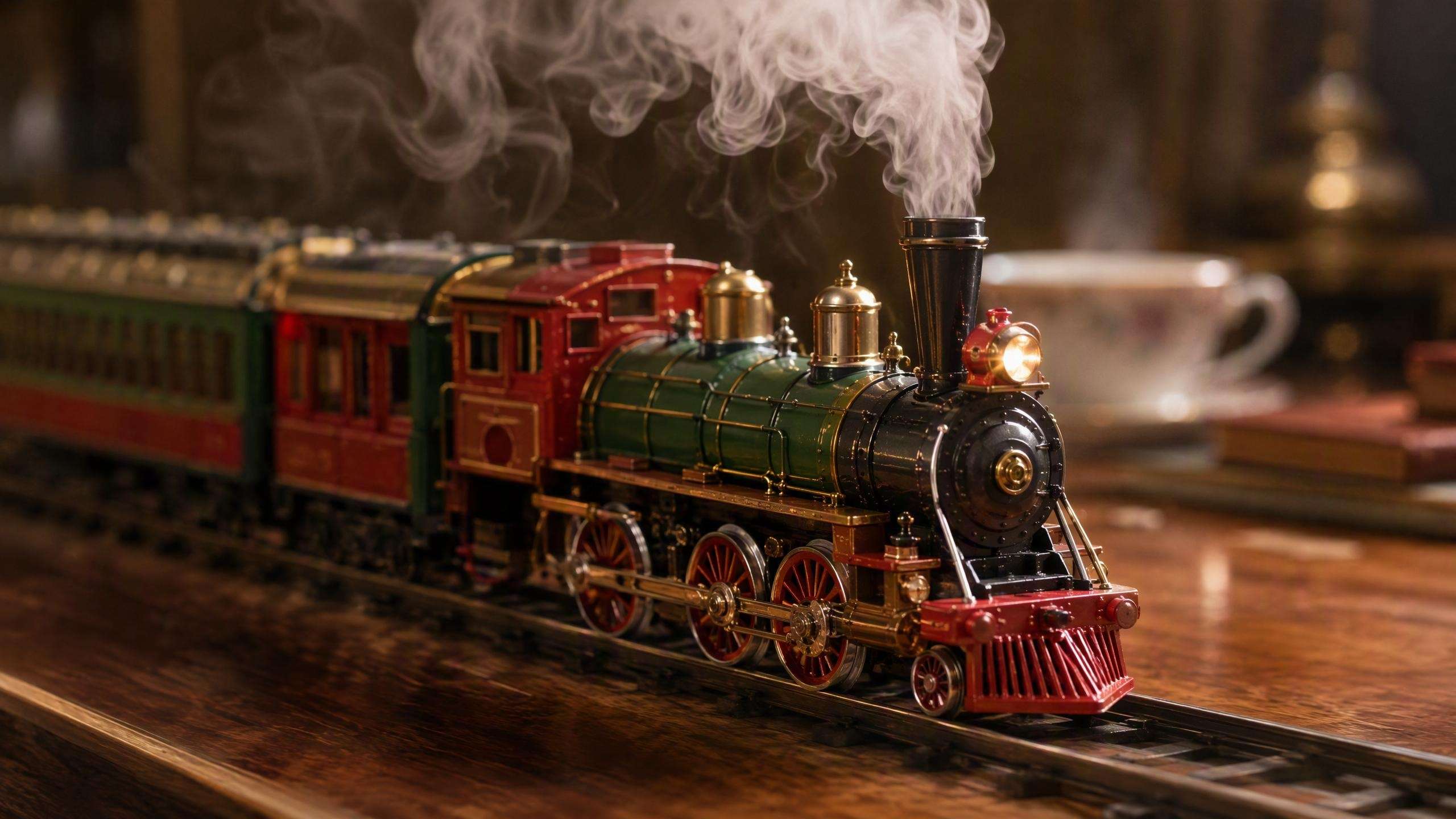
We also tested MakeShot's image tools with different prompts and editing tasks. We focused on:
- Image quality: Sharpness and overall visual quality
- Prompt accuracy: How closely the image matches the prompt
- Detail: Faces, objects, textures, and backgrounds
- Editing results: How accurately the tool applies requested changes
Rating: 4.2/5✮
Result: The results varied by model and task. Some models produce better visuals right from the start, while others are more useful for editing or working with reference images.
Best AI Models
Results vary considerably across various models. Some stood out for realistic visuals, while others handled movement, image editing, or reference images better. Here's how the models compare for different tasks:
| Use case | Best model | Why |
| Realistic video | Veo 3 | Strong visual quality and natural-looking scenes |
| Dynamic movement | Kling | Better suited to fluid action and motion |
| Cinematic scenes | Veo 3.1 | Strong detail and cinematic control |
| Fast video generation | Seedance | Built for faster, high-volume generation |
| Stylized video | Wan | Better suited to artistic and stylized visuals |
| Photorealistic images | Flux | Strong detail and realistic results |
| Reference-based images | Nano Banana | Supports multiple reference images for consistency |
| Image editing | Qwen Image Edit | Designed specifically for editing existing images |
|
Show More
Show Less
|
||
Part 4. MakeShot AI Pricing: Is It Worth the Cost?
MakeShot uses a credit-based pricing system, so the amount of content you can create depends on both your plan and the AI model you use. Some models cost more credits than others.
| Plan | Monthly | Yearly | Credits |
| Starter | $29.99/mo | $100/year | 2,500/mo or 10,000/year |
| Pro | $89.99/mo | $300/year | 10,000/mo or 32,000/year |
| Unlimited | $149.99/mo | $900/year | Unlimited* |
*Unlimited usage applies to eligible models. Some premium models still use credits.
How MakeShot's Credit System Works
MakeShot AI doesn't charge the same number of credits for every generation. The cost depends on the model, video duration, and other generation options.
For example, a premium video model can use far more credits than an image model. This means a 10,000-credit plan could last much longer for image generation than for frequent high-end video generation. Before choosing a plan, check the credit cost of the models you actually plan to use.
Which MakeShot Plan Offers the Best Value?
- Casual users: Starter is enough for occasional experiments.
- Content creators: Pro offers a good balance of credits and price.
- Frequent AI video users: Unlimited might make more sense, especially if you primarily use eligible models.
- Professional users: Pro works for predictable usage, while Unlimited is better for heavier workloads.
Part 5. MakeShot AI Pros, Cons, and Final Verdict
After testing MakeShot's video and image tools, we found it most useful for trying different models on the same project. You can compare the results, pick the one you like, and keep creating in the same platform. The main downsides are the credit system and limited video editing.
- Choose from a wide range of video and image models
- Create both types of content from the same platform
- Compare different models for the same creative idea
- Paid plans include a commercial license
- Watermark-free content on paid plans
- Different models use different amounts of credits
- Some premium models still require credits, even on the Unlimited plan
- MakeShot focuses on generation, so you'll need another editor for more detailed post-production
Is MakeShot AI Worth It?
MakeShot AI is best suited if you want to compare various AI models without paying for several separate tools. The value is less obvious if you only use one model or need advanced editing after generation.
Best for
- Content creators who make both videos and images
- Users who like testing different AI models
- Creators who want access to several models under one subscription
- Commercial projects that need watermark-free outputs and commercial licensing
Not ideal for
- Users who only need one specific AI model
- People who mainly need detailed video editing
- Users who don't want to track different credit costs
Final Verdict
MakeShot AI is a good option for creators who regularly make AI videos and images and want to try different models without subscribing to each one separately. The results are generally satisfying, especially when the model matches the prompt, but premium generations can use credits quickly. Pro is the most convenient option for regular use, while the Unlimited plan better suits more intensive users.
Bonus: Using MakeShot and Filmora for a Complete Workflow
MakeShot works well for generating different versions of a scene, testing models, and selecting the clips you like best. Once you have the footage, you may need more control to edit those clips into a complete video.
Once your MakeShot clips are ready, you can import your MakeShot clips into Wondershare Filmora and compile a video using those clips. Filmora also has AI video and image generation tools, so you can create extra visuals if a scene needs more footage.
What Filmora Adds to the Workflow
- Timeline editing lets you trim clips, arrange scenes, and control exactly when each clip appears.
- Captions and subtitles help you add and style text for spoken content.
- Music and sound let you add background music, sound effects, voiceovers, and adjust audio levels.
- Transitions help connect separate AI-generated clips more smoothly.
- Effects give you more options to change the look of your footage or add creative elements.
- Precise editing controls let you fine-tune timing, audio, and individual elements instead of accepting the AI output as it is.
Recommended workflow: Generate and compare clips in MakeShot, then move the best ones to Filmora for editing and final touches.
 Secure Download
Conclusion
MakeShot AI is most useful when you don’t want to be limited to just one AI model. You can test different options, compare the results, and choose the one that works best for a specific scene or image. The downside is the credit system, especially when using higher-cost models for video. For regular creators, the Pro plan is the best fit. MakeShot handles the generation side well, but it isn't meant to replace a full video editor.
If your project needs clean cuts, synced audio, captions, transitions, or detailed adjustments, you'll still need an editor such as Filmora for the final edit.
FAQs
-
Can MakeShot AI use multiple AI models in one project?
Yes. MakeShot gives you access to multiple video and image models, so you can try different models and compare their results for your content. -
Can I edit a video after generating it with MakeShot AI?
MakeShot focuses mainly on AI generation, so its video editing options are limited. You can generate your clips in MakeShot, but detailed editing requires another video editor. -
Can I use my own images as references in MakeShot AI?
Yes. Supported models let you use your own images as references to guide the generated result. -
How do MakeShot AI credits work for different models?
The cost depends on the model and type of generation. Video models can also use different amounts of credits based on factors such as duration and other settings.
