


 TL;DR:
Overlap AI is an automated video clipping and scheduling platform built for teams scaling spoken-word content, but it lacks the advanced timeline control required for intricate visual editing.
● Accessing the platform requires booking a mandatory demo call, as there is no free tier or free trial available for its node-based workflow system.
● The clip detection relies on language understanding that is highly effective for lengthy podcasts and webinars, though the automated outputs frequently miss contextual nuance and demand manual review.
● Users requiring advanced transitions, frame-level control, or image-to-video generation utilizing Veo 3.1 and Seedance 2.0 models will need to export their clips into a dedicated timeline editor like Wondershare Filmora.
Ask AI for a summary
 ChatGPT
 Perplexity
 Gemini
 Claude
 Grok
Grok
Long videos are dense but slow to reuse. Podcast Producers, YouTubers, coaches, and marketing teams typically have one exciting episode but require five or ten short clips from it.
Currently, short-form video content drives reach on TikTok, YouTube Shorts, Instagram Reels, and LinkedIn. But making them from long videos takes time. You still need to find the best moments, cut them cleanly, and make each clip fit the platform.
Overlap AI is built around that exact workflow. It helps spot clip-worthy moments in long videos and prepares them for short-form posting. This Overlap AI review checks if it can really save time, keep clips relevant, and support creators who need steady content without spending hours on manual edits.
Part 1. Meet Overlap AI: What It Is and Who It’s For
Overlap AI is a platform that combines clipping, editing, scheduling, and analytics into one system. Powered by AI, you can use it to create short, shareable clips of a long-form video, so you don't have to sit through hours of video anymore. Just upload a video, and the AI finds the best bits for you. You can then have them edited, scheduled, and tracked in one place.
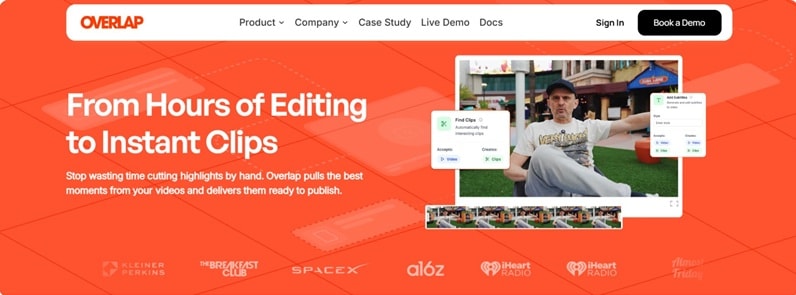
Who’s Using Overlap AI
- Podcast creators repurposing episodes into short clips
- YouTubers creating Shorts from long videos
- Marketing teams producing social media content
- Agencies handling multiple client accounts
- Media companies managing high-volume video output
- Educators and webinar hosts sharing highlights
The platform is clearly built for scale. If you publish content regularly, especially across platforms, Overlap AI video workflows can reduce repetitive work.
Part 2. Core Features: What Overlap AI Actually Does
At its core, Overlap AI is not just picking random highlights. It is designed to help creators move from raw footage to short clips through a more organized workflow. Let's see what it actually does with your long video.
1. AI Video Clipping
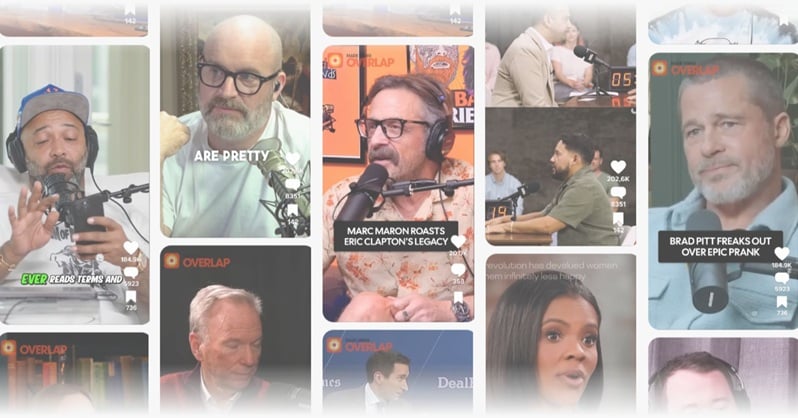
Overlap AI videos are created on the basis of language understanding in order to scan hours of content like podcasts, webinars, interviews, etc. It finds special moments with important hooks, points, emotions, or better pacing.
The aim is to pull out clips that feel ready for social platforms, instead of forcing you to watch the full video and cut everything by hand.
2. Workflow Automation
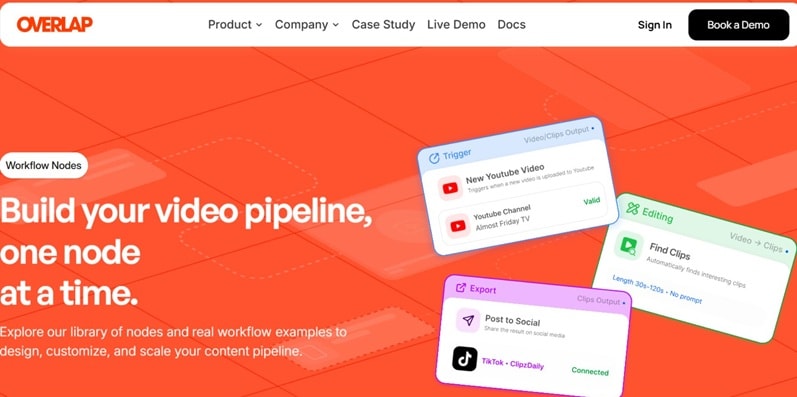
Overlap AI can automate repeated steps in your content process. For example, a new upload from YouTube or Dropbox can trigger the next actions. It can help find clips, add subtitles, and prepare videos in vertical format for platforms like TikTok, Reels, and Shorts
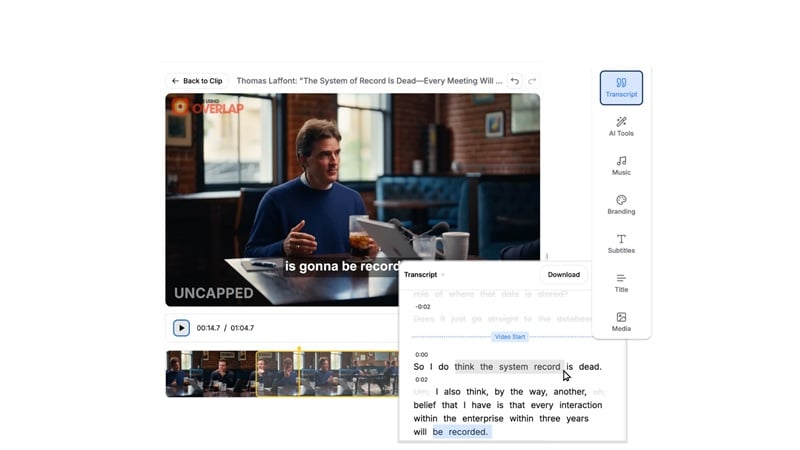
3. Built-in Video Editor
Overlap AI also includes an editor for quick changes after the clips are generated. You can refine the final result before posting. It also supports brand-focused editing, such as adding watermarks, title styles, caption styles, templates, and color choices. This helps every clip look more consistent.
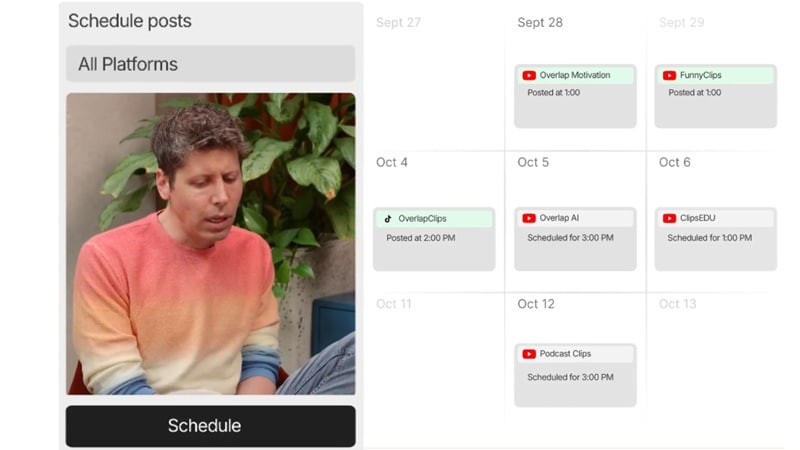
4. Social Planner
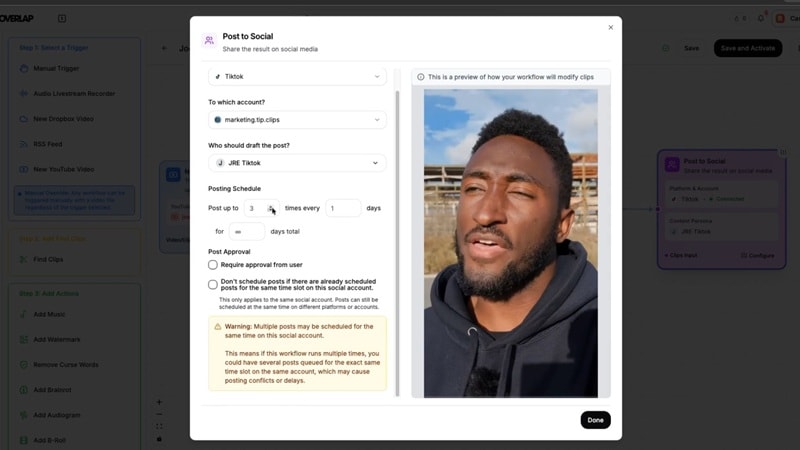
After editing, you can plan and publish clips from the same platform. This saves time because you do not need to download each clip and upload it again to every social account. For teams handling many clips, this makes the whole process easier to manage.
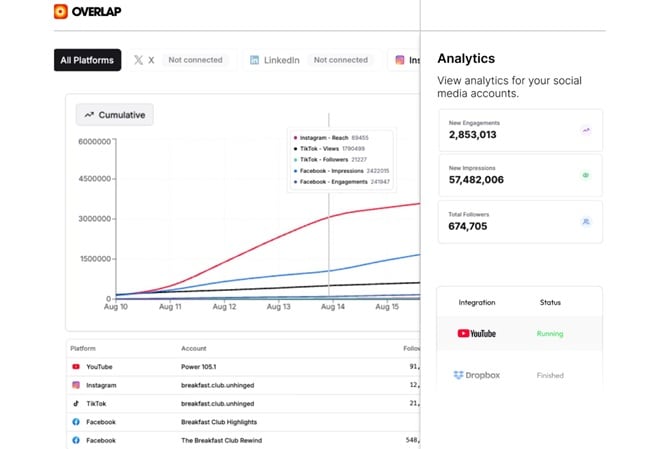
5. Analytics
Overlap AI includes analytics to show how clips perform across channels. You can track views, engagement, and content results. This feature helps creators and teams see which clips work best, then use that data to plan better content next time.
Part 3. Where to Access Overlap AI & How to Use It
You can access Overlap AI primarily through:
- Official Website: Overlap.ai is the main hub for the service.
- Overlap Studio: The login portal for the video clipping tool is located at studio.joinoverlap.com/login.
- Documentation: Technical details and user guides are available at docs.overlap.ai.
Before you can do anything inside the platform, you need to make a demo call. You can schedule one at overlap.ai/book. Overlap AI pricing usually starts around $14 – $20/month for individual creators and $250/month for the Team plan. There’s custom pricing for Enterprise.
How to Create Your First AI Video with Overlap
Once you have access, the process runs through three stages: setting up a workflow, feeding it a video, and reviewing the output.
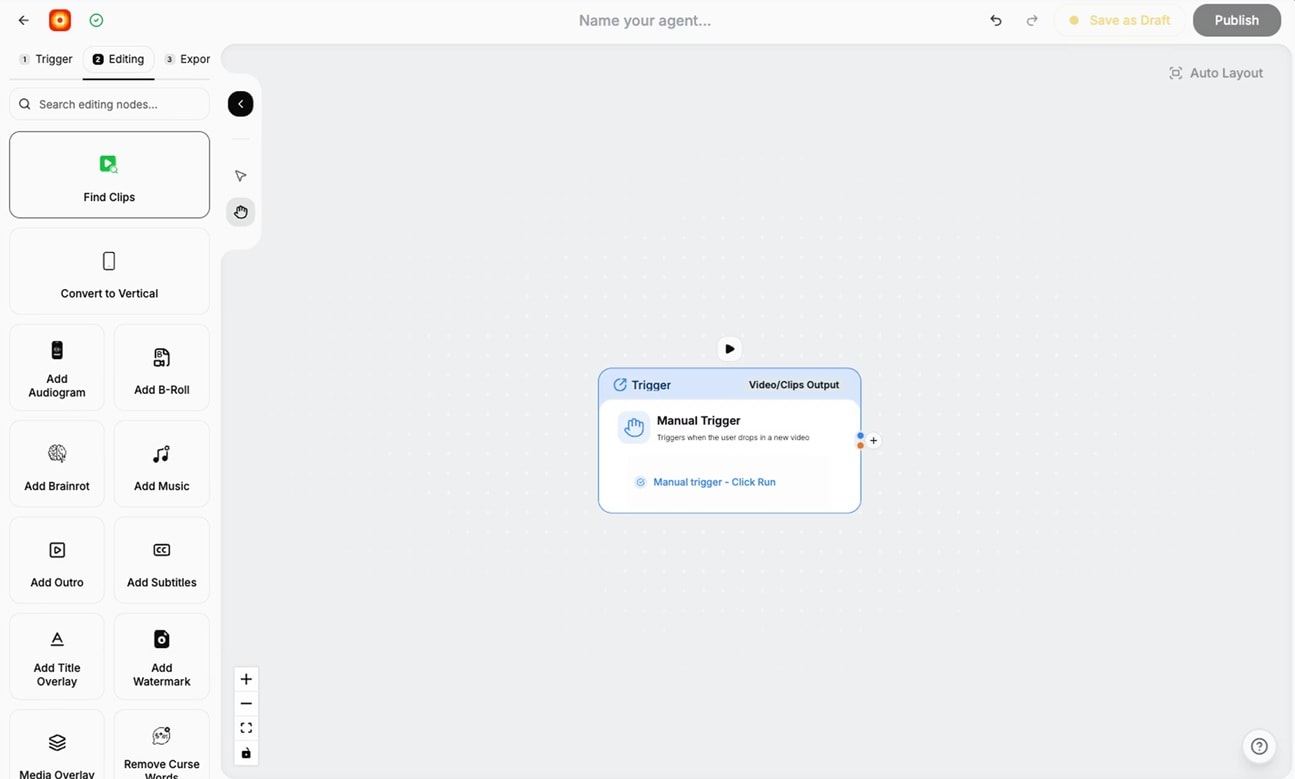
Build the workflow in three parts:
- The Trigger (how it starts)
- Editing (what Overlap does to the content)
- Export (what the final output looks like).
- Paste a media URL
- Upload a file, or
- Pull one in from Dropbox
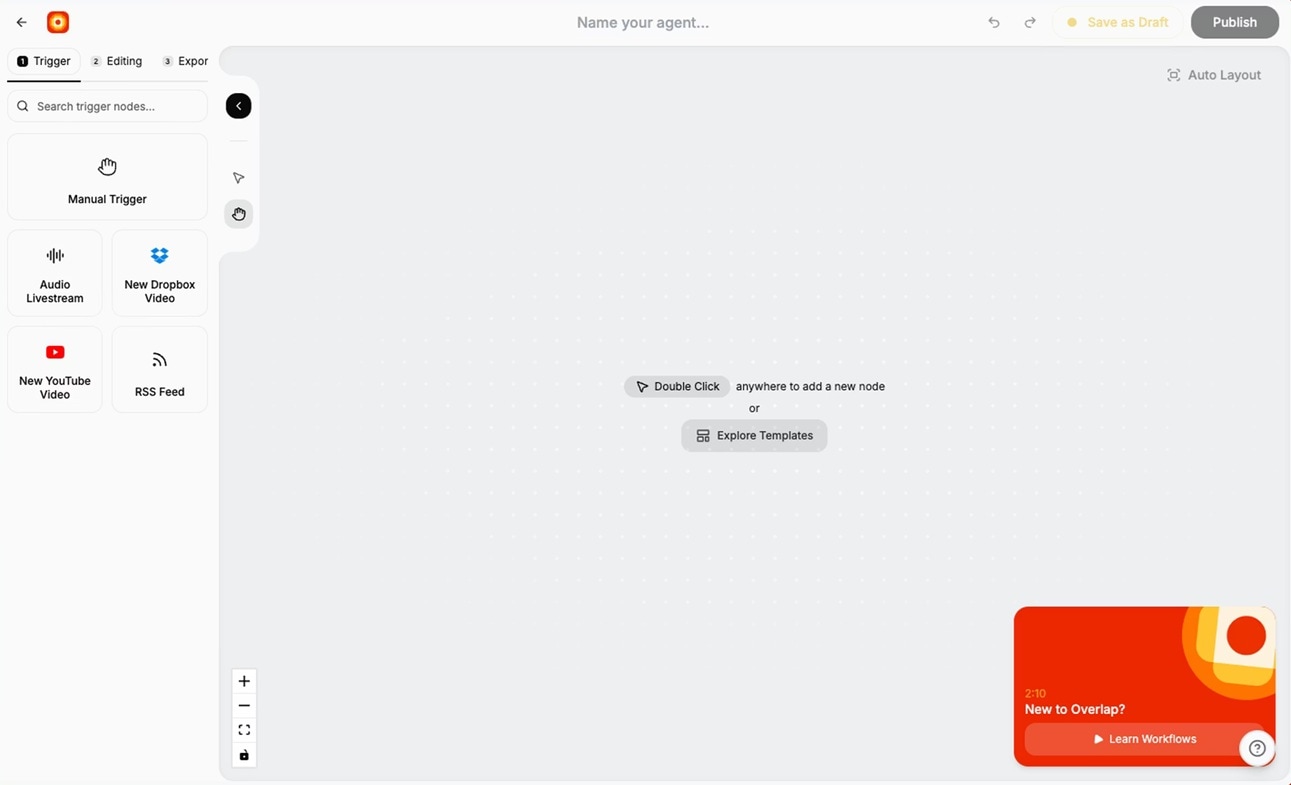
Once a run starts, Overlap surfaces the results in Home under your projects so you can see new clips as they come in. Processing takes around 5 to 10 minutes.
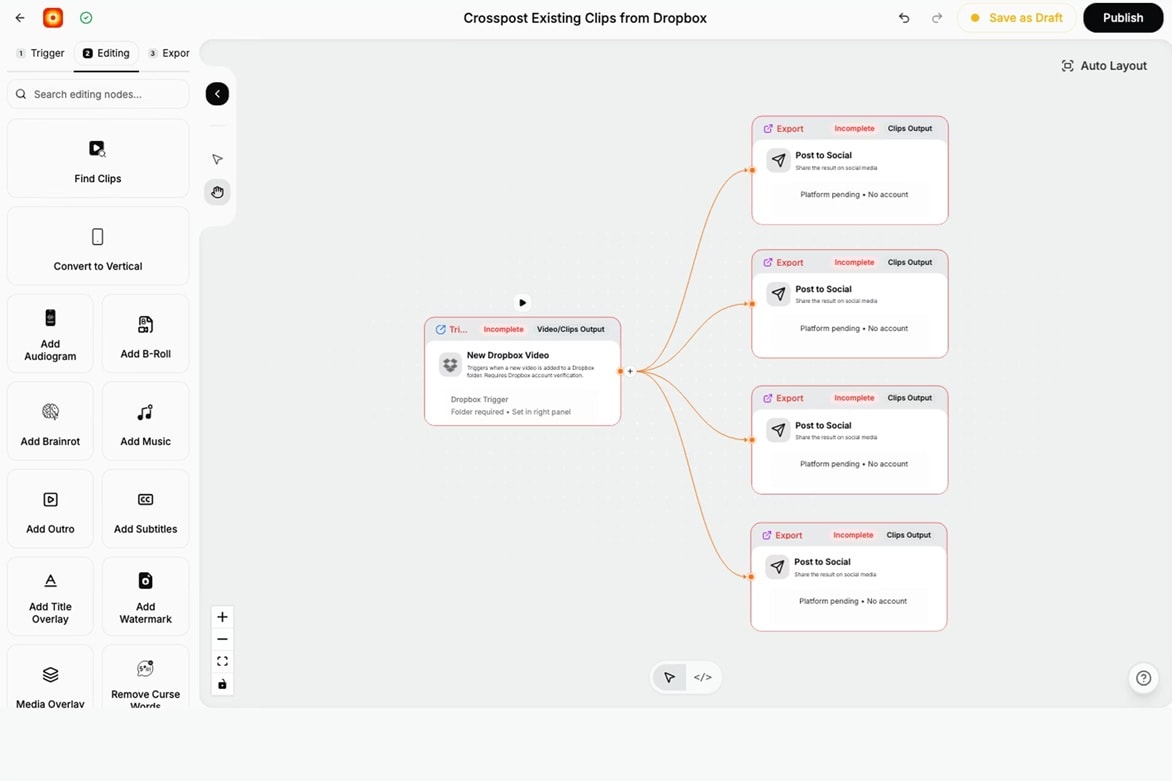
Overlap is best for:
- Scaling Short-Form Video Production for Social Media Growth
- Automating Long-Form Content Repurposing
- Ensuring Brand Consistency Across Social Accounts
- Secure Enterprise Video Content Automation
Part 4. Overlap AI Review: A Hands-On Experience
An Overlap AI Review wouldn't be complete without looking at hands-on experience. So, this section looks at Overlap AI through the points creators care about most:
First Impression
Overlap AI feels more like a short-form content workflow tool than a basic video cutter. Product Hunt describes it as a “multimodal video marketing agent” for autonomous editing and short-form content. This is a better placement for podcasters, YouTubers, agencies, coaches, and marketing teams. Though if you are only needing a single quick cut, this might come off as bigger than necessary.
Ease of Use
Overlap AI seems easy enough for creators who already know their content goal. Beginners may need time to learn the workflow style. It uses a node-based visual builder where you map out what you want to happen. There’s no coding is required, but thinking in workflows does take some getting used to if you've never used a tool like this before.
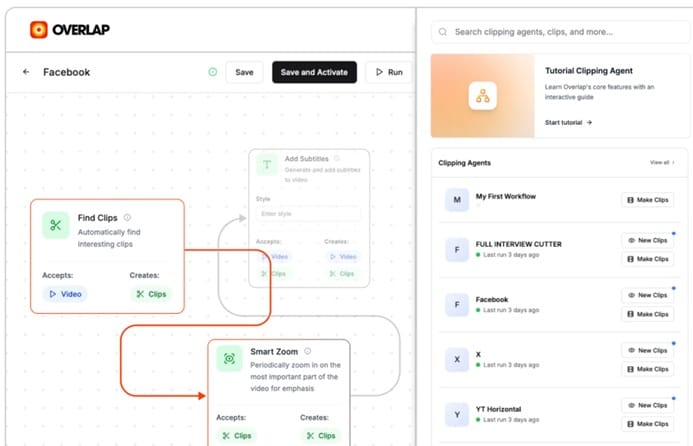
Clip Quality
SaaSworthy notes that Overlap turns long-form content into branded clips and uses Clipping Agents to find key moments without manual timestamps. That sounds useful for social media teams. But AI clips still need review. Some clips may need a stronger hook, a cleaner ending, or more context before posting.
Speed and Performance
Speed is one of the main advantages of the Overlap AI app. FutureTools describes it as an AI-powered video editing tool that helps users generate clips, analyze video content, and create social-media-ready videos. Public demos also show fast turnaround from upload to usable clips, especially for repeat workflows.
Editing Control
AI Agents List says Overlap AI supports customizable workflows. So, it looks strong for social-ready edits and repeat workflows. For advanced effects, deep audio repair, complex transitions, or frame-level editing, creators may still need a dedicated video editor.
Pros and Cons of Overlap AI
- Saves time: Highlights are much faster compared to lengthy episodes if you're watching them in 10–20 minutes.
- More relevant than a basic feed: The personalized playlists feel more targeted and less random.
- Easy to use: The app feels simple to navigate, without confusing steps or weird navigation issues.
- Sharing is genuinely useful: Sending a clip is much better than saying, “Watch Episode 42 from 18:10.”
- Content depends on availability: If the app does not include certain shows or enough coverage, you will notice the gap.
- Not ideal for full-episode fans: If you enjoy the full story or complete discussion, Overlap may feel too brief.
- Highlights can miss nuance: Clips are useful for key points, but sometimes the surrounding explanation is what makes the idea clear.
Part 5. Take Your Clips Further With Wondershare Filmora
Overlap AI automates the clipping and posting side of short-form content well. What it's not built for is detailed editing. In that case, Wondershare Filmora covers that for you. It can turn those clips into high-performing content.
 Secure Download
Why Filmora Complements Overlap AI
1. Repurpose Long Videos Into Shorts Instantly
Filmora is not just a regular video editor. It has a built-in Smart Short Clips feature that automatically detects highlight moments from a long video and converts them into short, ready-to-edit clips like Overlap. And after that, you can bring those clips into its editing timeline to edit them further.
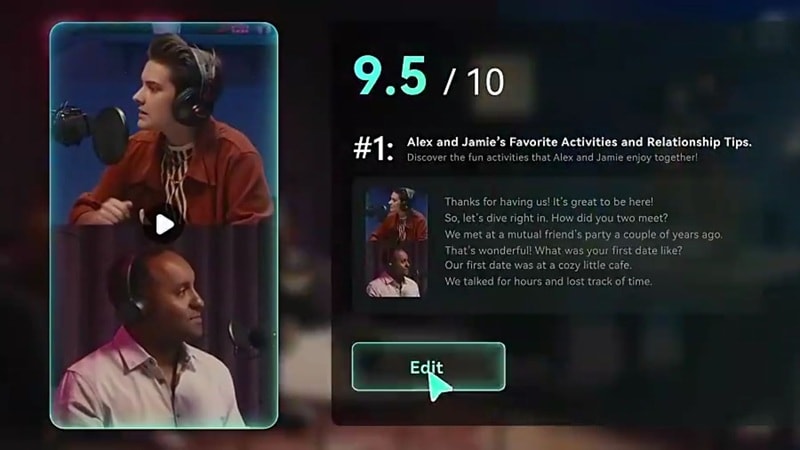
Filmora's Smart Short Clips will analyze your video and rank each detected clip with a score, so you can pick the ones worth keeping based on how the AI rated them. This works well for:
- Podcast clips
- Interviews
- Webinars
- YouTube content
The difference is control. You are not limited to AI output. You can refine each clip the way you want.
2. Made for TikTok, Reels & Shorts
Filmora supports a 9:16 Short Video Project Mode that helps creators create vertical videos for TikTok, YouTube Shorts, and Instagram Reels. In this mode, you can use Auto Reframe to adjust the layout more easily. It also offers vertical templates, effects, and simple social content editing tools.
3. Better Captions = Better Retention
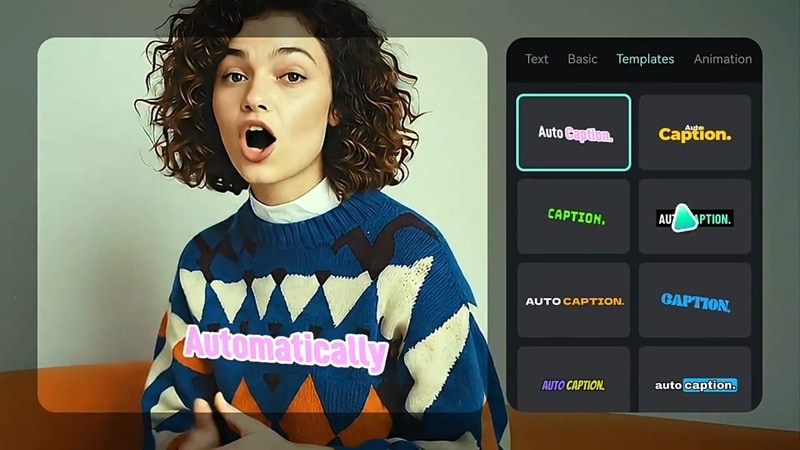
A large share of social video is watched on mute, so captions are no longer optional. With Filmora, you can quickly convert spoken words into subtitles using Auto Captions. It supports two caption types:
- Dynamic Caption: bigger font, a more dynamic look, and animation. Words appear in sync with speech, and you can choose from styles like kinetic, pop-up, and box, which work well for short-form social content.
- Standard Speech-to-Text: the classic way to create subtitles, displayed as clean, readable text without animation. Better suited for long-form content, interviews, or any video where you want subtitles to stay out of the way.
Both options let you pick the font, size, position, and style to match your video. It saves time from manually captioning every clip, and makes your content easier to watch, understand, and finish.
4. Build Shorts from Images or Audio
Need fresh content without filming? Filmora gives you a few useful options:
- AI Image-to-Video: You can turn still photos into moving short clips using creative templates. Filmora also supports newer generation models like Veo 3.1 and Seedance 2.0, which help create smoother motion, more realistic animation, and better scene consistency.
- AI Audio-to-Video: You can turn voice tracks into short videos. After you upload audio, Filmora can identify strong moments and generate video clips that match the audio. It can also summarize the audio and turn it into a video with an AI-cloned voiceover.
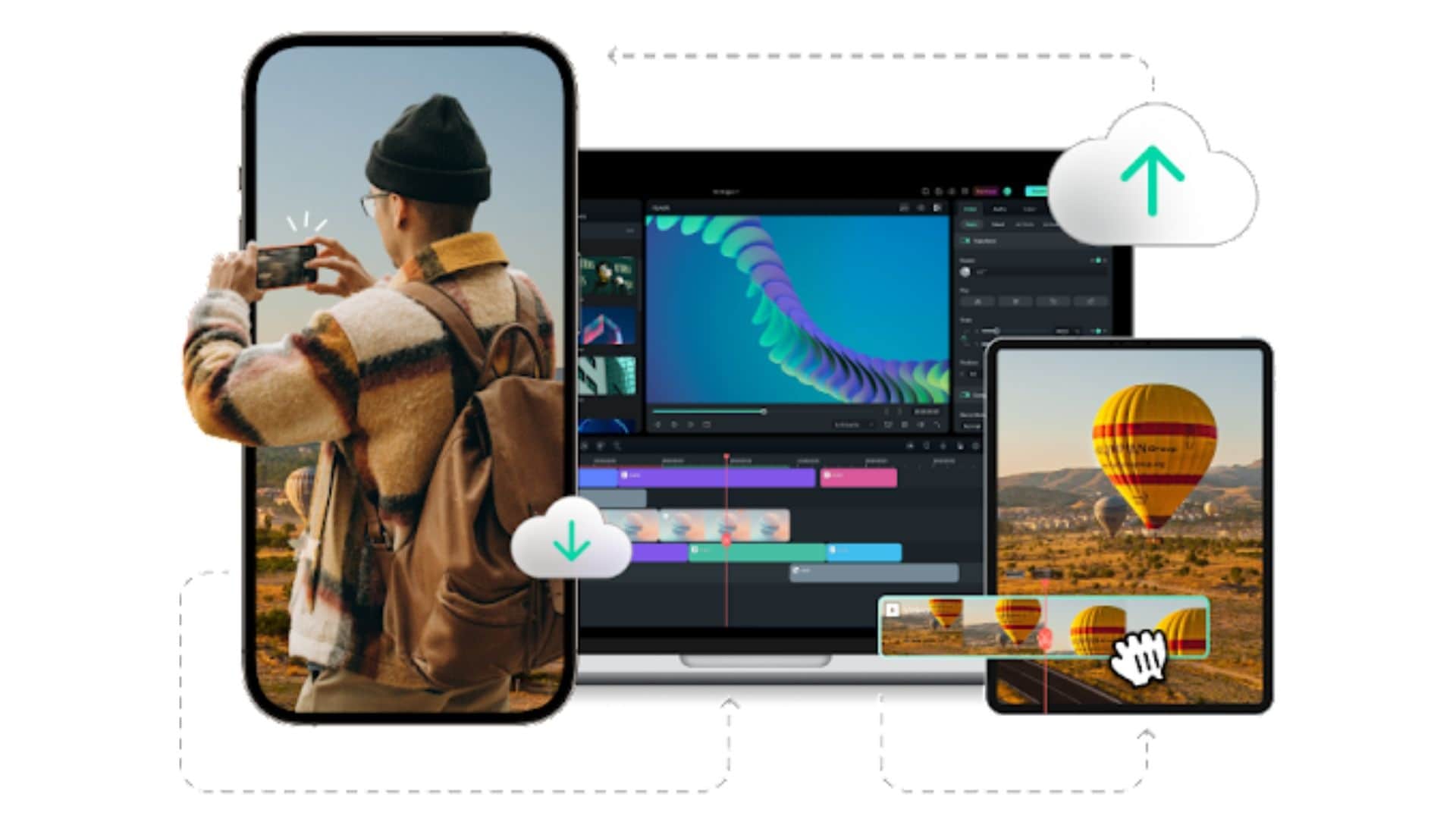
5. Edit Anywhere: Desktop + Mobile
Creators often work across different devices. Filmora supports both desktop and mobile editing, which makes the workflow more flexible. The desktop version is more preferable for detailed editing, advanced control, and longer duration. The mobile app is handy for more minor tweaks, rapid edits, and on-the-spot posting. Cloud support enables you to switch between devices with ease.
6. Stay Consistent With Posting
Creating clips is one part. Posting them consistently is another. Filmora also offers a Social Content Planner to help creators publish across platforms. You can decide the date and time of every post, thus schedule your content in advance and maintain an active account base without having to do a manual posting of each one.
Secure DownloadConclusion
Overlap solves a real problem by turning long videos into short clips without spending hours on manual editing. It works best for creators who publish often and need a steady flow of content. The workflow, automation, and clip detection make it a strong starting point.
Still, clips often need refinement before posting. Then, Filmora plays a vital role in the process, helping improve visuals, captions, and overall quality. Together, they create a more complete system, faster clip discovery with better final output that is ready for real audience engagement.
FAQs
-
How does Overlap AI work?
Overlap AI operates by converting lengthy videos into short and social media-ready footage. All you have to do is to uplaod video, command AI what sort of video you desire, and it will look for key moments from it. Then it assists in editing and preparing those clips for uploading on platforms like LinkedIn, Facebook, TikTok, etc. -
Is Overlap AI free to use?
No, Overlap AI is not free. The entry-level Creator plan starts at $250 per month, the Growth plan is $1,000 per month, and Enterprise is custom-priced. There is no free tier or free trial listed on the pricing page. Every plan requires booking a demo before you get access. -
Can I edit clips after Overlap AI generates them?
Yes. Overlap AI lets users open generated clips in ‘‘Edit Clip’’ for final changes, including subtitles, watermarks, and music edits. For a deeper polish, you can also bring the clip into Filmora. Filmora’s Smart Short Clips, auto-captioning, vertical editing, and timeline tools are useful when you want stronger pacing, captions, framing, or visual style after the first AI cut. -
Does Overlap AI work for all types of video content?
Not equally. Overlap AI video performs better with lengthy spoken videos such as podcasts, interviews, livestreams, webinars, etc. For advanced and trendy edits, music videos, or complicated visual storytelling, you might require more control in a tool like Filmora.
