


 TL;DR:
Quso AI (formerly Vidyo AI) is an effective web-based platform for automatically repurposing long-form videos into scheduled social media shorts, but creators requiring 4K exports, offline access, or original content generation should use a comprehensive editor like Wondershare Filmora.
● Quso AI operates on a browser-only, credit-based system offering automated clipping, AI influencer avatars, and a virality score, though it restricts users to a maximum 1080p resolution and places watermarks on the 75-credit free plan.
● Use Quso AI to efficiently chop existing footage into multiple social posts and schedule them across platforms, but choose Filmora for offline cross-device editing, 4K output, and generating original clips with AI text-to-video tools.
● Avoid downloading third-party Quso AI mod APKs claiming to offer unlimited credits, because all AI processing occurs on secure cloud servers, making these mobile files non-functional security risks.
Ask AI for a summary
 ChatGPT
 Perplexity
 Gemini
 Claude
 Grok
Grok
If you’ve been searching for a Vidyo AI lately, you probably noticed something strange… it’s kind of gone. That’s because it has rebranded into Quso AI, and now positions itself as more than just a video clipping tool. But here’s the thing: rebrands don’t always mean better products.
The thing is, a study by Landor shows that 74% of S&P 100 companies rebranded in their first seven years to better reflect their expanded services. So now the question is simple: does this shift actually improve anything, or is it just a new name with the same limitations? In this Quso AI review, we’ll break down what changed, what you get, and whether it’s worth your time.
Part 1. Quso AI Explained: What It Is and Why It Exists Now
If you've never heard of Quso AI before, that's because, for most of its life, it went by a different name: Vidyo AI. It officially became Quso AI in December 2024. The company is based in New York City and has over 4 million users worldwide. All existing Vidyo AI login accounts migrated automatically to Quso AI.
What Changed From Vidyo AI?
Back when it was the Vidyo AI video generator, the platform focused mainly on three things:
- Turning long videos into short, shareable clips.
- Auto-generating captions and resizing for different aspect ratios.
- Basic timeline editing and clip management.
After rebranding to Quso AI, the platform expanded significantly:
- Full content creation suite, including AI influencer videos and AI Video Generator.
- Social publishing and scheduling across 7 major platforms.
- AI content planner, analytics dashboard, and social media management tools.
- Positioned as a complete creator platform, not just a clipper.
Part 2. Getting Into Quso AI: Access, Login, and Reality Check
Before you get too deep into features, there’s something important to know about access.
Right now, the Quso AI app is:
- Fully web-based (browser only).
- No official desktop software.
- No official mobile app (though a mobile-responsive site exists for browsers).
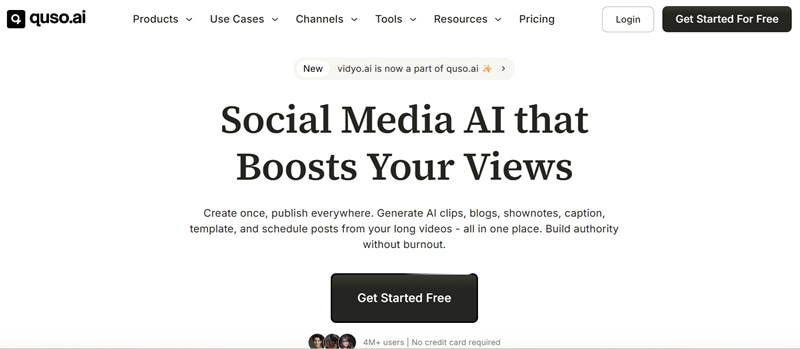
So, if you’re searching for a Quso AI download or Vidyo AI for mobile, you won’t find an official version in the app stores yet. If you want to try Quso AI login, you just need to use your existing Vidyo AI credentials, or sign up fresh at quso.ai.
The Hidden Trap: Why You Should Avoid the "Mod APK"
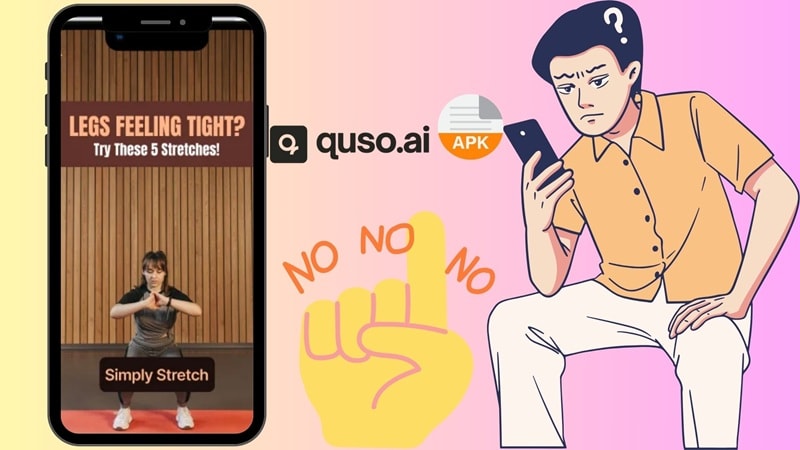
You’ve probably seen sites promising a Vidyo AI mod APK or a Quso AI mod APK with "unlimited credits." It sounds tempting, but here’s the truth: It doesn’t work the way you think. Here’s why:
- ⚠️ Security Risk: These Quso AI APK files are often bait for malware that can hijack your social media accounts and steal your personal data.
- ⚠️ Doesn't Work Anyway: Since all AI processing happens on Quso's high-end servers, not on your phone, a "mod" literally cannot give you free server time. It's a scam with no upside.
Part 3. Quso AI Pricing: Free Plan vs Paid Plans
Once you start using Quso, pricing becomes a big factor, especially because everything runs on credits. Quso AI follows a freemium + credit-based system, which is easy to start but can scale quickly in cost.
Here's the full breakdown:
| Feature | Free | Lite | Essential |
| Price | Free | $29/month | $39/month |
| Credits/Month | 75 credits | 100 credits | 300 credits |
| Render Quality | 720P | 1080P | 1080P |
| AI Clips & Captions | |||
| AI Video Generator | — | ||
| Video Resizing | — | ||
| Unlimited 1080p Exports | — | ||
| AI Filler Word Removal | — | — | |
| AI Influencer | — | — | |
| Social Media Scheduling | TikTok only | TikTok only | 1 Social Set (7 platforms) |
| AI Content Planner | — | — | |
| Watermark | Yes | No | No |
| Storage | — | 10 GB | 25 GB |
⭐ Growth Plan
If you are a heavy creator, Quso AI also prepares a special tier plan for you. With $49 per month (or $25 per month, billed annually) this is what you get:
Everything in Essential, plus:
- 600 - 1800 credits per month.
- Unlimited social post scheduling.
- Bulk publishing.
- Advanced AI analytics.
- Custom templates & brand kit.
- Priority support.
💡 Pro Tip: Annual billing saves up to 50% across all plans. Lite drops from $29 to $15/mo, Essential from $39 to $20/mo, and Growth from $49 to $25/mo when billed annually.
Part 4. What Quso AI Actually Does: Features That Matter
Now for the good stuff. Quso AI isn't just chopping your videos up randomly, there's genuine intelligence behind the tools. Here's a breakdown of every major feature and what it actually does for your content workflow.
AI Clips Generator

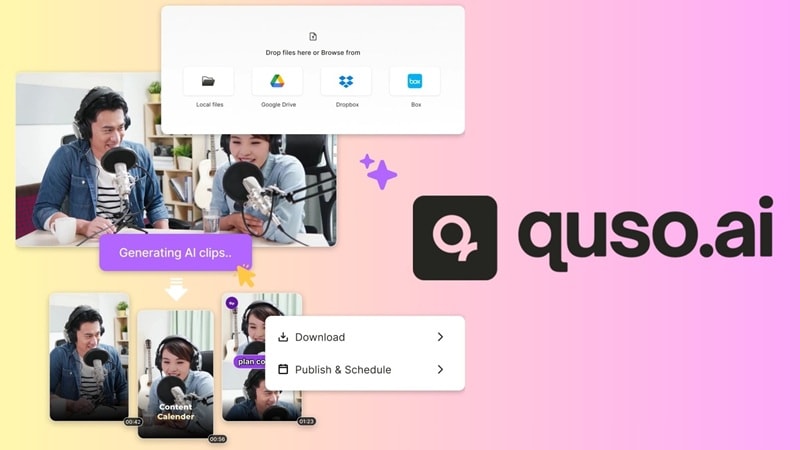
This is the core feature, and the one that made Vidyo AI famous in the first place. Upload a long video (podcast, webinar, YouTube video, interview), and Quso's AI engine (called Intelliclips) automatically scans the content to find the most engaging segments. You get multiple clip options to review, all pre-sized for your target platform.
AI Content Repurposing
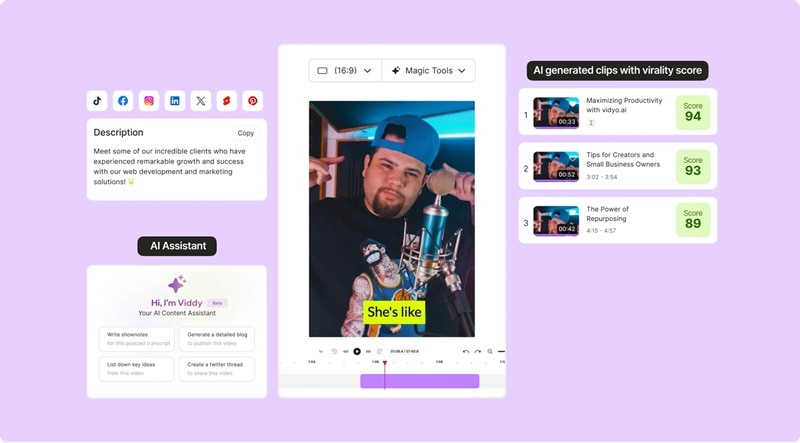
Beyond just clips, Quso AI can transform your video content into other formats entirely. A single long video can become blog posts, show notes, social media captions, hashtag sets, and even YouTube chapter markers, all generated automatically from the same source material. This is a huge time-saver for creators trying to maximize every piece of content they produce.
AI Influencer (Avatar Videos)
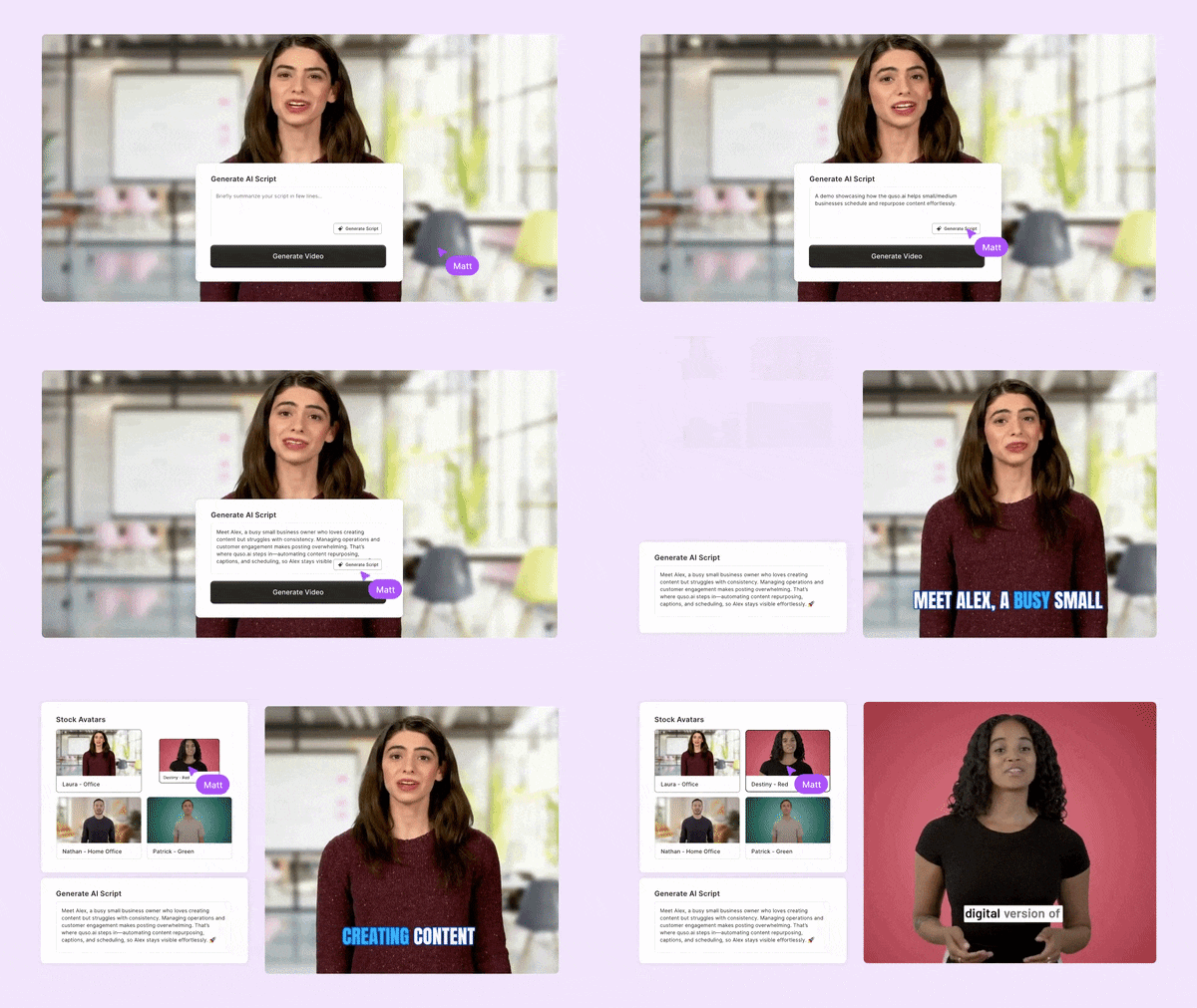
This is one of the most exciting additions post-rebrand from Vidyo AI clips. The AI Influencer tool lets you create on-brand avatar videos, without ever turning on a camera. You type a script, choose or customize your AI influencer, and Quso generates a ready-to-publish video. It's particularly useful for scaling content volume or testing messaging without production overhead.
AI Subtitle Generator
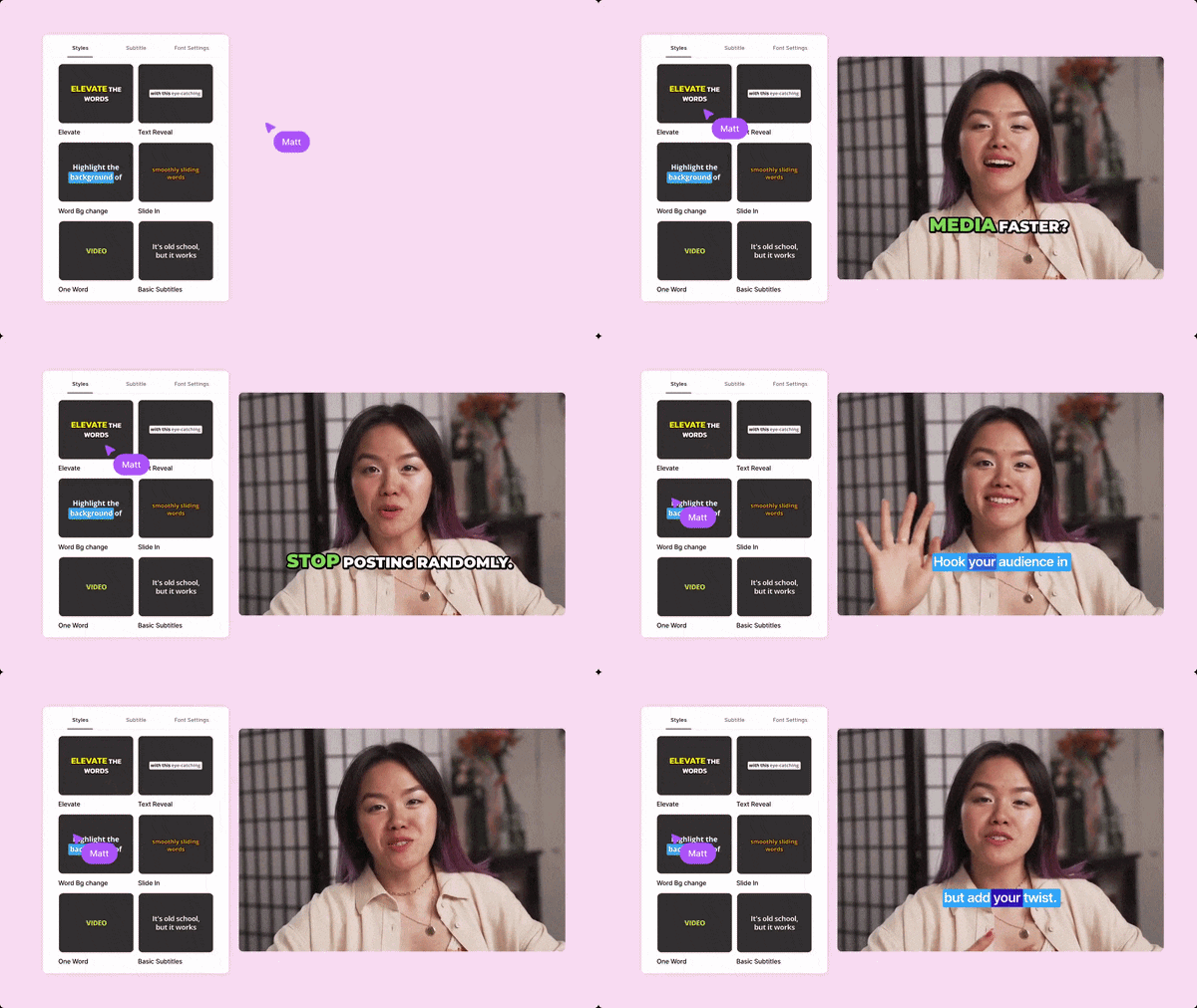
Auto-captions in Quso AI are generated directly from your video's audio, supporting multiple languages. The subtitles are fully editable, styleable, and can be burned into the video for social media posts. Caption accuracy is solid for clear audio, and the styling options let you match your brand's look without needing a separate captioning tool.
Social Media Scheduling
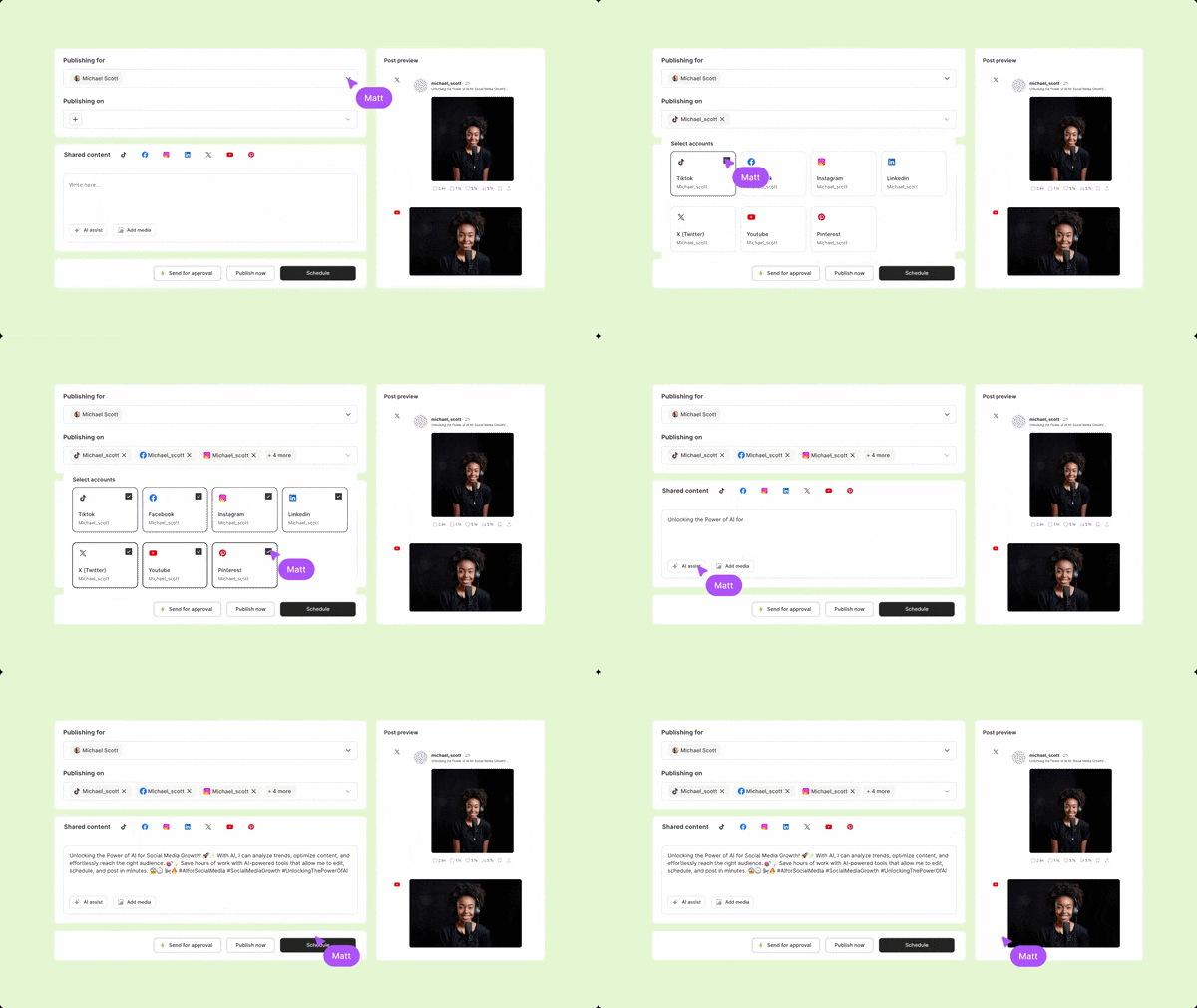
The scheduler (available from the Essential plan upward) lets you connect up to 7 social platforms: TikTok, Instagram, YouTube, LinkedIn, Facebook, X (Twitter), and Pinterest, and schedule posts directly from the dashboard. There's also a Quso AI virality score feature that evaluates your clips, estimates how well they might perform, and suggests specific adjustments to help boost their reach.
Video Editor
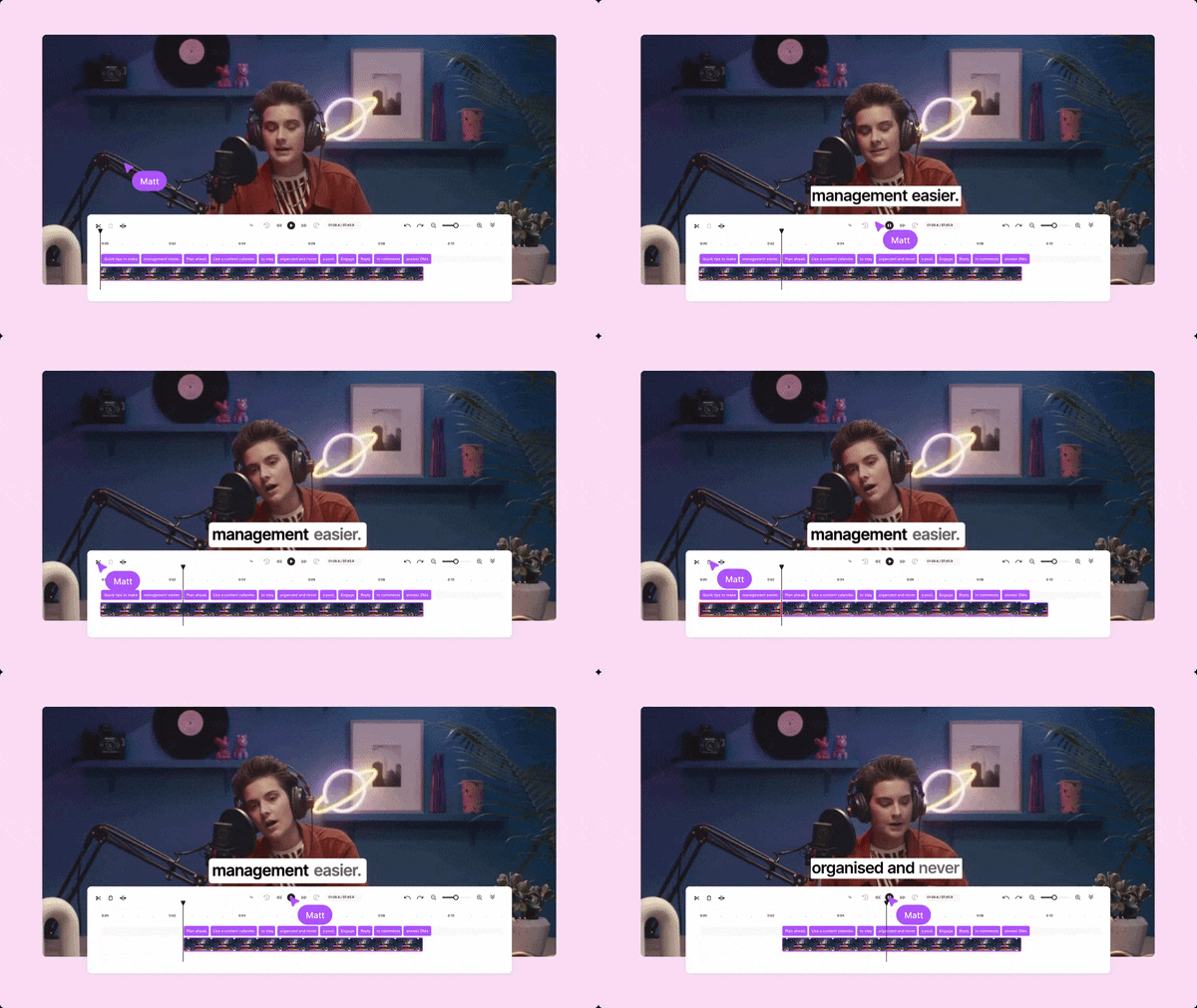
The built-in video editor covers everything you'd need for social-first content: trimming, resizing to 9:16, 16:9, or 1:1 aspect ratios, adding B-roll from the stock library, overlaying text and captions, and inserting progress bars or background audio. It works, but it’s not meant for deep editing.
Part 5. Who Should Use Quso AI + Honest Pros & Cons
Quso AI has come a long way from its Vidyo AI days, but it’s not the perfect fit for everyone. From what you’ll see on Quso AI Reddit discussions, most users like it for one main reason: it helps create multiple pieces of content fast.
So, let’s break down who actually benefits from it.
Who Should Quso AI For
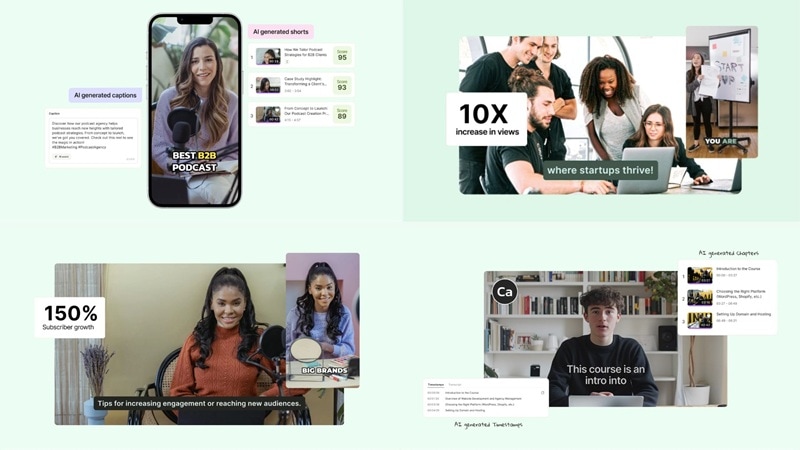
Quso AI works best for:
- Content creators making short-form videos daily, especially those repurposing long-form content for TikTok, Reels, and YouTube Shorts.
- YouTubers and podcasters who want to turn their existing content into a week's worth of social posts without manual editing.
- Social media managers handling multiple accounts who need scheduling, analytics, and publishing under one login.
- Beginners who want fast results without deep editing skills.
Pros and Cons of Quso AI
- Superb Subtitles: The captioning is fast, accurate, and looks professional.
- Viral Prediction Power: The Quso AI virality score helps you pick the best clips before you post.
- Generous Free Plan: 75 credits a month, AI clips, captions, and direct TikTok publishing, all at zero cost. That's more than enough to figure out if this tool fits your workflow before spending a dime.
- Multi-Platform Publishing Made Simple: One-click scheduling to 7 social platforms means your content reaches everywhere without the repetitive copy-paste grind.
- Browser Only: The lack of a dedicated desktop app can lead to lag during heavy editing sessions.
- Watermark Woes: The free plan is quite restrictive if you want to post professional, clean content.
- Credit System Adds Up Fast: Heavy usage gets expensive quickly.
- 4K Video Is Not Supported: Quso maxes out at 1080p Full HD on paid plans. If your workflow involves 4K footage or professional-grade exports, you'll hit a ceiling the platform simply can't break through.
Part 6. Want More Control? Try Wondershare Filmora Instead
From our Quso AI review, we can say that the tool is a beast when it comes to automation and repurposing. But what if you want to create something truly unique, something that doesn't start with someone else's footage? As a creator, sometimes you need to move beyond "repurposing" and step into actual storytelling.
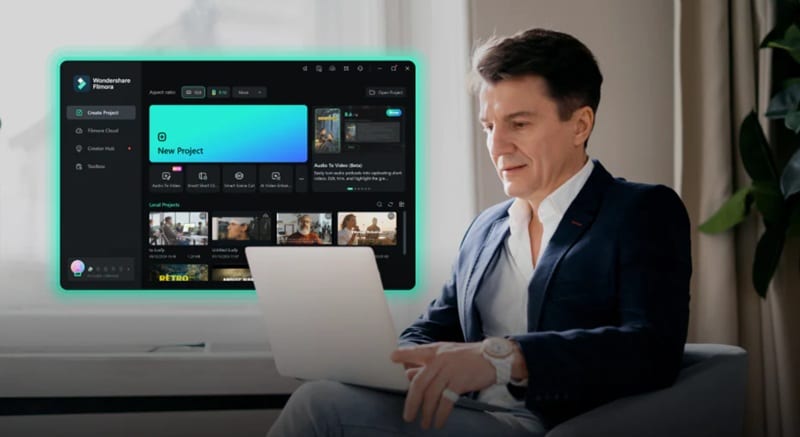
In such cases, you can rely on Wondershare Filmora. While Quso AI handles the "viral clips from existing content" lane, Filmora gives you the professional keys to full creative control, original content creation, and a toolbox that meets you whether you're a beginner or a seasoned editor.
 Secure Download
Why Filmora is the Professional’s Playground
1. 🎬 Instant AI Video Creation
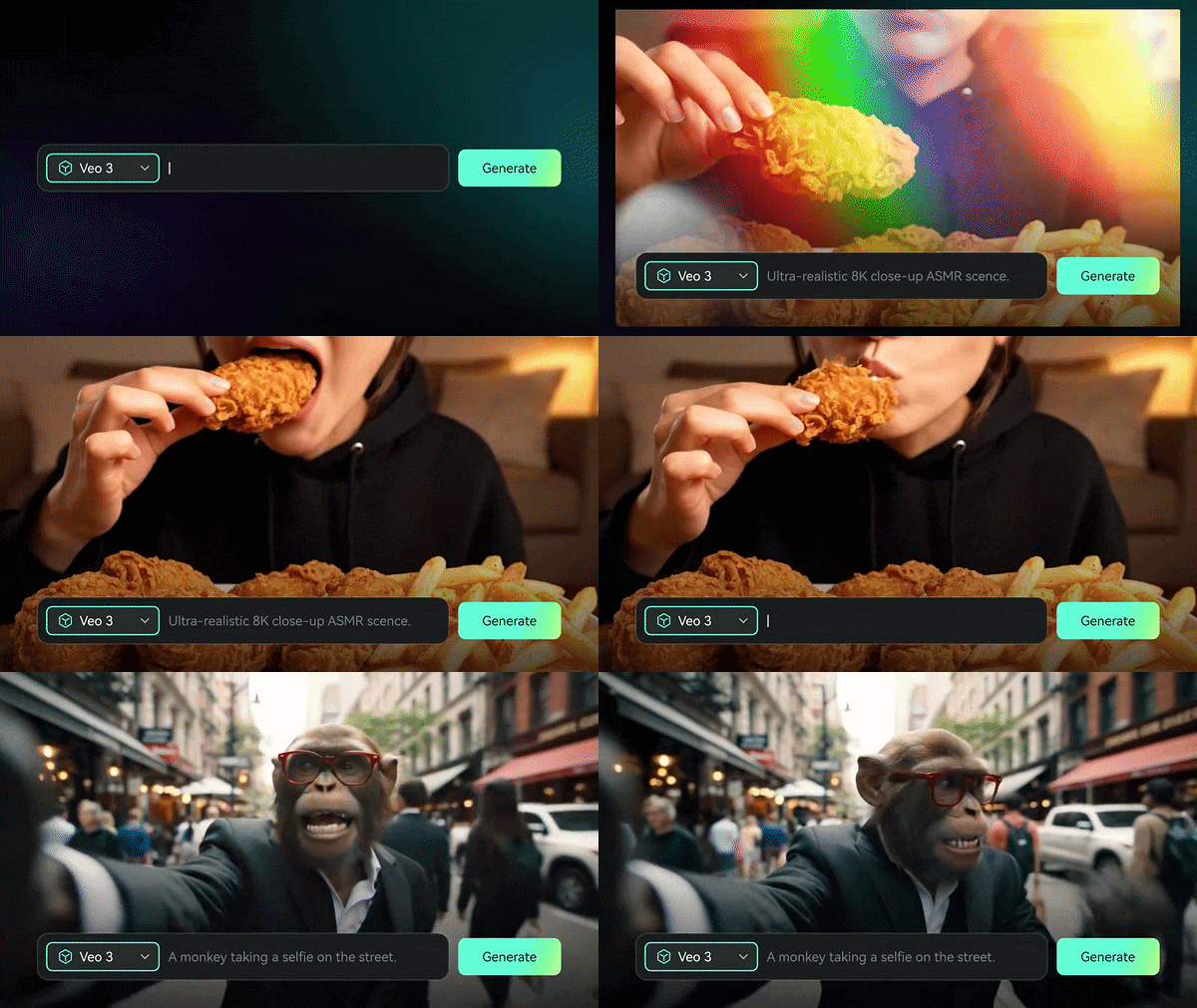
Want to start from scratch without existing footage? Filmora's AI Text-to-Video and AI Image-to-Video tools let you generate cinematic footage just by typing a prompt. Describe a scene, upload your photo, and you've got original video content in minutes, no camera, no filming, no excuses.
2. 🎵 Generate Custom Soundtracks
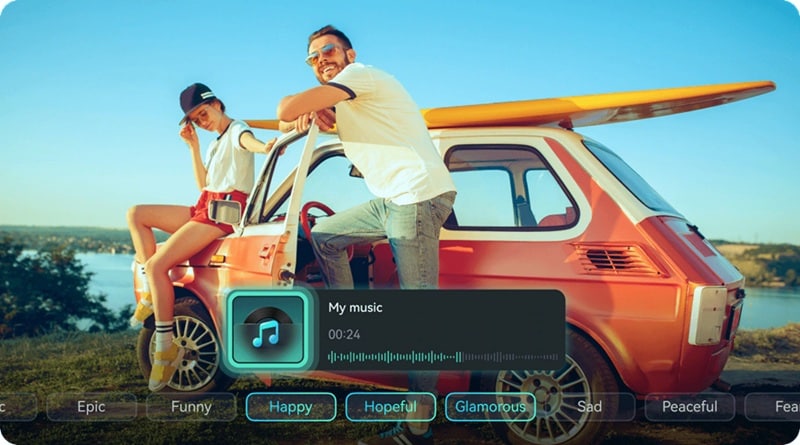
No more copyright strikes ruining your reach. Filmora's AI Music Generator creates original, royalty-free tracks that match the exact mood of your edit: energetic, emotional, chill, cinematic. Your audio will never clash with your visuals again.
3. 🧠 Advanced AI Toolbox
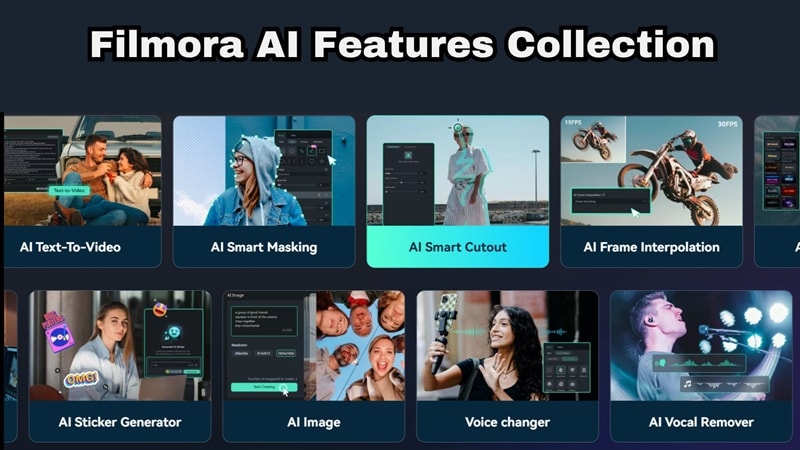
Filmora handles the heavy creative lifting that purely browser-based tools can't touch. You get features like:
- AI Video Enhancer.
- AI Portrait Cutout.
- AI Video Translation.
- AI Text-Based Editing.
- AI Flicker Removal.
- Planar Tracking.
These are desktop-grade tools built for serious output.
4. 📚 The Massive Media Library

Everything you need is already there when you're mid-edit. That's because Filmora grants you access to millions of stock photos, videos, and stickers that are built directly into the timeline. There's no need to switch tabs, or third-party subscriptions.
5. 📱 Multi-Platform Access
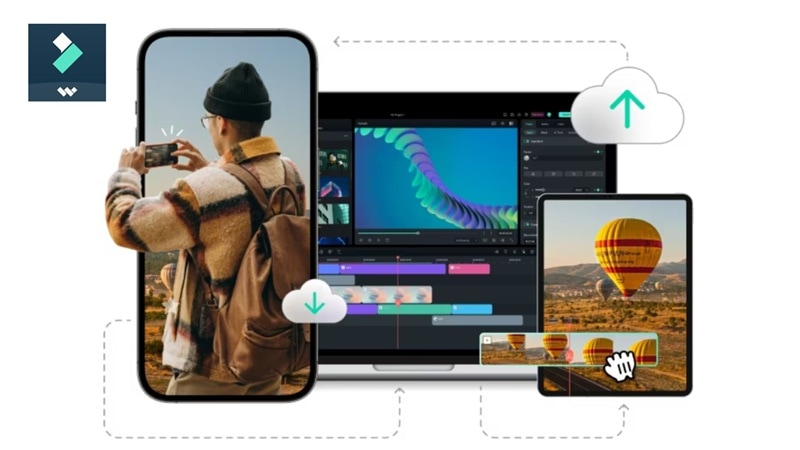
Filmora supports both mobile and desktop with a seamless cross-device workflow, something Quso AI can't currently offer. Which means, you can start your edit on your phone during your commute and finish it on your beefy desktop at home.
6. ✂️ AI Smart Short Clips
Similar to Quso's Intelliclips, Filmora’s AI Smart Short Clips can identify highlights in your footage automatically. The big difference? You get frame-by-frame control over the final look, so your clips don't just perform well algorithmically; they look exactly the way you want them to.
7. 🎨 Professional Color Grading

Give your videos that polished "Netflix look" with one-click AI color Palette. Filmora analyzes your footage and applies cinematic color grades that would normally take a professional colorist hours to dial in.
Secure DownloadConclusion
Quso AI video generator is a solid evolution from Vidyo AI. It keeps what worked, like fast clip generation, and adds features for scheduling and content management. That said, the credit system can feel restrictive on lower plans, the lack of a mobile app is a real gap, and if you need 4K exports or advanced editing control, you'll quickly hit the platform's ceiling.
For original, high-production content, you'll want to pair it with something like Filmora. It offers what Quso has combined with a wider range of AI features. Use Quso AI when you want to repurpose existing content fast. Use Filmora when you want to create original, high-quality content with full creative control. The best creators often use both.
FAQs About Quso AI
-
Is Quso AI better than Vidyo AI?
Yes, in terms of features. It includes everything the old Vidyo AI had but adds social media scheduling, better analytics, more features, more integrations, but the same solid foundation. -
Can Quso AI replace a video editor completely?
For social-first, short-form content? It can get you 80% of the way there. Quso handles clipping, captioning, resizing, and filler word removal automatically. But for original video creation, complex timelines, multi-track audio, or high-end color work, you still need a dedicated editor like Filmora. -
Can I use Quso AI for 4K video?
No. Quso AI currently maxes out at 1080p Full HD on paid plans. If your workflow demands 4K output, Quso isn't the tool for that job. You'd need a platform like Filmora that supports 4K exports. -
How does the "Quso AI virality score" help me?
The virality score is an AI-generated metric that evaluates each potential clip across factors like hook strength, narrative arc, viewer value, and trend alignment. A higher score means the clip has characteristics that tend to perform well on short-form platforms.
