


 TL;DR:
SkyReels AI V4 is a specialized video generation platform that provides precise reference-based control for short product and cinematic clips, though users must carefully manage its limitations regarding physical motion realism and consistently blurry text rendering.
● The free-tier Fast mode is restricted to silent, lower-quality outputs meant only for prompt testing, requiring users to upgrade to a paid plan to access the Standard mode for native audio and post-ready video quality.
● Generation is strictly capped at a 15-second maximum duration and 1080p resolution, and the Omni Reference feature cannot produce legible logos, labels, or captions even when clear image references are provided.
● Because regenerating a clip to fix a minor visual error or short duration consumes platform credits, users are advised to route baseline outputs into external editors like Wondershare Filmora to handle localized AI object removal and video extension.
Ask AI for a summary
 ChatGPT
 Perplexity
 Gemini
 Claude
 Grok
Grok
SkyReels AI is an AI video generator focused on short cinematic clips, prompt accuracy, and strong reference-based control. It is best known for SkyReels V4, which supports text-to-video generation, reference-guided video creation, and native audio in Standard mode.
Based on our testing, SkyReels AI is easy to use and performs well for short-form content, product videos, and concept shots, but it still struggles with motion realism and text rendering. In this review, we cover what SkyReels AI is, how it works, pricing, API cost, pros, cons, and whether it is worth paying for.
Part 1. What is SkyReel AI?
SkyReels AI is a video generation platform built around the SkyReels model family. It creates short AI videos from text prompts and reference inputs, with support for multimodal guidance such as first frame, last frame, keyframes, video references, and audio references in selected workflows.
The current platform centers on SkyReels V4, which is designed more narrowly than earlier versions but offers deeper control for actual video generation.
Alongside the main platform versions, the team also released SkyReels A2 as a separate open-source model. Where SkyReels A1 focused on portrait image animation only, A2 takes it further with elements-to-video (E2V) generation. It's not part of the skyreels.ai platform and requires a local setup or ComfyUI to run. You can check more on the SkyReels GitHub page.
Current Version
SkyReels V4 is the current version of the platform. Unlike V2 and V3, which included AI avatars, lip-sync, and editing-style tools, V4 focuses almost entirely on AI video generation.
This makes SkyReels V4 more specialized: you get a cleaner workflow for generating clips, but fewer all-in-one creator features than earlier versions.
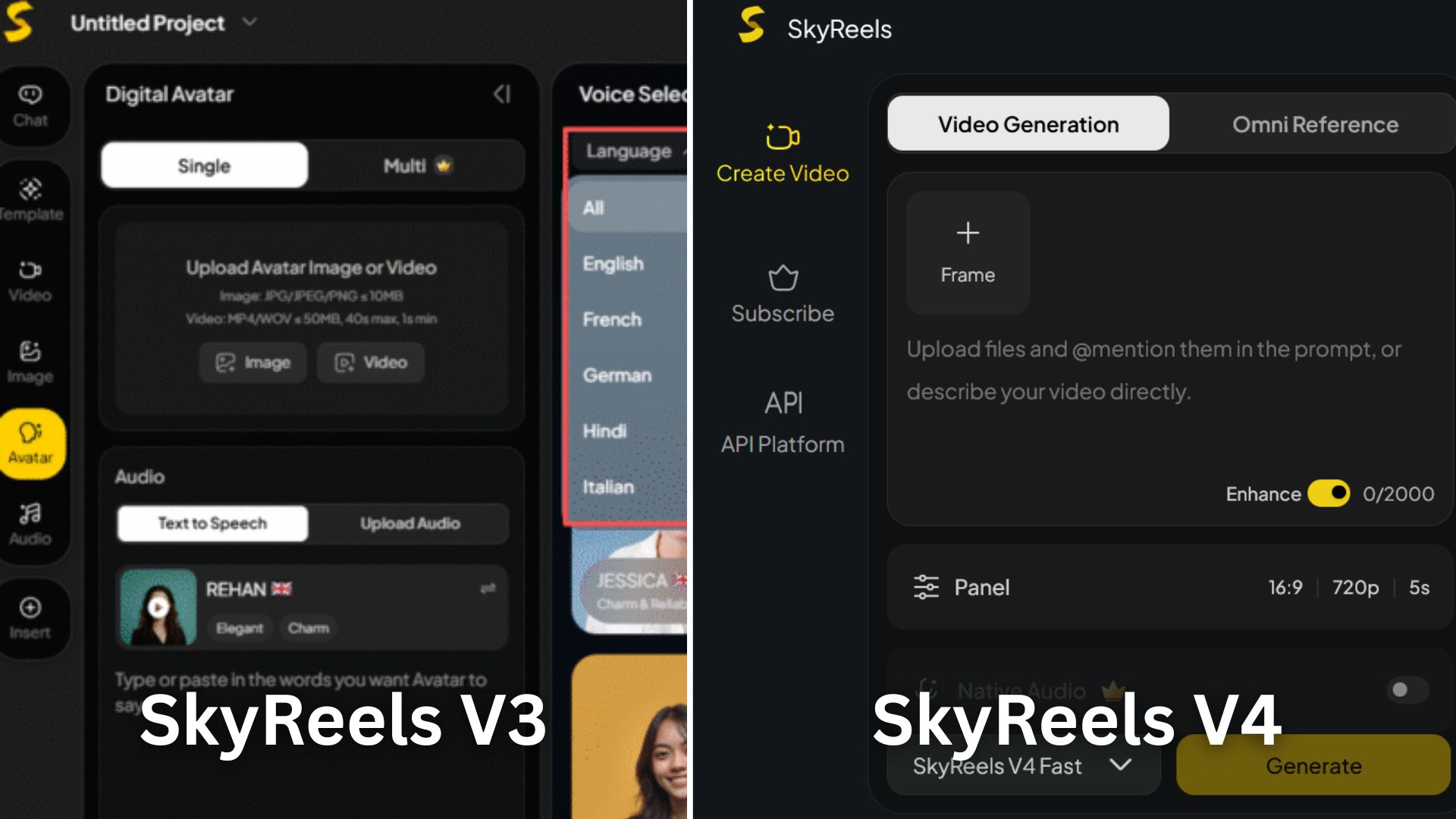
The SkyReels V4 model is available in two options: Fast and Standard.
- Fast mode is designed for quicker generation (no audio).
- Standard mode is better for users who want higher-quality results and better video-audio output.
SkyReels V4 Video Output Settings
| Feature | SkyReels V4 |
| Max. Video Length | 15 seconds |
| Max. Video Quality | 1080p |
| Supported Aspect Ratios | 16:9, 4:3, 1:1, 3:4, 9:16 |
Who Should Try SkyReels AI?
- Social media creators who regularly need short cinematic clips — reels, ads, B-roll.
- Marketers and e-commerce sellers who want product showcase videos without the production overhead.
- Indie filmmakers and studios that use AI for pre-visualization, storyboarding, or concept validation before actual production.
- Short drama and narrative content creators who need consistent characters across multiple shots.
- Developers looking to integrate a competitive video generation API into their own product.
- Educators who need animated demonstrations with narrated audio.
Part 2. What Can SkyReels AI Actually Do?
SkyReels V4's feature set is significantly narrower than earlier versions, but much deeper in what it does. The video generation works across two main modes.
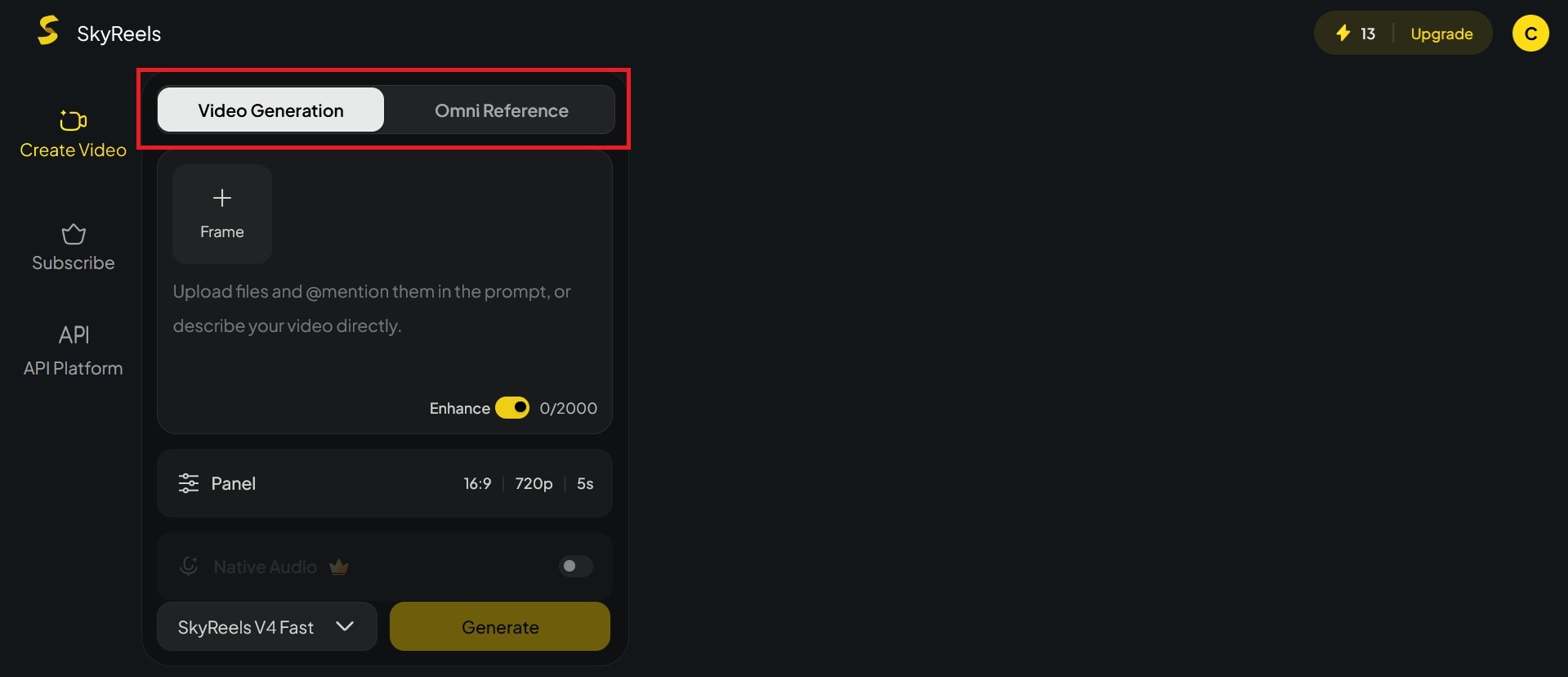
Video Generation
SkyReels AI video generation lets you guide the output with both a written prompt and visual input. You can describe the scene you want, then upload a frame or media file to help the model understand the look, motion, subject, or structure you are aiming for.
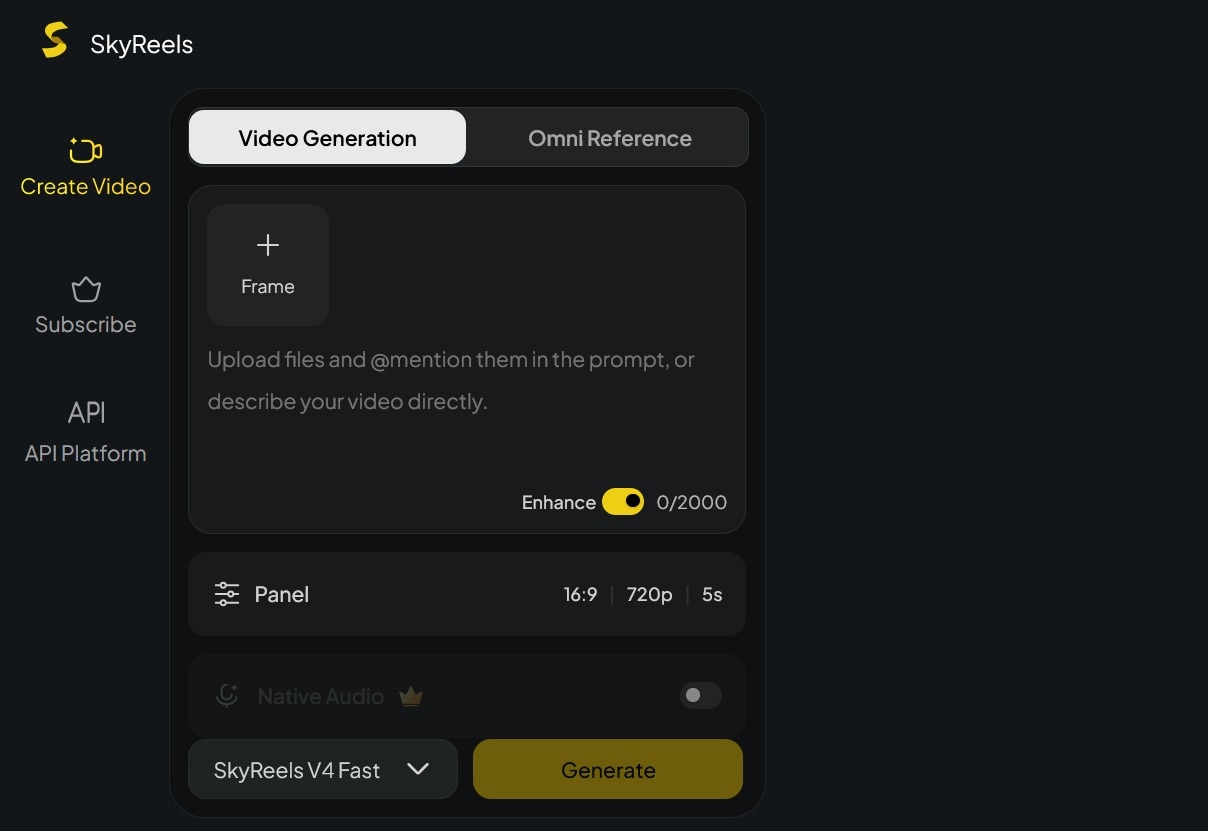
The Video Generation mode includes several input options:
- First Frame: Uses your uploaded image as the starting frame of the video.
- Last Frame: Uses your uploaded image as the final frame.
- Keyframe: Lets you guide the video with important visual moments.
- Video Extend: Lets you guide the video with important visual moments.
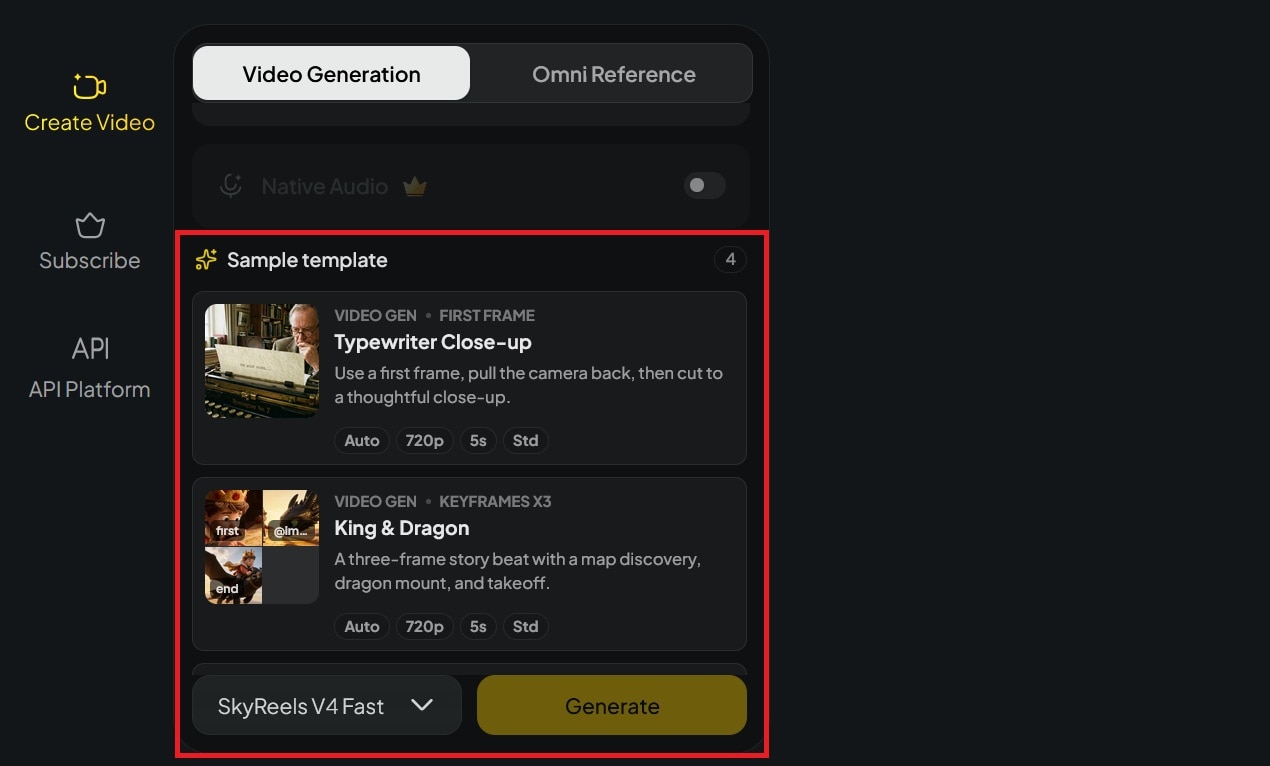
SkyReels also provides sample templates, which can help you generate videos faster without writing a detailed prompt by yourself. One thing to note, though, is that native audio is available only in Standard mode.
Omni Reference
The second main mode in SkyReels AI is Omni Reference. Similar to newer generation systems from models like Seedance 2.0 and Kling 3.0, SkyReels V4 lets you upload reference materials to guide the final result more precisely.
Supported input models include:
- Image
- Image Grid
- Video
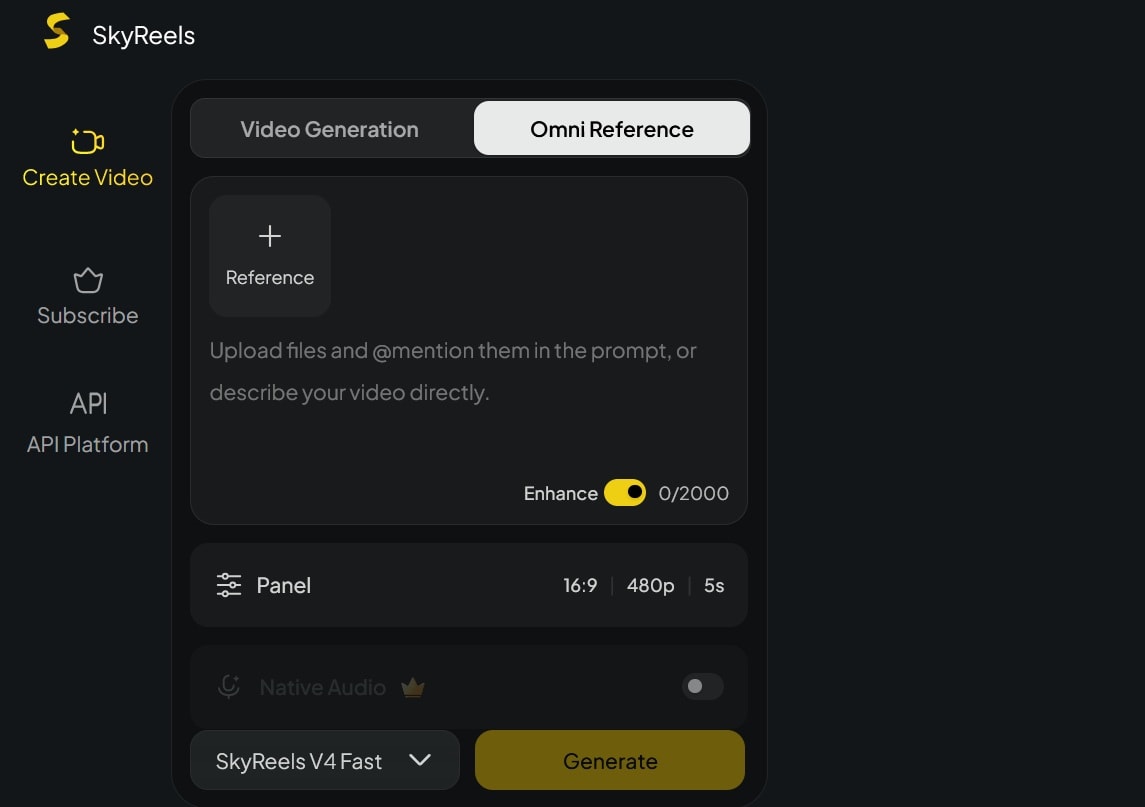
Note: With the Image option, you can upload one main reference image and up to 4 additional angle images of the same subject. You can also add an audio reference if needed.
Part 3. SkyReels AI Pricing (Free Plan, Credits, and API Cost)
You get to generate and try SkyReels AI for free. New registered users get 100 credits for free, which can be used to generate a few videos inside the platform. But of course, it comes with limitations, such as Fast mode only and no access to native audio.
If you want to upgrade your plan, the subscription plans in SkyReels are split into Basic, Pro, Plus, and Max. This is how they compare.
| Free | Basic | Pro | Plus | Max | |
| Pricing | $0 | $10/mo | $20/mo | $50/mo | $100/mo |
| Monthly Videos | 1-2 | ~100 | ~200 | ~500 | ~1,000 |
| Queued Task | 1 | 1 | 5 | 12 | 50 |
| Native Audio | |||||
| Standard Mode | Fast mode only | Priority access | Priority access |
Extra Credits
If your plan runs out of credits to generate videos, you can also purchase additional credits separately.
| Credits | Price |
| 1,000 | $10 |
| 3,300 | $30 |
| 115,000 | $1,000 |
| 360,000 | $3,000 |
| 625,000 | $5,000 |
SkyReels AI API
SkyReels API platform is available for developers who want to integrate V4's video generation capabilities into their own products, pipelines, or automated workflows. The pricing runs on a credit-based system, with several available plans:
| Starter | Basic | Standard | Business | |
| Pricing | $30 | $1,000 | $3,000 | $5,000 |
| Credits | 3,300 | 115,000 | 360,000 | 625,000 |
You can also contact the SkyReels team for custom pricing if you need a larger credit package or a setup tailored to your needs.
Part 4. How to Use SkyReels AI Video Generator
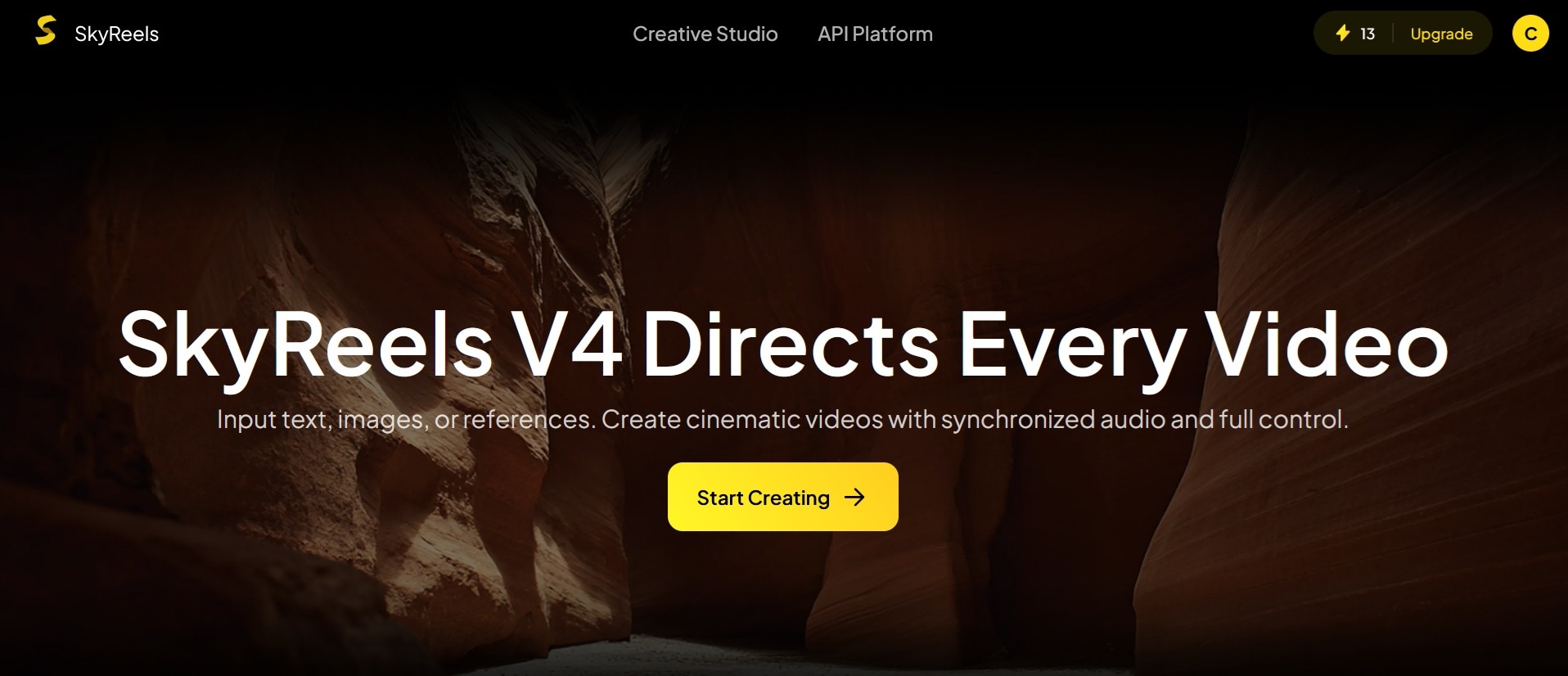
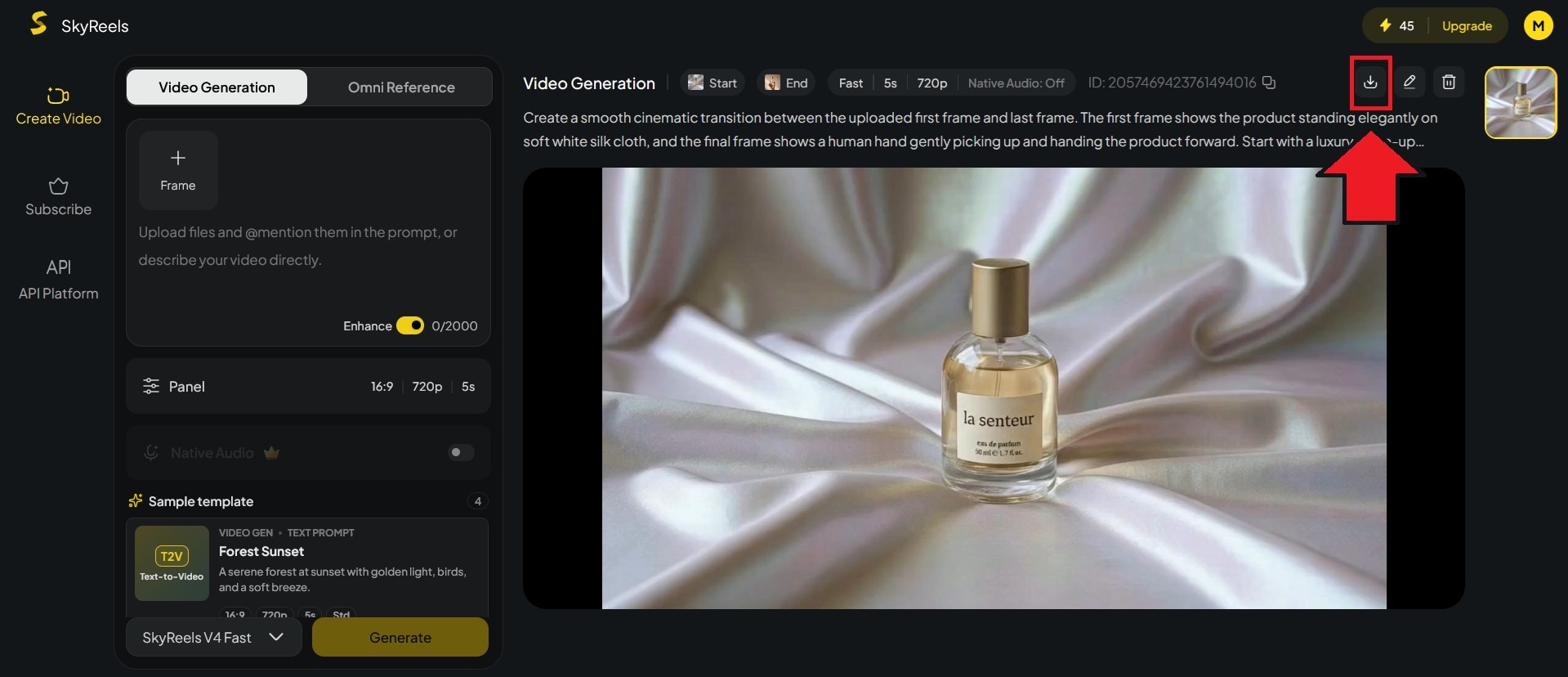
Generating videos with SkyReels AI happens inside its Creative Studio. The workflow is pretty much the same as other AI video tools, where you just need to write a prompt, upload references if needed, adjust settings, and generate.
For Omni Reference, upload your reference files first. Then, call out each reference in your prompt by its label and tell the model what role it plays. For example:
"Use the character in @Image1 walking through a rain-soaked alley at night. Follow the camera movement from @Video1. Ambient sound should match @Audio1."
Part 5. Is SkyReels AI Worth It? Our Review
Based on our testing, SkyReels AI Fast mode still very much lacks the visual quality you'd expect, so go straight for Standard mode if you want something closer to post-ready. It's only good for a quick check if your prompt is heading in the right direction.
On the upside, it follows prompts well, and Omni Reference gives you solid control over what ends up in the frame. In the example below, we used a video reference and asked it to replace the subject with a character from an image reference, holding a product we also uploaded as a separate reference.
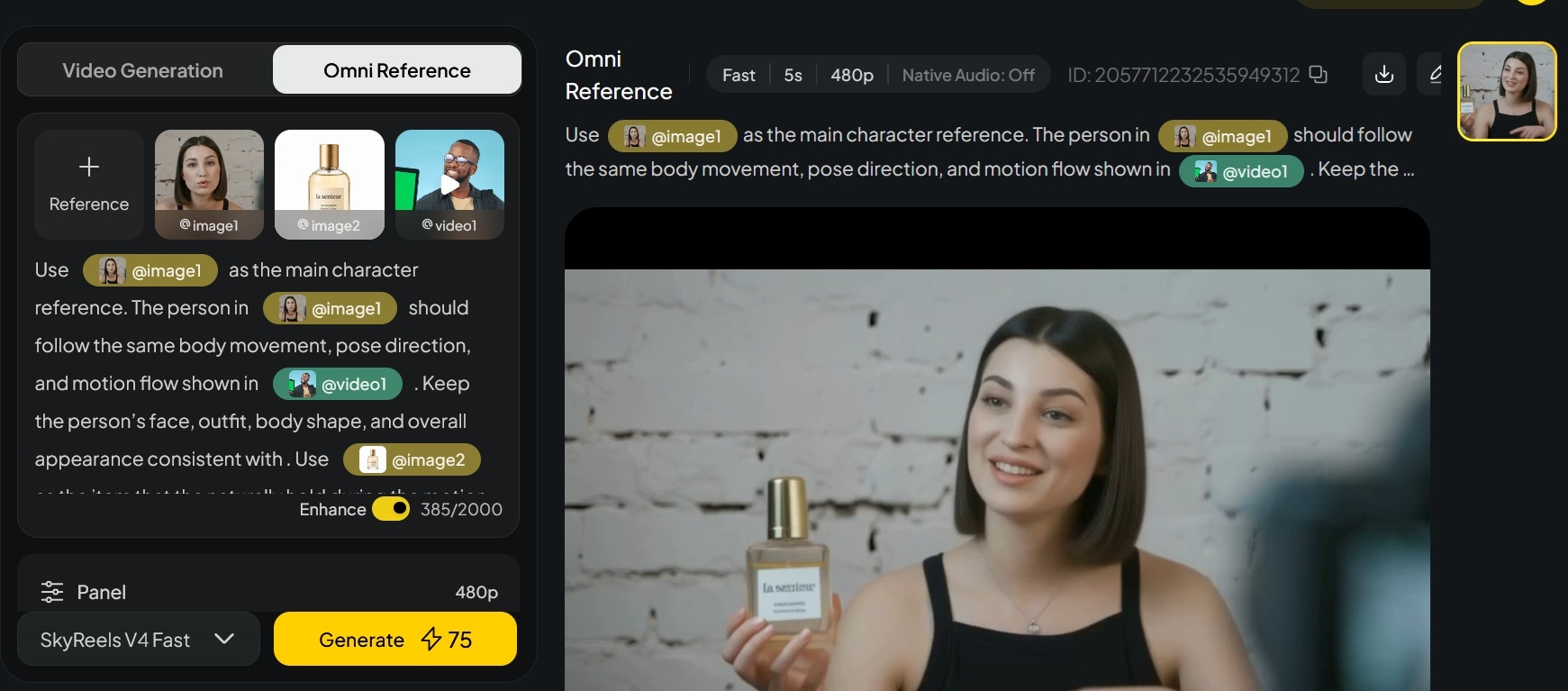
The result of SkyReels AI video generation came out surprisingly well:
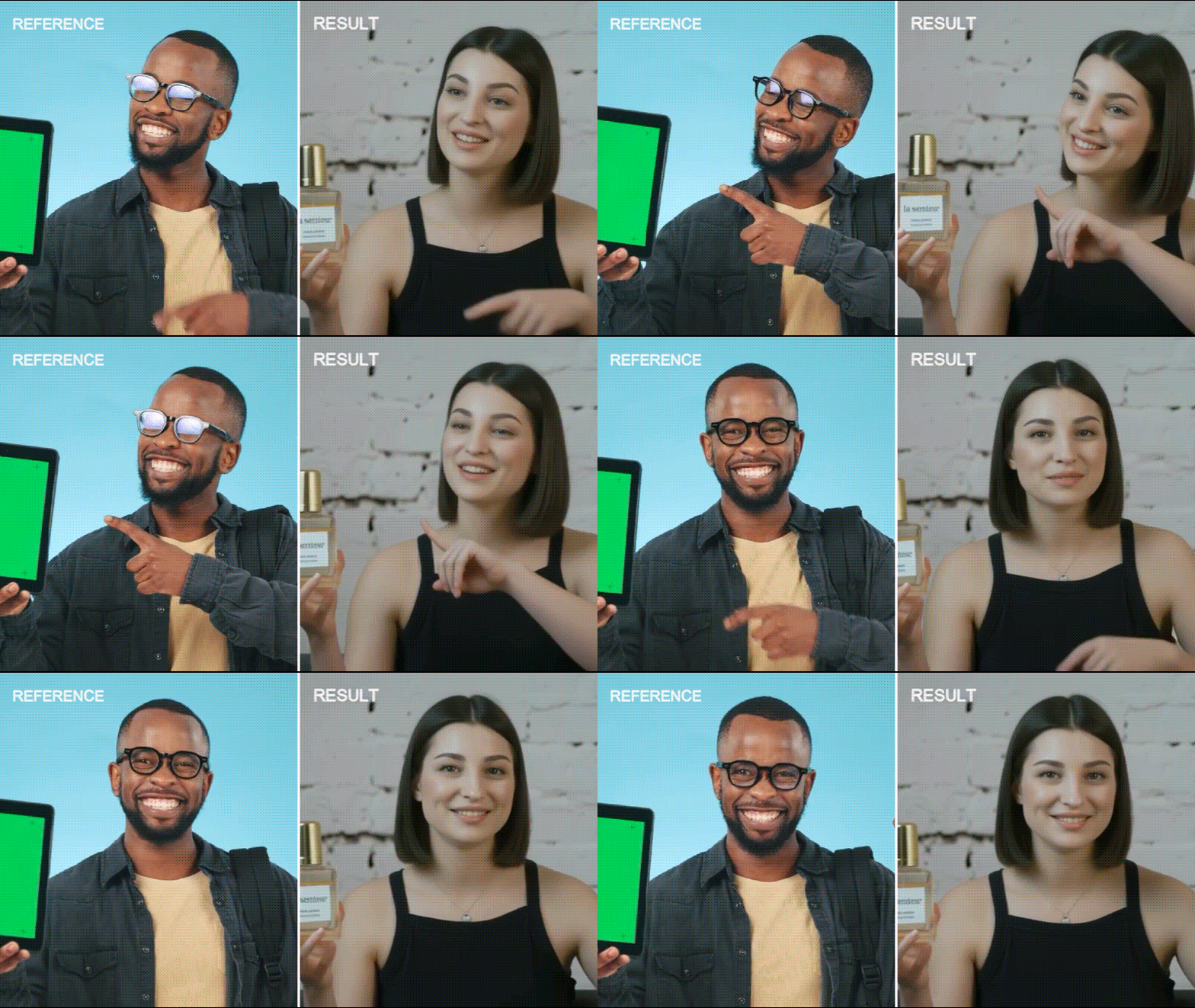
Generated with SkyReels’ Omni Reference feature.
Where it needs more work is motion and text readability. Movement looks okay on the surface, but it lacks the dimension and weight that make it feel physically convincing. Things move, but they don't quite feel like they have mass behind them.

Generated with SkyReels’ Video Generation feature.
Text readability is also a weak spot. If you look closely, the text on the product we generated is barely readable, even though we provided a clear image reference for it.
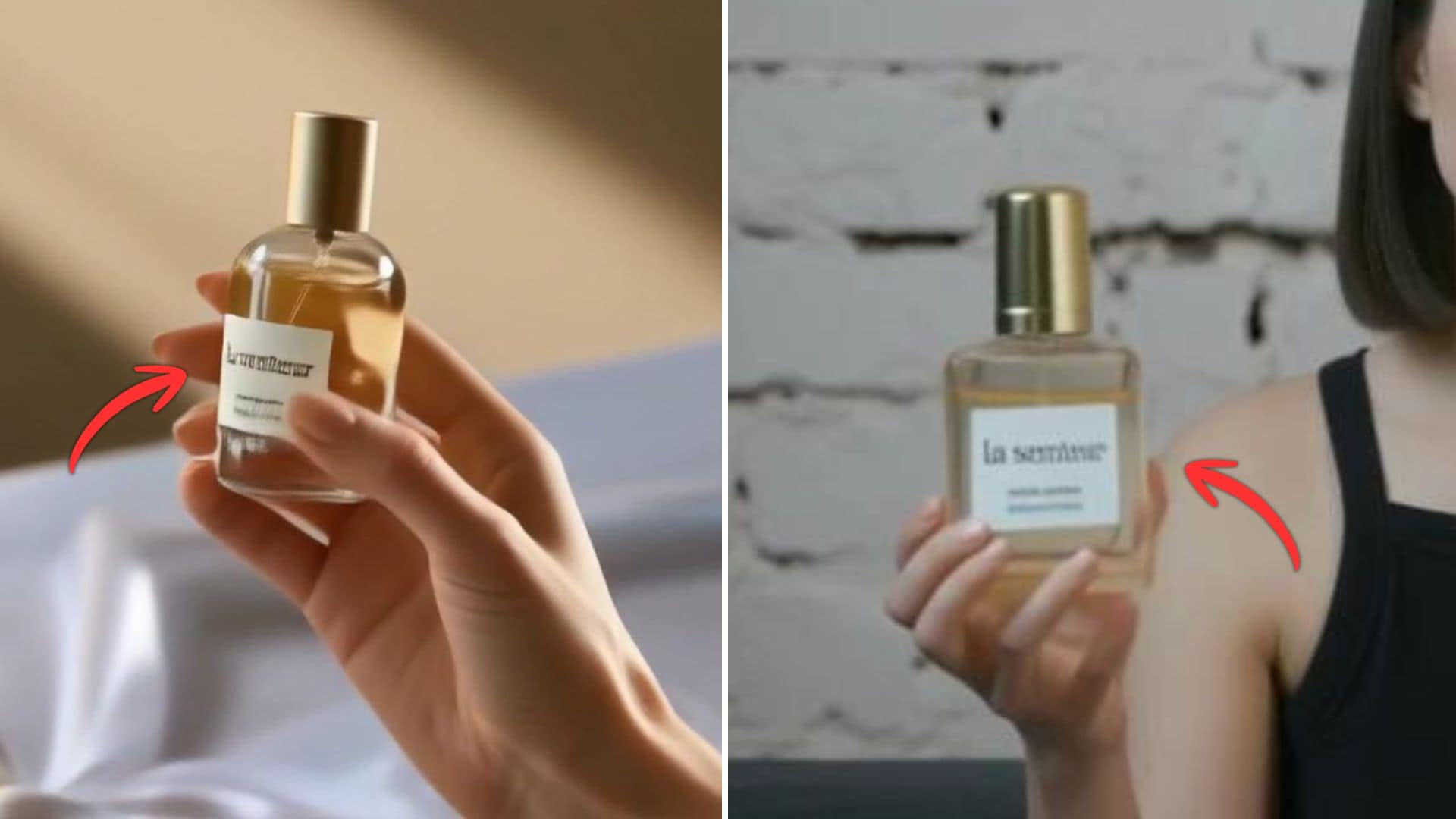
This issue happens across both Video Generation and Omni Reference. If your video needs clean logos, labels, captions, or product text, it’s safer to add the text later in post-production.
Overall Score:
- Video Quality — 7.5/10
- Audio Quality — 8.0/10 (No Audio in Fast Mode)
- Prompt Accuracy — 8/10
- Physics and Motion — 5/10
- Ease of Use — 9/10
- Speed — 7/10
- Value for Money — 7.5/10
- Follows structured prompts well, especially for camera movement and spatial direction
- Omni Reference gives you real multimodal control with images, video clips, and audio references
- Pricing is fair for what you get, especially at the Standard tier
- Free tier gives you enough credits to test the SkyReels Fast mode
- Motion lacks physical weight and dimension
- The generated clips often feel flat in complex scenes
- Text rendering often comes up as blurry, even with image references
- Limited to 1080p
- AI Avatar tools from earlier versions are gone from the platform entirely
Part 6. Edit Your SkyReels AI Clip After Generation
SkyReels is a generation tool. Once the clip is out, you're on your own for everything else. Regenerating just to fix a small issue costs you credits and time, so it's worth having a proper editor in the loop. We recommend bringing your clips into Wondershare Filmora instead.
Filmora handles the editing side cleanly, but what makes it a natural pairing with SkyReels AI specifically is that it also has its own built-in video generation, powered by models like Seedance 2.0, Veo 3.1, and ToMoviee.
So, if SkyReels isn't the right tool for a particular clip, you don't have to leave Filmora to generate it elsewhere. Everything stays in one place. Other Filmora’s features worth calling out for SkyReels users specifically:
- AI Video Extend lets you extend a clip forward or backward using a prompt. If SkyReels generates a good take that cuts off a second too early, you can stretch it without going back to regenerate from scratch.
- AI Object Remover cleans up unwanted elements directly on the footage (a stray object, a background detail that doesn't fit, etc.) without having to re-prompt and spend more credits.
- AI Color Matching keeps SkyReels-generated footage consistent with the rest of your timeline. Since generated clips can look tonally different from other footage, this saves a lot of manual grading work.
- Flexible export with direct sharing to social platforms, so you're not adding extra steps between finishing the edit and posting.
If you are mostly working on short-form social content or product videos, keeping generation and editing in the same tool removes the hassle of jumping between apps just to fix one small thing. Filmora's free plan is available to try before committing.
 Secure Download
Conclusion
SkyReels AI V4 now focuses entirely on video generation, dropping the AI avatar tools and other features that were still part of V2 and V3. Motion quality and text rendering still need work, and Fast mode isn't something you'd realistically use for final output. But for short-form content and product videos, it's a fair deal at the price.
When you find that the generated clip needs a trim, a text overlay, or just a color grade to match the rest of your timeline, bring it into Filmora rather than burning credits on regenerating it again. It's the faster fix, and you can also use or generate additional clips directly inside Filmora if you need more footage.
FAQs
-
Is SkyReels AI good for beginners?
Yes. The interface is straightforward, and the sample templates let you generate videos without writing a prompt manually. -
Can I use SkyReels AI for commercial videos?
Yes. All paid plans include a commercial license, so you can use the generated clips in client work, ads, and social media content. However, be careful with including logos or text in the generation itself, as it often comes out blurry or distorted. -
Is there a SkyReels mobile app?
Currently, SkyReels runs as a web-based platform only. It’s accessible through a browser on desktop or mobile. There is no dedicated iOS or Android app available for download. -
Does SkyReels AI add a watermark to videos?
No. Even if you are on the free plan, it doesn’t include a watermark on your video.
