

 TL;DR:
Vheer AI is a zero-cost, browser-based image-to-video generator in 2026 that allows users to instantly export watermark-free 1080p clips without an account, making it highly effective for fast-paced social media creators targeting TikTok and Instagram.
● Generated outputs are strictly capped at silent, 4 to 10-second files without 4K support, and the underlying AI frequently distorts complex physics like liquid motion or warps subjects during camera movements.
● Unlike competitors such as Runway, Kling AI, Pika, and Luma Dream Machine that impose watermarks on their free tiers, Vheer provides completely unrestricted free exports at the expense of manual camera keyframes and depth layering.
● Because the platform cannot generate audio or edit timeline flow, creators must export the raw clips into external software like Wondershare Filmora to apply AI-generated background music, sound effects, and smooth transitions before publishing.
Ask AI for a summary
 ChatGPT
 Perplexity
 Gemini
 Claude
 Grok
Grok
Vheer AI is a 2026 browser-based tool offering free AI video generation without watermarks, specializing in image-to-video motion synthesis for social media creators.
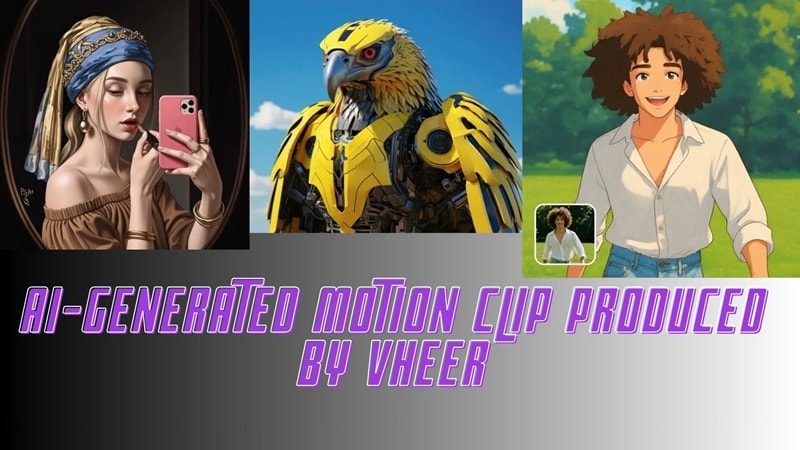
Tools like the Vheer AI video generator are revolutionizing visual storytelling in 2026. This platform allows creators to generate high-quality AI video clips without a professional crew, complex editing skills, or even a signup. Most importantly, it stands out as a rare free AI video generator with no watermark, making it a top choice for social media creators.
Key Takeaways:
- Vheer AI provides high-speed, browser-based AI video generation without watermarks.
- It excels at image-to-video animation but struggles with complex liquid physical motion.
- Ideal for 5-10 second social media clips on TikTok and Instagram.
- Pairing Vheer visuals with Filmora's AI audio tools creates a complete video experience.
Part 1. What is Vheer AI Video Generator?
Vheer AI Video Generator is a browser-based visual creation platform that is designed to remove technical friction from AI image and video creation. Vheer is not just a single feature tool. Here's what it really offers:
- Fully browser-based: Everything runs online. No downloads, no heavy hardware, no complicated setup.
- All-in-one creative tools: You get text-to-image, image-to-video animation, basic photo editing, and background removal in one place.
- Free and open to use: Core features are free, and exports don't come with watermarks, which makes it appealing for beginners and social media creators.
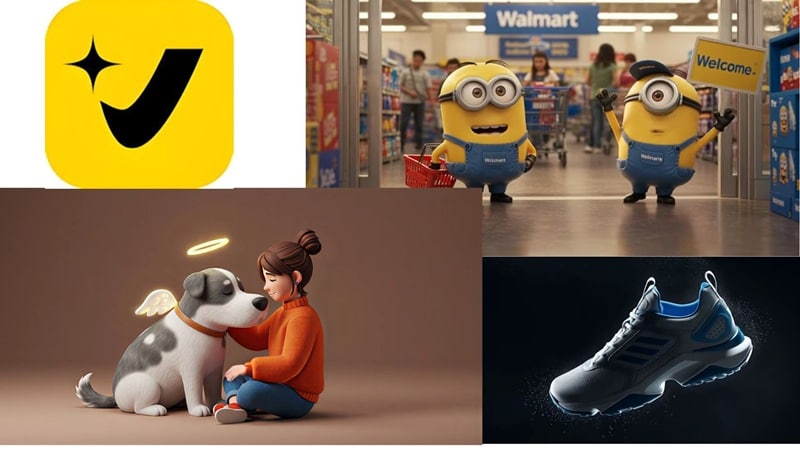
Part 2. Core Features: Why Use Vheer AI Text to Video Generator?
So, what can you actually do with the Vheer AI video generator? Quite a lot, honestly. But out of everything it offers, these are the features that really stand out.
Image-to-Video Stability
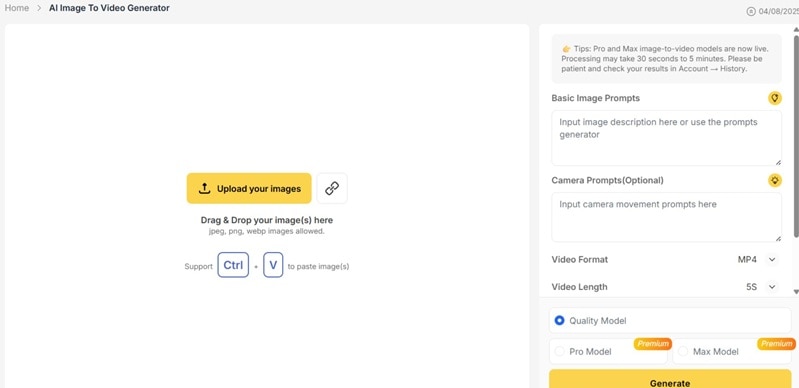
Image-to-video is Vheer's strongest capability. That's because Vheer doesn't generate full videos from text alone. You start with an image, then use text to guide the motion, like describing camera movement, mood, or small scene changes.
The AI animates the image based on your instructions, which makes the result feel more cinematic than scripted.
Multi-Model Visual Support
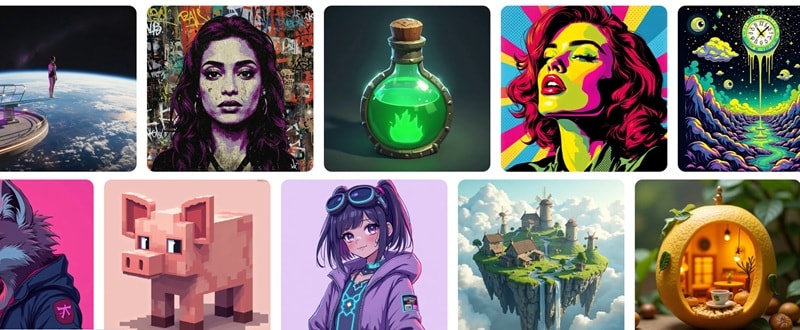
Vheer includes several built-in AI models that affect visual tone and motion style. Each model leans toward a different look, such as stylized art, clean cinematic visuals, or semi-realistic scenes. Users can switch models to match the project goal without changing the workflow. This allows visual variety while keeping the process simple.
No Watermark and High-Speed Output

All generated videos are exported without watermarks, even on the free version. There are no forced logos or brand overlays. Rendering is also pretty fast, most clips generate within seconds to a few minutes. You can export in HD up to 1080p, so the results are usable for real publishing, not just experiments.
Other Notable AI Tools Available in Vheer
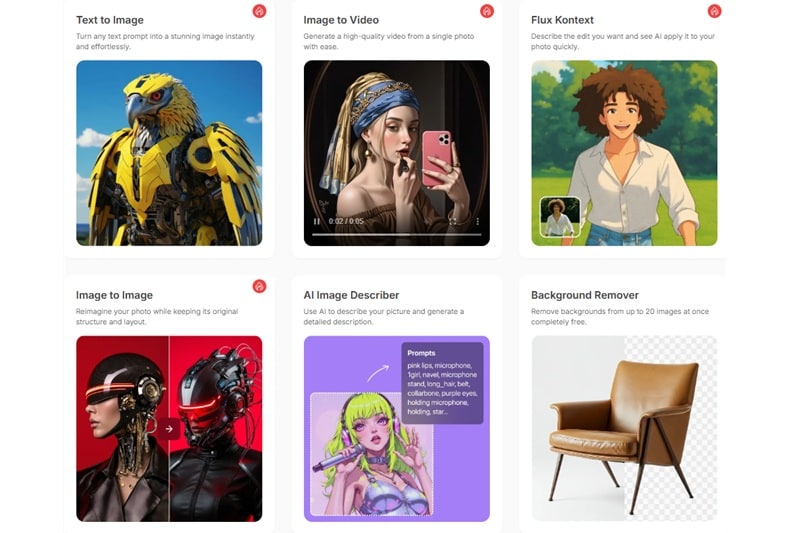
Beyond simple animation, the Vheer AI video generator functions as a versatile AI creative hub. Whether you need an AI text-to-image generator for concept art or an AI background remover for product shots, Vheer provides a comprehensive suite of tools that rivals many paid alternatives. Here's what else you get:
- AI Text to Image Generator – Creates detailed visuals from written descriptions for creative or concept use.
- Image-to-Image Generator – Reworks existing photos with new styles or visual directions.
- Kontext (Semantic) Editor – Edits images using natural language commands instead of manual tools.
- Batch Background Remover – Removes backgrounds from multiple images at once while keeping edges clean.
- AI Style Transfer – Applies artistic and themed styles to photos with one click.
- Prompt Generator from Images – Extracts usable AI prompts from uploaded visuals.
- Portrait and Headshot Tools – Generates clean, studio-style portraits for profiles and branding.
Part 3. Hands-on Test: Video Quality and Performance
To assess real-world performance, we tested the Vheer AI Video Generator in practical creation scenarios. The focus stayed on image-to-video output, prompt accuracy, motion quality, and speed.
Test Setup and Scope
To keep things realistic, we tested the Vheer AI video generator using default settings, just like a regular user would.
| Category | Setup Details |
| Clip Length | 5–10 seconds |
| Resolution Tested | 768p to 1080p |
| Visual Style | Stylized and semi-cinematic scenes |
| Workflow | Upload image + add prompt |
Test Case Results
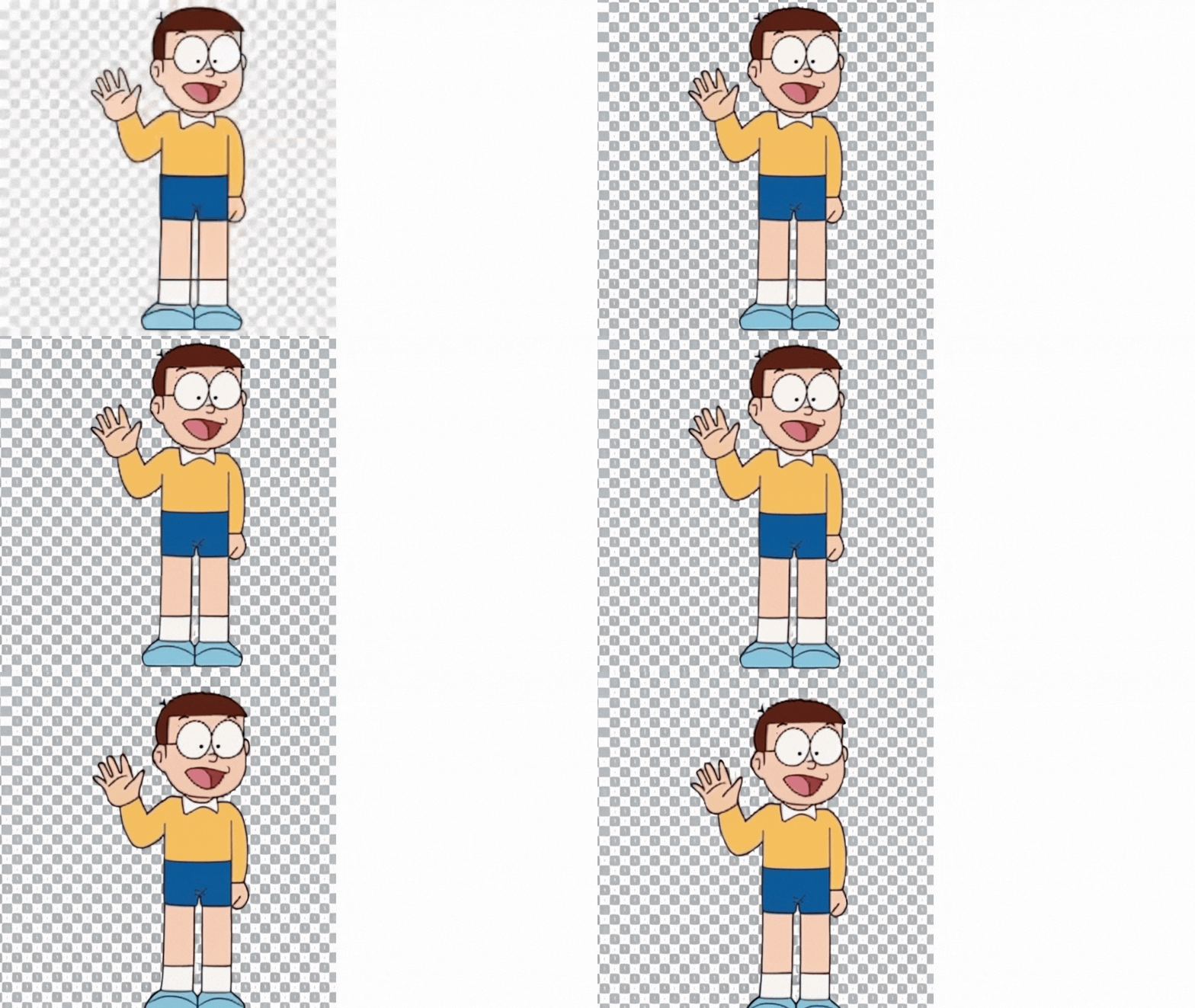
- Character Animation from Image: We animated an illustrated character with a "walking" prompt. The character stayed stable, but movement was simple, more sway and bounce than real walking.
- Prompt Accuracy: We tested a detailed scene (robotic eye with city reflection). The AI matched the tone and subject well. The clip was short, but visually aligned with the idea.
- Physical Motion Simulation: We tried liquid motion, and this is where it struggled. The movement looked thick and unrealistic.
- Generation Speed: Ten-second clips rendered quickly. Most are completed in under one minute. This supports fast testing and repeat attempts without delays.
Video Quality Overview
| Strengths | Limitations |
| Fast rendering | Only short clips |
| No watermark | No 4K export |
| Works best for stylized visuals | Struggles with complex motion |
Looking at the result table, Vheer performs best as a short-form visual generator, not a cinematic production tool.
Motion Control: What You Should Know
Camera movement options remain basic.
- No manual camera paths or keyframes.
- Zoom and pan feel preset, not precise.
- Depth layering is limited, which flattens scenes.
- Subjects may warp during camera motion.
The AI favors stylized motion patterns. This works for creative visuals but reduces realism in detailed scenes.
Part 4. Vheer AI Pros and Cons: An Honest Breakdown
After testing it ourselves, we have a better sense of where the Vheer AI video generator truly delivers and where it starts to struggle. Some parts genuinely impressed us. Other parts felt limited once we pushed it a little further.
Here's a simple breakdown of what works well and what doesn't:
- Completely free with clean exports: Videos can be downloaded without watermarks, which is rare for free AI tools.
- Instant access: You can start creating right away. No account. No setup delay.
- Prompt assistance from images: The system can suggest motion prompts based on the uploaded image, which helps when ideas feel unclear.
- Fast entry for testing ideas: It works well for quick experiments and visual drafts.
- Very short video length: Most outputs stay around four to five seconds, which limits storytelling.
- Unstable output quality: Some clips look polished. Others feel broken or distorted. Results vary widely.
- Slow during busy periods: Generation time can increase sharply when many users are online.
- No editing tools included: The platform only generates silent video files. Trimming, sound, and refinement must happen elsewhere.
Part 5. Vheer AI Video Generator vs. Competitors: How Does It Stack Up?
As you can see, Vheer takes a different path from most AI video tools. It focuses on access, speed, and zero cost, not cinematic depth. This makes the comparison clear once goals are defined. Let's break it down!
Quick Comparison Snapshot
| Aspect | Vheer AI | Runway | Kling AI | Pika | Luma Dream Machine |
| Best Use | Fast social clips | Pro-grade control | Realistic motion | Stylized creativity | High-quality speed |
| Pricing | Free, unlimited | Paid subscription | Freemium | Freemium | Freemium |
| Watermark | No | Yes (free tier) | Yes (free tier) | Yes (free tier) | Yes (free tier) |
| Output Quality | Good for short form | Excellent (paid) | Excellent (realism) | Good (stylized) | Very high |
| Ease of Use | Very easy | Complex | Moderate | Easy | Moderate |
| Core Strength | Zero-cost access | Advanced editing | Motion realism | Creative styles | Consistency |
|
Show More
Show Less
|
|||||


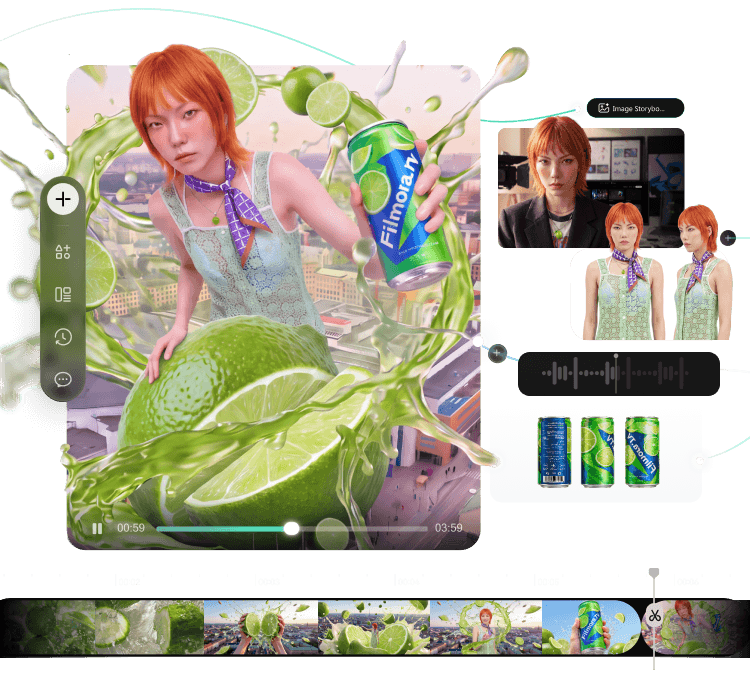
From Idea to Video.
Your AI Creative Studio.
- Turn briefs into scripts, storyboards, and references
- Generate and compare across AI models in one project
- Move your best takes to the timeline for rough cuts
- Keep projects, assets, and feedback connected
How Vheer Stacks Up
- Against high-end AI video tools: Platforms like Runway or Kling aim for longer, more cinematic videos. Vheer AI video generator doesn't. Clips stay short, motion is more stylized, and complex scenes can break down. It's built for speed, not film production.
- Against free and freemium alternatives: This is where Vheer stands out. Many free tiers add watermarks or limit exports. Vheer doesn't, which makes experimenting much easier.
- Best fit for social content: The tool works well for short, loopable visuals made from still images. These clips suit platforms like TikTok, Instagram Reels, and quick promotional posts.
- Efficient for early-stage ideas: Features like the Kontext Editor help keep characters and visual styles consistent. This supports fast ideation and rough storyboarding before moving to more advanced, paid software.
Part 6. Pro Tip: Levelling Up Vheer Videos with Wondershare Filmora
Now that we've covered what Vheer can do, the real question is: is it enough on its own? Here's the honest take: Videos made with the Vheer AI video generator look clean and visually interesting. But they don't feel complete. They feel like raw clips straight out of the lab.
The Core Problem of Vheer: No Audio
While Vheer excels at visuals, the output is often silent. To transform these raw clips into viral content, you need a robust editor. Wondershare Filmora bridges this gap perfectly with its AI Music Generator and advanced audio ducking features. By importing your Vheer-generated clips into Filmora, you can add cinematic soundscapes and professional transitions in minutes. Just moving visuals. And that's exactly why pairing it with a proper editor like Wondershare Filmora makes so much sense.
 Secure Download
Solution 1: Adding AI Music and Sound Effects
Filmora makes it easy to build audio around silent visuals. Import your Vheer clip into Filmora, drop it on the timeline, then head to the Audio section.
You can:
- Add background music.
- Insert sound effects.
- Adjust timing and volume.
- Apply fade in or fade out.
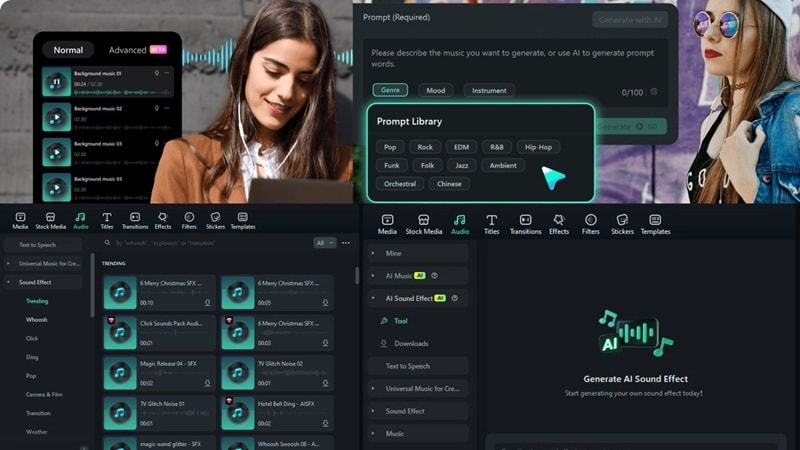
Filmora also includes an AI Music Generator. It creates custom background music based on mood and pacing, which removes the need to search external libraries.
Solution 2: Extension: Improving Resolution with AI Video Upscaling
Vheer clips often need higher clarity before publishing. Wondershare Filmora makes this upgrade simple. You can:
- Import the clip.
- Resize it using the Scale controls.
- Adjust positioning.
- Fine-tune the frame.
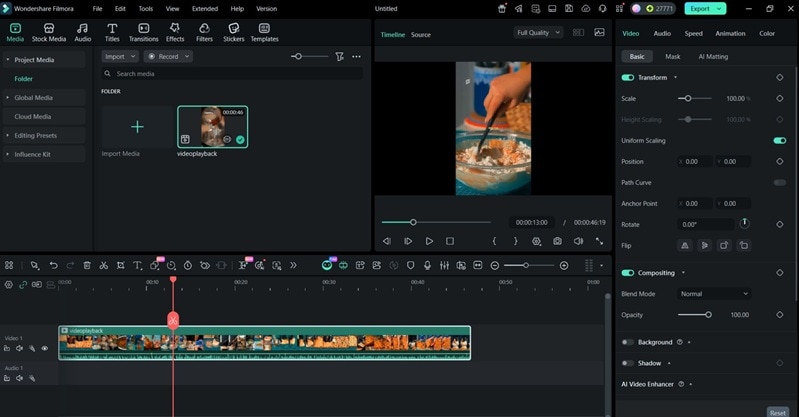
This helps clean up the final output before publishing.
Solution 3: Editing for Length and Flow
Vheer clips are short. Filmora helps you turn them into a full video. Simply follow this workflow:
- Combine multiple clips
- Add smooth transitions
- Keep the same transition style for consistency
- Build a simple story flow
Instead of posting one short AI clip, you can create something that feels complete and intentional.
Conclusion
This review shows where Vheer AI Video Generator fits in today's AI video landscape. It's a strong starting point. You get fast, watermark-free image animation that works well for social posts, quick concepts, and early drafts. But the limits are clear too. Clips are short, motion is fairly simple, and everything exports without sound.
That's why finishing the video matters just as much as generating it. Adding music, improving pacing, and polishing the visuals is what turns a raw AI clip into something people actually want to watch. The Vheer AI text-to-video generator can spark the idea, and tools like Filmora help shape it into a complete, publish-ready video.

