


 TL;DR:
VoooAI is a multi-model AI workflow platform that orchestrates generators like FLUX and Sora to produce bulk visual assets for storytellers and creative teams, though its lack of manual editing capabilities often requires exporting the results to external software for final post-production.
● Free accounts receive 50 weekly credits limited to basic models and watermarked outputs, while commercial usage rights and watermark removal strictly require a Professional ($20.00/month) or Max ($49.00/month) subscription.
● The platform does not support targeted manual editing on generated files, meaning users must consume additional credits to completely re-prompt from scratch when facing inconsistent visual styles or unrealistic video generation errors.
● While VoooAI streamlines initial asset generation through its Workflow Builder and OpenClaw API integrations, assembling these raw image sequences into cohesive videos requires external editors like Filmora to apply transitions, AI Video Translation, and Auto Reframe adjustments.
Ask AI for a summary
 ChatGPT
 Perplexity
 Gemini
 Claude
 Grok
Grok
These days, AI has made content creation more accessible than ever. In fact, according to a 2025 Adobe report, 86% of global creators now use generative AI in their creative workflows to help streamline the process.
One tool that can help with content creation is VoooAI. This platform allows you to simply enter a prompt, and it can generate images, videos, audio, and other creative assets in a single workspace.
So, in this article, we'll walk through VoooAI's features, pricing, pros and cons, and find out whether it suits your needs.
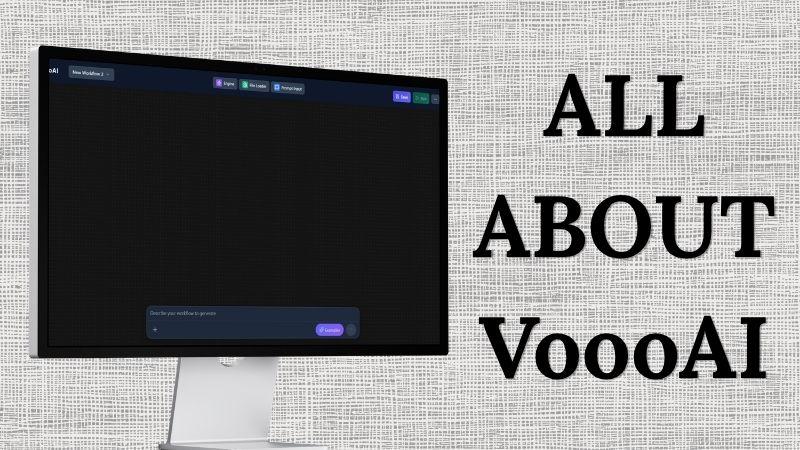
Part 1. What Is VoooAI and How It Works
VoooAI isn't just another AI generator where you type a prompt and hope for the best. Its main strength is not just generation, but workflow control. You can connect multiple AI tasks in one place, from creating content to editing and combining the results.
The Core Capabilities of VoooAI
VoooAI may seem simple on the surface, but these systems work together in the background to handle different parts of the content creation process.
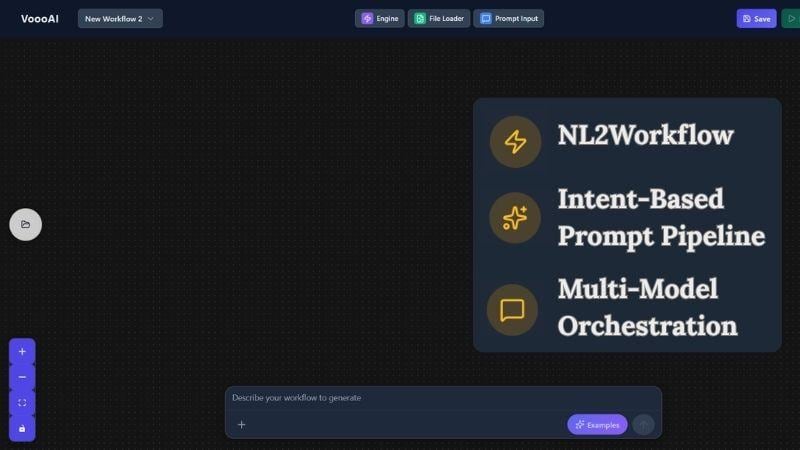
- NL2Workflow (Natural Language Workflow): You describe what you want in normal language, and VoooAI turns it into a ready-to-run workflow.
- Intent-Based Prompt Pipeline: It improves your request into stronger prompts, so you do not need to master prompt writing.
- Multi-Model Orchestration: It connects models like FLUX, Sora, Seedance, Suno, and others, then chooses the right model mix for your task.
VoooAI Features to Explore
Now that we've looked at the system behind VoooAI, let's explore the features available inside the platform and see what you can actually create with them.
1. AI Image Generation
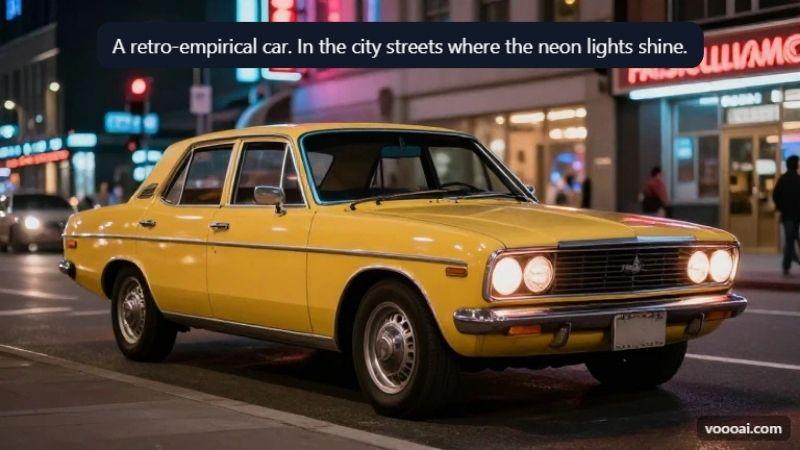
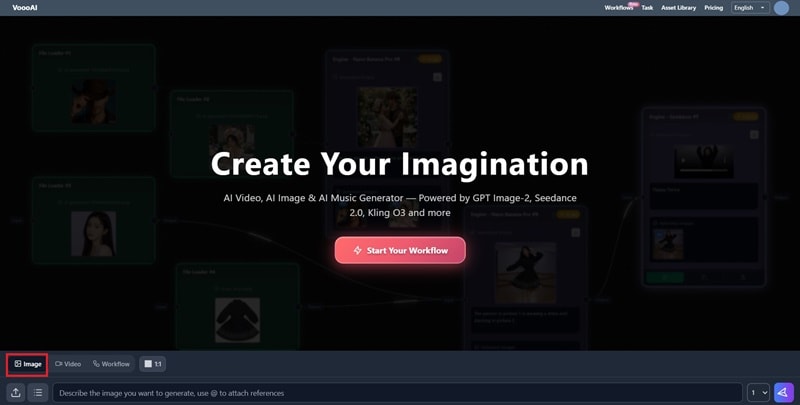
With VoooAI, you can generate images based on text prompts. You can customize the image quality, aspect ratio, and output size. If you already have a visual reference in mind, you can also upload images to help guide the generation process. The platform supports several AI models, including GPT-Image, Nano Banana, and Qwen Image.
2. AI Video Generation
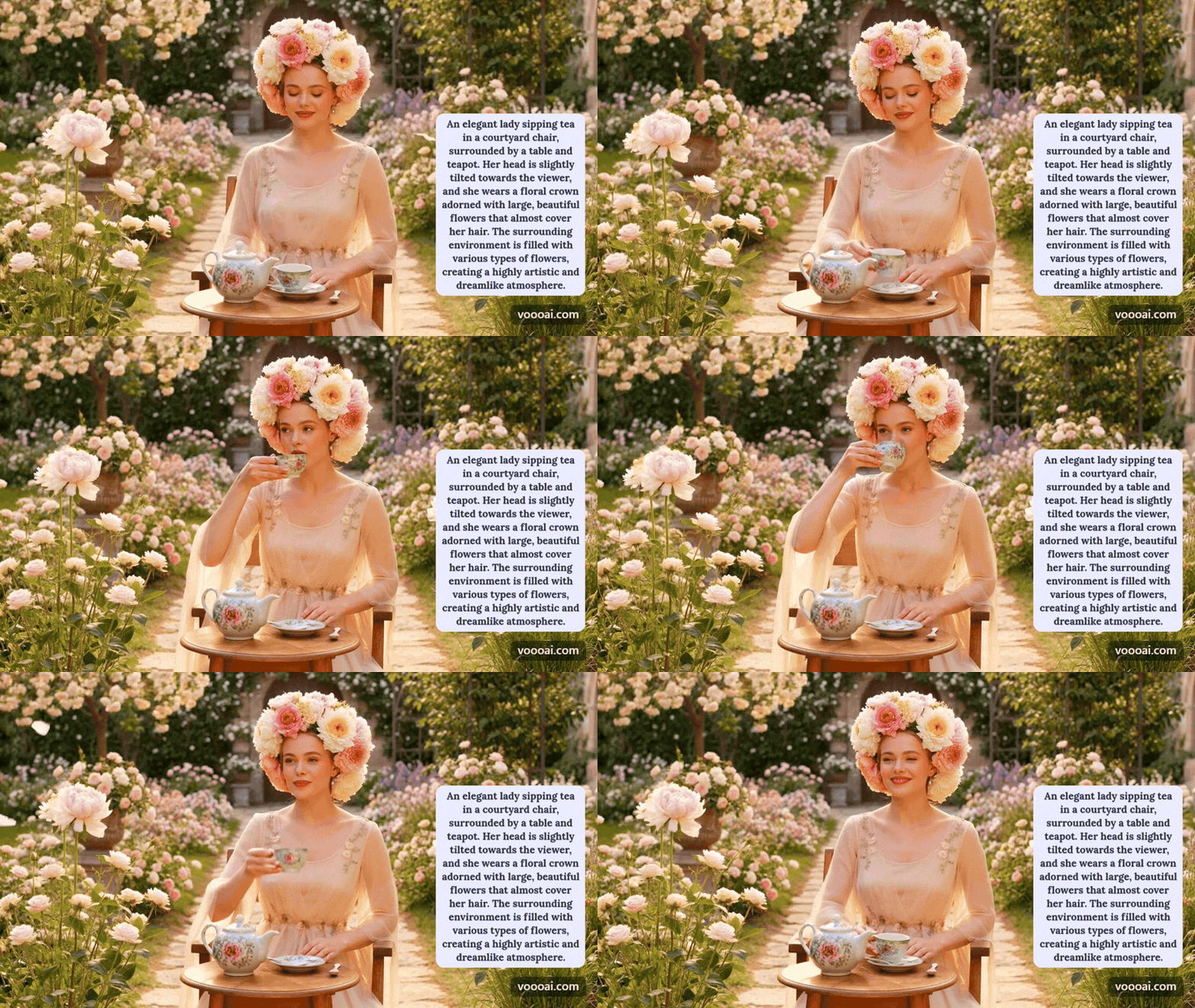
VoooAI also supports AI video generation, allowing you to create short video clips from prompts or visual references. The platform provides access to multiple AI video models, including Seedance, Veo, Sora, Kling, and others. It also supports different formats and settings to suit various content needs.
3. Workflow Builder
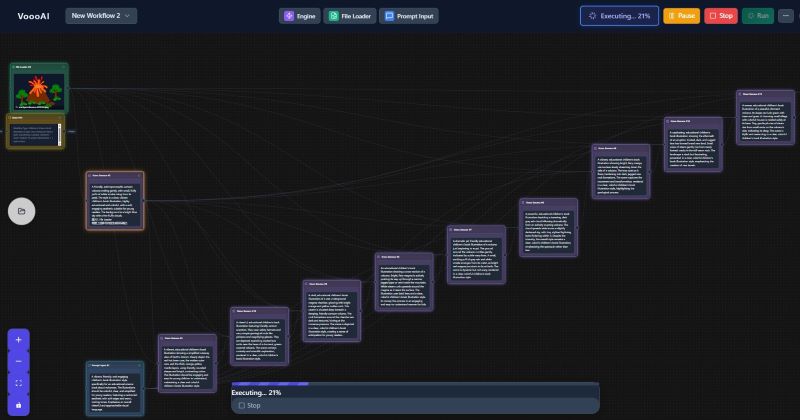
For more advanced projects, VoooAI includes workflow-based tools that connect multiple AI tasks together. Instead of generating one image or video at a time, you can create larger projects such as comic stories, photo sets, short dramas, or content ideas that involve several generation steps working together.
Where to Access VoooAI
If you're interested in trying VoooAI, getting started is actually quite simple. Since it’s an online platform, you can access it from almost any browser whenever you need it.
That said, using VoooAI on a laptop or PC will probably feel more comfortable, especially if you're working on content creation projects. The larger screen makes it easier to navigate the platform and manage your assets.
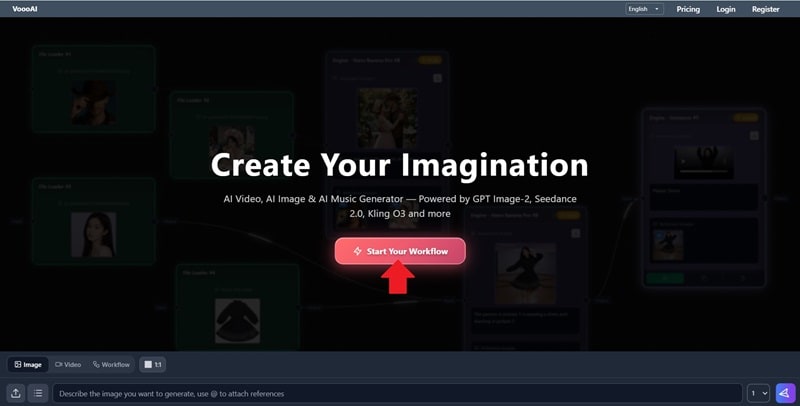
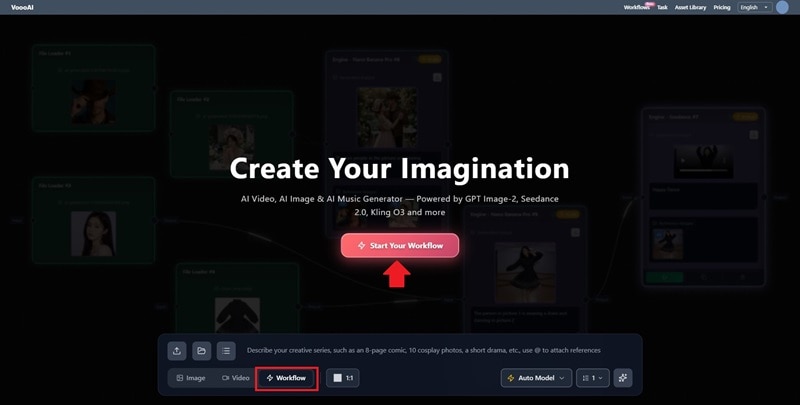
To get started, visit the official VoooAI website. Click Start Your Workflow, then sign up for a new account or log in to an existing one. Once you're in, you can explore the available tools and start generating images, videos, or AI workflows.
Part 2. How Much Does VoooAI Cost?
Before deciding whether VoooAI is worth using, let’s check the pricing first. Here's a look at what free users get and how the paid plans compare.
Although VoooAI is not completely free, it does provide starter credits for new users. Once you sign up, you'll automatically receive 50 credits that refresh every week. Check out the benefits available to free users:
- Run up to 5 tasks simultaneously.
- Access to 1 workflow template.
- Basic AI workflows.
- Edit images using text prompts.
- Access to basic AI models.
If you need more credits, want to remove watermarks, or plan to use the generated content for commercial purposes, you'll need to upgrade to one of VoooAI's paid plans. To make the comparison easier, we've summarized the key differences below.
| Aspect | Premium | Professional | Max |
| Price | $8.00/month or $72.00/year | $20.00/month or $139.20/year | $49.00/month or $341.04/year |
| Credits | 500 | 1200 | 2600 |
| Access to AI Models | Advanced AI Models Only | All AI Models | All AI Models |
| Workflow Features | Advanced | Advanced & Accurate | Advanced & Accurate |
| Concurrent Task | 8 | 14 | 20 |
| Workflow Templates | 5 | 10 | 20 |
| API & AI Agent | Limited | Full Access | Full Access |
| Processing Speed | Faster Queue & Priority Processing | Faster Processing & Faster Generation | Fastest Processing + Early Access |
| Output Quality | High Quality | Best Quality | Best Quality |
Not ready for a subscription just yet? VoooAI also provides one-time credit purchases. This is useful if you simply need a few extra generations, want to keep testing the platform, or only use the tool occasionally.
Part 3. How VoooAI Works in Practice
Understanding the features is one thing, but using them is another. To get a better feel for the platform, let's try VoooAI ourselves and see what kind of results it can produce.
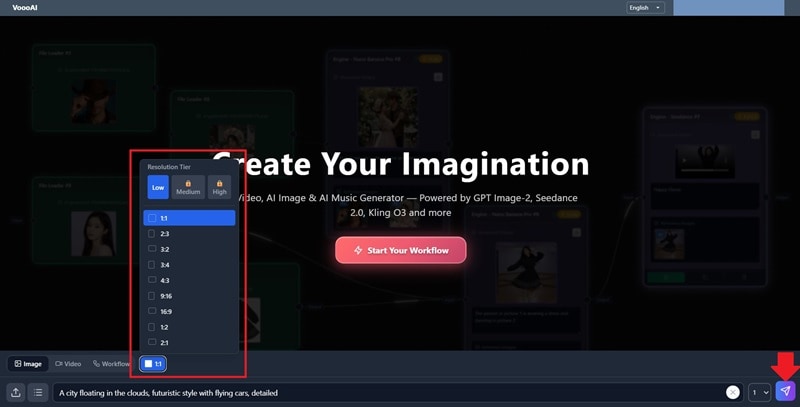
Step-by-Step: Create a Flying City Image
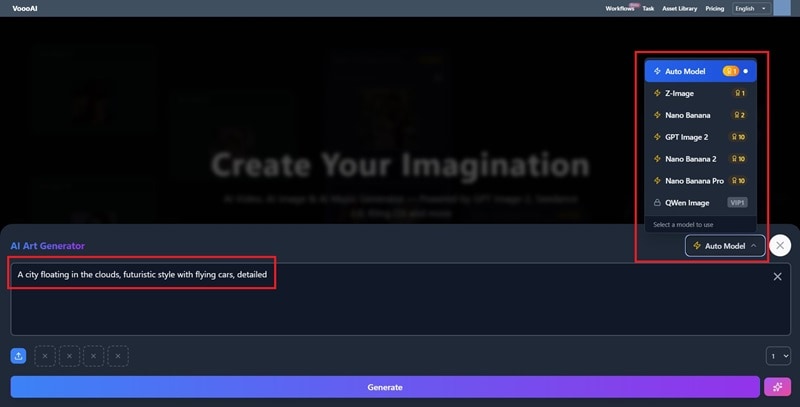
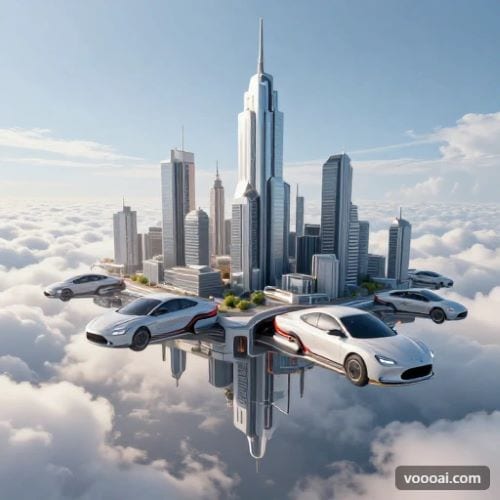
Here's the final result. The main elements from the prompt are present, including the flying city and flying cars, though some details could be improved. The bottom portion of the city looks somewhat duplicated, which makes the floating effect feel less convincing.
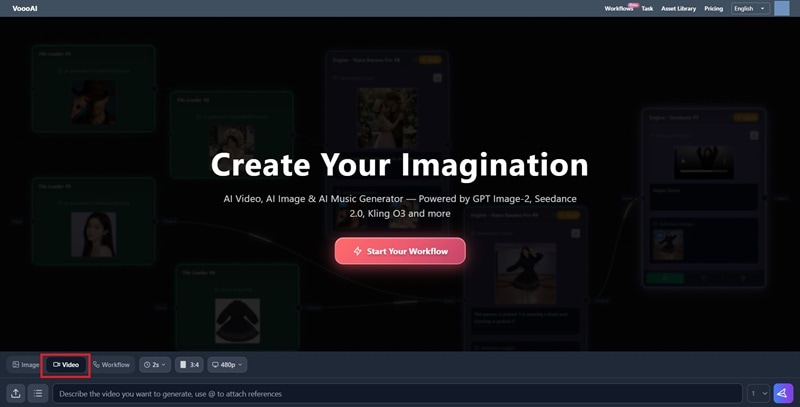
Step-by-Step: Create a Backpack Video Ad
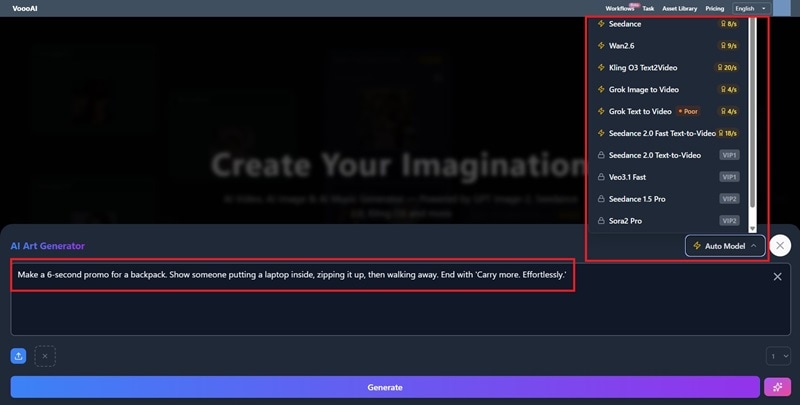
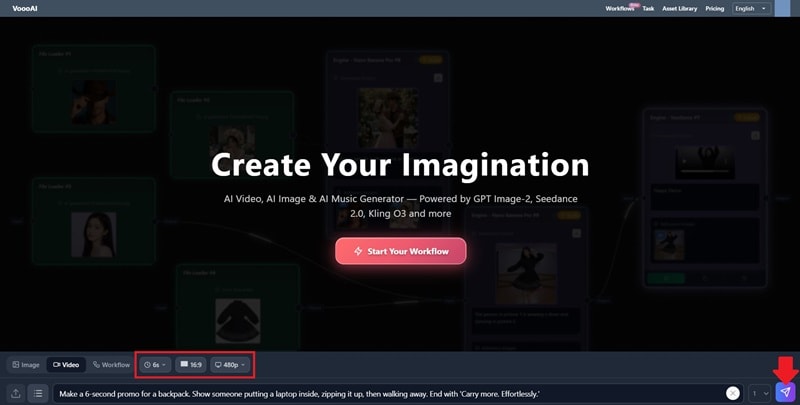
Check out the final result.
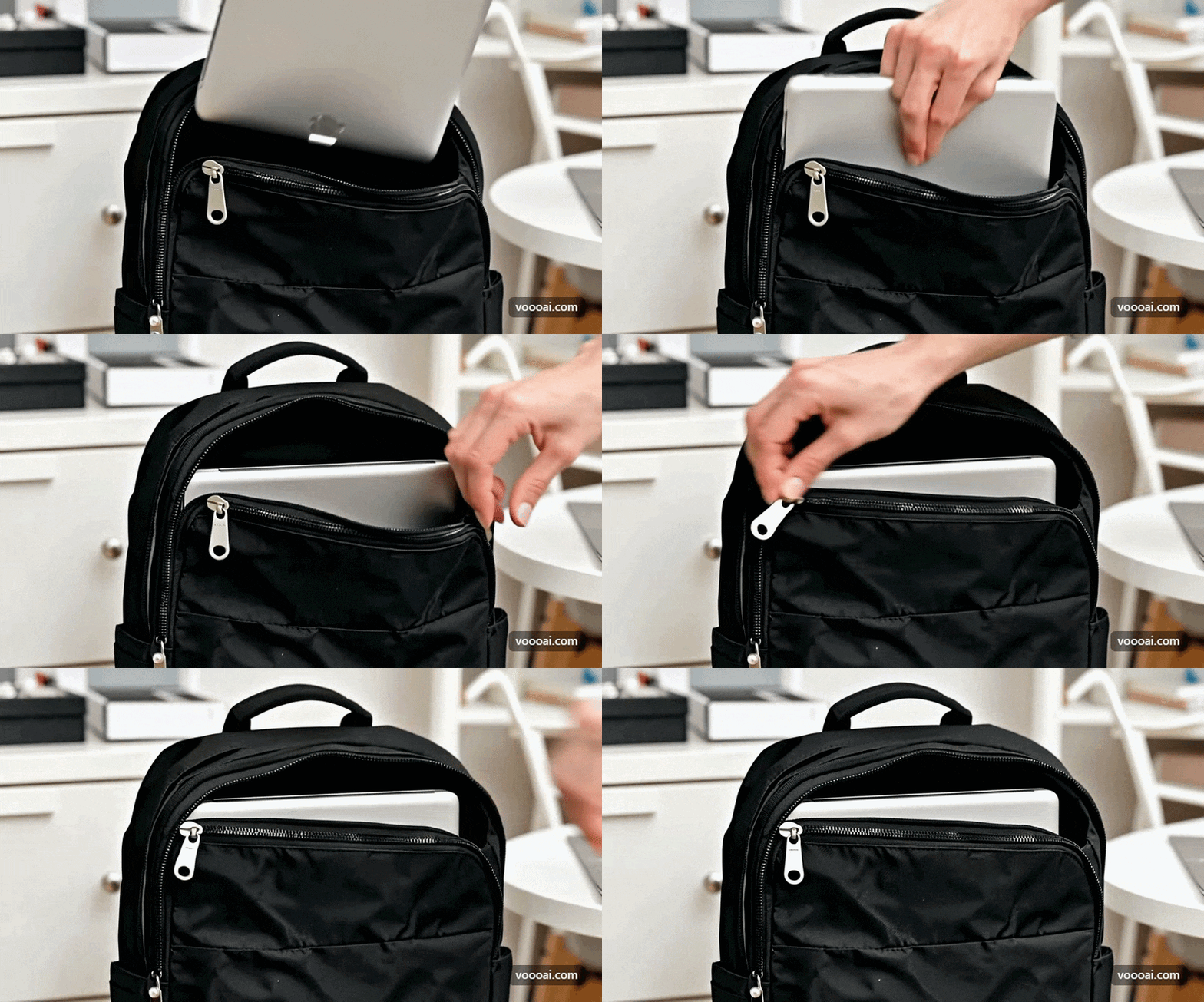
The AI managed to follow the prompt quite accurately, as the video shows someone placing a laptop into a backpack. However, there is one obvious issue. When the person closes the zipper, the backpack still appears open, making the movement look a bit awkward and unrealistic.
Step-by-Step: Create a Volcano Storybook
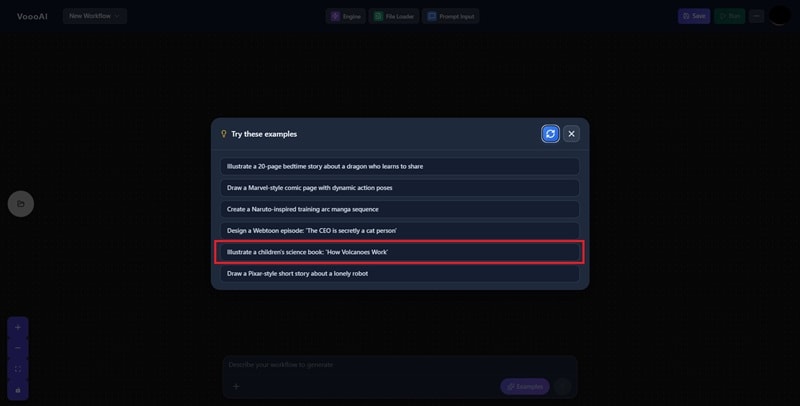
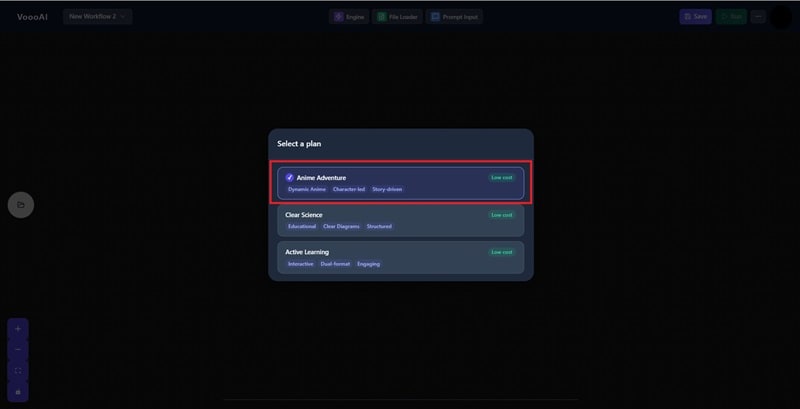
Once the workflow is generated, you can review each step and adjust any prompt boxes if needed. You may also upload reference images to guide the results.
In this example, we'll upload a volcano photo. When everything is ready, click Run to start the generation process.
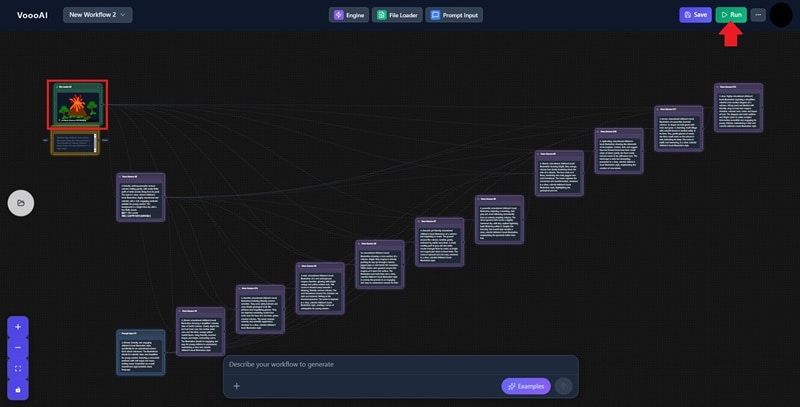
Take a look at the result below.
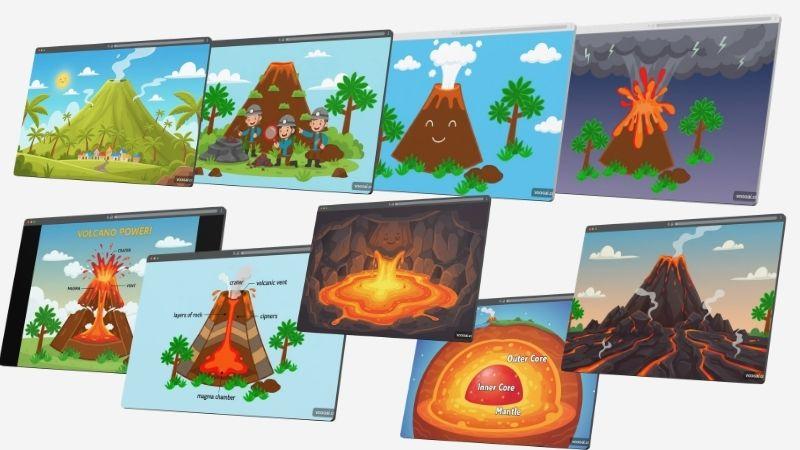
VoooAI generated a series of volcano illustrations that cover different parts of the story. The images show the volcano before, during, and after the eruption, making the overall result feel more complete. These visuals can later be arranged and polished into a storybook, presentation, or other educational content.
Part 4. What Are the Pros and Cons of VoooAI?
Now that we've explored VoooAI's features and workflow, let's take a look at where the platform performs well and where it may fall short. Like any AI tool, VoooAI comes with its own advantages and limitations that are worth considering before deciding whether it's the right fit for your needs.
- Accessible for Beginners: The platform is relatively easy to navigate, and most tools can be understood as you use them.
- Supports OpenClaw and API Access: The platform can be connected with external tools through OpenClaw and API integrations, helping streamline content creation processes.
- Good for Bulk Creation: You can run multiple AI tasks in one workflow, which helps speed up content production.
- No Manual Editing: You can't tweak specific details by hand; if an output is wrong, you have to re-prompt from scratch.
- Inconsistent Outputs: Visual styles can fluctuate, often requiring multiple reruns to get exactly what you want.
- Credits Can Run Out Quickly: Some features, particularly video generation, can consume a large number of credits. If you frequently regenerate content or work on multiple projects, your credits may run out faster than expected.
Part 5. Who Is VoooAI Best For?
Not every AI tool is built for the same type of user. While some focus on image generation or video creation alone, VoooAI combines multiple content creation tools in one platform. So, who can get the most value from using it?
- Storytelling Creators: If you're working on a comic series, an illustration collection, or any visual story, VoooAI can help you generate consistent characters and backgrounds across many panels. You don't have to draw every single frame by hand.
- Educational Creators: Teachers, trainers, and online course creators can use VoooAI to turn lesson ideas into animated videos, science visuals, or illustrated diagrams.
- Creative Teams: Whether you need brand videos, ad creatives, social media posts, or even jingles, VoooAI can generate different styles for different campaigns. Just type what you want, and it adapts.
- Brands and Businesses: If you run an e‑commerce store or a retail brand, product visuals are a big part of your work. VoooAI creates product photos, lifestyle images, promo videos, and even digital human hosts for livestream shopping.

Part 6. Turning AI Concepts into Professional Videos with Filmora
VoooAI works really well for generating images, scenes, and creative concepts. The next question is: what do you do with all those generated assets? Fortunately, Wondershare Filmora exists as a powerful video editor to tie everything together.

With Filmora, you can take the images and videos generated in VoooAI and turn them into a complete video project. You can add transitions, music, captions, sound effects, and many other elements to make the final result more engaging. Compared to relying only on AI-generated outputs, Filmora gives you more freedom to adjust and improve the video based on your own preferences.
Let's take a closer look at some of the features that make Filmora a strong companion for your VoooAI-generated content.
 Secure Download
Flexible Editing Across Devices
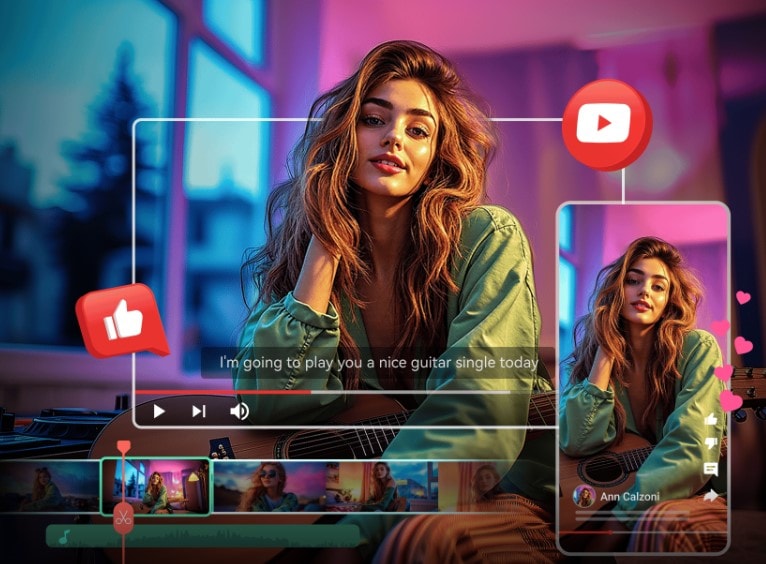
After generating your content with VoooAI, you can continue working on it using Filmora, whether on mobile or desktop. You can make quick adjustments on your phone while you're on the go, then switch to the desktop version later for more detailed editing. Your project progress stays synced, making the transition between devices much smoother.
Build a Story from Generated Visuals
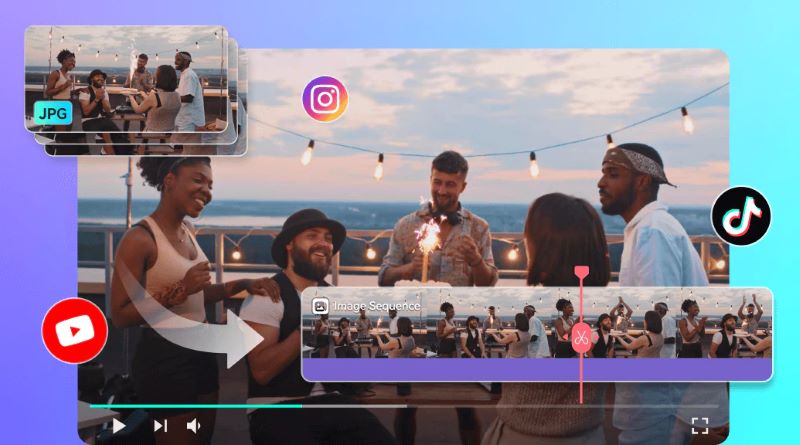
Filmora makes it easy to turn the images or clips generated in VoooAI into a complete video. Using the Image Sequence to Video feature, you can quickly combine multiple visuals into a single project. If some scenes feel too short, AI Video Extender can help lengthen them so the video flows more naturally. Also, Filmora’s timeline editor keeps things smooth while you arrange and fine-tune your video.
Enhance Your Video with Creative Elements
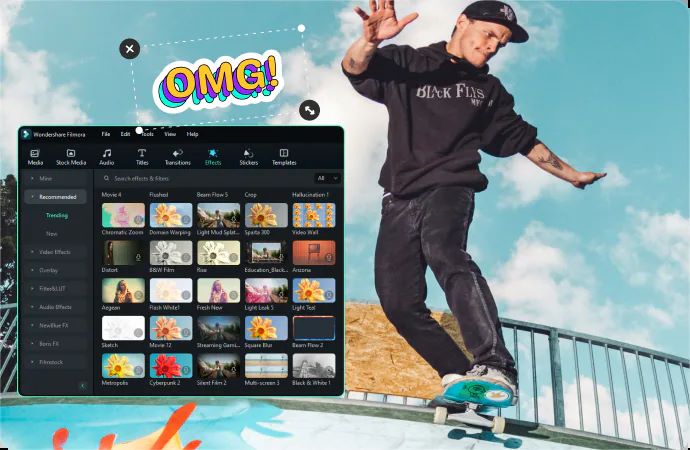
After arranging your visuals into a video, you can make the project more engaging with transitions, effects, overlays, and other creative assets. Filmora offers a large collection of options, making it easier to find styles that match your content and overall theme.
Translate Videos into Multiple Languages

Another feature worth trying is AI Video Translation. Filmora can translate your videos into up to 23 languages, making it easier to share your content with audiences from different countries and regions. It also offers a variety of subtitle styles and animation presets, so you can choose the ones that best match your video's look and feel.
Adapt Videos for Any Platform
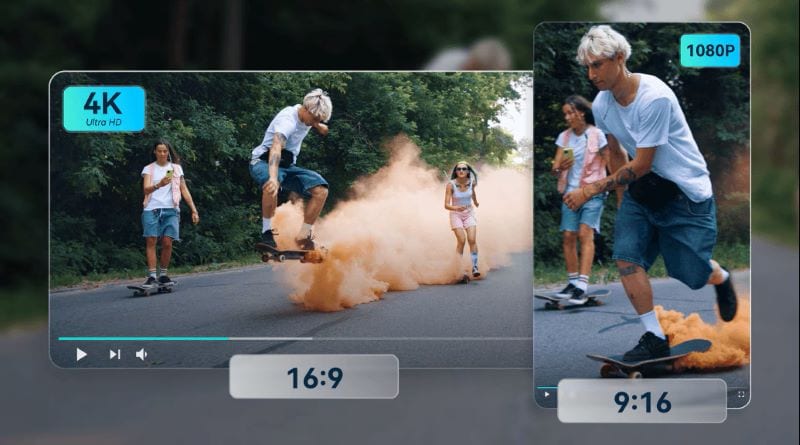
Instead of creating separate versions of a video for each platform, you can use Filmora's Auto Reframe feature. It automatically adjusts the framing and aspect ratio, helping you save time when publishing content across different channels.
Secure DownloadConclusion
Whenever you need a collection of visuals for a project, VoooAI is always worth exploring. It helps you generate images, videos, audio, and other creative assets without requiring advanced design skills or expensive production resources. With just a few prompts, you can quickly bring ideas to life and create content that fits your needs.
Once your visuals are ready, Filmora can help bring everything together. You can add transitions, effects, music, captions, and other creative elements to make the content more engaging. Filmora also includes features such as AI Video Translation and Auto Reframe, making it easier to prepare videos for different audiences and social media platforms.
FAQs
-
1. Can I use VoooAI for commercial projects?
Yes, but commercial use is only available on selected paid plans, such as the Professional and Max plans. These subscriptions include commercial usage rights, allowing you to use the generated content for business, marketing, or client projects. -
2. Does VoooAI support style consistency across multiple images or videos?
Yes. By using reference images and its built-in workflow system, VoooAI can keep elements such as character appearance, colors, and overall visual style more consistent throughout a project. -
3. Can multiple users work together on the same project in VoooAI?
Yes. VoooAI allows you to do collaborative work inside the platform. -
4. Does VoooAI add a watermark?
Yes. Images generated under the free plan include a VoooAI watermark. To remove the watermark, you need to subscribe to one of the paid plans.
