


 TL;DR:
Wisecut AI is a cloud-based video tool that automatically edits and repurposes long, speech-heavy content into short clips using a text transcript rather than a traditional timeline.
● Wisecut is best suited for non-editors creating talking-head videos or podcasts, as it automatically removes silences and generates captions in 13 languages, but it is not recommended for fast-paced, non-speech content like gaming.
● While the Free plan provides 60 minutes of monthly processing at 720p with a 4GB limit, actually downloading completed projects requires upgrading to a paid tier starting at $19 per month, and users must avoid unofficial Mod APKs because they cannot bypass these cloud-based paywalls and carry malware risks.
● Creators who need precise manual cut adjustments, 4K resolution exports without paying the $100 per month Professional plan rate, or generative AI tools should choose Wondershare Filmora for its traditional timeline control and robust iOS and Android applications.
Ask AI for a summary
 ChatGPT
 Perplexity
 Gemini
 Claude
 Grok
Grok
There are so many AI video tools popping up right now, but a lot of them feel half-baked once you actually try them. That’s why tools like Wisecut AI are getting attention.
And it’s not just hype. Wisecut currently holds high ratings on platforms like Capterra and G2. On top of that, a Refresh Miami report revealed that Wisecut raised $1M from Tim Draper to push its AI-powered video editing even further. So in this Wisecut AI review, we’re taking a closer look at how the Wisecut AI video editor actually performs, what you can expect from it, and whether it’s really worth using.
Part 1. What Exactly is Wisecut?
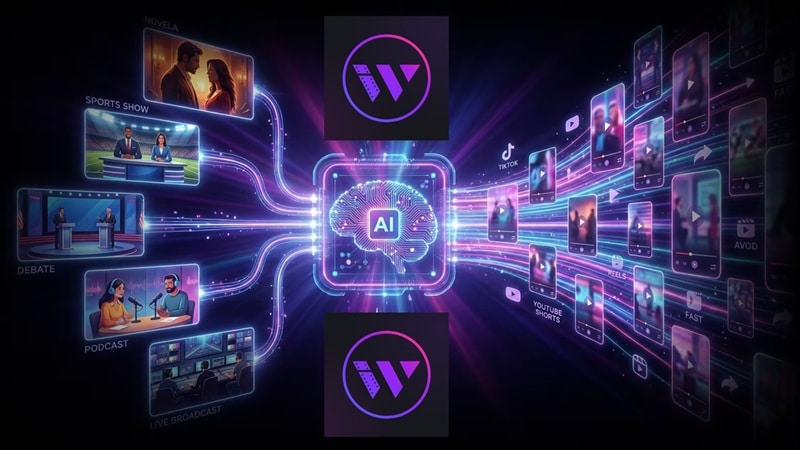
Let’s start our Wisecut AI review with the basics. Wisecut AI is a cloud-based AI video editor designed to automatically edit videos based on speech. Instead of manually trimming clips, it listens to your audio and edits your video accordingly.
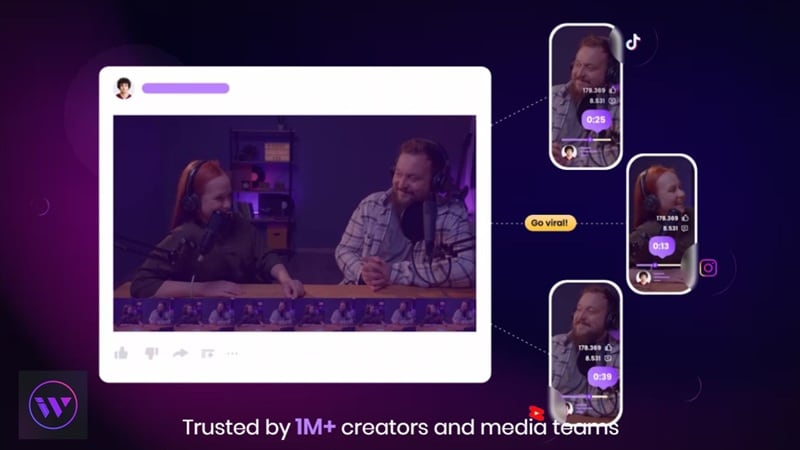
Built for These Creators:
- Talking-head video creators (YouTubers, coaches, influencers).
- Tutorial and educational content producers.
- Podcast-style recordings and interview shows.
- Anyone repurposing long-form content into short social clips.
What makes it different: It edits based on voice and pauses, uses a Wisecuts AI storyboard interface instead of a messy timeline, and prioritizes automation over manual heavy lifting.
Part 2. How to Access Wisecut AI (And What to Avoid)
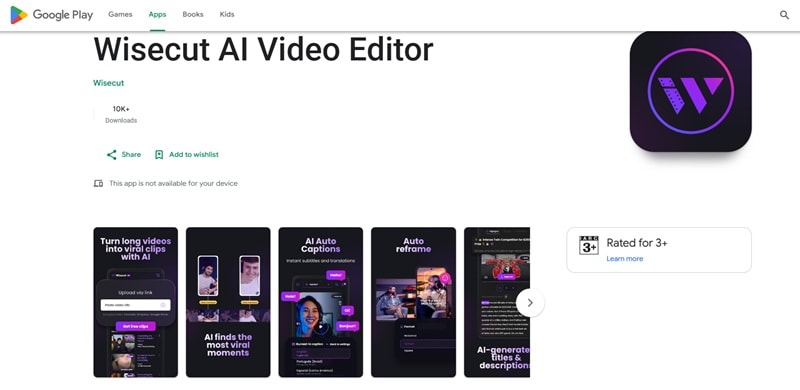
Getting started with Wisecut is easy because it’s built around convenience. Wisecut mainly works online, so there’s no heavy installation. You upload your footage and edit directly in your browser. There’s also a Wisecut AI app available for Android, although it’s not as powerful as the web version.
⚠️ A Word on "Safety" and Mod APKs
You might see links for a Wisecut AI mod APK promising free "Pro" features. Here's the honest truth: stay far, far away from those.
- They are unofficial and not endorsed by Wisecut in any way.
- These files are frequently bundled with malware and spyware.
- Since Wisecut video processing happens on secure cloud servers, a modded file can’t actually bypass paywalls.
- Your video data (and possibly your device) could be compromised.
Always use the official Wisecut AI download at wisecut.ai. Your data, and your sanity, will thank you.
Part 3. Wisecut AI Price Explained (Free vs Paid)
Now, let’s talk about pricing, because this is where many users hesitate. Wisecut uses a subscription + usage-based system, meaning your available editing time depends on your plan. If you are looking for Wisecut AI free options, the entry-level plan is a great way to test the waters, though it has its limits.
Here's how the Wisecut AI price structure currently breaks down.
| Feature | Free | Starter | Professional | Enterprise |
| Monthly Price | $0 | $19 | $100 | Custom |
| Processing Time | 60 min/mo | 240 min/mo | 600 min/mo | Custom |
| Max Resolution | 720p | 1080p | 4K | Custom |
| Max File Size | 4 GB | 4 GB | 5 GB | Custom |
| Project Expiry | 7 days | 30 days | 30 days | Custom |
| Social Hub+ | X | Add-on ($29) | Add-on ($119) | Custom |
|
Show More
Show Less
|
||||
Heads up: Wisecut also offers annual billing, which gives you up to 3x more AI processing hours for the same price. If you're planning to use it regularly, the annual plan is a much better deal.
And as of this writing, there is no publicly available Wisecut lifetime deal on their official site. Any "lifetime deal" you see on third-party sites should be verified carefully before purchasing.
Part 4. From Long Videos to Shorts: What Wisecut Actually Does
At its core, Wisecut is built for one thing: turning long, unedited videos into short, watchable clips, automatically. But the magic is in how it pulls that off.
Here’s how it pulls that off:
Auto Highlight Detection
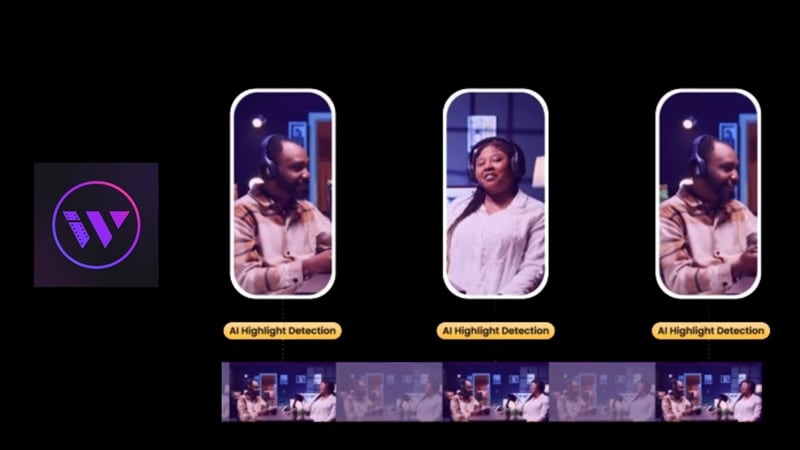
This feature lets the AI scan your footage to find the most "punchy" segments, perfect for creating YouTube Shorts or TikToks. For a 30-minute raw recording, this alone can save you an hour or more of manual review time.
AI Captions and Translation
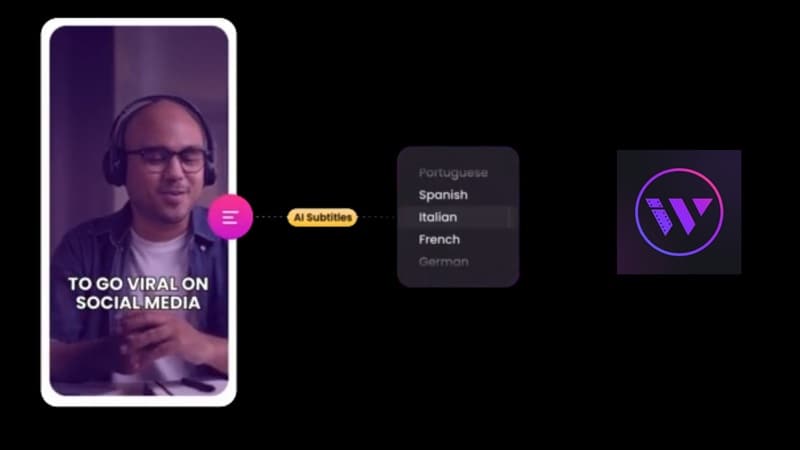
One of Wisecut's strongest features is its automatic caption generation. It allows you to:
- Generates subtitles automatically from your speech.
- Supports caption generation in 13 languages (including English, Spanish, French, German, Portuguese, Italian, Japanese, Korean, and more).
- Lets you export videos with burned-in captions for social media.
- Helps you reach wider, global audiences without extra effort.
Storyboard-Based Editing
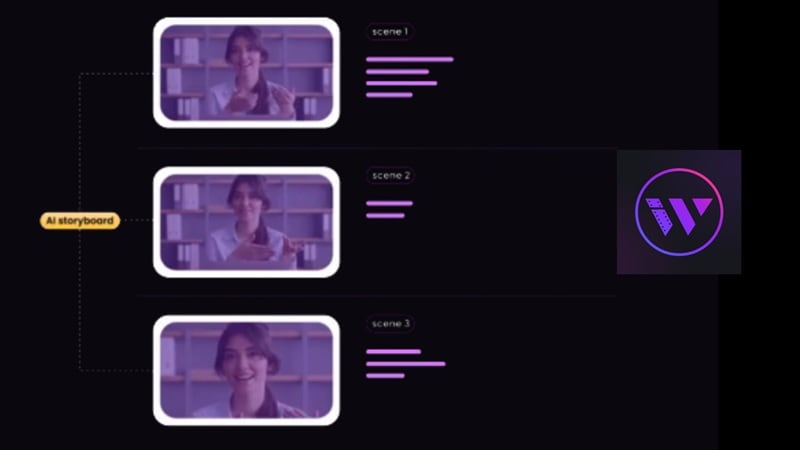
This is where Wisecut AI video editor flips the traditional editing model on its head. Instead of a timeline full of clips, you work with a text transcript of your video. The editing logic is beautifully simple:
- Read through the transcript like a document.
- Highlight and delete a sentence or phrase you don't want.
- That corresponding video segment disappears automatically.
For non-editors, this is a revelation. If you can edit a Google Doc, you can edit a video in Wisecut.
Silence Removal + Smart Background Music
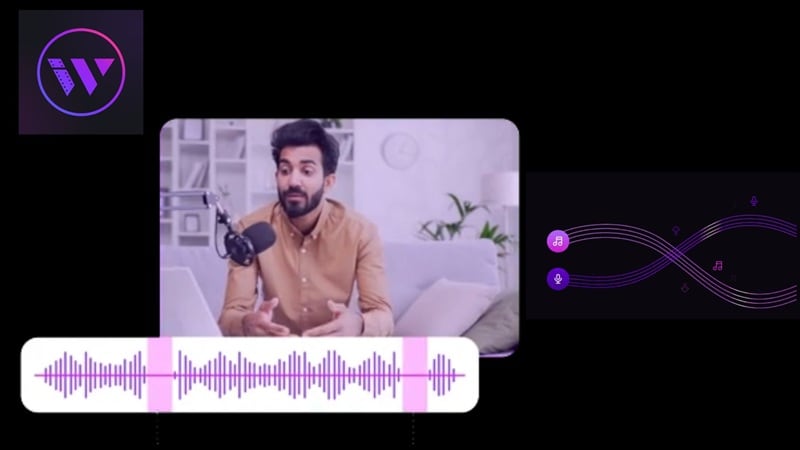
Wisecut AI automatically detects and removes silences, filler pauses, and dead air from your recordings, giving your video a tighter, more professional pace. On top of that:
- It adds background music from a royalty-free music library.
- It uses "Smart Volume" technology to automatically duck the music when you're speaking.
- Audio levels are balanced so your voice always stays front and center.
Part 5. Putting Wisecut to the Test (Real Workflow)
Alright, enough theory. Now, let's talk about what it's actually like to use the Wisecut AI video editor from start to finish. We put it through a real-world workflow using a 25-minute raw talking-head recording.
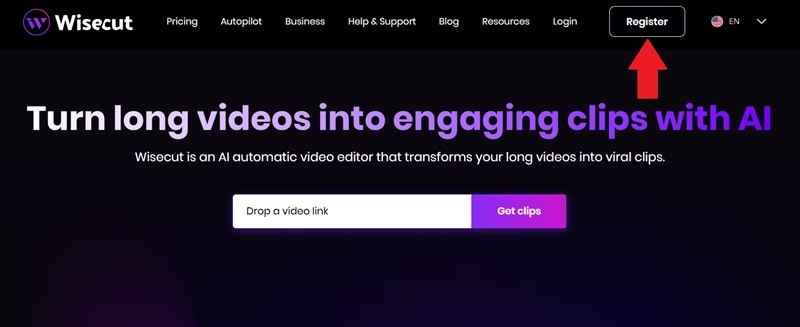
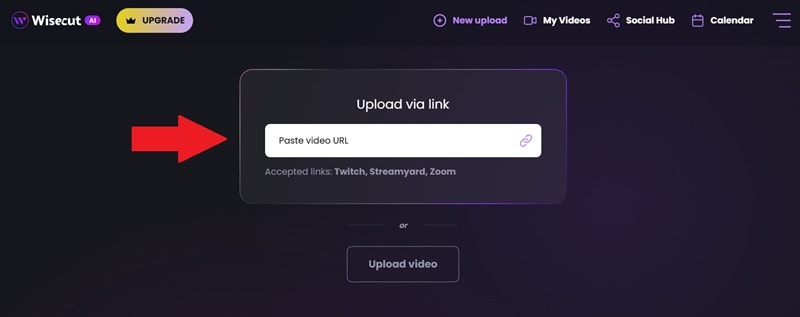
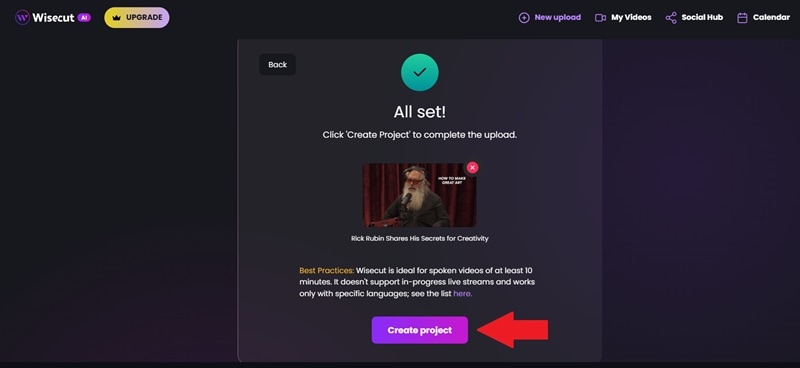
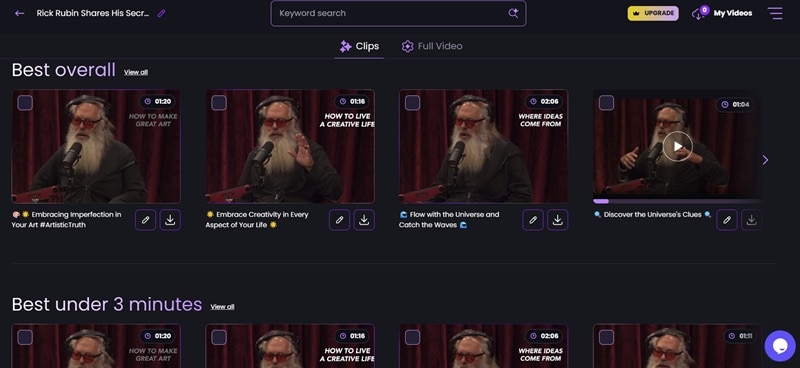
How to Use Wisecut: Step-by-Step
- Best Overall
- Best under 3 minutes
- Chapters
- All clips
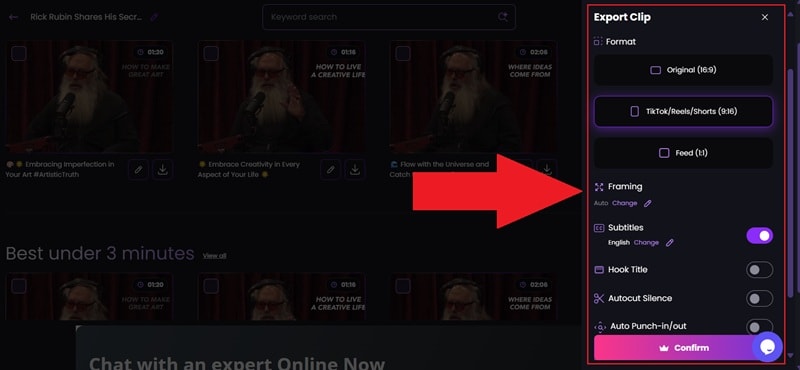
The Highs and Lows of Wisecut (Pros & Cons)
- Clean, well-designed interface that doesn't overwhelm.
- Transcript-based editing is genuinely fast and intuitive.
- Smart Volume music ducking is a nice touch.
- Auto silence removal saves a ton of editing time.
- Processing time can vary depending on video length.
- Limited manual fine-tuning compared to full editors.
- Social Hub features cost extra on top of base plan price.
- Cuts can feel unnatural, and no traditional timeline to fix them.
Part 6. When You Need "More Than Just Shorts": Use Wondershare Filmora
Wisecut AI is excellent at what it does, but it’s a specialist tool. Once you go beyond auto-generated shorts, you’ll start noticing its limits. That’s where you need a more versatile powerhouse like Wondershare Filmora.
While Wisecut stays in its lane of transcript-based editing, Filmora is a full-scale AI editor that offers a "Smart Short Clips" feature similar to Wisecut, but then gives you the keys to the entire kingdom.
 Secure Download
What Filmora Gives You That Wisecut Doesn’t
1. Instant AI Video Creation
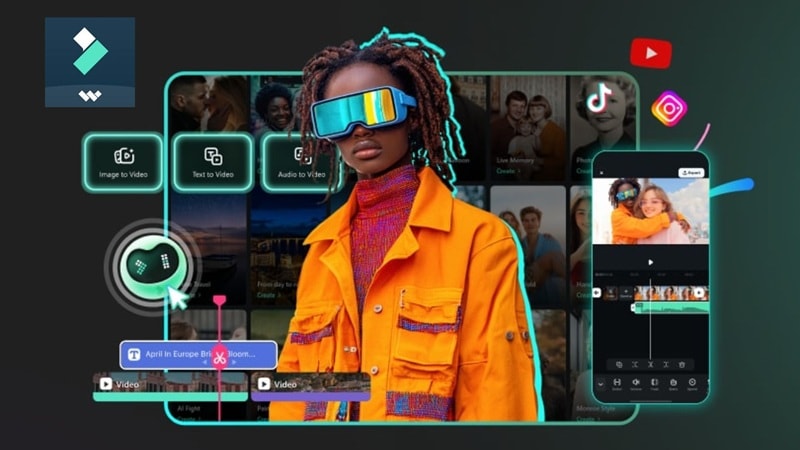
Filmora lets you generate videos from scratch, not just trim what you already have:
- AI Text to Video: Describe your idea in text, get a video back.
- AI Image to Video: Animate still images into moving clips.
- AI Audio to Video: Generate visual content from audio input.
This takes you from editing mode into full content creation territory.
2. Timeline Video Editing
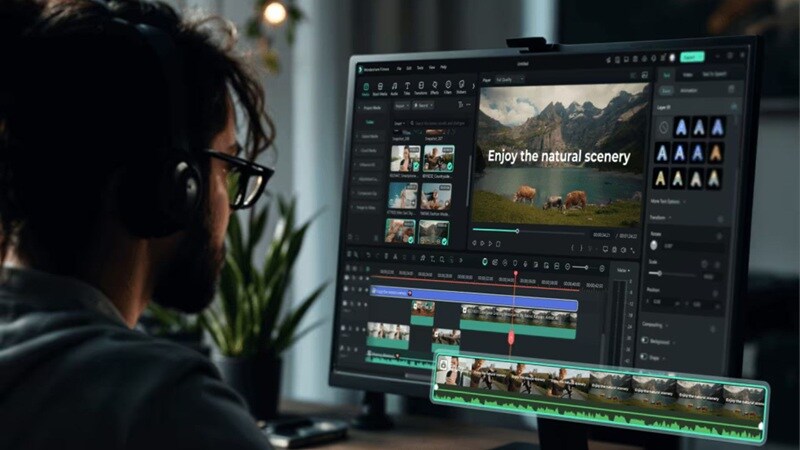
Unlike Wisecut’s automated approach, Filmora gives you full control through a traditional timeline. You can trim clips exactly where you want, layer multiple tracks, and add transitions or effects with precision. It feels more hands-on, which is great if you care about how every second of your video looks and flows.
3. Wide Range of AI Features
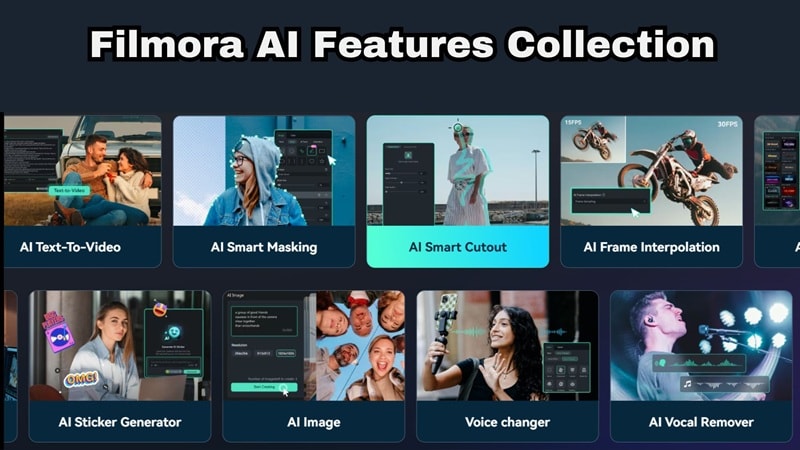
Filmora goes beyond basic automation and gives you a full set of AI tools to enhance your content. Here are some useful features:
- AI Video Enhancer: Upscale and sharpen footage quality.
- AI Voice Cloning: Clone your voice for consistent narration.
- AI Smart Cutout: Remove backgrounds without a green screen.
- AI Color Palette: Auto-match color grading across clips.
- AI Noise Removal: Clean up background audio automatically.
4. Extensive Media Library

Another big advantage is Filmora’s built-in media library. You get access to a wide range of effects, templates, music tracks, and stock footage, so you don’t have to look for external assets. It’s especially useful when you want to speed up your workflow or add creative touches without extra effort.
5. Reliable Mobile App (iOS + Android)
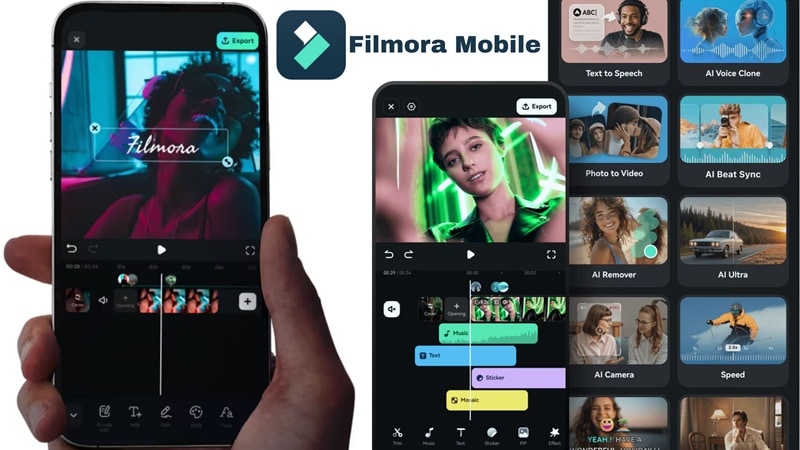
Filmora also works smoothly across devices, whether you’re editing on a computer or your phone. The mobile app is available on both iOS and Android, and you can easily switch between devices thanks to project syncing. That makes it convenient if you like starting a project on your phone and finishing it on your desktop.
Quick Comparison: Wisecut vs Filmora
At the end of the day, Wisecut AI video editor and Wondershare Filmora have their own strengths. After all, they're built for very different levels of creative control. The question is, which one suits you better? Here's a side-by-side comparison to help you decide:
| Feature | Wisecut | Filmora |
| Primary Use Case | Auto-edit long videos to shorts | Full video creation & editing |
| Timeline Editing | No | Yes |
| Editing Style | AI automatic | Full manual + AI |
| Mobile App | Android only | iOS + Android (robust) |
| Learning Curve | Very low: beginner-friendly | More features to learn but still easy |
| Best For | Non-editors, repurposing content | Creators at all skill levels |
|
Show More
Show Less
|
||
Secure DownloadConclusion
Wisecut AI video editor is a strong option if your main goal is speed. It simplifies video editing by handling cuts, captions, and highlights automatically, which is perfect for talking videos and content repurposing. The interface is easy to use, and you can get results quickly without much effort.
However, the limitations become clear once you want more control. The AI isn’t always accurate, and the lack of a timeline makes it harder to fine-tune your edits. Thankfully, Wondershare Filmora offers the automation of Wisecut plus the full power of a professional editor. With plenty of AI features and an extensive media library, it's the upgrade path Wisecut doesn't offer.
FAQs About Wisecut AI
-
Is Wisecut AI safe to use?
Yes, as long as you use the official website or the authorized Wisecut AI video editor download from the Play Store. The only caveat: avoid any third-party "mod APKs" or unofficial downloads, as those are not affiliated with Wisecut and can carry real security risks. -
Can I use Wisecut AI for gaming videos or action clips?
It’s not the best fit. Since it relies on speech to make edits, fast-paced gaming footage without much talking might confuse the AI. For those use cases, a traditional editor like Filmora would serve you much better. -
Does Wisecut support 4K editing on the free plan?
No. The Free plan limits you to standard resolution output. To export in 4K Ultra HD, you need to be on the Professional plan ($100/month on monthly billing, or cheaper on annual). -
Can I download my transcript separately from the video?
Yes! Wisecut automatically generates a text transcript of your video as part of its processing. You can read, edit, and export this transcript separately. This is useful not just for editing, but also for repurposing your video content into blog posts, social captions, or podcast show notes.
