

Word art refers to a name, quote, keyword list or other short phrase that has been styled to look more like a design than text. Today's cloud word tools are more than just different fonts and colors. You can now create shaped word clouds with them. You can also create text in 3D, use your custom images, use gradients, shadows, and even get print-ready exports.
This guide explains how to create word art, what features matter, and which word art generator works best for different needs.
Part 1. What Is a Word Art Generator?
A word art generator transforms words and short phrases into designs by modifying their font, size, color, arrangement, shape, or graphic effects. There are typically two kinds of styles.
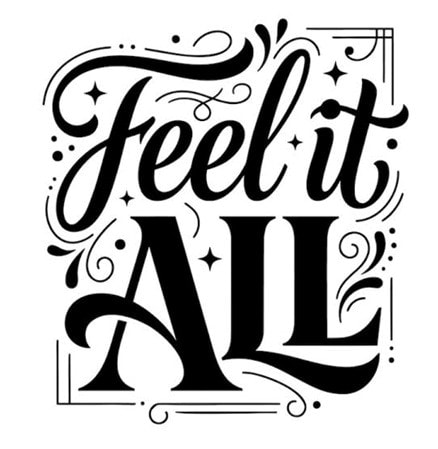
- Decorative word art: Word art that has decorative effects, such as gradient color, outline, drop shadow, curve, texture, 3D effect, and so on. For example, Canva offers text effects based on prompts to convert normal text into text graphics.
- Word cloud art: Arranges multiple words into a composition, often giving more visual weight to frequent or important terms. Some tools also let you make your own word art inside hearts, letters, logos, or custom uploaded shapes. WordArt.com supports both built-in shapes and custom image uploads.
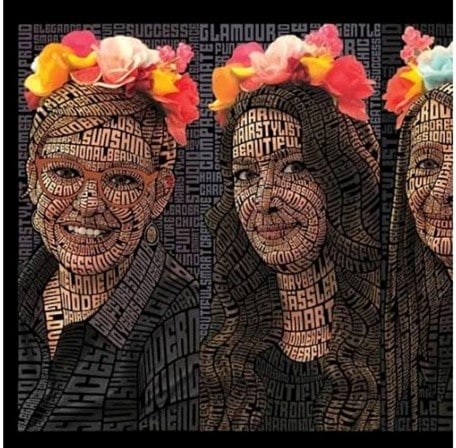
The difference matters when choosing a word art maker. Decorative tools focus on how individual words look, while word-cloud tools focus more on how many words are arranged and weighted within a design.
Part 2. What Should a Good Word Art Maker Let You Customize?
A useful word art maker should give enough control to make the result look intentional rather than randomly generated.
| Feature | Why It Matters |
| Fonts & Text Size | Controls hierarchy and readability |
| Colors & Gradients | Helps match a theme or brand |
| Shapes & Layouts | Lets words form hearts, logos, letters, or other designs |
| Word Placement | Makes important words stand out |
| Background Control | Useful for posters, slides, and transparent exports |
| Export Quality | PNG, SVG, PDF, or high-resolution output is better for print and design work |
|
Show More
Show Less
|
|
Part 3. Best Word Art Generators to Try in 2026
The five tools below do not solve the same problem. Some specialize in shaped word clouds. Others focus on text analysis, full graphic design, or decorative lettering. Choosing by use case is more useful than simply choosing the tool with the longest feature list.
1. WordArt.com - Best for Custom-Shaped Word Art
WordArt.com is a powerful word art generator that converts a list of words into a clear visual. Whether you choose one of its built-in silhouettes or upload your own, WordArt will create word art around a logo, animal, letter, map, etc. In March 2026, its shape collection grew by over 1,000.
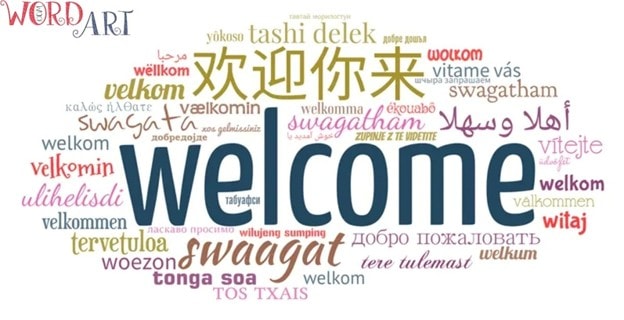
- Custom shapes: Use built-in designs or upload your own image.
- Word control: Set the size and weight of individual words to make key terms stand out.
- Design tools: Change fonts, colors, layouts, and word placement.
- Export options: Free users can download standard-quality images. Paid HQ downloads support PNG, SVG, and PDF.
- Wide choice of shapes, fonts, colors, and layouts.
- Good for posters, classroom visuals, gifts, and creative social graphics.
- Easy to customize word art without graphic design experience.
- Free personal use is available.
- Free downloads are limited to standard quality, at about 700 × 700 pixels.
- SVG, PDF, and high-resolution files require payment.
- It is designed more for visual word clouds than detailed text analysis.
WordArt.com is free for personal, non-commercial use with standard-quality downloads. High-quality packs currently cost $2.50 for 1 image. Unlimited HQ access costs $15 for 1 month.
2. Canva - Best for Word Art Inside Full Designs
Canva is a better fit when the word art is only one part of a larger design. Its word art generator and text tools sit inside the same editor used for presentations, posters, social posts, documents, and infographics. You can style text, add effects, combine it with graphics, and place the result straight into a finished layout.
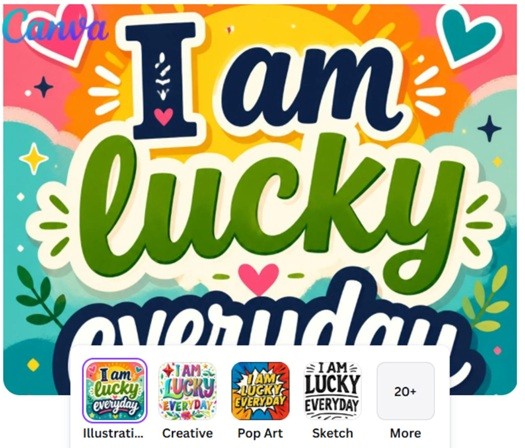
- Text styling: Modify fonts, size, color, spacing, effects and placement.
- Text effects: Canva supports tools like TypeCraft to bend, warp, and twist your text.
- Full-design workflow: Add ready word art to slides, posters, social posts, or other layouts without bouncing between apps.
- Templates and assets: The Free plan contains more than 1.6 million templates, and millions of photos, videos, graphics, and audio files.
- Easy to create word art and use it inside a complete design.
- Strong for presentations, infographics, posters, and social content.
- Large template and asset library.
- Free plan is enough for many basic projects.
- It is a general design platform, so it offers less control over word-frequency analysis than a dedicated word-cloud tool.
- Some stronger AI, branding, and premium design tools require a paid plan.
- It is less suitable if you only need a fast analytical word cloud from raw text.
Canva Free is available at $0. Canva Pro costs $180/year for one person, while Canva Business costs $250/year per person. Enterprise pricing is custom and available through Canva sales. Prices exclude applicable taxes and may vary by region.
3. WordClouds.com - Best Free Word Cloud Generator
WordClouds.com is a browser-based word art generator for quick word-cloud creation. You can submit text by pasting, uploading a document, opening a web page URL, or by hand. Subsequently, it transforms that content into an editable visual cloud within the same browser window.
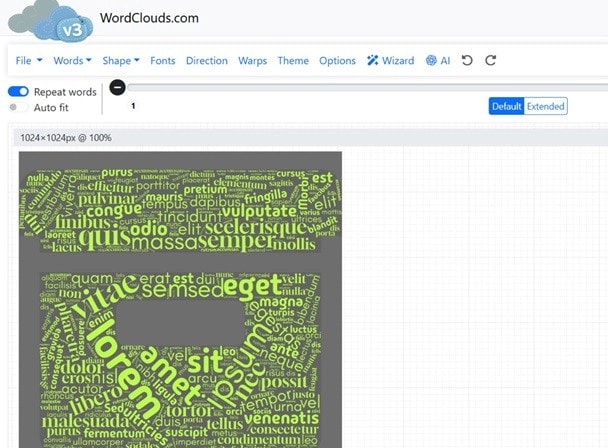
- Flexible input: Add text, upload documents, extract words from a URL, or enter a custom word list.
- Custom shapes: Use built-in masks or upload your own image to create your own word art in a shape of your choice.
- Word controls: Edit weights, rotation, margins, colors, fonts, and text direction.
- Export options: Save the result as an HD image or SVG vector file.
- Browser-based editing: Most processing and drawing take place on the user’s device.
- Good range of shapes, fonts, themes, and layout controls.
- Lets users customize word art without moving to another design app.
- Supports transparent PNG backgrounds and SVG export.
- It is made for creating finished word clouds, not live audience interaction.
- Large or complex source text can still take more work to clean before the visual looks balanced.
- It offers fewer presentation and collaboration tools than full design platforms.
WordClouds.com is free to use with no registration. The site also says users may use their generated word-cloud images for personal or commercial purposes.
4. TagCrowd - Best for Simple Word-Frequency Clouds
TagCrowd lets users visualize text data as a word cloud or tag cloud. Simply paste the text or enter a page URL, or upload a plain text file, and it will convert the most common words into a clean word cloud. You can also set frequency limits, remove terms, and show how many times each word appears.
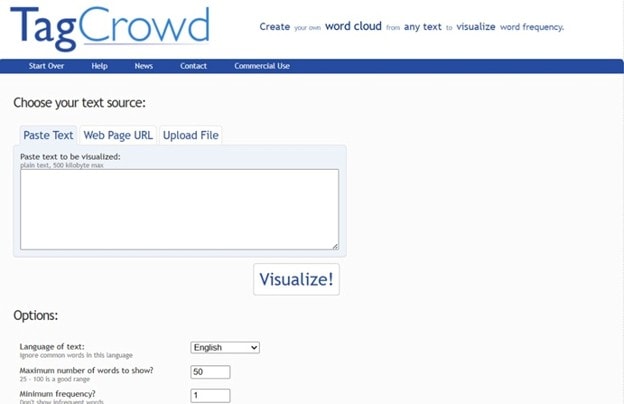
- Three input methods: Paste text, use a webpage URL, or upload a text file.
- Frequency controls: Set the minimum frequency and choose how many words appear.
- Word filtering: Remove common or unwanted terms with built-in stop lists.
- Similar-word grouping: Combine English words such as “learn,” “learned,” and “learning” using stemming.
- Publishing options: Save the result for print or use TagCrowd’s HTML embed code on a website or blog.
- Fast and free to use.
- Good for spotting repeated terms in essays, speeches, survey text, or webpages.
- Supports several European languages through language-specific stop-word lists.
- Useful when you need a clear cloud without spending time on design settings.
- Visual customization is limited compared with a full word art maker.
- It does not offer custom silhouettes, rich backgrounds, or advanced font effects.
- URL analysis can include menu or navigation text because TagCrowd reads one webpage and cannot always separate the main content from surrounding text.
TagCrowd is free to use. Its core word-cloud creation, frequency controls, and HTML embedding don’t require a paid plan.
5. Text Studio - Best for Decorative Text Effects
TextStudio is a word art generator for stylized text, logos, headings, and social graphics. It focuses on word appearance, not word frequency. Begin with plain text, and then add effects. Such as gold, neon, fire, metal, graffiti, glitter, retro, comic, and 3D effects.
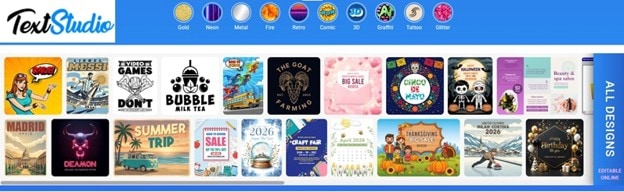
- Classic text maker: Change fonts, colors, effects, and animation.
- 3D Animator: Add depth, perspective, and movement to text.
- Text Warper: Text Warper helps you bend or distort words and export as an editable SVG.
- Choose your effects: neon, gold, fire, graffiti, comic, glitter, and 3D.
- Design use: Launch your new T-shirts and flyers using attractive social media graphics.
- Strong choice if you want to create your own word art from a short word, name, slogan, or heading.
- You can choose from a wide variety of eye-catching styles and edit the text effects.
- Key to success in achieving business goals.
- You can customize word art without the use of programs.
- It is not a traditional word-cloud tool, so it does not analyze word frequency or arrange large text sets.
- Several advanced editor tools, premium fonts, download formats, and Ultra HD exports require Premium.
- Free users do not get unlimited downloads or attribution-free use.
TextStudio has a free tier with limits. Premium currently costs $9.99 for 1 month.
Part 4. Quick Comparison: Which Word Art Generator Should You Choose?
These tools differ most in shape control, editing depth, and how much you can do for free. If you want to create word art for a specific use, this quick comparison makes the choice easier.
| Tool | Custom Shapes | Manual Editing | Free Access |
| WordArt.com | Yes, including uploaded images | Strong | Yes, Standard Quality downloads only |
| Canva | Limited for word-cloud shaping | Strong | Yes, with premium limits |
| WordClouds.com | Yes, including uploaded shapes | Strong | Yes, fully free |
| TagCrowd | No | Limited | Yes |
| TextStudio | No word-cloud shapes; text warping available | Strong | Yes, with limits |
|
Show More
Show Less
|
|||
Part 5. Make Word Art Move with Wondershare Filmora
Most online word art makers are designed around static graphics. But video introduces another possibility: the words can bend, appear, disappear, loop, or move through the frame. To make word art that moves, Wondershare Filmora includes dedicated Text Animation feature, which make it useful for animated quotes, video titles, intros, lyric videos, promotional text, and social content.
 Secure Download
1. Create and Customize Your Text
You can begin with a title preset or create your own text style with Filmora. There are options to modify the font, size, color, alignment, letter case, and spacing. You can then add visual effects like outlines, shadows, glow, and shapes.
The Title Editing tools help you apply solid color, gradient, and image fills to any design. Filmora also provides multiple outline and shadow controls, giving you more freedom to customize word art for a specific video style.
2. Create Curved Word Art
The Curved Text effect in Filmora can flexibly modify the shape of the text. It provides curve presets, and you can change the curve value from 0 to 360. In the editor, you can enable Shape controls and adjust the curve strength and other controls.
This is useful for text wrapped around a logo, product, portrait, badge, or circular graphic. If you want to create your own word art, this gives you more control than relying on a fixed text template.
3. Animate the Word Art
Once the typography is ready, Filmora can turn it into moving text. Its Text Animation controls include In, Out, and Loop presets, so titles can fade, slide, bounce, type on, or use other motion styles. You can preview the animation before applying it.
Filmora also goes beyond preset motion. The Text Animation Path feature uses a Bezier path, allowing text to travel along straight lines, arcs, or more complex custom routes. That is the main difference between Filmora and a conventional word art maker. You can design the lettering, curve it, and then control how it moves through the video.
4. Create a Perspective Text
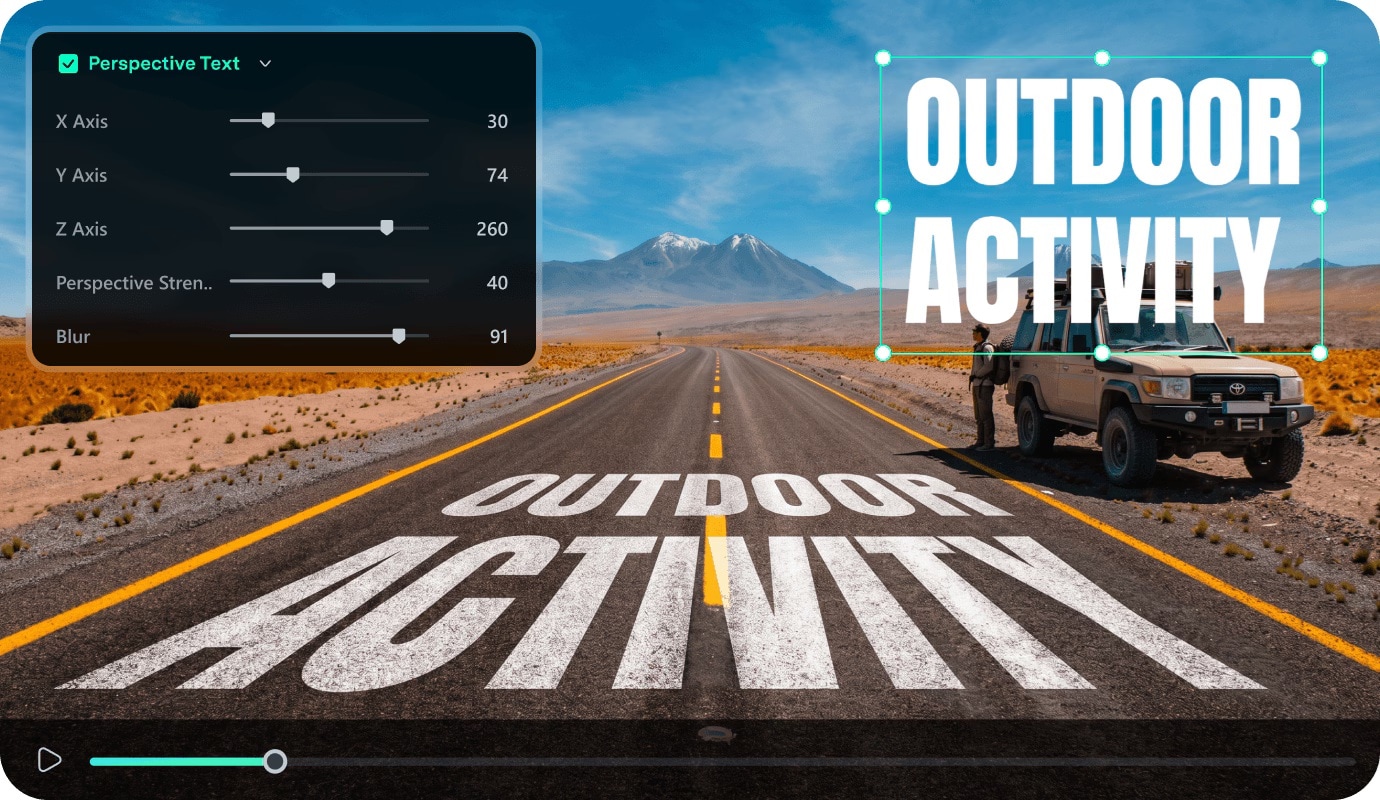
Filmora also features Perspective Text that can tilt a title in 3D space so it looks like it sits inside the scene instead of floating on top of it. There's a library of perspective text presets and templates to choose from, from retro sci-fi crawls to modern spatial typography.
You can drag a pre-animated template onto the timeline, type your words, then open the advanced text settings and adjust the 3D rotation along the X, Y, and Z axes to match the angle of your footage. Once the text is angled, you can style it like any other title layer with effects.
Conclusion
In the end, the best word art generator is the one that fits the job. WordArt.com and WordClouds.com work best for shaped clouds. TagCrowd is more useful for text analysis. Canva is stronger when the design must sit inside a poster, slide, or infographic. TextStudio stands out for bold decorative lettering.
So compare tools by shape control, editing freedom, export quality, and price, not by presets alone. If you also want motion, Filmora is a smart next step. It helps you create word art for video through curved text, title styling, and animation that feels polished on screen.

FAQs
-
How can I create my own word art?
Start with a word art generator such as WordArt.com. Add your words, choose a shape, then adjust the font, color, layout, size, and word placement. WordArt.com also lets you control individual word sizes and upload custom fonts or shapes. -
Can I make word art from my own image or shape?
Yes. WordArt.com lets you upload an image and use it as a custom silhouette for the word cloud. You can also create a shape from text or numbers inside its Shapes section. -
What is the difference between word art and a word cloud?
Word art is the broader term for text styled as a visual design. It can include curved lettering, 3D effects, gradients, shadows, and decorative typography. A word cloud arranges many words together and often gives larger size or rank to terms that appear more often. WordArt.com describes word clouds as visual representations of text that give greater prominence to more frequent words. -
Can I customize fonts and colors in Wondershare Filmora?
Yes. Filmora lets you change the font, text color, alignment, letter case, and other text settings from the text properties panel. You can also add effects such as outlines, shadows, glow, and shaped text. Its Advanced Text Edit tools give you more control over gradients, opacity, and animation.
