


 TL;DR:
Zorq AI is a $15/month credit-based aggregation platform that allows creators to generate raw images and short videos across multiple top-tier AI models like Sora 2, Kling, and Seedance directly from a single dashboard.
● The service carries significant financial risk for heavy users because it lacks a free trial, unused monthly credits do not roll over, and the bulk MultiGen feature continues to deplete credits even on the $299/month Unlimited plan.
● The platform is optimized for power users testing standalone ad creatives or serialized story scenes, providing the ability to instantly swap between specialized engines like Seedream 5.0 Lite for faster rendering or Kling 3.0 4K for native audio sync while maintaining character consistency.
● When comparing the two showcased tools, Zorq AI is exclusively for users who only need to generate isolated raw visual assets, whereas Wondershare Filmora is the required choice for creators who need a traditional multi-track timeline, template libraries, and post-production control to construct a finished video.
Ask AI for a summary
 ChatGPT
 Perplexity
 Gemini
 Claude
 Grok
Grok
AI video tools are non-escapeable now. With models like Sora 2, Kling, Seedance, and others launching fast, it’s clear this space isn’t slowing down anytime soon. In fact, according to Fortune Business Insights, the AI video market is projected to grow from $847 million in 2026 to $3.35 billion by 2034. That’s huge.
Looking at this boom, Zorq AI appears as a platform that brings multiple AI models into one place for image and video generation. Sounds promising, right? But many people still aren’t familiar with Zorq AI, what it really does, how pricing works, and whether it’s actually worth paying for. So in this review, we’re breaking it all down clearly, honestly, and without the fluff.
Key Takeaways:
- Zorq AI provides access to multiple AI models (Sora 2, Kling, Seedream) in one dashboard.
- Features include Text-to-Image, Text-to-Video, and MultiGen bulk creation.
- Pricing follows a monthly credit-based system starting at $15/month.
- Ideal for generation, but requires external editors like Filmora for advanced post-production.
Part 1. What Is Zorq AI and How Does the Multi-Model Platform Work?
At its core, Zorq AI is like a massive creative playground where you can turn a random thought into a high-quality image or video. You aren't just stuck with one way of doing things either. You can feed it a text prompt, throw in a reference photo, or pick a specific model, and the AI just gets to work.
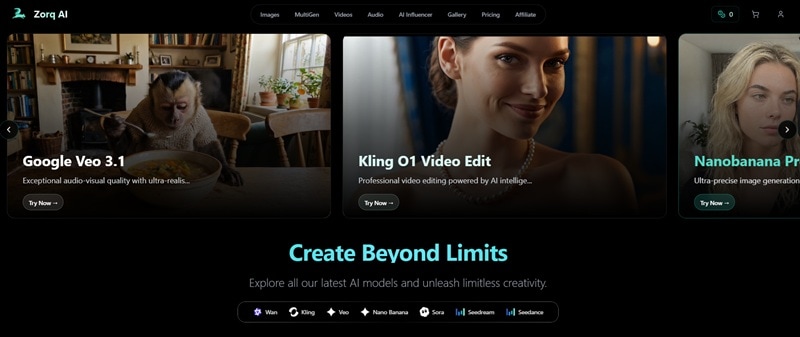
The thing that actually makes Zorq AI worth talking about is that it doesn't lock you into one AI engine. Instead, Zorq AI gives you options. We're talking big names all sitting in one place:
- Sora 2
- Seedance
- Kling
- Seedream
- And more.
Some models crush it at smooth cinematic motion, others nail photorealism, and some are just built for a specific vibe. That's the kind of flexibility that saves you both time and money.
What You Can Do with Zorq AI
Because Zorq AI connects several AI models in one place, you actually get quite a bit of creative freedom. But at the end of the day, most people use Zorq AI for three main things.
1. AI Image Generation (Text → Image)
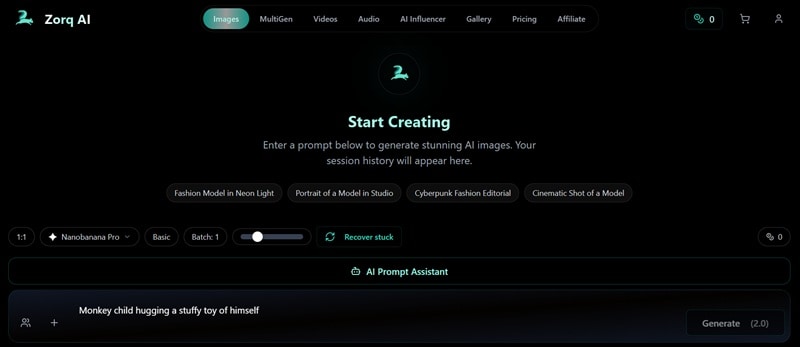
This is the simplest way to create concept art, thumbnails, social media visuals, or creative ideas. You type a prompt describing the image you want, and the system generates it for you.
And before generation, you can:
- Switch between models if you want a different visual style.
- Adjust generation quality depending on how many credits you want to spend.
2. AI Video Generation (Text/Image → Video)
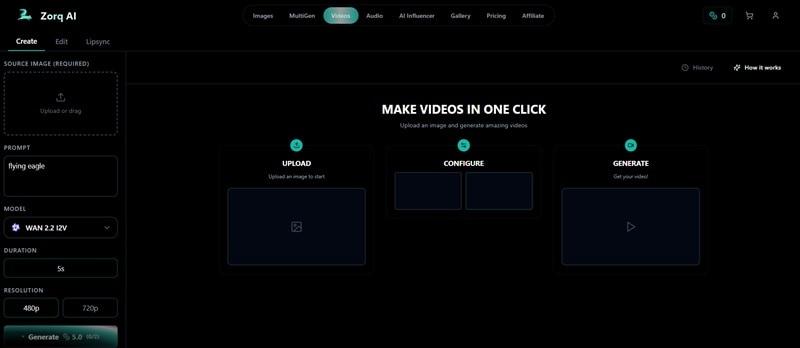
Video creation is where things get more interesting. Instead of just images, Zorq AI can generate motion content too. You can:
- Create short videos directly from prompts.
- Upload an image and turn it into an animated scene.
- Choose different video models depending on the look you want.
Be sure to use the AI models that fit. Some models focus more on cinematic motion, while others are better at stylized visuals.
3. MultiGen (Bulk Creation Mode for Power Users)
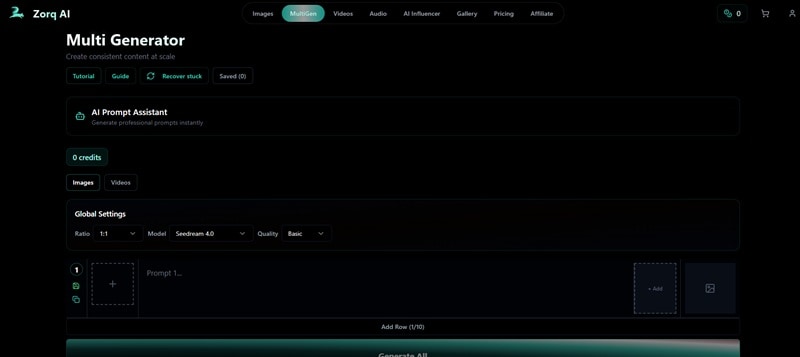
This one is especially useful if you're creating story-based content or testing multiple ad creatives because:
- Generate multiple variations at once.
- Test different prompts simultaneously.
- Maintain character consistency.
- Rapidly explore multiple styles.
With these capabilities, it's great for testing ad creatives, building out story scenes, or just exploring a bunch of different styles quickly without losing consistency across your characters.
"The aggregation of diverse AI models into a single API or platform like Zorq is a key trend in 2026, lowering the barrier for creative experimentation." — AI Industry Insights
Part 2. The AI Engines Inside Zorq AI: What Models Are Available?
As we mentioned earlier, one of Zorq AI's biggest flex points is the sheer range of AI models it supports. That means you can switch models depending on what you want to create. Some models focus on images, some handle video generation, and others help control motion or lip sync.
Here's every model currently available on the platform:
AI Image Generation Models
If you want to create a killer still photo or a reference for a video, these are your options. Each one has a slightly different "personality."
| Model | What It’s Used For |
| GPT Image 2 | AI image generation with text accuracy and character consistency |
| Grok Imagine | Basic AI image generation from prompts |
| Grok Imagine Quality | High-quality AI image generation |
| Seedream 4.0 | Basic AI image generation from prompts |
| Seedream 4.5 | Improved detail and visual quality |
| Seedream 5.0 Lite | Faster generation with balanced quality |
| Nano Banana Pro | Stylized and creative image outputs |
| Kling Image O1 | Realistic image rendering |
| Kling Image V3 | Higher detail and improved visuals |
| Kling O3 Edit | Editing and modifying generated images |
| Wan 2.6 Image | Image editing and multi-image generation |
AI Video Generation Models
These models are used to turn prompts or images into motion videos. This is where the magic happens. You can pick a model based on how much "movie magic" you need.
| Model | What It’s Used For |
| Seedance 2.0 | Multi-modal video generation with audio sync |
| Seedance 2.0 Fast | Fast video generation version |
| WAN 2.6 | Video generation with role-play and storyboard control |
| Seedance 1.5 Pro | AI video generation with smooth motion |
| Kling 2.6 Pro | High-quality cinematic video creation |
| Google Veo 3.1 | Realistic scene-based video generation |
| Sora 2 | Advanced text-to-video generation |
| Sora 2 Pro | Enhanced Sora video generation |
| Kling 3.0 | High-res video with native audio sync |
| Kling 3.0 4K | Native 4K video output |
| Grok Imagine Video | Video generation from text prompts |
Pro Tools: Motion & Voice
Zorq also gives you some extra "director" controls so you can actually tell the AI how to move the camera or make characters talk.
| Model | What It’s Used For |
| Kling 2.6 Motion Control | Adjusting motion paths in generated scenes |
| Kling 3.0 Motion Control | Improved movement control and stability |
| WAN 2.2 Animate | Adding animation to still visuals |
| Kling 03 Video Edit | Editing motion inside generated clips |
| Kling Video O1 Edit | Fine-tuning video movements |
| Kling Lip Sync | Matches mouth movement with speech |
Part 3. Zorq AI Pricing Breakdown: Let’s Talk Money
So, let’s talk about the money part. Zorq AI works on a credit system. Meaning, your monthly plan gives you a certain number of credits, and every generation uses some of those credits. The more advanced the model or the higher the quality you choose, the more credits it costs.
One thing to keep in mind: you don’t get any free "tester" credits just for signing up. You’ve gotta pick a plan to even start playing around with the tools.
Here is a quick look at the current plans available:
| Plan | Price | Credits | Quality | Key Features |
| Beginner | $15 / month | 200 credits | Basic and High | AI prompt assist, MultiGen, commercial license |
| Starter | $39 / month | 500 credits | Basic and High | Everything in Beginner + Realism enhancer |
| Creator | $99 / month | 1400 credits | Basic and High | Everything in Starter + Priority support |
| Unlimited | $299 / month | 5000 credits | Basic, High, Ultra 4K | Ultra 4K quality, free unlimited images, Priority support |
Important detail:
- Even on Unlimited, MultiGen still uses credits.
- Credits refresh monthly.
- There is no mention of unused credits rolling over to the next month.
How Credits Work in Zorq AI
So, since Zorq AI is credit-based, different models and quality settings have their own "price tag" in credits. Or in simple terms, higher-quality generation costs more credits.
For example:
- Seedream 4.0 (standard quality) is usually just 1 credit.
- Seedream 4.5 (higher detail) jumps up to 1.5 credits.
- Video is a whole different beast and will almost always cost way more than a single image.
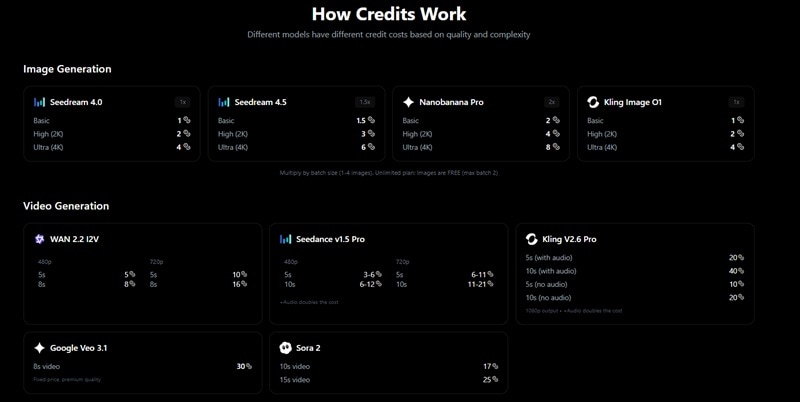
If you want to see the exact "receipt" for every model they offer, you can check out their official breakdown at the Zorq AI pricing page.
Part 4. How to Create a Video in Zorq AI (Step-by-Step Guide)
Getting started on Zorq AI isn't complicated, but knowing the flow before you dive in helps you avoid burning credits on experiments you didn't mean to run.
Here's a clean walkthrough from zero to your first generated video:
- Head over to the Zorq AI site.
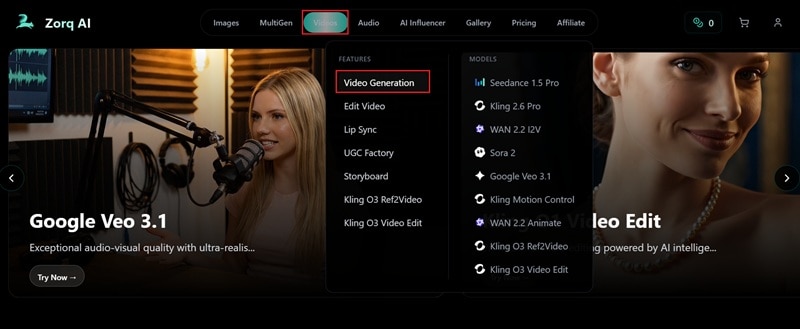
- Click on the Videos tab, and select Video Generation.
On the Create mode, import your photo by clicking the upload icon under Source Image to animate a specific image. Then, pick whichever AI model you want to use for the generation.
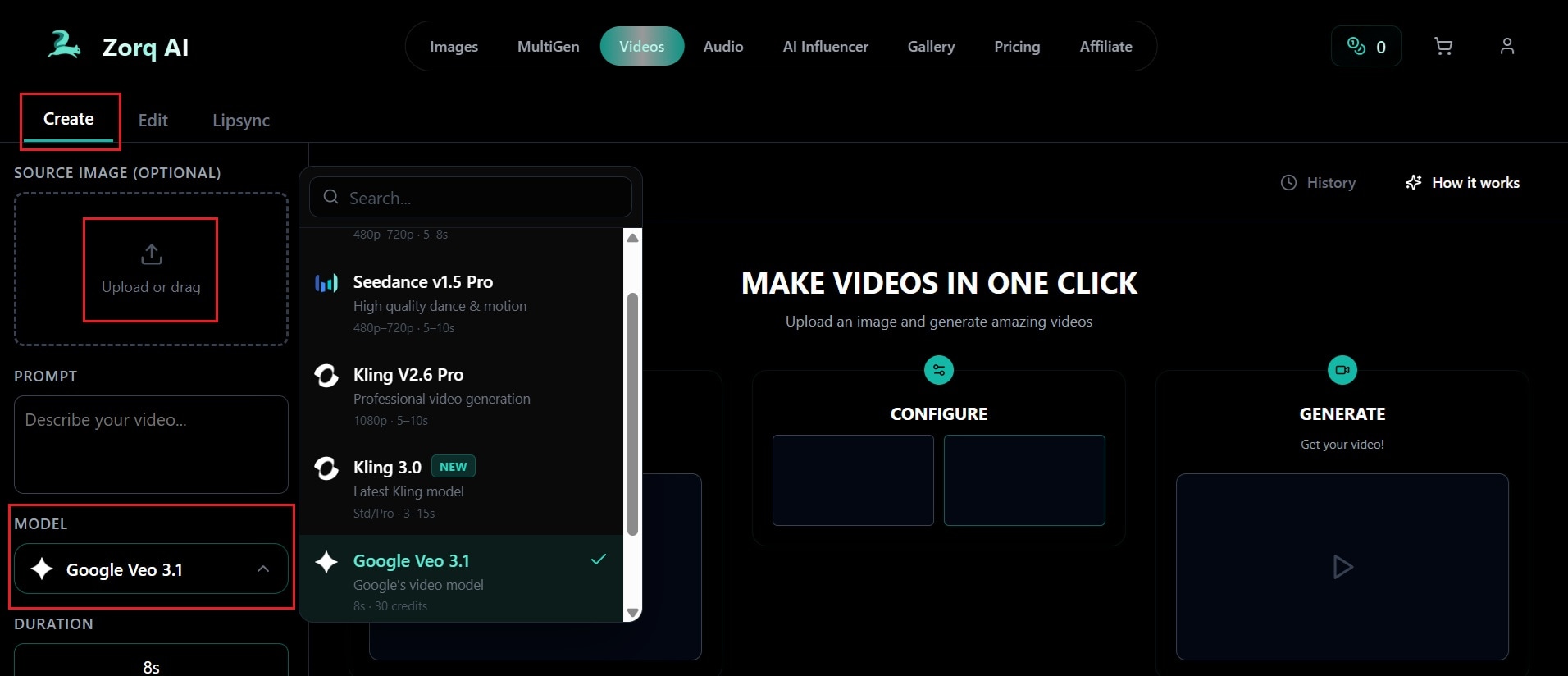
- Type out your prompt in the description box.
- Set your duration and aspect ratio.
- Click Generate.
Once it's done processing, preview it, and if you're happy with it, download it straight to your device.
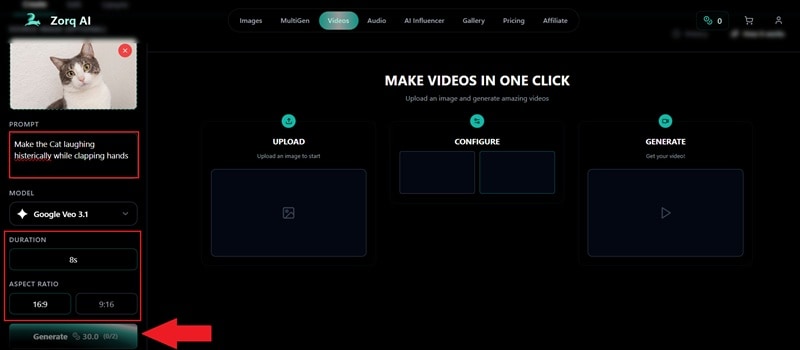
Now, that's just one way to use it. Zorq AI also lets you edit existing videos using different AI models and prompt controls, which opens up a lot more creative room. A good example of this in action is a face swap tutorial by everythingisaicontent over on TikTok. It’s worth checking out if you want to see what else you can pull off with the platform!
Part 5. The Good, The Bad, and The Honest Reality
After breaking down its features, pricing plans, and trying out Zorq AI to create videos, it's time to get real. In the end, no tool is perfect, and Zorq AI is definitely no exception. It has some killer features that make life easier, but there are a few things that might annoy you depending on how you like to work.

So, let’s keep it real and look at both sides.
- All Your Favorites in One Spot: The best part is easily the multi-model support. You don't have to keep a dozen subscriptions active because you can just swap between things like Sora 2 and Kling whenever you want.
- Super Flexible: Whether you just want a quick AI image or a full-on video, you have a lot of options to play with. You can go from a simple text prompt to a finished clip without jumping through hoops.
- Bulk Mode is a Lifesaver: If you’re trying to build out a big project, the MultiGen tool lets you create a bunch of stuff at once. It’s great for testing out different vibes before you commit to one.
- You Own Your Work: They include a commercial license in their paid plans, so you don't have to worry about the legal side if you're using these for ads or your brand.
- No "Try Before You Buy": There isn't a free version to test the waters. You basically have to put some money down just to see if the interface works for you, which is a bit of a letdown.
- Costs Add Up Fast: Because the platform runs on credits, heavy generation can add up quickly. Higher-quality settings and video models usually consume more credits.
- MultiGen Still Costs You: Even if you’re on the "Unlimited" plan, that bulk creation tool still eats your credits. It’s not truly an "all you can eat" buffet if you’re a power user.
- Hard to Find Real Talk: Since Zorq AI is still fairly new, there are not many detailed third-party reviews or comparisons available. Most information still comes directly from the platform itself.
Part 6. Want More Control? Try Wondershare Filmora
Alright, now you've got a pretty solid picture of what Zorq AI can and can't do. And honestly, for generations, it holds up well. But here's something Zorq AI doesn't advertise loudly: it's a generation tool, not a full editing suite. Once your video is created, you're pretty much on your own when it comes to trimming, adding titles, adjusting audio, or polishing the final cut.
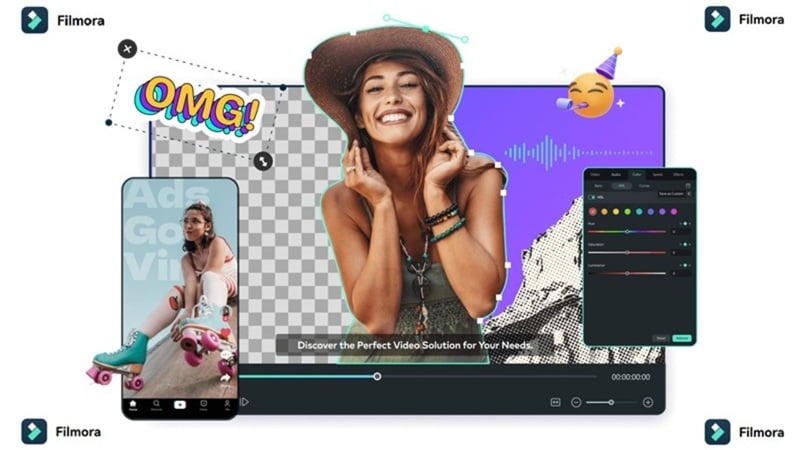
If you are looking for Zorq AI alternatives that offer more than just raw generation, Wondershare Filmora fills that gap perfectly. It's a full video editor built for creators who want actual control over their content after it's been made, not just a raw AI output sitting in their downloads folder.
 Secure Download
Why Filmora is a Better Long-Term Alternative
Think of it like this: Zorq AI is great for making the "clay," but Filmora is where you actually sculpt it into a masterpiece. Let's break it down!
1. Built-in AI Video Generation Tools
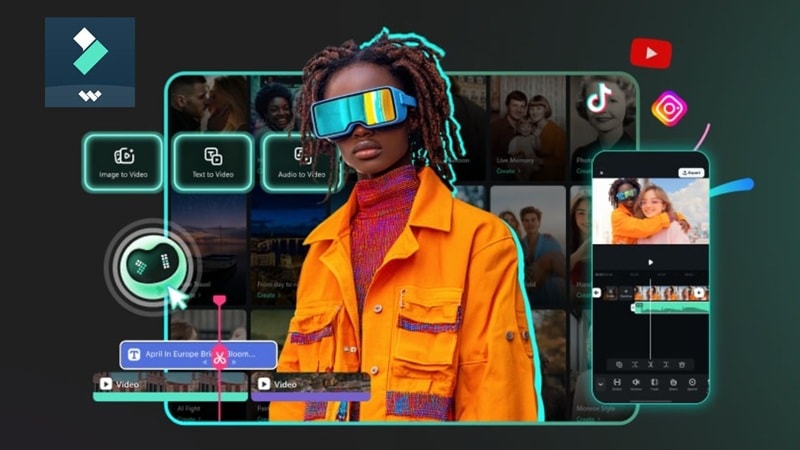
Filmora also supports AI-powered creation tools, including AI Text-to-Video, AI Image-to-Video, and AI Audio-to-Video. You can start with AI-generated visuals and continue editing them in the same project.
2. Massive Template Library

This is a huge one. Zorq AI doesn’t really do templates, but Filmora is packed with them. Whether you're doing a gaming video, a travel vlog, or a quick TikTok, you can just drop your clips into a pre-made layout, and you’re basically done.
3. Next-Level AI Tools
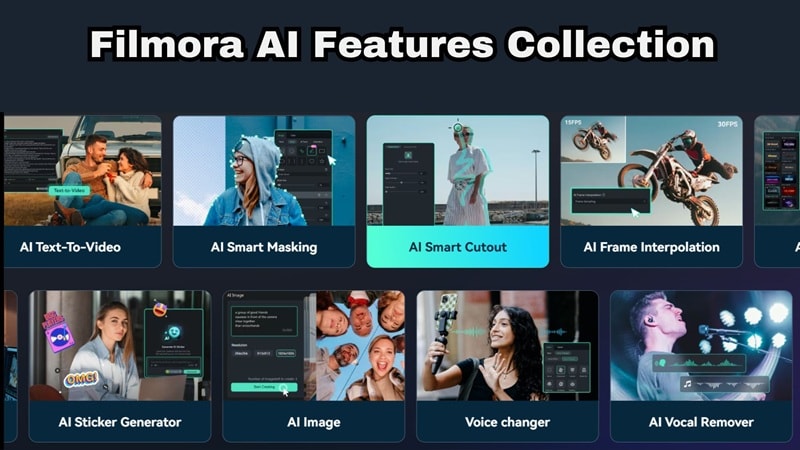
Filmora is not just for basic editing. It has built-in AI for things like AI Color Palette, background removal, and even smart cropping for social media. Those are only a shortlist of other Filmora smart editing features that help speed up production.
4. Total Timeline Control
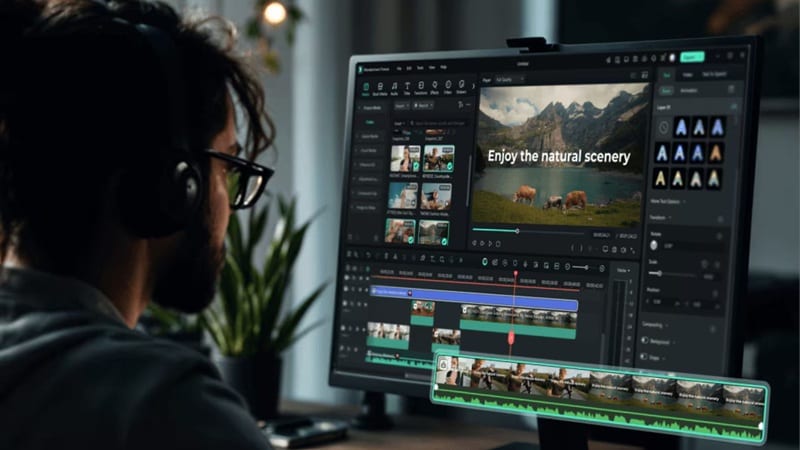
Instead of relying only on generation prompts, Filmora gives you a traditional editing timeline. You can cut clips, adjust transitions, add music, control pacing, and build a complete story.
5. Use it Anywhere
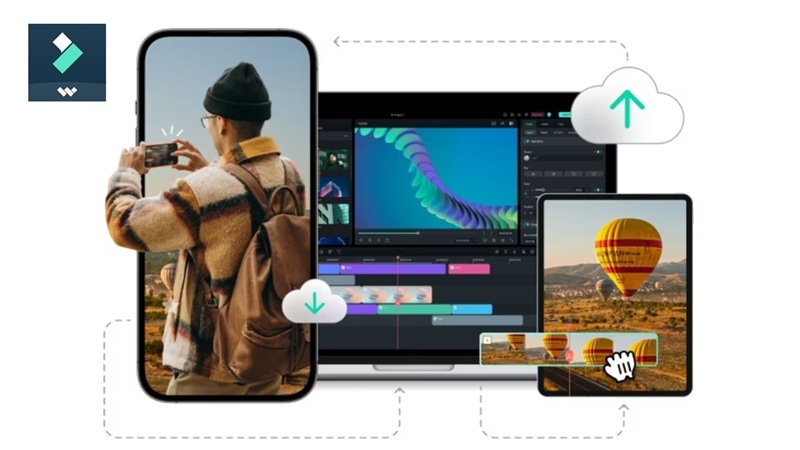
Filmora is available on desktop and mobile. That means you can start editing on your computer and continue working from your phone if needed.
Secure DownloadComparison Table: Filmora vs Zorq AI
As you can see, Filmora is certainly a strong candidate to be your all-in-one solution to video creation and editing. But how does it compare with Zorq AI? To put it more clearly, here is a quick comparison to see how both tools fit different creative needs.
| Feature | Wondershare Filmora | Zorq AI |
| Main Purpose | Full video creation and editing | AI visual generation |
| AI Image Generation | Yes | Yes |
| AI Video Generation | Yes | Yes |
| Editing Timeline | Full professional timeline | Not available |
| Templates | Large template library for many video types | Not available |
| AI Editing Tools | Many built-in AI editing features | Mainly generation-focused |
| Platform Support | Windows, macOS, Android, iOS | Web platform |
| Commercial License | Yes | Yes |
| Free Version / Trial | Available | Not available |
| Best For | Complete video production | Quick AI-generated visuals |
Secure DownloadReview by Filmora Editorial Team: Our experts test AI creative tools to provide objective, data-driven insights for the creator economy in 2026.
Conclusion
Zorq AI is a genuinely powerful platform for creators who need access to multiple top-tier AI models without juggling separate subscriptions. Its multi-model flexibility, bulk creation tools, and commercial license make it a serious contender in the AI content space.
However, since Zorq AI is mostly focused on the actual generation part, you might find it a bit limiting if you want to build out a full story from start to finish. This is where Filmora fits naturally into the workflow. It supports AI image and video generation as well, but also adds a full editing timeline, ready-to-use templates, and a wide range of AI features that help shape raw clips into polished videos.
FAQs About Zorq AI
-
Can unused Zorq AI credits roll over to the next month?
Based on current information, Zorq AI credits refresh monthly with no rollover mentioned in the available plan details. This means any unused credits at the end of your billing cycle are forfeited. -
Is Zorq AI suitable for long-form storytelling projects?
Yes, but with caveats. The MultiGen feature is particularly well-suited for story-based content since it lets you generate multiple scene variations while maintaining character consistency. However, current video length limits mean you'll be working with shorter clips that need to be stitched together in an external editor like Filmora. -
How stable is video consistency across different AI models inside Zorq AI?
Each AI engine inside Zorq AI has its own visual style, motion characteristics, and quality output. So, for projects where consistency matters (brand content, serialized storytelling, character-driven videos), it's strongly recommended to pick one model and stick with it throughout. -
What are the best Zorq AI alternatives for video creators?
Depending on your needs, there are a few Zorq AI alternatives worth considering. For those focused purely on enterprise-level text-to-video, tools like Storykit or Runway Gen-3 are strong competitors. However, if you need a comprehensive solution that combines AI generation with professional editing, Wondershare Filmora is the top alternative. Unlike Zorq, Filmora allows you to not only generate AI visuals but also edit them on a multi-track timeline with advanced VFX and audio tools.
