
- Video Player Guide
How to use VLC as converter to convert mp4 and other formats

Oct 25, 2026• Proven solutions
 TL;DR:
Use VLC media player's built-in "Convert/Save" feature located in the Media menu to batch-convert incompatible video files into accessible formats locally.
● VLC supports converting DVD, WMV, ASF, Divx, AVI, MP4, and MPEG files, and includes an advanced tool menu to manually configure audio and video codecs, frame rates, bit rates, and resolutions.
● Clip Converter is a free online alternative best suited for users who need to download and convert streaming videos from YouTube or Vimeo in 720p, 1080p, or 4K resolutions directly via a web browser.
● Wondershare Video Converter Ultimate is a desktop alternative designed for users who require offline, lossless conversion of advanced file types like VR, 3D, Ultra HD, and 360 videos for hardware like Xbox, Android, and Apple TV.
Ask AI for a summary
 ChatGPT
 Perplexity
 Gemini
 Claude
 Grok
Grok
Quick answer: To use VLC as a video converter, open VLC, choose Media > Convert/Save, add one or more files, select a destination filename, choose an output profile such as MP4, AVI, WMV, or MPEG, adjust codec settings if needed, and click Start. VLC is useful for quick format changes and basic codec control, while desktop or online converter alternatives may be easier when you need batch tools, device presets, or online video downloads.
Probably, you are using VLC player that is why you are here on this page. And the strange fact is that you still don’t know that it has ability to convert video formats. Yeah! That’s true. So if you are struggling hard to play your favourite videos that are not compatible with VLC player due to format issues then simply get them converter with built in VLC converter itself. If you need some assistance regarding how to convert then keep reading this article below.
How to use VLC as a converter:
VLC media player is capable enough to play all media file formats, and in case if it cannot play then it will convert it to desired or acceptable format. You can follow these simple steps to get your media files converted:
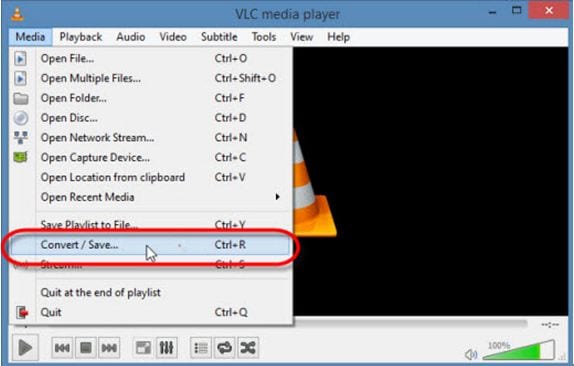
Step 1: Convert from Media Menu directly:
Simply open your VLC media player on your system and then hit Media option available on top left corner. From the drop down menu you can select “Convert/Save” option.
Step 2: Select Videos to Convert:
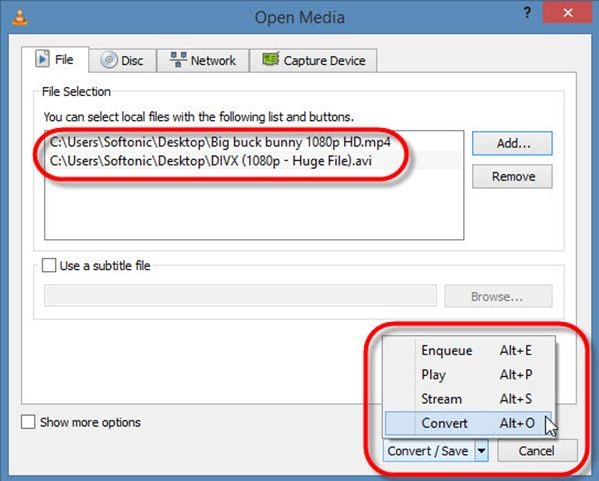
It is also possible to convert multiple videos at a time using VLC convert. Simply go to Add button available on VLC window and then select numbers of files from your folder that you need to get converted.
Step 3: Select file name for converted video:
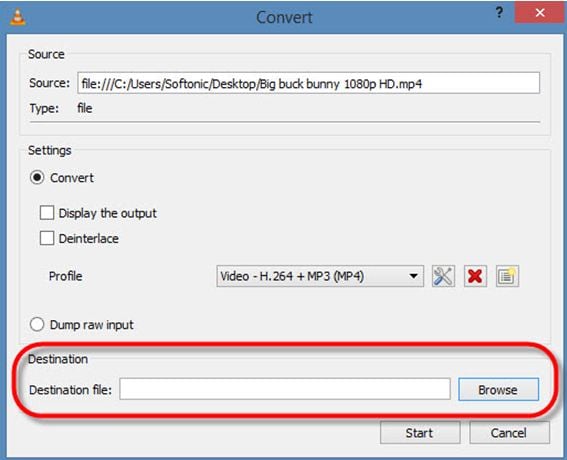
To execute this step, you need to enter your source file name at specified space and then move towards target file box and then simply choose your destination folder. Enter name of your new or converted video.
Step 4: Select video format for conversion:
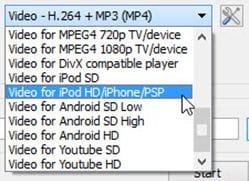
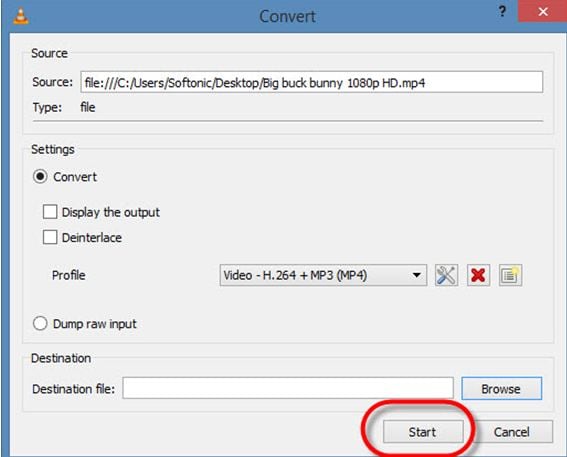
You will find a profile section under convert window. Here you need to select your target file format from available list. You will be glad to know that VLC media player is capable enough to convert videos from DVD, WMV, ASF, Divx, AVI, MP4 and MPEG file formats to the compatible ones.
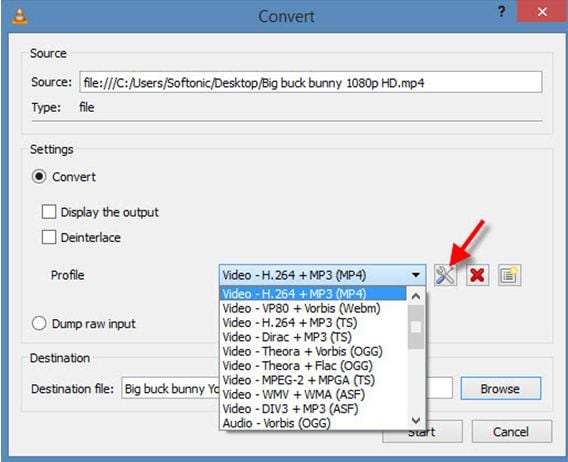
In case if you want to optimize your video clip then VLC also allows users to enter codec, frame rate and resolution like values manually.
Advanced Settings:
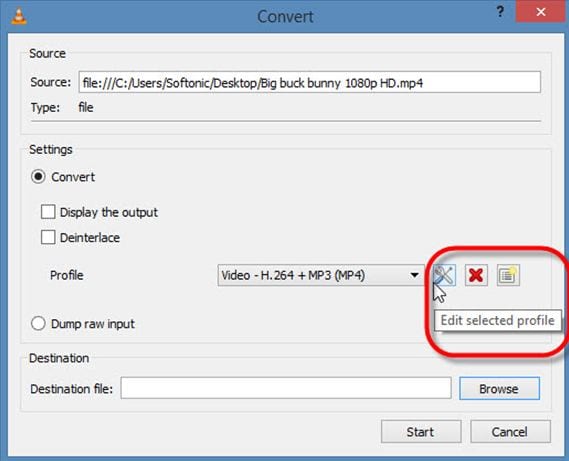
To the right side of profile option you will find a menu with tool icon, it is possible to manipulate settings for conversion using this icon.
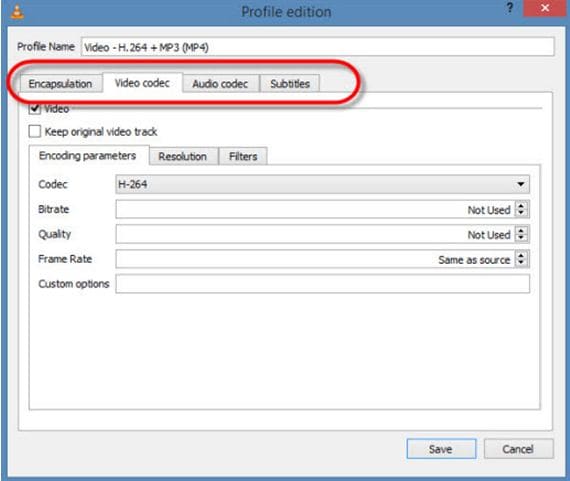
Users can easily make selections for supported audio and video codecs from this list and it will provide easy access to other personalized settings like audio quality, frame rate, resolution and bit rate etc.
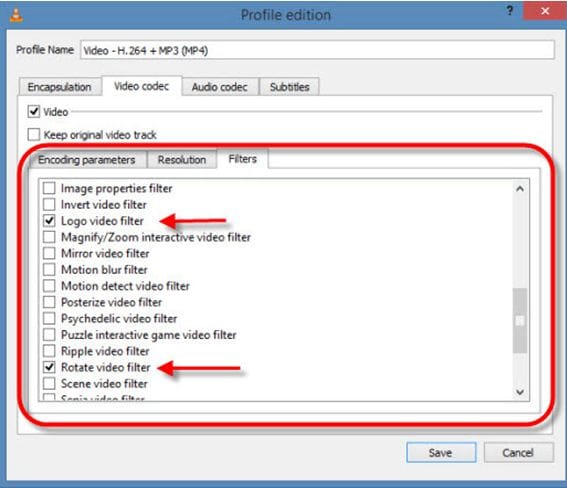
One can also apply special filters for conversion process.
Step 5: Start Conversion: Videos saved in target format:
Once you are done with all above settings as discussed in previous steps then hit the start button on screen to begin conversion process. VLC media player will take few seconds to convert your file depending upon its size and after conversion file will be automatically saved to your target folder.
Quick Comparison: VLC Converter and Alternatives
| Converter option | Best for | What the article says it can do |
|---|---|---|
| VLC media player converter | Basic format conversion inside VLC | Converts media through Media > Convert/Save, supports profile selection, and allows codec, frame rate, resolution, and bitrate settings. |
| Clipconveter | Online conversion and internet video saving | Converts formats online and supports downloading or recording videos and audios from sites such as YouTube and Vimeo. |
| Video Converter Ultimate | Desktop conversion without an active internet connection | Supports popular formats and device-focused output for VR, YouTube, DVD, HD, 3D, Ultra HD, 360 video, Xbox, Android, Apple TV, iPad, and iPhone workflows. |
VLC Converter Alternatives:
1. Clipconveter (Online Solution):
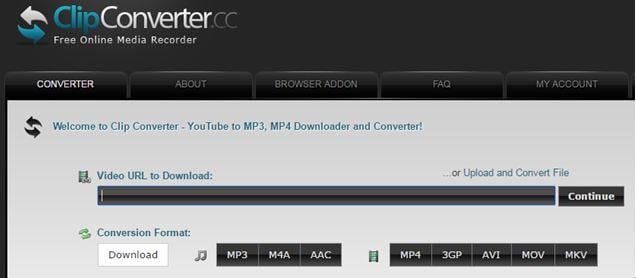
Clip Converter is a powerful online solution for easy format conversion. It also assists users to download and record videos or audios from internet with many popular file formats. You will be able to get videos from YouTube with 4K, 1080p and 720p resolution level and it also supports vimeo videos. The best thing to know about Clip converter is that it is available free of cost and you can also save your YouTube videos to offline mode using this converter so that they can be watched later on TV or PC etc.
2. Video Converter Ultimate (Desktop Solution):
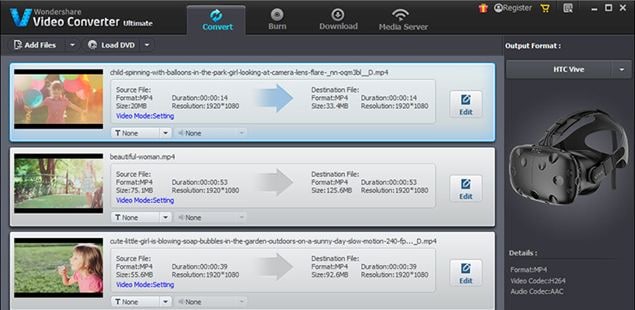
If you are searching for a desktop based solution to get your files converted anytime from anywhere even without an active internet connection then it is good to choose wondershare video converter ultimate. It can help users to get their video content in any popular file format so that it can be played on any media player. It currently supports VR, YouTube, DVD, HD, 3D, , Ultra HD and 360 videos. The best thing about Wondershare converter tool is that it works on so many platforms like Gear 360, Xbox, android devices, apple TV, iPad and iPhone etc. You can convert all your 360 videos on this platform with higher speed and it will never cause quality losses.
Conclusion
VLC can work as a practical video converter when you need to change a file format from inside the media player. The basic workflow is to choose Convert/Save, add the file, set the output name, pick a profile, adjust advanced settings if necessary, and start conversion. If you need online downloads, device presets, or a desktop converter with broader format support, the alternatives listed above may be worth comparing.
FAQ
Can VLC convert video files to MP4?
Yes. In the VLC Convert window, choose a suitable output profile such as MP4, set the destination filename, and click Start to save the converted file.
Can VLC convert multiple videos at once?
The article notes that VLC can convert multiple videos at a time by using the Add button in the conversion window and selecting several files from your folder.
What settings can I adjust when converting video in VLC?
VLC allows users to adjust conversion settings such as supported audio and video codecs, audio quality, frame rate, resolution, bitrate, and filters from the advanced settings menu.
This article will help you understand how to cut/trim videos on VLC on macOS. You will also find tips about using VLC. Read along to find out more.
by Ollie Mattison Oct 25, 2026 07:12 AM
Learn how to configure VLC Media Player for live streaming over a local network. This 2026 guide covers HTTP and UDP setup steps, destination configuration, and top VLC alternatives for streaming.
by Ollie Mattison Oct 27, 2026 07:07 AM
Ollie Mattison
staff Editor
