

 100% Security Verified | No Subscription Required | No Malware


 ChatGPT
 Perplexity
 Gemini
 Claude
 Grok
Grok
There are so many moments when you suddenly need to edit text on a picture. Maybe you want to update a sale date on a poster, blur personal info on a chat screenshot, or simply edit text in a photo you made last year without recreating the whole design.
The problem is that the words are already baked into the picture, so you cannot just click and type like in a normal document. Luckily, there’s always a way to edit the text in an image cleanly if you use the right editor. That’s exactly why this guide exists, so you can fix, replace, or redesign image text quickly without complicated tools.
In this article
Part 1. Replace Text in a Photo Using AI Generation
AI has become the go-to solution for everything: cleaning audio, generating scenes, and even rewriting visuals inside your photos. Today, you can actually edit text on a picture using AI with surprisingly natural results. It can remove the old words, rebuild the background behind them, and make everything look like it was never touched.
In the middle of all these AI trends, Wondershare Filmora stands out as an all-in-one editor packed with smart tools. It has an AI Image feature powered by Nano Banana Pro that can clean out text smoothly and help you write in the new wording without ruining the look of your photo.
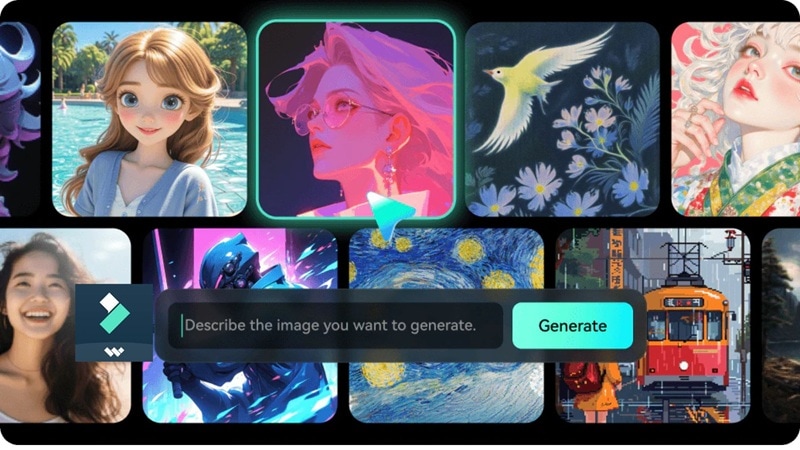
It feels fast, neat, and honestly kind of magical when you see how natural the result looks.
Step-by-Step: Edit Text in Image Using Filmora AI Image
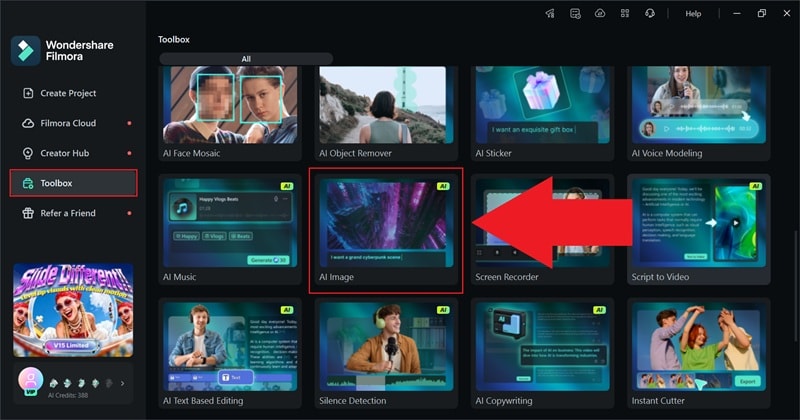
- Step 1. Access the AI Image Feature
- Make sure you have the latest version of Filmora installed on your desktop.
- Open Filmora and go to the “Toolbox” section.
- Scroll through the options until you find “AI Image”, then click it to start.
 secure download

- Step 2. Upload Your Picture and Generate a New Image
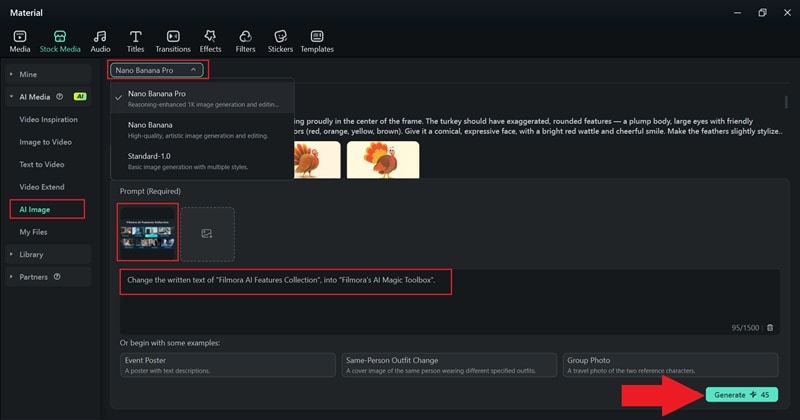
- Inside the AI Image menu, switch the mode to “Nano Banana Pro” for the best results.
- Click the picture icon and upload the photo you want to edit.
- Type what you want to change in the prompt box, and put the specific changes inside quotation marks (" ") so the AI knows exactly which part to modify.
- Click “Generate” and wait a few seconds for the results.
- Step 3. Preview the Result and Save it
- When it’s done generating, click the download icon, and see how it looks.
- Click the camera icon (snapshot) below the preview window to save the edited picture.
- Choose your picture format, set the saved location, and click “OK” to save it.
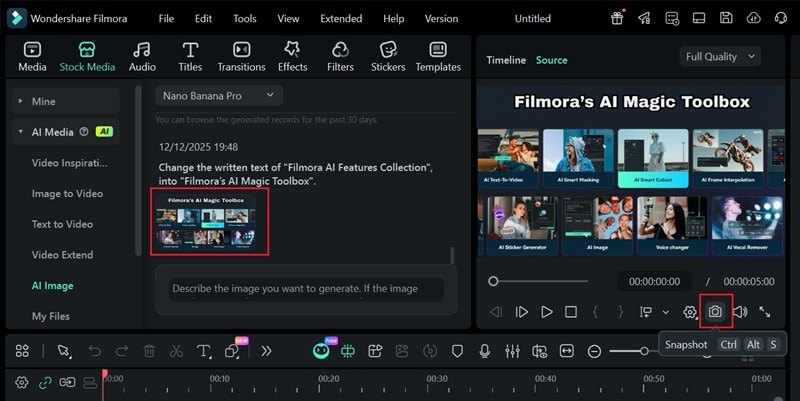
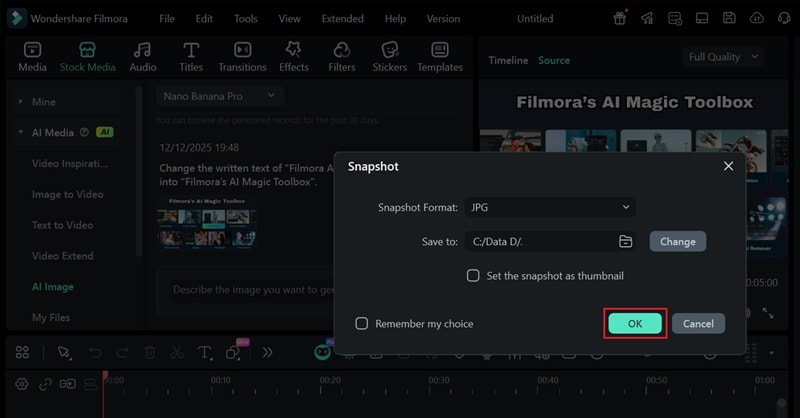
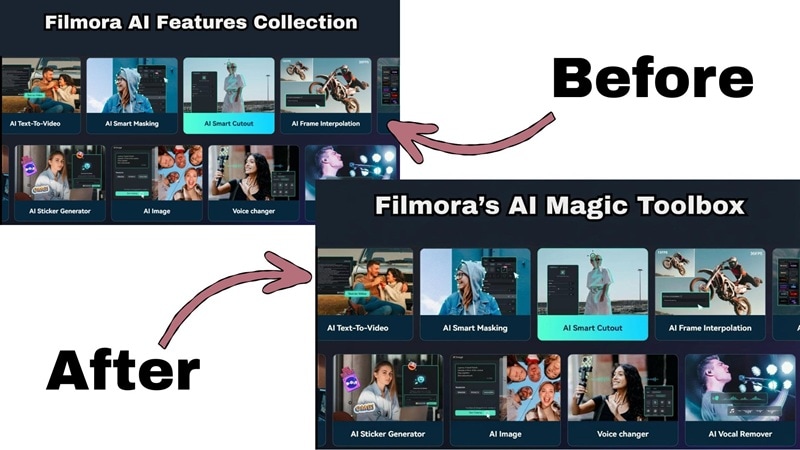
And that’s basically all you have to do! Pretty simple, right? The steps are easy, and the results come out surprisingly clean. Just look at the before-and-after of your photo to see how neat the edit turns out.
What Else Can Filmora Do?
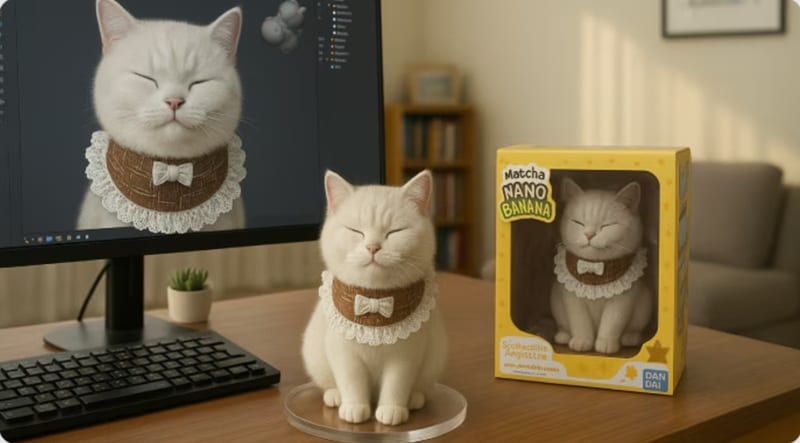
Filmora’s Nano Banana Pro integration isn’t only helpful when you want to edit a photo text. It can actually build or upgrade a whole visual for you with really nice detail. If you feel like exploring a bit more, here are a few fun things you can try:
- Create Event Posters (with text included): You can generate a full poster design, then adjust the title or details right inside Filmora without starting over.
- Redesign Product Labels: Clean up old writing on packaging and replace it with fresh brand text so the label looks new and polished.
- Aesthetic Background Changer: Remove clutter, fix textures that look messy, or switch the entire scene behind your subject to something cleaner or more aesthetic.
Part 2. Remove and Edit Text on a Photo Manually with Object Remover
Sometimes, it feels nicer to handle the details on your own, especially when you want the colors, shadows, and tiny bits to match perfectly. And if you like having full control or just want to edit things yourself, Filmora also lets you edit text on a picture the manual way.
With Filmora's Object Remover, you can clean up the old words and rebuild the area exactly how you want it. It’s simple to do and gives you a really natural result as long as you take your time with the cleanup.
See the guide below to learn this method:
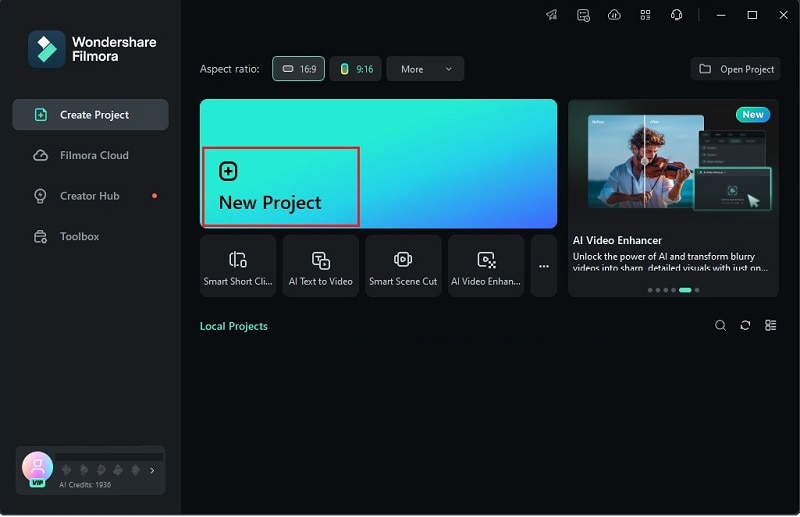
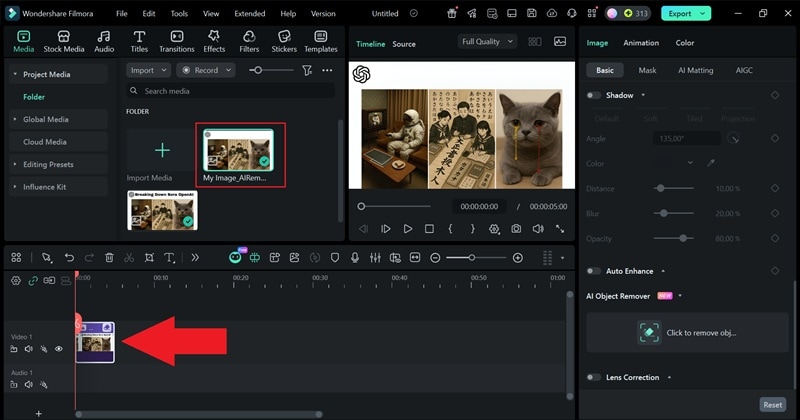
- Step 1. Create a New Project and Upload Your Photo
- This time, open Filmora and click “New Project” to start fresh.
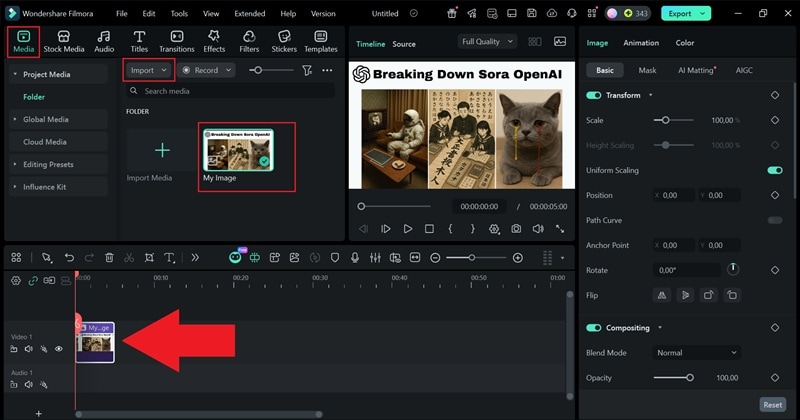
- Go to the “Media” tab and hit “Import” to bring in the picture you want to edit.
- Then, drag it down to the editing timeline below so you can start working on it.
 secure download
- Step 2. Use the Object Remover Feature
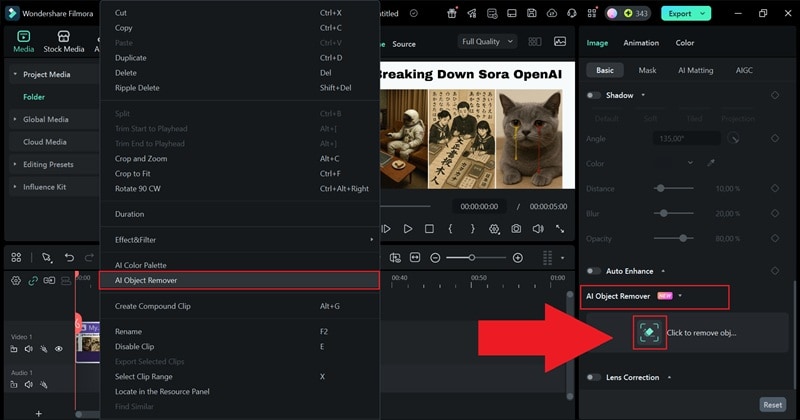
- On the right panel, scroll until you find “Object Remover” and click the brush icon.
- You can also right-click your photo on the timeline and choose Object Remover from the menu.
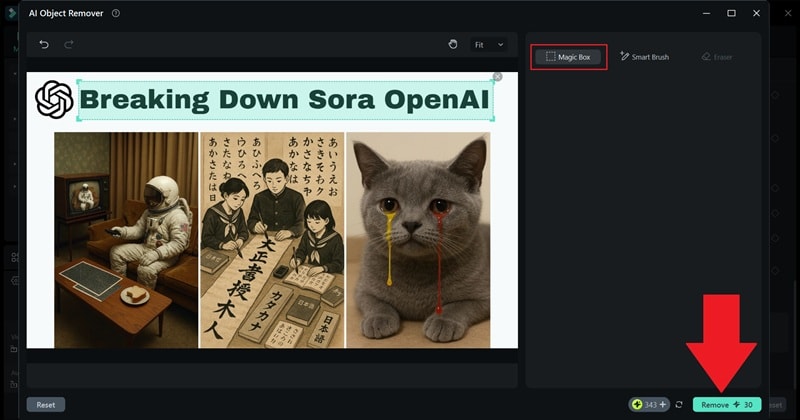
- Inside the tool, use the “Magic Box” and place the rectangle over the text you want to erase.
- Hit “Remove” and wait a moment for Filmora to process it.
- The cleaned version will appear right away on your timeline.
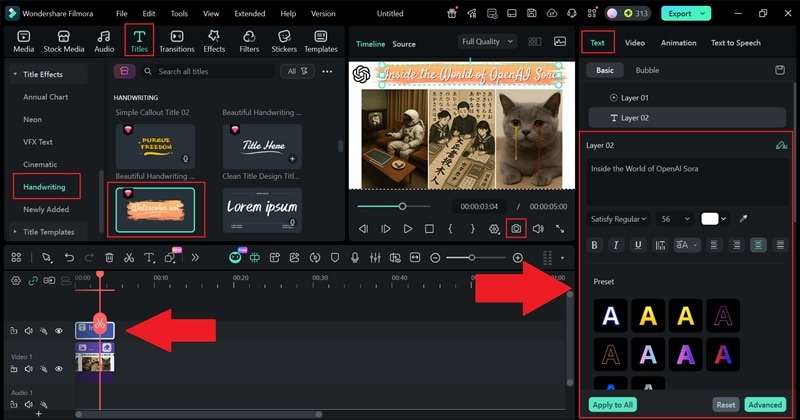
- Step 3. Add the New Text, Edit, and Save it
- Open the “Titles” menu and pick a text style you like.
- Drag the title onto the timeline, then use the “Text” panel to type the new wording you want on your image.
- Adjust the font, size, color, and position until it feels right.
- When you’re happy with the result, click the camera icon to save your edited photo.
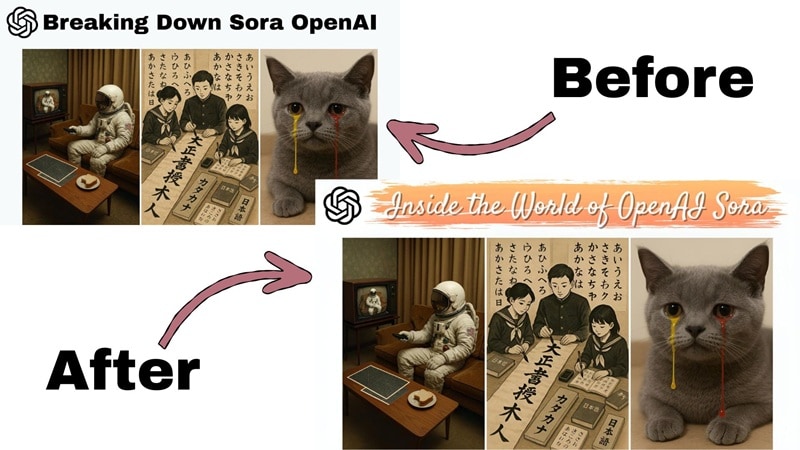
And there you go! Your picture is all cleaned up and updated with the new text. This method doesn’t just help you remove the old wording, it also lets you make the whole image look a little nicer, especially with all the creative text styles Filmora already has. Just take a look at the before-and-after to see the difference.
Part 3. Edit Text on Picture with Editable Text Detection Tool
Filmora already gives you a powerful way to edit text in image with clean results, but it is always nice to have more options on your side. If you want something quick and light, you can also edit text in an image online using tools that let you click the text inside the picture and rewrite it right away. It works almost like normal typing, which makes it perfect for fast fixes.
For this example, we will use PhoText, a simple site that replaces text with one click and lets you type the new wording instantly. Take a look at the short guide below to see how it works.
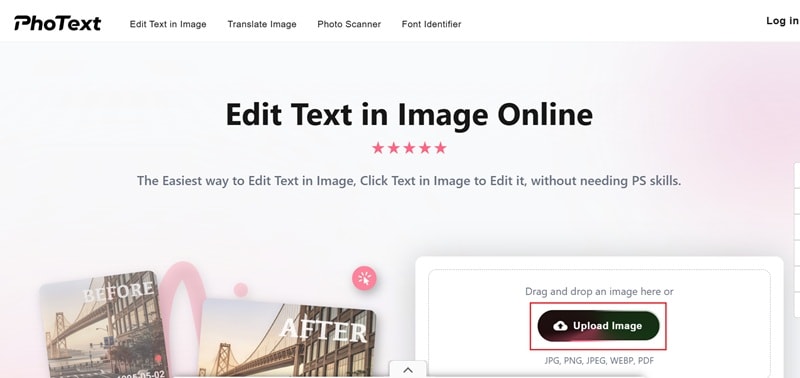
- Step 1. Go to Their Site and Upload Your Picture
- Visit the official PhoText website.
- Click “Upload Image” and choose the photo you want to edit.
- Step 2. Edit The Text and Download It
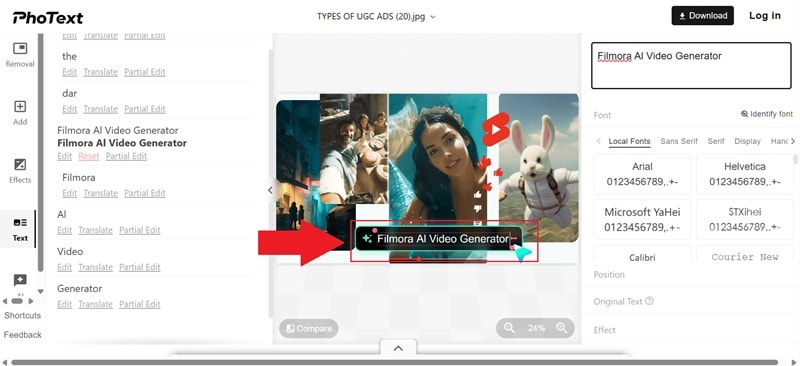
- Click the text in the image that you want to change.
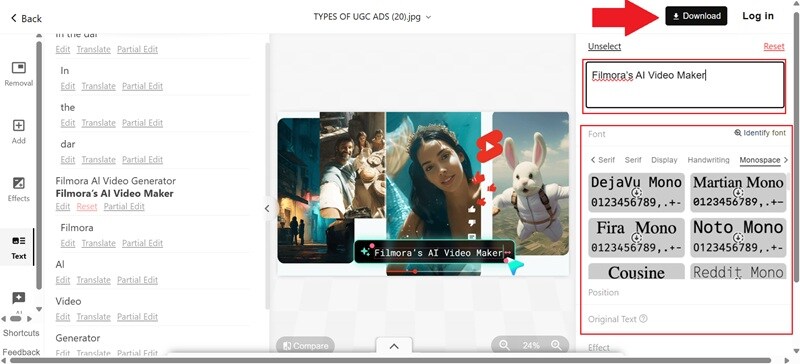
- A small editing box will appear on the right side of the screen.
- Type your new text into the box and adjust the font if you want.
- Click “Download” to save the updated image to your device.
And that’s pretty much it. This method looks very practical at first, but there are a few things you should know before relying on it:
- You need to create an account and log in before you can download the result.
- The edited photo will have a watermark, and removing it costs 5 credits.
- Their paid plans start at 5.9 dollars for 300 credits each month.
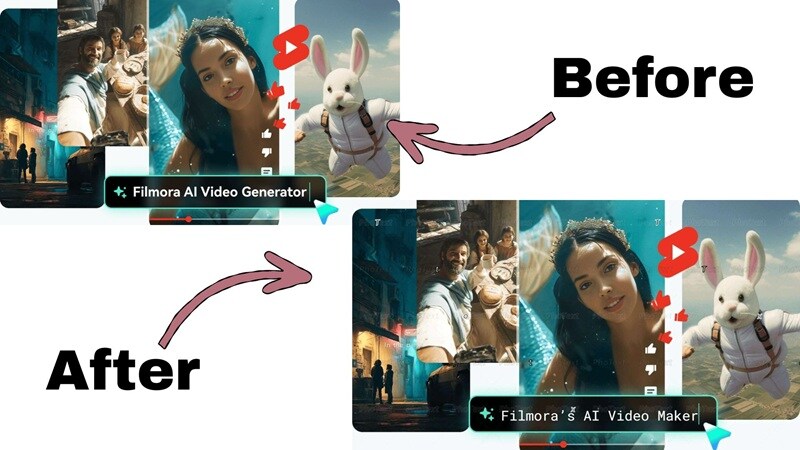
Now take a look at how your edited photo turns out with this method.
Part 4. Edit Text in Image Like A Pro: What You Need to Know
So, you’ve tried a few different ways to edit text in an image, from Filmora's AI magic all the way to quick click and edit sites. But before you jump into your next project, it’s good to know a few things that can instantly level up your edits.
These are the little details that make your picture look like it came out that way in the first place, not something you patched together at the last minute.
Tips for Natural Text Edits and Make Your Work Blend Smoothly
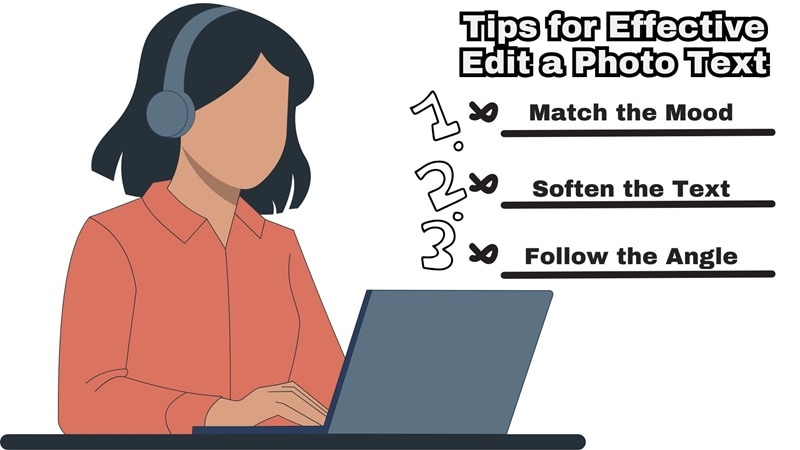
- Match The Look of the Original Text: Try to match the font as closely as you can when you edited text in a photo. Keeping the style and tone similar helps the new text sit naturally in the image.
- Follow The Angle of the Scene: If the text sits on a tilted sign or label, shape your new words to match that angle. It makes your edit text on a picture look much more natural.
- Give The Text a Gentle Shadow: A soft shadow or outline helps the new wording settle into the scene. It feels more real, especially when you edit the text in an image with objects around it.
- Add A Bit of Texture to Blend Everything: A small touch of grain helps the new words match the photo’s surface. This is especially useful when you edit a photo text in older or low-light images.
- Soften The Text Until It Feels Right: If the text looks too sharp or too bright, lower the opacity until it sits comfortably in the background. A small adjustment often makes your edit text in an image feel cleaner.
Common Mistakes When Editing the Text in an Image
- Not Removing Blur Marks: Sometimes people rush to erase the old wording and leave blurry patches behind. Cleaning this part properly keeps your edited text in the image from looking messy.
- Strange Font: Using a font that feels too different from the original style makes the update stand out in a bad way.
- No Light or Shadow: When the new wording has no shadow or highlight, it looks flat compared to the rest of the photo. Adding a little light helps your edit text on pictures sit in the scene better.
- Oversized Text: New text that is too big or too bold can overpower the image. Keeping it close to the original size makes your edit a photo text feel balanced.
Conclusion
Editing text in an image can open up a lot of possibilities, from fixing small mistakes to giving an old design a fresh look. That is why we walked you through different ways to edit text in an image, so you can pick the one that feels right for your project.
For a smoother experience, Filmora really stands out because everything you need is already inside it. The AI Image feature, powered by Nano Banana Pro lets you upload a photo, type a short prompt, and watch the app rebuild the text area with a clean finish. You can also edit a photo text manually and experiment with all the creative fonts and styles Filmora offers.

