

 100% Security Verified | No Subscription Required | No Malware


 ChatGPT
 Perplexity
 Gemini
 Claude
 Grok
Grok
Earlier this year, Meta officially removed beauty filters from Instagram, and users had to opt for alternative ways to beautify images before they post. This could mean slower creative processes and even stressed-out users; however, there’s a perfect solution: You can use third-party tools to add beauty filters for Instagram posts and videos.
So, if you’re trying to fix a blemish or beautify your photo in general, this article will provide some of the best beauty filter tools for Instagram so you can make a great choice. We’ll also cover how to use the most effective platform to beautify your photos and videos.
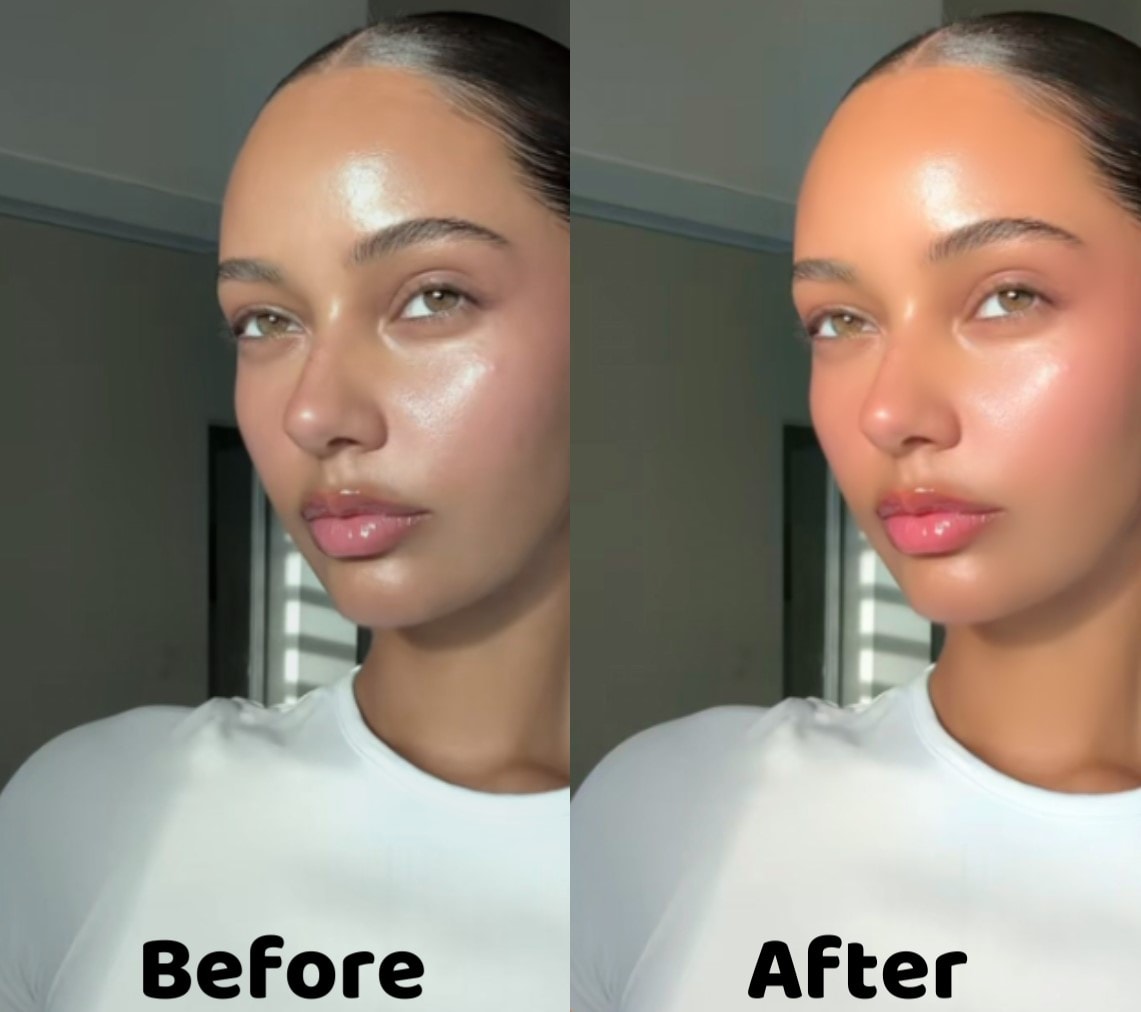
Part 1: The Best Beauty Filter Tools for Instagram
Posting a picture directly from your photo gallery without using an Instagram make up filter can make the post look dull or low quality. So, whether you’re a creator, regular Instagram user, or just someone curious about IG filter tools, here are the best beauty filter tools for Instagram that you should know about:
1. Wondershare Filmora - Best for No Makeup Beautifying
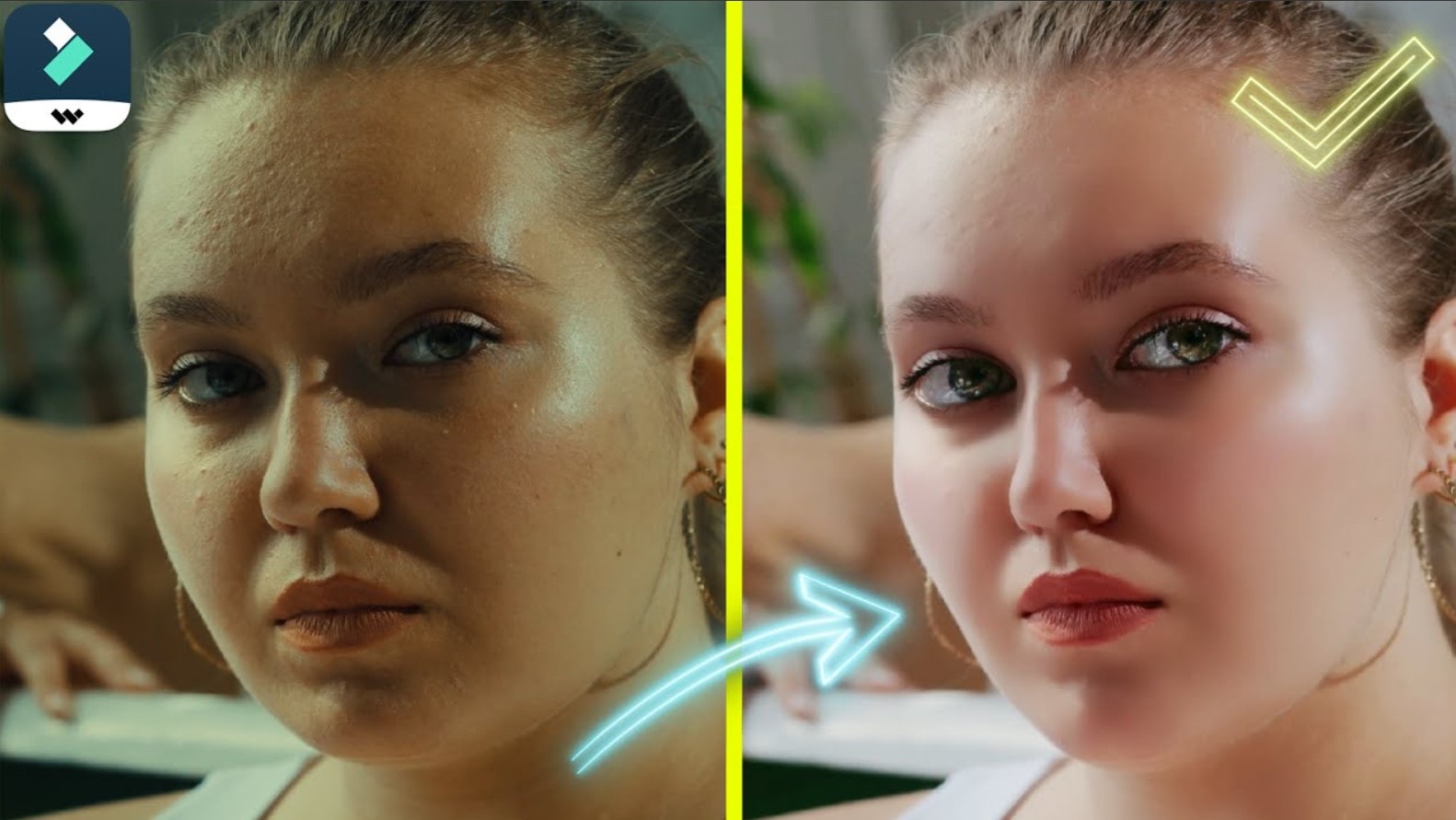
Wondershare Filmora is your perfect tool for applying a beauty filter for Instagram, which can remove pimples, blemishes, spots, and wrinkles on the subject’s face before your post. It’s great for quick retouches, and comes with up to 10 beauty filters, each tailored to brighten, smooth, and enhance the face overall.
With Filmora’s beauty filters for Instagram, you can regain the natural beauty on your subject’s face without necessarily using makeup tools like lipstick, which can come out pixelated. This way, you get high-quality retouched photos without needing too much technicality. Filmora’s beauty filters have the following features:
- Up to 10+ beauty body filters, which help you remove blemishes, brighten the face, and remove wrinkles or eyebags.
- Beauty filters that can be applied to any skin tone and still retain the natural beauty.
- The filters do all the facial corrections for you, so you don’t need the complexity that comes with individual tools like makeup brushes and lipstick.

 secure download

2. Lift App - Best for Enhancing Image Beauty with AI
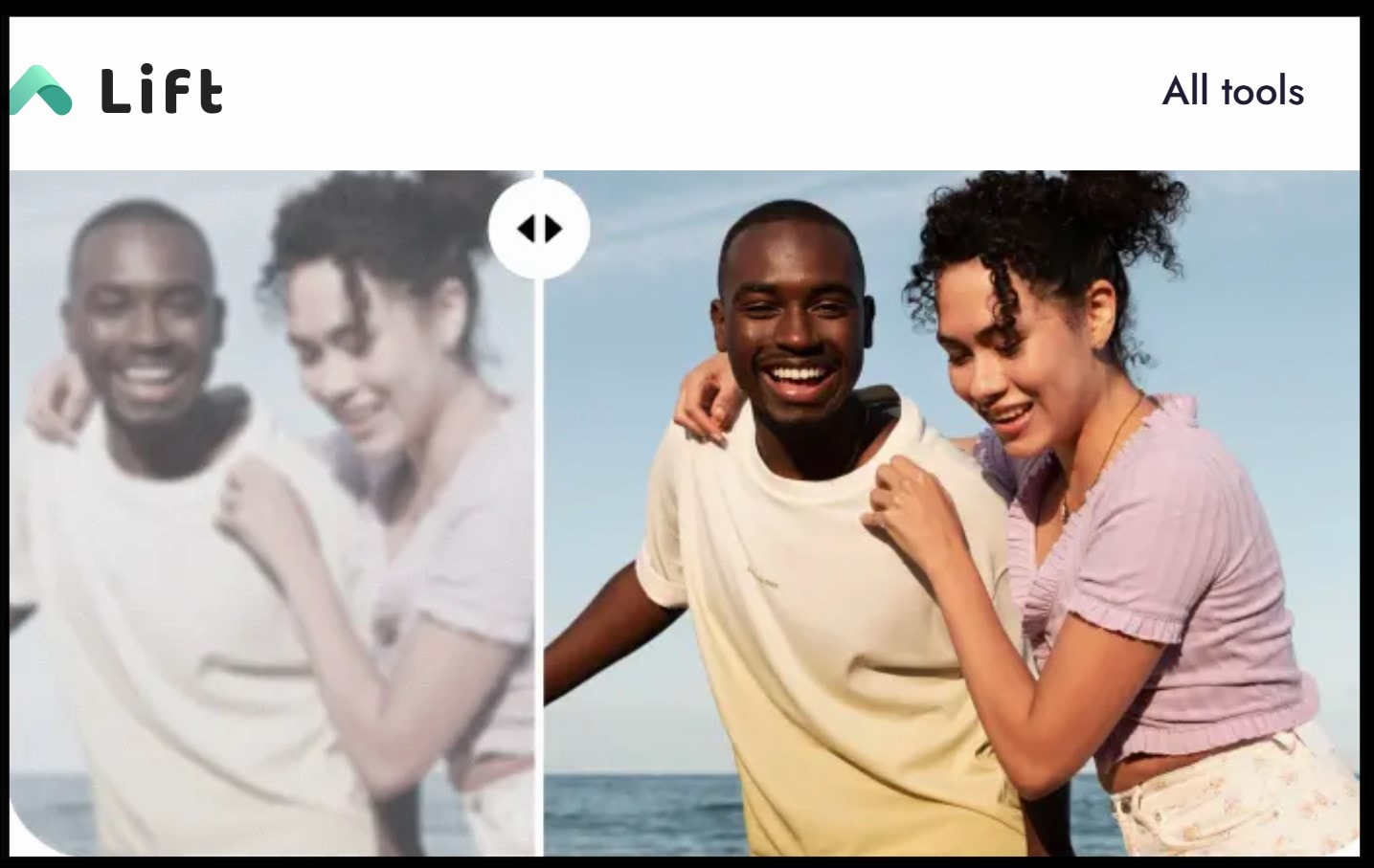
Lift is a solely AI-Powered editor that comes in handy for retouching pictures, improving their quality, and addressing facial concerns. The object remover also allows you to take out spots or blemishes from your photo before you post.
While Lift App is suited for both web and mobile, you’d have to subscribe to access its Instagram lipstick filters and beautification tools. But, since it uses AI primarily, you can clean up any photo within minutes. Here’s a full breakdown of its features:
- Lift App lets you use AI to smooth any face in your photo and enhance beauty.
- You can also remove spots and blemishes by highlighting the areas of concern.
- Lift comes with numerous filters to apply to beautify your image and make it brighter even after removing blemishes.
3. Canva - Best for Smoothing Out Pictures
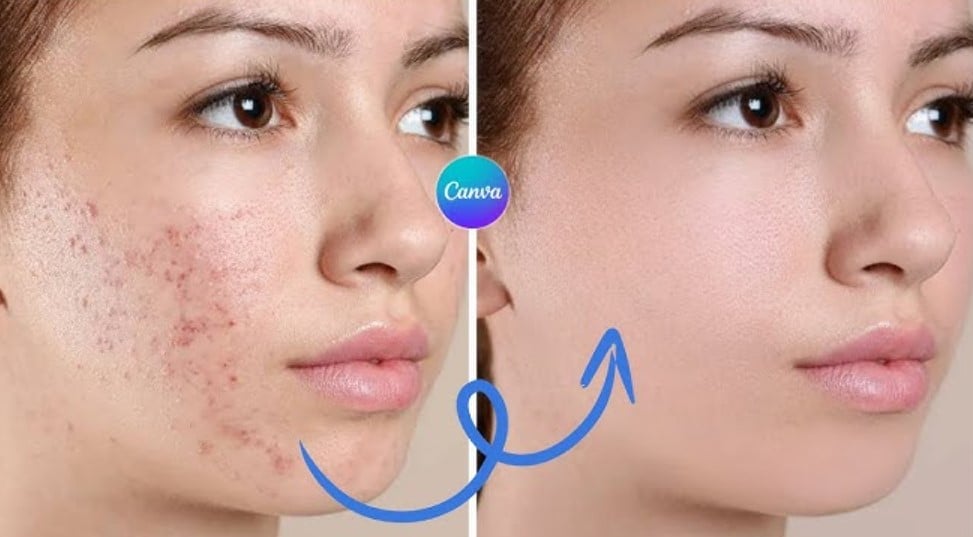
Although it’s popularly known as a graphics design tool, Canva is very useful for removing blemishes from face pictures. With this tool, you can take out dark spots, adjust and enhance facial features, and retouch photos easily.
Canva allows users to increase lip colour intensity, like a lipstick filter for Instagram, or apply makeup to the subject in the photo. Below is a full breakdown of Canva’s beautifying features:
- With this Instagram make up filter tool, you can smooth out visible pores, spots, and blemishes.
- The color enhancer lets you add color to the subject's lips and cheeks, acting as a virtual makeup applicator.
- You can adjust parts of the face, like the nose, eyebrows, or eye shape, to be more symmetrical.
4. Fotor - Best for Online Retouching
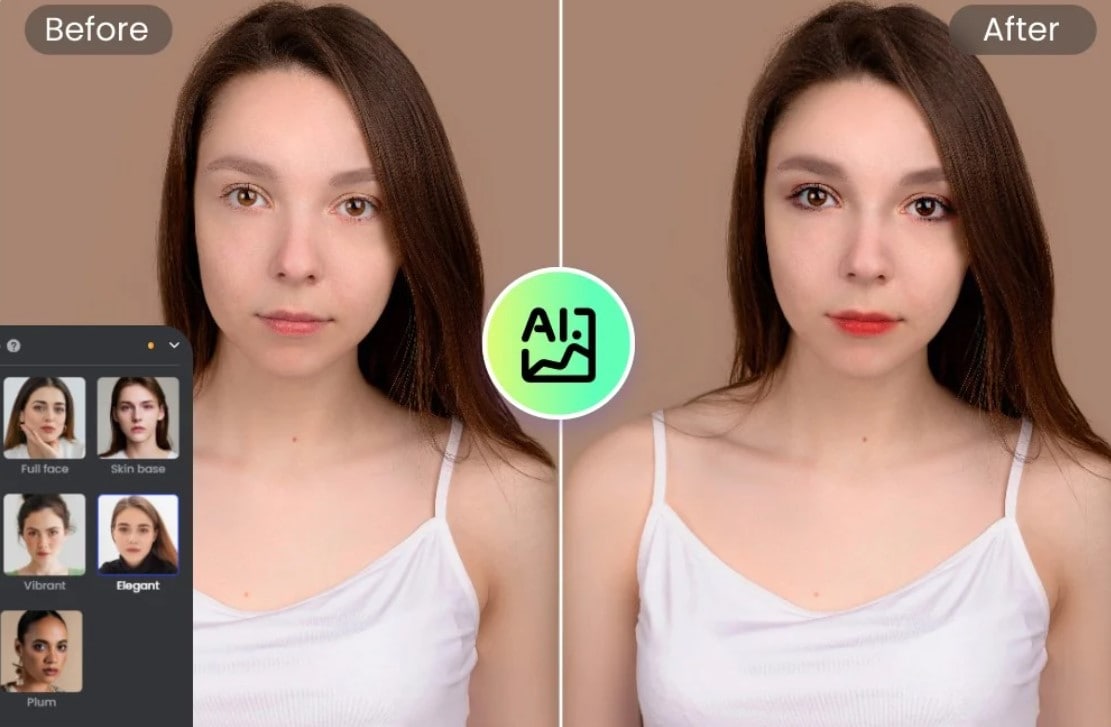
Popular for allowing users to edit their photos online, Fotor is an Instagram beauty filter tool that comes with built-in AI capabilities to retouch the subject's face in any photograph. This means that you can brighten dark photos, remove blemishes, and edit faces without having to download the app.
Fotor’s top features for beautifying photos for Instagram include:
- AI photo retouching which allows users to remove blemishes and spots from their faces.
- Skin smoothening, which removes wrinkles, open pores, and smile lines
- Detailing, which lets users edit fine details about their photo, like teeth whitening and cheek blush.
Part 2: How to Beautify Photos and Videos for Instagram with
Even though there are many tools to beautify photos for Instagram, most of these options produce blurry images or pictures of low quality, which can affect your post. Plus, not all Instagram beauty filter tools have extensive features that really highlight the most attractive parts of the subject’s face.
Filmora prevents these issues, allowing you to beautify your pictures and videos for Instagram without the risk of dull or low-quality output. In fact, Filmora is adapted to both mobile and desktop versions so that you can edit and beautify your posts for IG from practically any location or device.
How to Beautify Photos and Videos For Instagram with Mobile
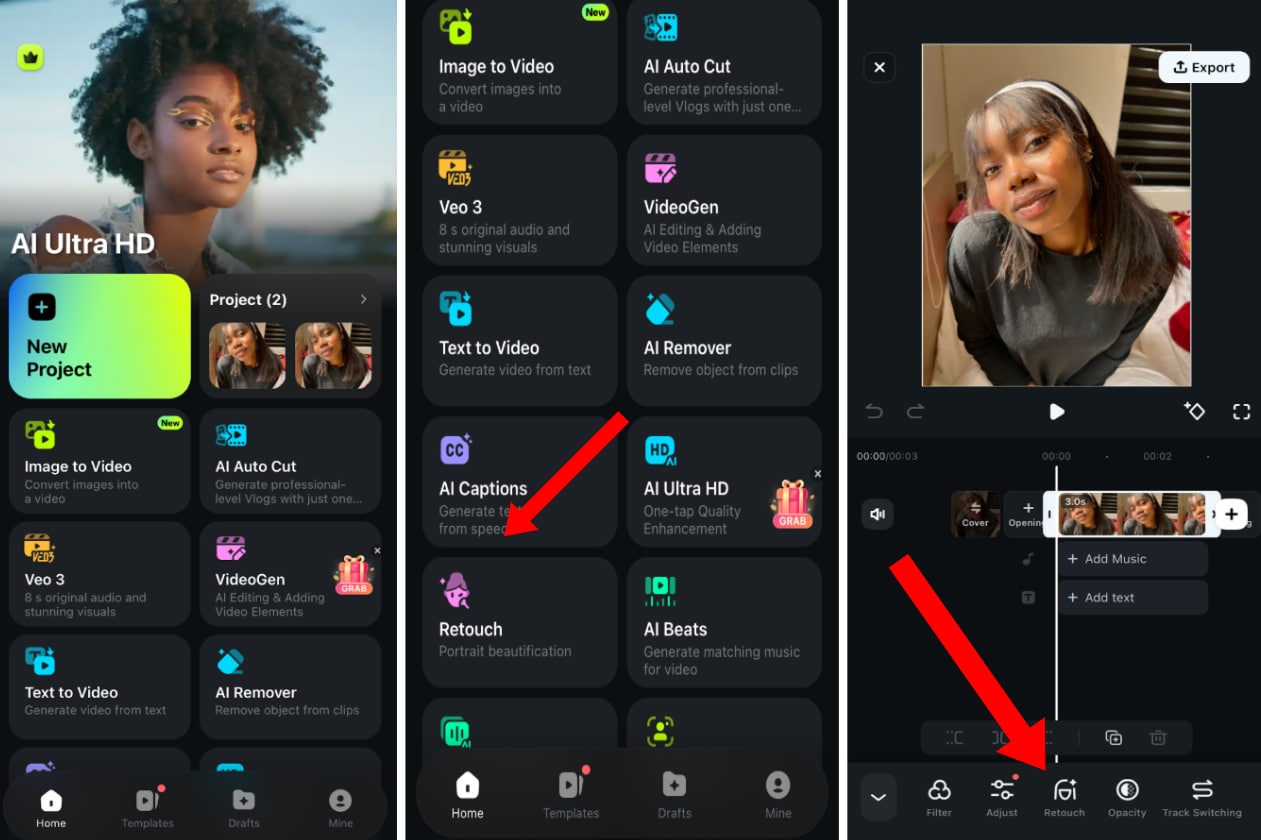
If you want to retouch your photo or apply a makeup filter for Instagram using your mobile device, first download Filmora from your official application store. Once you’re done, launch it and follow the steps below:
Step 1: Upload your image to a new project and click on the clip in the timeline. Then tap Retouch. You can also access retouch directly from the Toolbox in the homescreen.
 secure download
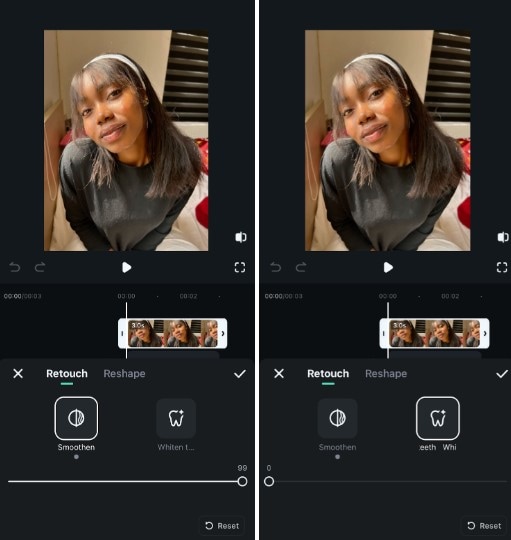
 Step 2: From the Retouch tab, move the glider to smooth out the skin. If your picture shows the person’s teeth, you can whiten it in the next tab. Then, go to Reshape.
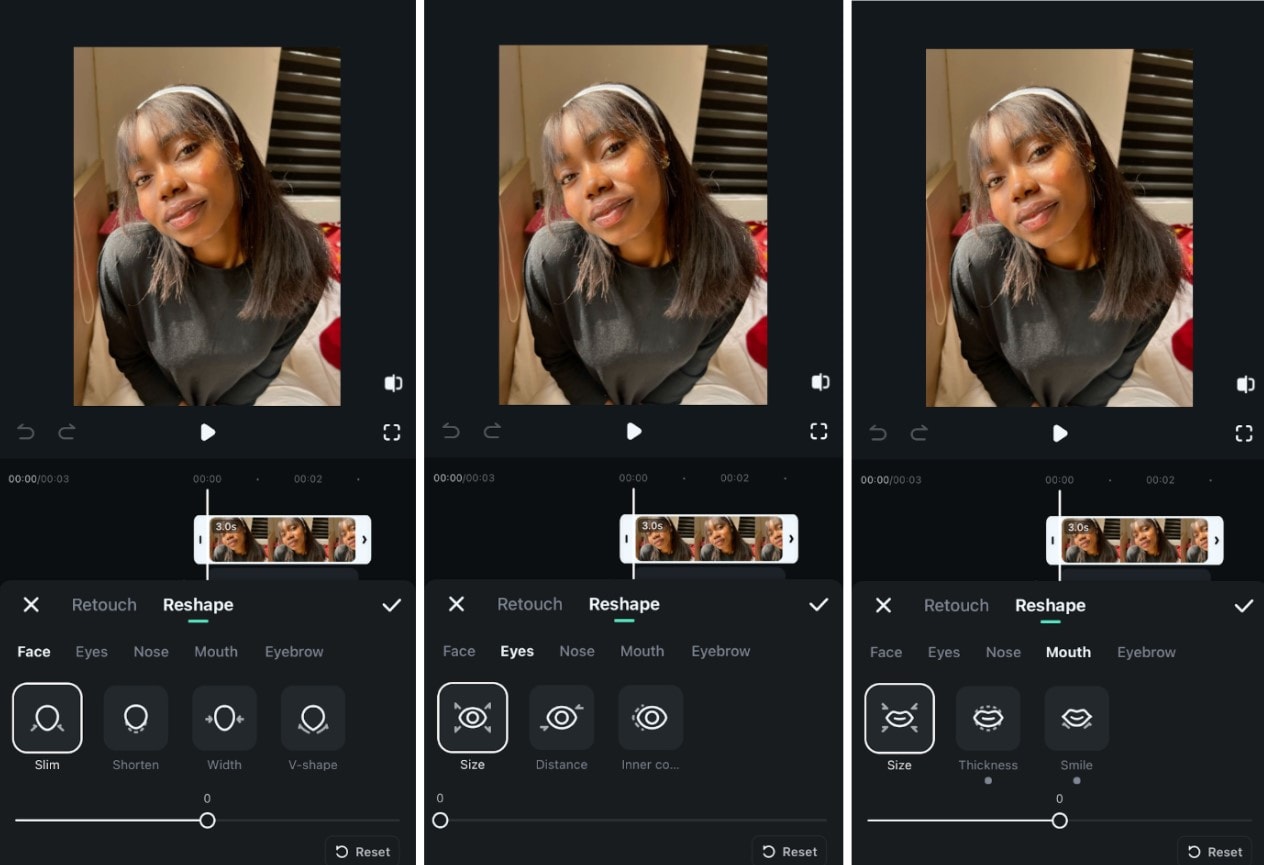
Step 3: Select any of the features you want to reshape (eyes, face, mouth, nose…) and adjust them accordingly.
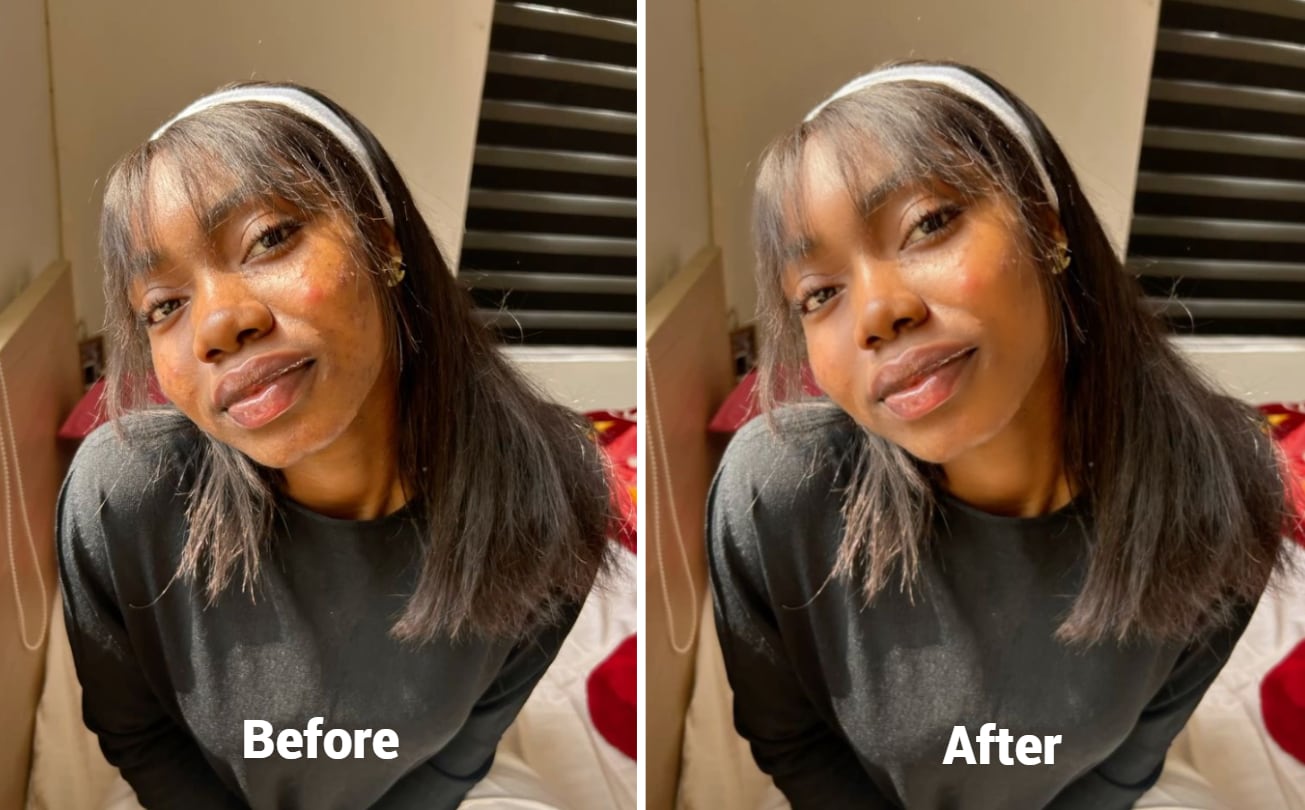
At the end of this process, you should have an image like the one below. If you’re satisfied with it, click on Export at the top of your screen and save it to your device.
How to Beautify Photos and Videos For Instagram with a Desktop
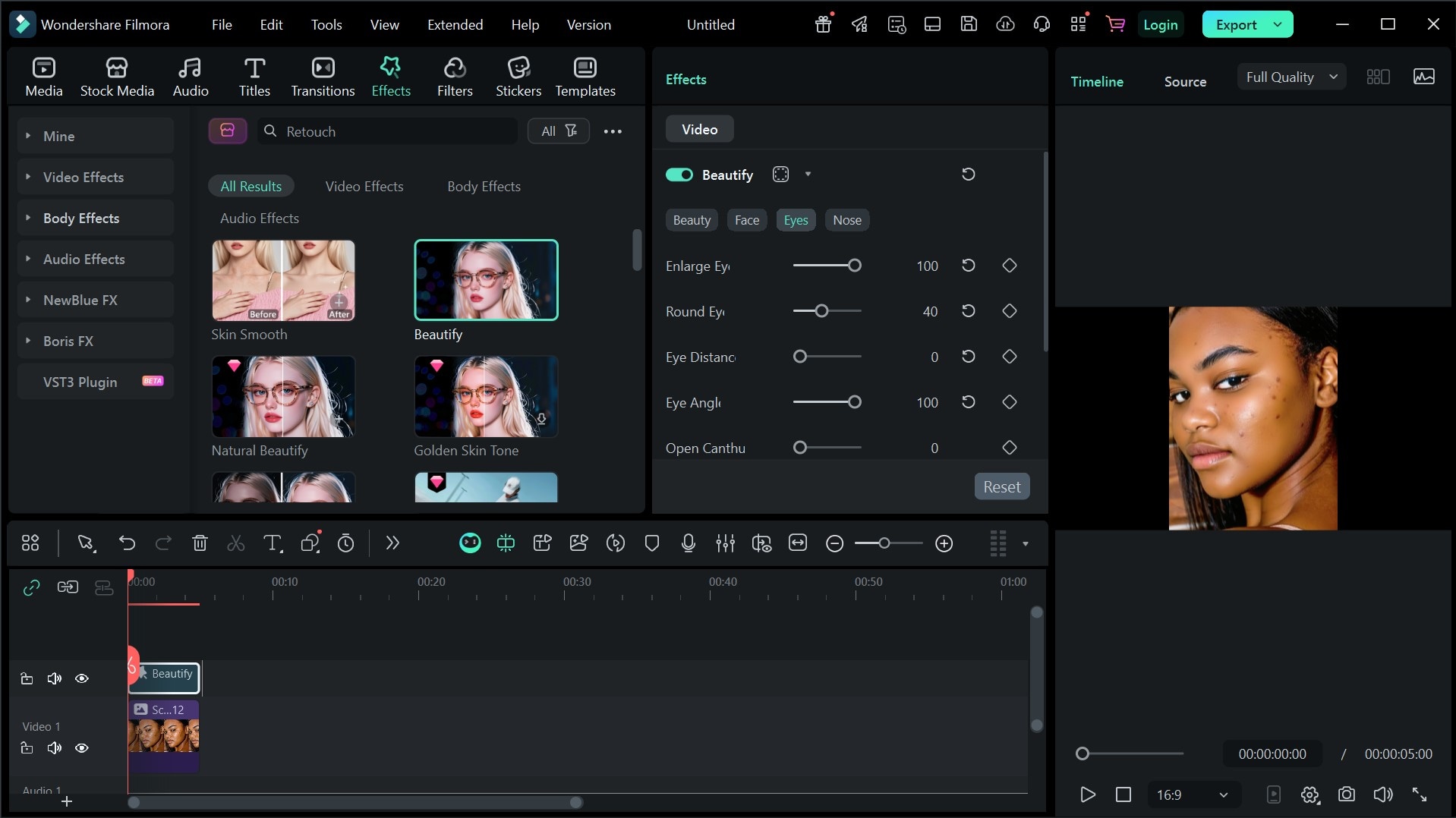
For more advanced picture editing and video editing, you can use Filmora for desktop to pay attention to little details when adjusting facial features for an Instagram post. This way, you can apply the beauty filter for Instagram to things like nose size, jaw length, and eye color. Here’s a step-by-step guide to beautifying photos for IG on desktop, using Filmora’s beauty filter:
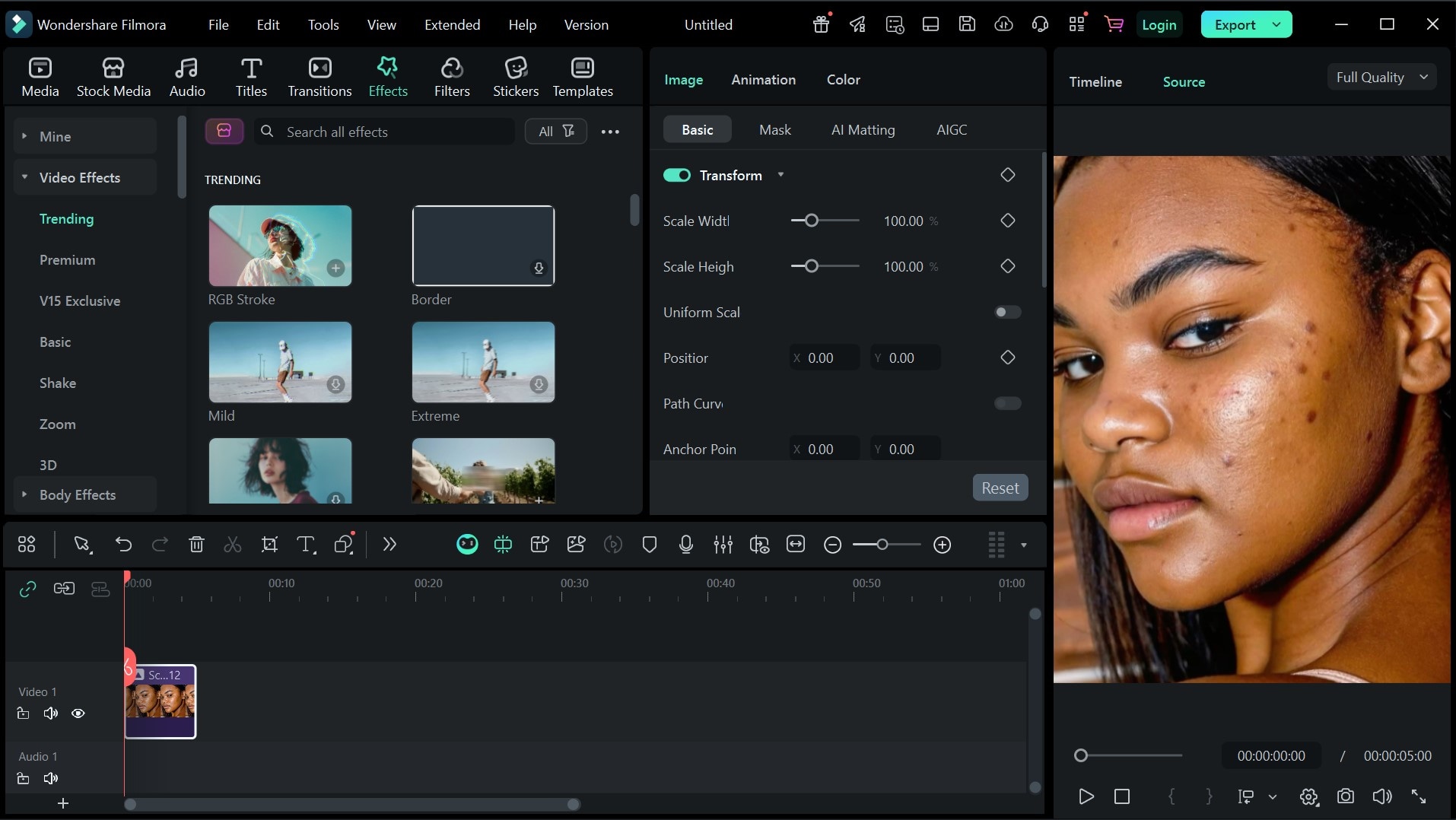
Step 1: After installing and launching Filmora, open a new project, upload your Instagram image, and tap on Effects.
 secure download
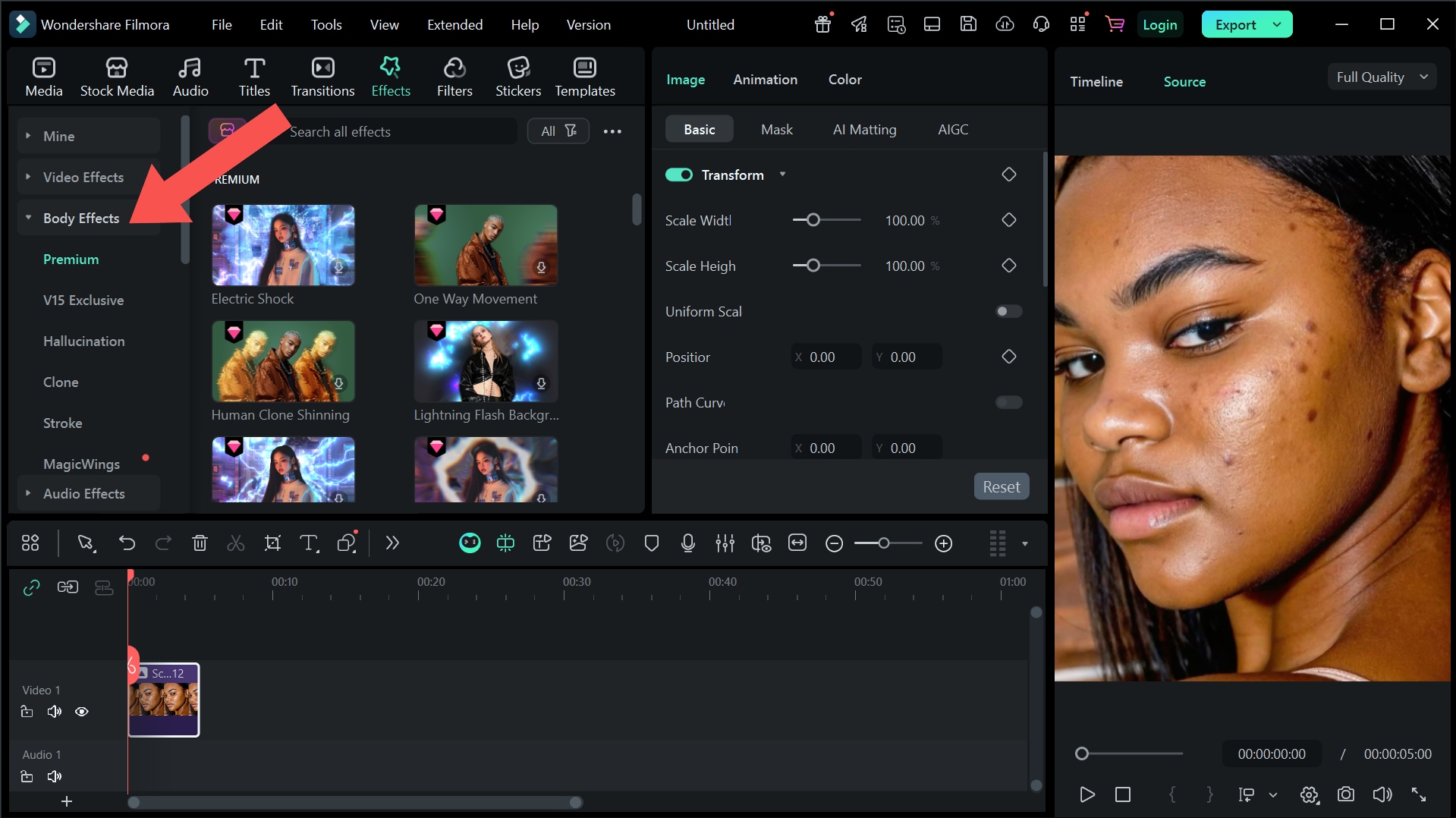
 Step 2: From the right-hand menu, scroll down and tap Body Effects
Step 3: Search “RETOUCH” in the search bar and select the beautify filter you want.
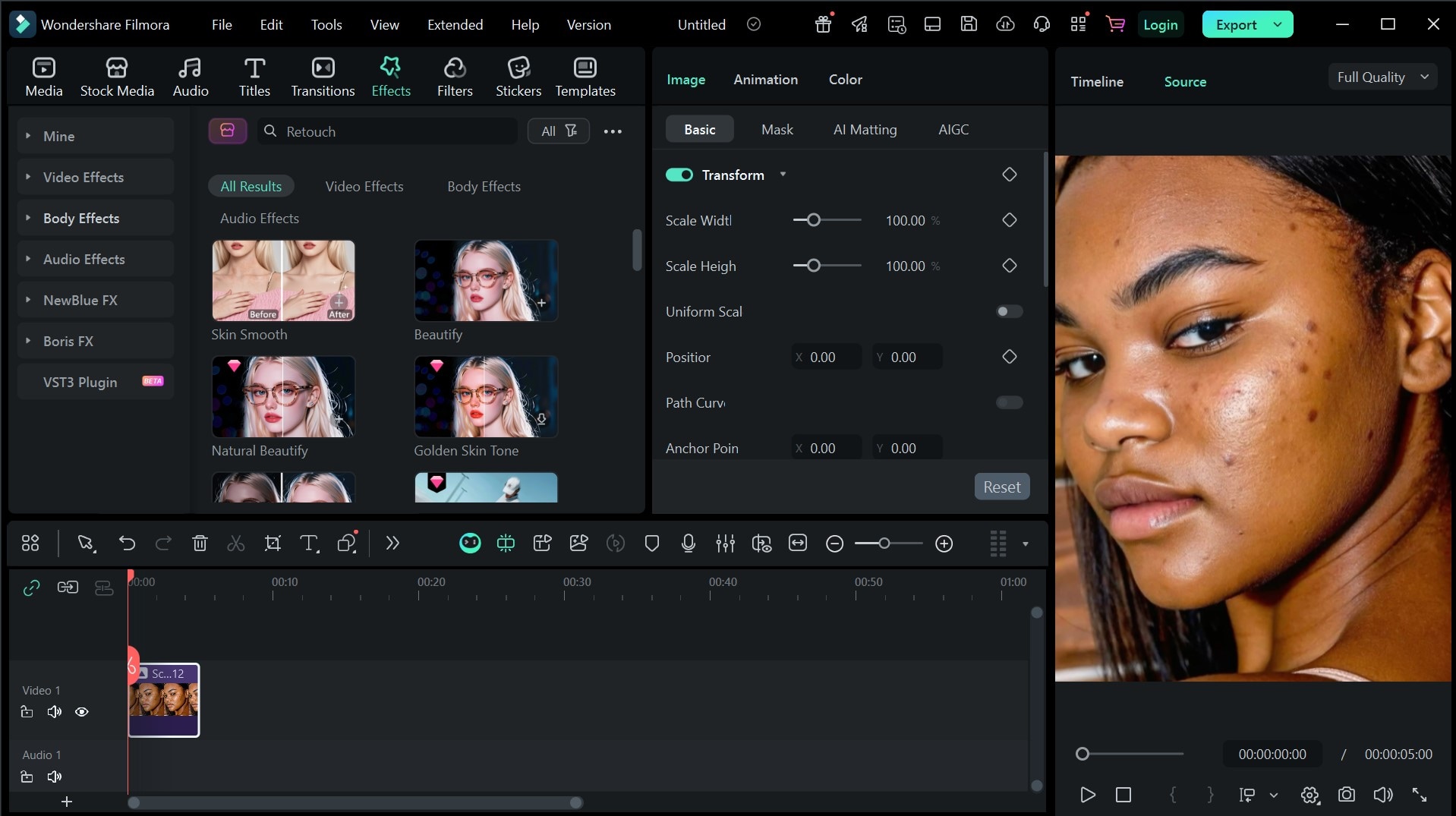
Step 4: Drag and drop it above the image clip on the timeline. Then, from the filter properties section, adjust the facial features to your taste and export.
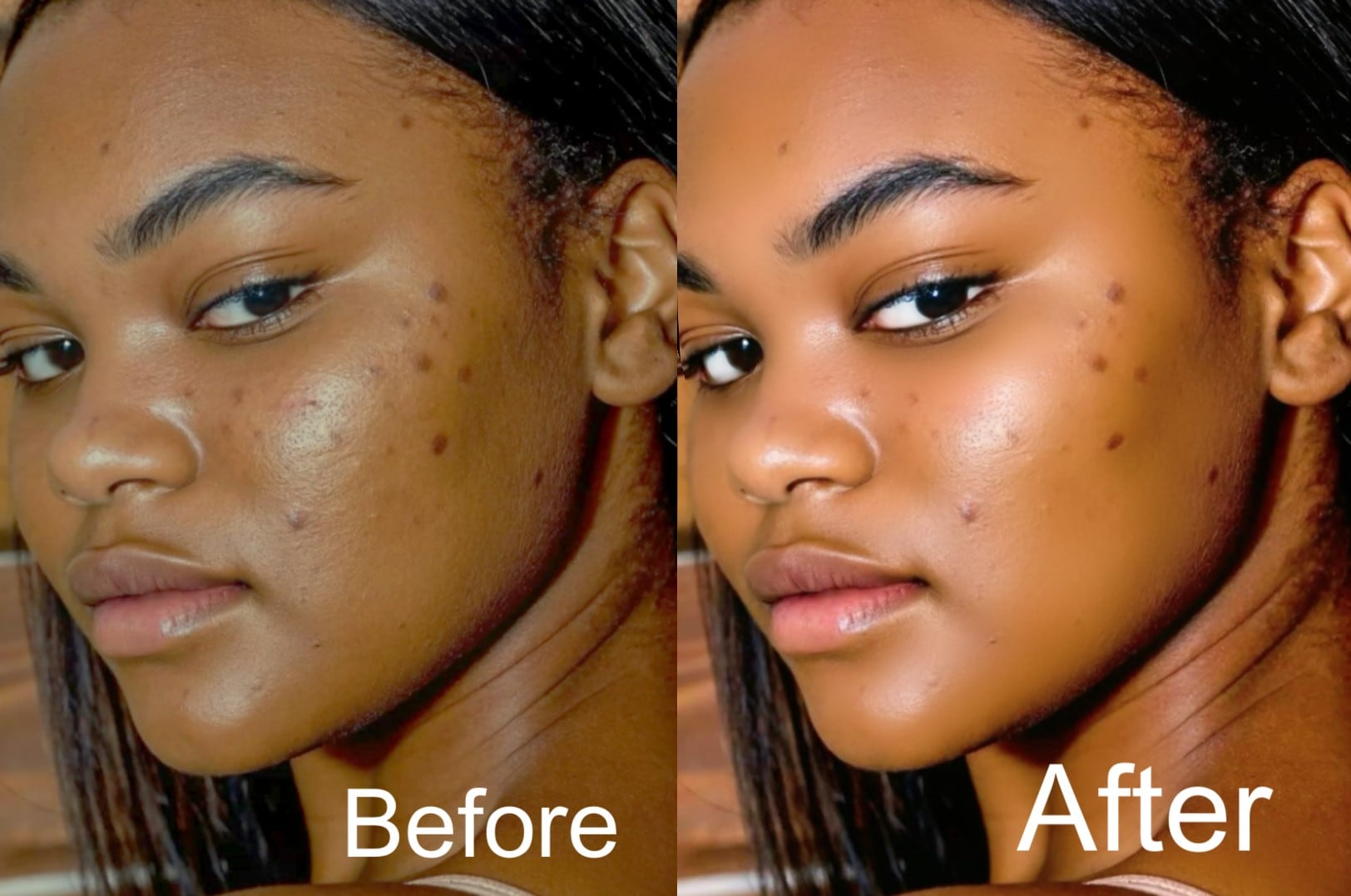
Here’s what the final result should look like before and after.
Part 3: Top Beauty Filters for Instagram Available on Filmora
Not sure what beauty filter for Instagram you should use for your photos or videos? Not to worry. In this section, we will show you the different top beauty filters Filmlora has available from desktop, and how they look when applied to pictures:
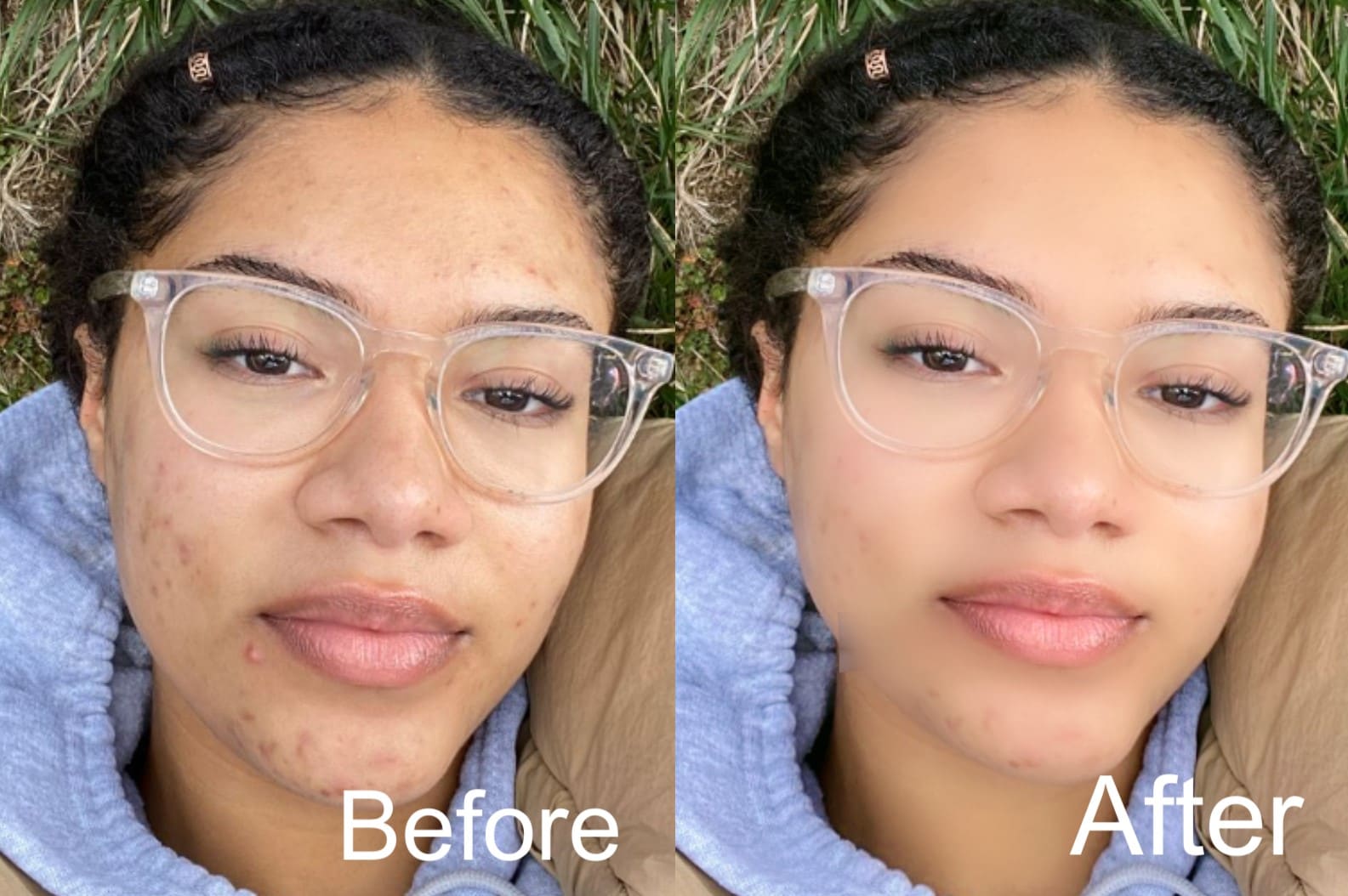
- Skin Smooth: This beauty filter for Instagram smoothes out the skin, blurring out and removing spots, blemishes, or pimples.
- Golden Skin Tone: This beauty filter focuses on making the skin tone look more lively by adding hues of blush to the cheeks and an overall glow to the picture.
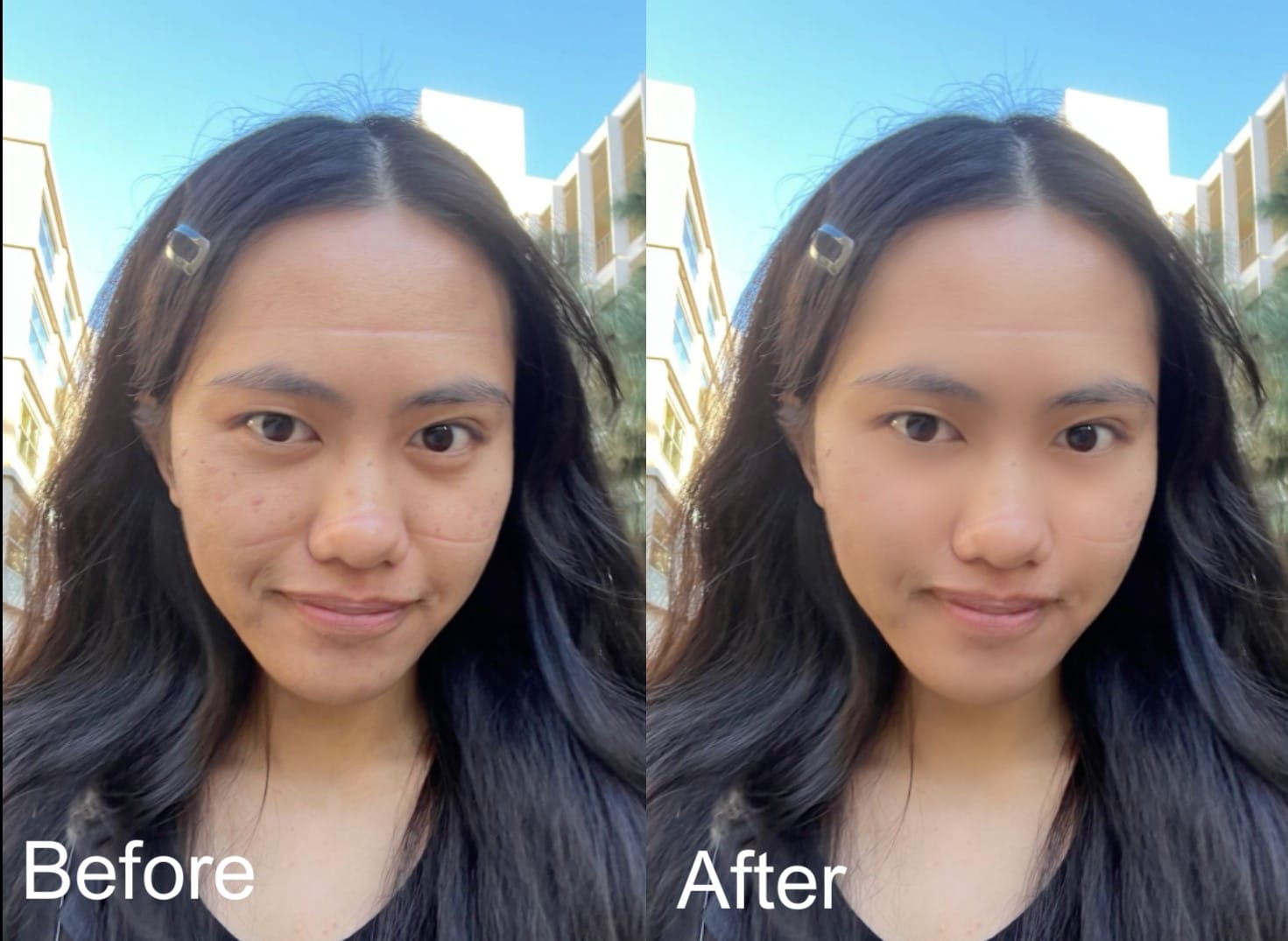
- Beautify: This is a more advanced makeup filter for Instagram, which allows you to reshape your face, shorten the bridge of your nose, and adjust specific features you want.
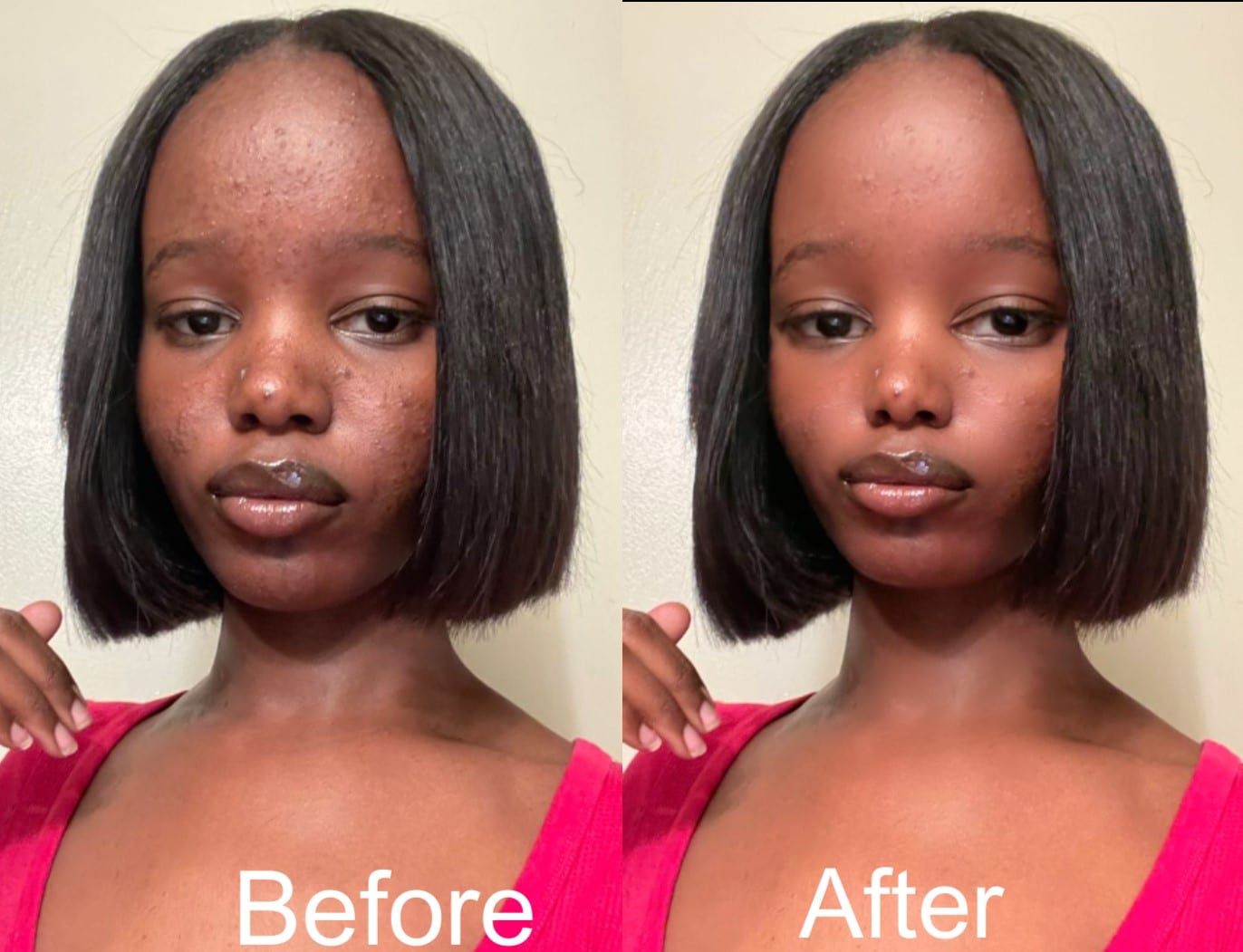
- Natural Beauty: This filter essentially reshapes your face and features in a more naturally appealing way that’s undetectable in photos.
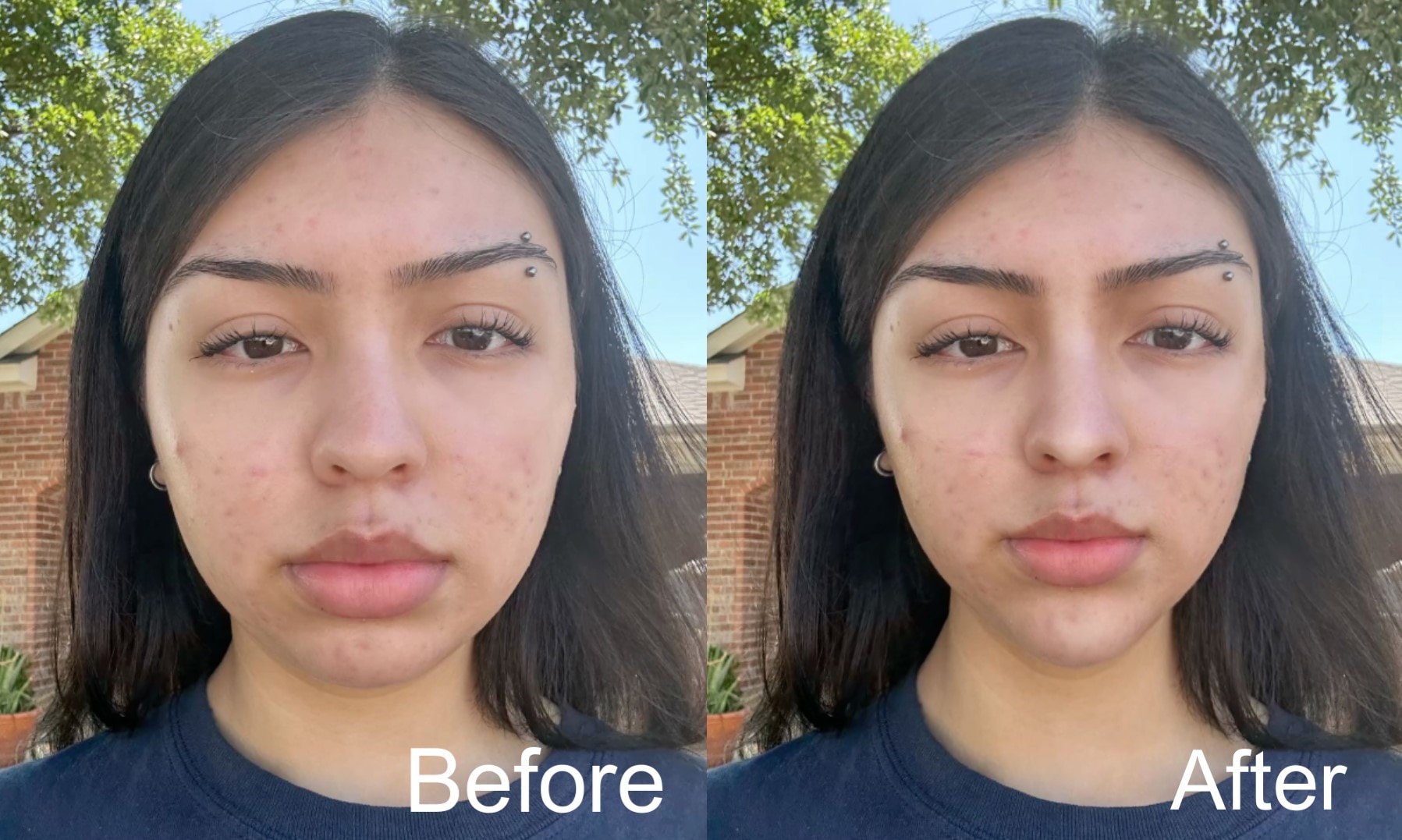
- Beautify 2: This is the more advanced form of the normal beautify filter, which makes features look shaper, and allows for more control in details like the nose, mouth, forehead, and jawline.
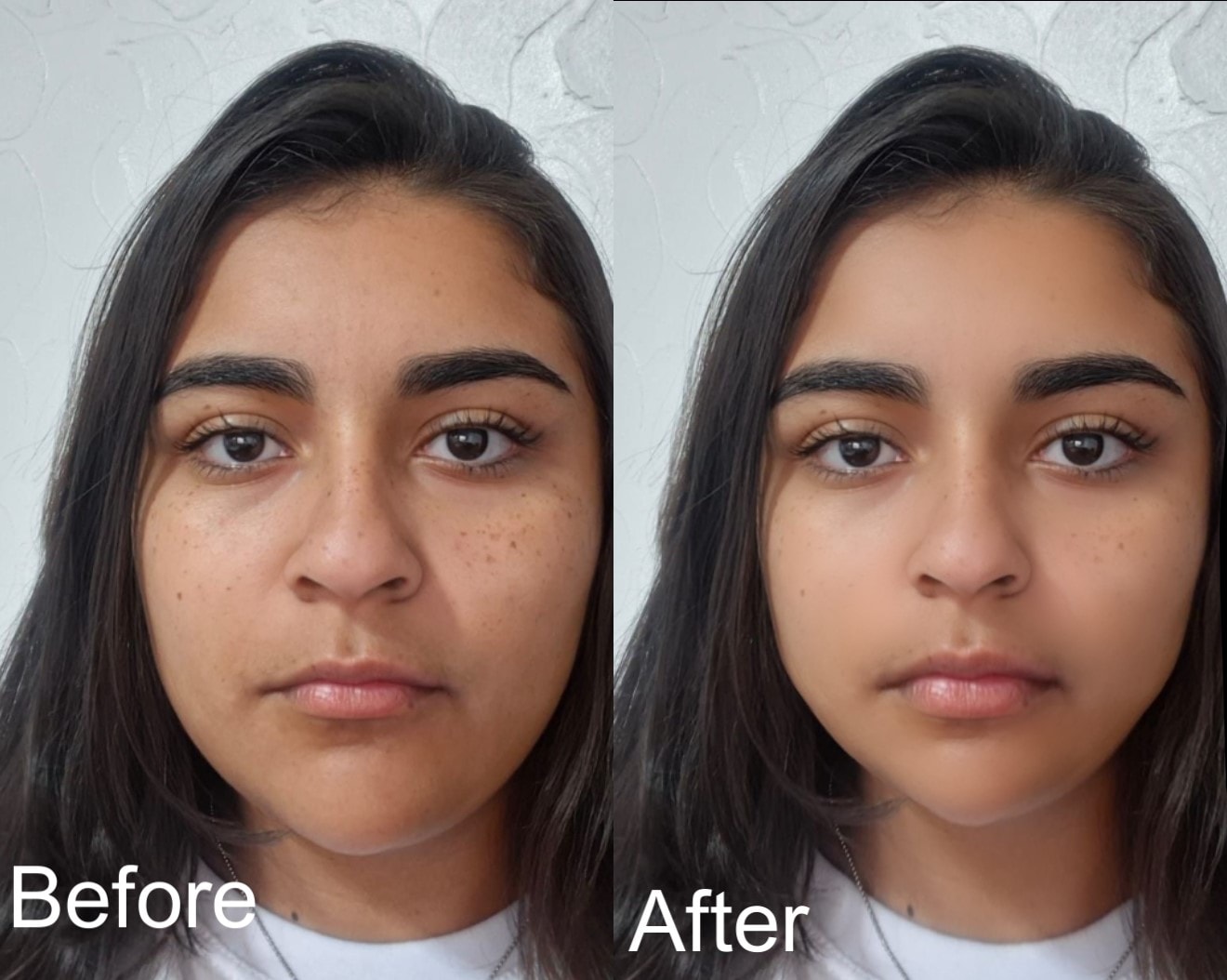
In all, if you want the most natural-looking makeup or lipstick filter for Instagram beauty, we suggest using the Natural Beauty filter. However, if you want the freedom to adjust details like the eyes, jawline, nose, and skin smoothness to the highest level, Beautify is the best choice for you.
Conclusion
Choosing the right Instagram make up filter is just as important as selecting the right tool for the job. So, be sure to weigh your options, try out as many tools as you can, specifically those that we’ve mentioned in this article, such as Wondershare Filmora. Then, try out the beauty filters your preferred tool has to see which one fits your picture or video best.
For the cleanest edits, we recommend using Filmora’s extensive beauty filter library. It lets you pay attention to the tiny details, smooth out your skin, and overall, produce a flawless image for posting on Instagram within a few clicks!
