

 100% Security Verified | No Subscription Required | No Malware


 ChatGPT
 Perplexity
 Gemini
 Claude
 Grok
Grok
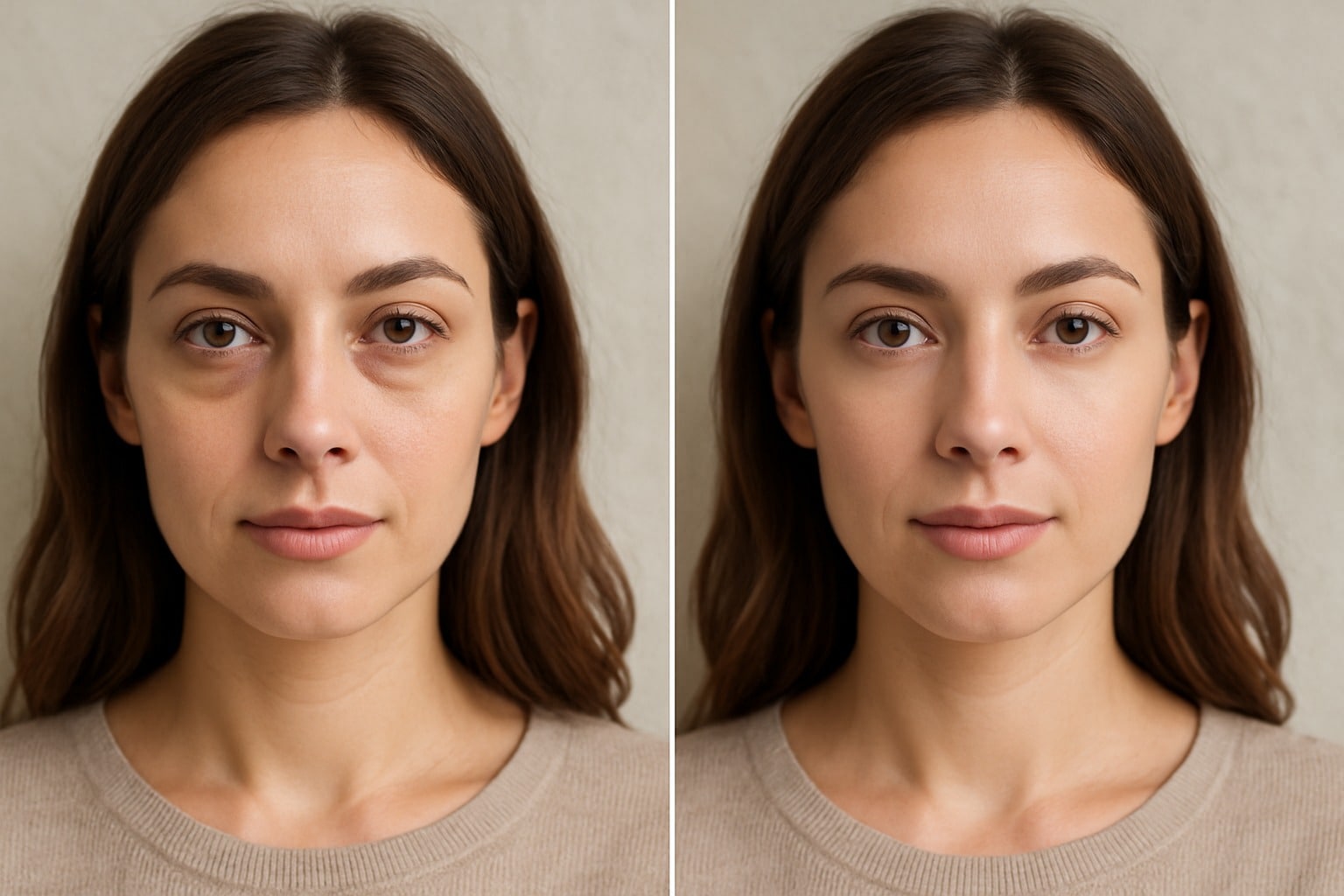
Ever snapped the perfect selfie only to notice tired eyes staring back at you? Well, we’ve all been there. Those under-eye bags can steal attention from your beautiful eyes and make you look exhausted, even when you’re not. But here’s the good news: with today’s smart AI tools, you can easily brighten and smooth your eyes in photos within seconds.
Today, we’ll show you how to remove eye bags from photos, reduce dark circles, and bring your eyes back to life using the best eye bag remover editors.
Part 1: Key Features to Consider When Picking an Eye Bag Remover Editor
Before you jump into using a photo editor to remove eye bags from your pictures, it’s important that you know that not every editor gives the same results. Some tools can make your eyes look too smooth and unnatural, while others are hard to use or come with high price tags.
Below are a few key things you need to look out for when picking an eye bag remover for your photos:
- Accuracy of Detection: You need to look for tools that use AI to accurately detect under-eye areas. This ensures that only the eye bags are targeted without affecting other facial features, while keeping your photo natural
- Adjustable Retouch Intensity: Being able to control how strong the effect helps maintain a balance between smoothness and natural skin texture. Over-editing can make your photo look fake, while subtle adjustments preserve realism.
- Speed and Efficiency: Fast processing is important. You need to use a tool that works quickly, so you can see your edits in no time and enjoy a smooth, hassle-free editing experience.
- High-Resolution Output: Maintaining image quality after editing is crucial, especially if you plan to print the photo or share it on platforms where clarity matters. The best editors preserve resolution while applying retouching effects.
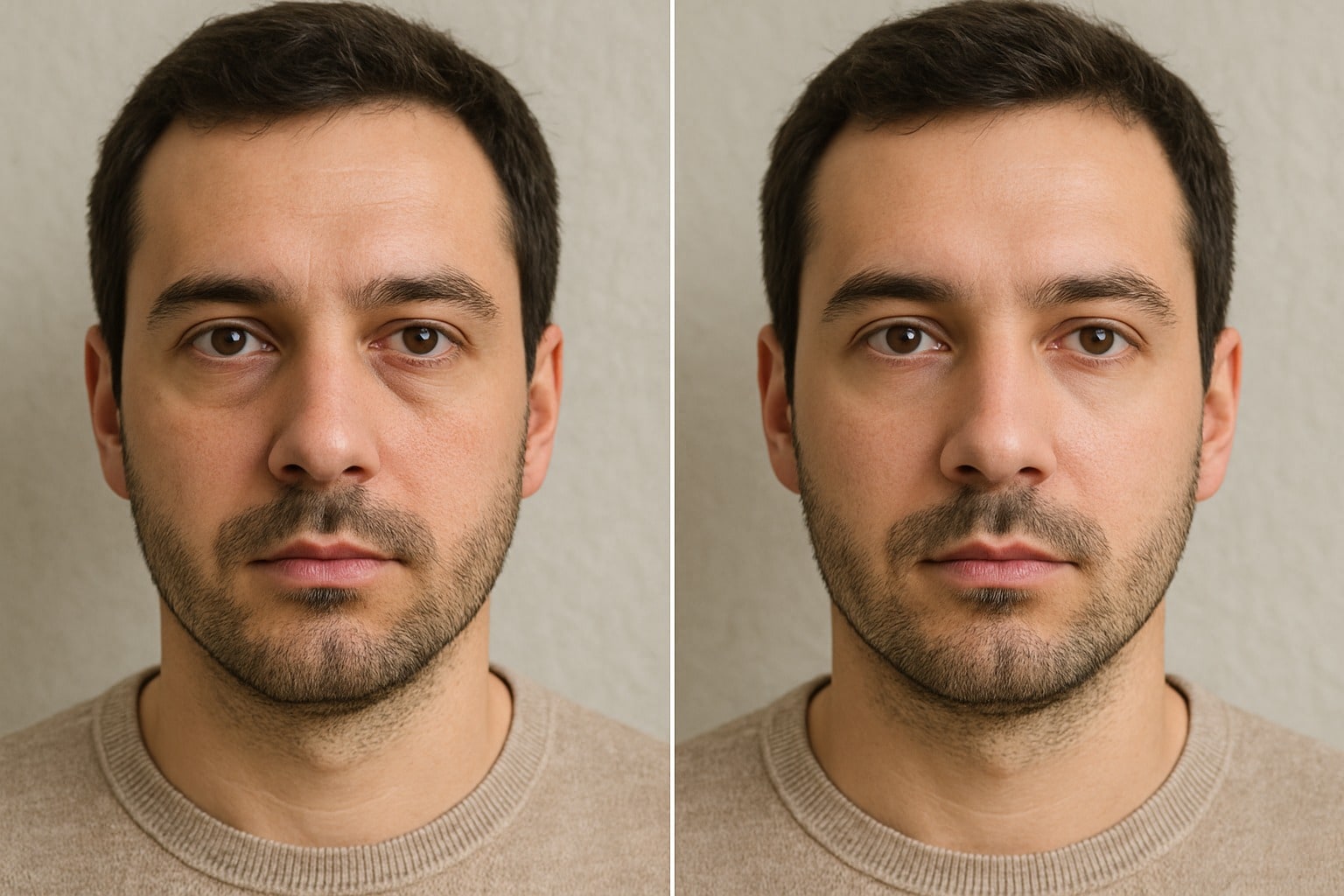
Part 2: Top Tools to Remove Eye Bags from Photos
Now that you know what to look for, let’s explore the best tools that can help you remove eye bags easily without losing quality. Each of these tools works differently based on your device and editing needs.
1. Wondershare Filmora – Photo & Video Editor
Wondershare Filmora is a multipurpose media editor for both photos and videos. This tool is packed with so many amazing AI-powered features, one of which is its Body and Face Retouch.
With Filmora’s Beauty and Retouch tools, you automatically detect under-eye areas and smooth out puffiness, dark circles, and fine lines while keeping your eyes sharp and natural.
In addition to that, you can also adjust the intensity of your edits, balance uneven tones, and still maintain high-resolution output. Filmora is especially useful if you’re editing both photos and videos for social media or personal projects.
Key Features of AI Beauty:
- Uses AI Face Detection to automatically detect and correct under-eye dark circles
- It brightens and smooths eye bags while keeping the face natural
- The edits are applied without the media losing quaility
- Beyond eye bags, you can also fix blemishes, wrinkles, skin tone, and other facial flaws


 secure download

2. Imgkits – Online Eye Bag Remover
Imgkits is a simple web-based tool that allows you to remove eye bags from photos online for free. For this tool, you just have to upload your photo, and its AI will identify puffiness and dark circles under the eyes.
Imgkits is a top option when you want to make a quick edit and don’t have ample time or space to install an app or software. And, since it’s online, you can access it from any device with an internet connection.
Key Features:
- Uses One-Click automatic processing. So, users can’t adjust the edit intensity
- Results are natural and undetectable.
- Removes eyebags while keeping original image quality

3. YouCam Perfect – Mobile App
YouCam Makeup is one of the best apps for quickly and naturally erasing eye bags from photos. Whether you are dealing with tired eyes, dark circles, or under-eye puffiness, this app offers a simple, one-swipe fix.
Thanks to its smart AI face detection and one-tap retouch tools, YouCam Makeup accurately targets the area beneath the eyes and smooths it without making the photo look fake or heavily edited. It works perfectly for selfies, portraits, and profile pictures.
Key Features:
- Works for both Android and IOS
- Real-time eye bag removal for selfies
- Adjustable retouch intensity
- Includes blemish removal and filters
Now that we’ve looked at how these eye bag remover editors work individually, let’s compare them side by side to see which one gives the most versatile and reliable.
What Tool is Best for Removing Eye Bags
Below is a table chart that shows a clear comparison between Filmora, Imgkit, and YouCam eye bag remover tools.
|
Feature |
Filmora |
Imgkits |
YouCam Makeup |
|
Works For |
Photos and videos |
Photos only |
Photos only |
|
Available On |
Windows & macOS |
Web browser (online) |
Android & iOS |
|
Ease of Use |
Beginner-friendly; drag & drop |
Very easy; upload & auto edit |
Very easy; one-tap edits |
|
Control Over Intensity |
Provides user control with sliders |
Fully Automatic. No control |
Limited preset sliders |
From the table above, it is clear that Filmora is the best tool for removing eye bags from photos. not just because it works for both photos and videos, but also because it offers better control and professional-quality results.
Part 3: How to Remove Eye Bags from Photos and Videos Using Filmora
So far, we have proven that Filmora tops the list of the best photo/video editors that you can use to remove eye bags. Now, let us give you a detailed guide on how to use this tool:
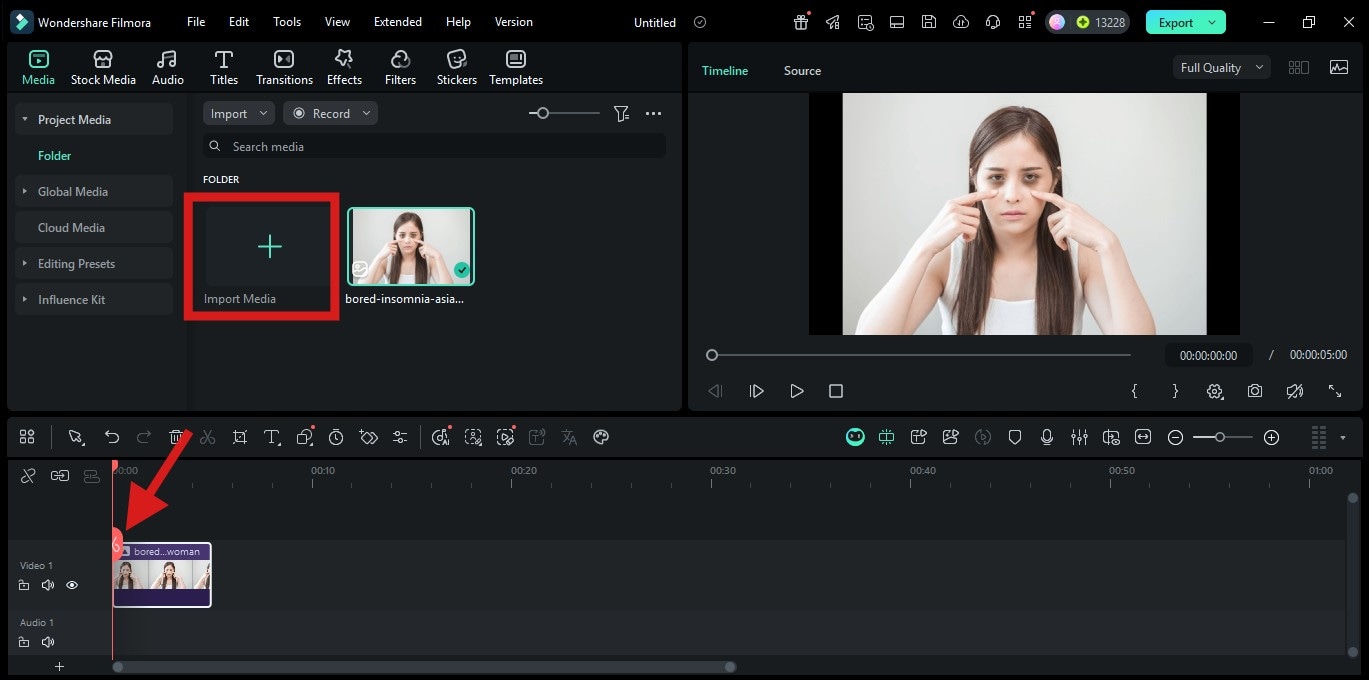
Step 1: Open Filmora and Import Photo/Video
- Launch the Filmora editing tool on your device and on the home screen, click “New Project” to open the editing workspace.
- In the editing workspace, click the Import Media button
- Then browse and select the photo or video you want to edit and load it into Filmora.
- To make it ready for editing, drag and drop the imported file down to the timeline below
 secure download
 Note: Make sure the media starts at the beginning of the timeline for a smooth application of the effect.
Step 2: Go to Effects > Body Effects > Retouch
- Click on the Effects tab in the top-left menu bar to reveal all effect categories on the right-hand side of the screen.
- Click on the Body Effects
- Under Body Effects, select the Retouch This is where you will find the different effects that focus on retouching skin and facial features.
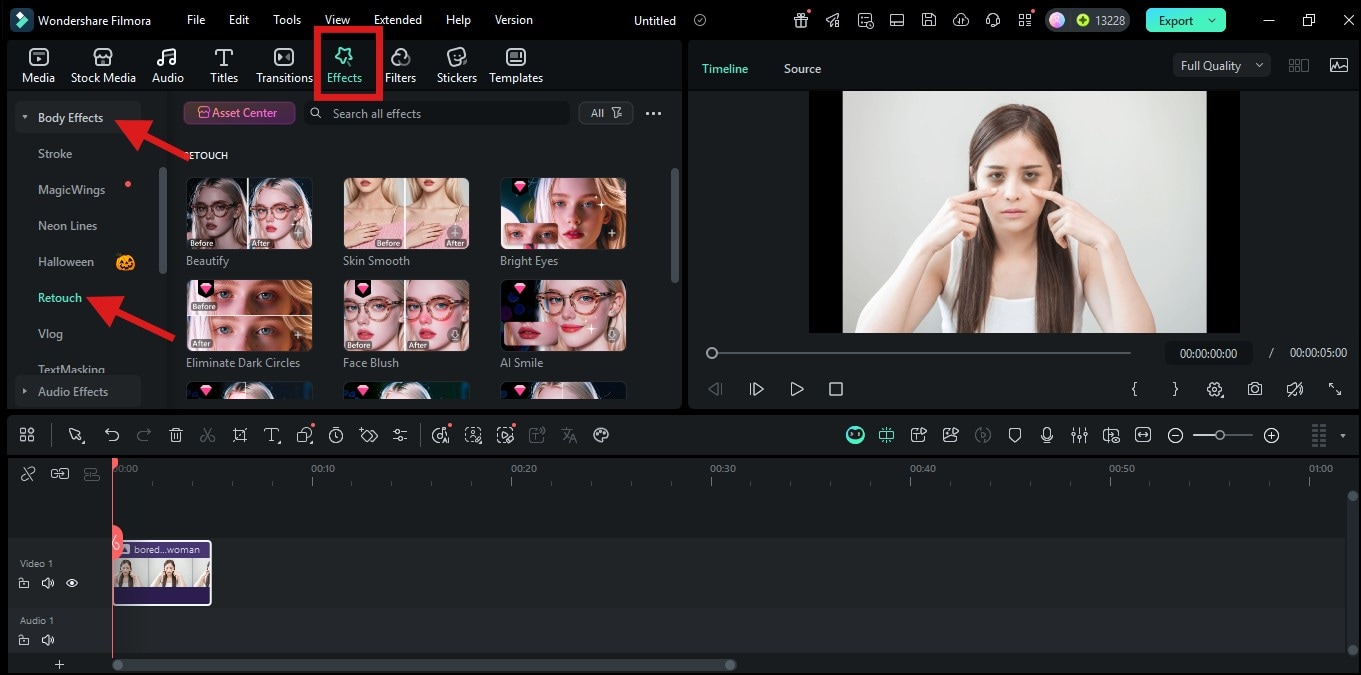
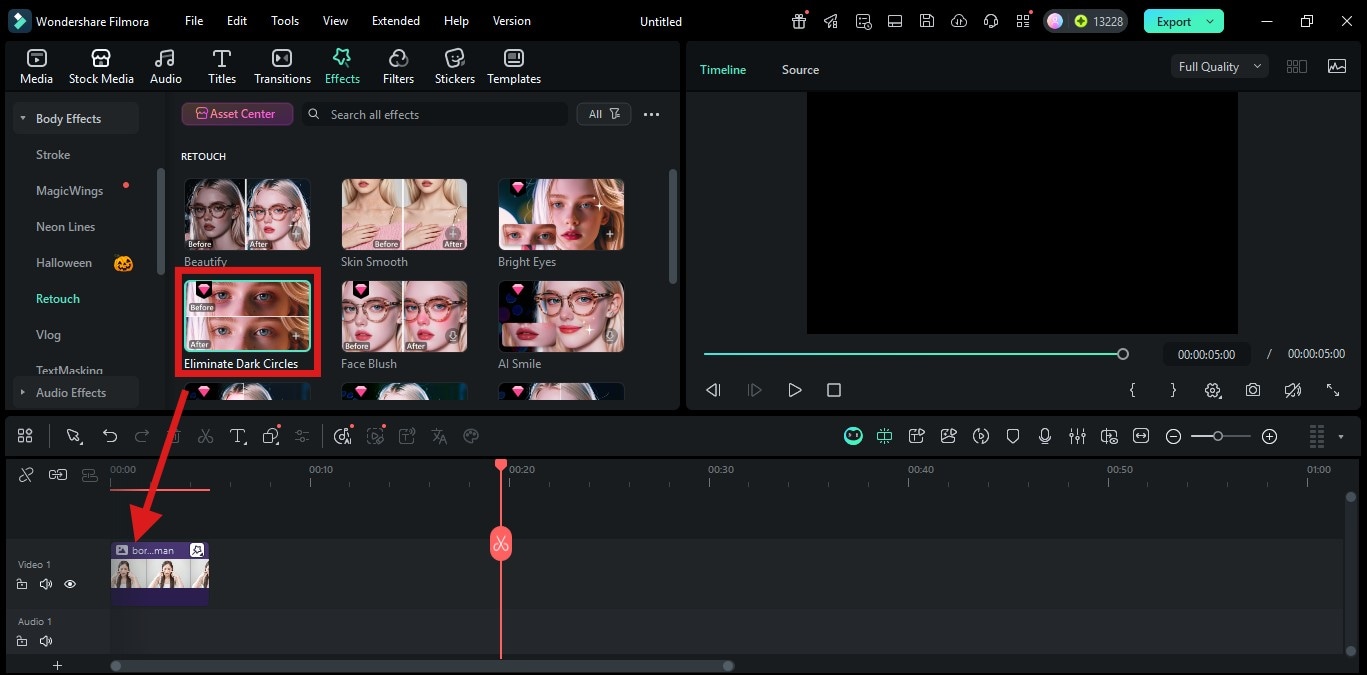
Step 3: Apply the Eliminate Dark Circle Effect
- Drag the Eliminate Dark Circle effect and drop it directly onto your media clip in the timeline. Filmora will automatically detect the face and apply the default smoothing filter.
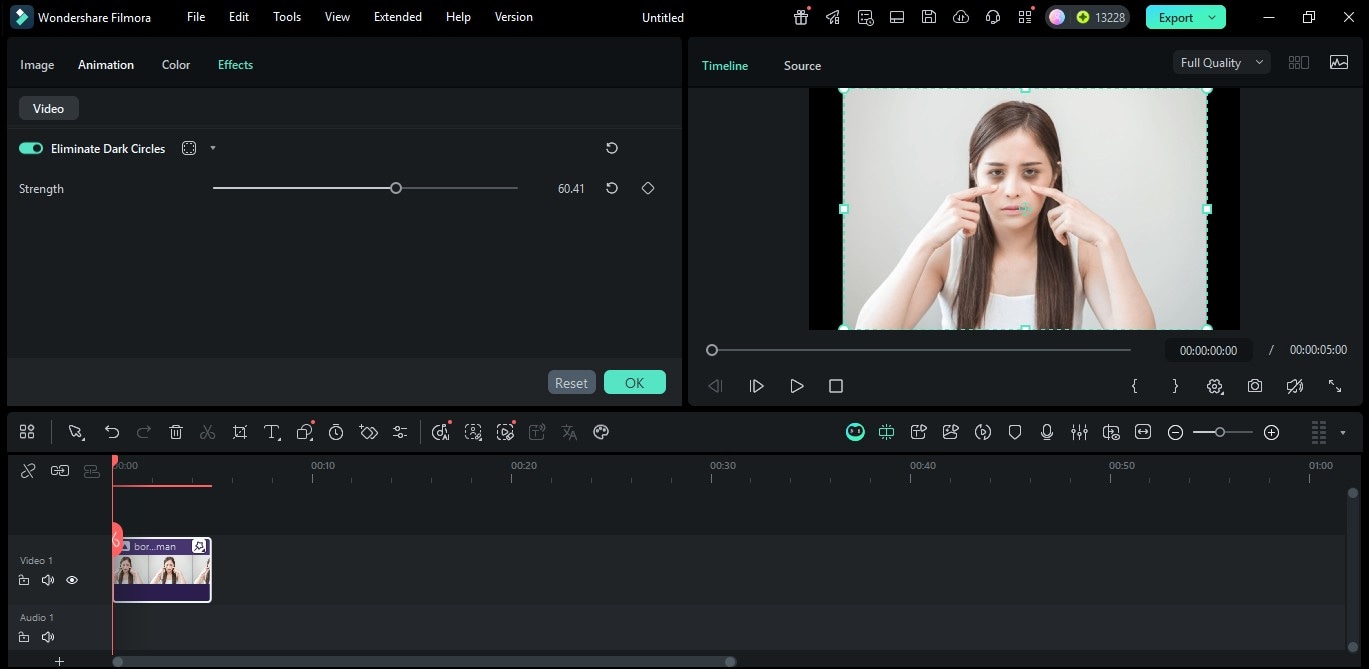
- Double-click on the media in the timeline, and a customization panel will open
- Select the Effects tab inside the customization panel.
- Then use the Strength Slider to increase or decrease the intensity of the effect to what you want.
Once you are okay with your edits, click on the Export button (located at the top-right corner), and save the edited photo or video in your preferred format.
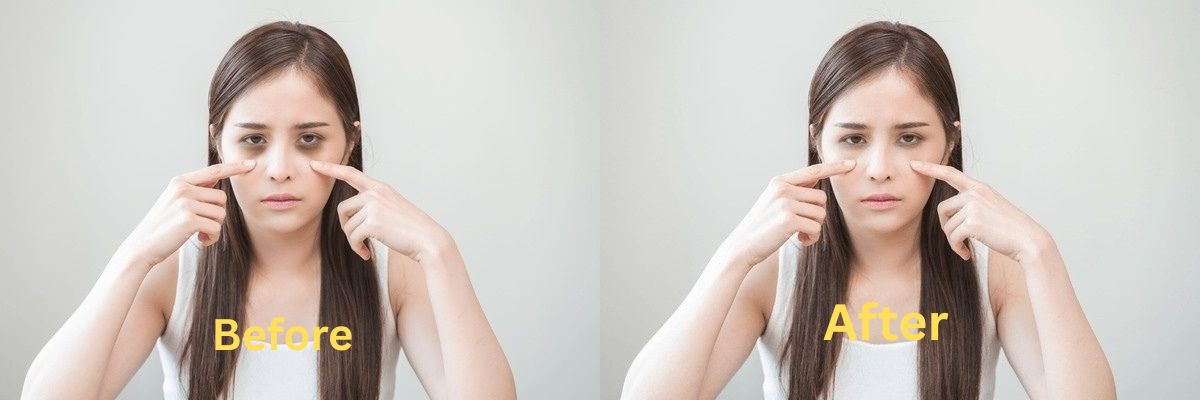
Conclusion
Eye bags and dark circles don’t have to ruin your photos or videos. But with the right tool, you can fix them in seconds without any editing experience. Among all the options, Filmora stands out as the best eye bag and dark circle remover photo editor because it is easy to use, and it gives full control over the effects.
If you want fast, clean, and professional retouching, try Filmora today and give your selfies, portraits, and videos a clean look.
secure download 